
Watching your favorite shows, movies, or even presentations on a bigger screen is always better. But what if you don't have WiFi available? The good news is that you can still connect your phone to your TV without using WiFi. In this guide, we'll explore different methods and step-by-step instructions on how to connect phone to TV without WiFi, and practical tips to make the process simple and hassle-free.
#1. Use Miracast
One of the simplest ways to connect your phone to a TV without WiFi is to take advantage of the built-in screen mirroring feature that many modern TVs and smartphones offer. This function allows your phone to directly project its screen onto the TV, letting you watch videos, browse photos, or even display apps without needing an internet connection. However, WiFi still needs to be turned on because Miracast uses WiFi Direct, and both your phone and TV or receiver must support Miracast or wireless screen mirroring.
- For Android devices
How to connect my phone to my TV without WiFi? This method works with most Android devices as well as TVs and receivers that support Miracast. Many Android phones include a built-in screen mirroring feature that lets you display your phone's screen on a TV or other external display without needing extra apps.
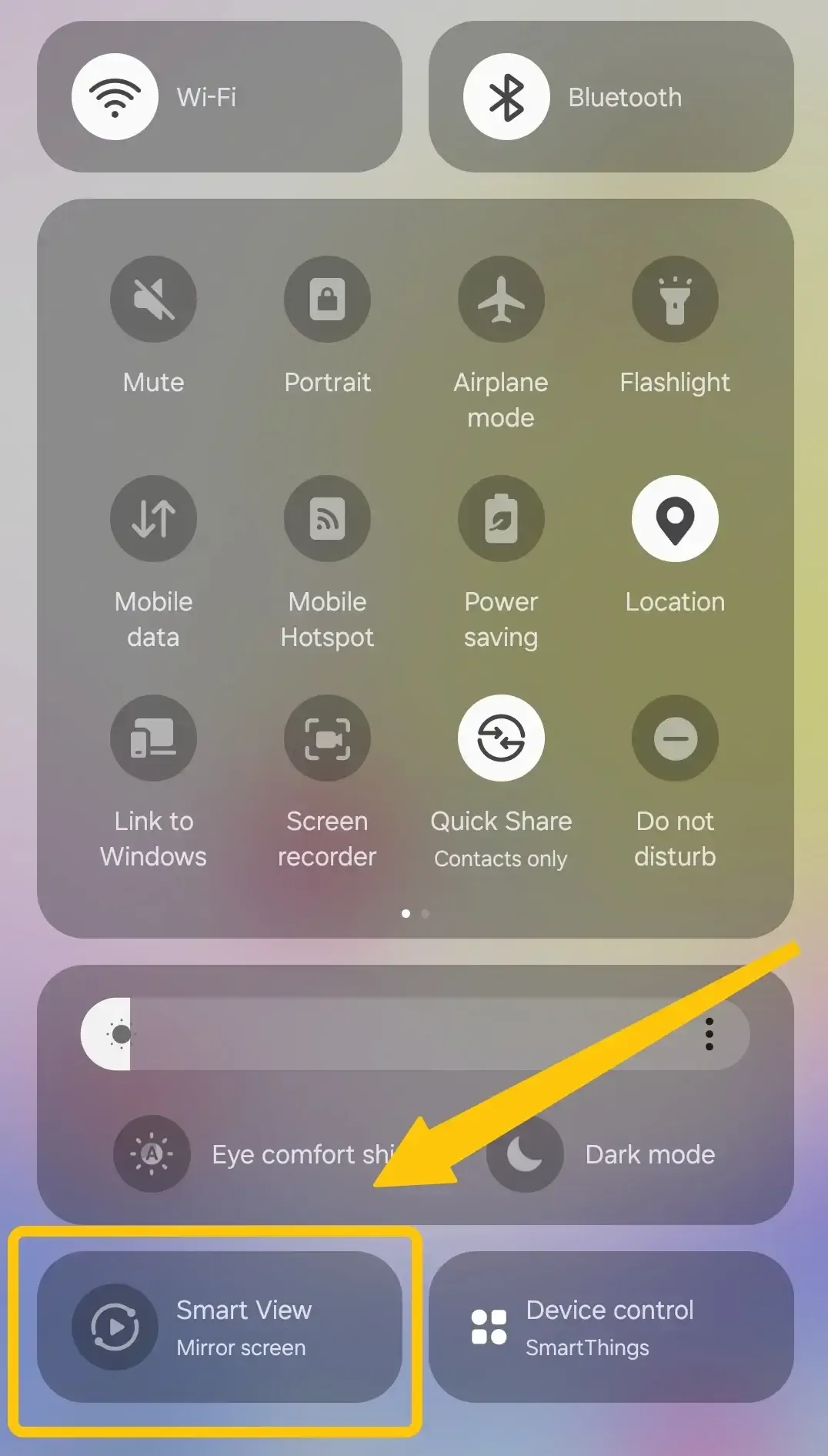
Depending on your device, this feature may appear in the settings menu under names like Cast, Smart View, or Wireless Display. Below are the simple steps you can follow to mirror your Android phone to your TV.
Step 1. Make sure your TV or receiver supports Miracast or wireless screen mirroring. You can check the TV manual or the manufacturer's website.
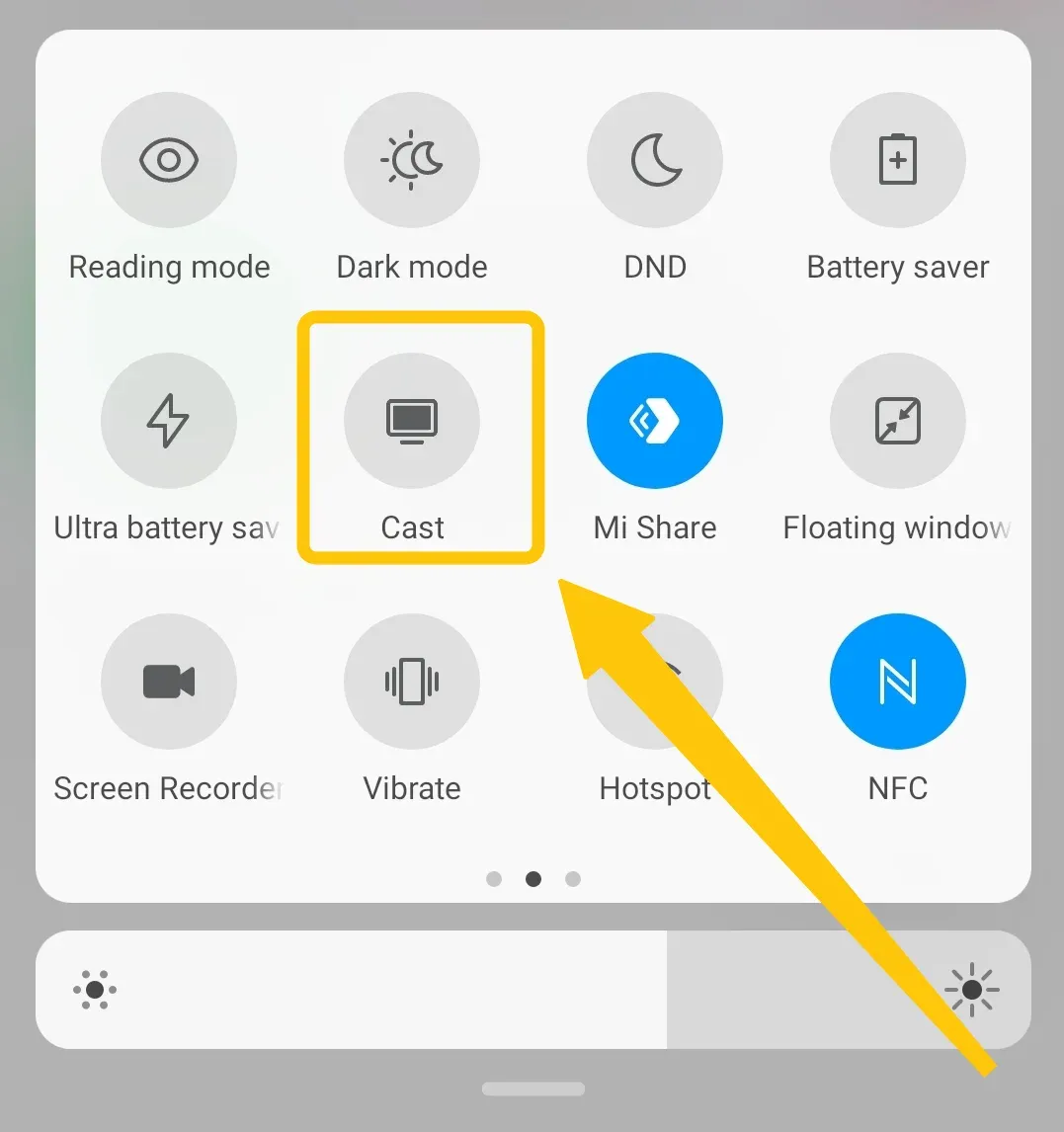
Step 2. On your Android phone, go to Settings or Quick Panel to find the Cast, Smart View, or Wireless Display option.
Step 3. Your phone will search for nearby compatible devices. When your TV appears in the list, tap it to connect.
Step 4. Some TVs will prompt you to accept the connection, and approve the request to start mirroring your phone's screen.
#2. Use Peer-to-Peer AirPlay
How can I connect my phone to the TV without WiFi? If you're using Apple devices, peer-to-peer AirPlay lets you mirror your iPhone or iPad to an Apple TV without a shared WiFi network. This feature connects your devices directly—no router needed—as long as you're using an Apple TV (4th generation or later) and an iPhone, iPad, or iPod Touch running iOS 8 or above. Learn more about AirPlay without WiFi and how it works across Apple devices.
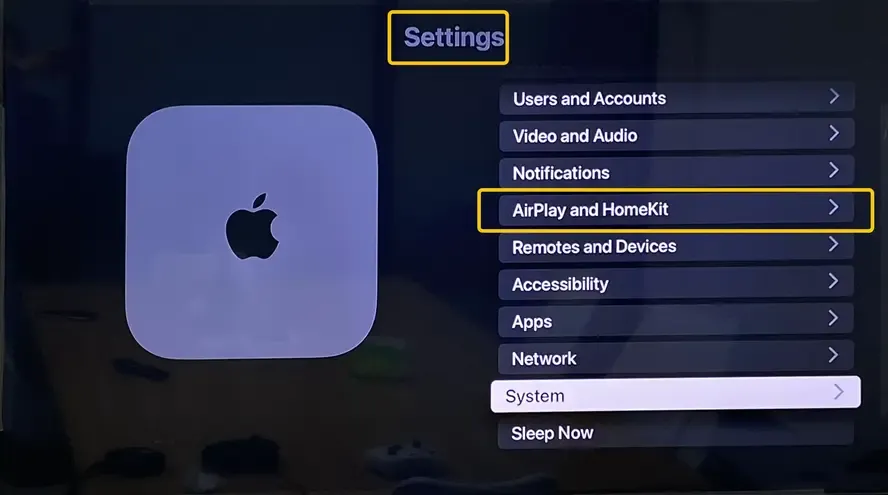
Step 1. Ensure AirPlay is enabled on both your iPhone and TV. (On your Apple TV, go to Settings > System or General > AirPlay and make sure the service is turned on.)
Step 2. Turn on WiFi and Bluetooth on both your Apple devices.
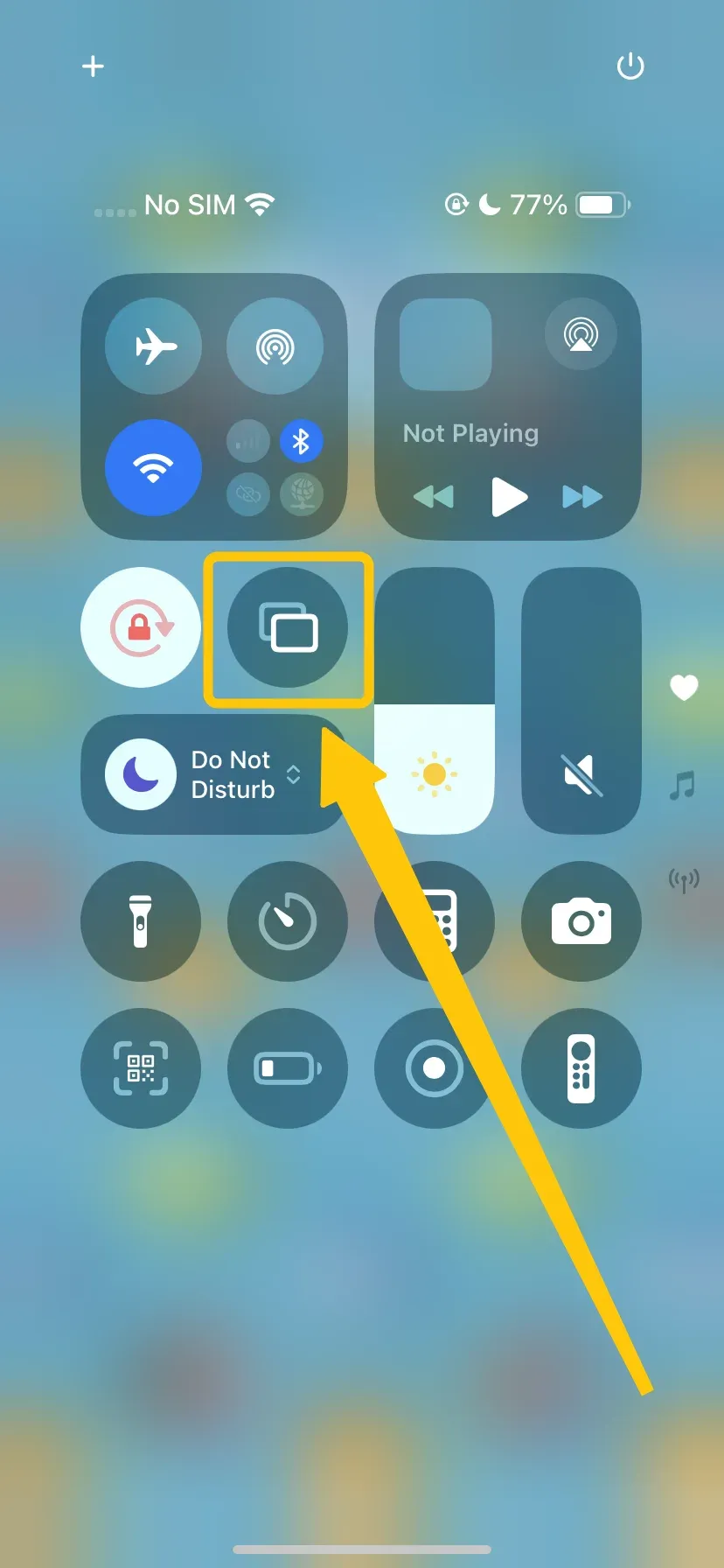
Step 3. On your iPhone, tap Screen Mirroring in the Control Center and choose your Apple TV from the available list.
Step 4. Enter the code on your iPhone to confirm the connection. Once connected, your iPhone screen will appear on the TV.
#3. Use a Wired Connection
How to connect your phone to your TV without WiFi? If wireless options are not available or you want a more stable connection, using a wired connection is a reliable way to connect your phone to a TV without WiFi. By using the right adapter and HDMI cable, you can mirror your phone's screen directly to the TV, ensuring smooth video playback and minimal lag.
- For Android phone:
To connect an Android phone to your TV using a wired connection, you will need a compatible adapter, such as a USB-C to HDMI or MHL adapter, depending on your device model. This allows your phone to transmit both video and audio directly to the TV.
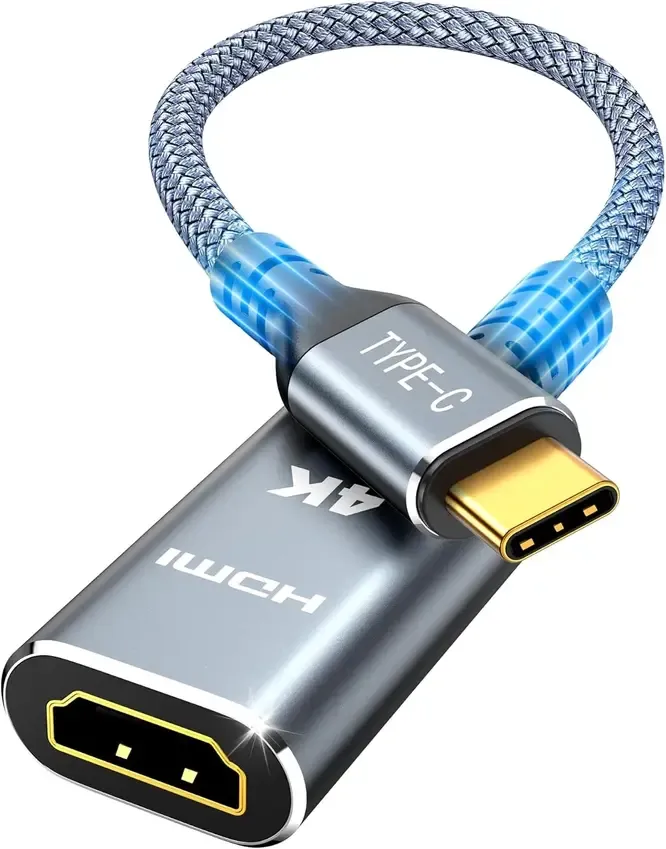
Step 1. Connect one end of the HDMI cable to the TV's HDMI port.
Step 2. Connect the other end of the HDMI cable to the USB-C to HDMI adapter. Then connect the USB-C end of the adapter to your Android's USB-C port.
Step 3. Change the input on the TV to the HDMI source that the cable is connected to.
Step 4. Turn on your TV and select the correct HDMI input that matches the port you used, then you should see your Android phone screen displayed on the TV.
- For iPhone:
How to connect my phone to TV without WiFi? Using a Lightning to HDMI adapter for iPhone models up to iPhone 14, or a USB-C to HDMI adapter for iPhone 15 and later, you can mirror your iPhone screen directly to your TV for videos, photos, apps, or presentations. This method works even when wireless options like AirPlay are unavailable.
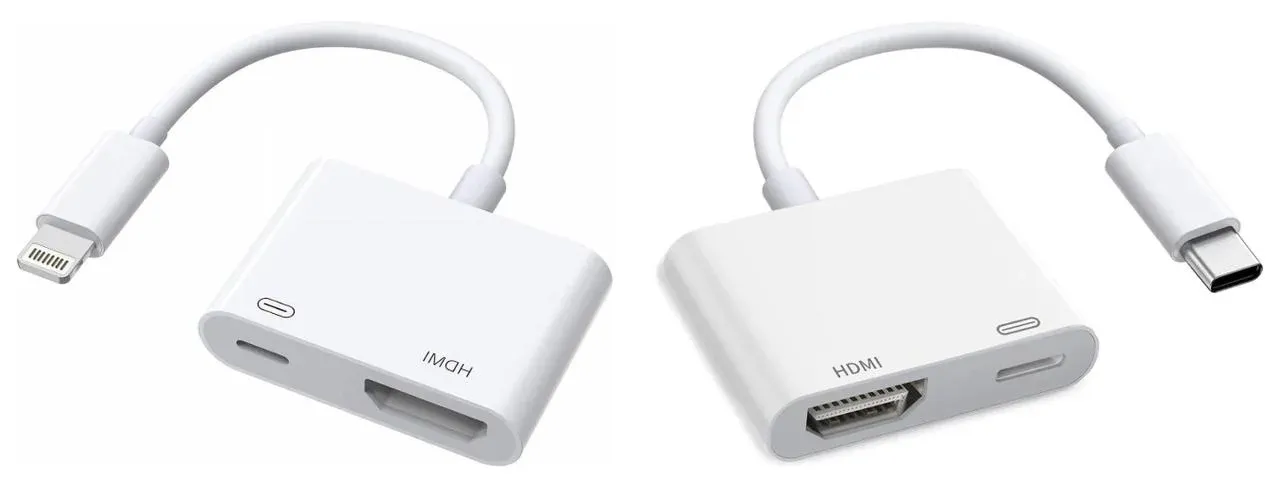
Step 1. Check your iPhone model to choose the correct adapter for connecting to your TV.
Step 2. Plug the adapter into your iPhone's port and connect it to an available HDMI port on your TV using an HDMI cable. Take note of which HDMI input you used, so you can select it on your TV.
Step 3. Turn on your TV and switch to the corresponding HDMI input. Your iPhone screen should appear on the TV.
#4. Use a Mobile Hotspot
You can still connect your phone to your TV without a home WiFi network by using a mobile hotspot. This method does not remove WiFi completely; instead, your phone creates a temporary WiFi network that your TV or streaming device can join. Once both devices are connected to that hotspot, you can mirror your screen or cast content through a compatible app. Keep in mind that this method may not work with all TVs, and the quality can vary depending on your hotspot signal and your TV's capabilities.
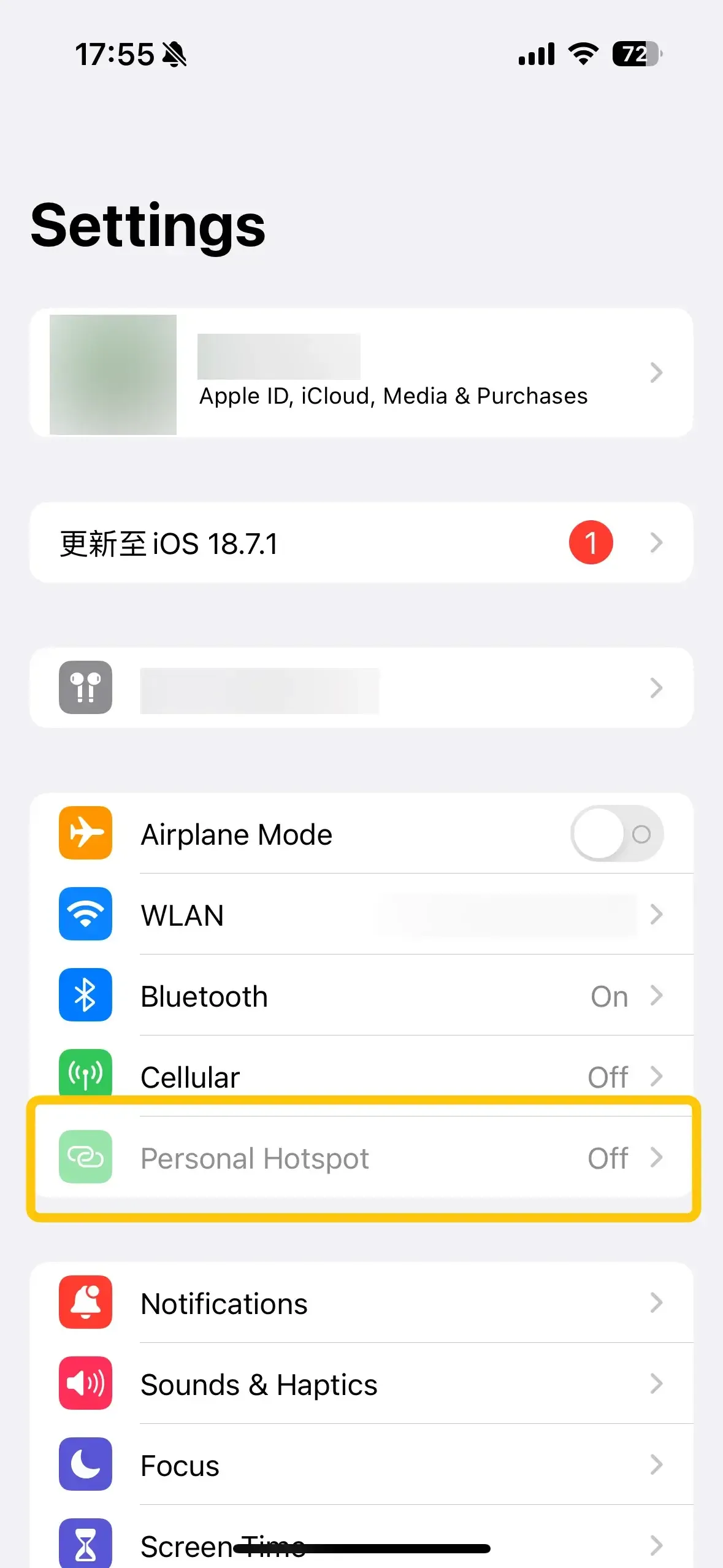
Step 1. On your phone, go to Settings > Mobile Hotspot (or Personal Hotspot) and turn it on. Make note of the hotspot name (SSID) and password, as you'll need them to connect your TV.
Step 2. On your TV, open the Network or WiFi settings and search for available networks. Select your phone's hotspot name and enter the password to connect.

Step 3. Install a screen mirroring app, such as PigeonCast, on your phone and on your TV as well.
Step 4. Open the screen mirroring app on your phone and select the TV from the list of available devices.
Step 5. After following the onscreen instructions, your phone's screen should now be mirrored on the TV.
Important Note: Using a mobile hotspot can quickly consume your mobile data, especially when streaming videos or mirroring your screen. Depending on your mobile plan, this may result in additional fees or data overage charges, so it is important to check your data limits before using a hotspot for screen mirroring.
Final Verdict
How to connect phone to smart TV without WiFi? Whether you use built-in screen mirroring, a wired HDMI connection, and a mobile hotspot with an app like PigeonCast, you have multiple ways to connect your phone to your TV. Each method is simple and practical, letting you stream videos, share photos, or display apps anytime, anywhere.
How to Connect Phone to TV Without WiFi FAQ
Q: Can you connect a phone to a TV without WiFi?
Yes, you can connect a phone to a TV without WiFi. This can be done using HDMI or USB cables. These methods allow you to mirror your phone's screen, stream videos, or share photos directly on the TV without relying on a wireless network.
Can you screen mirror via Bluetooth?
Not really, you can screen mirror via Bluetooth, but it has limitations. Some smart TVs support Bluetooth mirroring, which allows you to display photos, presentations, or basic content from your phone. However, it does not provide high-quality video streaming and may experience lag, so it's best suited for simple screen sharing rather than watching movies or playing games.
How can I connect my phone directly to my TV?
You can connect your phone directly to your TV using a wired connection. For most phones, this involves:
- HDMI cable: Use an HDMI adapter (USB-C or Lightning to HDMI) to connect your phone to the TV's HDMI port.
- USB cable: Connect your phone to the TV's USB port to view photos, videos, or other media files.
Can I screen mirror if my TV is not connected to WiFi?
Yes, you can screen mirror even if your TV is not connected to WiFi, but it depends on the method you use. Wired connections like HDMI or USB allow direct mirroring without WiFi. Some third-party apps or devices, like PigeonCast or Chromecast in guest mode, also let you mirror your phone using a mobile hotspot or direct connection, bypassing the need for a WiFi network.
Clara Rossi is an experienced technology editor and a seasoned expert in screen mirroring and casting technologies. With a keen eye for detail and a deep understanding of how to seamlessly connect devices, Clara excels at optimizing user experiences for effortless sharing and streaming. Whether you're seeking quick fixes or advanced tips, her expertise and responsiveness ensure that every query is met with a well-informed and efficient solution.