
Do you need WiFi to screen mirror? The answer isn't as straightforward as Yes or No. It actually depends on the devices you're using, the type of screen mirroring technology, and what you're trying to display. Let's take a closer look at the different scenarios so you can choose the best method for your setup.
Do You Need WiFi to Mirror Screen
Some screen mirroring methods require Wi-Fi because they rely on a shared network connection between your device and the TV or display. Others can work without Wi-Fi by creating a direct connection between the two devices. For example, you can mirror an Android phone to a TV without Wi-Fi using Miracast, a mobile hotspot, or a wired connection. Here is a quick breakdown:
- Wi-Fi Required Methods
| Chromecast | Streams content through your home network for smooth playback. |
|---|---|
| AirPlay (Apple devices) | Typically requires both your iPhone, iPad, or Mac and the AirPlay device to be on the same WiFi network. |
| Smart TV apps | Many smart TVs need WiFi to receive the mirrored signal from your device. |
| PigeonCast | A versatile screen mirroring app that uses your Wi-Fi network to stream from your phone, tablet, or PC to any TV or display. It supports multiple casting protocols like AirPlay, DLNA, and Google Cast for flexible and stable wireless streaming. |
- No Wi-Fi Needed Methods
| HDMI or USB-to-HDMI cables | Wired connection that works anywhere without internet. |
|---|---|
| Miracast/Wi-Fi Direct | Establishes a peer-to-peer wireless connection between devices without a router. |
| Direct Mode on some smart TVs | Let your phone connect directly to the TV without using a network. |
| AirPlay Peer-to-Peer | Do you need wifi to use AirPlay? Available only on Apple TV devices, this feature uses Bluetooth and Wi-Fi Direct to mirror your iPhone without relying on a shared Wi-Fi network. |
Does screen mirroring require WiFi? Methods that require WiFi are perfect for streaming online apps like YouTube, Netflix, or Hulu. On the other hand, methods that don't need WiFi are ideal for offline content, presentations, or situations where you're traveling and a network isn't available.
How to Screen Mirror with WiFi
Screen mirroring over Wi-Fi makes it easy to share content from your phone, tablet, or computer directly to your TV without any cables. Whether you're watching a family video, giving a presentation, or streaming your favorite show, the process works smoothly when both your device and TV are connected to the same Wi-Fi network. Here're the main mirroring methods:
Way 1. AirPlay (Apple Devices)
If you want to share your iPhone, iPad, or Mac screen on a larger display, AirPlay makes it simple to mirror your device wirelessly over Wi-Fi. Here's how to do it in detail:
Step 1. Ensure your iPhone or iPad and your AirPlay-compatible device (Apple TV or smart TV) are on the same Wi-Fi network.
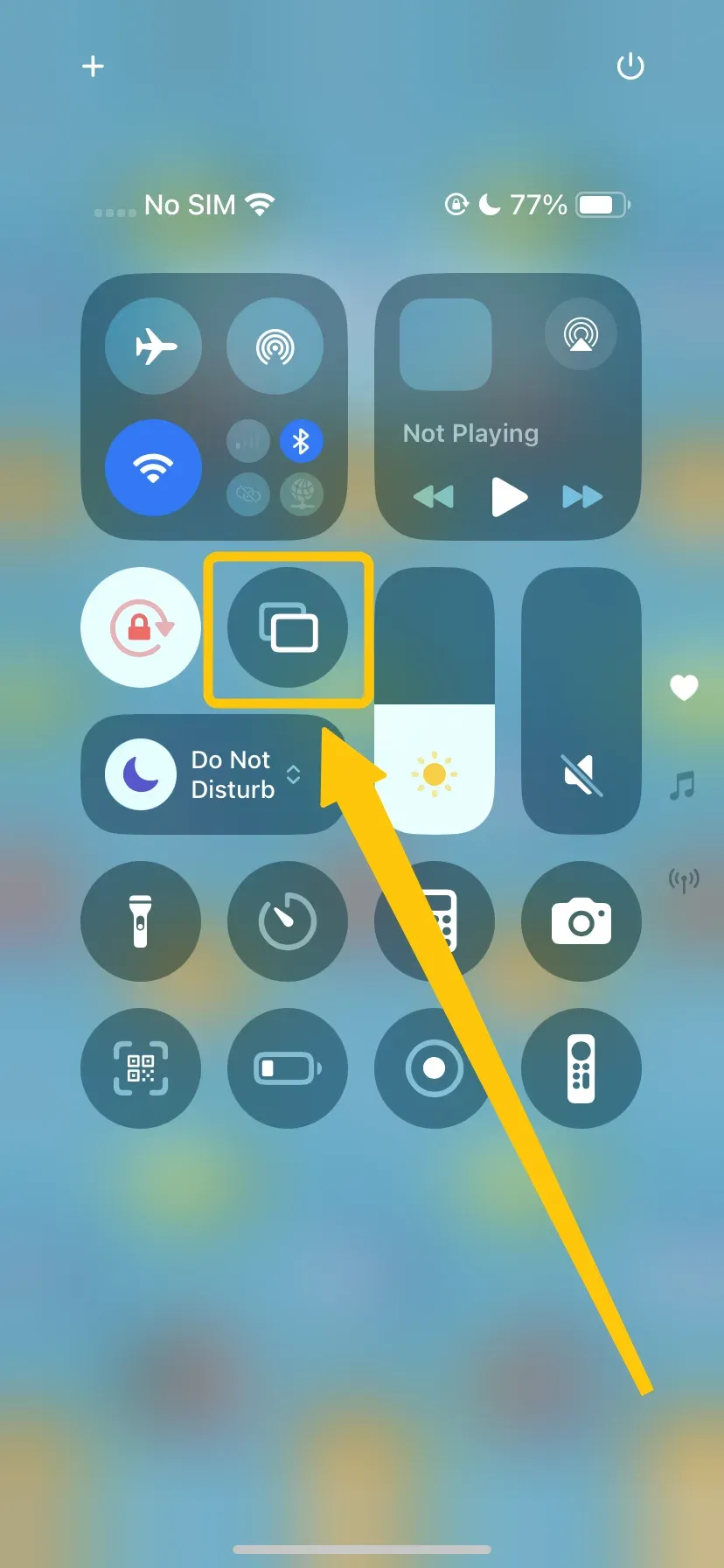
Step 2. Open Control Center and tap Screen Mirroring to select your device from the available list.
Step 3. Enter the AirPlay code if prompted displayed on your TV. Then, your device's screen will now appear on your TV.
Way 2. Smart View/Cast/Miracast (Android Devices & Windows)
Most Android phones and many Windows PCs support screen mirroring through Smart View, Cast, or Miracast. These features let you wirelessly project your screen onto a smart TV, whether through WiFi or WiFi Direct without any cables or additional apps. Here's how to use them depending on your device:
- On Android devices:
For Android users, most modern devices offer a built-in Smart View or Cast feature that allows you to mirror your screen to a smart TV over Wi-Fi. This method is fast, wireless, and doesn't require any extra apps. Here's how to use it:
Step 1. Ensure your Android device and your smart TV are connected to the same Wi-Fi network.
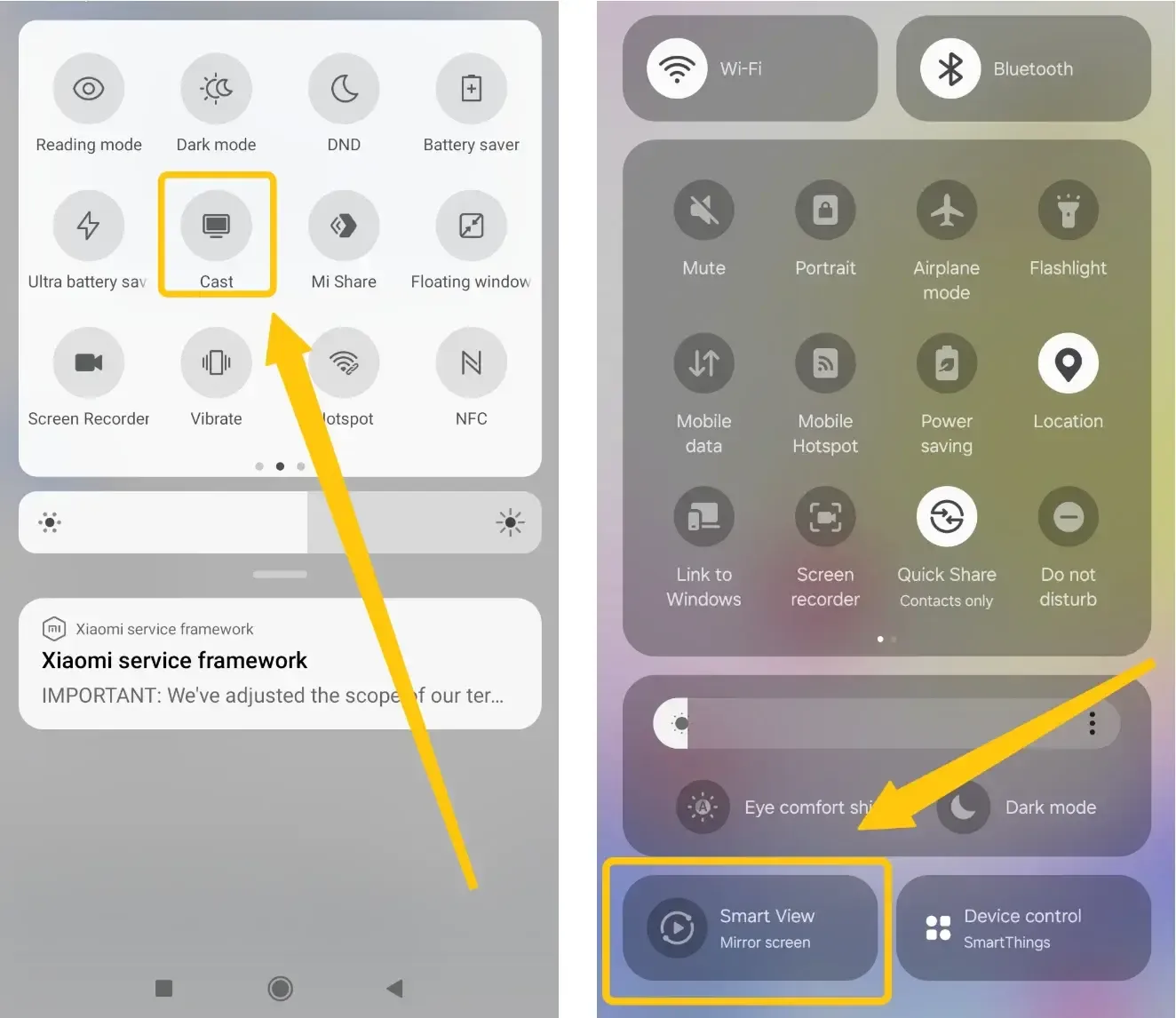
Step 2. Swipe down from the top of your Android device's screen to open the Quick Settings panel. Depending on your device, this option may also be labeled Cast or Smart View.
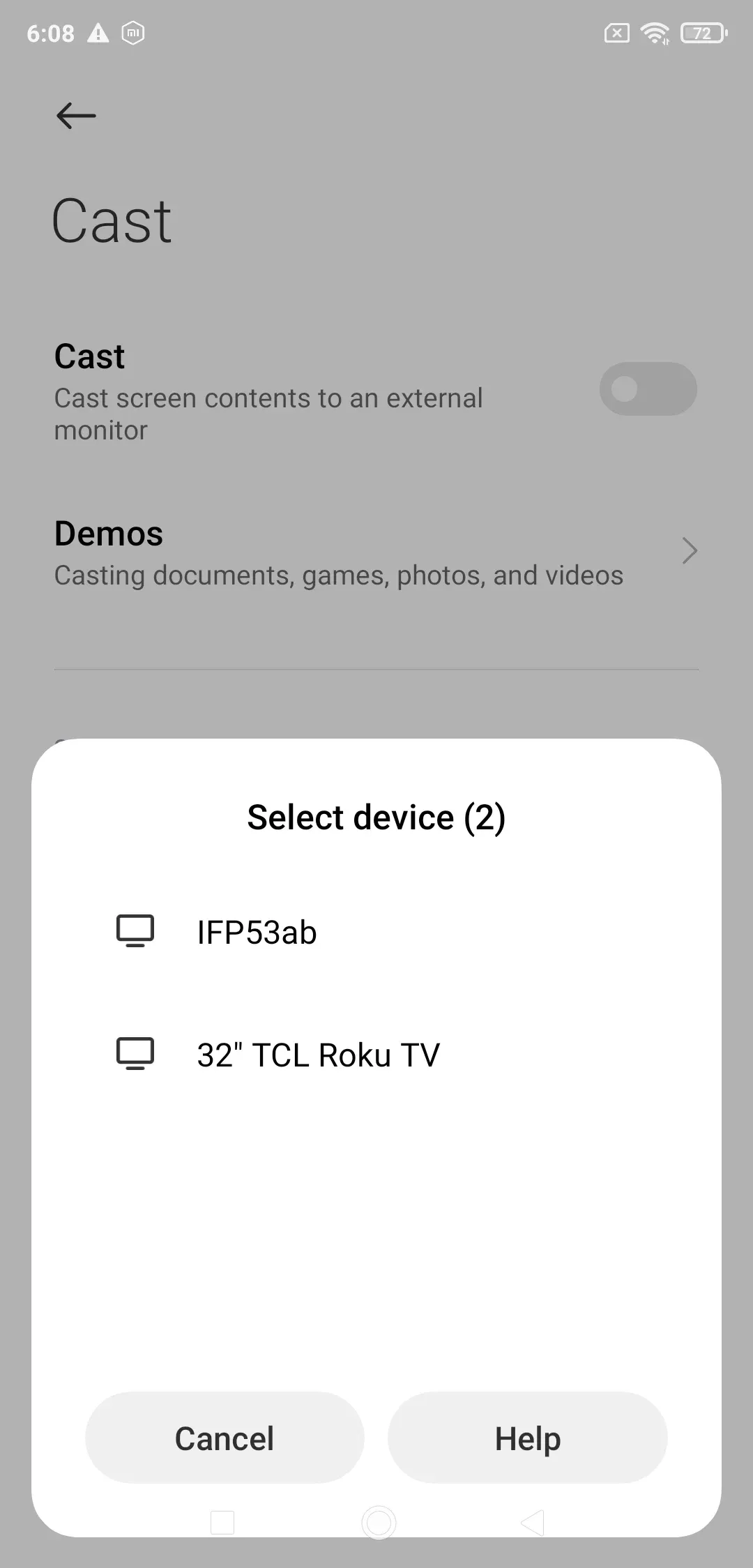
Step 3. Select your TV from the list of available devices, and confirm the connection on your TV if prompted.
Step 4. Your Android screen will now appear on your TV, allowing you to share apps, videos, games, and more.
- On Windows PC:
For devices that support Miracast, including many Windows PCs and some Android phones, you can wirelessly mirror your screen to a Miracast-enabled TV or adapter. Miracast works over Wi-Fi Direct, so you don't need a router or internet connection—just make sure both devices are compatible.
Step 1. Press Windows + A (or click the notification icon) to open Quick Settings.
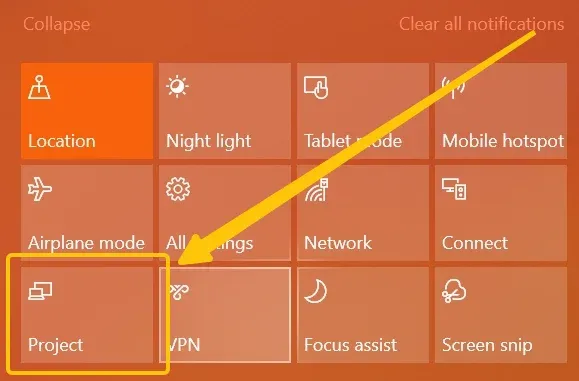
Step 2. Click Project > Connect to a wireless display, and choose your Miracast-enabled TV from the list, and confirm the connection on your TV.
Step 3. Confirm the connection on your TV if prompted, your computer screen will now appear on the TV in real time.
Way 3. Chromecast (Google Devices/Device with Chrome Browser)
If you have a Chromecast or a device that supports the Chrome browser, screen mirroring is simple and versatile. Since this works with almost any device that has Chrome installed, it's a flexible and convenient way for you to stream content.
Step 1. Make sure your devices and Chromecast are on the same Wi-Fi network.
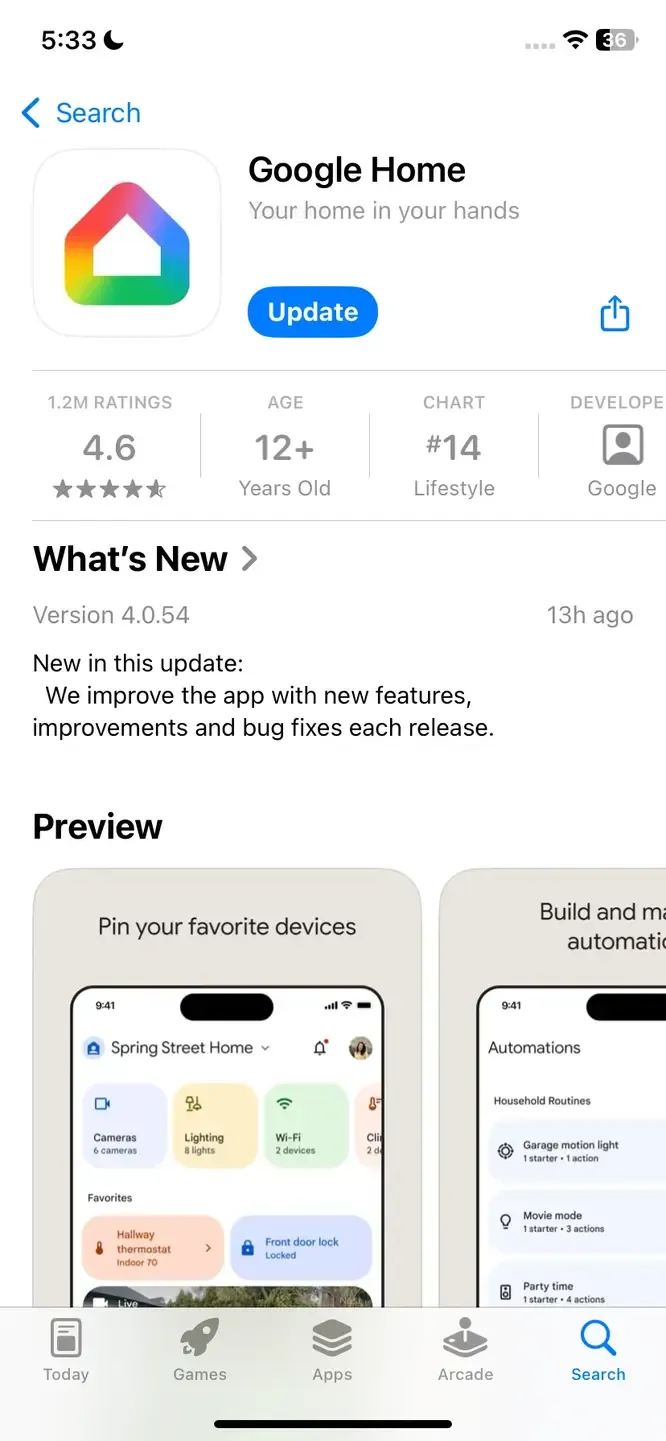
Step 2. Open the Google Home app and select your Chromecast device from the list.
Step 3. Tap Cast my screen and confirm, then your Android screen will appear on your TV.
Way 4. Third-Party Apps (PigeonCast)
Alternatively, you can mirror your screen using third-party apps like PigeonCast. This free app bridges the gap between Android and Apple ecosystems and is integrated with AirPlay, DLNA, and Google Cast for maximum casting flexibility. It also provides end-to-end encryption, ensuring your content stays private and secure while casting.


PigeonCast Screen Mirroring

Official Download



Step 1. Install PigeonCast on your device from the app store.
Step 2. Ensure your devices are covered by the same wireless network.
Step 3. Launch the app on your device and follow the onscreen introductions to select the receiver device from the available list.
Step 4. Enter the PIN code to finish the connection. Once you succeed, you can start mirroring between your devices.
How to Screen Mirror Without WiFi
Do you need WiFi to screen mirror iPhones or Androids? Wireless connections, such as AirPlay, Chromecast, Miracast, or third-party apps, enable you to mirror your screen without any cables, making it convenient for streaming videos, presenting, or sharing photos. Let's explore the different wireless options and how they work.
Way 1. Peer-to-Peer AirPlay (Apple Devices)
iOS users have the option to use peer-to-peer AirPlay, which allows them to mirror their device to an Apple TV without requiring a WiFi network. To use this feature, you'll need an iOS device running iOS 8 or later (such as iPhone 5 or newer) and a compatible Apple TV.
Step 1. Make sure your iOS device runs iOS 8 or later (iPhone 5 or newer) and your Apple TV is compatible (Apple TV 4K or Apple TV HD).
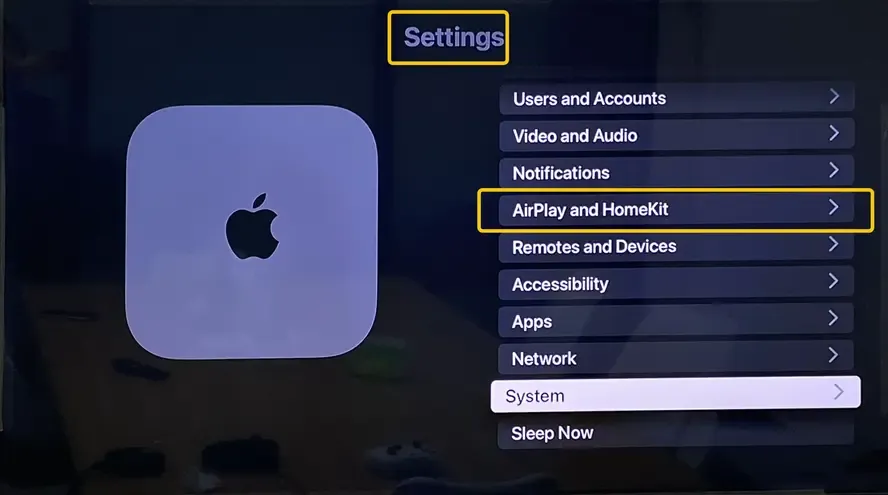
Step 2. Enable AirPlay on your Apple TV from Settings > AirPlay and HomeKit > turn AirPlay to On.
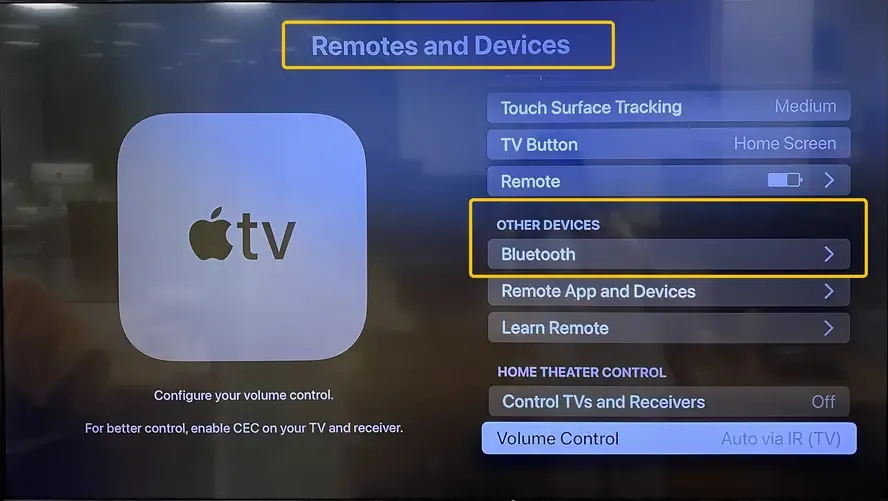
Step 3. Ensure Bluetooth is turned on for both your iOS device and Apple TV. Peer-to-peer AirPlay relies on Bluetooth to discover the Apple TV.
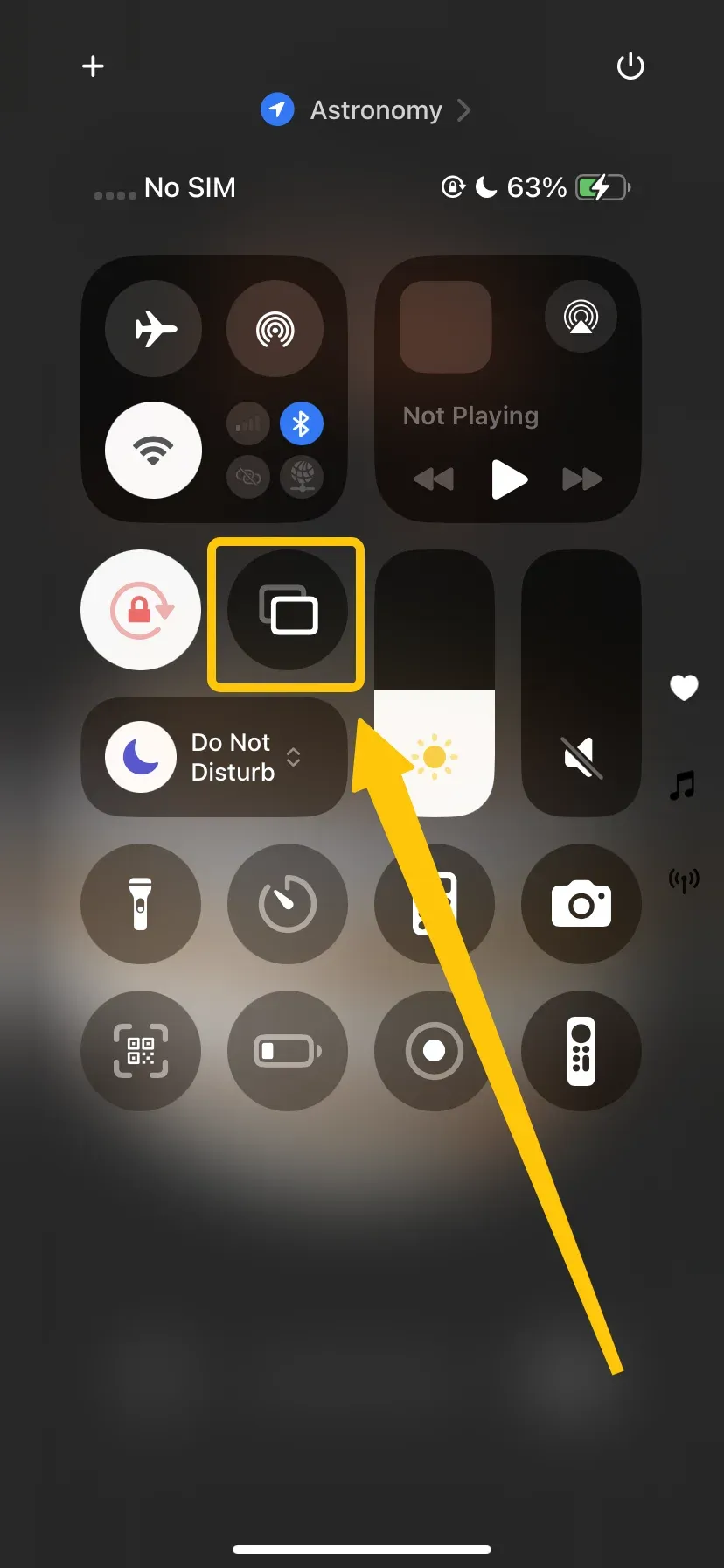
Step 4. On your iPhone or iPad, open Control Center > Screen Mirroring and select your Apple TV from the list.
Step 5. If prompted, enter the code displayed on the Apple TV to confirm the connection.
Step 6. Your iOS device screen will now mirror the Apple TV without using WiFi.
Way 2. Miracast/Wi-Fi Direct (Android Devices)
Do you need WiFi for screen mirroring? When using a wireless connection to mirror your Android device, it's also important to check your TV's capabilities. Make sure your TV supports built-in Bluetooth, Miracast, or other wireless mirroring features that are compatible with Android phones or tablets. You can usually confirm this by reviewing the TV's specifications on the manufacturer's website or in the user manual.
Step 1. On your TV, go to the Input menu and select Bluetooth Devices or Screen Mirroring.
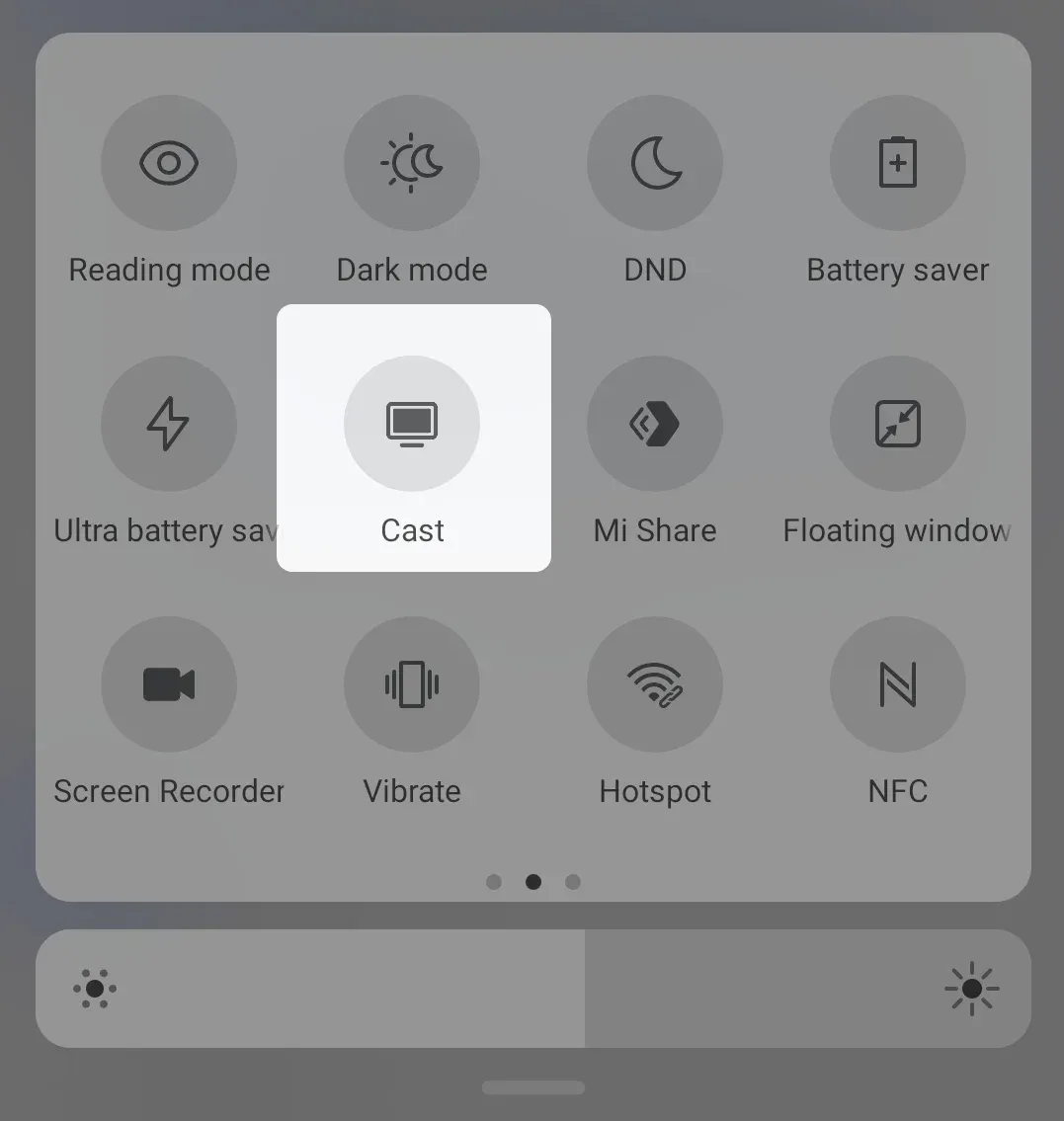
Step 2. On your Android phone, open the Cast, Smart View, or Screen Mirroring feature.
Step 3. Look for your TV in the list of available devices and select your TV.
Step 4. Choose the option to mirror your device if available.
Step 5. Your Android screen should now appear on the TV, allowing you to stream videos, apps, or presentations without using WiFi.
Way 3. HDMI Cable (Any Device with HDMI Port)
Do you need WiFi to cast to TV? If you want a stable and reliable connection without worrying about WiFi, using a wired connection is a great option. Whether it's an HDMI cable or a USB-to-HDMI adapter, a wired setup lets you mirror your device's screen directly to a TV or monitor with minimal lag and consistent quality. Let's take a closer look at how to use a wired connection to screen mirror.
- For iPhone or iPad:
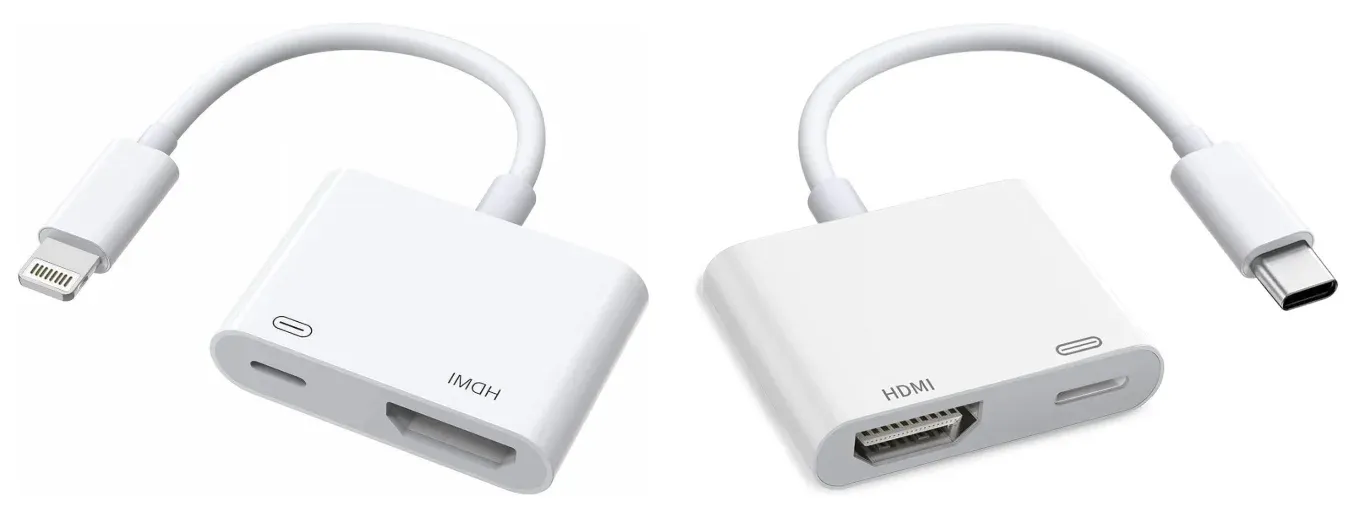
Step 1. Determine your device port and get the correct adapter:
- For iPhone 5 through iPhone 14, and most iPads with a Lightning port, use a Lightning Digital AV Adapter (Lightning to HDMI).
- For iPhone 15 or later, or USB-C iPads like iPad Pro 2018+, iPad Air 4/5, use a USB-C to HDMI adapter.
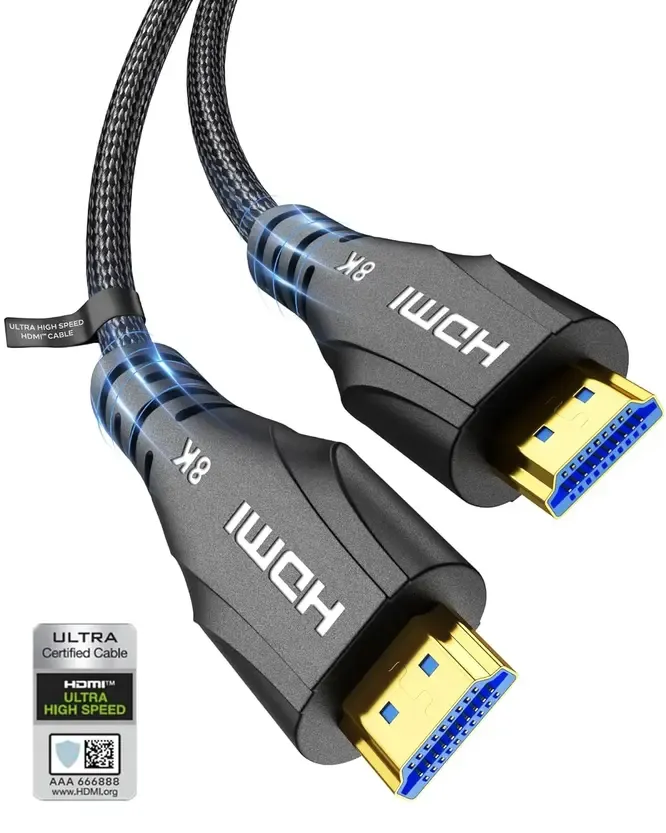
Step 2. Connect the adapter to your iPhone or iPad, then plug an HDMI cable from the adapter into an available HDMI port on your TV or monitor.
Step 3. Turn on your TV and switch to the corresponding HDMI input.
Step 4. Your iPhone or iPad screen will automatically appear on the TV. You can now stream videos, display apps, or show presentations.
- For Android Phone:
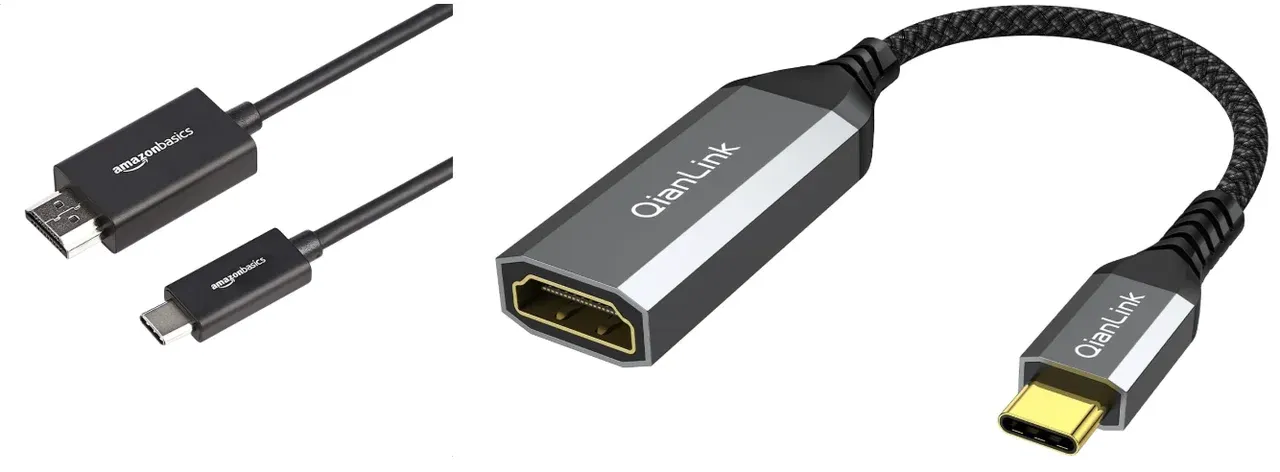
Step 1. Check your Android device's port type:
- USB-C: Use a USB-C to HDMI adapter. Many modern Android phones support this.
- Micro-USB: Use an MHL (Mobile High-Definition Link) adapter, which converts Micro-USB to HDMI. Not all older Android phones support MHL, so check your device specifications.
Step 2. Connect your phone to the adapter, then plug an HDMI cable from the adapter to your TV or monitor.
Step 3. Turn on your TV and select the correct HDMI input.
Step 4. Your Android screen should now appear on the TV. You can adjust orientation, volume, or display settings for optimal viewing.
Compare WiFi vs. No WiFi Screen Mirroring
When deciding how to mirror your device's screen, it's important to understand the differences between using a Wi-Fi network and going without one. Each method has its advantages, limitations, and ideal use cases. The table below summarizes the key aspects of Wi-Fi and no Wi-Fi screen mirroring, helping you choose the option that best fits your devices, location, and streaming needs.
| Wi-Fi Screen Mirroring | No Wi-Fi Screen Mirroring | |
|---|---|---|
| Connection Method | Both devices on the same Wi-Fi network | Direct connection via Miracast/Wi-Fi Direct, HDMI/USB, AirPlay Peer-to-Peer, or mobile hotspot |
| Internet Requirement | Not required for mirroring, but Wi-Fi network needed | Not required |
| Supported Devices | Most smart TVs, Chromecast, Apple TV, DLNA devices | Devices that support Miracast, AirPlay Peer-to-Peer, wired HDMI/USB, or hotspot-based apps |
| Streaming Quality | High-quality, stable streaming if the network is strong | Generally stable, may vary for wireless direct methods; wired provides highest stability |
| Distance | Depends on Wi-Fi coverage (usually entire home) | Short-range for wireless direct connections; wired connections limited by cable length |
| Setup Complexity | Easy once devices are on the same network | May require adapters or enabling specific modes; wireless direct may need pairing |
| Mobility | Full mobility within Wi-Fi coverage | Wireless direct allows some mobility; wired restricts movement |
| Pros | High quality, long-range, supports multiple devices | Works without internet, not affected by Wi-Fi congestion, quick direct connection |
| Cons | Needs Wi-Fi, performance drops if the network is weak | Limited range, device compatibility issues, wired limits mobility |
Closing Words
Do you need wifi to screen mirror to TV? Not always. While many modern mirroring methods rely on Wi-Fi, there are plenty of alternatives that work offline, such as Miracast and HDMI cables. If your goal is to stream apps like Netflix or YouTube, Wi-Fi is a must. But if you simply want to share photos, videos, or presentations without relying on the internet, you can absolutely mirror your screen without Wi-Fi.
Do You Need WiFi to Screen Mirror FAQ
Do you need internet to screen mirror?
Not necessarily. Screen mirroring can work over a local Wi-Fi network even when that network has no internet access, since the connection is only used to transfer the screen between your device and the TV. In supported setups, this also makes wireless laptop screen mirroring without internet possible. You only need internet access when the content itself comes from an online service such as YouTube or another streaming platform.
Do both devices need to be on the same Wi-Fi network?
For AirPlay, Chromecast, DLNA, and most screen mirroring apps, the sending device and receiver usually need to be connected to the same local network. Miracast and Wi-Fi Direct are different because they create a direct wireless connection. Wired HDMI mirroring also works without placing the devices on the same network.
Can I use a mobile hotspot for screen mirroring?
Yes. You can connect the receiving TV or streaming device to a phone hotspot and then use a compatible screen mirroring app. In some setups, using a second phone as the hotspot makes the connection easier. Remember that streaming online videos through the hotspot may use mobile data, even though mirroring locally stored content may not.
Does screen mirroring use mobile data?
Screen mirroring itself does not always use mobile data. Miracast, Wi-Fi Direct, HDMI, and local-network mirroring transfer content directly between devices. Mobile data is used when you stream online content or when the devices communicate through an internet-connected hotspot. Data usage therefore depends mainly on the content source rather than screen mirroring alone.
Can you screen mirror through Bluetooth?
No. You generally cannot screen mirror using Bluetooth alone because it does not provide enough bandwidth for continuous video and audio transmission. Bluetooth may help devices discover or pair with each other, but the actual screen content is normally transmitted through Wi-Fi Direct, a local network, or a wired connection.
Can I screen mirror using hotel or public Wi-Fi?
Sometimes, but public networks often block communication between connected devices through client isolation. As a result, your phone may not detect the TV even when both appear to be on the same Wi-Fi network. A mobile hotspot, Miracast connection, travel router, or HDMI adapter is usually more reliable in hotels, dormitories, and other shared-network environments.
Clara Rossi is an experienced technology editor and a seasoned expert in screen mirroring and casting technologies. With a keen eye for detail and a deep understanding of how to seamlessly connect devices, Clara excels at optimizing user experiences for effortless sharing and streaming. Whether you're seeking quick fixes or advanced tips, her expertise and responsiveness ensure that every query is met with a well-informed and efficient solution.