
The Wi-Fi is down, there is no router nearby, or two laptops simply refuse to see each other before a meeting, demo, or quick handoff. At that point, the real question is not just whether wireless laptop screen mirroring without internet is possible. It is which offline method has the best chance of working before you waste 20 minutes testing the wrong one.
The good news is that some laptop-to-laptop mirroring setups do work without internet. The bad news is that "offline" is not one single situation. A local network with no internet, a direct wireless connection, and a mixed-device pairing problem all behave differently. In this guide, I will show you which paths are realistic, what usually breaks first, and when AirPlay, Miracast, PigeonCast, or a cable is the smarter move.
Can You Mirror a Laptop Without Internet?
Yes, sometimes. Two laptops can mirror wirelessly without active internet access, but they still need some local way to find each other and pass the display signal. That is why offline mirroring can feel easy in one room and impossible in another.
No Internet vs No Wi-Fi
This is the distinction that matters most. No internet means your devices cannot reach the web. No Wi-Fi usually means they do not have a shared wireless path at all.
If both laptops are still connected to the same local router, mirroring may work even when the router itself has no internet access. If there is no shared wireless path, you usually need direct wireless support, a receiver-based app workflow, or a cable.
When Offline Mirroring Works
Offline laptop mirroring works best when:
- both laptops can still discover each other locally
- one device can act as a receiver correctly
- both devices support the same wireless display method
- nothing on the network is blocking local device discovery
That is why supported Mac-to-Mac AirPlay setups and supported Windows-to-Windows Miracast setups can still work without normal internet service.
What Usually Breaks First
The first failures are usually basic compatibility or setup issues:
- the receiving laptop is not configured to accept the connection
- the laptops do not support the same protocol
- Wi-Fi is turned off because the user assumes offline means it is unnecessary
- a hotspot, guest network, or VPN blocks discovery
- the setup mixes devices that do not share one native display standard
If you check those first, you can often avoid wasting time on the wrong method.
What Makes Offline Wireless Mirroring Possible?
Offline wireless mirroring works only when something replaces the role people usually assume the internet plays. In reality, the important part is not the web connection. It is local discovery and a wireless transport method the two laptops can both use.
Local Network Discovery
This is the simplest case. If both laptops are on the same local Wi-Fi network, they may still be able to find each other even if the router has no internet access.
That is why a dead internet connection is often less of a problem than having no shared network at all. The local router can still do enough to let the laptops discover each other.
Wi-Fi Direct and Miracast
Some Windows-based mirroring setups use direct wireless display behavior instead of a standard shared network. Miracast is the best-known example. In supported environments, it can create a screen projection path without depending on outside internet access.
This can work well, but not every laptop supports it equally. Hardware, wireless adapters, drivers, and receiver settings still decide whether the connection appears at all.
Why Mixed Devices Are Harder
Mixed-device setups are harder because a Mac and a Windows laptop usually do not share one simple built-in wireless display standard. Two Macs may use AirPlay. Two supported Windows laptops may use Miracast. A Mac-to-Windows pair often needs a more flexible app-based approach.
That is why offline mirroring across mixed devices fails more often than same-platform mirroring. The problem is not just being offline. It is also the lack of a shared native method.
Best Offline Mirroring Method by Device Setup
Before you try anything, match the method to the laptops you actually have.
| Device setup | Best first choice | Why it fits offline use |
|---|---|---|
| Mac to Mac | AirPlay Mac to Mac | Best native option when both Macs support AirPlay Receiver |
| Windows to Windows | Miracast or Projecting to this PC | Can work locally without internet when the hardware supports it |
| Mixed devices (e.g., Mac to Windows) | PigeonCast | More practical than hoping for one built-in shared protocol |
How to Do Wireless Laptop Screen Mirroring Without Internet
If you want the most practical answer, work through these methods from the most natural wireless path to the most dependable fallback.
Same Local Wi-Fi
This is the best first test because it preserves the normal discovery behavior most closely.
Step 1. Keep both laptops connected to the same router or local Wi-Fi network.
Step 2. Confirm Wi-Fi is turned on for both devices even if the router itself has no internet access.
Step 3. On the receiving laptop, enable the receiver setting or wireless display mode your platform needs.
Step 4. On the sending laptop, open the built-in screen mirroring or wireless display control.
Step 5. Select the receiving laptop if it appears and test a short session first.
This is the simplest offline scenario because the local network is still doing the discovery work for you.
Method 1: Use AirPlay to Mirror Mac to Mac
If both laptops are Macs, the built-in Apple route is usually the first wireless method to try.
Step 1. Turn on Wi-Fi on both Macs.
Step 2. On the receiving Mac, enable AirPlay Receiver and make sure the access setting is not too restrictive for the test.
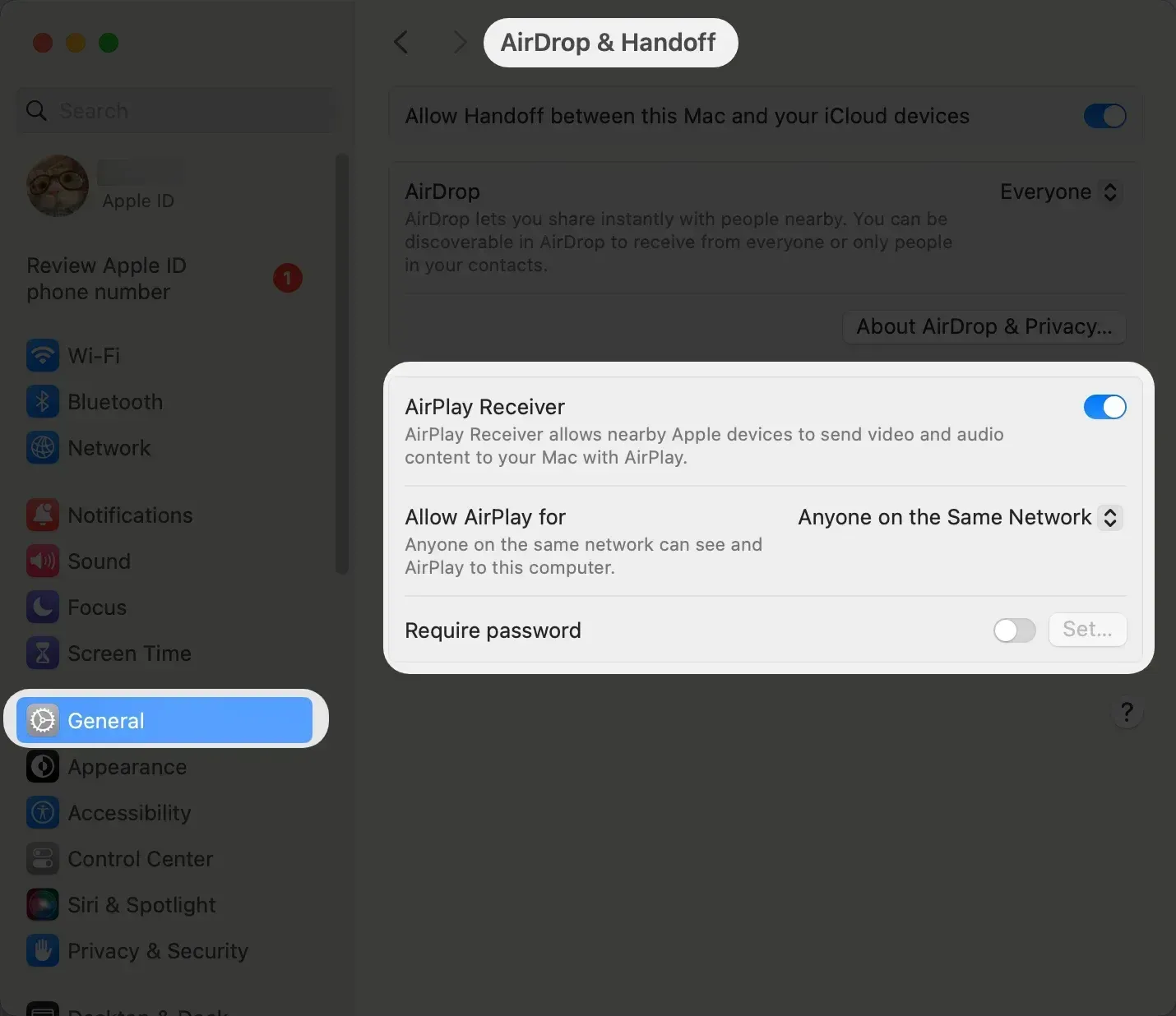
Step 3. Keep both Macs on the same local network for the cleanest discovery path.
Step 4. On the sending Mac, open Screen Mirroring from Control Center and choose the receiving Mac.
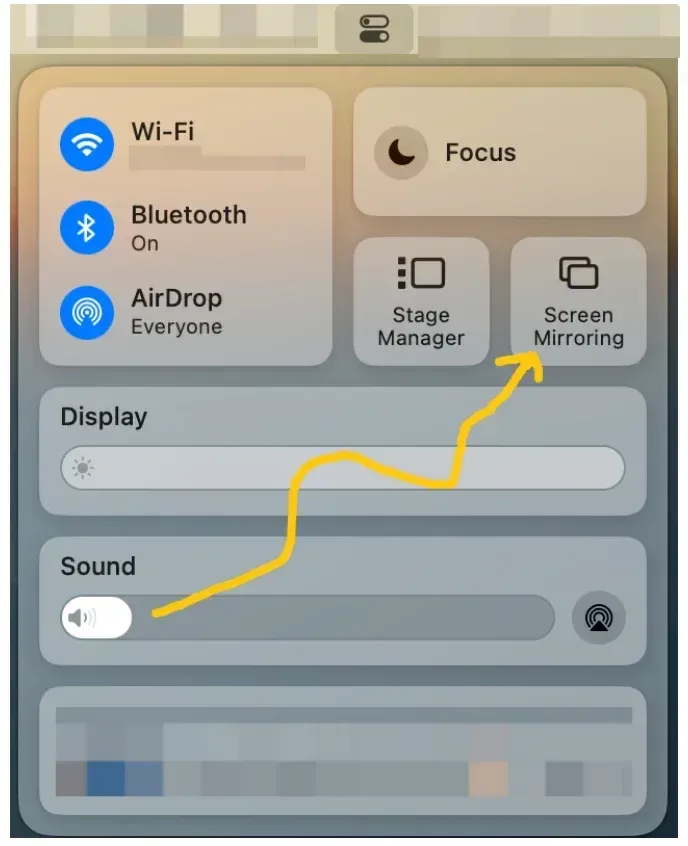
Step 5. Confirm the session starts and check readability, delay, and audio behavior before using it in a real meeting.
If the target Mac never appears, the usual problem is compatibility, receiver settings, or blocked local discovery rather than a hidden internet issue.
Method 2: Use Miracast to Mirror PC to PC
If both laptops are Windows devices, the native wireless display path may work well enough without internet when the hardware supports it.
Step 1. On the receiving PC, make sure the wireless display receiver feature is installed and the PC is set up to be discoverable.
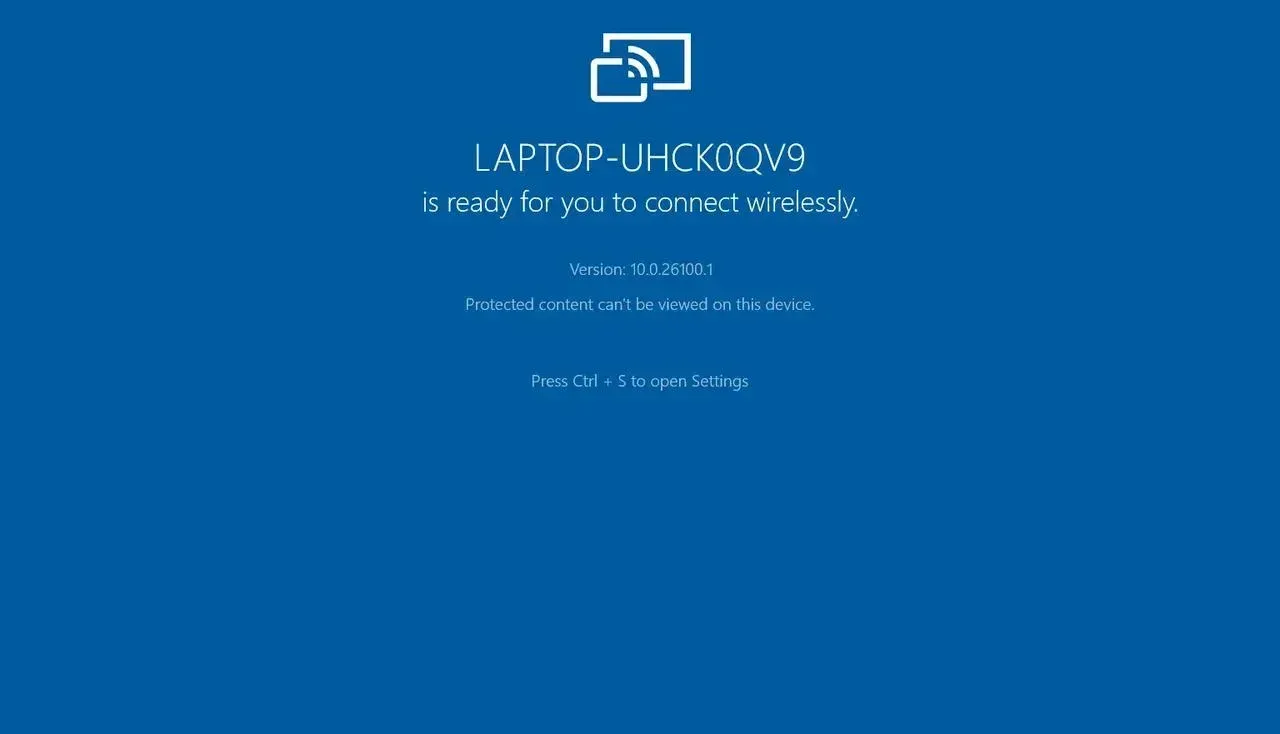
Step 2. Turn on Wi-Fi on both laptops.
Step 3. On the sending PC, press Windows + K to open cast menu.
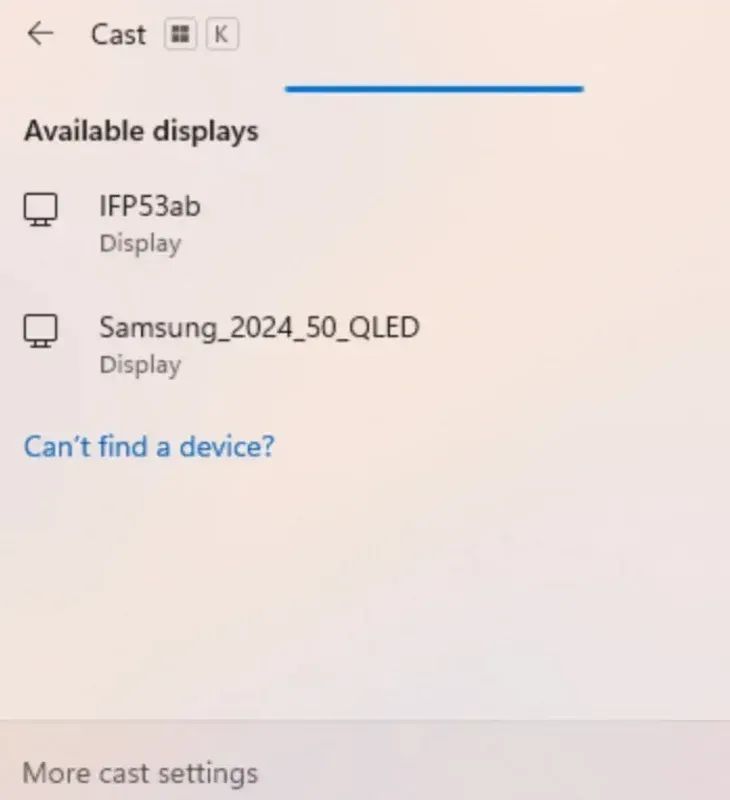
Step 4. Select the receiving PC from the available device list.
Step 5. If the PC does not appear, recheck Miracast support, receiver setup, and whether a VPN or network rule is blocking local discovery.
This can be a strong no-internet option, but Windows mirroring is more dependent on device support than many users expect.
Method 3: Use a Free Mirroring App: PigeonCast
PigeonCast makes sense when you want one practical method across different laptop combinations instead of relying entirely on whichever built-in protocol each platform happens to support.


Overall Rating:



Step 1. Install PigeonCast on the sending laptop and the receiving laptop if your workflow requires both sides.
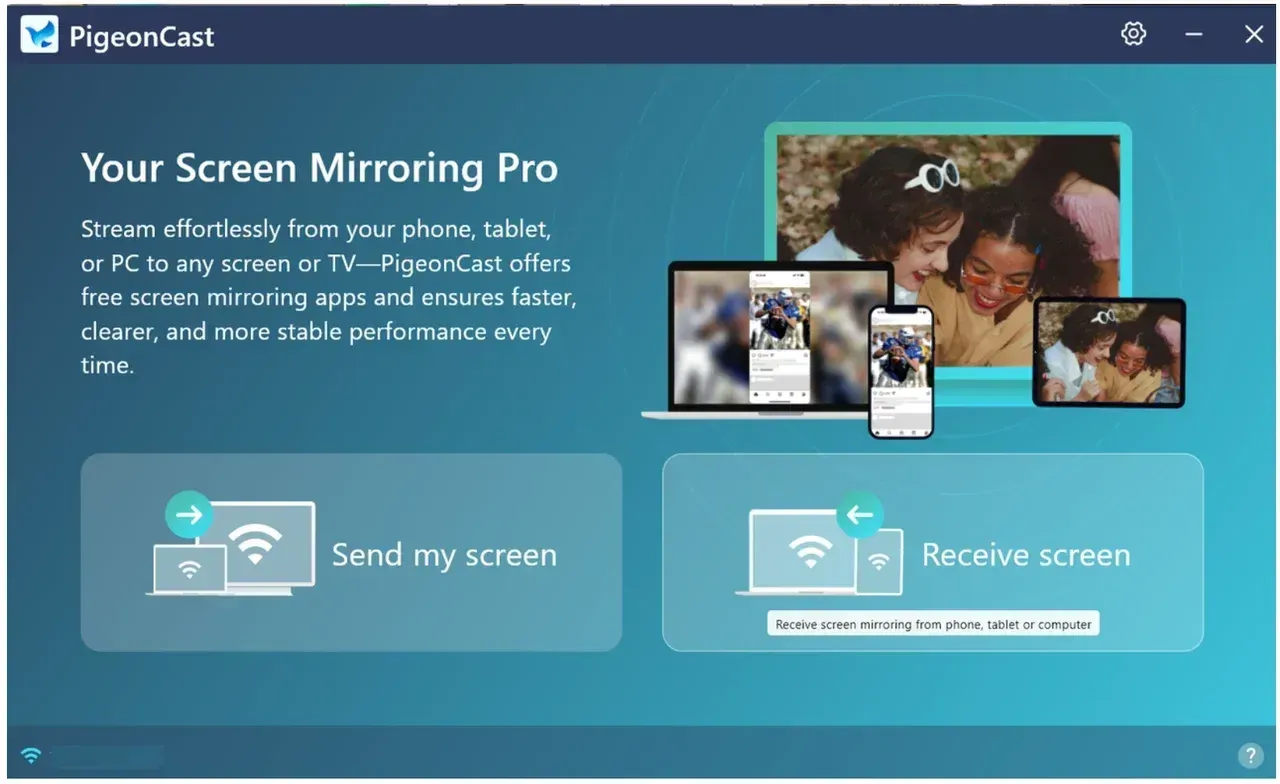
Step 2. Connect both devices using the local path that is available, such as the same Wi-Fi network.
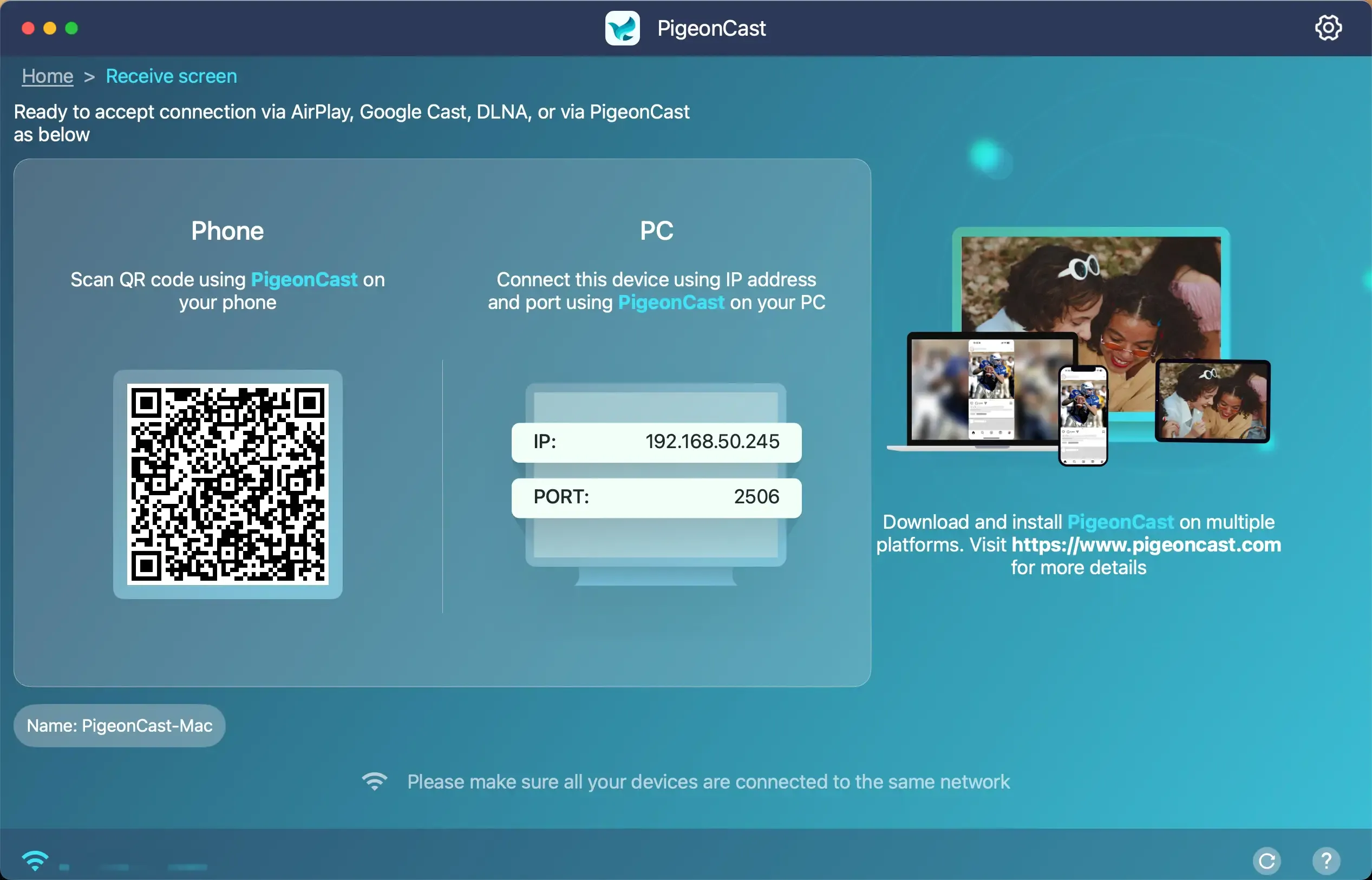
Step 3. Open PigeonCast, click the Receive screen option and put the receiving laptop into receive mode.
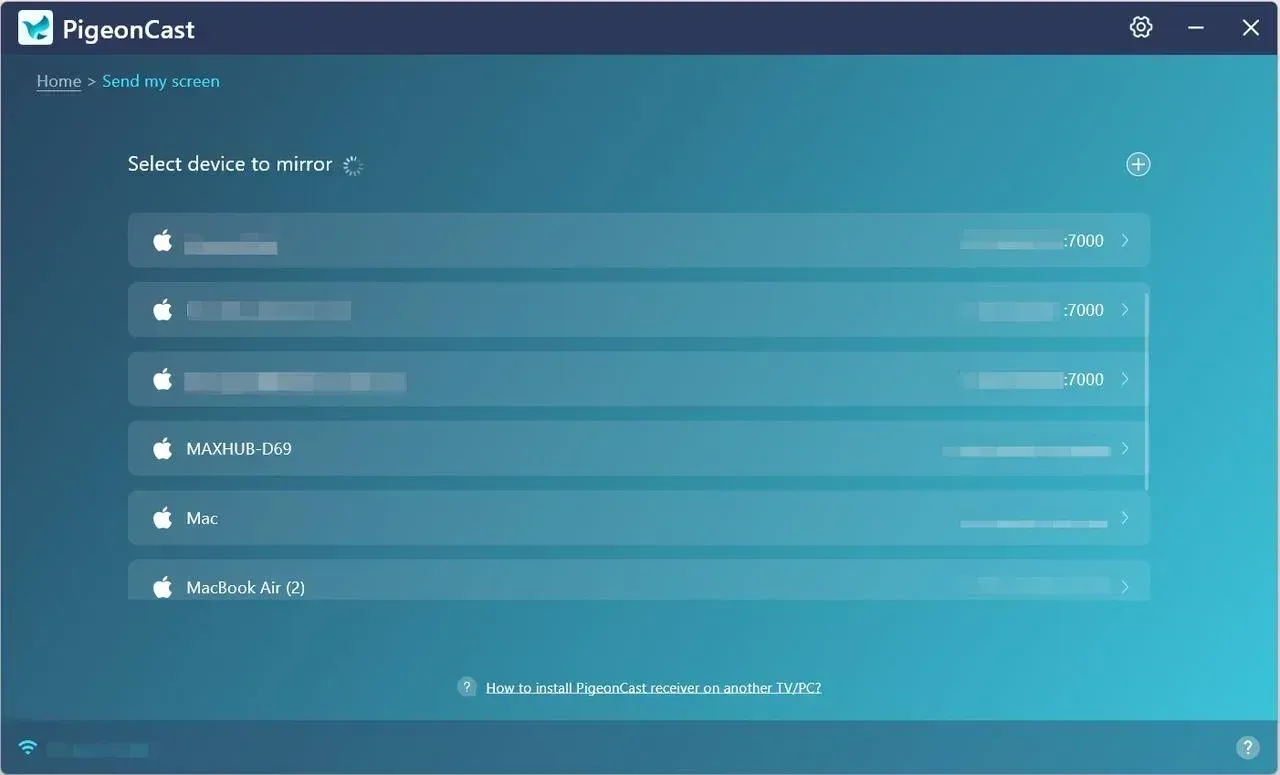
Step 4. Click the Send my screen option and choose the target device.
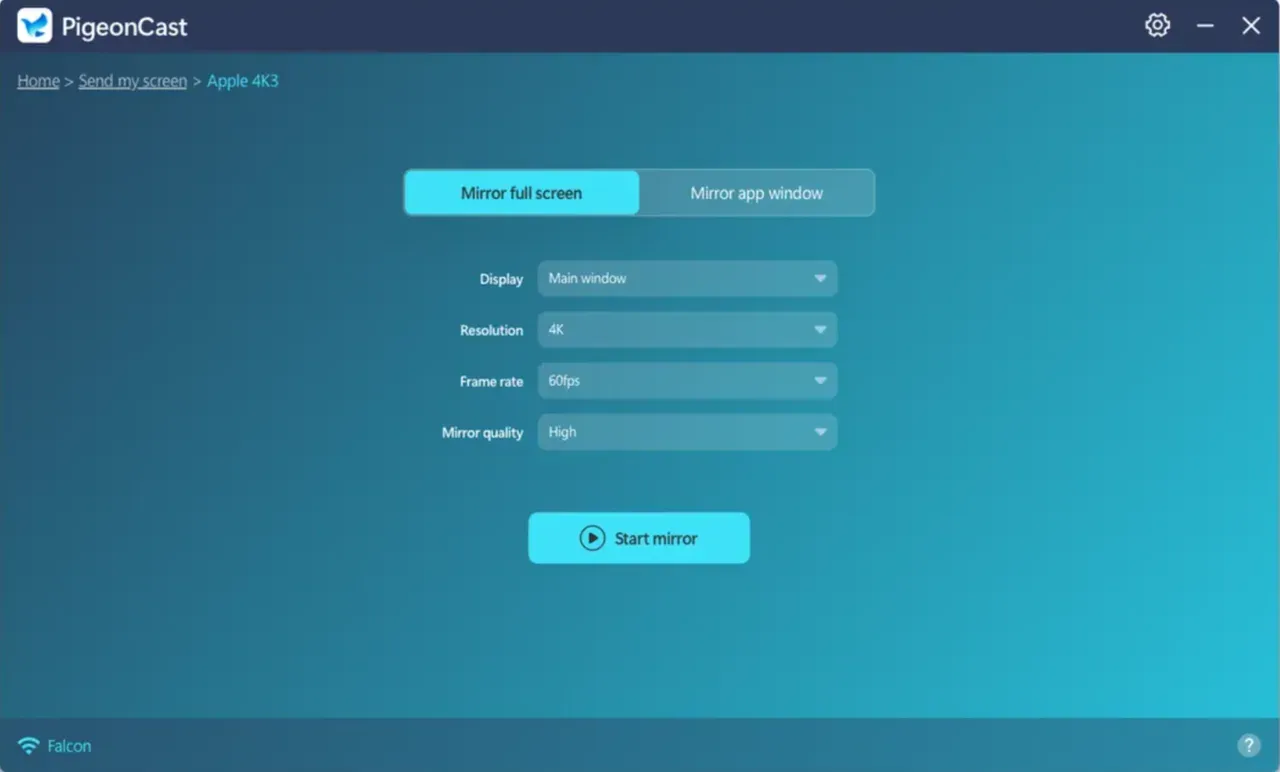
Step 5. Test screen quality, delay, and stability before relying on it for a presentation or review session.
This route is especially useful when:
- one laptop is a Mac and the other is Windows
- the built-in receiver path is inconsistent
- you want a simpler routine across different devices
- the real goal is practical offline sharing, not loyalty to one native protocol
Method 4: Use an HDMI or USB-C Cable
If you only care about getting the screen onto another laptop or external display with the least friction, wired still wins.
Step 1. Connect the laptops or the sending device and display with the correct HDMI or USB-C hardware.
Step 2. Switch to the right input or display mode.
Step 3. Mirror or extend the screen using your normal display settings.
Step 4. Use this route when discovery keeps failing or when low-risk reliability matters more than convenience.
This is not the wireless answer most readers want, but it is often the answer that saves the most time.
Which Method Is Most Reliable?
If reliability matters more than staying fully wireless, the answer changes.
| Method | Reliability | Best use case | Main limitation |
|---|---|---|---|
| HDMI or USB-C cable | Highest | Important meetings and zero-risk handoff | Not wireless |
| AirPlay | High in supported Mac setups | Mac-to-Mac local mirroring | Limited to compatible Apple setups |
| Miracast | Medium to high | Supported Windows-to-Windows setups | Hardware and driver support vary |
| PigeonCast | Medium to high | Mixed-device and repeatable cross-platform use | Still depends on local setup quality |
| Same local Wi-Fi path | Medium | Fast first check before deeper setup | Not a standalone protocol by itself |
The practical rule is simple: use the native method first when your devices clearly support it, use PigeonCast when your setup is mixed or inconsistent, and switch to a cable early when the session has to work on the first try.
Conclusion
So, can you do wireless laptop screen mirroring without internet? Yes, but usually only if the laptops still have some local way to discover each other. In most real setups, "no internet" is not the real problem. "No shared local connection" is.
If both laptops are compatible and still on the same local network, native options like AirPlay or Windows wireless display can work well. If your setup is mixed or the built-in path feels inconsistent, PigeonCast is a more repeatable option. If the session has to work on the first try, a cable is still the safest fallback.
Wireless Laptop Screen Mirroring Without Internet FAQ
Can I screen mirror laptop without Wi-Fi at all?
Sometimes, but this is much less universal. Some setups can use direct wireless discovery or a receiver-based app workflow, but many wireless methods still need local Wi-Fi or another short-range wireless path even if they do not need the internet.
Does Windows laptop screen sharing offline always use Miracast?
Not always, but Miracast-style support is the most common built-in Windows path. Whether it works depends on hardware support, drivers, and whether the receiving PC is configured to accept the connection.
Is PigeonCast better than native offline mirroring?
Not in every case. If two supported Macs already work cleanly with AirPlay, the native path may be simpler. PigeonCast becomes more useful when you need a repeatable workflow across mixed devices or when built-in options are too limited or inconsistent.
Is wireless laptop screen mirroring without internet better than using a cable?
It is better for convenience, but not always for reliability. If you need the session to work with the least risk, wired is still the safer choice.
Can I cast my phone screen to my laptop without Wi-Fi?
Sometimes, yes, but only if the phone and laptop support a direct wireless path such as Wi-Fi Direct, a peer-to-peer method, or an app-based receiver workflow. Without shared Wi-Fi, many device pairs will not discover each other reliably. If direct wireless is not supported, a cable is usually the simpler answer.
How to cast laptop to TV wireless without Wi-Fi?
To cast laptop to TV wirelessly without Wi-Fi, both devices need an alternative wireless path such as Wi-Fi Direct, Miracast, peer-to-peer casting, or an app-based connection. Many TVs still expect the same local network, so no-Wi-Fi casting is less common than people assume. If the TV does not support a direct path, HDMI is the more reliable fallback.
Mia Clarke is a technology editor specializing in screen mirroring and casting solutions across multiple platforms. Mia provides clear, practical guides and in-depth insights to help users seamlessly connect their devices. Passionate about enhancing digital experiences, Mia is dedicated to keeping readers updated on the latest trends and tools in cross-platform screen sharing. Whether you’re looking to mirror your smartphone, laptop, or smart TV, Mia’s content delivers reliable, user-friendly advice to simplify your tech setup.