
Connecting two laptops together can enhance your workflow, provide extra screen space, or even allow you to share content seamlessly. Whether you're aiming to expand your desktop space or mirror one laptop's screen to another, there are multiple methods to do so. How to connect two laptop screens? This guide covers all the ways to connect two laptop screens, whether wirelessly or via cables.
Can You Connect Two Laptops Together?
Yes, it is possible to connect two laptops together for a variety of purposes, such as screen mirroring, mirroring content, or extending your desktop. You can achieve this through wireless methods like PigeonCast and AirPlay, or with a simple HDMI cable. The method you choose depends on your operating system, your devices' compatibility, and your specific needs.
Connect Mac to Mac Screen via AirPlay
How to connect two laptop screens together? If you're using two MacBooks, connecting them is simple with AirPlay. AirPlay allows you to wirelessly share screens or extend displays between your MacBooks effortlessly.
Here's how to connect two laptop screens via AirPlay:
Step 1. Ensure your two MacBooks are connected to the same Wi-Fi network.
Step 2. Access the Control Center on one MacBook and tap the Screen Mirroring option.
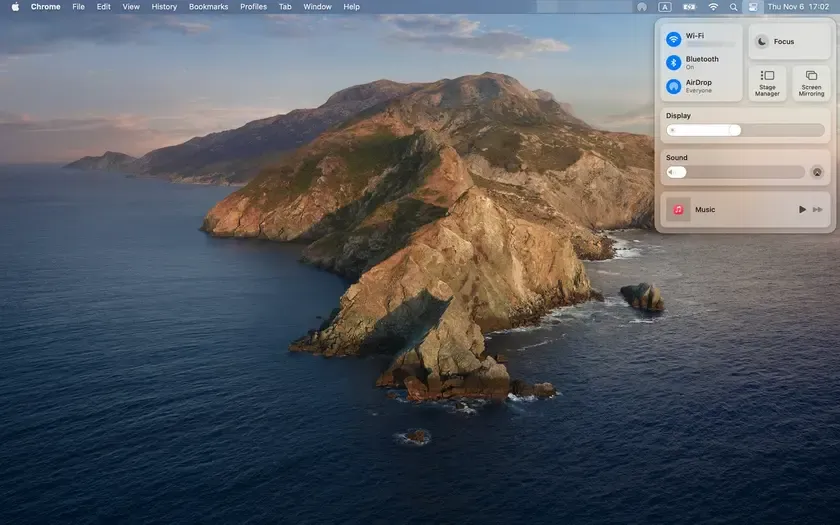
Step 3. Choose the other MacBook from the list of available devices.
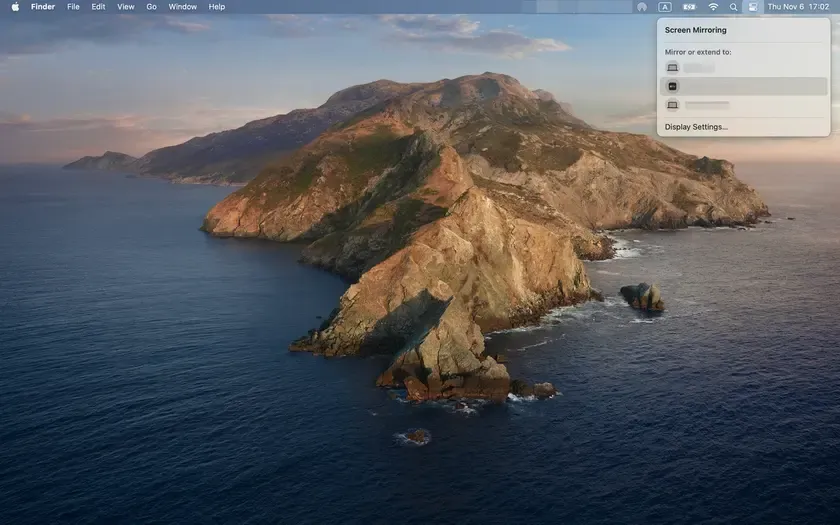
Step 4. Enter the four-digit code displayed on the Mac's screen.
Step 5. Your Mac's screen appears on the other device.
Connect Laptop to Laptop Screen via PigeonCast
How to connect two laptop screens wirelessly? If you need to connect two laptops (regardless of whether they're running Windows or macOS), the free PigeonCast app is an excellent tool. It allows you to wirelessly connect your devices for screen mirroring or extending your desktop.
How to connect Windows to Mac or Mac to Windows with PigeonCast? The process is:
Step 1. Download and install PigeonCast on your laptops and open it.

PigeonCast Screen Mirroring

Official Download



Step 2. Ensure your two laptops are connected to the same Wi-Fi network.
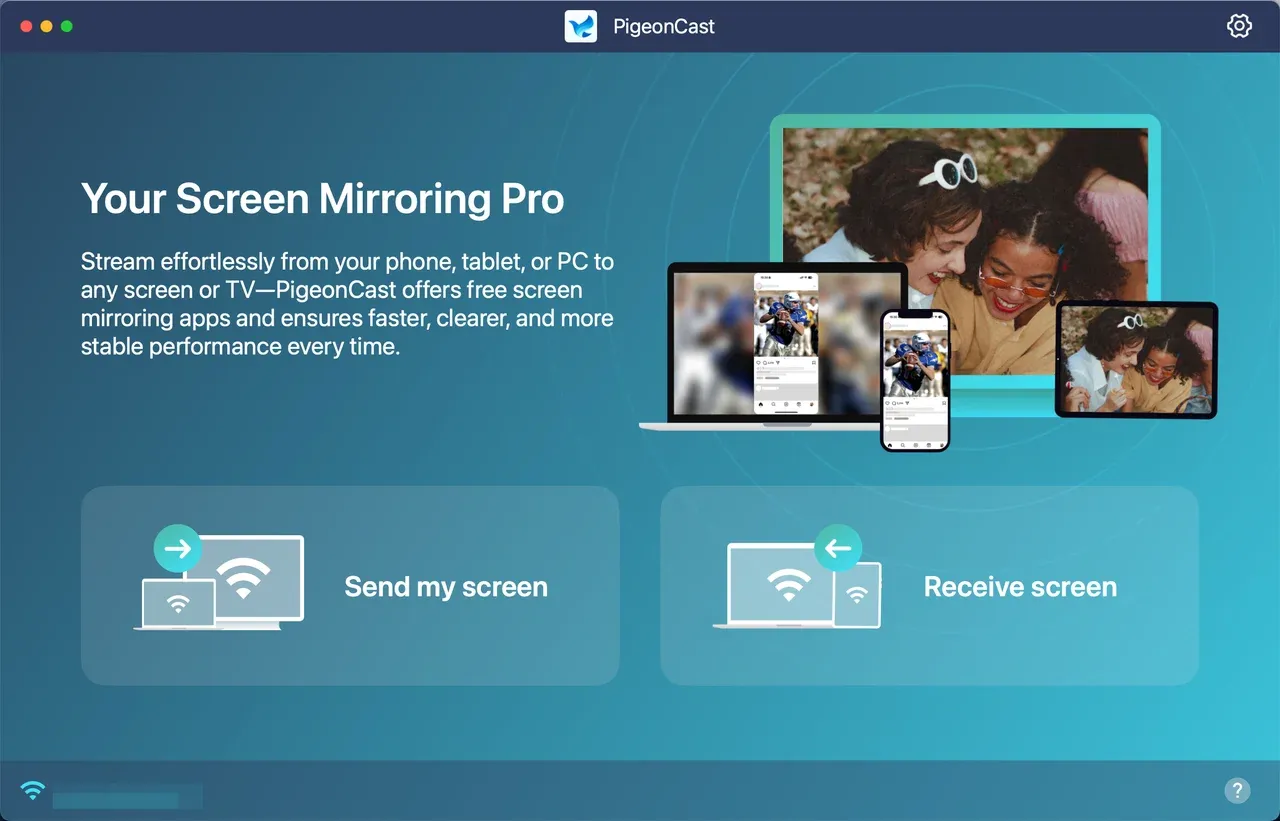
Step 3. On the sending laptop, click Send my screen and select the receiving laptop.
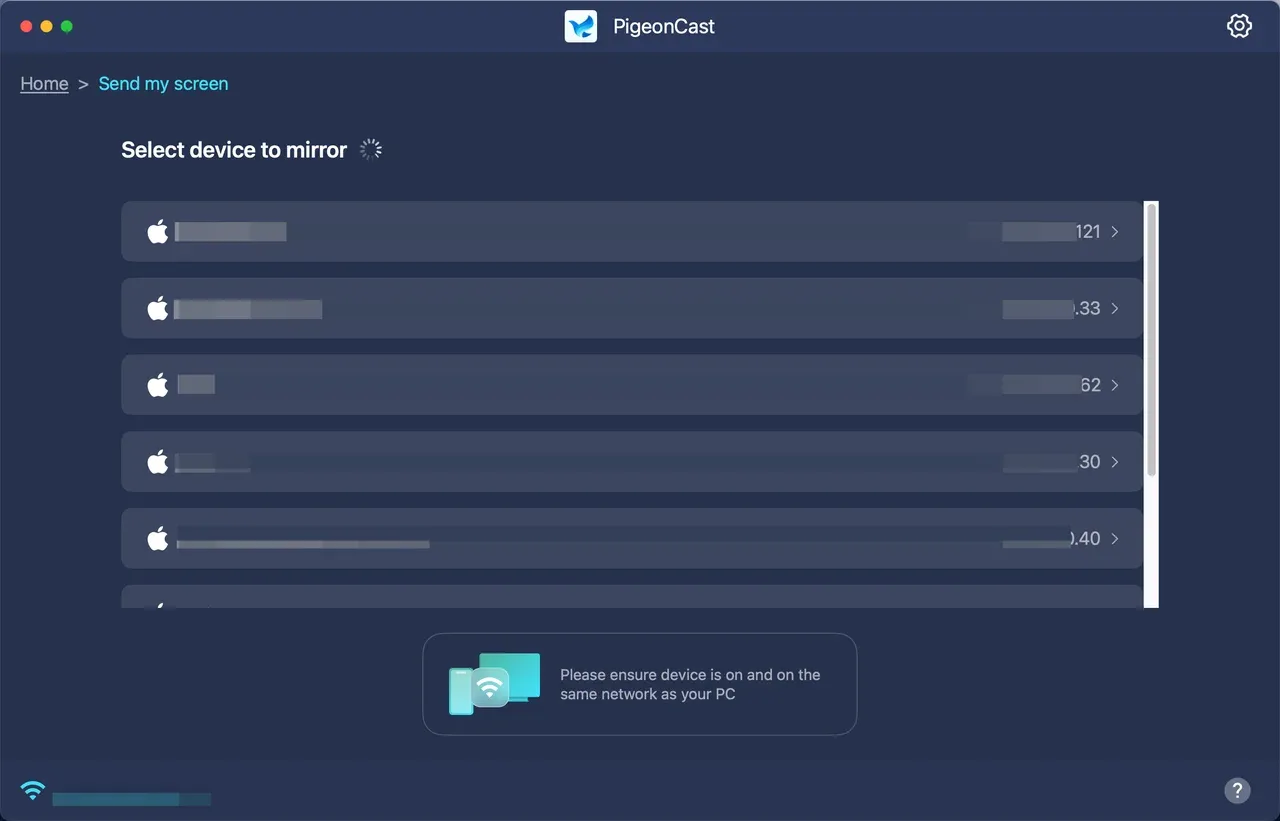
Step 4. Choose whether to mirror the entire screen or cast an app.
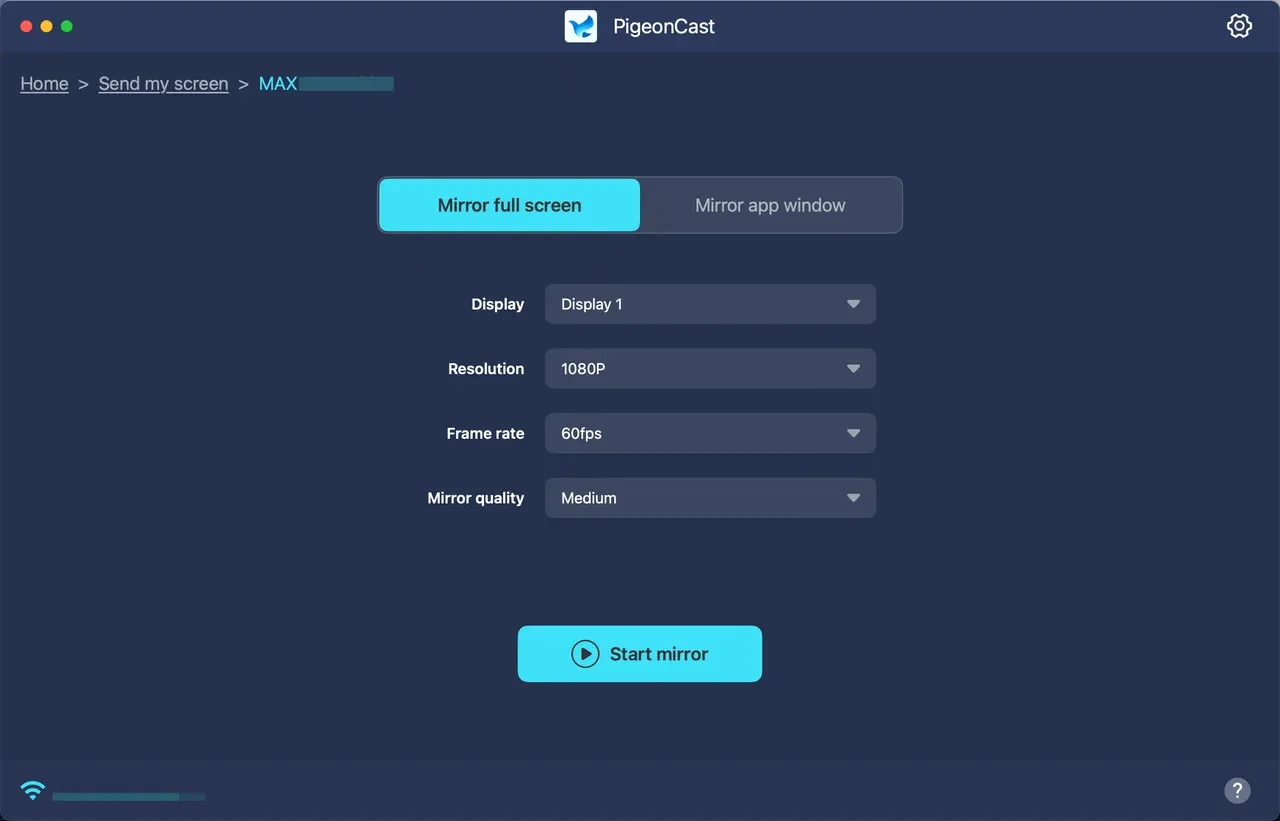
Step 5. Once connected, your laptop screens will sync up.
PigeonCast is ad-free, allowing you to enjoy the process uninterrupted.
Connect Laptop to Laptop Screen via HDMI Cable
If you prefer a wired connection, using an HDMI cable to connect two laptops is a simple and reliable solution. This method is ideal for users who require a stable connection and are willing to use cables.
Step 1. Connect an HDMI cable to the HDMI port on both laptops.
Step 2. On the sending laptop, press Windows + P (on Windows) or adjust display settings on macOS.
Step 3. Choose whether to mirror or extend the display.
Step 4. Your laptop screens should now be connected and display the same or different content.
Wrapping Up
Connecting two laptop screens can significantly enhance your productivity and give you more screen space, whether you're working on multiple tasks, watching a presentation, or playing games. With methods like AirPlay, PigeonCast, and HDMI, you can easily mirror or extend your laptop's display without much hassle. Choose the method that best suits your needs and your device's compatibility.
How to Connect Two Laptop Screens FAQs
Can I connect two laptops wirelessly?
Yes, you can connect two laptops wirelessly using PigeonCast (for cross-platform connections) or AirPlay (for Mac-to-Mac connections). These methods allow you to share content or extend your desktop without cables.
How do I connect a Windows laptop to a Mac laptop?
Use PigeonCast to wirelessly connect a Windows laptop to a Mac laptop, allowing you to mirror or extend the screen.
How do I connect two laptops together with HDMI?
To connect two laptops with an HDMI cable, simply plug the cable into the HDMI ports of both laptops and adjust the display settings (either mirroring or extending the screen) on the sending laptop.
Mia Clarke is a technology editor specializing in screen mirroring and casting solutions across multiple platforms. Mia provides clear, practical guides and in-depth insights to help users seamlessly connect their devices. Passionate about enhancing digital experiences, Mia is dedicated to keeping readers updated on the latest trends and tools in cross-platform screen sharing. Whether you’re looking to mirror your smartphone, laptop, or smart TV, Mia’s content delivers reliable, user-friendly advice to simplify your tech setup.