
The digital world is typically split between Apple's macOS and Microsoft's Windows, each with its loyal following. However, there are many situations where you may need to connect the Mac to PC, whether it's for giving a presentation, collaborating with a colleague, or accessing files across different systems. Luckily, bridging this gap is easier than you might think, and this guide will walk you through several simple and effective methods.
How to Mirror Mac to PC
Screen sharing Mac to PC is a great way to expand your workspace or share content. While Apple's AirPlay works effortlessly within its ecosystem, connecting to a Windows PC requires a bit more setup. Fortunately, several methods are available, from using built-in network features to third-party apps, providing you with flexible options to meet your needs.
Way 1. How to Connect Mac to PC by Browsing
How to connect to PC from Mac? The simplest way to connect a Mac to a Windows PC is by using the network browsing feature, which enables your Mac to find and connect to a shared folder on your PC.
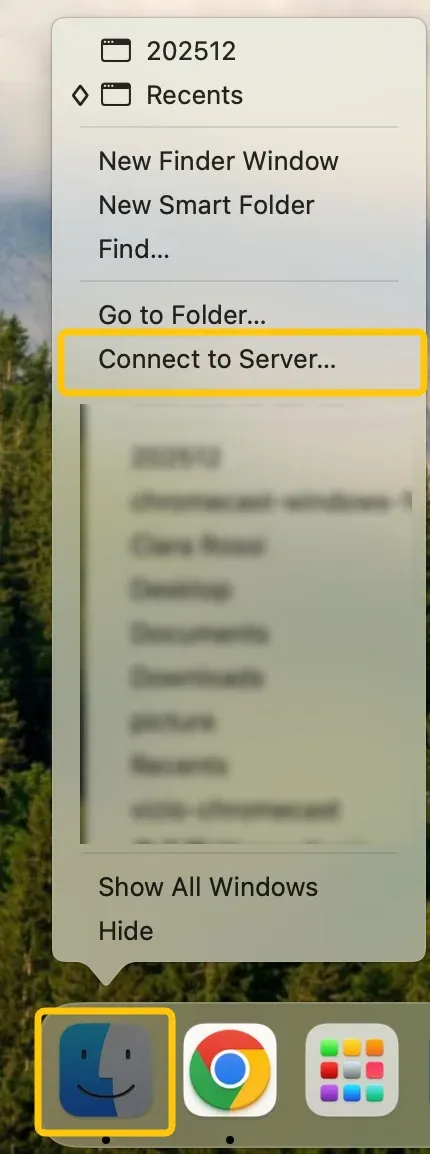
Step 1. On your Mac, move your cursor to the Finder, right-click, and select Connect to Server. Then, click Browse.
Step 2. When you locate the shared computer or server, double-click it, then click Connect As.
Step 3. In some cases, you need the network area or workgroup for the shared computer. If you don't have this information, contact the computer's owner or your network administrator.
Step 4. If necessary, enter your username and password, then select volumes or shared folders on the server.
Tip: Passwords for Windows computers and servers are typically 14 characters or fewer. Be sure to confirm with the owner or administrator for the exact requirements.
Way 2. How to Connect Mac to PC by Address
How to screen share Mac to PC? If you know the address of your PC, you can directly connect to it by entering the network address in Finder. This is a quick way to link your Mac and Windows PC.
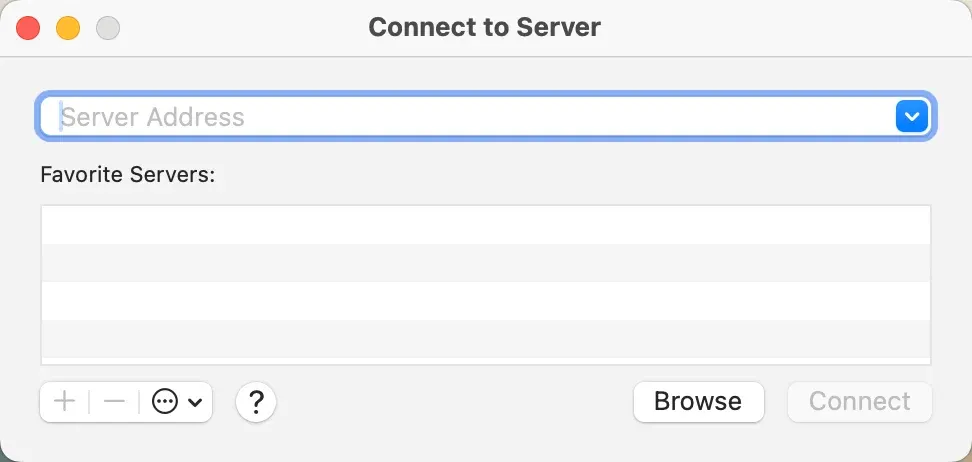
Step 1. On your Mac, move your cursor to the Finder, right-click, and select Connect to Server.
Step 2. Enter the network address of the computer in the Server Address field using one of the following formats: (For information about the correct format for network addresses, see Servers and shared computers you can connect to.)
- smb://DNSname/sharename
- smb://IPaddress/sharename
Step 3. Follow the on-screen instructions to enter the workgroup name, along with a username and password. Then, select the shared folder you wish to access.
Tip: If you're unsure of the workgroup name or the network (computer) name for the Windows computer, reach out to the computer's owner or your network administrator for assistance.
Step 4. If necessary, enter your user name and password, and select volumes or shared folders on the server.
Way 3. How to Connect Mac to PC via PigeonCast
PigeonCast is a free app designed to make screen mirroring between different platforms simple and seamless. It replicates the AirPlay experience, allowing you to cast your screen with just a single click and no complex network setup required. This easy-to-use app lets you effortlessly screen share PC to Mac and mirror Mac to PC.



Overall Rating:



Step 1. Install PigeonCast on both your Mac and your Windows PC.
Step 2. Ensure both devices are connected to the same Wi-Fi network.
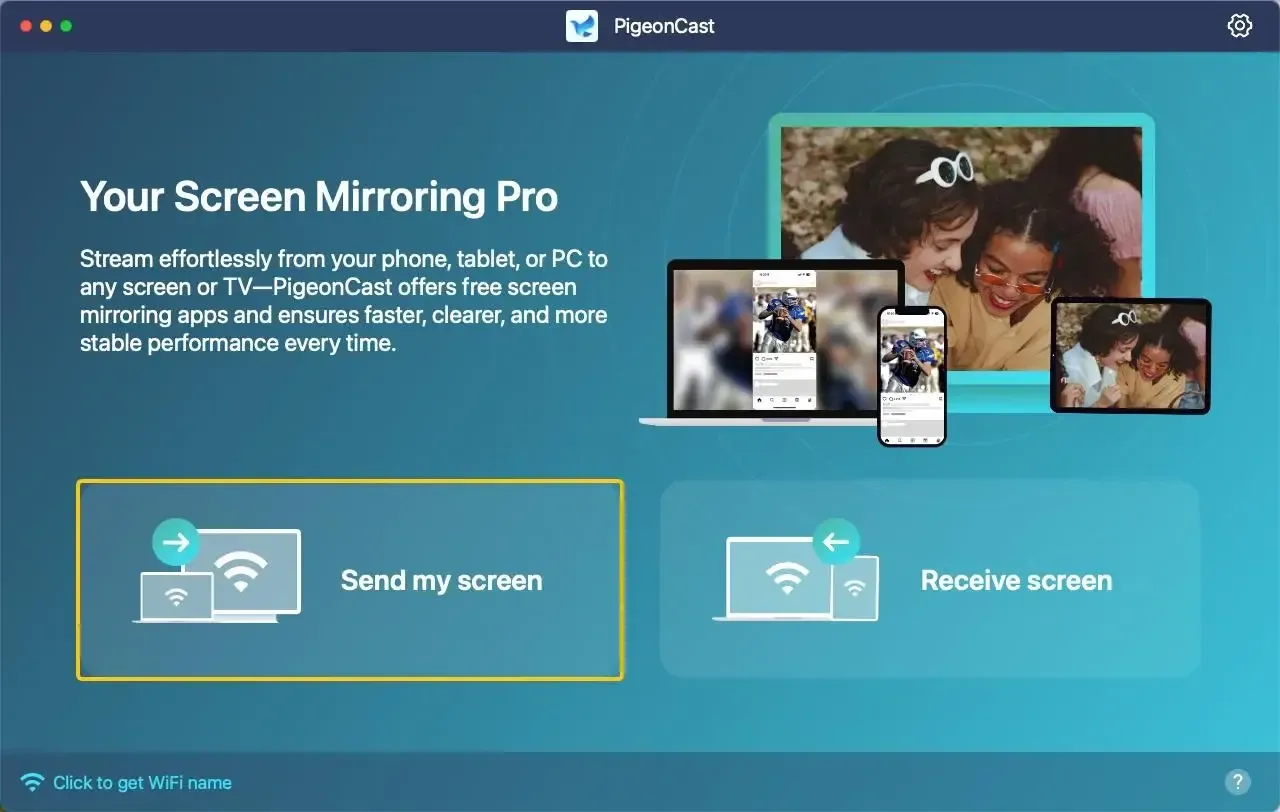
Step 3. Launch PigeonCast, tap the Send my screen option on your MacBook, and choose your Windows PC from the available list.
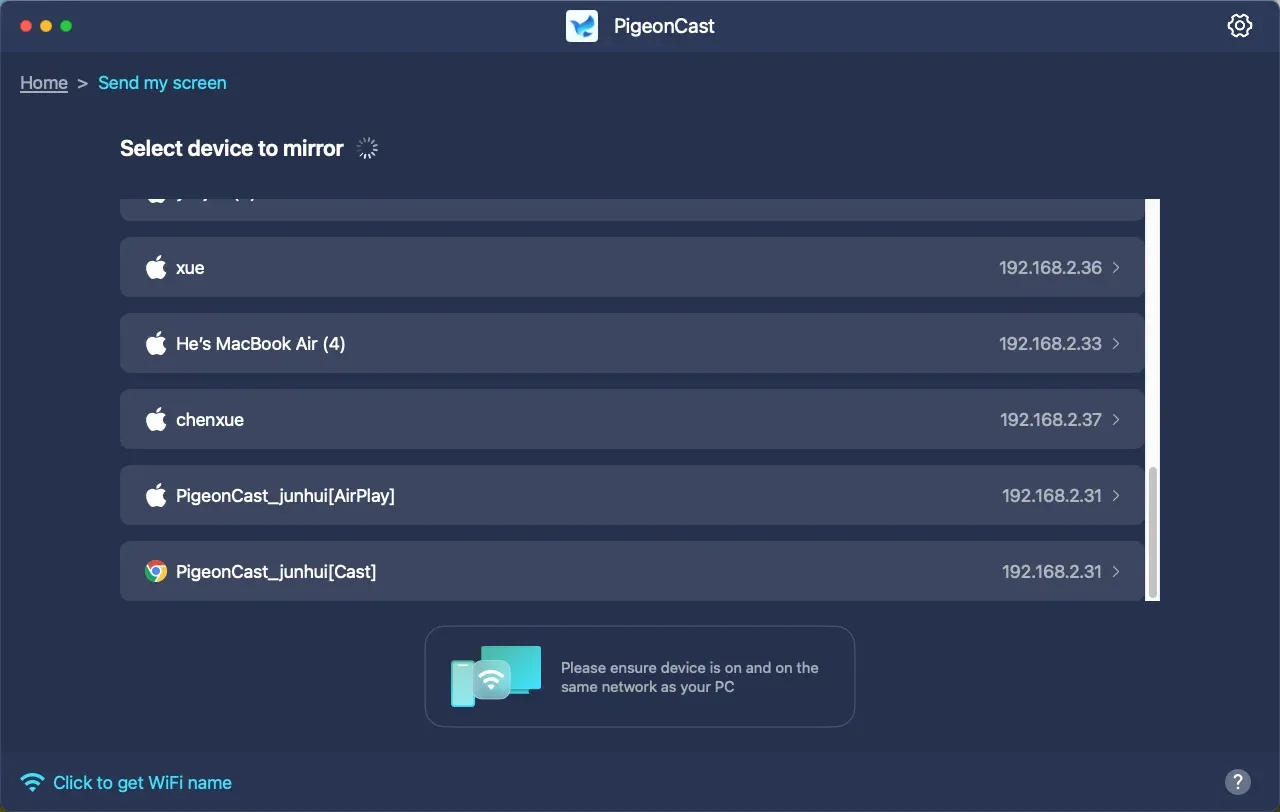
Step 4. Enter the onscreen PIN code to finish the pairing process.
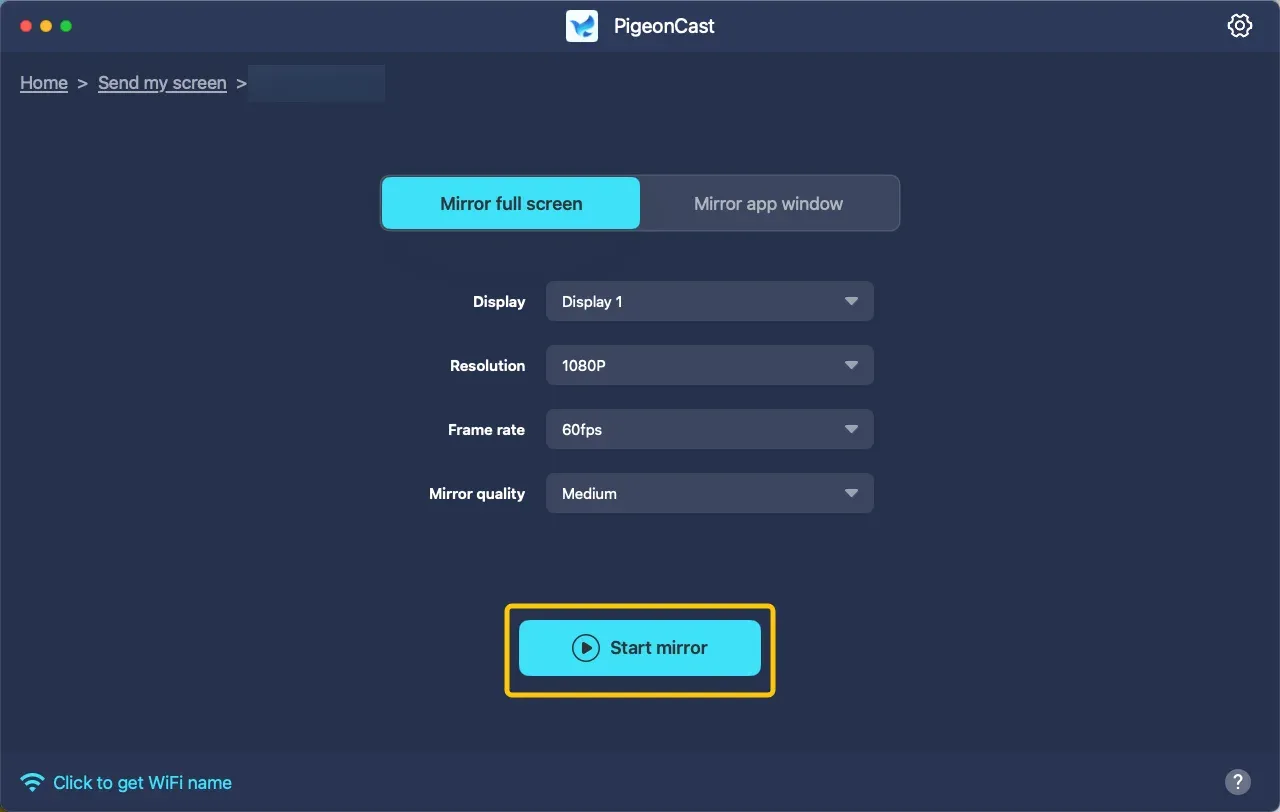
Step 5. Once you finish the connection, you can then choose to mirror full screen or mirror app window model and tap the screen mirror button to begin your mirroring activities.
Screen sharing PC to Mac follows a similar process. Just reverse the steps and you'll be all set.
Way 4. How to Connect Mac to PC with HDMI
For a direct and reliable connection, you can use an HDMI cable. This physical connection bypasses networking and software solutions, providing a stable mirroring experience.
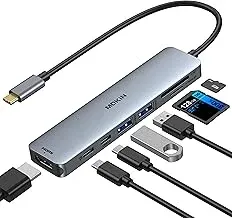
Step 1. Depending on the model of your Mac, you may need an adapter to connect to HDMI (e.g., USB-C to HDMI, Mini DisplayPort to HDMI, or Thunderbolt to HDMI).
Step 2. Plug one end of the HDMI cable into the adapter and the other end into the HDMI input port on your PC
Step 3. On your Windows PC, switch the input to HDMI. This can usually be done by right-clicking on the desktop and selecting Display Settings or adjusting the input source via the PC's settings.
Closing Words
Mirroring your Mac to a PC doesn't have to be complicated. Whether you're looking to share files, stream content, or use the PC as a secondary display, there are plenty of ways to make the connection. From network-based solutions to HDMI cables and third-party apps like PigeonCast (which allows you to connect Mac to PC and connect PC to Mac), the right method depends on your needs and equipment.
Mac to PC FAQ
Is there a way to connect a Mac to a PC?
Yes, there are several ways to connect a Mac to a Windows PC. You can use network sharing, third-party apps for screen mirroring (like PigeonCast), or even HDMI cables for a direct connection.
How to transfer files from Mac to PC?
To transfer files from your Mac to a Windows PC, you can use File Sharing (via SMB), cloud storage services (like Google Drive or Dropbox), or directly transfer files using external drives formatted for both macOS and Windows (e.g., exFAT).
Can I turn my Mac into a PC?
While you can't convert your Mac into a full Windows PC, you can run Windows on your Mac through Boot Camp or virtualization software like Parallels Desktop. This allows you to run both macOS and Windows on the same machine.
Is it hard to switch from a Mac to a PC?
Switching from a Mac to a PC can take some time to adjust to, especially with differences in the operating system's interface and file management. However, with some practice and a willingness to learn, the transition is definitely manageable. Many users find the shift easier than expected, especially with the abundance of resources available to help with the change.
Clara Rossi is an experienced technology editor and a seasoned expert in screen mirroring and casting technologies. With a keen eye for detail and a deep understanding of how to seamlessly connect devices, Clara excels at optimizing user experiences for effortless sharing and streaming. Whether you're seeking quick fixes or advanced tips, her expertise and responsiveness ensure that every query is met with a well-informed and efficient solution.