
Windows 11 connect to wireless display is an easy way to extend your workspace or mirror your screen to a TV or another computer. Whether you want to stream movies, share a presentation, or project your desktop without cables, Windows 11 offers built-in features to make it happen. In this guide, you will learn how to connect Windows 11 to a wireless display using different methods and how to fix issues if your connection fails.
Premises for Windows 11 Connect to Wireless Display
Before you connect to a wireless display, ensure all devices meet the basic requirements.
Checklist:
- Both your PC and display device are connected to the same Wi-Fi network.
- The display supports Miracast or has a Miracast dongle attached (Windows 11 supports Miracast technology, which allows your PC to cast or project wirelessly to compatible TVs, monitors, or projectors).
- Windows 11 is up to date with the latest system and driver updates.
- Bluetooth and Wi-Fi are both turned on.
If your device does not support Miracast or you want to connect across platforms such as another Windows, Mac, or smart TVs, skip ahead to PigeonCast, which provides a more universal wireless display solution.

PigeonCast Screen Mirroring

Official Download


How to Connect Windows 11 to a Wireless Display
Windows 11 provides several built-in ways to connect to a wireless display. If your device supports Miracast, you can use the Settings menu or a keyboard shortcut. Otherwise, PigeonCast offers a simple cross-platform alternative.
Method 1: Connect via Settings
This method offers full display control and is best for first-time connections. Start to connect to wireless display Windows 11 with the steps below.
Step 1. Open the Start menu and choose Settings.
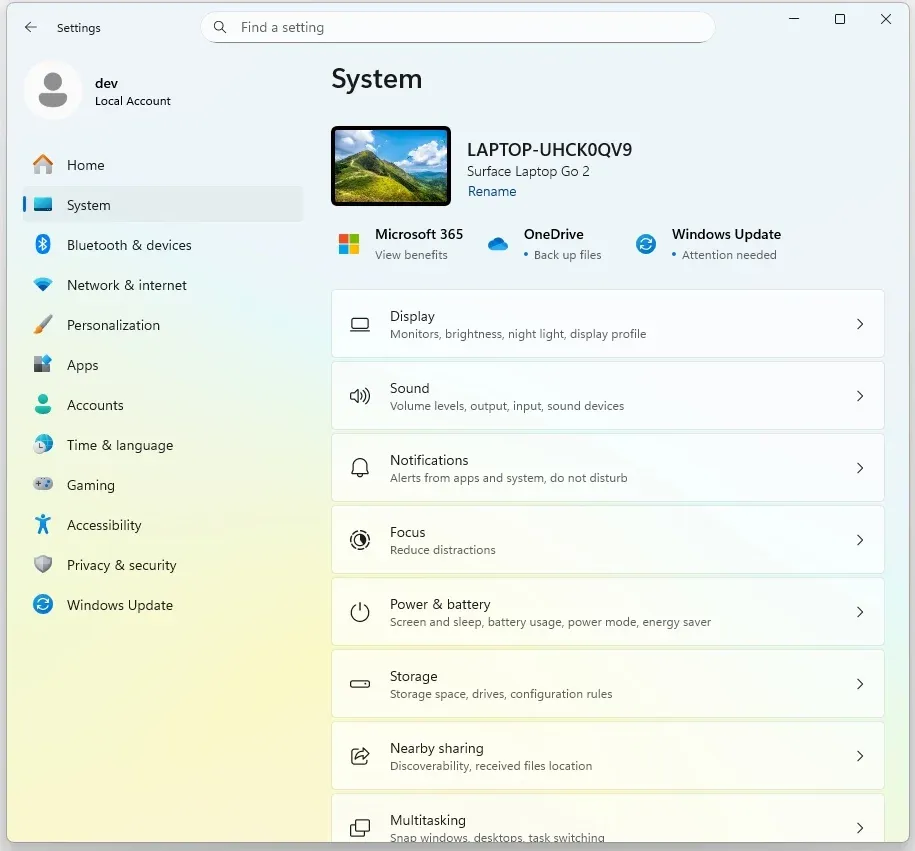
Step 2. Go to System > Display.
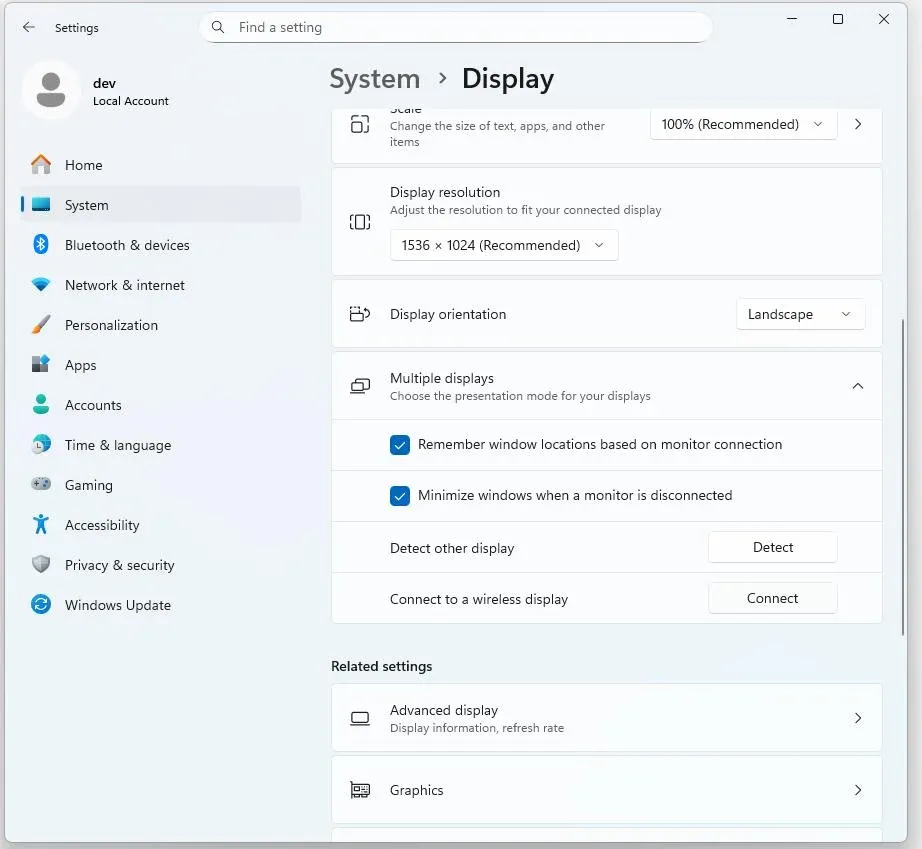
Step 3. Scroll down to Multiple displays and click Connect to a wireless display.
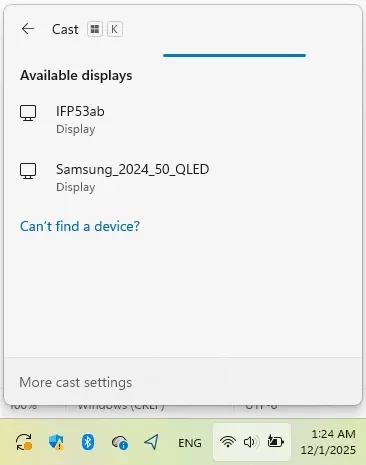
Step 4. Wait for your TV or projector to appear in the list.
Note: If your device does not appear, make sure both devices are connected to the same Wi-Fi network and that your display is ready to receive connections.
Step 5. Select your display and follow the on-screen instructions.
Step 6. Choose Duplicate, Extend, or Second screen only, depending on how you want to use the second display.
Method 2: Connect via Shortcut Keys
This is the quickest way to start casting Windows PC without going through multiple menus. Here's how to connect to a wireless display in Windows 11:
Step 1. Press Windows + K on your keyboard.
Step 2. The Cast window will appear, showing available devices.
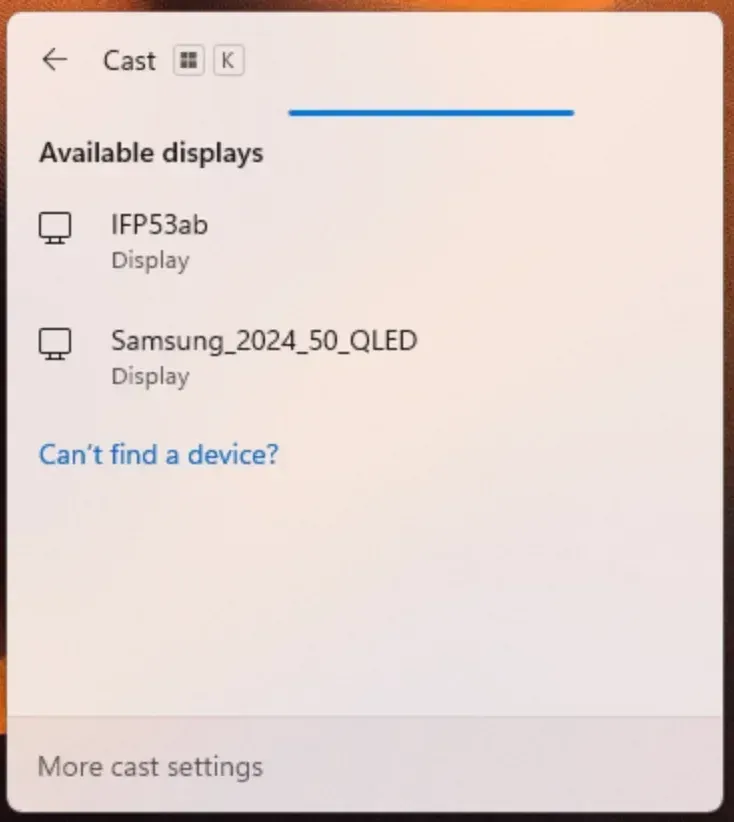
Step 3. Select your wireless display from the list.
Step 4. Approve the connection request on your TV or projector if prompted.
Step 5. Adjust the projection mode using the sidebar options.
This shortcut is perfect for quick access, especially when you connect to the same display regularly. If you use a Lenovo laptop, you can connect Lenovo laptop to TV wirelessly with the same Windows + K shortcut.
Method 3: Connect via PigeonCast
If Windows + K does not work, PigeonCast is a great alternative. It works across Windows, macOS, iPhone, Android, Apple TV, and smart TVs, allowing you to finish Windows 11 casting to TV with no hassles.

The third-party tool is free (even ad-free) and easy to use:
Step 1. Download and install PigeonCast on Windows 11 PC, then open it.
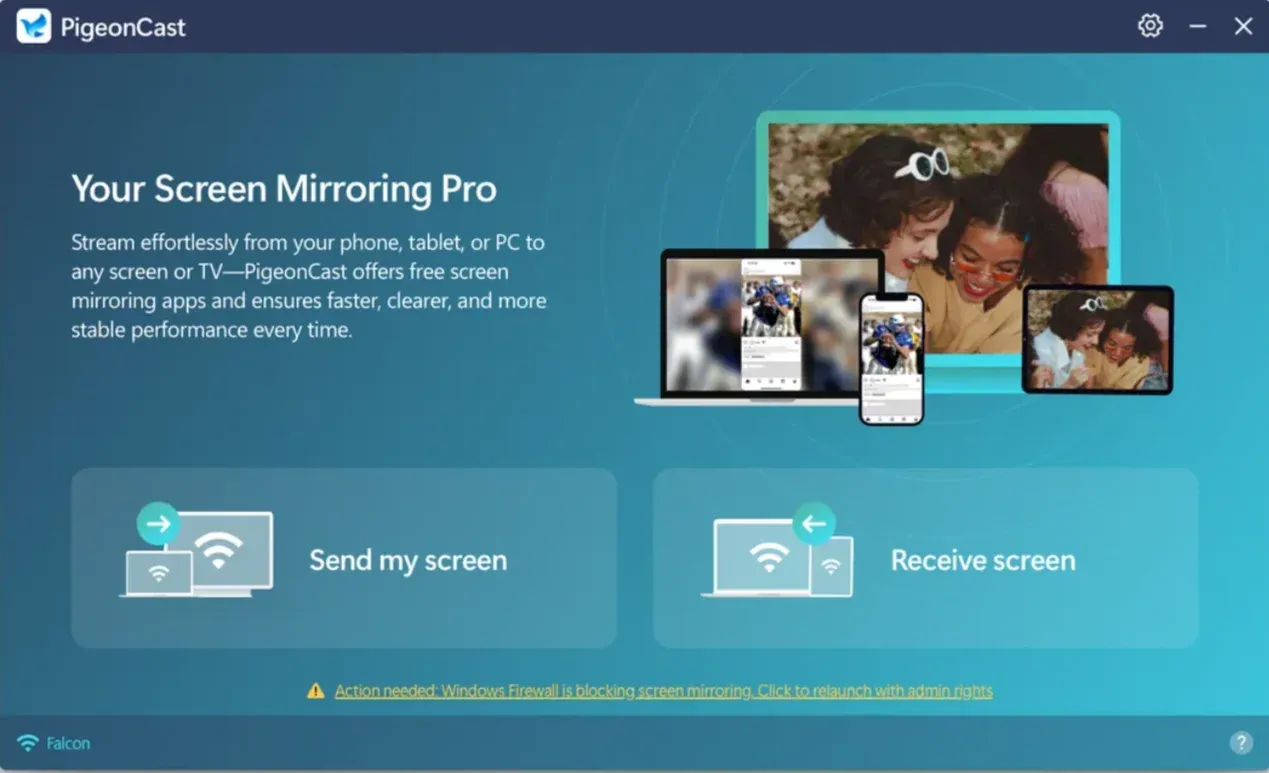
Step 2. Install or open PigeonCast Receiver on your TV (like Fire TV, Apple TV, or Android TV), MacBook, or mobile device.
PigeonCast Screen Mirroring
Official Download


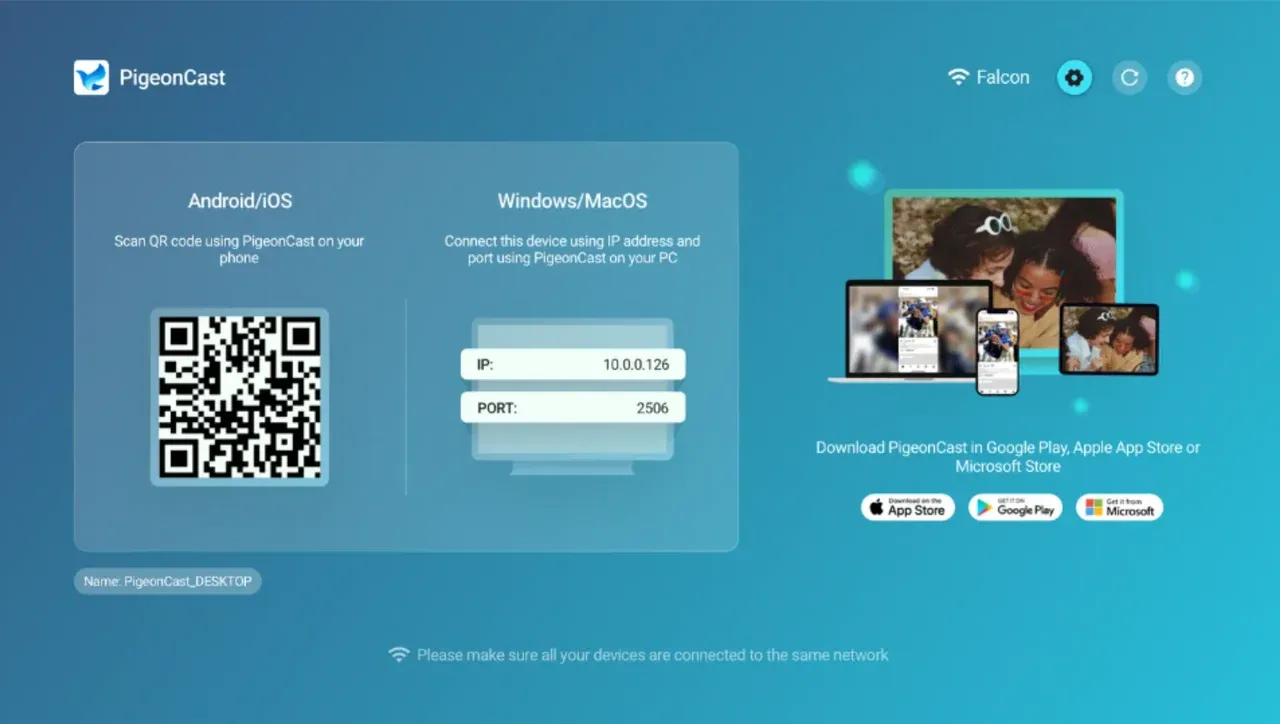
Step 3. Connect both devices to the same Wi-Fi network.
Step 4. On your Windows 11 PC, click the in-app feature: Send my screen, and select the target device.
Step 5. Once connected, choose either Mirror full screen or Mirror app window, and click Start mirror.
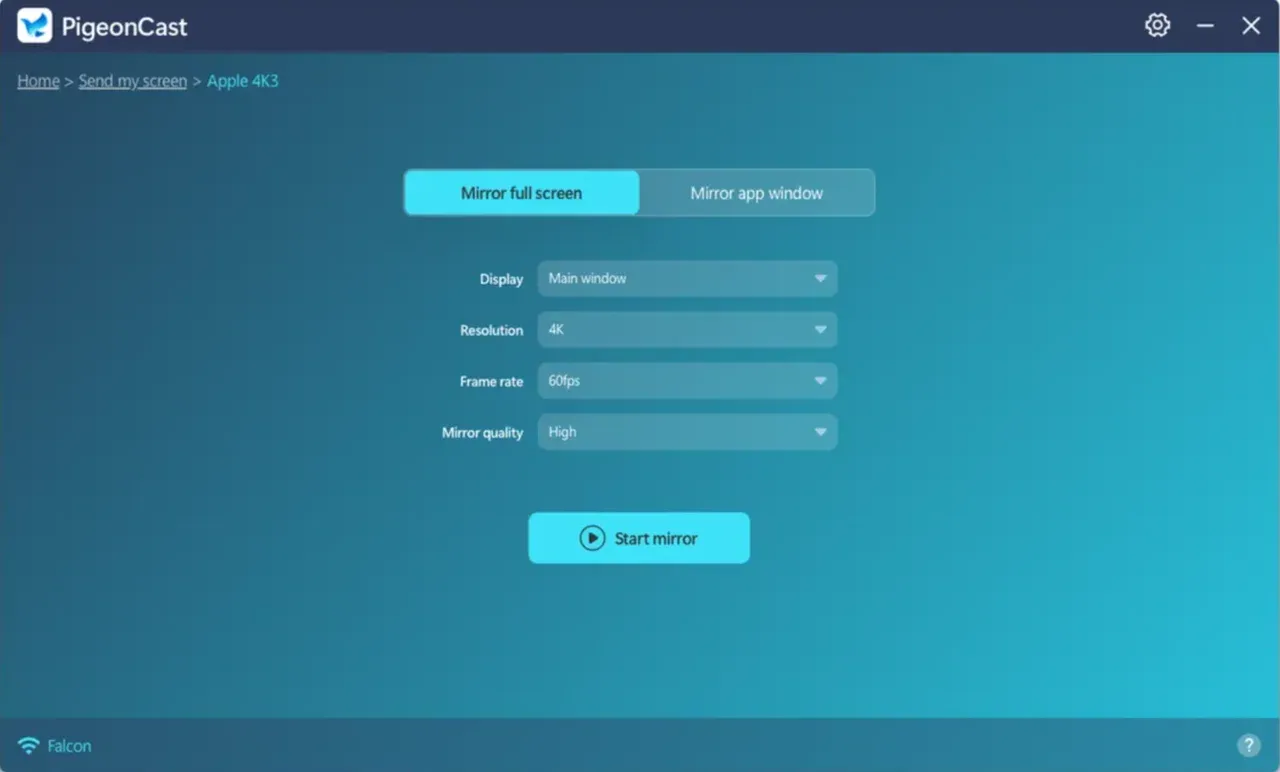
If you want to use a MacBook laptop or TV as a wireless display, PigeonCast is a great choice.
Method 4: Cast to Another Windows 11 PC
Windows 11 also lets you project your screen to another Windows computer. This is useful for extending displays between laptops or sharing screens in classrooms or offices. However, this feature requires Windows 11 version 22H2 or later.
Step 1. On the receiving PC, go to Start > Settings > System > Projecting to this PC.
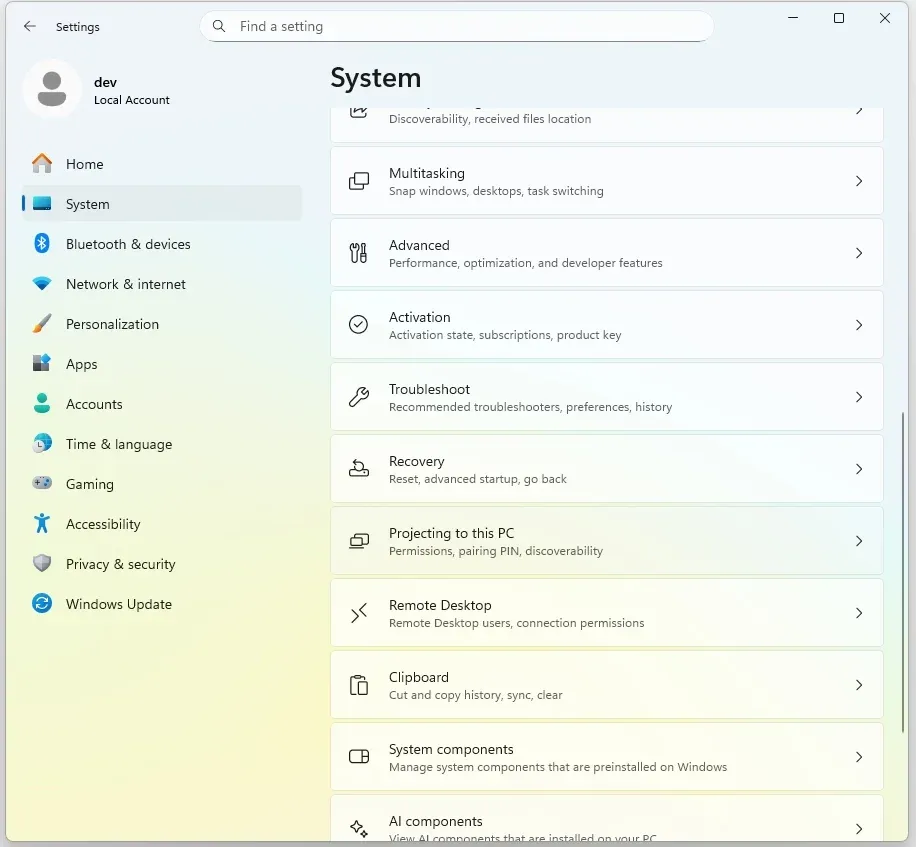
Step 2. Under Add the Wireless Display optional feature, select Optional features.
Step 3. Click View features, type wireless display, check it, then select Next > Install.
Step 4. Once installed, return to the Projecting to this PC page to adjust your preferences.
Step 5. Launch the Wireless Display app by searching for it in the Windows search box.
Step 6. On the sending PC, press Windows + K, then choose the target PC from the list of available devices.
How to Fix Windows 11 Cannot Connect to Wireless Display
If your Windows 11 cannot connect to wireless display, the issue usually lies in drivers, compatibility, or network configuration. Follow these steps to fix it.
Step 1: Check Miracast Support:
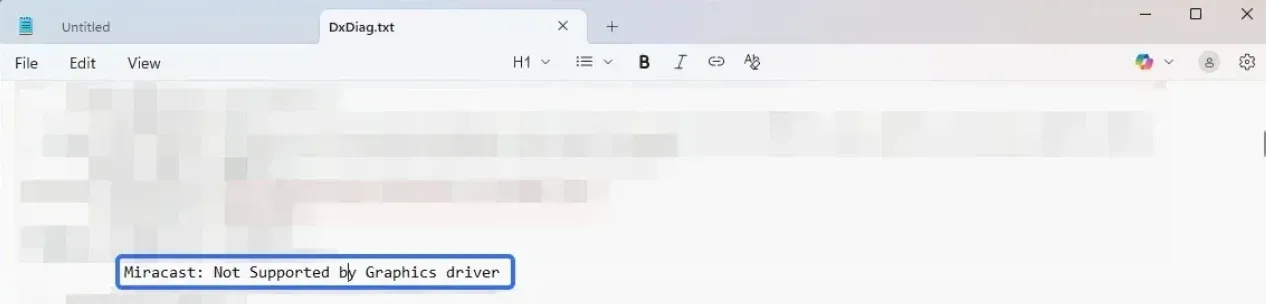
- Press Windows + R, type dxdiag, and press Enter.
- Click Save All Information, then open the saved text file.
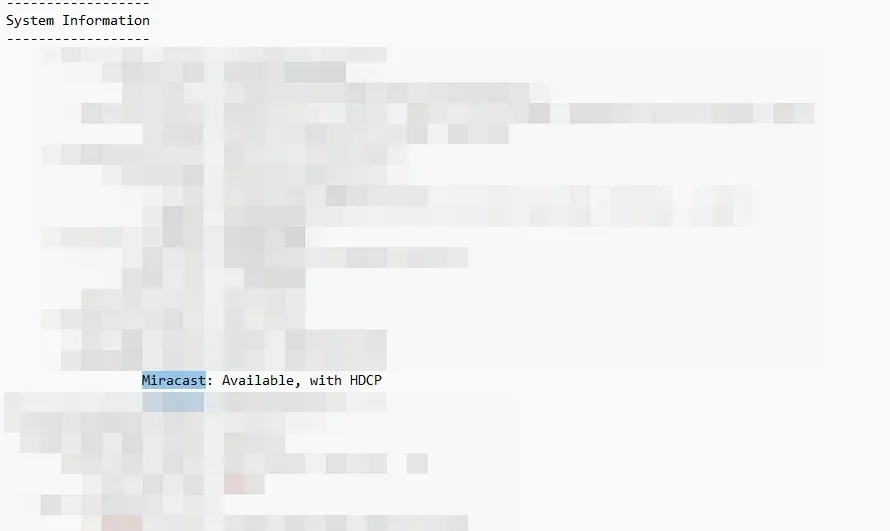
- Scroll down to the Miracast section.
- If it says Available, your PC supports wireless display.
- If it says Not supported, use PigeonCast for cross-platform mirroring.
Step 2: Update Display and Network Drivers:
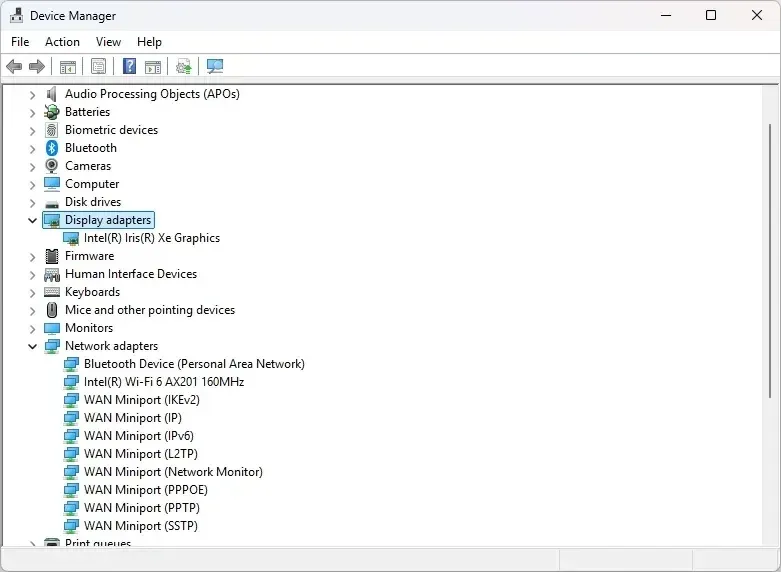
- Open Device Manager.
- Expand Display adapters and Network adapters.
- Right-click each device and choose Update driver.
- Restart your PC after completing updates.
Step 3: Reinstall the Wireless Display Feature:
- Open Settings > Apps > Optional features.
- Search for Wireless Display.
- Uninstall it, then reinstall from the same menu.
Step 4: Reboot Devices and Wi-Fi Router:
Sometimes, temporary network issues interrupt the connection. Restart your PC, TV, and router, then reconnect both devices to the same 5-GHz Wi-Fi band for better performance.
Step 5: Check Firewall and VPN:
Security or VPN software can block connections. Temporarily disable your VPN and firewall, then test again. If the issue resolves, whitelist wireless display services for future sessions.
Conclusion
Connecting Windows 11 to a wireless display allows you to work, stream, or present more flexibly. Whether you use the built-in Miracast feature or connect to another Windows PC, the setup is simple once your devices are compatible. For users who need cross-platform mirroring or who face Miracast compatibility issues, PigeonCast remains the most reliable free alternative for seamless and high-quality wireless connections.
Windows 11 Connect to Wireless Display FAQs
How do I connect Windows 11 to a smart TV wirelessly?
If your TV supports Miracast, you can connect your Windows PC and the TV directly by pressing Windows + K and choosing the TV from the list. If you lose Miracast support, switch to PigeonCast, a free and safe screen mirroring tool. Just install it on both your devices and set up the connection with the on-screen instructions.
Why does my Windows 11 PC not detect the wireless display?
The device might not support Miracast or your drivers may be outdated. Try updating Windows or using PigeonCast as an alternative.
Can I connect two Windows laptops wirelessly?
Yes. Install the Wireless Display optional feature on one laptop and use Windows + K on the other to project. Alternatively, install a third-party solution like PigeonCast on both your PCs.
Is there a free way to cast Windows 11 to TV?
Yes. Windows built-in casting is free, and PigeonCast also offers a free, ad-free version for advanced compatibility.
How do I enable Wireless Display in Windows 11?
Go to Settings › Apps › Optional Features › Add a feature, search for Wireless Display, and click Install. After installation, press Windows + K to connect to a wireless screen.
Why can't I install the Wireless Display feature?
Make sure your PC has an active internet connection and that Windows Update services are enabled. If the feature still fails to install, run the Windows Update Troubleshooter or check for pending system updates.
Mia Clarke is a technology editor specializing in screen mirroring and casting solutions across multiple platforms. Mia provides clear, practical guides and in-depth insights to help users seamlessly connect their devices. Passionate about enhancing digital experiences, Mia is dedicated to keeping readers updated on the latest trends and tools in cross-platform screen sharing. Whether you’re looking to mirror your smartphone, laptop, or smart TV, Mia’s content delivers reliable, user-friendly advice to simplify your tech setup.