
"Your device doesn't support Miracast" is a common error message that Windows 11 users encounter when attempting to wirelessly project their screen to another device. This issue can be caused by several factors, including outdated drivers, incompatible hardware, or network connectivity problems. Fortunately, the issue is usually solvable with a few simple steps. In this guide, we will explain why this error occurs and provide effective solutions to resolve it.
Why Windows Says "Your Device Doesn't Support Miracast"
This error typically occurs when your PC or mobile device is unable to establish a Miracast connection due to compatibility or configuration issues. While Miracast is available on many modern devices, older PCs or those with certain hardware limitations might face problems.
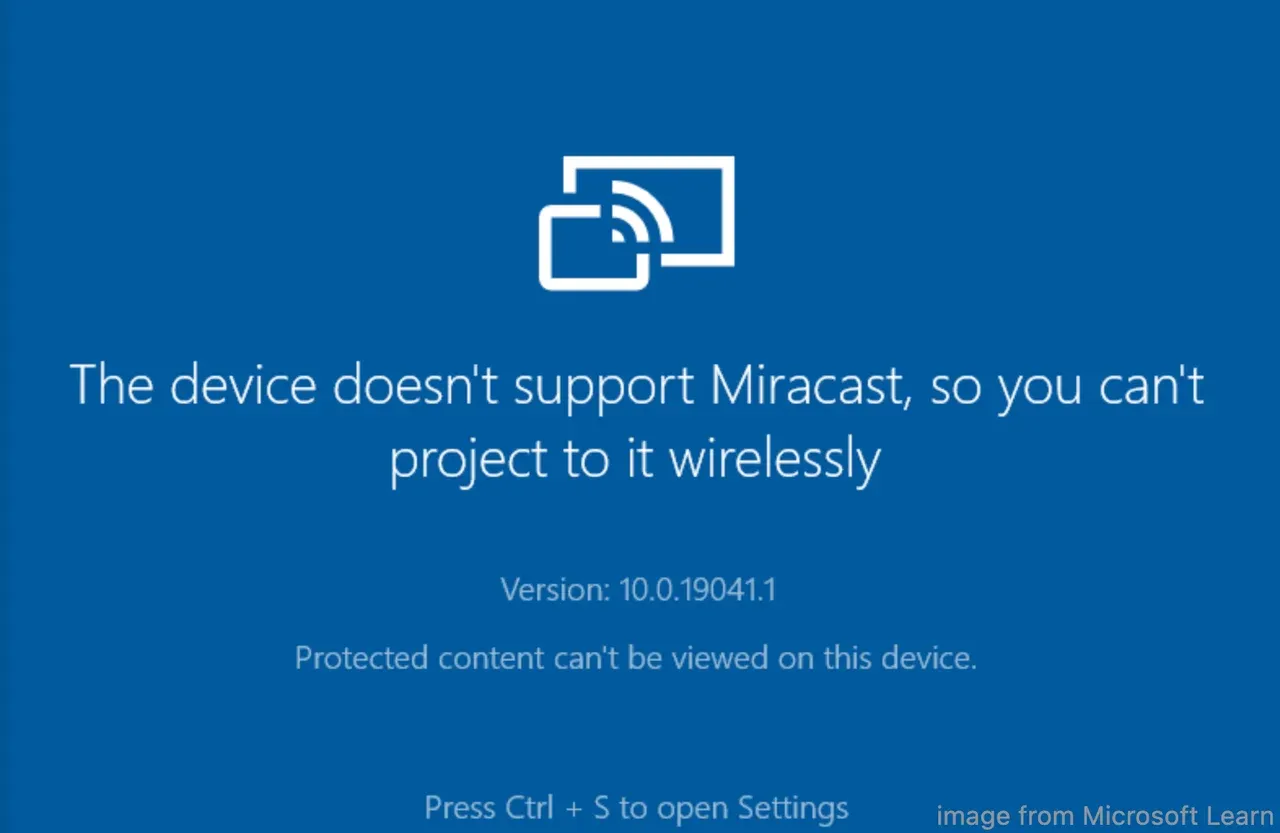
Factors such as outdated graphics drivers, incorrect Wi-Fi settings, or lack of support for Miracast on your device can all contribute to this error message. Understanding these causes will help you troubleshoot effectively and resolve the issue.
How to Fix "Your Device Doesn't Support Miracast"
To resolve the "Your device doesn't support Miracast Windows 11" error, follow these practical fixes. These steps address common causes, from hardware limitations to network issues, ensuring a smooth Miracast connection.
Bonus: Try Free PigeonCast for Windows Screen Mirroring
Before diving into the more technical solutions, consider using the free PigeonCast app as a quick and reliable alternative to Miracast for screen mirroring your PC.

PigeonCast is a free, ad-free tool that allows you to wirelessly stream your screen from Windows to other devices without the complications that sometimes come with Miracast. It's easy to set up and can serve as a convenient workaround if you're unable to get Miracast working.
How to mirror Windows PC to another display (like Windows, MacBook, or TV):
Step 1. Download PigeonCast on your Windows computer and the other device.

PigeonCast Screen Mirroring

Official Download



Step 2. Ensure the two devices connect to the same Wi-Fi network.
Step 3. Launch PigeonCast on both devices.
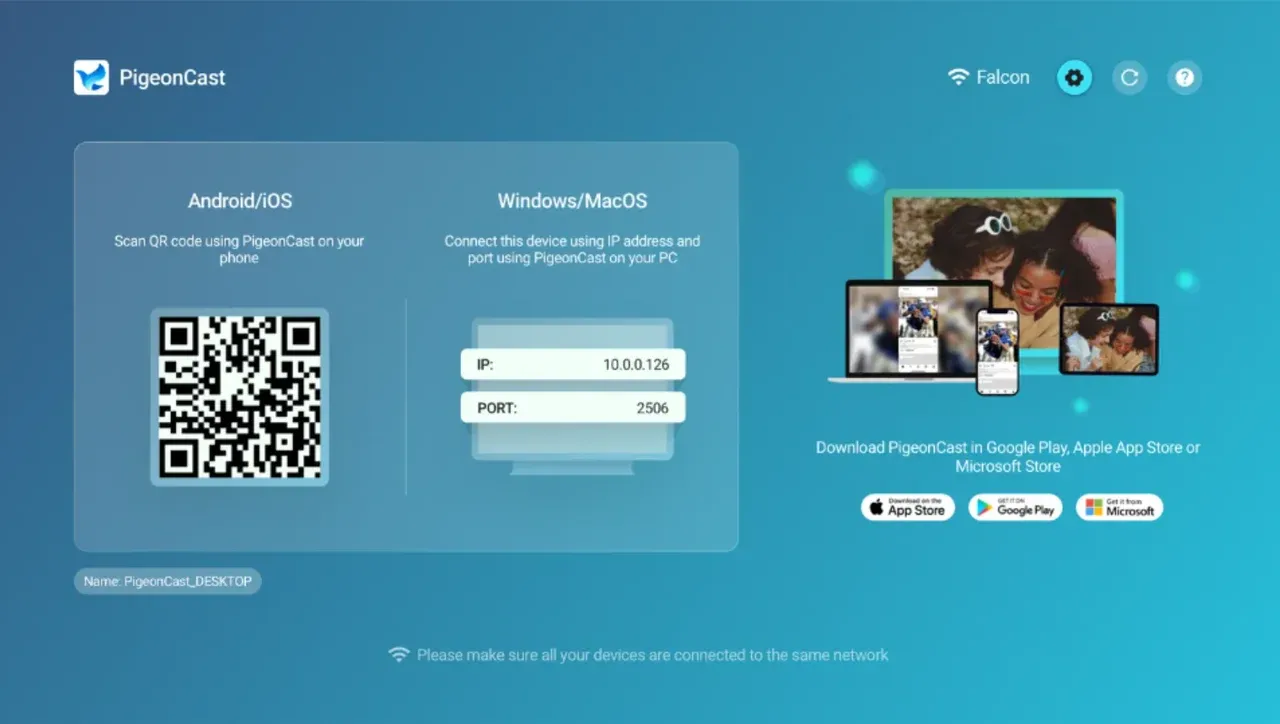
Step 4. On your Windows PC, click Send my screen.
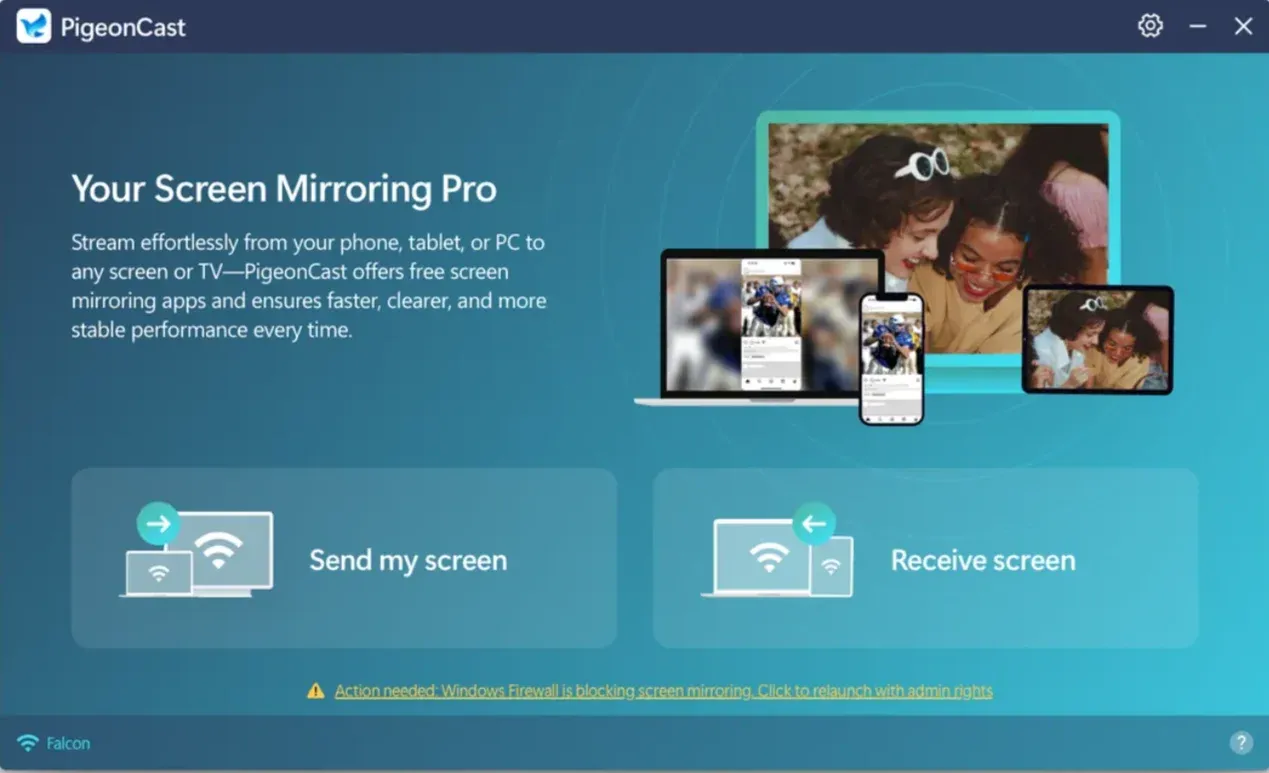
Step 5. Choose the target display from the device list.
Step 6. Choose to mirror your Windows screen or Windows app and click Start mirror.
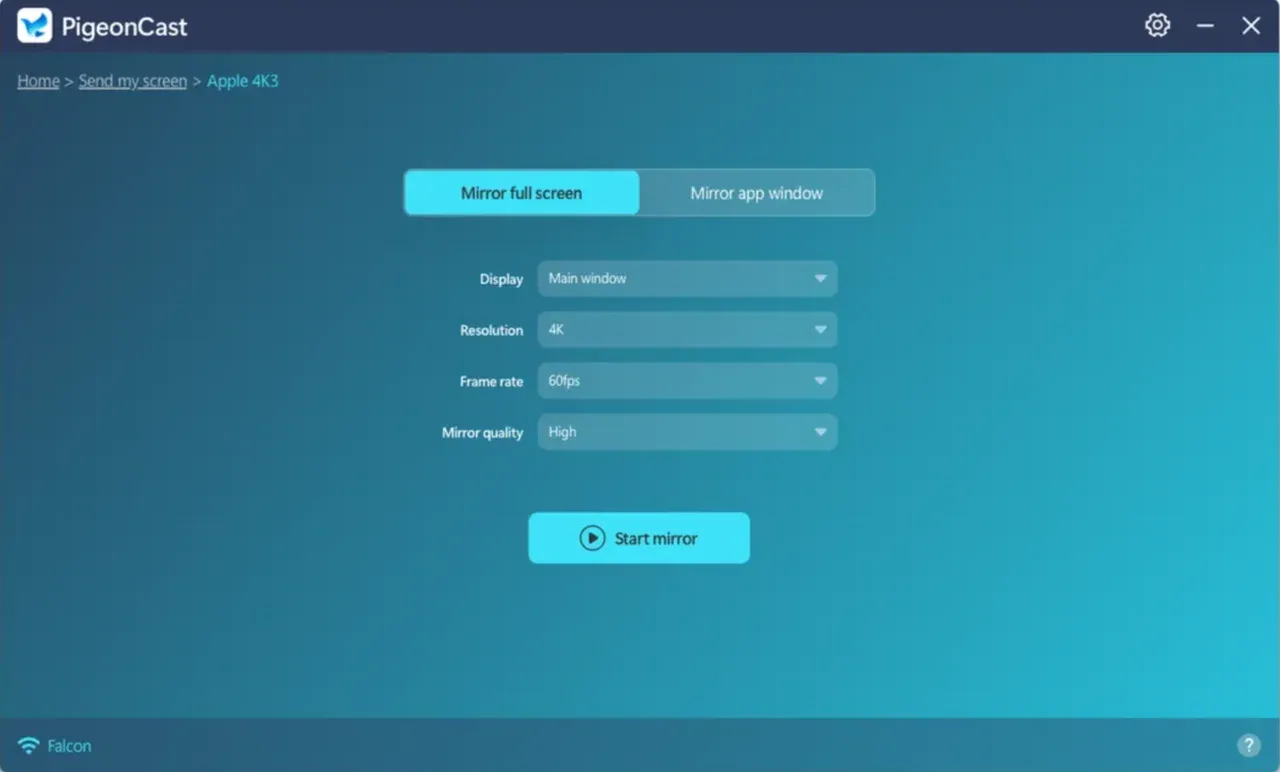
Now, you can enjoy your Windows screen or app on the other display without hassles. If you're stuck in the "your PC or mobile device doesn't support Miracast" error, try PigeonCast as an alternative.
Fix 1: Check the Wi-Fi Network Connection
A stable Wi-Fi connection is essential for Miracast to work. Ensuring both devices are connected to the same network can solve many connection issues, allowing Miracast to function properly. Here's how to check and improve your connection:
Step 1. Ensure both devices are connected to the same Wi-Fi network.
Tip: If you're experiencing network problems, you may want to first resolve any Wi-Fi connection issues. You can follow this official guide from Microsoft to fix Wi-Fi connection problems.
Step 2. Check your network speed and consider restarting your router to improve signal strength if necessary.
Fix 2: Check Miracast Support on Windows
Not all Windows PCs support Miracast, particularly older models or devices with certain graphics hardware. It's important to check whether your device is compatible with Miracast before proceeding with further troubleshooting. Here's how to check:
Step 1. Press Windows + R, type dxdiag, and click Enter.
Step 2. In the DirectX Diagnostic Tool, click Save All Information, and save the text file in a folder.
Step 3. Open the text file via Notepad and search for "Miracast" in the system information section. If it says "Available", your PC supports Miracast.
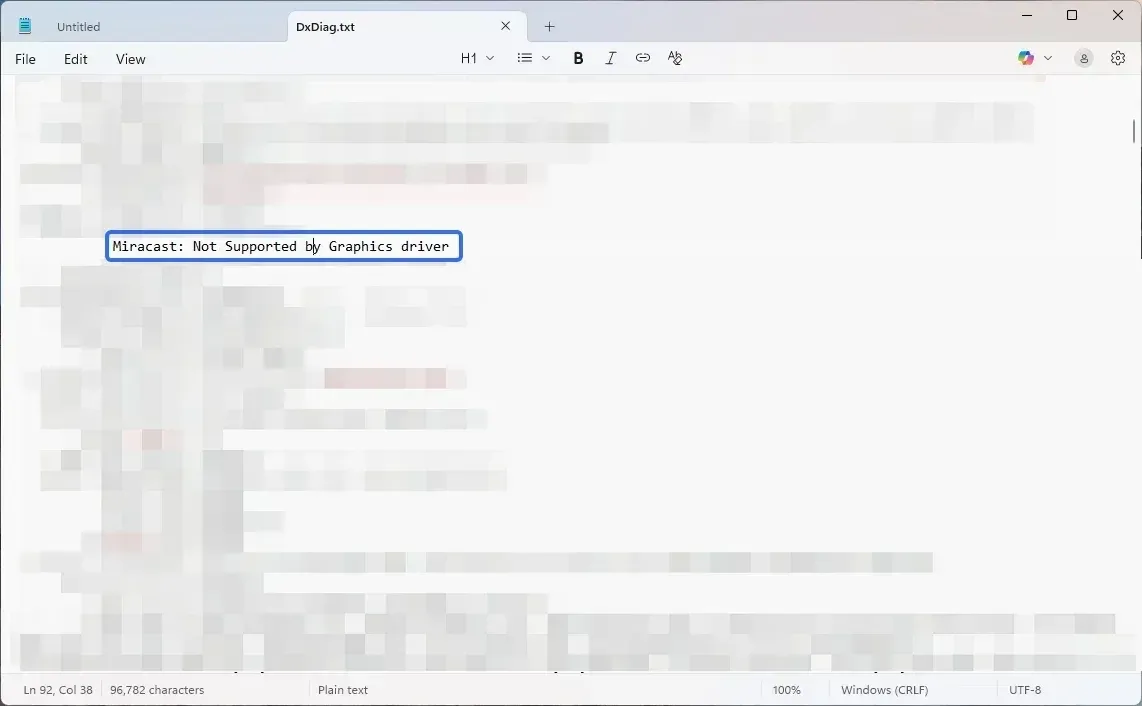
If your device doesn't support Miracast, you may need to upgrade your hardware or explore alternative wireless casting solutions, like PigeonCast.
Fix 3: Update or Reinstall the Driver
Outdated or incompatible drivers are a common cause of Miracast-related issues, like"Windows 11 your device doesn't support Miracast". Ensuring that your drivers are up to date will allow your hardware to communicate with Miracast-enabled devices. Here's how to update or reinstall your drivers:
Step 1. Open Device Manager and navigate to Display Adapters.
Step 2. Right-click your display adapter and select Update Driver.
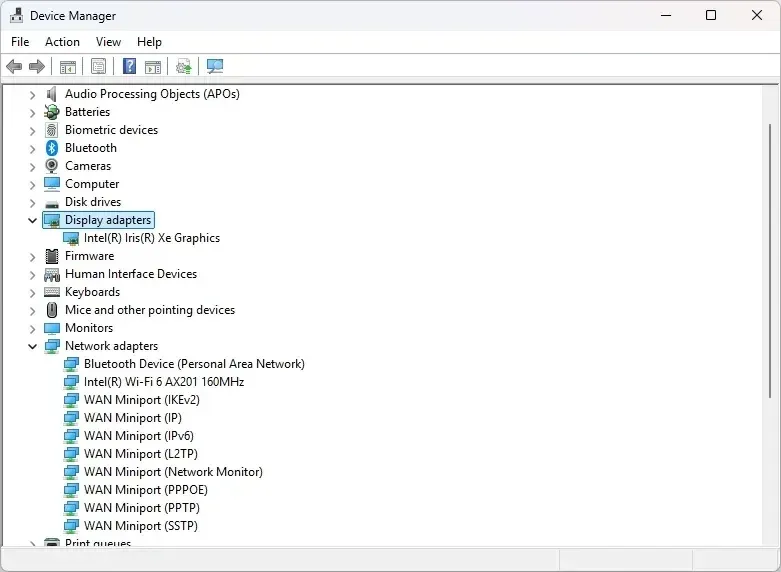
Step 3. If no update is found, right-click the driver, choose Uninstall Device, and restart your PC to reinstall it automatically.
Step 4. You can also visit your graphics card manufacturer's website to download the latest drivers directly.
Fix 4: Set Wireless Adapter to Auto
How to fix "your PC doesn't support Miracast"? Sometimes, the wireless adapter's settings can prevent Miracast from working properly. By setting the adapter to "Auto", you can ensure it operates optimally, avoiding issues that arise from power-saving features. Here's how to set it:
Step 1. Open Device Manager and navigate to Network Adapters.
Step 2. Right-click your Wi-Fi adapter and select Properties.
Step 3. Under the Power Management tab, uncheck the option to allow the computer to turn off the device to save power.
Step 4. Restart your computer for the changes to take effect.
Fix 5: Close Third-Party VPN
Some third-party VPNs interfere with Miracast connections, blocking the signal between your PC and the receiving device, and triggering the error message "this device doesn't support Miracast". If you're using a VPN, try disabling it and reconnecting to the wireless display. If you need the VPN for security, try switching to a different VPN or contact your provider for solutions specific to Miracast.
Final Words
The "Your device doesn't support Miracast" error in Windows 11 can be caused by a variety of factors, but it is usually solvable with a few straightforward troubleshooting steps. By ensuring that your device meets the necessary hardware requirements, updating drivers, and optimizing your Wi-Fi connection, you can resolve the issue and enjoy seamless wireless screen mirroring. If these steps don't work, consider using PigeonCast as an alternative.
Your Device Doesn't Support Miracast FAQs
Q: Which device supports Miracast?
Most modern Windows PCs, tablets, and smartphones, and some TVs (like Roku, Sony, Philips, and LG) support Miracast. However, older devices or those without certain hardware, such as specific wireless adapters, may not.
Q: How do I enable Miracast on my device?
Miracast is typically enabled through the Connect app in Windows 10 and 11. You can access it by going to Settings > System > Display > Connect to a wireless display or pressing Windows + P and clicking Connect to a wireless display.
Q: How to fix device not supporting Miracast?
Ensure your device meets Miracast's hardware requirements, update your Wi-Fi and graphics drivers, and check your network connection. If all else fails, consider using an alternative like PigeonCast.
Q: Do all TVs support Miracast?
No, not all TVs support Miracast. You'll need a Miracast-enabled TV or a device like a wireless display adapter that supports it.
Q: How to mirror Windows to TV?
To mirror your Windows PC to a TV, you can use Miracast if both devices support it. Simply go to Settings > System > Display, and select Connect to a wireless display. If Miracast is not working, you can also use third-party tools like PigeonCast for seamless wireless screen mirroring.
Mia Clarke is a technology editor specializing in screen mirroring and casting solutions across multiple platforms. Mia provides clear, practical guides and in-depth insights to help users seamlessly connect their devices. Passionate about enhancing digital experiences, Mia is dedicated to keeping readers updated on the latest trends and tools in cross-platform screen sharing. Whether you’re looking to mirror your smartphone, laptop, or smart TV, Mia’s content delivers reliable, user-friendly advice to simplify your tech setup.