
If you searched for wireless display Telefunken, you are probably trying to mirror a phone or laptop to a Telefunken TV and are not sure what the TV actually supports. That confusion is normal. Telefunken sells different TV lines, and they do not all handle casting or screen mirroring in the same way.
Some Telefunken models include a built-in wireless display feature, while some newer Android TV models mention Google Chromecast support. Others may only offer media sharing, not full screen mirroring. The easiest way to avoid wasting time is to identify your TV model first, then match it with the right method.
Telefunken Wireless Display: Quick Answer
If you want the short answer, start here:
- If your Telefunken TV runs Android TV and lists Google Chromecast support, try casting from Android, Chrome, or a Chromecast-enabled app first.
- If your Telefunken TV has a Wireless Display source in the input list, it may support Miracast-style screen sharing from compatible Windows or Android devices.
- If your Telefunken TV wireless display support is unclear, limited, or inconsistent, PigeonCast is one of the best early options because it gives you a simpler app-based way to get your screen onto the TV without guessing which built-in feature your model has.
- If you use iPhone or Mac, do not assume AirPlay is built in unless your exact Telefunken model says so.
What Wireless Display Telefunken Means on Different TVs
The phrase "wireless display" can mean a few different things on Telefunken TVs.
On some older Telefunken manuals, Wireless Display appears as a TV input source. That usually points to Miracast-style screen sharing, where a compatible Android phone, tablet, or Windows PC sends its screen to the TV.
On some newer Telefunken Android TV product pages, some newer Telefunken Android TV models advertise Google Chromecast support. That is different from Miracast. Chromecast often works through supported apps and Chrome browser casting, while Miracast is closer to direct screen duplication.
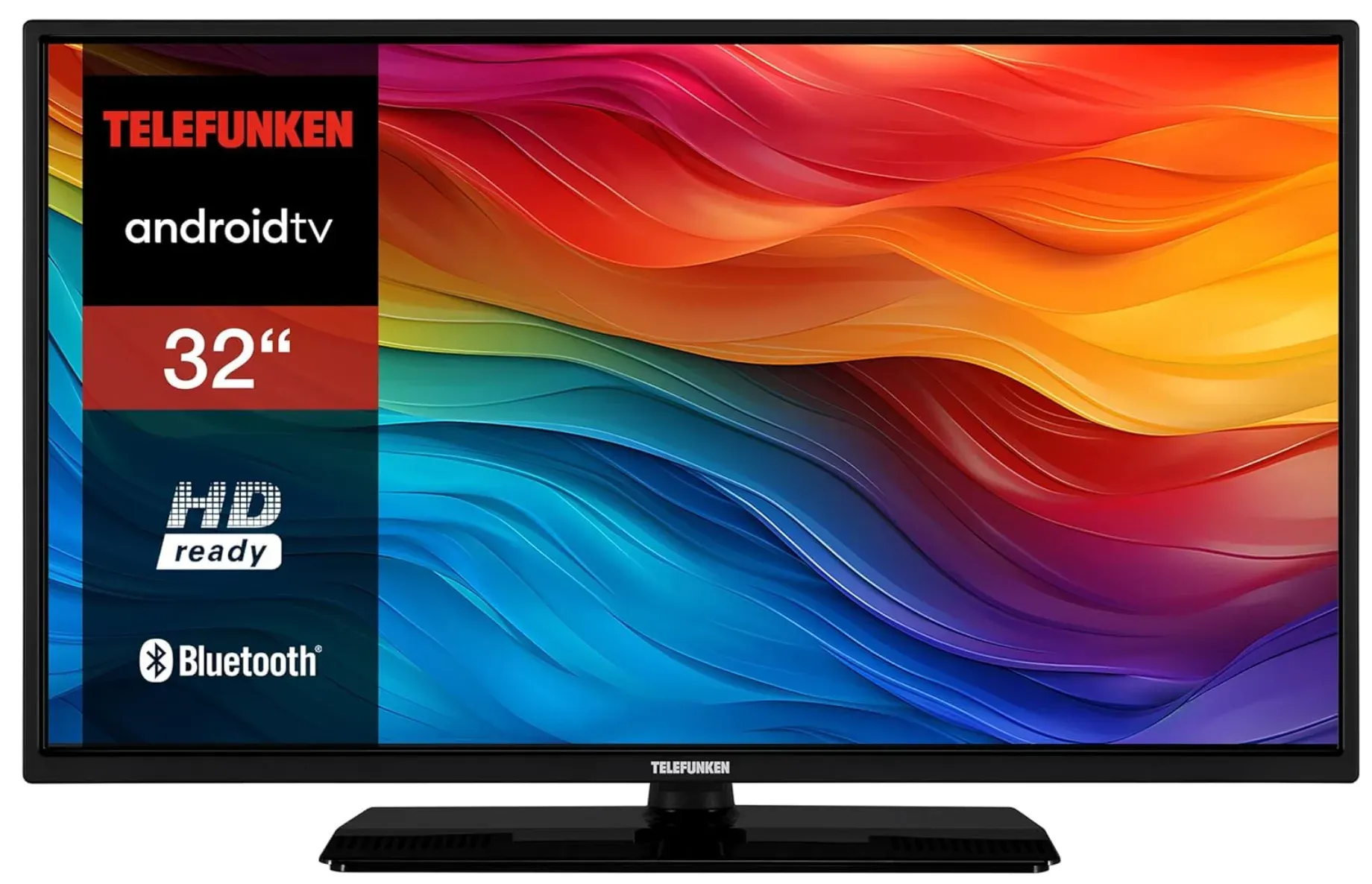
That is why two Telefunken TVs can behave very differently even though both are smart TVs.
How to Check Telefunken Screen Mirroring and Wireless Display Support
Before you try random settings, check the TV itself.
Look for one of these signs:
- a Wireless Display source in the input or source menu
- Chromecast or Google Cast mentioned in the TV settings or product page
- Android TV branding on the product page or in the TV system menu
- a user manual section that mentions screen sharing, wireless display, or mobile device connection
If you only see media sharing or network file sharing, that does not always mean full screen mirroring is available.
Where should you look first? Check these places in order:
- the Source or Input menu on the TV
- the Network or Connected devices area in settings
- your TV model page
- the user manual for your exact model
This matters because wireless display support on Telefunken TVs can vary by model series, software platform, and market.
Best Wireless Display Telefunken Method by Device
The best method depends more on the sending device and the TV software than on the Telefunken brand name alone.
| Sending device | Best first method | Why |
|---|---|---|
| Windows laptop | Wireless Display / Miracast | This is the most likely match for TVs that show a Wireless Display source |
| Android phone | Chromecast or screen mirroring | Many Android devices support both app casting and full-screen sharing |
| iPhone or iPad | PigeonCast or confirmed AirPlay support | AirPlay should not be assumed on Telefunken TVs |
| Mac | PigeonCast or confirmed AirPlay support | Mac mirroring is easiest when the TV clearly supports AirPlay |
If your TV model is unclear, PigeonCast is often the safer first choice than spending fifteen minutes trying methods your Telefunken TV may not support.
How to Use Wireless Display on Telefunken From Windows
This is the first method to try when your Telefunken TV shows Wireless Display in the source list.
Step 1. Turn on the TV and open the Source or Input menu.
Step 2. Select Wireless Display if it appears.
Step 3. Wait until the TV shows that it is ready to connect.
Step 4. On your Windows laptop, press Windows + K or open Settings > System > Display > Connect to a wireless display.
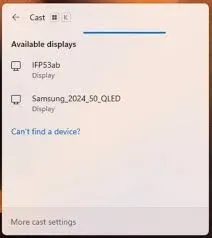
Step 5. Choose the Telefunken TV from the list.
Step 6. Approve the connection on the TV if prompted.
If the TV does not appear, the most common reasons are:
- the TV does not support this feature on your model
- the TV is not on the correct input
- the PC wireless adapter does not support Miracast
- the Windows driver is outdated
How to Cast to a Telefunken TV From Android
Telefunken screen mirroring usually works best on Android devices because many phones support both Miracast and Google Cast.
If your Telefunken TV supports Chromecast, try this first:
Step 1. Connect the TV and phone to the same Wi-Fi network.
Step 2. Open a Chromecast-enabled app such as YouTube.
Step 3. Tap the Cast button.
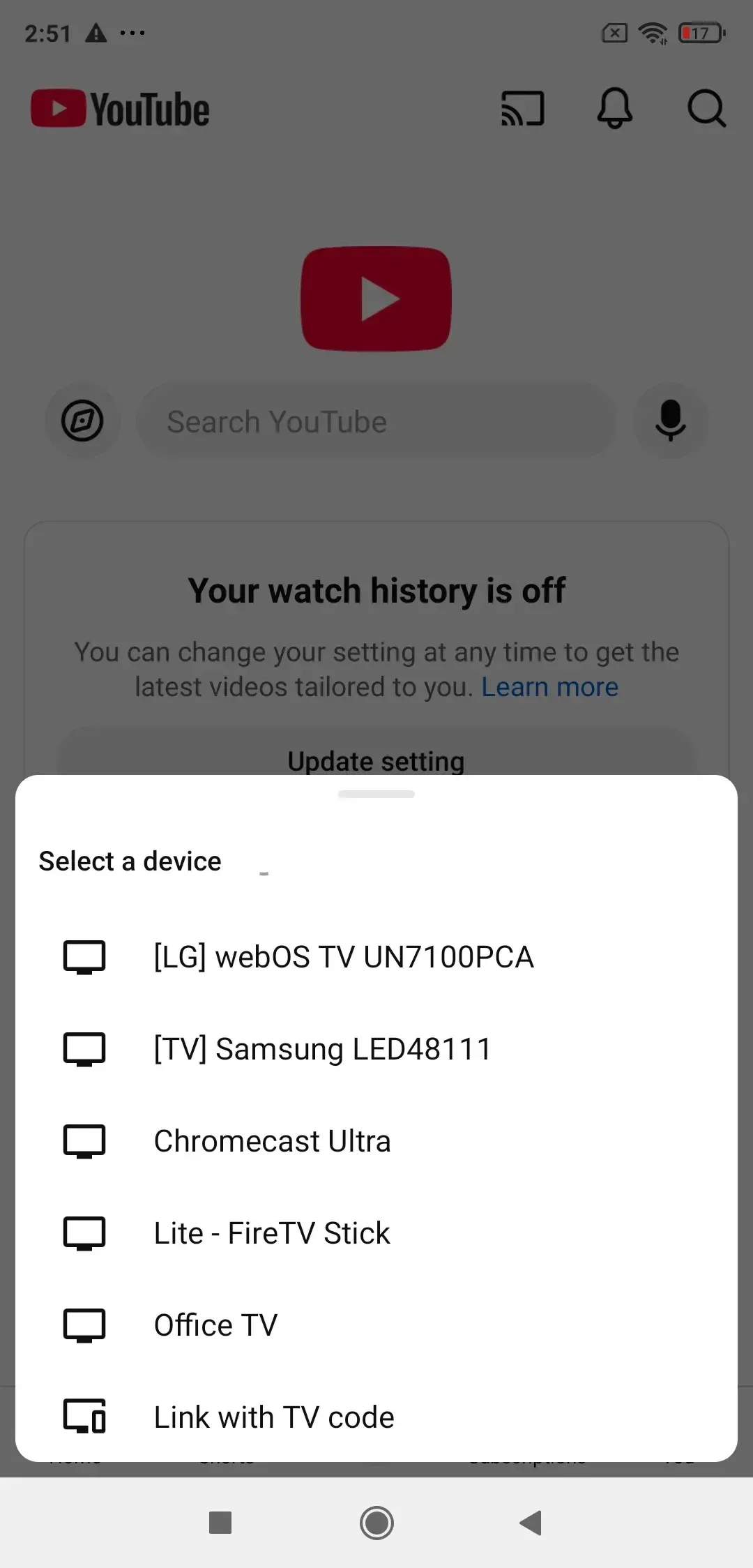
Step 4. Select your Telefunken TV.
This is the cleanest option when the TV clearly supports Google Cast.
If your Telefunken TV supports Wireless Display instead, use Android screen mirroring:
Step 1. Open the Wireless Display source on the TV.
Step 2. On your phone, open the screen sharing feature. The name varies by brand. You may see Smart View, Cast, Screen Cast, or Wireless Display.
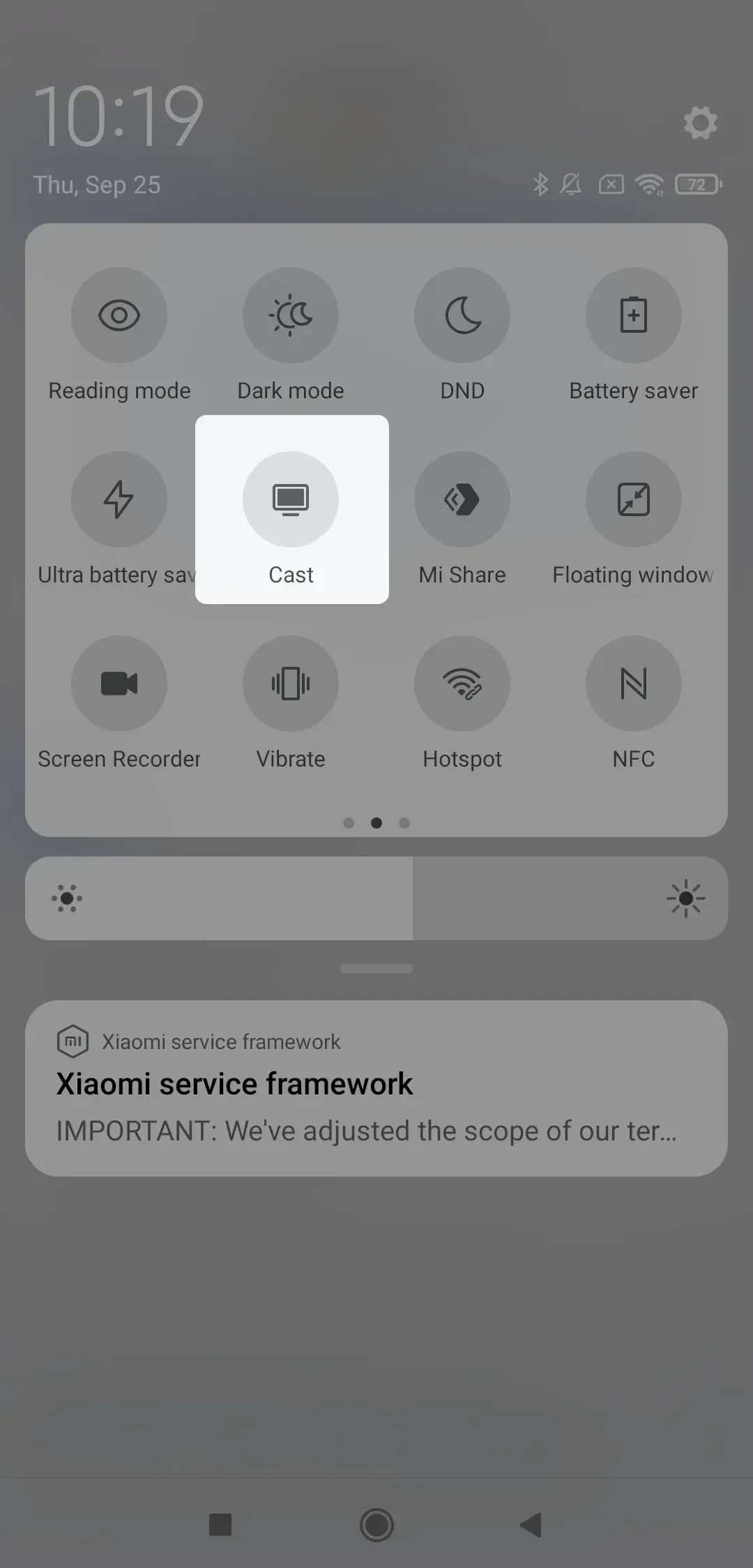
Step 3. Choose the Telefunken TV from the available devices.
Step 4. Confirm the connection if the TV asks.
If you do not see the TV, your phone may support Chromecast but not Miracast, or the TV may support Miracast but not Google Cast. That mismatch is common.
How to Mirror iPhone or Mac to a Telefunken TV
Telefunken screen mirroring for iPhone or Mac depends heavily on whether the TV supports AirPlay. If your Telefunken TV does not explicitly say it supports AirPlay, you should not expect iPhone or Mac mirroring to work as a built-in feature. Some Telefunken sets may support it, but it is not something you should assume from the brand name alone.
For Apple users, the practical choices are:
- use AirPlay only when your exact TV model confirms it
- use PigeonCast if you want a simple app-based method
- use HDMI if you want the most predictable result
Mirror iPhone or Mac to Telefunken TV with AirPlay
If your Telefunken TV supports Apple AirPlay 2, you can mirror directly from an iPhone, iPad, or Mac without extra hardware.
Step 1. Connect both devices to the same Wi-Fi network.
Step 2. Open the mirroring feature on your Apple device.
- On iPhone or iPad, open Control Center and tap Screen Mirroring.
- On Mac, open Control Center from the menu bar and click Screen Mirroring.
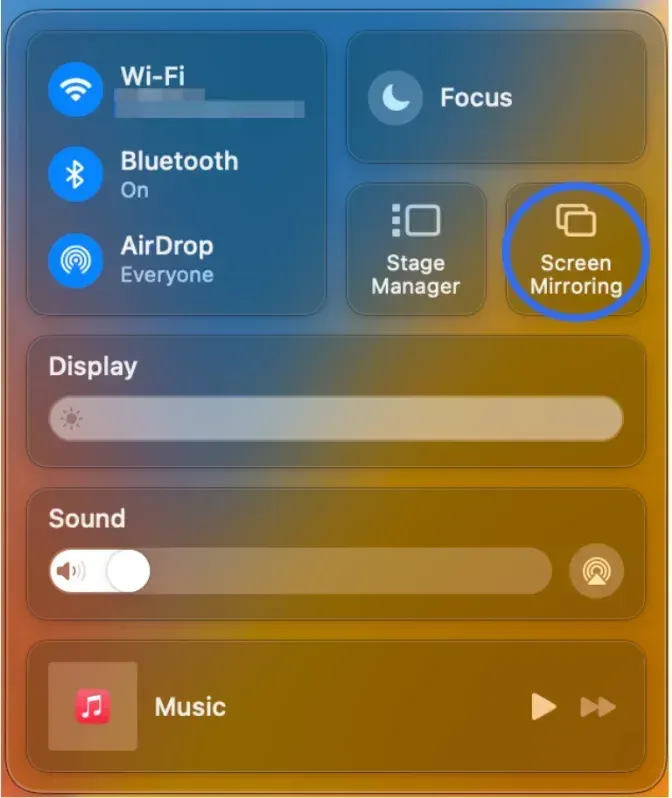
Step 3. Select your Telefunken TV from the device list.
Step 4. Enter the AirPlay code shown on the TV if prompted.
Step 5. Your iPhone or Mac screen should now appear on the TV.
Mirror iPhone or Mac to Telefunken TV via PigeonCast
PigeonCast is useful when your Telefunken TV does not support AirPlay or when you want a more flexible wireless setup across different platforms.
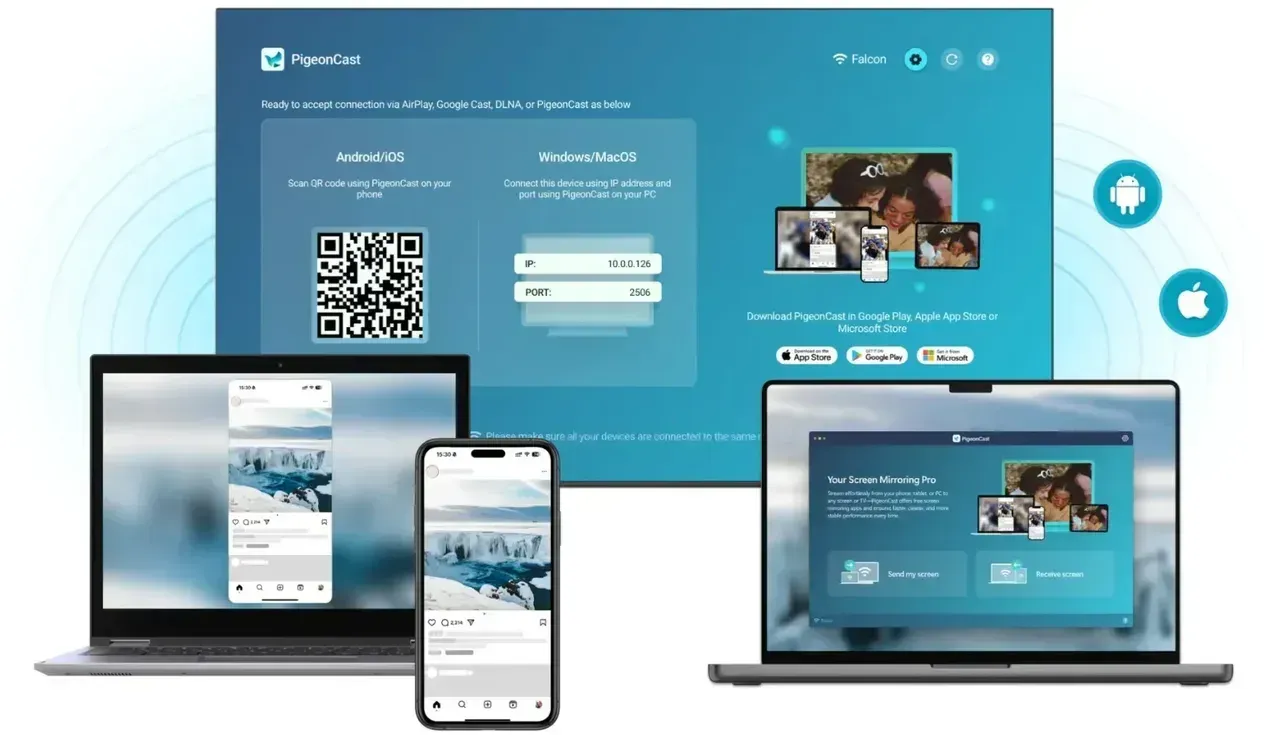
Step 1. Install PigeonCast on your Apple device and on the Telefunken TV or connected streaming device.


Overall Rating:



Step 2. Connect both devices to the same Wi-Fi network.
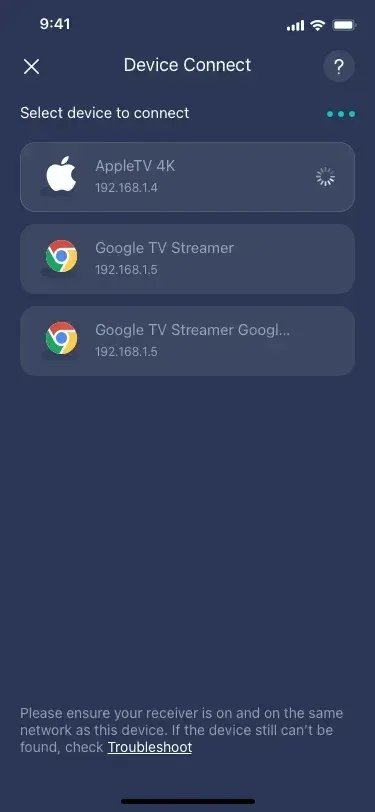
Step 3. Open PigeonCast and select the Telefunken TV as the target device.
Step 4. Start screen mirroring.
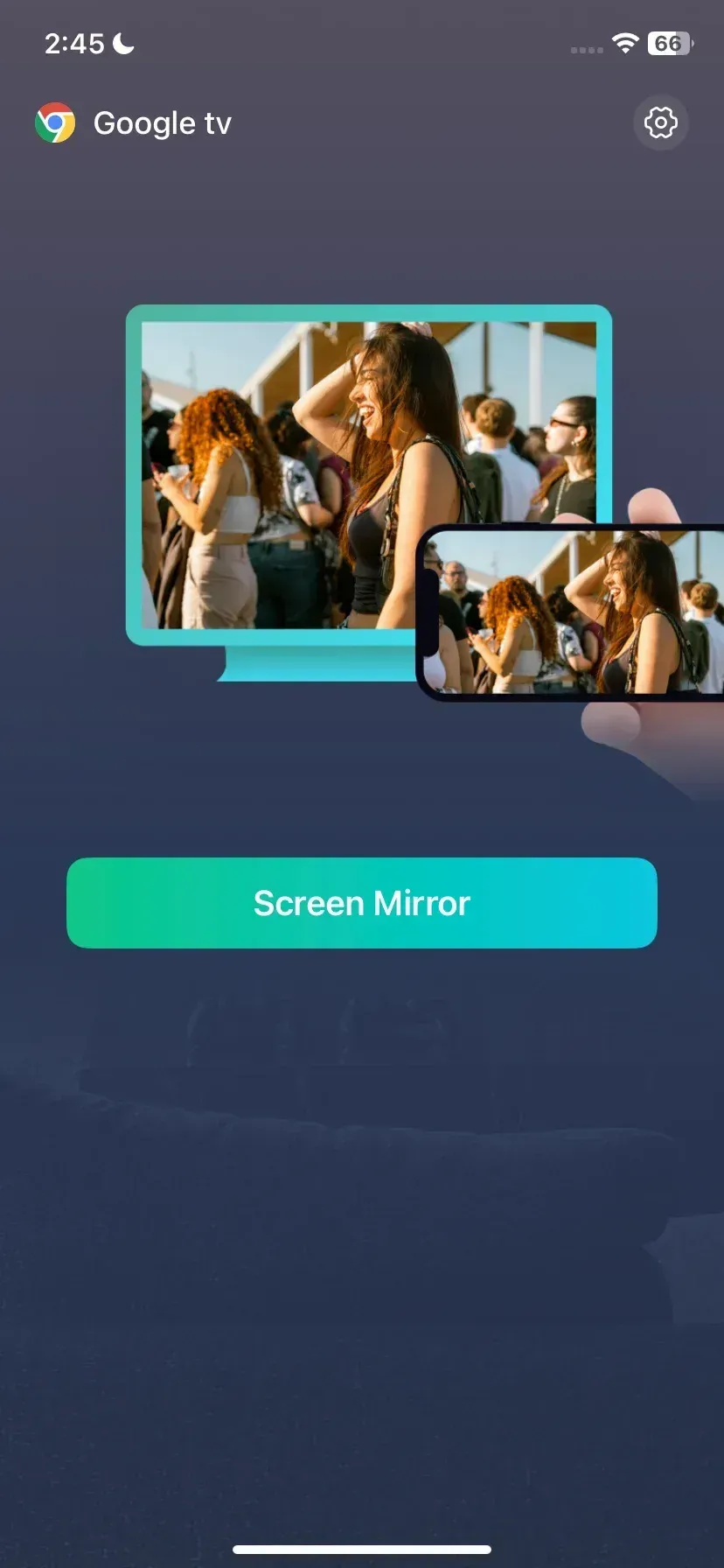
Step 5. Your screen should appear on the TV within a few seconds.
Mirror iPhone or Mac to Telefunken TV via HDMI Cable
HDMI is usually the most reliable option, especially for older Telefunken TVs or unstable wireless networks.
For iPhone, connect an Apple-compatible Lightning-to-HDMI or USB-C-to-HDMI adapter to the phone, then connect the HDMI cable to the TV. For Mac, connect the HDMI cable directly or use a USB-C adapter if needed.
After connecting, switch the TV input source to the correct HDMI port. Your iPhone or Mac screen should appear automatically.
Common Telefunken TV Wireless Display
If the TV does not appear in your cast or mirroring list, one of these issues is usually responsible.
- Your Telefunken model does not support the method you are trying
This is the biggest one. A TV may support Chromecast but not Miracast. Another model may support Miracast-style wireless display but not AirPlay.
You might be interested in Miracast vs Chromecast: How to Mirror Screen Easily.
- The TV is on the wrong input
On models that use a dedicated Wireless Display source, the feature may not work unless that source is open on the TV first.
- The sending device and TV use different standards
This is very common:
- Windows often expects Miracast
- Android may use either Cast or Miracast depending on the phone and app
- iPhone and Mac usually expect AirPlay
If the TV and the sending device use different wireless display protocols, they may never find each other.
- Software version issues get in the way
Some Telefunken manuals note that newer operating system versions can create compatibility problems on older TVs. If your TV is several years old, this can be the real reason the connection fails.
- Network setup blocks discovery
For Chromecast or AirPlay-style casting, the phone or laptop and the TV usually need to be on the same local Wi-Fi network. Guest networks, VPNs, and network isolation can block discovery.
Final Words
Wireless display Telefunken is not one single feature that works the same way on every Telefunken TV. Some models include a Wireless Display input for Miracast-style screen sharing. Some newer Android TV models mention Google Chromecast support. Some only support simpler media sharing.
That is why the best first move is to check your exact TV model, confirm whether the set offers Wireless Display, Chromecast, or AirPlay, and then choose the method that matches your phone or laptop. If your Telefunken support is unclear or inconsistent, PigeonCast is one of the easiest ways to skip the guessing and start mirroring sooner.
Wireless Display Telefunken FAQ
Does every Telefunken TV support wireless display?
No. Wireless display support depends on the exact Telefunken TV model and operating system. Some models include built-in Wireless Display, Miracast, Chromecast, or casting features, while others only support basic smart TV apps without full screen mirroring. Checking the model specifications is the safest way to confirm compatibility.
Can I use Miracast on a Telefunken TV?
Possibly. Many Telefunken TVs that include a Wireless Display or Screen Mirroring option use Miracast-compatible technology. This usually works with Windows PCs and some Android phones. iPhones and Macs do not support Miracast natively.
Can I AirPlay to a Telefunken TV?
Only certain Telefunken smart TVs support Apple AirPlay 2. AirPlay availability depends on the TV model, software version, and region. If AirPlay is supported, you should see it listed in the TV’s network or connection settings.
Why can't my phone find my Telefunken TV?
This usually happens because the devices are not connected to the same Wi-Fi network, the TV is on the wrong input source, wireless display is disabled, or the phone and TV use different casting technologies. Restarting both devices and updating the TV software may also help.
Does Telefunken TV have screen mirroring?
Some Telefunken TVs support screen mirroring through Miracast, Chromecast, AirPlay, or Wireless Display features. Support varies widely between models, so older or entry-level TVs may not include native screen mirroring.
Is a Telefunken TV a smart TV?
Many modern Telefunken TVs are smart TVs and include streaming apps, Wi-Fi connectivity, and app platforms such as Android TV or Linux-based smart systems. However, not every Telefunken TV is a smart model, especially older units.
Does Telefunken TV have HDMI port?
Yes. Most Telefunken TVs include one or more HDMI ports for connecting devices such as streaming sticks, laptops, gaming consoles, and HDMI screen mirroring adapters. The number of HDMI ports depends on the model size and series.
Mia Clarke is a technology editor specializing in screen mirroring and casting solutions across multiple platforms. Mia provides clear, practical guides and in-depth insights to help users seamlessly connect their devices. Passionate about enhancing digital experiences, Mia is dedicated to keeping readers updated on the latest trends and tools in cross-platform screen sharing. Whether you’re looking to mirror your smartphone, laptop, or smart TV, Mia’s content delivers reliable, user-friendly advice to simplify your tech setup.