
Have you ever wanted to break free from your phone's small screen? If you're an Android user, you likely have a powerful tool already built into your device for Smart View Android. It's your direct gateway to wirelessly mirror your phone's display, share videos, or browse photos on your TV, monitor, or projector. Please follow me now to check the specific steps on how to use Smart View on Android.
How to Mirror Android to TV via Smart View
"Smart View" is often used as a catch-all term for screen mirroring, but its implementation can vary. Primarily, it's the name of Samsung's proprietary casting feature, integrated into their phones and tablets. Now, let's proceed to learn how to use Samsung Smart View Android.
Way 1. Use Smart View on Samsung Phone
If you own a recent Samsung Galaxy phone, you have the most straightforward path to mirroring. The Smart View feature is deeply integrated into your Quick Settings panel, designed for a hassle-free connection with compatible TVs, especially Samsung smart TVs. If you want to cast Samsung phone to TV beyond Smart View, your options may also include Chromecast, HDMI, or a receiver app depending on your TV model. Here's the specific step on Smart View Android to TV:
Step 1. Verify that your TV supports screen mirroring via Miracast, Wi-Fi Direct, or is a Samsung Smart TV.
Step 2. Ensure both your phone and TV are connected to the same Wi-Fi network.
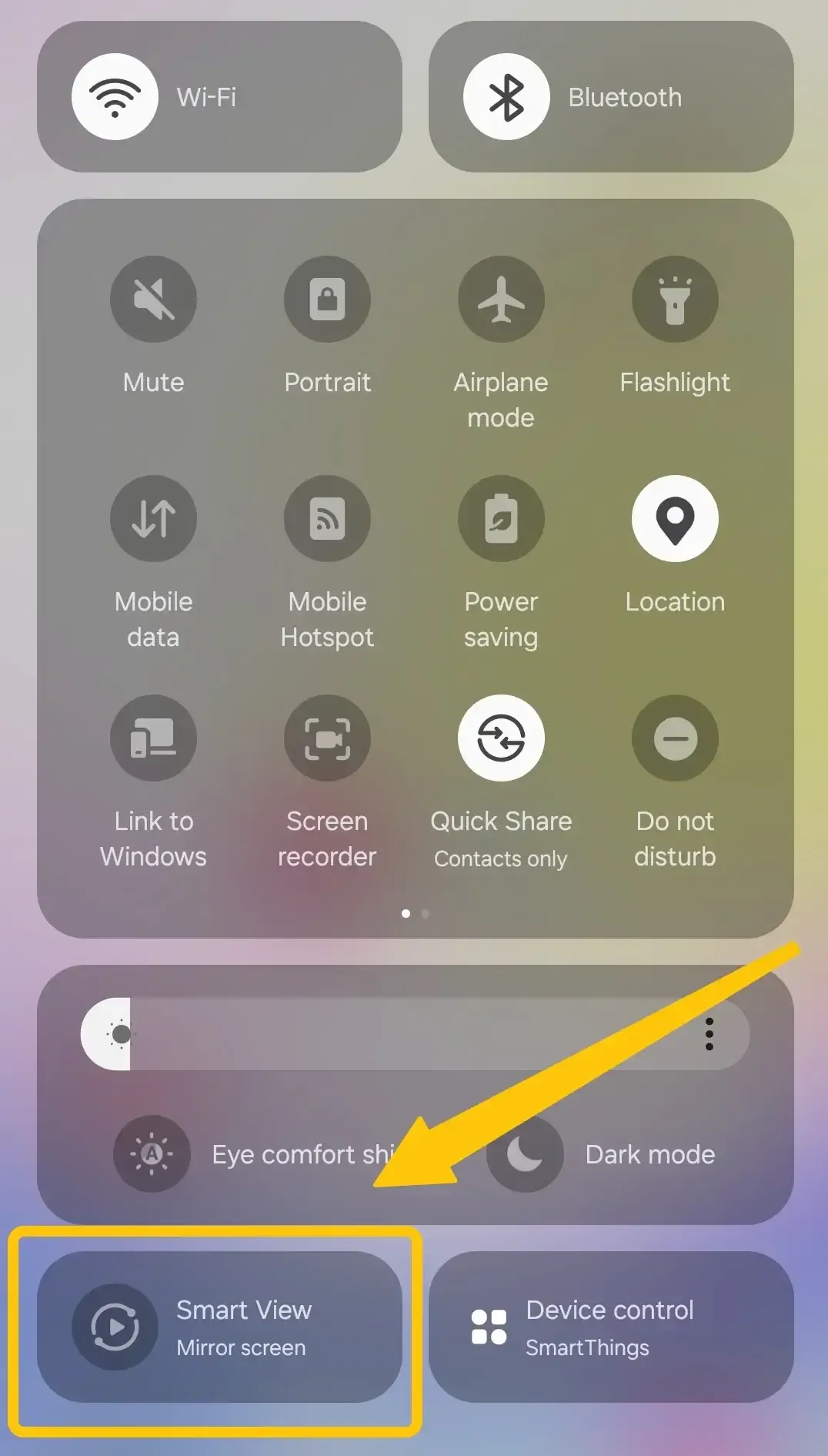
Step 3. Swipe down from the top of your screen twice to open the full Quick Settings panel, tap the Smart View icon Android.
Step 4. Tap on your TV's name from the available devices, and accept the connection request.
Step 5. Your phone's screen will now be replicated on your TV. You can now open any app, play videos, or give presentations.
Once you finish mirroring your Samsung phone to the TV, you can stop the connection from the Smart View menu. Knowing how to turn off Smart View makes it easier to disconnect your phone and prevent accidental screen sharing after you finish using the feature.
Way 2. Use SmartThings on a non-Samsung Phone
What if you have a Google Pixel, OnePlus, or another Android device? Where is Smart View on my Android phone? Samsung's dedicated Smart View app isn't available, but you're not out of options. Samsung offers the SmartThings app, which provides device control and casting features that work across many Android phones and various TV brands, not just Samsung's. Here's how to get Smart View on Android:
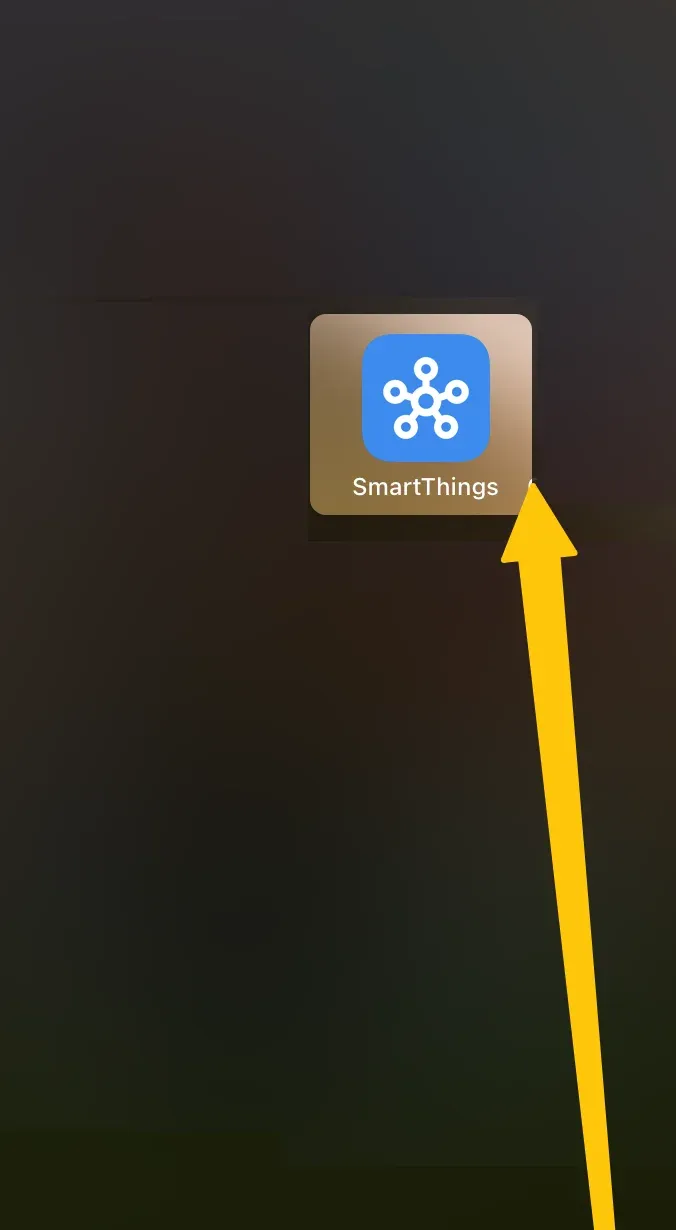
Step 1. Download the Samsung SmartThings app from the Google Play Store on your non-Samsung Android phone.
Step 2. Open the app and follow the prompts to set it up. It will automatically scan for compatible devices on your network.
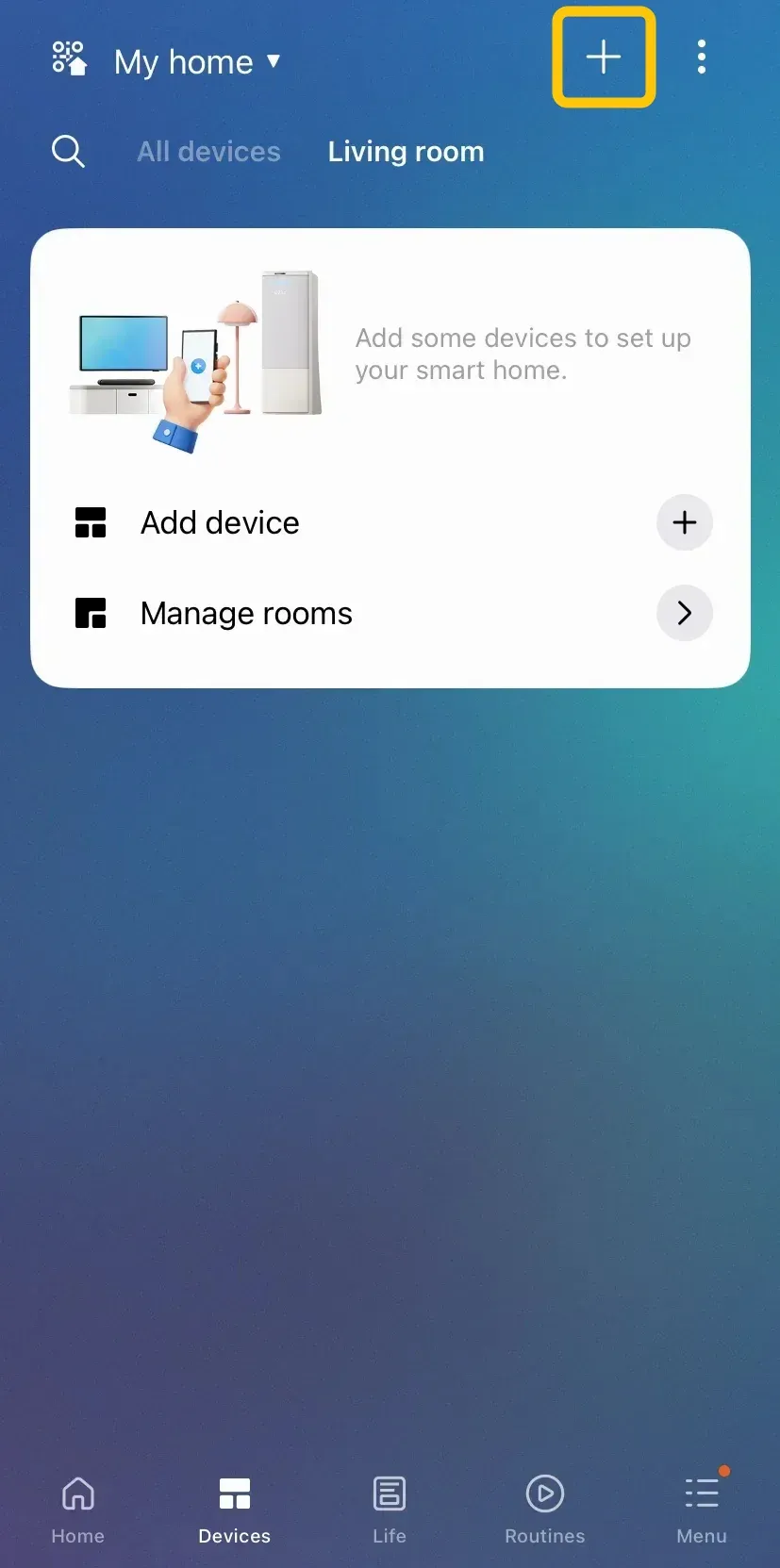
Step 3. Once your TV is discovered and added as a device, look for a Cast or Screen Mirroring button within the app's interface for that TV. The exact wording may vary.
Step 4. Tap the corresponding cast button, and your phone's screen should then begin mirroring to the TV.
2026 Best Mirroring App for Android: PigeonCast
While built-in solutions are convenient, they often come with limitations such as brand compatibility issues or lag. For a more versatile and high-performance alternative that works seamlessly with any Android phone, smart TV, streaming stick, or even when Android Smart View not working properly, PigeonCast has quickly become the top-rated mirroring app of 2026.

It is a free, ad-free app that lets you stream from your Android phone, iPhone, tablet, MacBook, or PC to any screen or TV without the need for cables or adapters. It provides seamless streaming in up to 4K resolution with minimal latency, ensuring a smooth and high-quality viewing experience. Additionally, PigeonCast uses end-to-end encryption to keep your content secure and private while streaming.
Step 1. Make sure your Android and TV are covered by the same wireless network.


Overall Rating:


Step 2. Install PigeonCast on your Android phone and smart television from the Google Play, then launch this app.
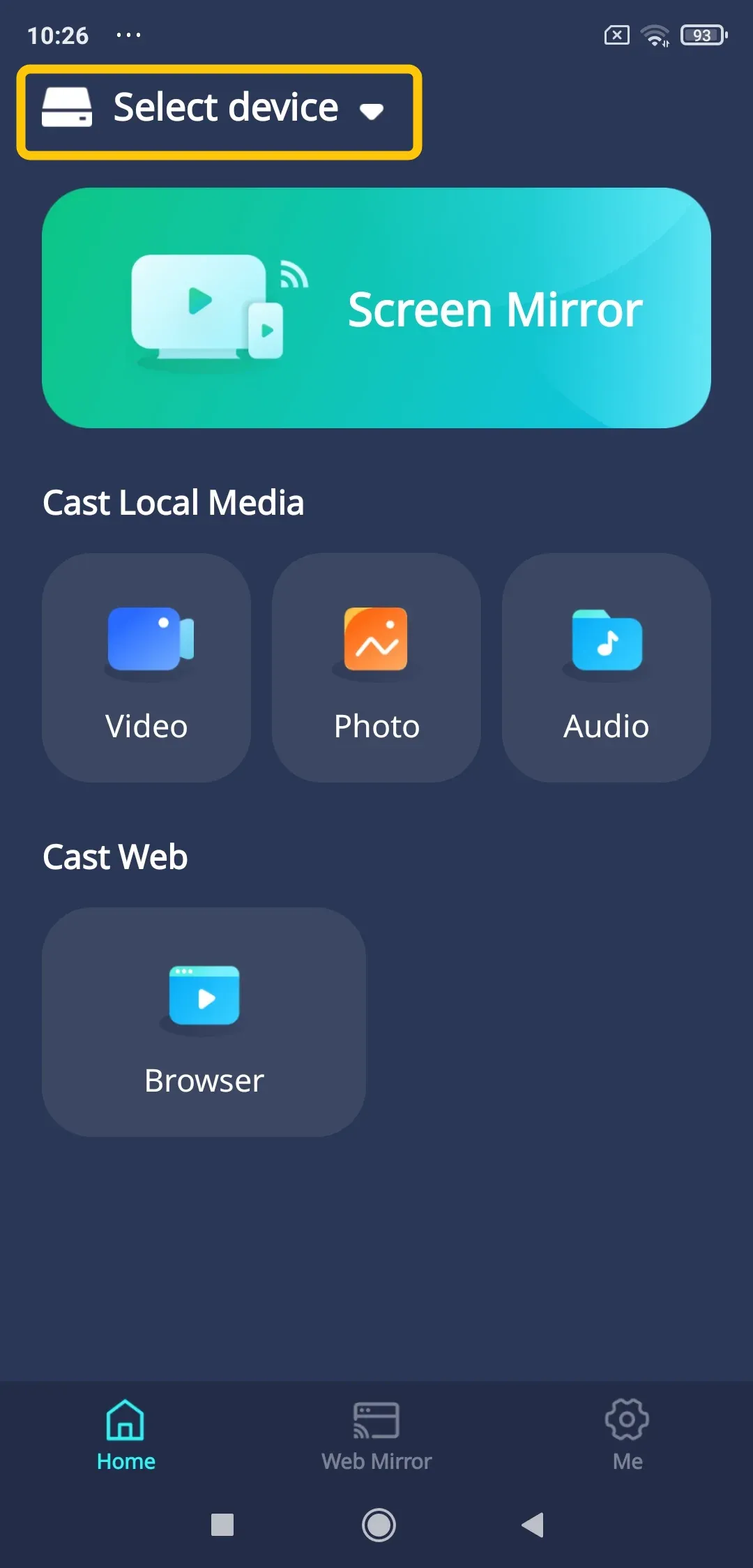
Step 3. On your mobile deivce, tap Select device to choose your TV from the device list.
Step 4. If prompted, enter the onscreen code to finish the connection requisition.
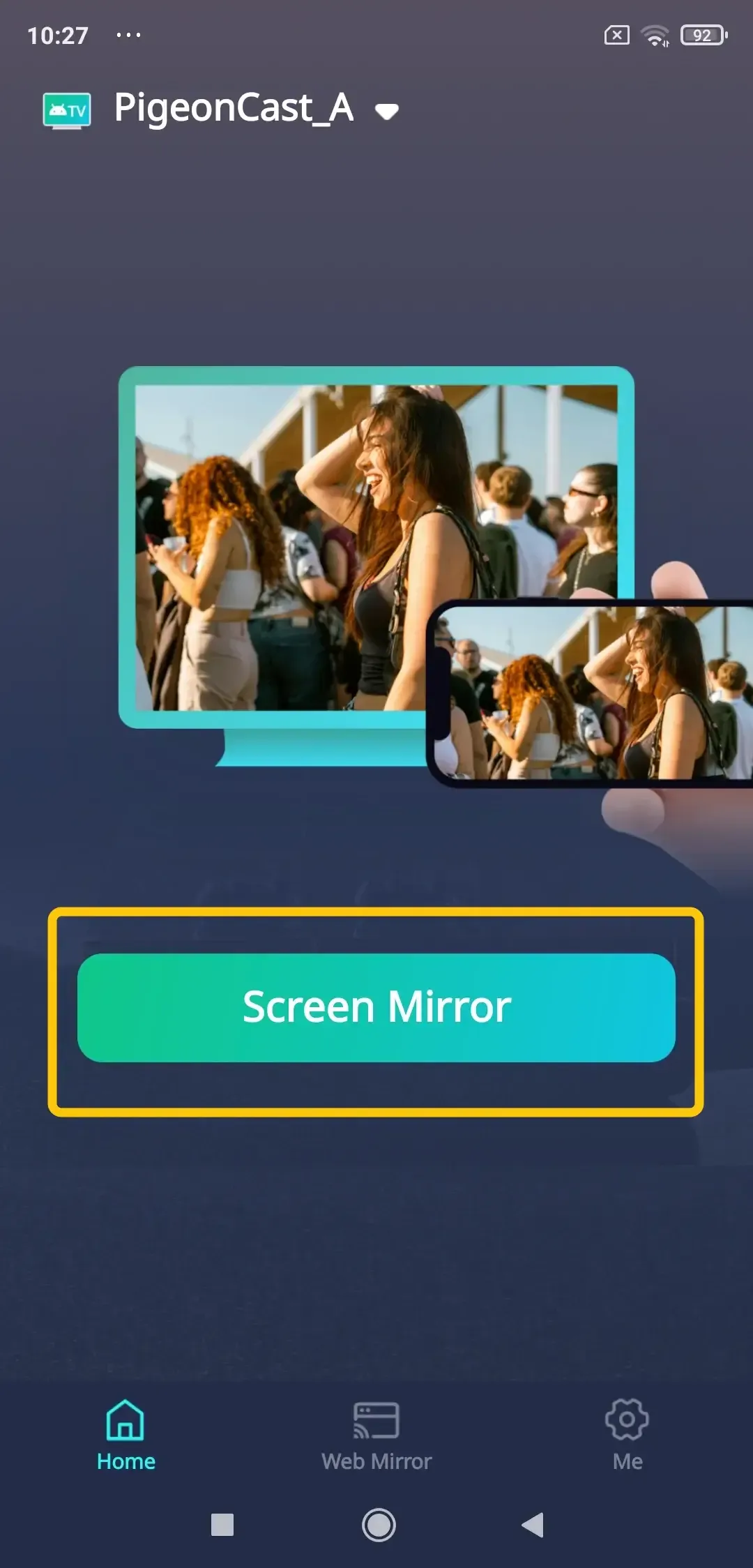
Step 5. When you finish the pairing process, you can tap Screen Mirror to start your mirroring activities, or tap the onscreen options to cast your media content.
Smart View Vs Cast Vs Miracast
The terms Smart View, Cast, and Miracast are often used interchangeably, but they represent different layers of the screen-sharing process. Understanding their distinct roles is crucial for troubleshooting and choosing the right method for your needs. To help visualize the differences, here is a clear breakdown of how they compare.
| Feature | Smart View (Samsung) | Google Cast | Miracast |
|---|---|---|---|
| What it is | A branded feature/interface on Samsung devices that utilizes underlying protocols. | A content protocol developed by Google (Chromecast). | An industry-standard protocol for wireless display mirroring. |
| Primary Use | Screen Mirroring & Media Casting (a dual-purpose tool). | Casting Specific Content/Apps (e.g., Netflix, YouTube). | Pure Screen Mirroring (exact replica of your phone screen). |
| How it Works | Uses Miracast for mirroring and can use Cast-like behavior for media files. Acts as a unified hub. | Your phone sends a play command to the TV/dongle, which then streams the content directly from the internet. | Creates a direct Wi-Fi Direct connection between devices to transmit the screen in real-time. |
| Connection Type | Can work via Wi-Fi network or direct peer-to-peer (depending on mode). | Requires both devices to be on the same Wi-Fi network. | Establishes a direct peer-to-peer Wi-Fi connection; a router is optional. |
| Best For | Samsung users wanting a simple, all-in-one solution for both mirroring and casting. | Sharing videos, music, or websites from specific apps without tying up your phone. | Mirroring your entire screen for presentations, gaming, or apps that don't support Cast. |
Conclusion
With the growing need to share content on bigger screens, streaming from your Android phone to your TV has become essential. Whether you're using the Smart View app for Android devices, screen mirroring is simple and effective. However, if you encounter issues with compatibility or performance, PigeonCast offers a robust alternative. Supporting a wide range of devices, 4K resolution, and minimal lag, PigeonCast ensures a smooth, cable-free streaming experience.
Smart View Android FAQ
What is Smart View on Android?
Smart View on Android is a feature that allows you to wirelessly mirror or cast the screen of your Android device to a compatible TV or display. It lets you share content such as videos, photos, and presentations directly from your phone to the big screen, providing an enhanced viewing experience without the need for cables or adapters. For Samsung users, Smart View is built into the device, while other Android users can use apps like SmartThings for similar functionality.
Is Smart View available on all Androids?
All modern Android phones can wirelessly cast or mirror to compatible displays, but only Samsung phones have the feature labeled "Smart View".
- Smart View is the name Samsung uses for its built-in screen-mirroring and casting feature.
- On most non-Samsung Android phones, you'll find a similar function, but it's typically called "Cast" or "Screen Cast" in the Quick Settings panel.
- The underlying technology (like Miracast or Google Cast) is widely supported, but the branded "Smart View" name and interface are exclusive to Samsung Galaxy devices.
How to update Smart View on Android?
To keep your Smart View feature running smoothly, it's essential to ensure it's up to date. To update Smart View:
- Open the Google Play Store on your Android device.
- Search for Smart View or Samsung Smart View if it's a Samsung device.
- Tap Update if an update is available.
Alternatively, you can check for system updates under Settings > Software Update.
How to find Smart View on Android?
If you're having trouble finding Smart View on your Android phone:
- Swipe down from the top of your screen to access the Quick Settings menu.
- Look for the Smart View icon. If it's not there, it might be located in your Settings app under Connections or Display.
- If Smart View is not installed, you can download it from the Google Play Store or use the SmartThings app for non-Samsung devices.
How to turn off Smart View on Android?
To stop mirroring your screen:
- Open the Quick Settings menu by swiping down.
- Tap the Smart View icon again to disconnect from the TV.
Alternatively, you can turn off your TV's screen mirroring feature or disconnect from the SmartThings app if you're using it.
Why is Android Smart View not connecting to TV?
Here are the possible reasons why Android Smart View may not connect to your TV:
- Wi-Fi Network Mismatch
- Incompatible TV
- Outdated software
- Network interference
- Smart View settings
- Device conflicts
- Bluetooth issues
Clara Rossi is an experienced technology editor and a seasoned expert in screen mirroring and casting technologies. With a keen eye for detail and a deep understanding of how to seamlessly connect devices, Clara excels at optimizing user experiences for effortless sharing and streaming. Whether you're seeking quick fixes or advanced tips, her expertise and responsiveness ensure that every query is met with a well-informed and efficient solution.