

Yes, you can use Samsung Smart View with some Vizio TVs, but it depends on the casting technology your TV supports. Vizio TVs do not have Samsung Smart View built in, so newer Vizio SmartCast or VIZIO OS TVs usually work better with Google Cast, Chromecast, or Vizio Smart View. If your Vizio TV does not appear in Smart View, try Google Home, Chromecast, or a mirroring app instead.
Does Vizio TV Support Samsung Smart View
Although Vizio TVs do not include Samsung's Smart View feature natively, many modern Vizio models can still receive screen mirroring from Samsung Galaxy phones. In most cases, Smart View works with Vizio Smart TVs through built-in Chromecast or compatible wireless display technologies, depending on your TV model and mobile device. The compatibility largely depends on your TV's software version and wireless casting capabilities rather than the Smart View app itself.
| Vizio TV Type | Smart View Compatibility | Notes |
|---|---|---|
| SmartCast TVs (2018 and newer) | Yes | Most models support wireless casting from Samsung devices |
| Chromecast Built-in Models | Yes | Recommended for Samsung Smart View connections |
| AirPlay 2 Compatible Models | Partial | Better optimized for Apple devices but may support Samsung screen mirroring |
| Older Vizio TVs (Pre-2016) | Limited | May require HDMI adapters or third-party mirroring tools |
How to Check if Your Vizio TV Supports Smart View
If you're unsure whether your Vizio TV supports Smart View, you can quickly verify compatibility:
- Connect your Samsung phone and Vizio TV to the same Wi-Fi network.
- Open the SmartCast home screen on your Vizio TV.
- Swipe down on your Samsung phone and tap Smart View.
- Wait for available devices to appear.
- If your Vizio TV appears in the device list, it supports wireless screen mirroring through Smart View.
If the TV doesn't appear, the issue may be related to network settings, firmware compatibility, or disabled casting features.
Why Your Vizio TV Does Not Show Up in Smart View
One of the most common issues you may encounter is Smart View not detecting the Vizio TV. This problem is usually caused by network configuration or device settings rather than hardware limitations. Here are the most common reasons:
- Your Samsung phone and Vizio TV are connected to different Wi-Fi networks.
- The Vizio TV firmware is outdated.
- Chromecast or AirPlay functionality is disabled.
- A VPN is active on your phone.
- Router isolation settings are preventing devices from communicating.
- Temporary software glitches are affecting device discovery.
To resolve the issue, restart both devices, reconnect them to the same network, and make sure your Vizio TV has the latest SmartCast updates installed. If SmartCast Home is not available or fails to load on the TV itself, fix that issue first before trying Smart View again.
Method 1: Use Samsung Smart View with Vizio TV
Samsung Smart View can help you mirror your Samsung phone to a TV, but it does not work with every Vizio TV. The feature depends on whether your Vizio TV can be detected by your Samsung phone through a supported casting or screen mirroring connection.
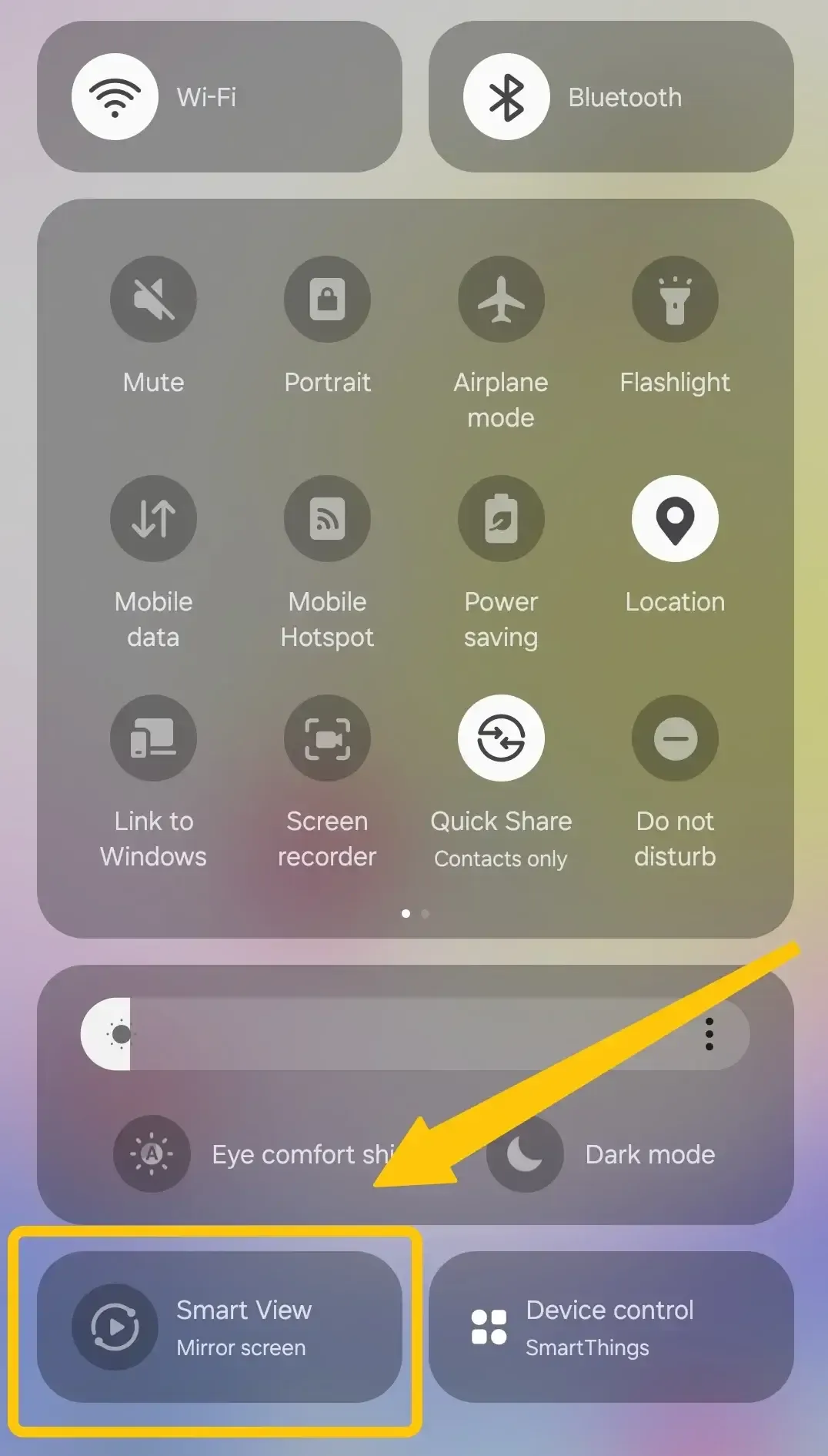
Step 1. Turn on your Vizio TV and make sure it is ready to receive a casting signal.
Step 2. Connect your Samsung phone and Vizio TV to the same WiFi network.
Step 3. Swipe down from the top of your Samsung phone screen to open the Quick Settings panel > Smart View.
Step 4. Wait for your phone to search for available TVs, and choose your Vizio TV from the device list.
Step 5. Tap Start now if a confirmation message appears, and allow the connection request on your Vizio TV if needed.
Step 6. Once connected, your Samsung phone screen should appear on your Vizio TV. You can then open photos, videos, apps, or a browser on your phone and view them on the larger screen.
Method 2: Use Chromecast or Google Cast on Vizio TV
Most newer Vizio SmartCast and VIZIO OS TVs work better with Chromecast or Google Cast. Instead of mirroring the whole Samsung phone screen, this method lets you cast videos, music, and other supported content from compatible apps to your TV. This is a good option when you want to watch YouTube, Netflix, Disney Plus, Hulu, Spotify, or other streaming apps on your Vizio TV.
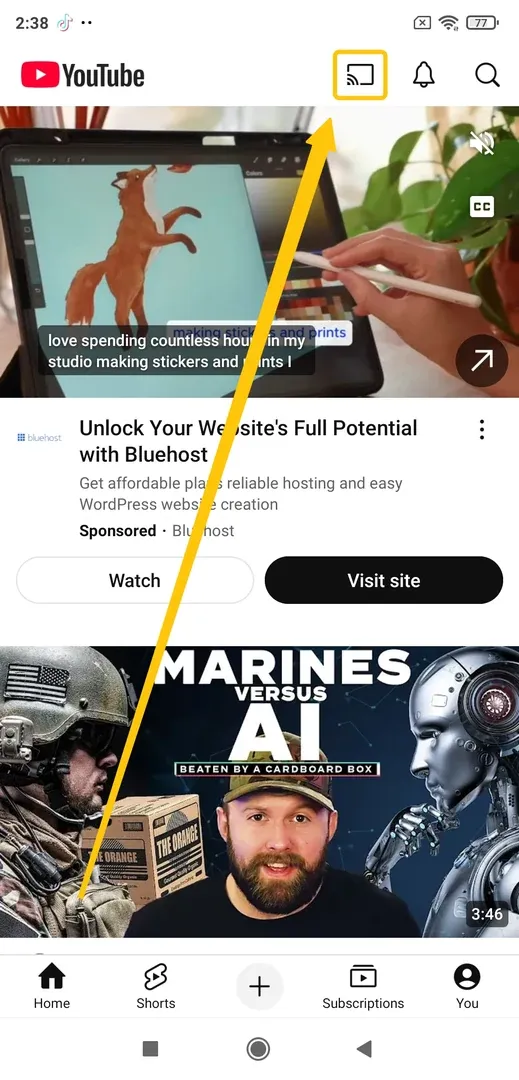
Step 1. Connect your Samsung phone and Vizio TV to the same WiFi network.
Step 2. Open a cast supported app on your Samsung phone, such as YouTube or Netflix.
Step 3. Play the video or content you want to watch, and tap the Cast icon in the app.
Step 4. Select your Vizio TV from the device list, and wait for the content to start playing on your TV.
After casting starts, your phone works like a remote control. You can pause, play, adjust volume, or choose another video from your phone without keeping the phone screen mirrored all the time.
Method 3: Use Google Home to Mirror Samsung Phone to Vizio TV
If you want to mirror your entire Samsung phone screen to a Vizio TV, Google Home can also help. This method is useful when Smart View cannot find your TV, but your Vizio TV supports Chromecast or Google Cast. Before using this method, install the Google Home app on your Samsung phone and make sure your Vizio TV is set up on the same WiFi network.
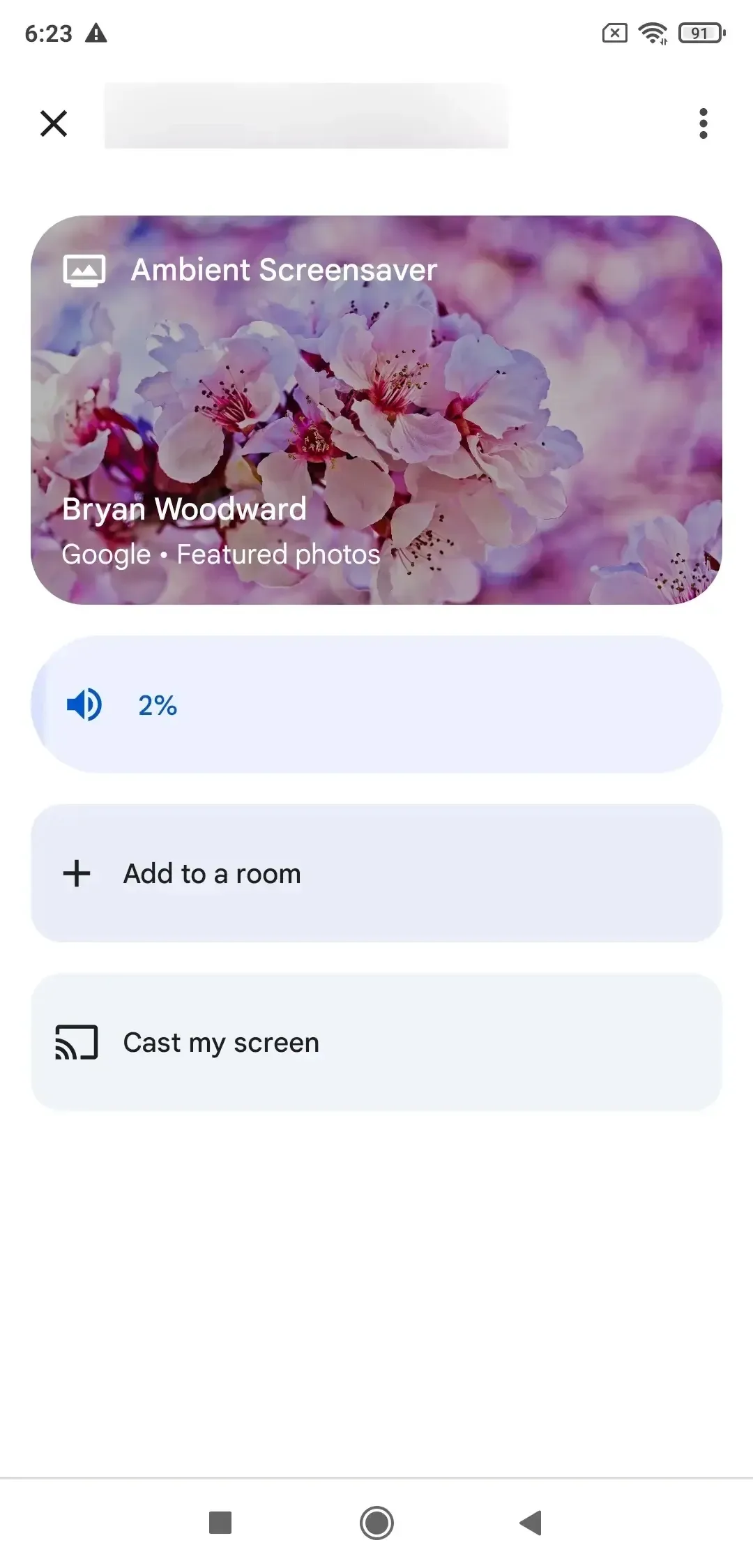
Step 1. Open the Google Home app on your Samsung phone, sign in with your Google account if needed.
Step 2. Find your Vizio TV in the device list, then tap your Vizio TV.
Step 3. Tap Cast my screen > Cast screen to confirm.
Step 4. Wait for your Samsung phone screen to appear on the TV.
Method 4: Use PigeonCast When Smart View Is Not Working
If Samsung Smart View does not detect your Vizio TV, or the connection keeps failing, you can use PigeonCast as another screen mirroring option. This is helpful when you want a simpler way to mirror your phone without spending too much time checking TV compatibility settings. It is a practical choice when your Vizio TV does not appear in Smart View, Google Home is not working, or you want another way to cast phone content to the big screen.
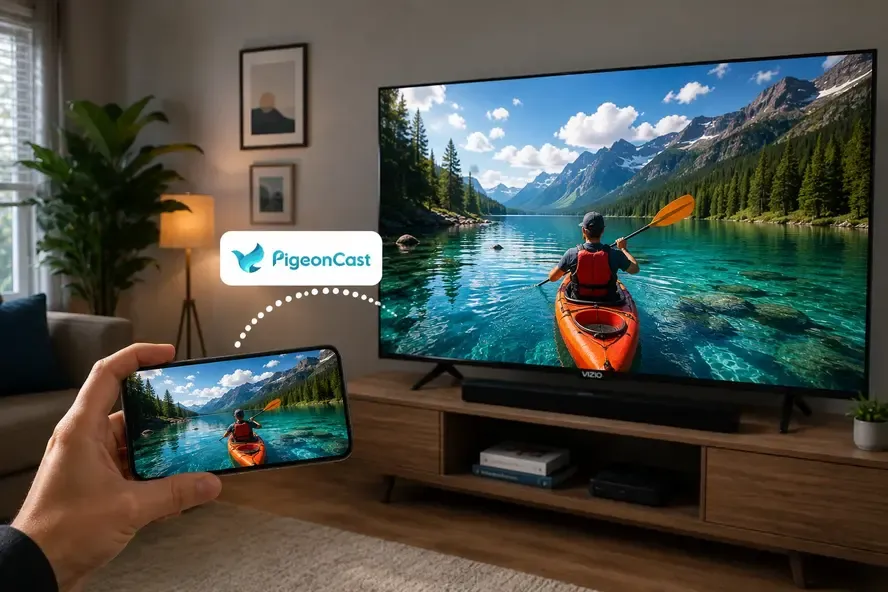
Step 1. Ensure your sender device and Vizio TV are covered by the same wireless network.


Overall Rating:



Step 2. Install PigeonCast on your sender device from the app store, such as iPhone, Android or Windows PC.
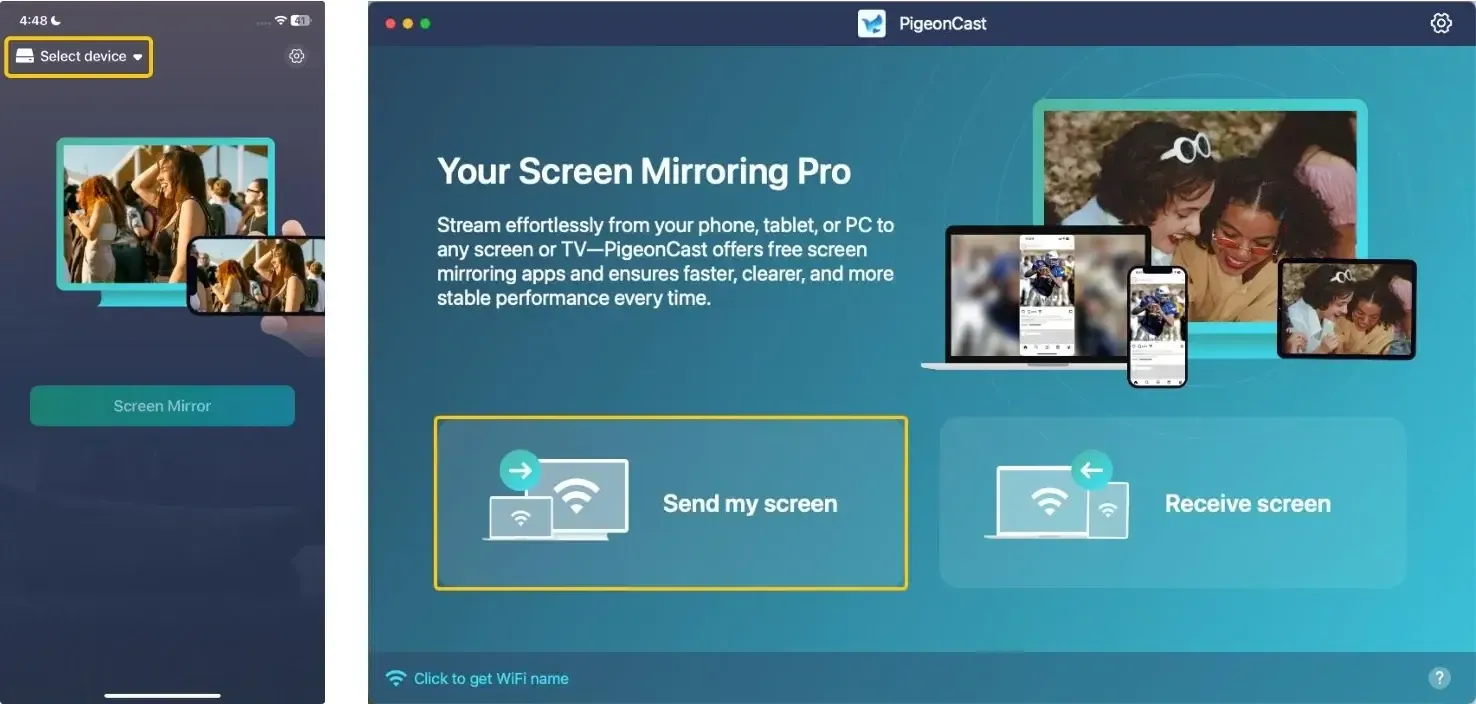
Step 3. Launch the app, tap Select device or Send my screen to choose your Vizio TV from the available list.
Step 4. Enter the onscreen PIN code to finish the connection requisition.
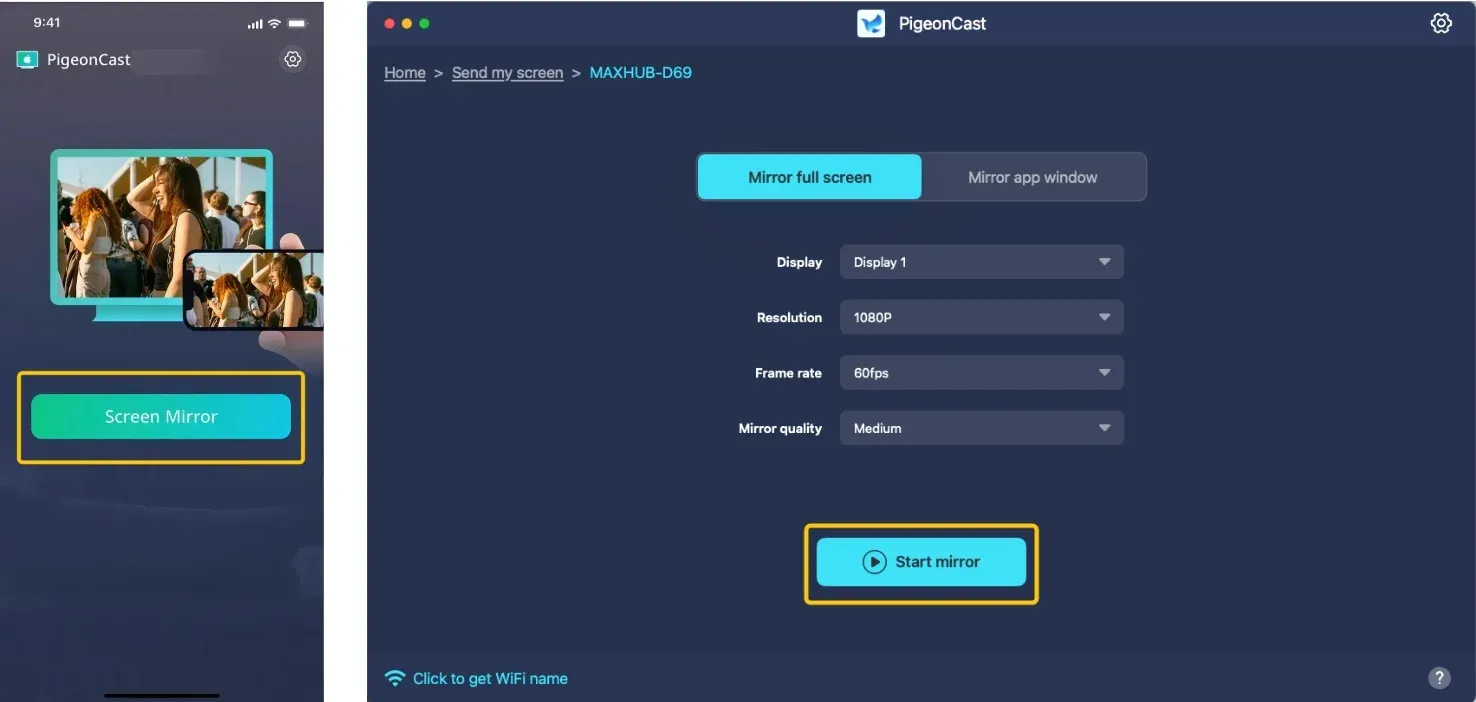
Step 5. Once the pairing succeeds, you can tap Screen Mirror or Start mirror to begin your mirroring activities on your Vizio smart television.
To Sum Up
While Smart View is designed for Samsung devices and may not work well with Vizio TVs, you can still use Smart View to mirror from a Samsung phone to your Vizio TV by following the steps on how to Smart View on Vizio TV. If you're having trouble or using a different device, PigeonCast is a great alternative. It works with Android, iOS, Windows, and macOS, letting you mirror your screen to your Vizio TV seamlessly.
Vizio Smart View FAQ
Does Vizio have Smart View?
No, Vizio smart TVs do not have Samsung's "Smart View" feature. Your Vizio TV likely supports casting/mirroring, just not under Samsung's "Smart View" name. Use Google Cast for Android/Windows or AirPlay for Apple devices.
Does Smart View work with Vizio Smart TV?
Smart View is designed for Samsung devices and does not natively support Vizio Smart TVs. However, you can use it to mirror content from a Samsung phone to a Vizio TV.
How to cast to Vizio TV from Android?
To cast to a Vizio TV from an Android device, follow these steps:
- Make sure your Android device and Vizio TV are connected to the same Wi-Fi network.
- Open the app or content (e.g., YouTube, Netflix, Photos, etc.) you want to cast on your Android device.
- If using SmartCast: Press the V button on your Vizio remote to open SmartCast, or navigate to the "Input" or "Source" menu and select SmartCast to ensure the TV is ready to receive a cast.
- On your Android device, open the content or app you want to cast.
- Look for the Cast icon (it looks like a rectangle with a Wi-Fi signal in the corner) usually located in the top-right or within the settings menu of the app.
- Tap the Cast icon and select your Vizio TV from the list of available devices.
- After selecting your Vizio TV, the content from your Android device should begin to appear on the TV screen.
How to mirror iPhone to VIZIO TV wirelessly?
To mirror your iPhone to a VIZIO TV wirelessly, follow these steps:
- Connect your iPhone and VIZIO TV to the same Wi-Fi network.
- On your VIZIO TV, press the "V" button on the remote to open the menu, then select AirPlay settings and make sure AirPlay is enabled.
- On your iPhone, swipe down from the upper-right corner to open the Control Center. Tap Screen Mirroring, then select your VIZIO TV from the list of available devices.
- Your iPhone screen should now be mirrored on your VIZIO TV. You can stream videos, photos, or even apps directly to the TV.
If AirPlay is not supported by your VIZIO TV, consider using a third-party app like PigeonCast to mirror your iPhone wirelessly.
Can I mirror a Samsung phone to an older Vizio TV?
Yes, but compatibility depends on the TV model. Many older Vizio TVs do not support Smart View, Chromecast, or AirPlay natively. If your TV does not appear in the Smart View device list, you may need a streaming device such as Chromecast or a wired HDMI adapter. Alternatively, a screen mirroring app that supports multiple connection methods can help bridge compatibility gaps between newer Samsung phones and older Vizio TVs.
Can I use Smart View on a Vizio TV without Wi-Fi?
In most cases, Smart View requires your Samsung phone and Vizio TV to be connected to the same Wi-Fi network for wireless screen mirroring. Without Wi-Fi, Smart View may not be able to discover your TV. If you need to mirror your screen without a wireless network, consider using an HDMI adapter, a wired connection, or a compatible third-party screen mirroring solution.
Why does Smart View keep disconnecting from my Vizio TV?
If Smart View keeps disconnecting from your Vizio TV, the most common causes are:
- Weak Wi-Fi connection
- Outdated TV firmware
- Network interference
- Power-saving settings
Clara Rossi is an experienced technology editor and a seasoned expert in screen mirroring and casting technologies. With a keen eye for detail and a deep understanding of how to seamlessly connect devices, Clara excels at optimizing user experiences for effortless sharing and streaming. Whether you're seeking quick fixes or advanced tips, her expertise and responsiveness ensure that every query is met with a well-informed and efficient solution.