
Casting your Android device to a Vizio TV opens up a world of possibilities, whether you're streaming videos, playing games, or showcasing photos. This guide will show you how to cast to Vizio TV from Android using multiple methods to ensure a seamless casting experience, whether you're using Chromecast, PigeonCast, or other methods.
How to Cast From Android to Vizio TV
Casting from your Android device to a Vizio TV is simple and convenient once everything is set up correctly. In the following section, we'll walk you through how to cast to a Vizio TV from Android using different built-in and third-party methods, so you can enjoy your content on the big screen without any hassle.
Way 1. Use Google Chromecast to Cast to Vizio TV
How to cast to Vizio TV from Android phone? One of the most popular and reliable ways to cast from an Android device to a Vizio TV is Google Chromecast. Most modern Vizio smart TVs come with Chromecast built in, allowing you to stream content directly from your phone without any extra setup. If your TV doesn't have it built in, you can still use an external Chromecast device.
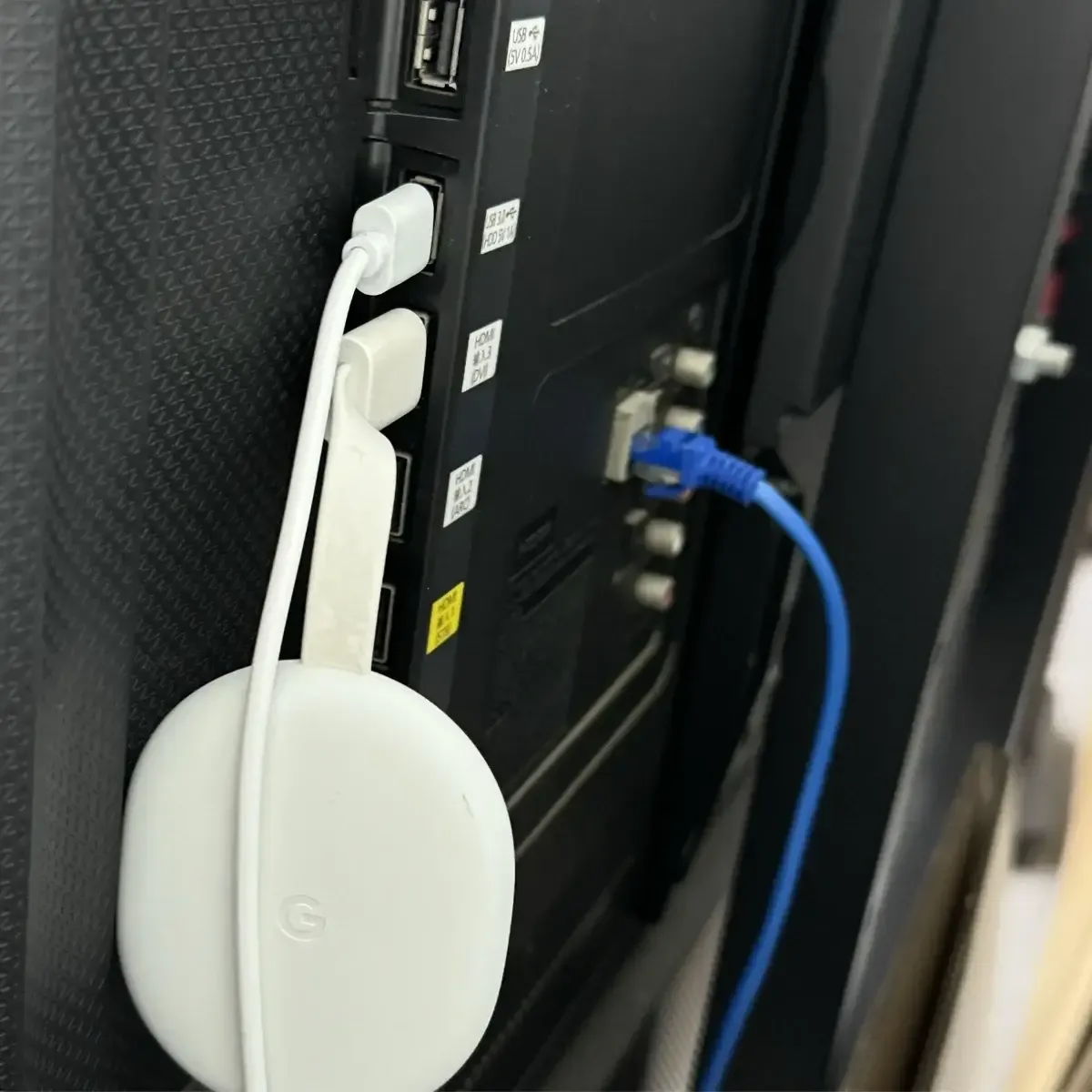
Step 1. Plug the Chromecast device into your Vizio TV's HDMI port.
Step 2. Download and install the Google Home app from the Google Play Store on your Android device.
Step 3. Follow the instructions in the app to set up Chromecast on your Wi-Fi network.
Step 4. Go to Devices > +Add, and wait for it to detect nearby devices.
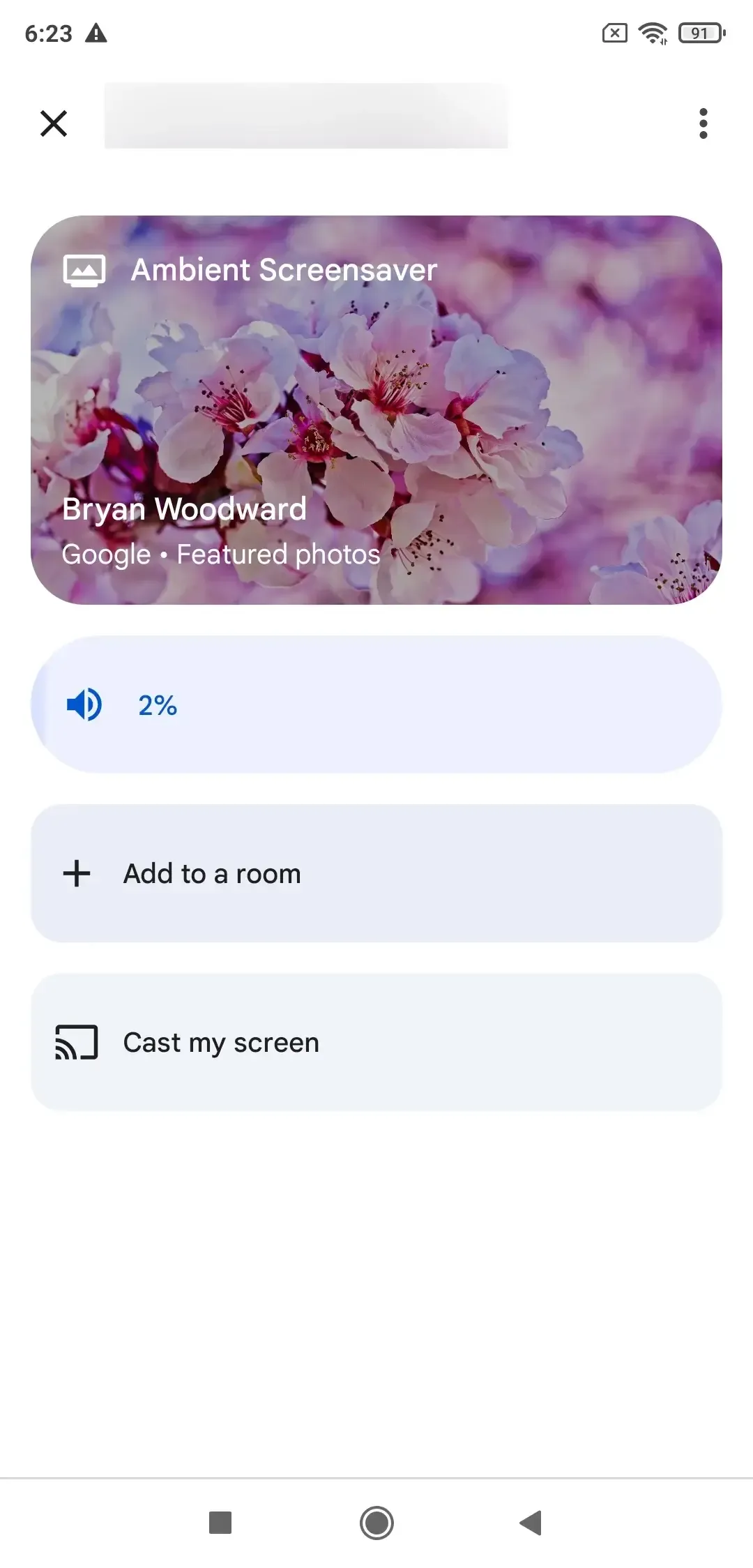
Step 5. As the TV shows up, tap the name to complete the connection. Next, tap Cast my screen.
Way 2. Use Screen Mirroring App - PigeonCast
How to cast to Vizio smart TV from Android? If you're looking for a more flexible and user-friendly option, PigeonCast is an excellent choice for screen mirroring from Android to Vizio TV. Unlike built-in casting options, PigeonCast supports a wider range of devices and platforms, like iPhone to Vizio or PC to TV, while delivering smoother performance and greater compatibility. It's easy to set up, secure, and it works seamlessly over Wi-Fi.

Step 1. Install ads-free PigeonCast on your Android mobile device.

PigeonCast Screen Mirroring

Official Download


Step 2. Ensure your devices are connected to the same wireless network.
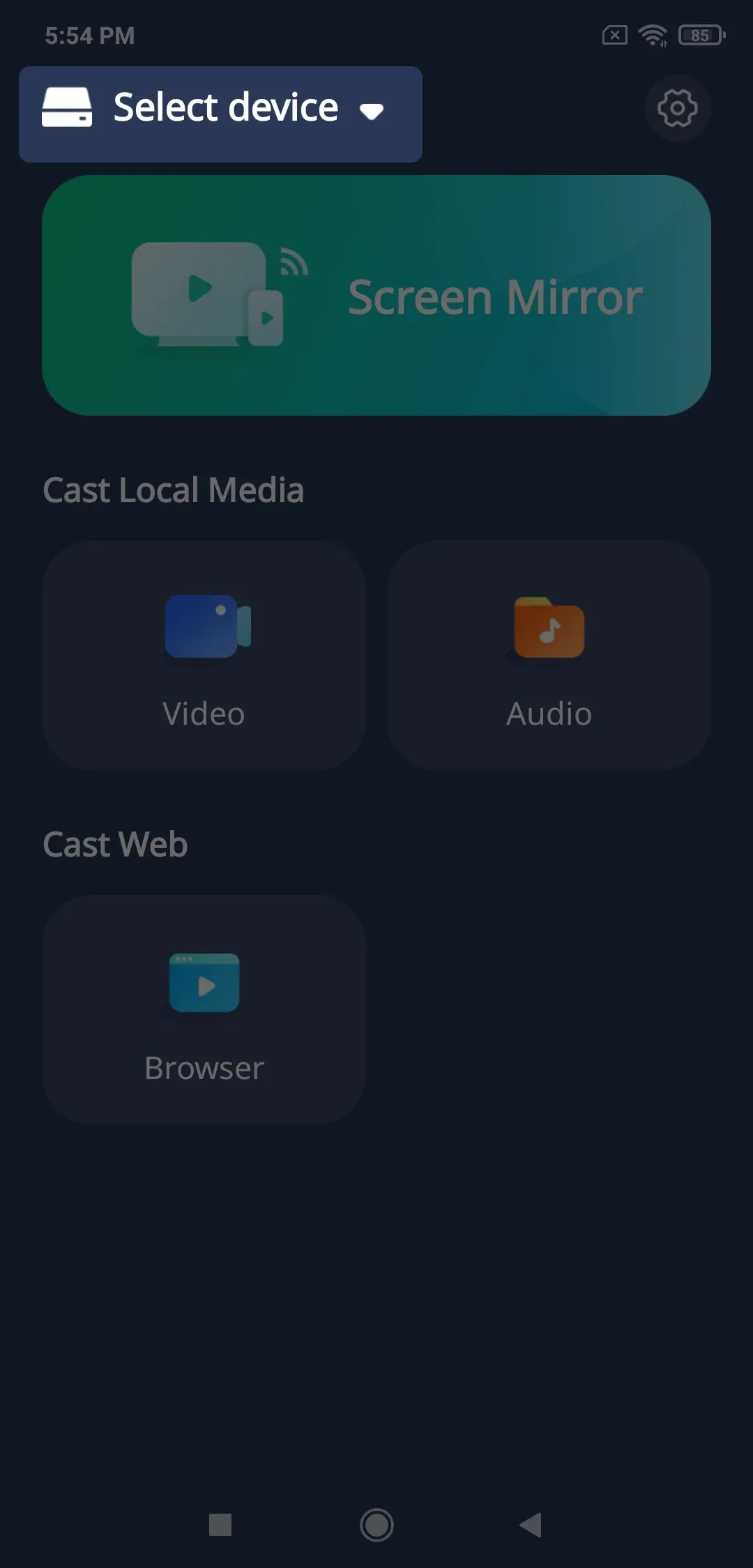
Step 3. Launch the app on your Android, and tap Select device from the available list to choose the Vizio TV.
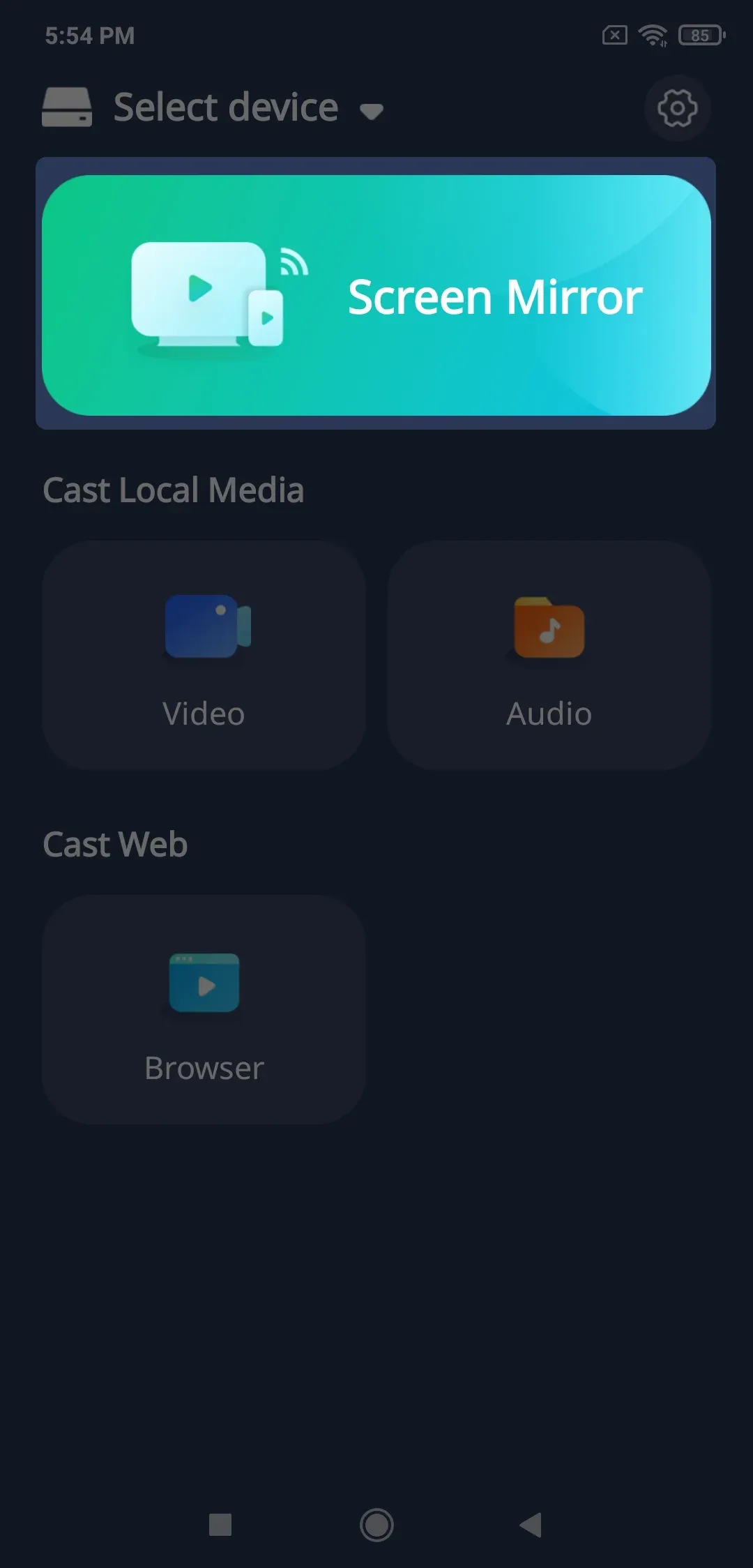
Step 4. Enter the onscreen PIN code to confirm the pairing process. Once succeed, you can tap the Start Mirroring option to see the TV screen displaying your Android device.
Way 3. Use Vizio SmartCast Application
Another great way to cast to a Vizio TV from your Android device is by using the Vizio SmartCast app. This method is simple and doesn't require any additional hardware. However, smartphones and tablets must meet the following requirements:
- Android: Version 4.4 or higher
- iOS: Version 8.0 or higher
Once you've ensured your device meets the requirements and both your Android phone and Vizio TV are connected to the same Wi-Fi network, follow these steps:
Step 1. Download and open the Vizio SmartCast app on your Android device.
Step 2. Power on your TV and confirm it's connected to the same Wi-Fi network.
Step 3. Select your Vizio TV from the list of available devices within the app.
Step 4. Start streaming content directly from the app or mirror your screen to the TV.
Way 4. Use a USB to HDMI Adapter
How do I cast from Android to my Vizio TV? If your Android phone has a USB-C or Micro-USB port, you can use a USB to HDMI adapter to directly connect your Android device to your Vizio TV. This is a simple and effective method for casting or mirroring content.
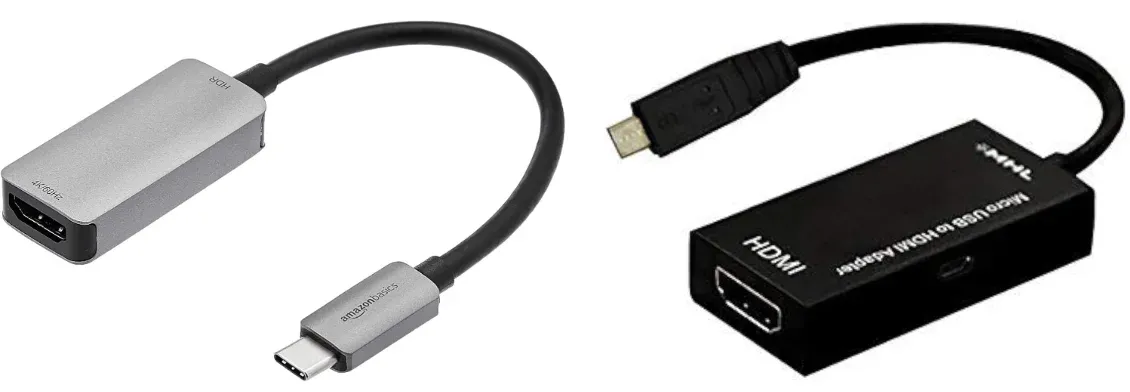
Step 1. Purchase a USB to HDMI adapter that's compatible with your Android device. Some popular options include the USB-C to HDMI or Micro-USB to HDMI adapters.
Step 2. Plug the USB end of the adapter into your Android device.
Step 3. Connect the HDMI end of the adapter to an available HDMI port on your Vizio TV.
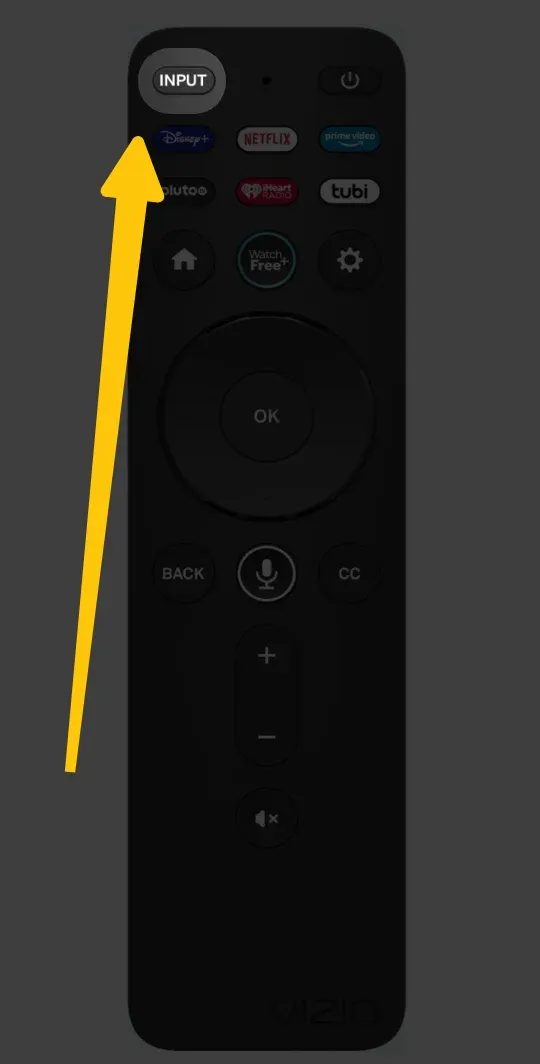
Step 4. Use your Vizio TV remote, press the Input or Source button, and select the HDMI input you connected the adapter to.
Step 5. Your Android screen should now be mirrored on your Vizio TV. You can view apps, play videos, or use any content on the larger screen.
Bottom Line
If you want to stream to Vizio TV from Android, you can use Google Chromecast, PigeonCast, SmartCast or a USB to HDMI adapter, depending on what works best for you. Each method lets you mirror your device quickly and easily, so you can have a smooth and enjoyable viewing experience on your Vizio TV. Hope you can do screen mirroring Android to Vizio TV with a good time!
How to Cast to Vizio TV From Android FAQ
Q: Why can't I cast my Vizio TV?
Common reasons you might not be able to cast to your Vizio TV include:
- TV and the device are not on the same Wi-Fi network
- Outdated TV firmware or device software
- Casting or screen mirroring settings on the TV are disabled
- Device compatibility issues with the TV
- Interference from other wireless devices
- Physical obstacles or a long distance weaken the Wi-Fi signal
- Network connectivity issues
Q: How to cast Vizio TV from Android without Wi-Fi?
Casting your Android device to a Vizio TV without a Wi-Fi connection is possible using alternative methods that establish a direct connection between your devices. Here are the primary options:
- USB-C to HDMI Adapter**:** Connect your Android device directly to the Vizio TV using a USB-C to HDMI adapter. This method mirrors your device's screen to the TV without the need for a wireless network.
- Mobile Hotspot: If your Android device supports it, you can create a mobile hotspot and connect your Vizio TV to it. This method uses your mobile data connection to facilitate casting.
Q: How do I activate the screen cast on my TV?
To activate screen casting on your TV, follow these general steps:
- Turn on your TV and ensure it is connected to a power source.
- Access the TV's settings using the remote, usually by pressing the Home or Menu button.
- Navigate to Connections, Network, or Screen Mirroring settings, depending on your TV model.
- Enable Screen Mirroring, Cast, or Wi-Fi Direct on the TV.
- On your smartphone, tablet, or computer, open the Cast or Screen Mirroring feature and select your TV from the list of available devices.
Q: What is SmartCast on Vizio TV?
SmartCast is Vizio's built-in smart TV platform that allows you to stream and mirror content directly from your smartphone, tablet, or computer to your Vizio TV. It supports popular apps like Netflix, YouTube, and Hulu, and also enables screen mirroring from compatible devices. With SmartCast, you can cast videos, photos, music, and even mirror your entire device screen over Wi-Fi, all without needing an external device like Chromecast, as most Vizio Smart TVs have Chromecast built in.
Q: How do I tell if my Vizio TV has Chromecast?
To check if your Vizio TV has Chromecast built-in, follow these steps:
- Check the Settings: Go to Settings > System > About or Network. If you see Google Cast or Chromecast listed, your TV has it.
- Test Casting: Open a supported app (like YouTube or Netflix) on your phone. Tap the Cast icon and see if your Vizio TV appears in the list. If it does, Chromecast is enabled.
- Alternatively, you can refer to your TV's model number in the manual or on Vizio's website to confirm if it includes Chromecast.
Clara Rossi is an experienced technology editor and a seasoned expert in screen mirroring and casting technologies. With a keen eye for detail and a deep understanding of how to seamlessly connect devices, Clara excels at optimizing user experiences for effortless sharing and streaming. Whether you're seeking quick fixes or advanced tips, her expertise and responsiveness ensure that every query is met with a well-informed and efficient solution.