
AirPlay is a convenient feature for Apple users with a Vizio TV, making it easy to stream videos, photos, and music from an iPhone or Mac to the big screen. However, when it stops working, it can quickly interrupt your entertainment. This guide will walk you through a clear troubleshooting process to diagnose and fix the Vizio AirPlay not working issue, so you can get back to seamless wireless streaming.
Why Is AirPlay Not Working on My Vizio TV
Before diving into fixes to AirPlay not working on Vizio TV, it helps to understand what's causing the issue. AirPlay relies on a stable network connection and compatible firmware. When something goes wrong, it's often due to simple misconfiguration or outdated software.
- Different WiFi networks: For AirPlay to function, your iPhone, iPad, or Mac and your Vizio TV must be connected to the same Wi-Fi network. Even small network mismatches can prevent discovery.
- AirPlay disabled: AirPlay might be turned off or restricted in your TV's settings, preventing your device from establishing a connection.
- Outdated firmware or software: Running older versions of Vizio's SmartCast firmware or iOS/macOS can cause compatibility issues, disrupting AirPlay functionality.
- Temporary glitches or network interruptions: Cached data, minor software hiccups, or brief drops in network connectivity can interrupt the streaming process.
- Device compatibility limitations: Some older Vizio TV models or outdated iOS/macOS versions may not fully support AirPlay 2, which can restrict certain features or block connections entirely.
8 Fixes: Vizio TV AirPlay Not Working
Resolving Vizio AirPlay not showing up is often simpler than it seems. The solutions below are arranged from easy to more advanced, so follow them in order until your Vizio TV and Apple device connect successfully.
#1. Ensure AirPlay Is Enabled on Your Vizio TV
Why is my Vizio TV not showing up on AirPlay? Before exploring more complex fixes, start with the basics. Your Vizio TV must have AirPlay enabled to appear as a casting option on your iPhone or Mac. If it's turned off, your device won't even see the TV, so this simple check can often solve the problem immediately.
Step 1. Turn on your TV. Press the V button or Home button on your Vizio TV remote to go to the SmartCast Home on TV.
Step 2. Select the Extras menu from the top of the screen, and highlight the AirPlay service and select On.
#2. Connect Both Devices to the Same WiFi Network
Why is my AirPlay not working on my Vizio TV? AirPlay requires that your Vizio TV and Apple device are on the same Wi-Fi network. If your iPhone is using mobile data or connected to a different Wi-Fi band (like 2.4GHz vs 5GHz), your TV may not appear as an available device.
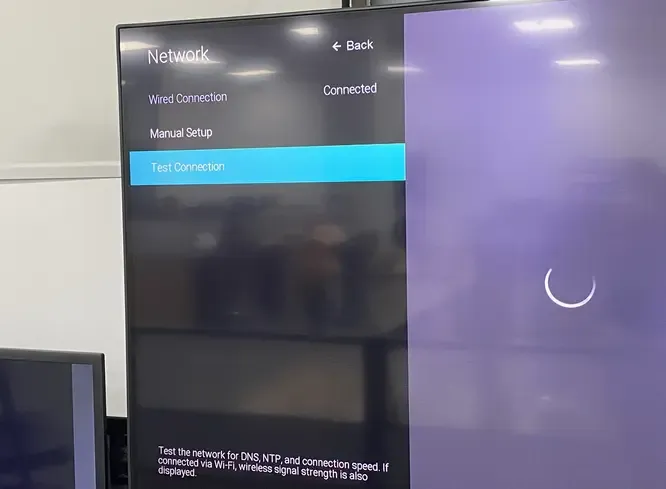
Step 1. On your Vizio TV, go to Settings > Network > Network Connection and check your connected WiFi name.
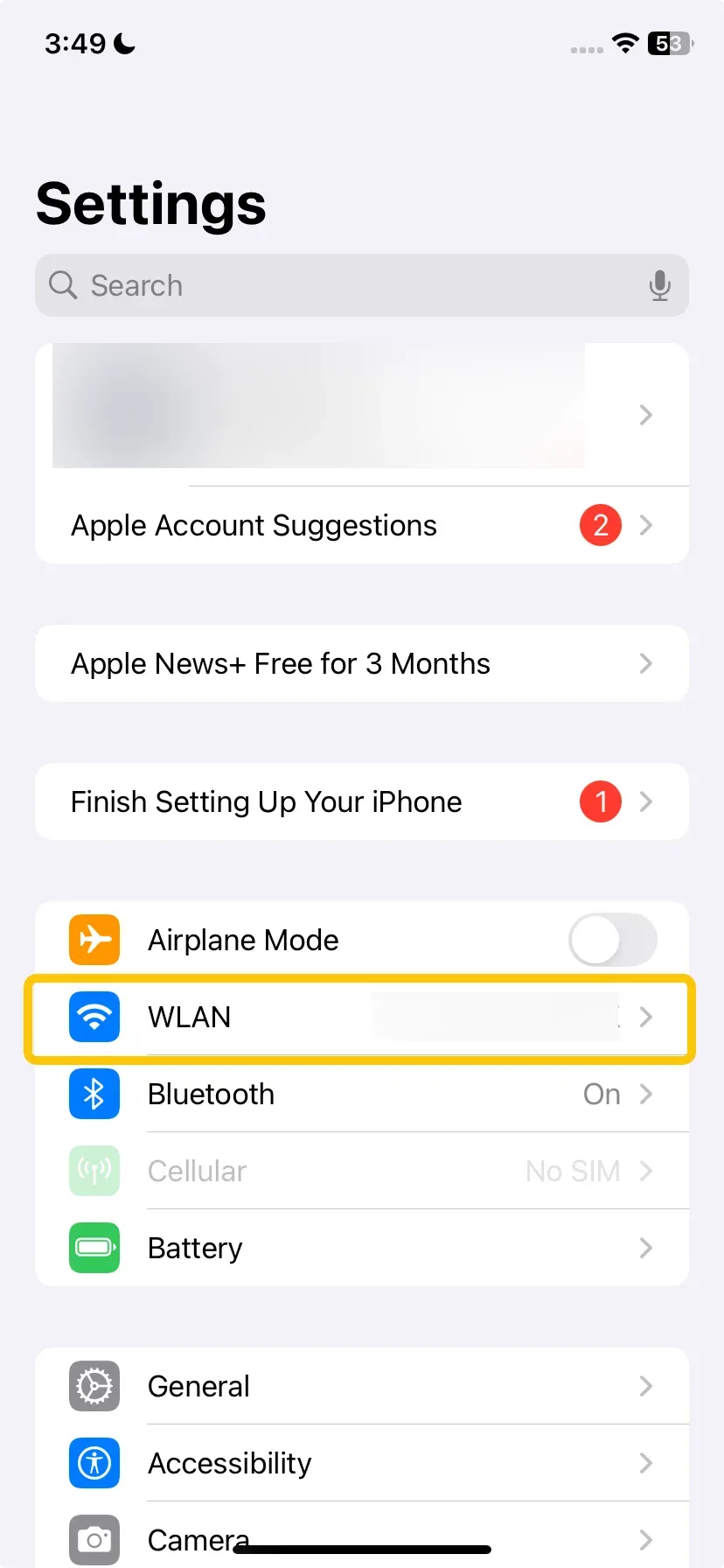
Step 2. On your iPhone or Mac, open WiFi Settings and connect to the same network.
#3. Restart Devices and Your Router
Temporary glitches in your Vizio TV, Apple device, or WiFi router can sometimes disrupt AirPlay. Restarting everything can refresh the connection and often resolve these minor issues. Here's the restarting process to solve the AirPlay Vizio TV not working:
- On Vizio TV:
Step 1. Unplug your Vizio TV from power for 30 seconds, and plug your TV back in and test AirPlay again.
Step 2. Restart your iPhone or Mac:
- On iPhone:
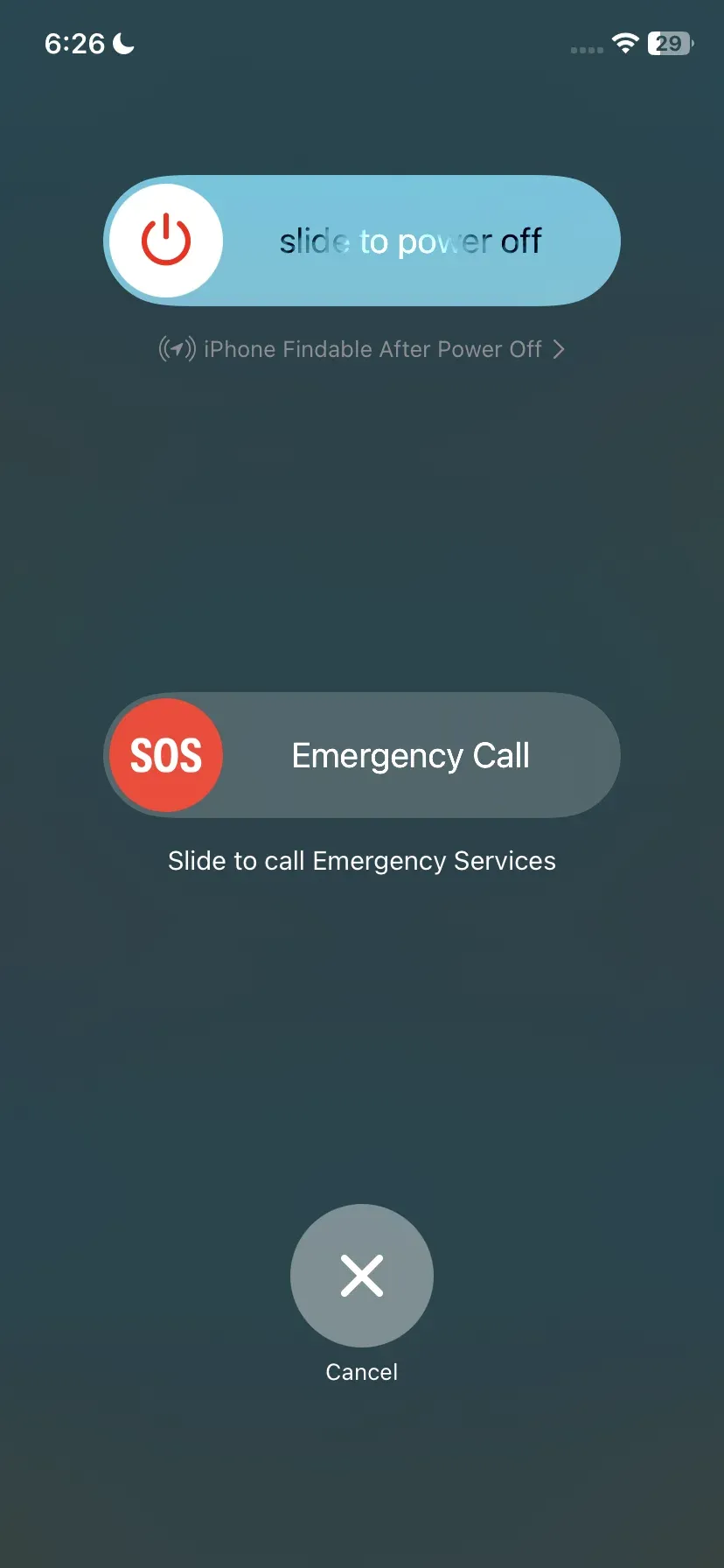
Step 1. Press and hold the side button and either volume button (on iPhone X or later) until the power-off slider appears.
Step 2. Drag the slider to turn off the phone. Wait a few seconds, then press and hold the side button again until the Apple logo appears.
- On Mac:
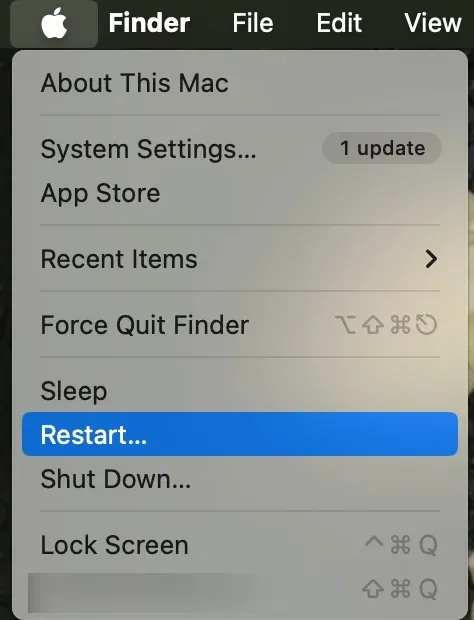
Step 1. Click the Apple menu () in the top-left corner of your screen.
Step 2. Select Restart… from the dropdown menu, and confirm by clicking Restart in the pop-up. Your Mac will close all apps and restart automatically.
- On Router:
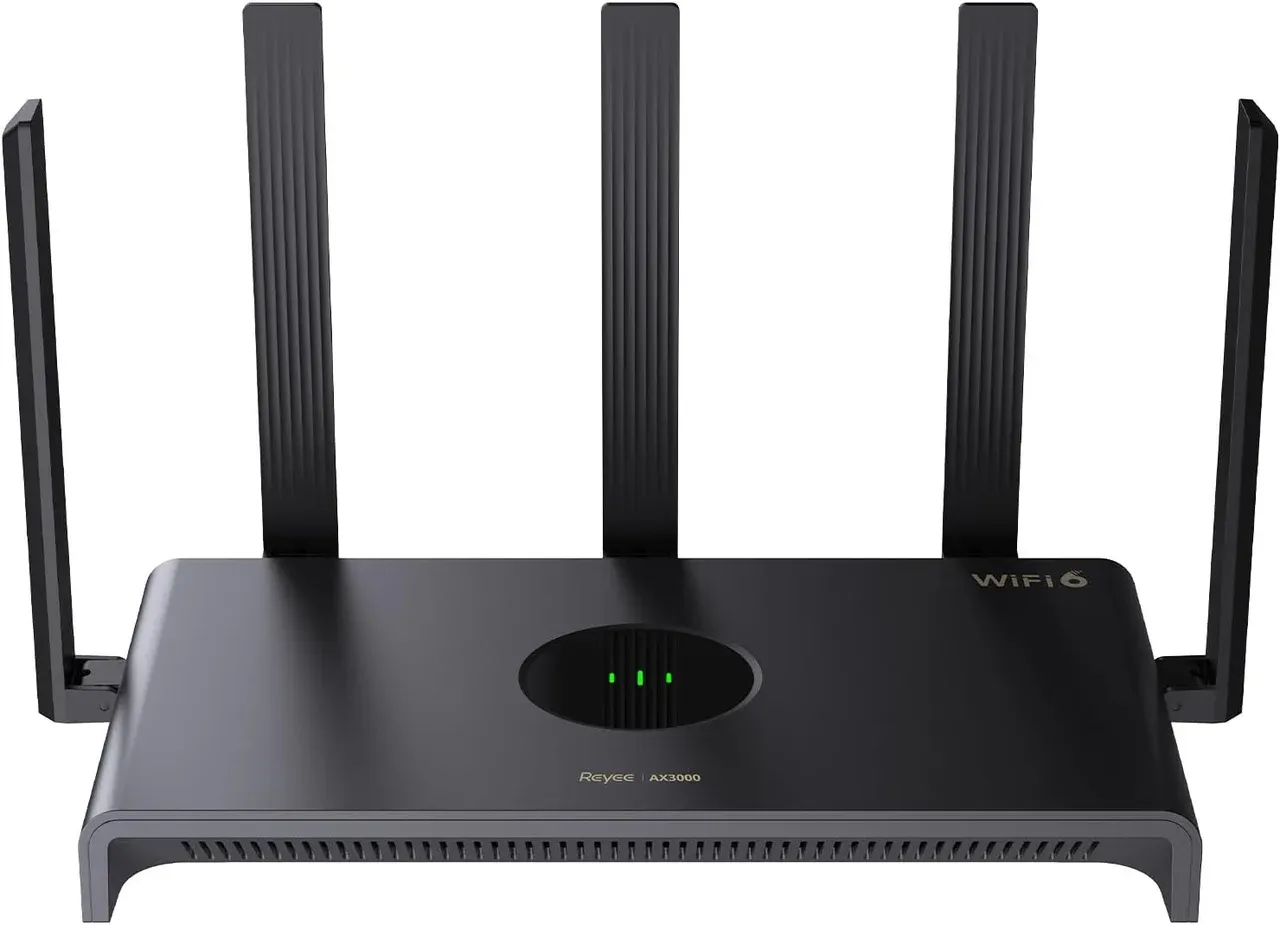
Reboot your WiFi router and wait for it to fully reconnect.
#4. Update Your Vizio TV and Apple Device
How to fix AirPlay on Vizio TV? Keeping both your TV and Apple device updated ensures smoother streaming and fewer glitches. Outdated software can cause compatibility issues between AirPlay and SmartCast, which may prevent your devices from connecting properly.
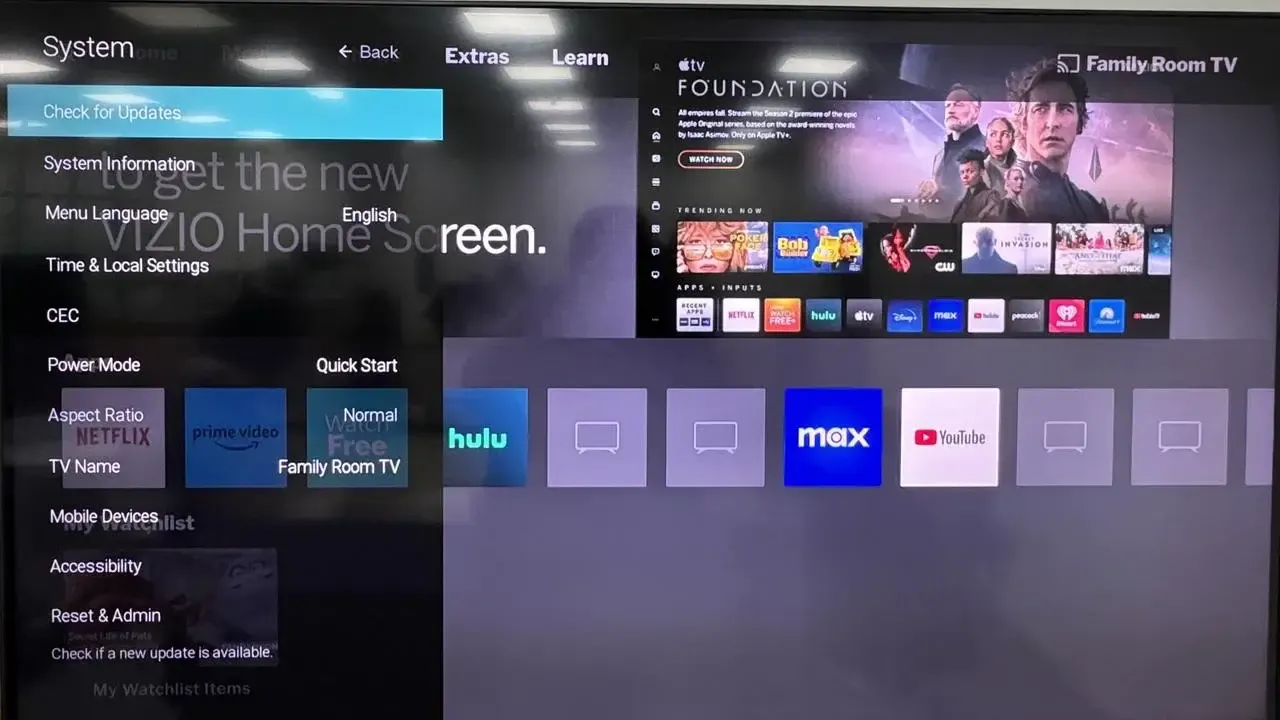
Step 1. On your Vizio TV, access Settings > System > Check for Updates. Install any available firmware updates.
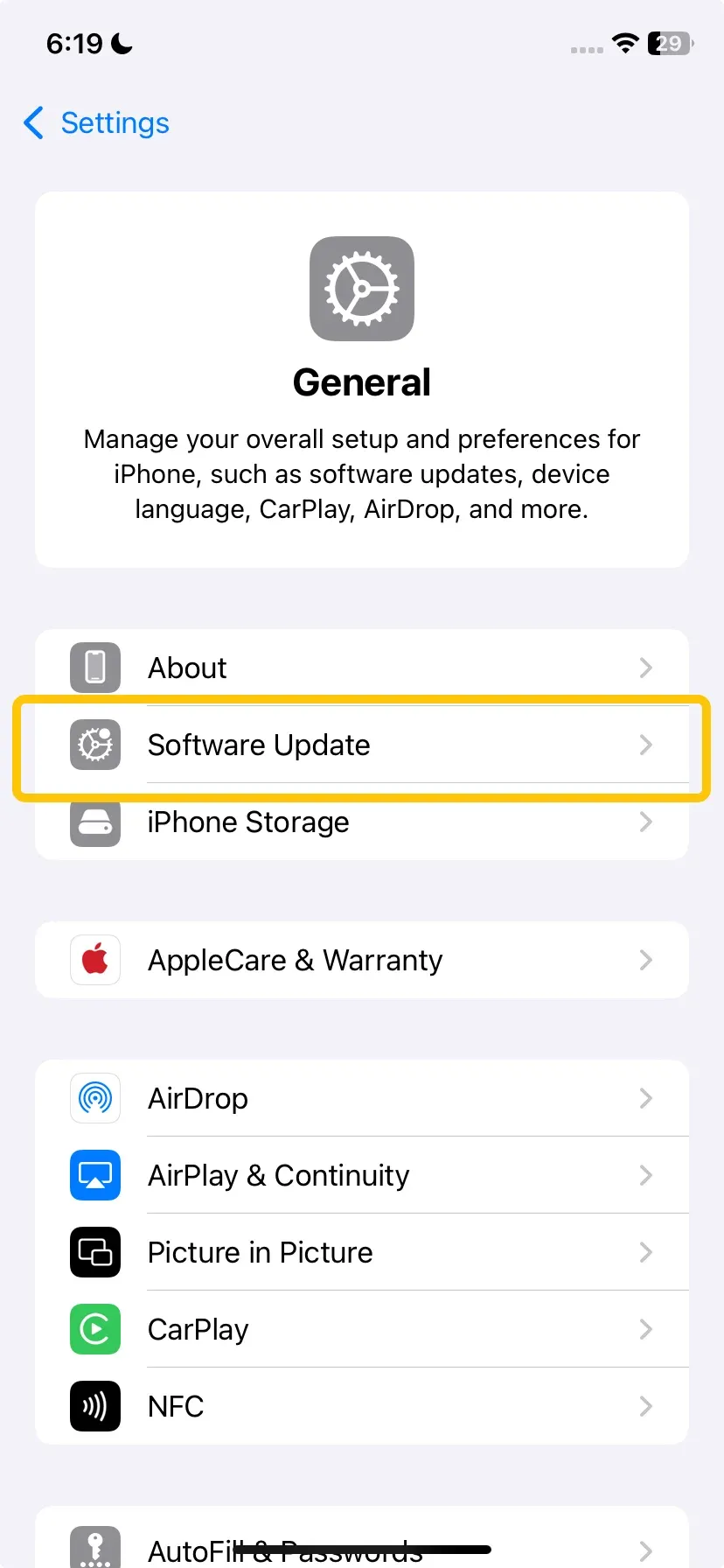
Step 2. On your iPhone or Mac, go to Settings > General > Software Update and apply updates if available.
#5. Disable the Firewall on Your MacBook
Why isn't AirPlay working on my Vizio TV? Sometimes, the Mac's built-in firewall can block AirPlay connections, preventing your Vizio TV from appearing as a casting option. Temporarily disabling the firewall can help restore the connection.
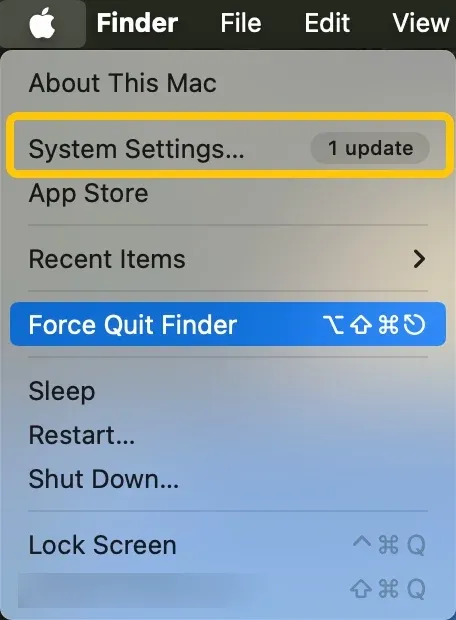
Step 1. Click the Apple menu () in the top-left corner and select System Settings (or System Preferences on older macOS versions).
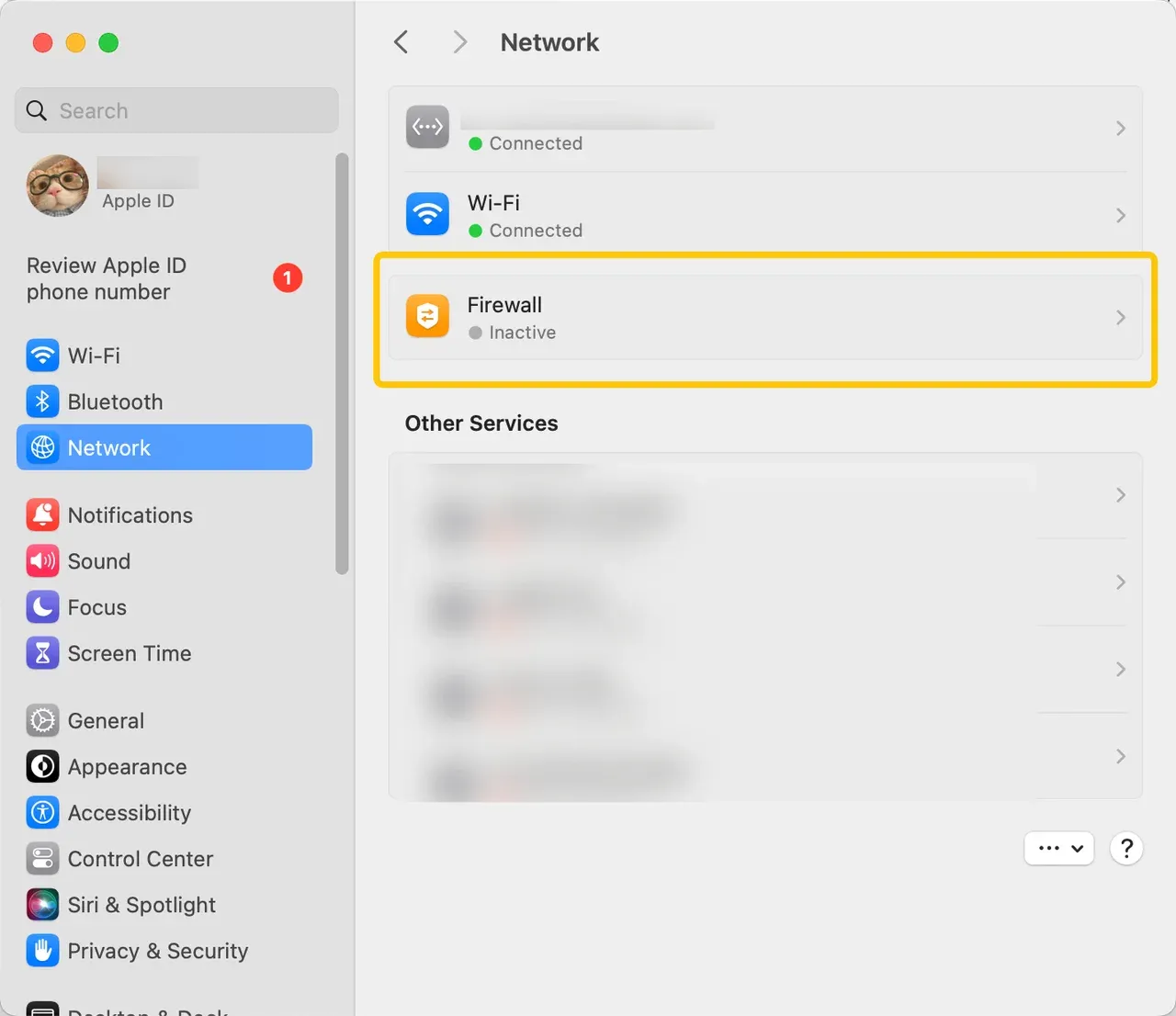
Step 2. Go to Network > Firewall (or Security & Privacy > Firewall).
Step 3. If the firewall is On, click Turn Off Firewall or unlock the settings by clicking the lock icon and entering your password, then disable it.
Step 4. Try connecting to your Vizio TV with AirPlay again. Once your AirPlay connection is working, you can turn the firewall back on for security.
#6. Reset Paired Devices and Network Settings
When AirPlay disappeared from Vizio TV persists, it can be caused by saved connection errors or network issues. Resetting paired devices and network settings gives your TV and iPhone a fresh start, often restoring the missing AirPlay option.
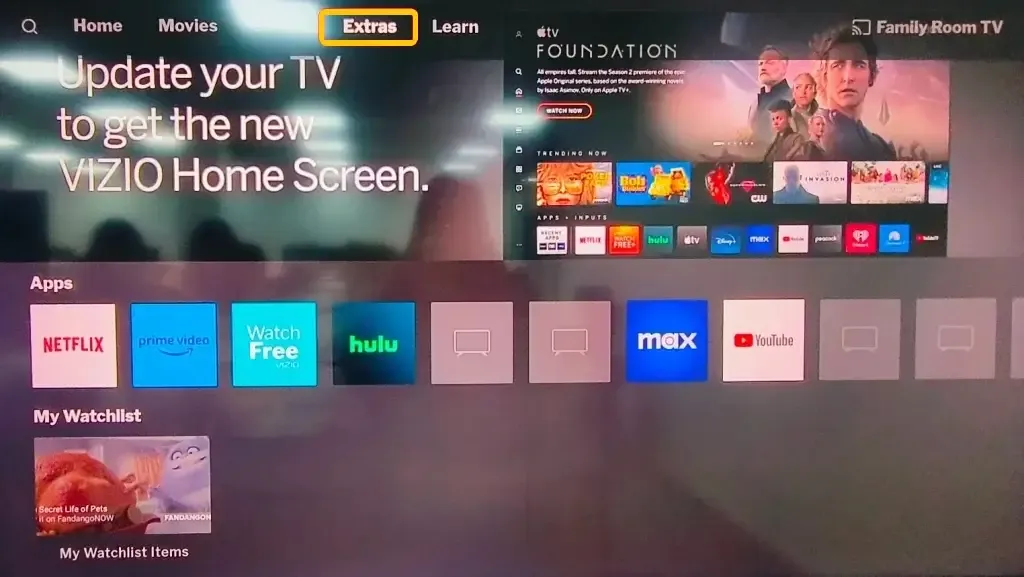
Step 1. On your Vizio TV, go to Settings > Extras > AirPlay > Require Code > Every Time. This forces a fresh connection attempt.
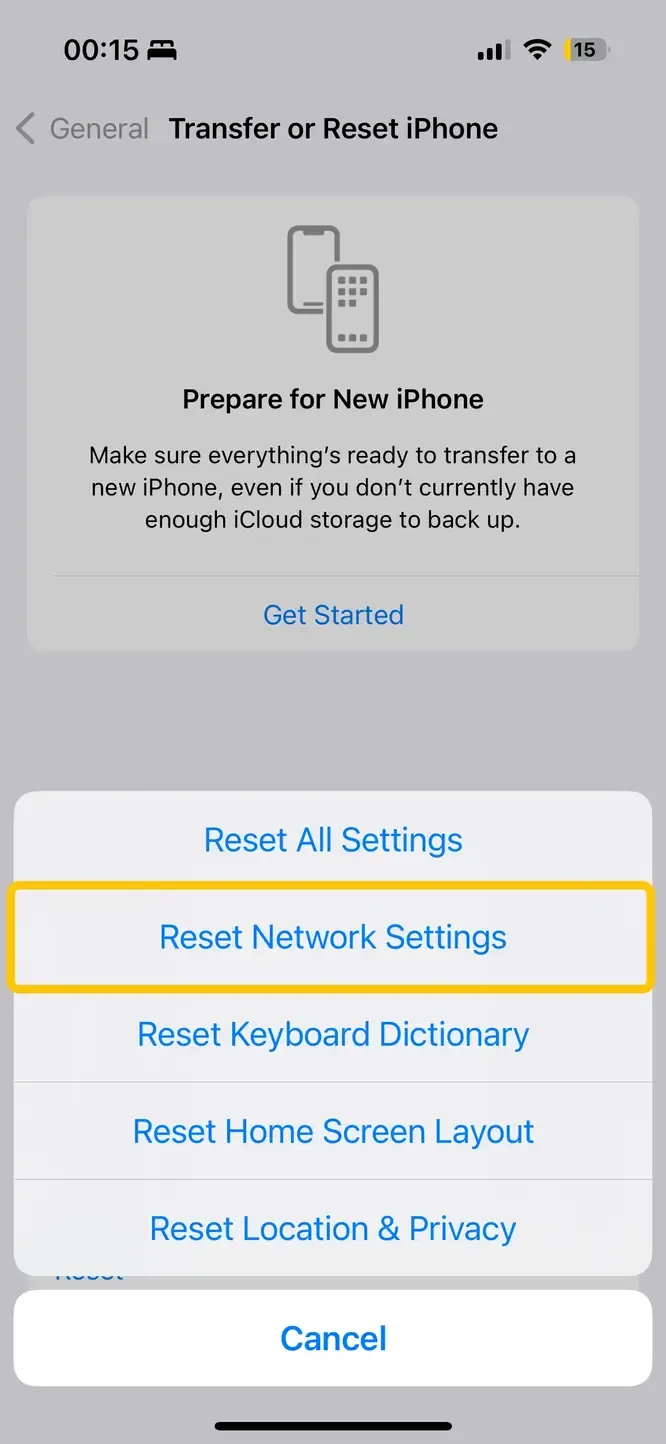
Step 2. On your iPhone, move to Settings > General > Transfer or Reset iPhone > Reset > Reset Network Settings.
#7. Contact Apple or Vizio Support
If screen mirroring iPhone to Vizio TV not working even after trying all previous steps, it could be due to a deeper software or hardware issue. Reaching out to official support can help identify and fix problems that aren't easily resolved at home. Provide details such as your TV model, software versions, and the troubleshooting steps you've already tried.
- Apple Support: Visit Apple Support or call your local Apple support line to troubleshoot your iPhone, iPad, or Mac.
- Vizio Support: Go to Vizio Support or contact their customer service for help with your TV, firmware, or network settings.
#8. Use an Alternative Casting Method: PigeonCast
If Vizio Smart TV AirPlay not working, PigeonCast is a reliable alternative. This free, all-in-one screen-sharing app lets you cast content from your iPhone, iPad, or Android device directly to your TV.

PigeonCast also allows you to control iOS and Android devices from a Mac or PC, making it versatile for different setups. With end-to-end encryption, your content stays private while streaming, giving you a secure and seamless casting experience.

PigeonCast Screen Mirroring

Official Download


Step 1. Install PigeonCast on your iPhone, iPad, or MacBook from the App Store.
Step 2. Ensure your iPhone and Vizio TV are under the same wireless network.
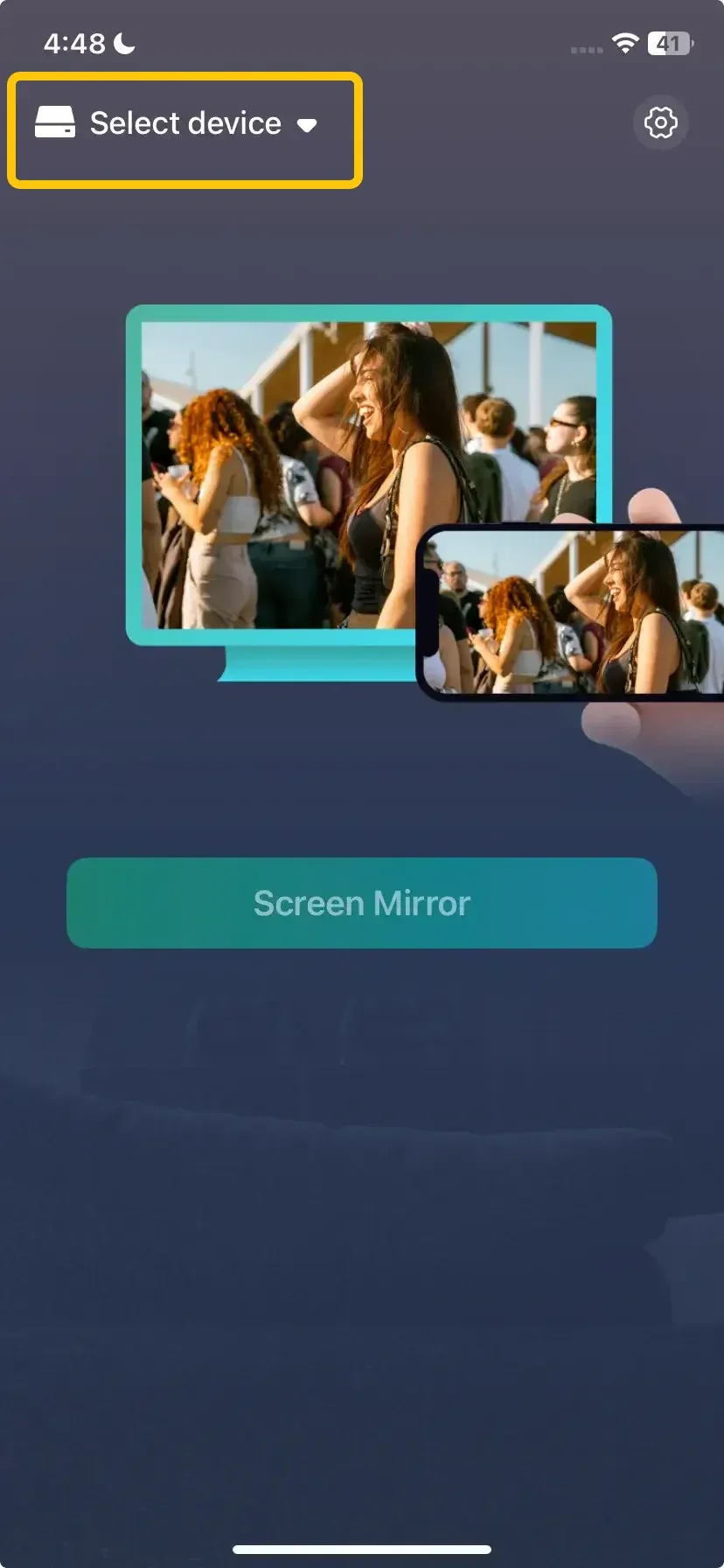
Step 3. Launch the app on your Apple device, tap Select device to choose your Vizio TV from the available list to connect.
Step 4. If prompted, enter the onscreen PIN code to finish the pairing process.
Step 5. Once connected, you can tap Screen Mirror to display your Apple device's screen on the Vizio smart television.
Wrapping Up
AirPlay makes it easy to stream content from your Apple devices to a Vizio TV, but Vizio TV AirPlay not showing up can sometimes arise. By following this guide, from basic checks like enabling AirPlay and connecting to the same Wi-Fi network, to restarting devices, updating software, resetting network settings, and using alternative tools like PigeonCast, you can troubleshoot and restore your connection. With these steps, you'll be able to enjoy smooth, reliable screen mirroring and get the most out of your Vizio TV.
Vizio AirPlay Not Working FAQ
Q: Why won't my phone cast to my Vizio TV?
Your phone may not cast to your Vizio TV due to network issues, AirPlay or screen mirroring being disabled, outdated software, device compatibility limitations, or temporary glitches. Ensuring both devices are on the same Wi-Fi network and up to date often resolves the problem.
Q: How do I turn on screen mirroring on a Vizio TV?
To turn on screen mirroring on a Vizio TV:
- Press the Input button on your remote and select Screen Mirroring or SmartCast. Your TV will start searching for devices.
- On your phone, tablet, or computer, enable screen mirroring (called Screen Mirroring on iOS or Cast on Android/Windows) and select your Vizio TV. Once connected, your device's screen will appear on the TV.
Q: How do I get my iPhone to recognize my Vizio TV?
To get your iPhone to recognize your Vizio TV:
- Ensure your iPhone and Vizio TV are connected to the same Wi-Fi network.
- On your Vizio TV, go to Settings > Extras > AirPlay and make sure AirPlay is turned on.
- On your iPhone, open Control Center, tap Screen Mirroring, and select your Vizio TV from the list.
- If prompted, enter the PIN code shown on your TV to complete the connection.
Q: Is casting the same as mirroring?
Not exactly, though the terms are often used interchangeably. Casting (like sending a Netflix video from your phone to the TV) tells the TV to play the content directly from the internet, freeing up your phone. Mirroring (Screen Mirroring via AirPlay) duplicates your entire phone screen onto the TV, displaying everything you do. Vizio's AirPlay implementation supports both methods.
Clara Rossi is an experienced technology editor and a seasoned expert in screen mirroring and casting technologies. With a keen eye for detail and a deep understanding of how to seamlessly connect devices, Clara excels at optimizing user experiences for effortless sharing and streaming. Whether you're seeking quick fixes or advanced tips, her expertise and responsiveness ensure that every query is met with a well-informed and efficient solution.