
Vizio SmartCast is a feature-packed platform found on many of Vizio's Smart TVs, providing a seamless way for users to cast content, stream apps, and control their TV experience from a smartphone or tablet. In today's connected world, having the ability to effortlessly access streaming services, mirror devices, and manage settings from a mobile app has become essential. Vizio SmartCast is designed to make this process straightforward, offering users an intuitive interface that enhances their overall viewing experience. But what exactly is Vizio SmartCast, and how can you make the most of it? Let's dive in.
What Is Vizio SmartCast
Vizio SmartCast is Vizio's proprietary smart TV platform that allows users to stream content, mirror their Android or iPhone screen, and control TV settings. It serves as the backbone for Vizio's Smart TVs and integrates popular apps like Netflix, YouTube, Hulu, and many others.
Unlike traditional smart TV operating systems, Vizio SmartCast is deeply integrated with the Vizio SmartCast app, which works as both a remote control and a portal for streaming and content management. With SmartCast, you can use Google Cast and Apple AirPlay for seamless content casting, control your TV with your voice through Alexa or Google Assistant, and enjoy a more integrated experience across various smart devices.
So, what is SmartCast on Vizio TV? In simple terms, Vizio SmartCast provides an all-in-one solution for managing TV viewing, streaming, and content sharing from multiple devices.
How to Use SmartCast
Using Vizio SmartCast is simple, and it opens up a world of features to enhance your viewing experience. Here's a breakdown of the main functionalities:
#1: Casting Content to Vizio TV
One of the most popular features of Vizio SmartCast is the ability to cast content directly to your TV. Whether you're watching a video from your phone, streaming music, or casting apps, SmartCast offers various ways to cast content.
- Use Google Cast (Chromecast)
If you have a smartphone, tablet, or laptop, and the app you are using supports Google Cast, you can:
Step 1. Tap the Cast icon.
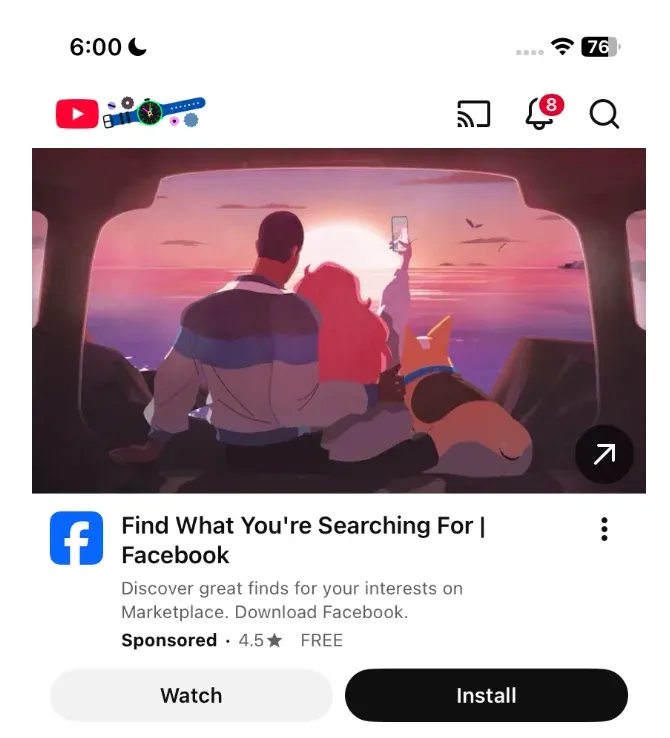
Step 2. Select your Vizio SmartCast TV.
Step 3. Once connected, play a video in the app, and you can watch it on your Vizio TV.
This is ideal for streaming content from Chromecast-enabled apps like YouTube, Netflix, Chrome, and more.
- Use Apple AirPlay
Vizio SmartCast TV also supports AirPlay from iOS or macOS devices. So, you can cast Vizio TV from your iPhone or other Apple devices without hassles:
Step 1. Enable AirPlay on your iPhone, iPad, or MacBook.
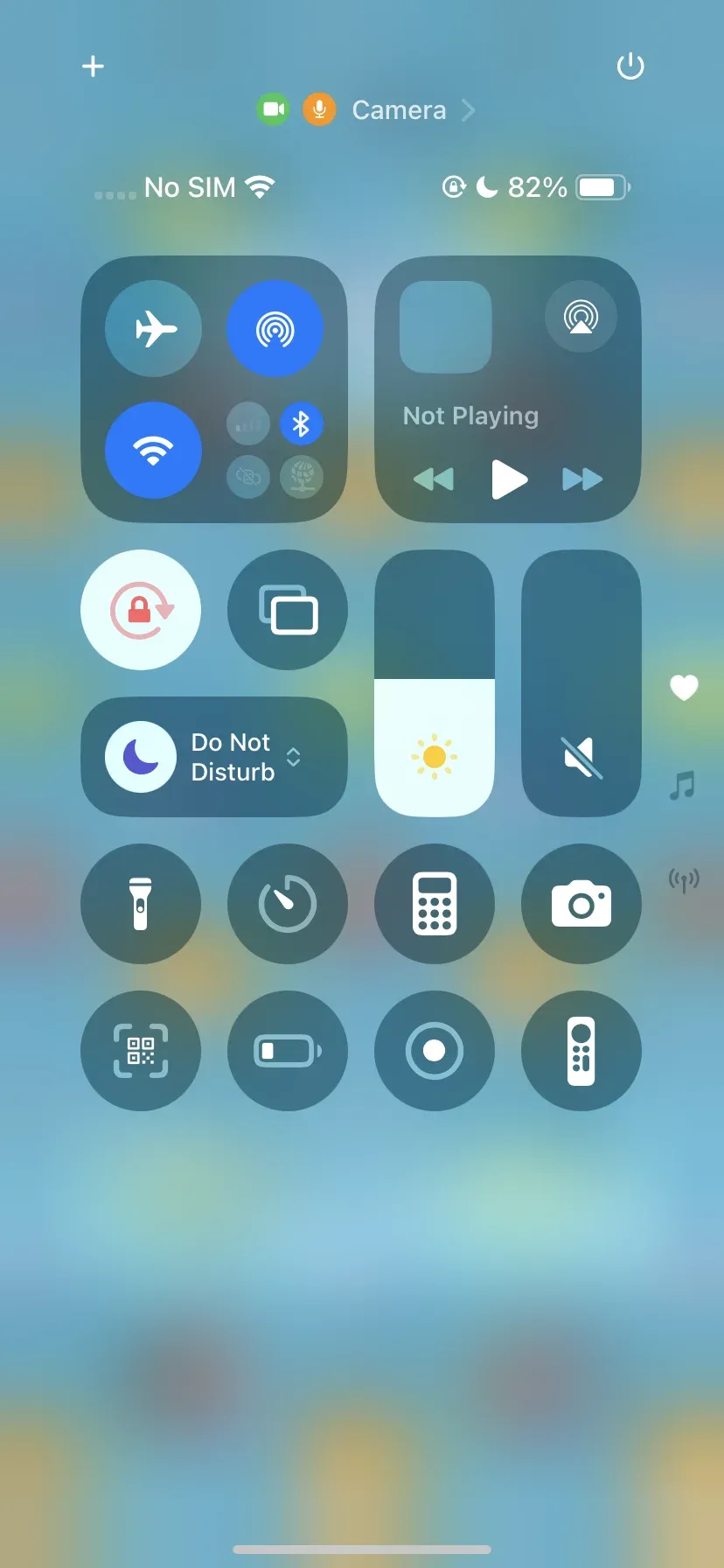
Step 2. Select your Vizio TV, and you can cast photos, videos, or even stream your screen.
- Use the PigeonCast app for more flexibility
If you're looking for an even more flexible casting solution, the PigeonCast app is a great option. It supports casting from Android, iPhone, Windows PC, and MacBook to any TV with AirPlay, Google Cast, and DLNA support, like Vizio SmartCast TV.
By installing PigeonCast on your device, you can cast content more reliably, avoiding compatibility issues between devices. For example:
Step 1. Install the PigeonCast app on your Android phone or iPhone.

PigeonCast Screen Mirroring

Official Download



Step 2. Ensure your Android or iPhone and Vizio Smart TV are on the same Wi-Fi network.
Step 3. Launch the PigeonCast app on your mobile device, and select Vizio TV from the device list.
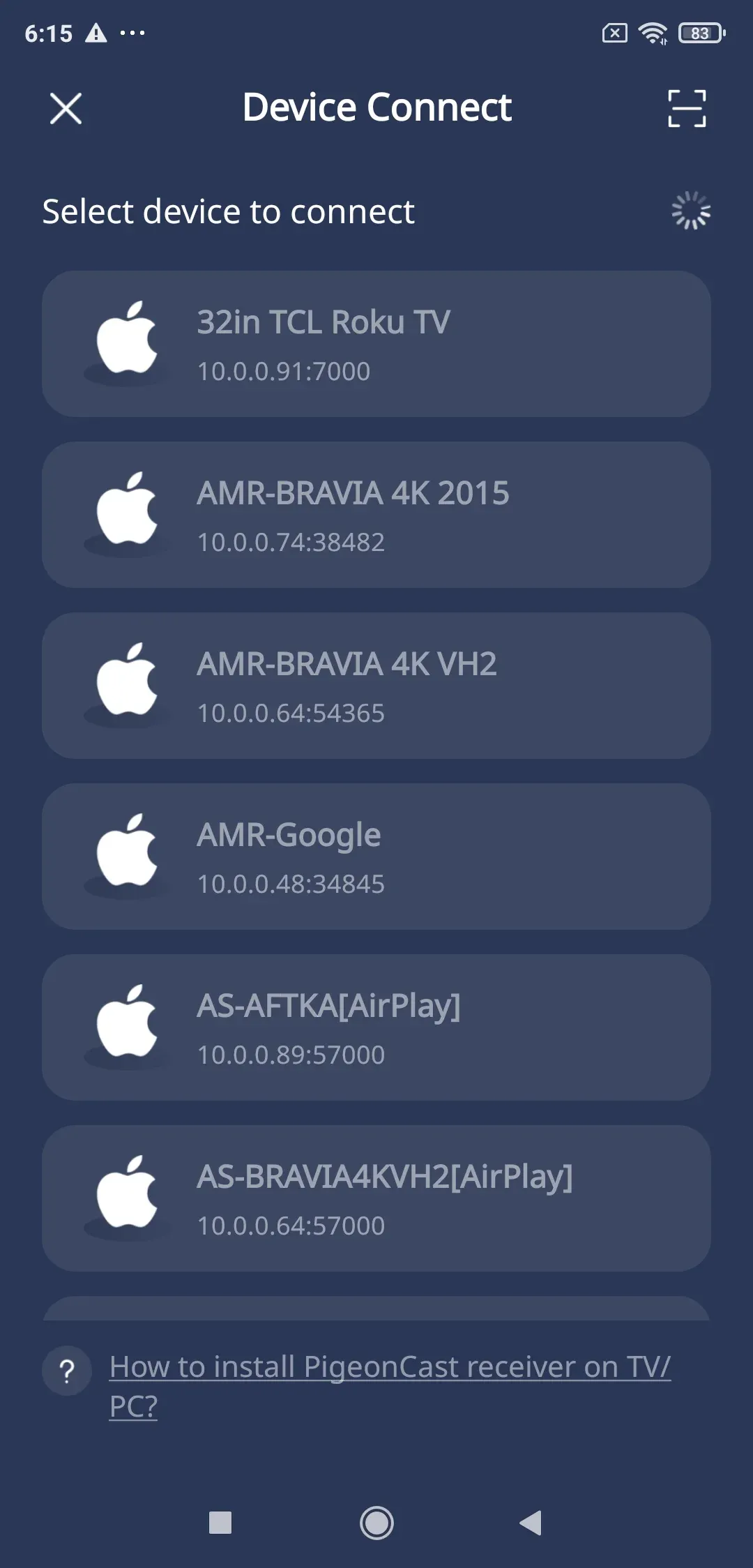
Step 4. Once connected, tap Screen Mirror, Video, or Browser to stream content to your Vizio TV.
Step 5. Enjoy!
#2: Smart Control with the Vizio SmartCast App
The Vizio SmartCast app is available for both Android and iOS devices. This app turns your smartphone into a powerful remote control for your TV. You can control your TV's volume, change channels, browse content, and even mirror your mobile's screen to the TV.
- Smart TV control: Use the app to change TV settings, input sources, or navigate through channels.
- Content Browsing: Browse through streaming apps, search for content, and even control playback directly from the app.
#3. Voice Control via Alexa or Google Assistant
If your Vizio SmartCast TV supports voice commands, you can control it with your voice. Simply link your TV to Google Assistant or Amazon Alexa and use commands like:
- "Alexa, turn on the TV."
- "Google, play [Movie Name] on Vizio TV."
This hands-free control adds convenience to your viewing experience.
#4. Streaming Apps Available on Vizio SmartCast
Vizio SmartCast comes pre-loaded with popular streaming apps such as Netflix, YouTube, Hulu, Disney+, Amazon Prime Video, and more. You can download additional apps through the Vizio SmartCast app for access to more entertainment options.
How to Fix Vizio SmartCast Not Working
If you're facing issues with Vizio SmartCast not working, there are a few steps you can take to troubleshoot and fix the problem. Below are detailed solutions to common issues:
Step 1: Check Your Internet Connection
Since Vizio SmartCast heavily relies on an internet connection, ensure that both your Vizio SmartCast TV and casting device (phone or tablet) are connected to the same Wi-Fi network. A weak or unstable connection can cause interruptions in streaming and content casting.
Step 2: Power Cycle Your Devices
Sometimes, simply restarting your TV and casting device can resolve SmartCast issues:
- Unplug your Vizio TV from the power outlet for 30 seconds, then plug it back in.
- Restart your casting device, such as your smartphone or tablet.
Step 3: Update the Vizio SmartCast App and TV Firmware
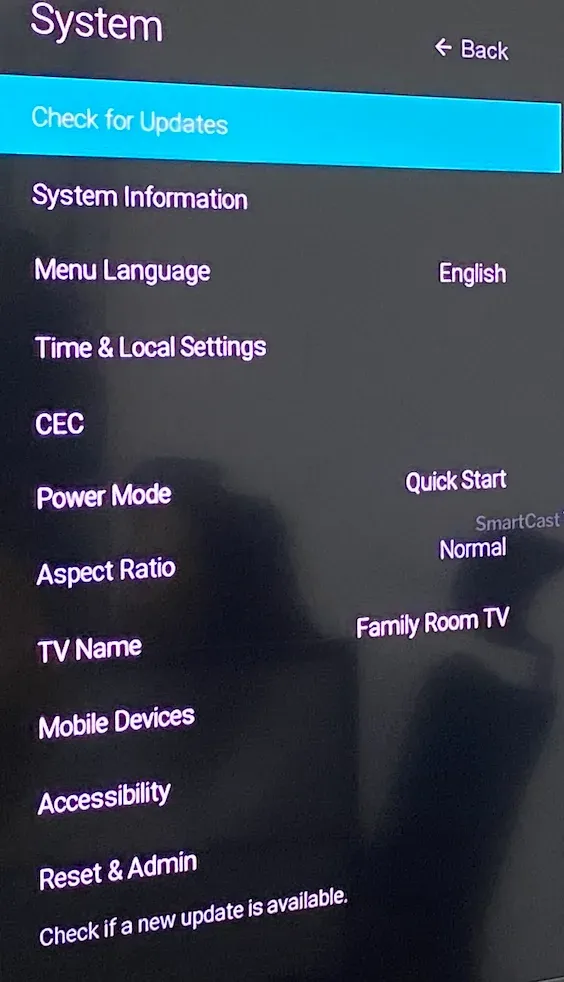
Outdated software can cause compatibility issues. Make sure both your Vizio SmartCast TV and the SmartCast app are up to date:
- Update TV firmware: Go to Settings > System > Check for Updates.
- Update the SmartCast app on your phone from Google Play Store or Apple App Store.
Step 4: Reset the SmartCast Platform
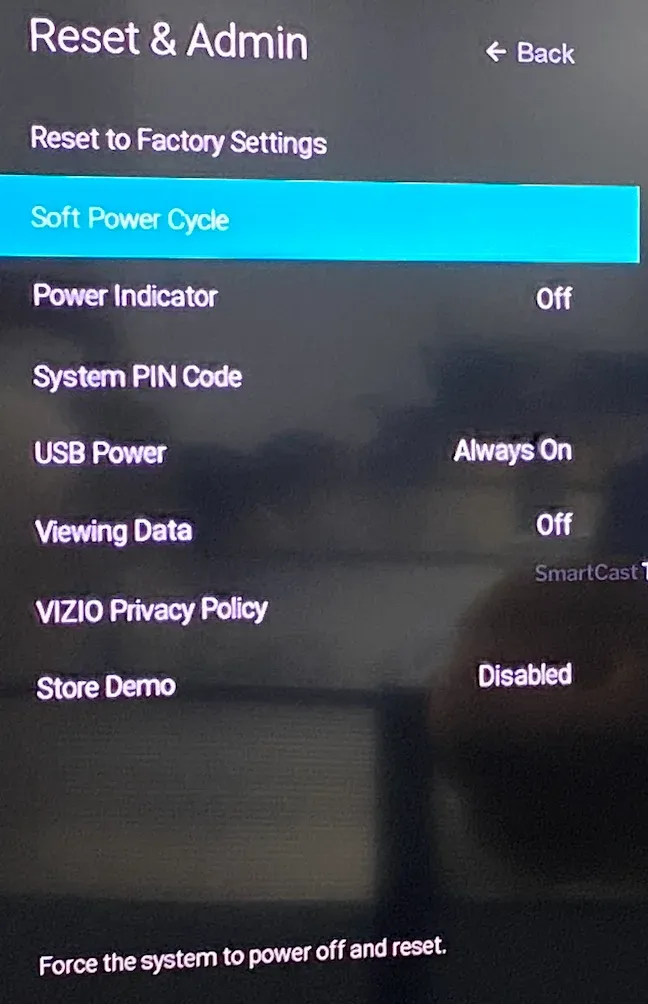
If the issue persists, try resetting the SmartCast platform:
- Go to Settings on your Vizio TV.
- Select Reset & Admin.
- Choose Soft Power Cycle or Reset SmartCast.
Step 5: Reconnect Devices
If your device is not appearing in the available devices list:
- Ensure your phone or tablet's Bluetooth and Wi-Fi are turned on.
- Open the Vizio SmartCast app, select your TV, and try to reconnect.
The End
Vizio SmartCast is an innovative and feature-rich platform that allows users to easily stream content, control their TVs, and cast content from various devices. Whether you're using Google Cast, Apple AirPlay, or the PigeonCast app, SmartCast is a powerful solution for enhancing your viewing experience. If you encounter any issues, the troubleshooting steps above should help you get back on track.
Vizio SmartCast FAQs
Why is SmartCast not working on Vizio TV?
Common reasons include:
- Internet issues: Ensure both TV and device are on the same Wi-Fi network.
- Outdated firmware: Update the TV via Settings > System > Check for Updates.
- App issues: Update or reinstall the Vizio SmartCast app.
- Connection problems: Restart the TV and device.
- Compatibility: Make sure your device supports Google Cast or AirPlay.
How do I connect my phone to my Vizio TV?
You can connect your phone to a Vizio TV using Google Cast, Apple AirPlay, or third-party options like PigeonCast. You may also use the Vizio SmartCast app for direct control.
What apps are available on Vizio SmartCast?
Vizio SmartCast offers apps like Netflix, Hulu, YouTube, Disney+, Amazon Prime Video, and many others. Additional apps can be added via the SmartCast app.
What devices are compatible with Vizio SmartCast?
Vizio SmartCast is compatible with devices that support Google Cast and Apple AirPlay, including smartphones, tablets, laptops, and certain smart devices.
What is the difference between Vizio Smart TV and SmartCast?
All Vizio Smart TVs come with SmartCast, which is the operating system for streaming and casting content. SmartCast enables casting, app control, and more.
What year did Vizio SmartCast come out?
Vizio SmartCast was first introduced in 2016 as a platform for smart TVs.
Mia Clarke is a technology editor specializing in screen mirroring and casting solutions across multiple platforms. Mia provides clear, practical guides and in-depth insights to help users seamlessly connect their devices. Passionate about enhancing digital experiences, Mia is dedicated to keeping readers updated on the latest trends and tools in cross-platform screen sharing. Whether you’re looking to mirror your smartphone, laptop, or smart TV, Mia’s content delivers reliable, user-friendly advice to simplify your tech setup.