
Vizio's SmartCast platform is designed to be your seamless gateway to streaming, but encountering a blank screen with the dreaded "SmartCast Home Not Available" message instantly halts your entertainment. Don't panic, this guide will explain why this error occurs and walk you through a systematic fix, from simple refreshes to more advanced solutions, ensuring you regain control of your TV.
Why Is My SmartCast Home Not Available
The Vizio SmartCast "Home" screen is not a static menu, but it's a dynamic interface that loads in real-time from Vizio's servers over your internet connection. When it fails to appear, the breakdown is typically in one of three areas:
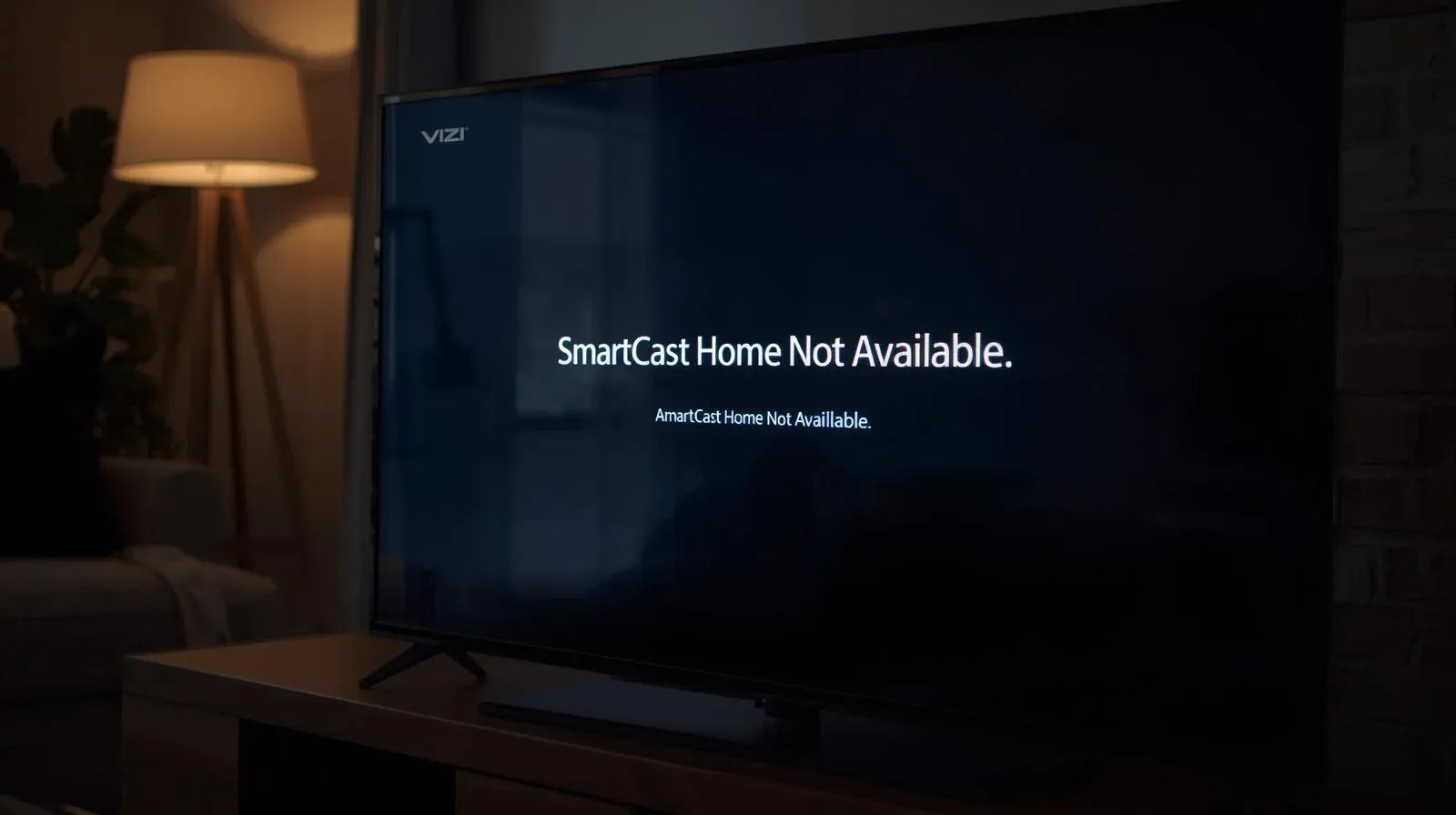
- Network Issues: The most common culprit. Your TV cannot "phone home" to Vizio's servers due to a weak Wi-Fi signal, router problems, or incorrect network settings on the TV.
- Software Glitches: Temporary bugs in the TV's firmware or the SmartCast software itself can cause the interface to freeze or fail to launch.
- Service Outages: Rarely, Vizio's servers themselves may be experiencing temporary downtime, preventing all TVs from loading the home screen.
How to Fix SmartCast Home Not Available
With the likely causes in mind, we can begin a structured troubleshooting process on SmartCast Home not available Vizio, starting with the 8 simplest and fastest potential fixes.
#1. Refresh SmartCast
If you're encountering Vizio Smart TV SmartCast home not available, it's likely due to corrupted settings or outdated data stored on your TV. Over time, these glitches can interfere with SmartCast's performance, causing it to malfunction. A simple refresh can often clear these issues and restore the system to normal operation.
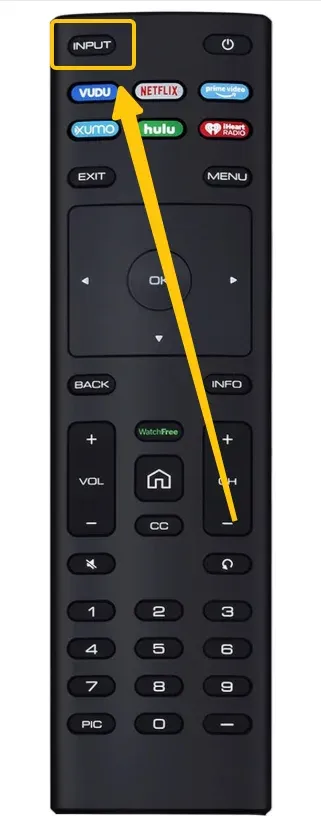
Step 1. Press the INPUT button on your remote or on your physical TV panel.
Step 2. Select SmartView Input and press OK.
Step 3. Go to the TV Menu > System, change the Language to another option temporarily.
Step 4. Wait for SmartCast to reload properly, and please do not exit the menu during this process.
Step 5. Switch the language back to English and try the SmartCast feature again.
#2. Check Network Connection
Why does my TV say SmartCast home not available? SmartCast relies on a stable internet connection to function properly. If your network connection is weak or disrupted, it can cause issues like the SmartCast Home screen not loading. Here's the specific step to troubleshooting network issues:
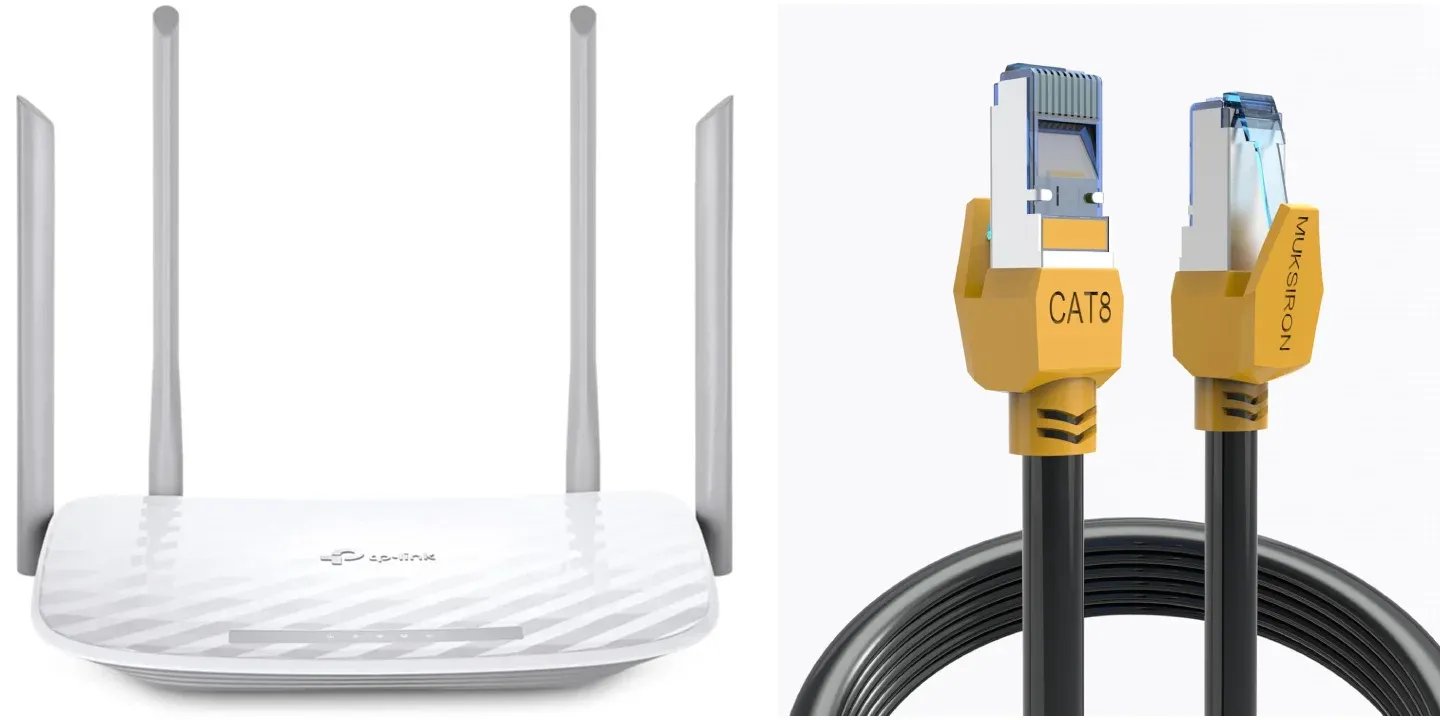
- Verify Wi-Fi Connection: Ensure your TV is properly connected to your Wi-Fi network. Go to Settings > Network > Network Status to check the connection status.
- Move Closer to the Router: If your TV is located far from the router, try moving it closer to improve Wi-Fi signal strength. This can help resolve connectivity issues caused by weak signals.
- Test with an Ethernet Cable: For a more stable connection, connect your TV directly to the router using an Ethernet cable. If SmartCast loads quickly with the wired connection, this indicates that the issue is likely due to weak Wi-Fi or interference.
- Restart Your Router: Unplug your router for about 30 seconds, then plug it back in. This simple step can often resolve temporary network issues and improve your connection.
#3. Restart Your Vizio TV
Occasionally, a quick restart of your Vizio TV can fix issues with the Vizio TV saying SmartCast home not available. Restarting helps refresh the system, clears any temporary glitches, and can resolve minor errors that might be affecting performance.
Step 1. Turn off your Vizio TV using the remote or the Power button.
Step 2. Unplug the TV from the power outlet and wait for about 30 seconds.
Step 3. Plug it back in and turn the TV back on.
Step 4. Check if the SmartCast Home screen is now accessible after the restart.
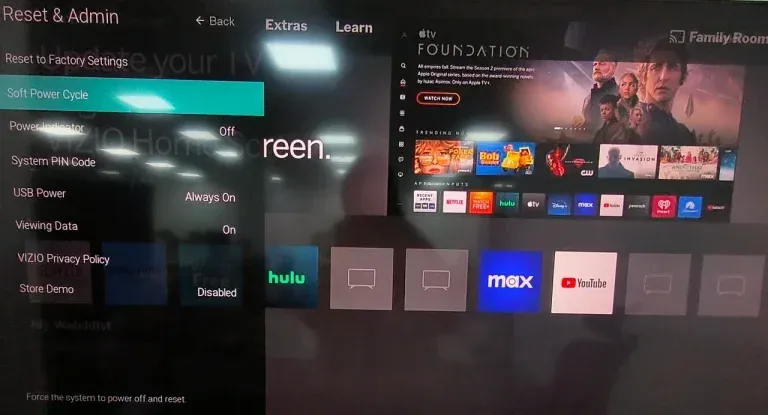
Alternatively, you can choose Soft Power Cycle in the Reset & Admin menu to restart your Vizio TV.
#4. Check for Update
If your TV's software is out of date, it could be causing issues with SmartCast, like the "Vizio SmartCast home not working" error. Sometimes, those updates include fixes or new features that are essential for smoothing out any glitches, so keeping your software current can make all the difference.
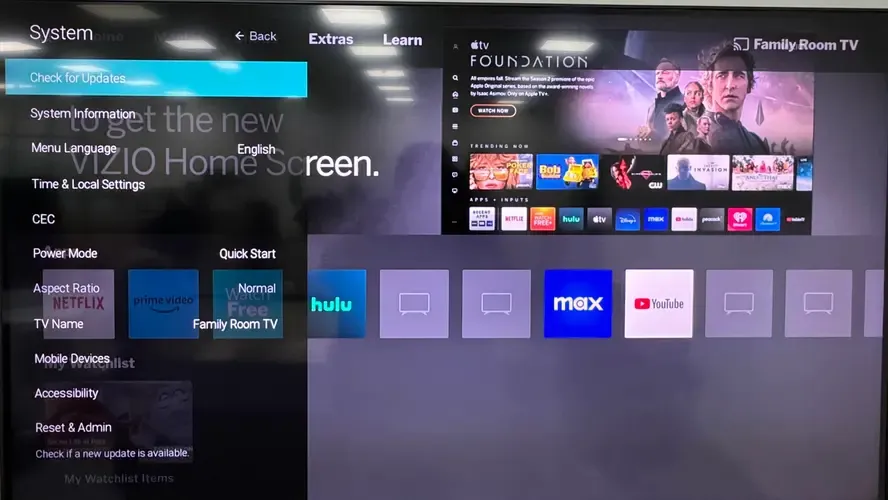
Step 1. Press the Menu or Settings (gear icon) button on your remote.
Step 2. Go to Admin & Privacy (or System, depending on your model), then select Check for Updates. Confirm the download and installation when prompted.
#5. Perform a Factory Reset
If other troubleshooting steps fail, performing a factory reset may be necessary. This will restore your TV to its default settings, eliminating any software glitches or issues that may be causing the SmartCast Home screen to be unavailable. However, keep in mind that a factory reset will erase all your settings and installed apps.
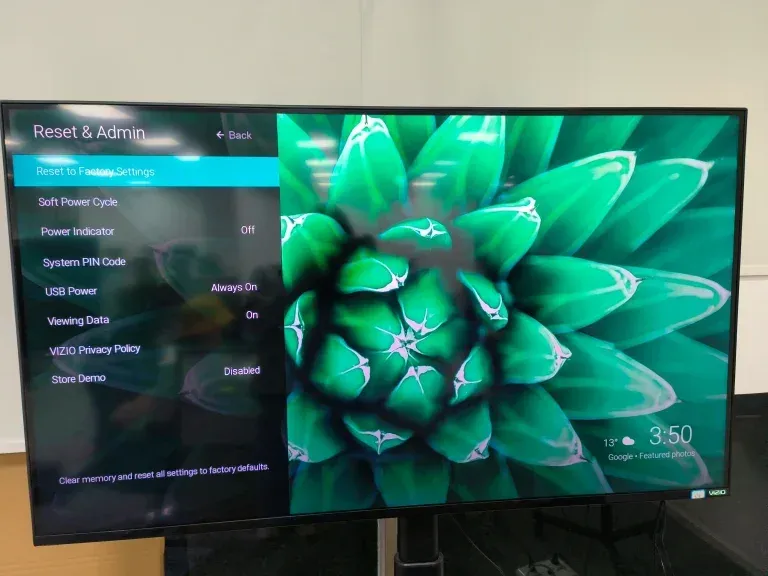
Step 1. Press the Menu button on your remote.
Step 2. Go to Reset & Admin > Factory Settings > Reset.
Step 3. Follow the onscreen setup instructions to confirm the reset.
Step 4. After the reset is complete, you'll need to go through the initial setup process again. Check if SmartCast is now working correctly.
#6. Try a Streaming Device
If SmartCast is still unavailable after following all of the above steps, using a streaming device such as a Roku, Amazon Fire TV Stick, or Google Chromecast can provide a temporary solution. These devices often offer similar functionality and can be an alternative to streaming apps until you resolve the SmartCast issue.
Step 1. Plug in your streaming device (such as a Roku, Amazon Fire TV Stick, or Google Chromecast) to an available HDMI port on your TV.
Step 2. Switch your TV's input source to the HDMI port where the device is connected.
Step 3. Follow the on-screen prompts to set up your streaming device.
Step 4. Once set up, use the streaming device to access your favorite streaming apps, offering a temporary solution while SmartCast issues are being resolved.
#7. Use Free PigeonCast
Plus, you can also use other apps that support screen mirroring, such as PigeonCast, a free screen mirroring tool that can cast content to your TV. This tool supports cross-platform streaming from Android, Windows, and iOS devices to your Vizio TV, offering a temporary workaround for SmartCast issues.

Step 1. Connect both your device and Vizio TV to the same Wi-Fi network.


Overall Rating:



Step 2. Download the PigeonCast app on your sender device, such as a mobile phone, tablet, or laptop.
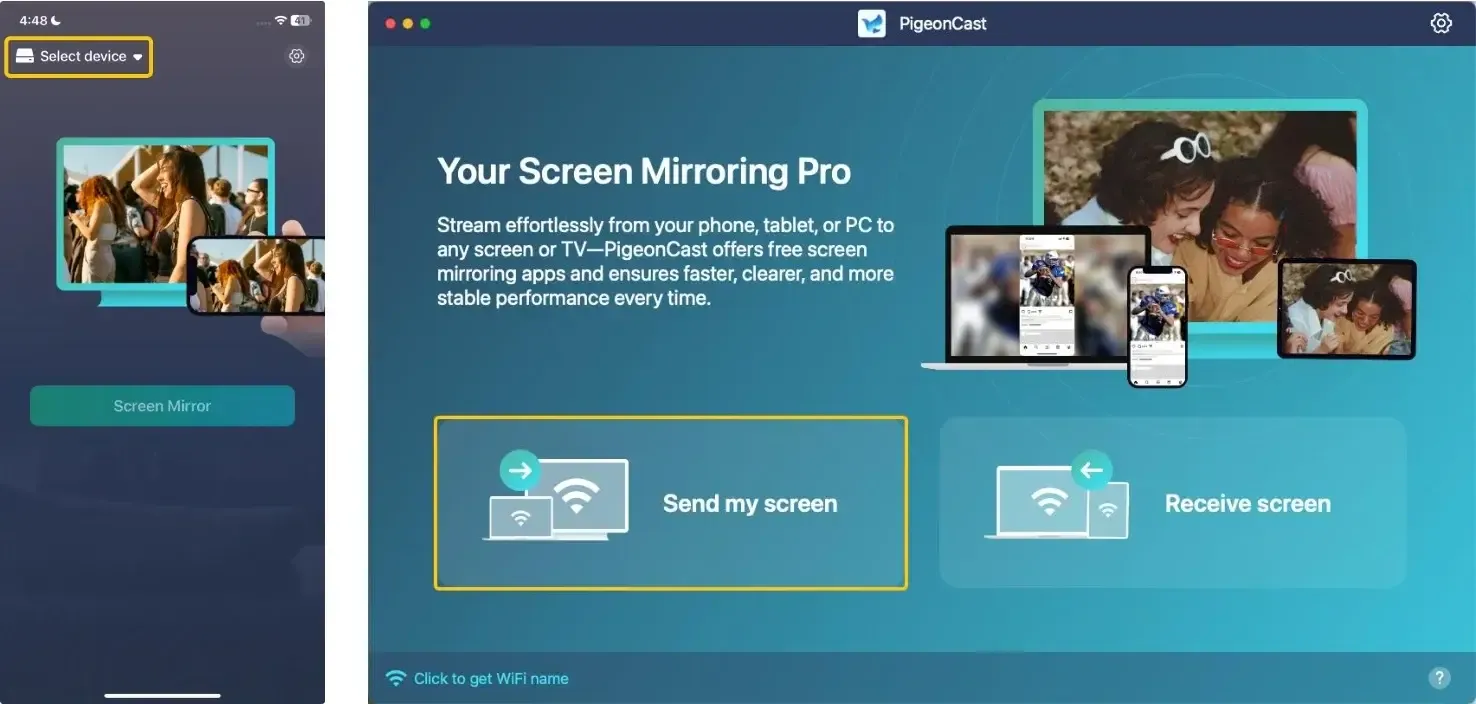
Step 3. Open PigeonCast, tap Select device or Send my screen to choose your Vizio TV. For android device, you can also choose the corresponding cast button to cast your media content.
Step 4. Enter the onscreen PIN code to confirm the connection requisition.
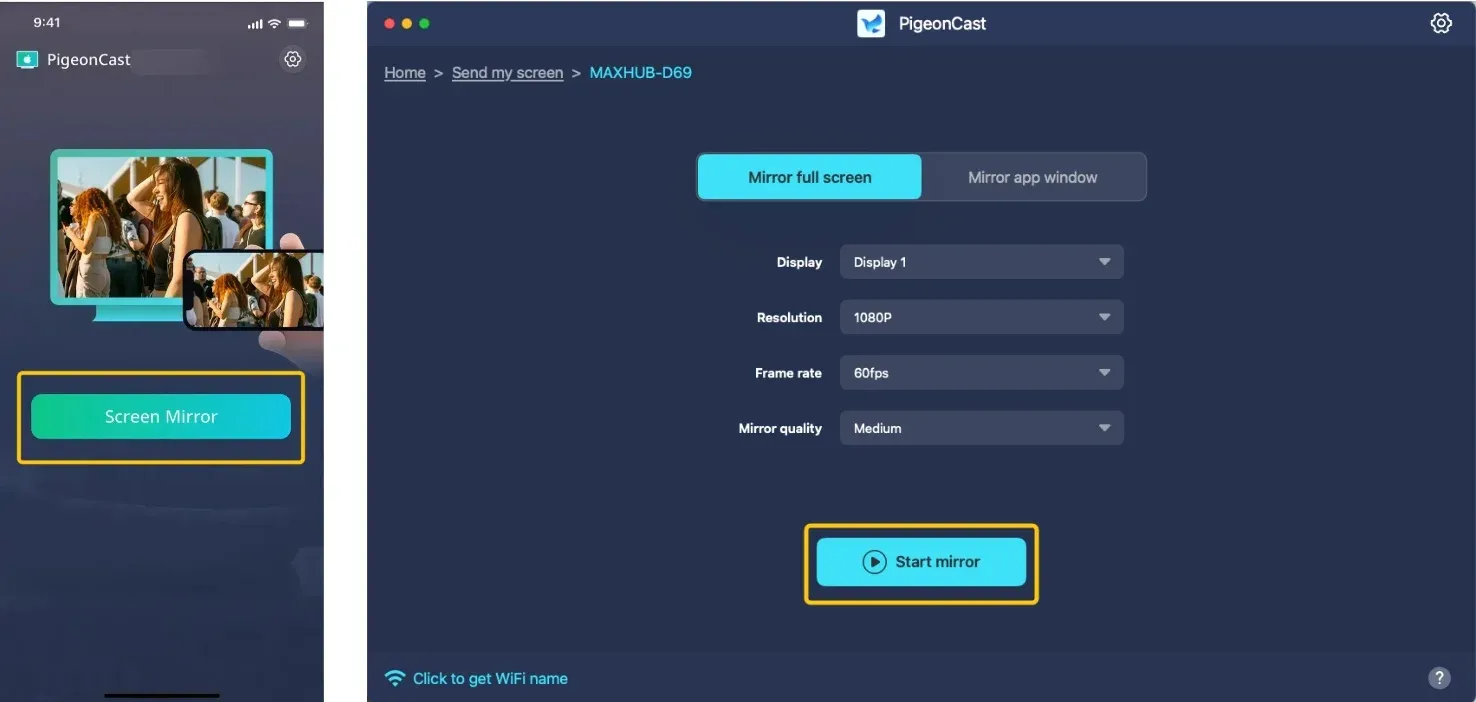
Step 5. Tap the Screen mirror or the Start mirror to start your mirroring activities. If you use a laptop, you can mirror the full screen or choose to mirror only a single app window.
#8. Contact Support
For further assistance, visit the official Vizio support website to access live chat or find the support phone number for your specific model to speak with a representative.
Bottom Line
Why is SmartCast home not available? This error is usually caused by network issues, software glitches, or server problems. To fix this, try refreshing SmartCast, checking your Wi-Fi connection, and restarting your TV. If that doesn't work, update your TV software or perform a factory reset. As a temporary solution, you can use a streaming device or a screen mirroring app. If the issue persists, contact Vizio support for further assistance.
SmartCast Home Not Available FAQ
Why does Vizio SmartCast home not available in your region?
Here are some more possible reasons for SmartCast Home not being available in your region:
- Licensing restrictions
- Regional server issues
- Content provider agreements
- Location-based feature restrictions
- Internet or network limitations
- SmartCast availability
How to fix the SmartCast home not available error code 1003?
- Check Your Network Connection
- Restart Your TV and Router
- Refresh SmartCast
- Update TV Software
- Clear Cache (Factory Reset)
- Use a Streaming Device
How to clear cache on Vizio SmartCast TV?
- Press the Menu Button on your remote to open the TV menu.
- Navigate to System > Language.
- Temporarily change the language to Spanish, French, or any other available option.
- Wait for SmartCast to reload.
- Once SmartCast has fully loaded, change the language back to English.
- Check if SmartCast is now working properly.
How to reset SmartCast on Vizio TV?
To reset SmartCast, you can perform a system reboot from the Settings > System > Reset & Admin menu. If needed, you can perform a full factory reset by selecting Reset TV to Factory Defaults.
How to solve a Vizio TV stuck on SmartCast loading?
If your Vizio TV is stuck on the SmartCast loading screen, you can try the following steps to resolve the issue:
- Refresh SmartCast (Change Language Method)
- Restart the TV
- Check Your Internet Connection
- Update the TV Software
- Perform a Factory Reset
- Use a Streaming Device (Temporary Solution)
- Contact Vizio Support
What does SmartCast Home not available mean?
This error typically means that your Vizio TV is having trouble accessing or loading the SmartCast interface. SmartCast is the platform that allows you to stream content, access apps, and use features like casting to your TV.
Clara Rossi is an experienced technology editor and a seasoned expert in screen mirroring and casting technologies. With a keen eye for detail and a deep understanding of how to seamlessly connect devices, Clara excels at optimizing user experiences for effortless sharing and streaming. Whether you're seeking quick fixes or advanced tips, her expertise and responsiveness ensure that every query is met with a well-informed and efficient solution.