
Vizio is known for offering high-quality, affordable smart TVs, and with the integration of Chromecast, it becomes even easier to stream your favorite content directly to your TV. Whether you're a first-time user or having issues with Vizio Chromecast, this guide will walk you through everything you need to know. Let's dive in!
How to Use Vizio Chromecast
Using Vizio TV Chromecast offers a seamless and wireless experience. Unlike traditional Chromecast setups, you don't need a separate dongle. The feature is Vizio Chromecast built in directly into the TV's SmartCast platform, making it easy to stream content without any additional devices. Now, let's read on to check the Vizio Chromecast setup and how to connect to Vizio Chromecast:
Method 1. Connect to Vizio Chromecast with Google Home
The first and easiest method to connect your device to Vizio Chromecast is through Google Home. Whether you're casting YouTube videos or controlling other smart devices in your home, Google Home is a powerful tool to get started with Chromecast on your Vizio TV.
Step 1. Make sure your Vizio TV and the device you're using (phone or tablet) are connected to the same Wi-Fi network.
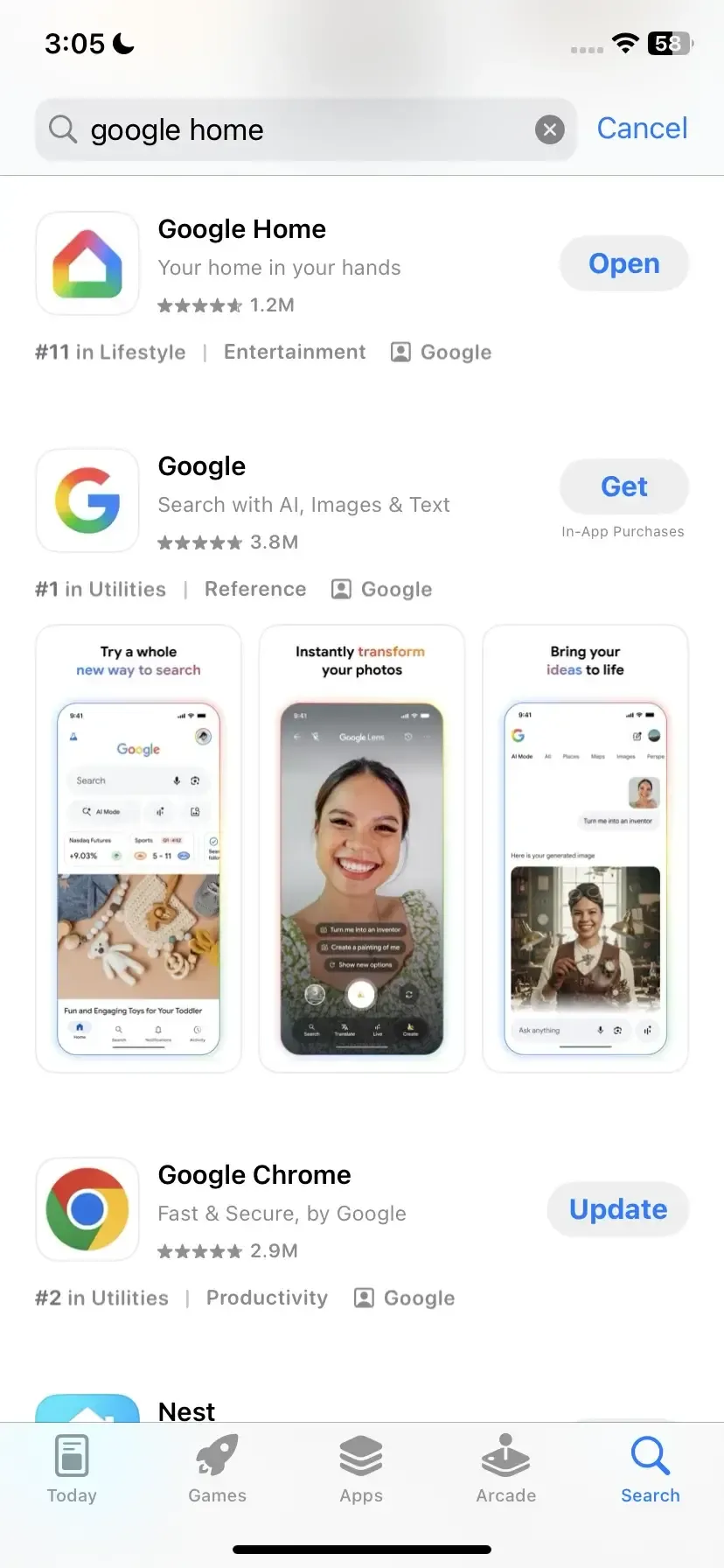
Step 2. If you haven't already, download and install the Google Home app from the App Store (iOS) or Google Play Store (Android).
Step 3. Launch the Google Home app on your phone or tablet.
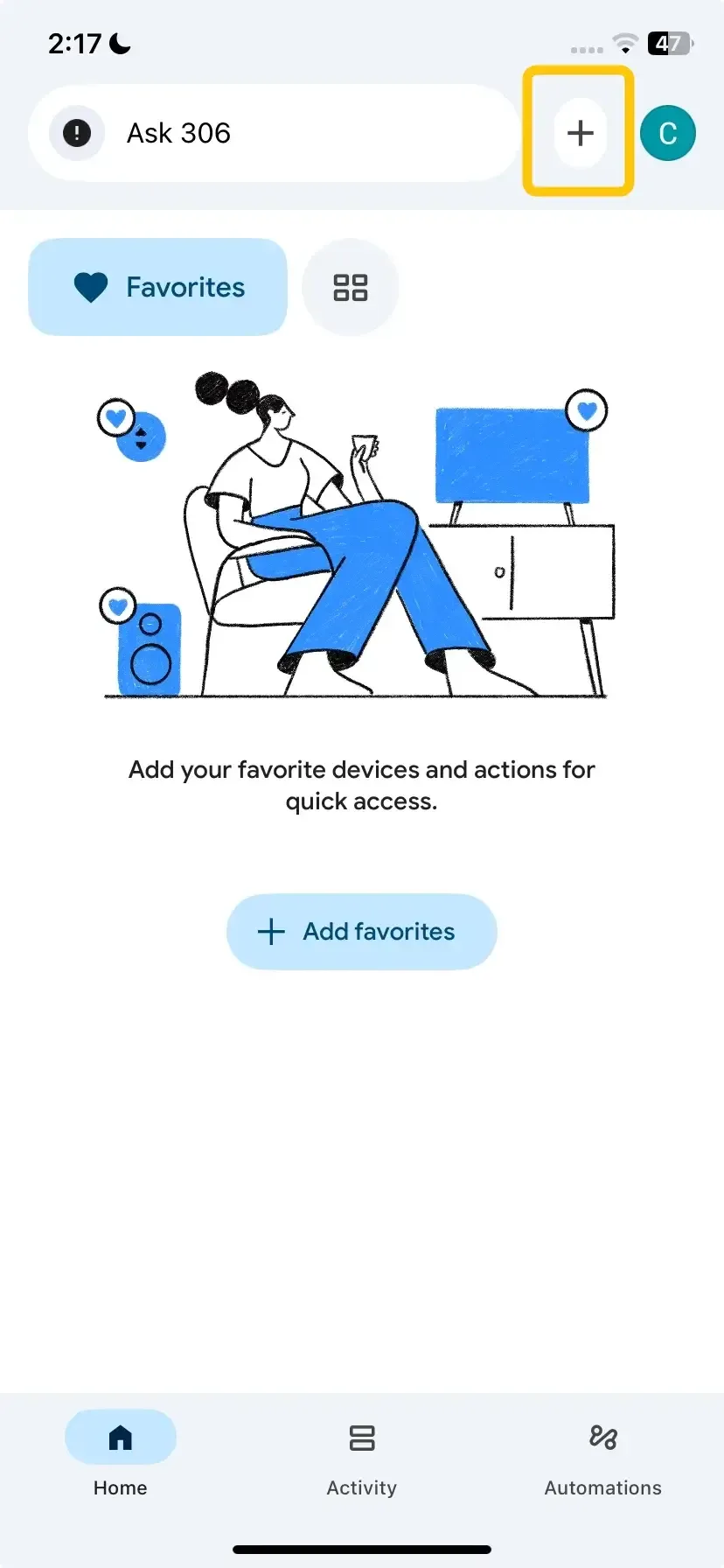
Step 4. In the Google Home app, tap the + icon in the top-left corner to add a device.
Step 5. Select Set up device and choose Set up new devices. Follow the on-screen instructions.
Method 2. Connect to Vizio Chromecast with Cast-enabled App
Alternatively, if you're using a Vizio TV with Chromecast built-in, connecting your device is just as seamless, especially when using Cast-enabled apps. This method leverages the same Chromecast technology but with the added benefit of integrated support on many Vizio models.
Step 1. Ensure your mobile device and Vizio TV are under the same wireless network.
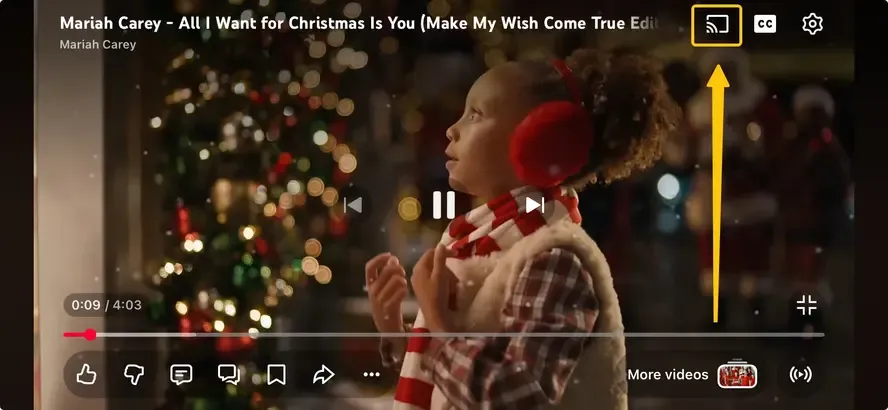
Step 2. Launch the app you want to cast, such as YouTube or Netflix, and tap the Cast button in the upper-right corner.
Step 3. From the available list, select your Vizio TV to confirm the connection.
Step 4. Once complete, you can start casting content, and your content will begin streaming to your TV.
Method 3. Connect to Vizio Chromecast with PigeonCast
The native Chromecast feature is perfect for streaming from apps on your phone, but what if you need more robust screen mirroring from your Windows PC or Mac? Sometimes, you might encounter compatibility issues or desire lower latency. If you're looking for a powerful and versatile Vizio Chromecast app, PigeonCast is an excellent choice. This free app enhances your casting experience in several key ways:

PigeonCast enables multi-device streaming and supports a wide range of platforms, including Android, iOS, Windows, Mac, and TVs. With a simple setup, it seamlessly integrates with AirPlay, DLNA, and Google Cast, offering maximum flexibility for all your casting needs.


Overall Rating:



Step 1. Install PigeonCast on your mobile device or laptop.
Step 2. Ensure your mobile device or laptop connects to the same WiFi network as your Vizio TV.
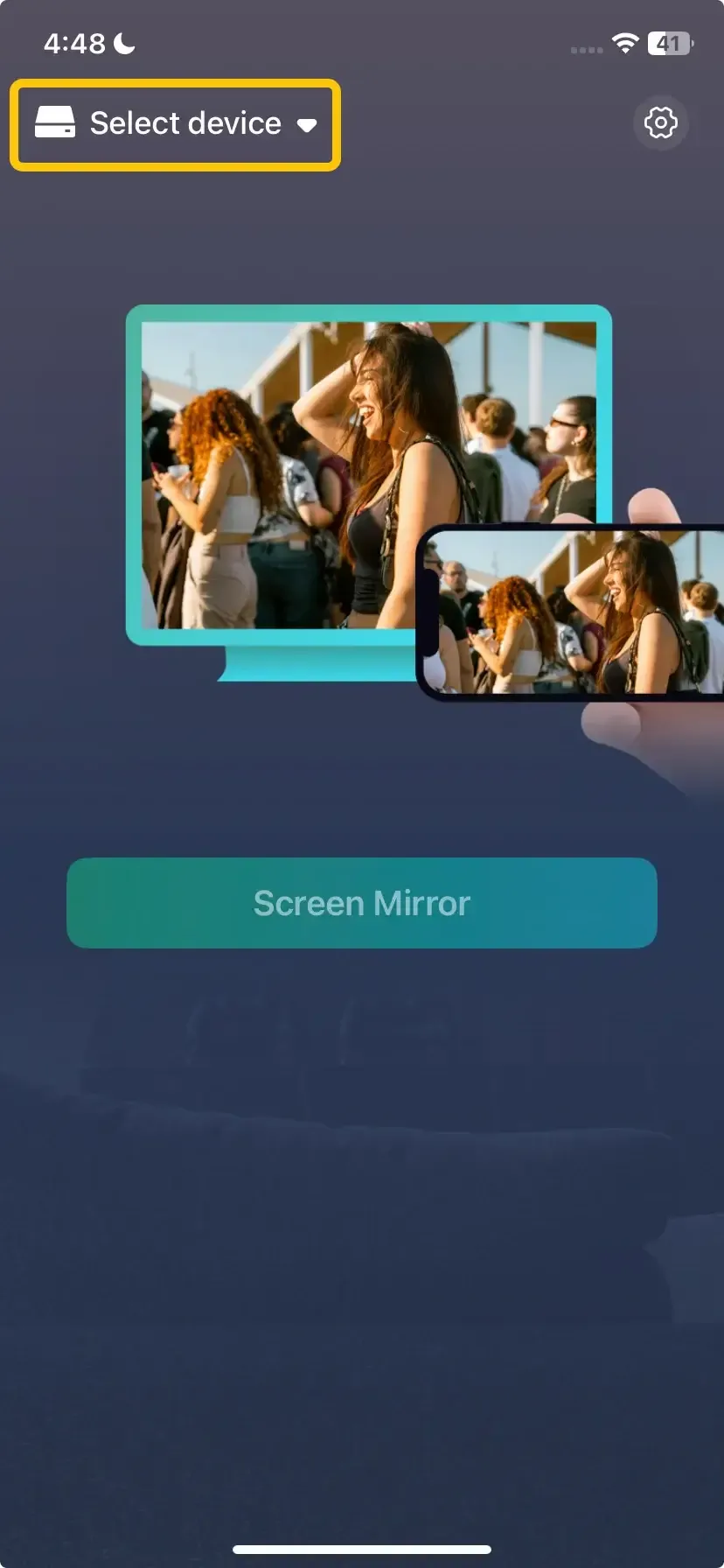
Step 3. Launch the app and tap Select device to choose your Vizio TV from the available list.
Step 4. Enter the onscreen code to finish the connection.
Step 5. When you succeed, you can tap Screen Mirror to start mirroring to the Vizio smart television.
Chromecast to Vizio TV Not Working: Common Issues
There's nothing more frustrating than pressing the Cast icon only to encounter an error message or a frozen screen. Most connectivity Vizio Chromecast problems, like Chromecast not showing up, stem from a handful of common sources. Before you get too deep into complex solutions, it's always wise to start with the basics of Vizio Chromecast troubleshooting.
- Check Your Wi-Fi: Double and triple-check that your phone/computer and your Vizio TV are on the exact same Wi-Fi network. This is the cause of over 80% of casting issues.
- Power Cycle Everything: The classic "turn it off and on again" solution is powerful. Unplug your Vizio TV from the power outlet for 60 seconds, then plug it back in. Also, restart your phone and Wi-Fi router.
- Update Your Software: Ensure your Vizio TV has the latest firmware. Go to Menu > Admin & Privacy > Check for Updates.
- Reboot SmartCast: Sometimes, the SmartCast system itself needs a refresh. Go to Menu > System > Reset & Admin > Reboot SmartCast.
- Check Firewall and VPN: If you're casting from a computer, temporarily disable any VPN software or firewall, as they can block the local communication needed for casting.
Bottom Line
Vizio Smart TV Chromecast is an incredibly convenient and user-friendly feature that successfully turns your mobile devices into a powerful remote for your big-screen entertainment. For those requiring more advanced desktop mirroring, excellent alternatives like PigeonCast are readily available to fill the gap.
Vizio Chromecast FAQ
How to cast to a Vizio TV from laptop?
You have two primary methods.
- First, you can use the built-in Chromecast by opening the Google Chrome browser, clicking the three-dot menu, and selecting Cast....
- Second, for a more robust and dedicated screen mirroring experience, you can use a third-party application like PigeonCast, which is designed for high-quality, low-latency mirroring from both Windows and Mac computers.
Why is the Vizio Chromecast not working?
If your Vizio Chromecast isn't working, it could be due to several reasons:
- The Vizio TV or casting device may not be connected to the same Wi-Fi network.
- The software on your Vizio TV or casting device may be outdated.
- The SmartCast platform on your TV may not be properly configured or enabled.
- Wi-Fi interference or a weak signal could disrupt the casting process.
- There may be compatibility problems between your Vizio TV and the device you're casting from.
- A hardware issue with the TV or casting device could be preventing proper functionality.
Can Vizio Chromecast?
Yes, Vizio Chromecast is compatible with most Vizio Smart TVs. Chromecast functionality is integrated into Vizio's smart TV lineup, allowing you to stream from compatible apps directly to your TV. You can also cast from web browsers using a laptop or desktop.
How to solve the Vizio TV Chromecast not working?
If your Vizio TV's Chromecast isn't working, here are some common causes and steps to help resolve the issue:
- Check Wi-Fi Connection
- Restart Devices
- Update Software
- Verify SmartCast Settings
- Check Network Band
- Disable VPN or Firewall
- Clear Cache on the Casting App
- Check for Interference
- Factory Reset the TV
Clara Rossi is an experienced technology editor and a seasoned expert in screen mirroring and casting technologies. With a keen eye for detail and a deep understanding of how to seamlessly connect devices, Clara excels at optimizing user experiences for effortless sharing and streaming. Whether you're seeking quick fixes or advanced tips, her expertise and responsiveness ensure that every query is met with a well-informed and efficient solution.