
If you're looking to stream content from your Apple device to your Vizio TV, you may be wondering how to turn on AirPlay on Vizio TV. AirPlay offers a seamless connection for streaming music, videos, and more from your iPhone, iPad, or MacBook directly to your Vizio Smart TV. In this guide, we'll walk you through the steps to enable AirPlay on your Vizio TV and offer alternative methods if AirPlay isn't available on your devices.
How to Turn On AirPlay on Vizio TV
Many newer Vizio TVs support AirPlay 2, and turning on AirPlay on your Vizio Smart TV is simple, but the process may vary slightly depending on your TV model and software version. Here's how to how to turn AirPlay on Vizio TV:
Step 1. Ensure your Vizio TV is connected to the same Wi-Fi network as the device you want to stream from.
Step 2. On your Vizio TV, go to Settings, scroll down, choose Apple AirPlay, and turn the AirPlay toggle to On.
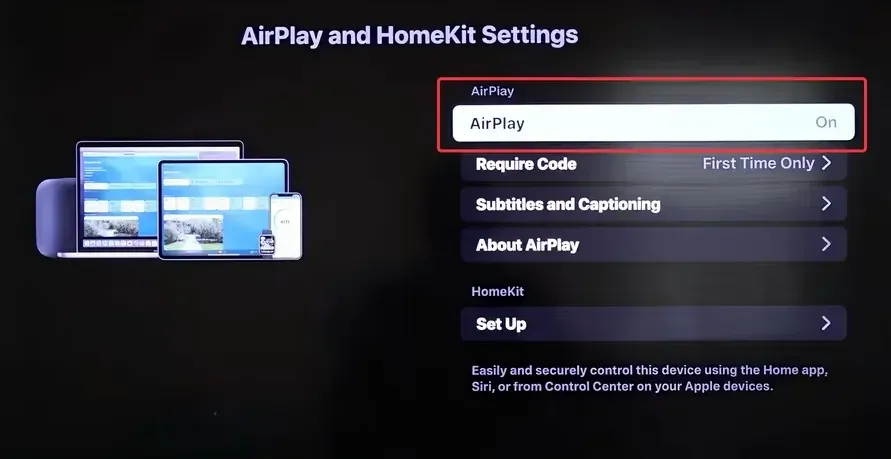
Tip: If you don't see the AirPlay option in the settings, make sure your TV's software is up to date. Visit System > Check for Updates in the settings menu to ensure you have the latest version.
Step 4. Adjust other settings, like requiring a password for AirPlay connections or enabling subtitles during streaming.
Once AirPlay is enabled, your Vizio TV is ready to connect to your Apple devices.
How to AirPlay to Vizio TV
Now that AirPlay is enabled on your Vizio TV, here's how you can stream content from your devices.
From iPhone or iPad
To screen mirror iPhone to TV via AirPlay, you need to:
Step 1. On your Apple device, swipe down to access the Control Center, and tap on Screen Mirroring.
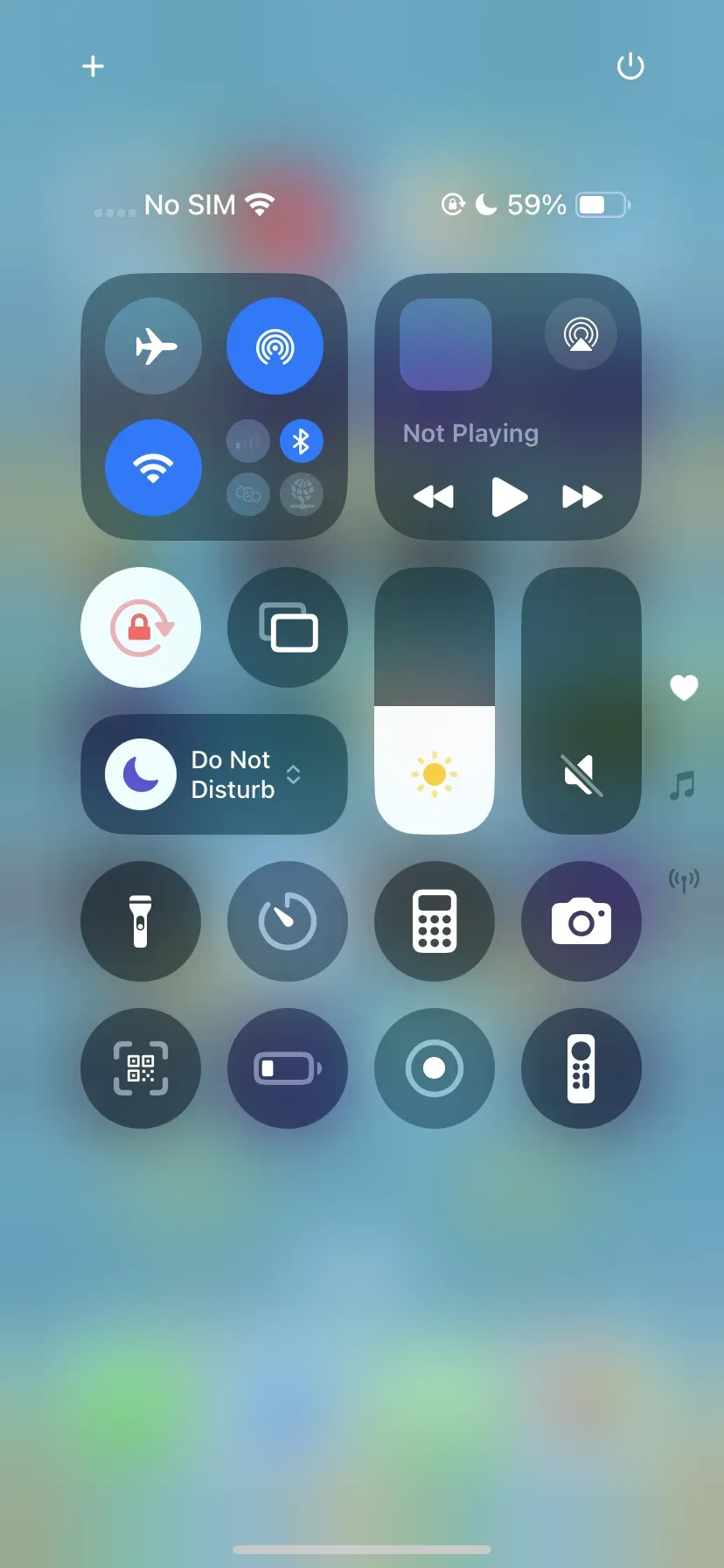
Step 2. In the list of available devices, select your Vizio TV.
Step 3. Input the AirPlay passcode if prompted.
Step 4. Once connected, your iPhone or iPad screen should appear on your Vizio TV.
If you just want to view a video from your iPhone on the large screen, you can open the app that has the content you want to stream, like YouTube, Photos, or Safari, then tap the AirPlay icon (it looks like a rectangle with a triangle at the bottom) in the app, and choose Vizio TV from the list.
From MacBook
Once Vizio TV AirPlay is enabled, you can also AirPlay from a Mac to the TV effortlessly:
Step 1. On your Mac, click the Control Center icon in the top menu bar, then click Screen Mirroring.
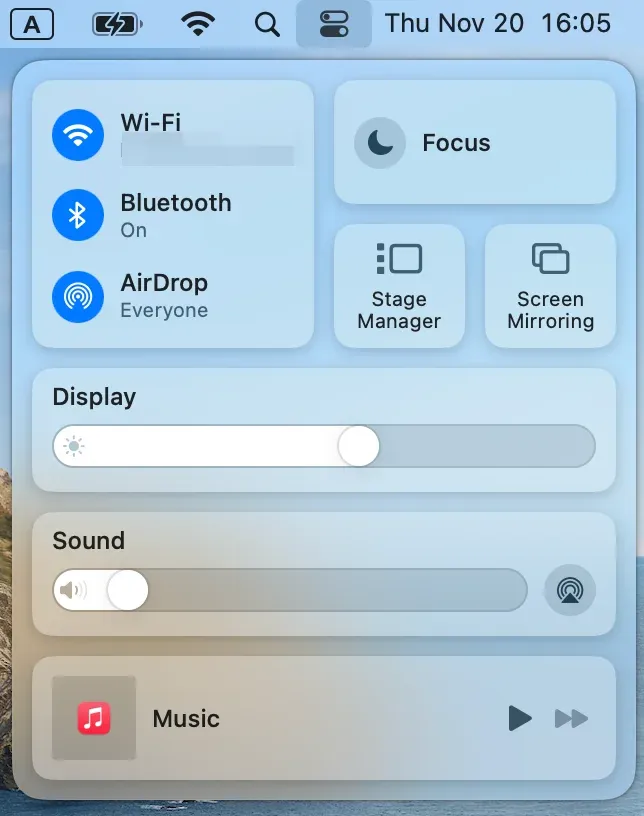
Step 2. Choose your Vizio TV from the list of available devices.
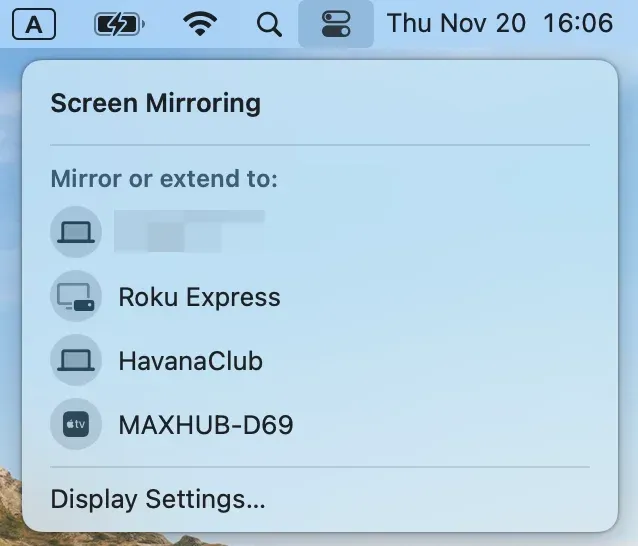
Step 3. Select whether you want to mirror your screen or extend it, and the content will display on your TV.
How to Connect iPhone or Mac to Vizio TV Without AirPlay
If your Vizio TV does not support AirPlay or AirPlay does not work on the TV, you still have other options to wirelessly connect your Apple device. Below are alternative solutions, including Chromecast and Miracast, that allow for easy screen sharing and content streaming.
Option 1: Chromecast
Chromecast support is more common on newer Vizio Smart TVs, particularly those in the Vizio Smartcast line. Chromecast is a more versatile solution for screen casting, and it is built into many modern Vizio TVs. With Chromecast, you can stream content from devices like smartphones, tablets, and computers to your TV.
- Through the Google Home App
- Download and open the Google Home app on your iPhone, iPad, or Android device.
- Make sure your TV and mobile device are connected to the same Wi-Fi network.
- In the Home app, select your Vizio TV and start casting content from your device to the TV.
- Through a Chromecast-Enabled App
Many apps like YouTube, Netflix, and Spotify support Chromecast natively. Simply open the app on your iPhone or Mac, select the Cast icon, and choose your Vizio TV from the list of available devices.
- Through the Free PigeonCast App
PigeonCast is a free app that lets you wirelessly cast from iPhone, iPad, Windows PC, or Mac to any TV that supports Chromecast. Simply install PigeonCast, connect your devices to the same Wi-Fi network, and start streaming content seamlessly.


PigeonCast Screen Mirroring

Official Download



Option 2: Miracast
Miracast is a wireless technology that enables screen mirroring between devices. Vizio has integrated Miracast into some of its Smart TVs, especially models released from around 2014 to 2017. However, not all Vizio models have Miracast support, and some may need updates to enable this feature.
If your Vizio TV supports Miracast, you can connect your Windows PC or Android device directly to the TV without needing an internet connection.
To connect a Windows PC or Android device to your Vizio TV using Miracast:
- Ensure both devices are on the same Wi-Fi network.
- On your PC or Android device, go to Settings > Display and select Connect to a wireless display.
- Choose your Vizio TV from the list of available devices to start mirroring.
Final Thoughts
Vizio Smart TV AirPlay is compatible with many newer models, so make sure your TV is updated and properly connected to the same Wi-Fi network as your device. If you ever experience issues, simple troubleshooting steps like checking for software updates or adjusting settings can often resolve the problem.
By enabling Vizio Smart TV AirPlay, you unlock a world of possibilities for wireless streaming, making it easier than ever to enjoy your favorite content on the big screen.
How to Turn on AirPlay on Vizio TV FAQs
Do all Vizio TVs have AirPlay?
Not all Vizio TVs support AirPlay. AirPlay is available on Vizio Smart TVs manufactured after 2016. You can check if your TV supports AirPlay by going to the Apple AirPlay settings in your TV's menu.
Why did AirPlay disappear from my Vizio smart TV?
AirPlay may disappear if your Vizio TV needs a software update. Check for updates in the settings menu and install any available updates to restore AirPlay functionality.
Why isn't my Vizio TV connecting to my phone?
If your Vizio TV isn't connecting to your phone, ensure that both devices are on the same Wi-Fi network. Also, verify that AirPlay is enabled and up to date.
Why is my TV not showing up on AirPlay?
If your TV isn't showing up on AirPlay, check your Wi-Fi connection, and ensure that AirPlay is turned on in your TV's settings. If the issue persists, restart both devices.
Is PigeonCast free?
Yes, PigeonCast is freely available on different platforms like Android phone, iPhone, iPad, Windows PC, MacBook, Android TV, Apple TV, and Fire TV.
Mia Clarke is a technology editor specializing in screen mirroring and casting solutions across multiple platforms. Mia provides clear, practical guides and in-depth insights to help users seamlessly connect their devices. Passionate about enhancing digital experiences, Mia is dedicated to keeping readers updated on the latest trends and tools in cross-platform screen sharing. Whether you’re looking to mirror your smartphone, laptop, or smart TV, Mia’s content delivers reliable, user-friendly advice to simplify your tech setup.