
A Vizio SmartCast TV opens the door to endless streaming entertainment until it doesn't. When the Vizio SmartCast not working happens, frustration is inevitable. However, before resorting to drastic measures, take comfort in knowing that most SmartCast issues have simple fixes. This guide will walk you through the common causes and provide a clear, step-by-step approach to getting your streaming back up and running.
Why Is My Vizio SmartCast Not Working
If your Vizio SmartCast isn't functioning as it should, there could be several underlying causes. Here are the most common issues that might be affecting its performance:
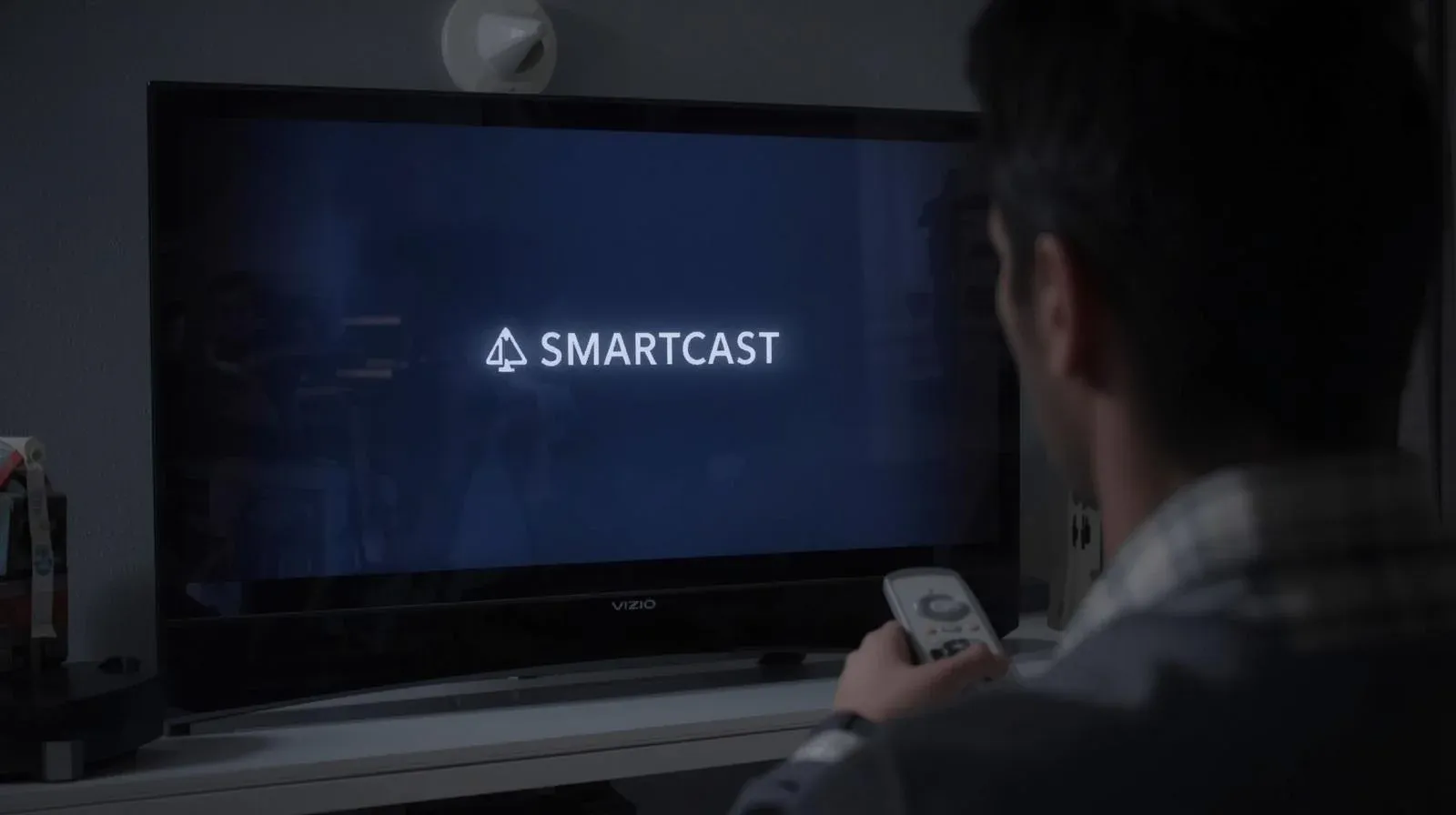
- Internet Connection Issues: Slow or unstable Wi-Fi can disrupt streaming and prevent SmartCast from working smoothly.
- Outdated Software: If your TV's software is outdated, it might cause glitches or performance issues with SmartCast.
- Server Downtime: Occasionally, Vizio's servers may go offline temporarily, which can affect SmartCast's functionality.
- Incorrect TV Settings: Certain settings on your TV might be blocking SmartCast from working as expected.
- Connected Devices: Problems with other devices connected to your TV, such as gaming consoles or streaming boxes, can sometimes interfere with SmartCast.
How to Solve SmartCast Vizio Not Working
Now that you know the common causes behind your SmartCast not working on Vizio TV issues, let's walk through some troubleshooting steps. Start with the simplest solutions and work your way through, trying each method to see if it resolves the problem.
#1. Use Free PigeonCast to Screen Mirror
If you're in a rush to use the mirroring feature, we recommend trying PigeonCast, a free universal screen mirroring app. It supports multiple protocols, including AirPlay, DLNA, and Google Cast. It's android mobile platform also has a web platform that allows any device with a web browser to access screen mirroring sessions. Best of all, it's cable-free and supports up to 4K resolution!

Step 1. Ensure your devices are connected to the same wireless network.


Overall Rating:



Step 2. Install PigeonCast on your mobile device, such as a phone, tablet, or laptop, from the corresponding app store.
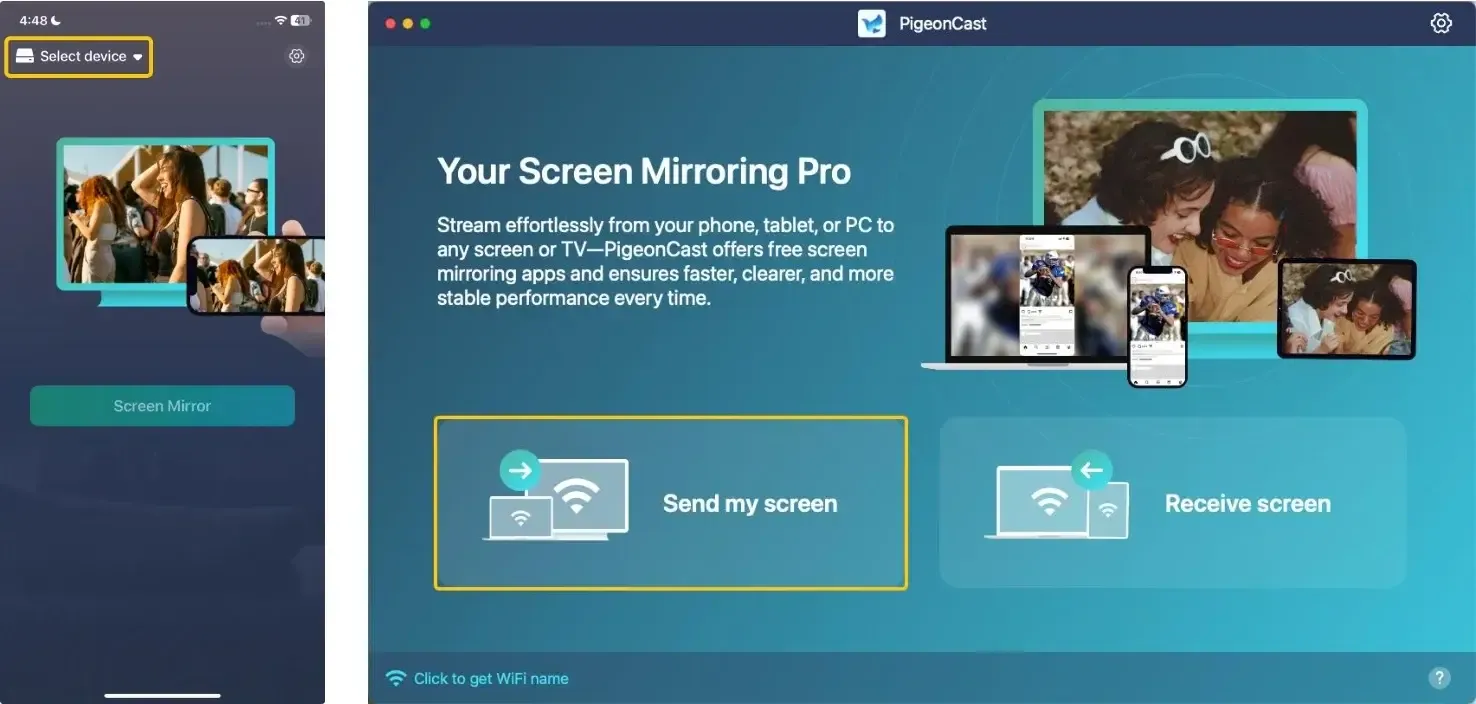
Step 3. Launch PigeonCast, tap Select device or Send my screen to choose your Vizio TV from the available list.
Step 4. Enter the onscreen code to build the pairing process.
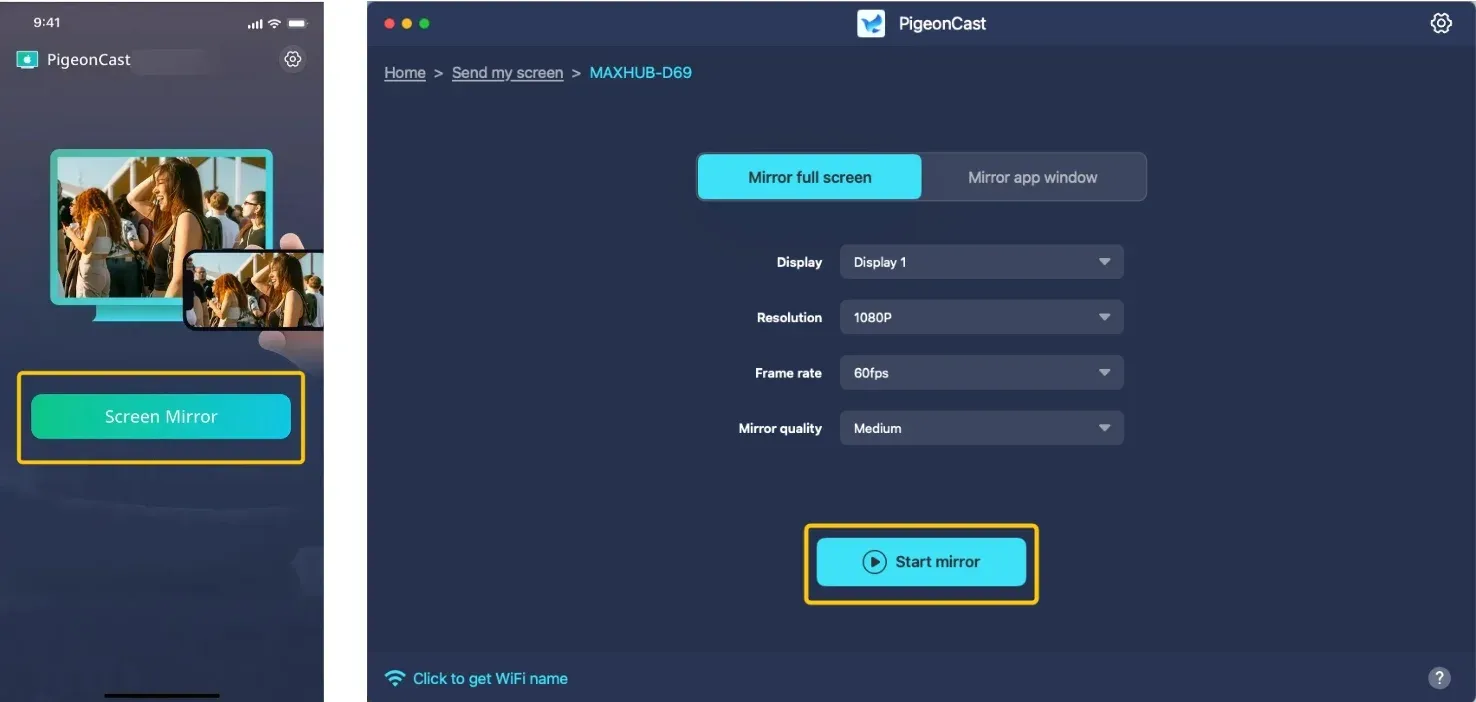
Step 5. Once your connection succeeds, tap Screen Mirror or Start mirror to begin the mirroring activities on the Vizio TV.
#2. Check Network Connection
Why is Vizio TV SmartCast not working? Network issues are one of the most common causes of SmartCast malfunctions. If your TV and casting device are not properly connected to the same Wi-Fi network or the connection is weak, SmartCast may not work.
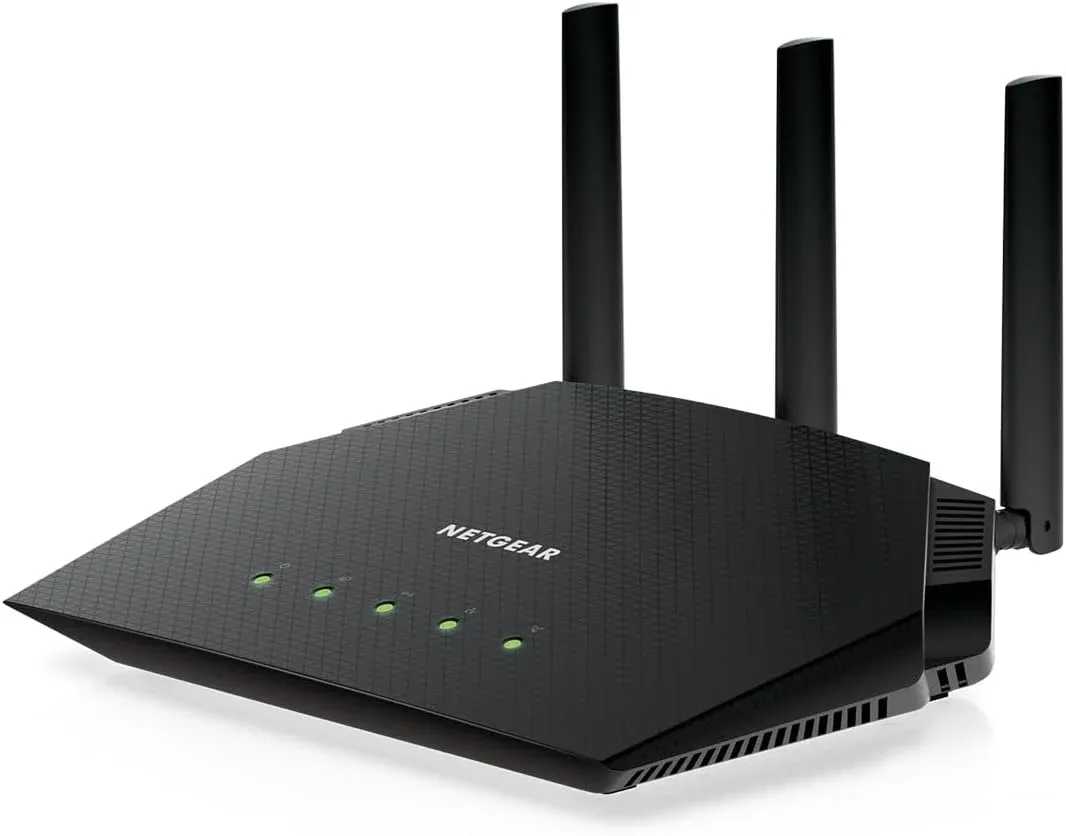
- Check whether the same wifi network connection: Ensure the device you're trying to cast from (phone, tablet) and your Vizio TV are connected to the same Wi-Fi network. Devices on a guest network or a different band (e.g., 2.4GHz vs. 5GHz) often cannot communicate with the TV.
- Move device closer to the router: A weak Wi-Fi signal to the TV is a prime cause of buffering and disconnections. If possible, move your router closer to the TV or reduce physical obstructions.
- Remove other network connection devices: Too many devices on your network can strain your bandwidth. Try temporarily disconnecting other devices (phones, laptops, tablets) to see if performance improves.
- Restart your router: This classic fix clears the router's memory and can resolve IP conflicts. Unplug your router (and modem, if separate) for 60 seconds, then plug them back in and wait for a full reboot.
#3. Enable DHCP Settings on Vizio TV
If your Vizio TV isn't connecting to Wi-Fi, enabling the DHCP setting might help. DHCP (Dynamic Host Configuration Protocol) automatically assigns a unique IP address to your TV, making it easier to connect to the internet. It also improves communication between your TV and router, which can resolve connection issues and SmartCast not working on Vizio Smart TV issues. To enable DHCP on your Vizio smart TV, follow these steps:
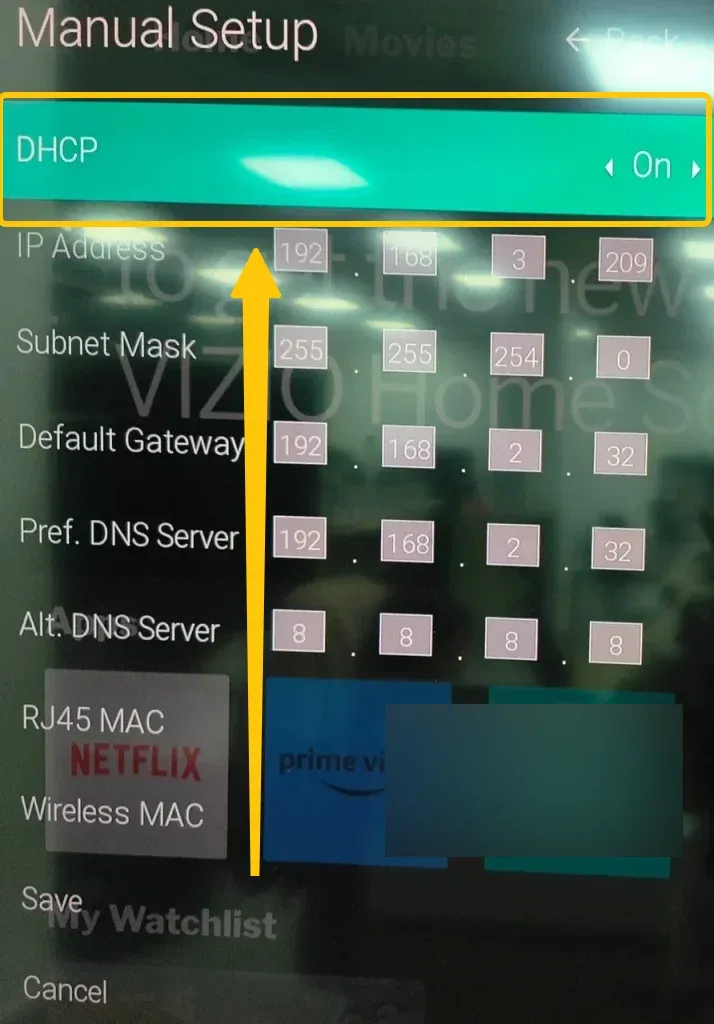
Step 1. Move to Settings > Network > OK.
Step 2. Select the Advanced or Manual setup option in the Network menu.
Step 3. You'll see an IP Setting page. Select the DHCP option and change it to On.
#4. Power Cycle Your Vizio TV
After checking for network issues, the next step is to refresh your devices by performing a "power cycle" (or hard restart). Unlike a standard power-off, a power cycle completely shuts down and restarts the TV, clearing its cache and resetting the network hardware. This can help resolve temporary software errors and improve performance to address Vizio SmartCast TV apps not working.
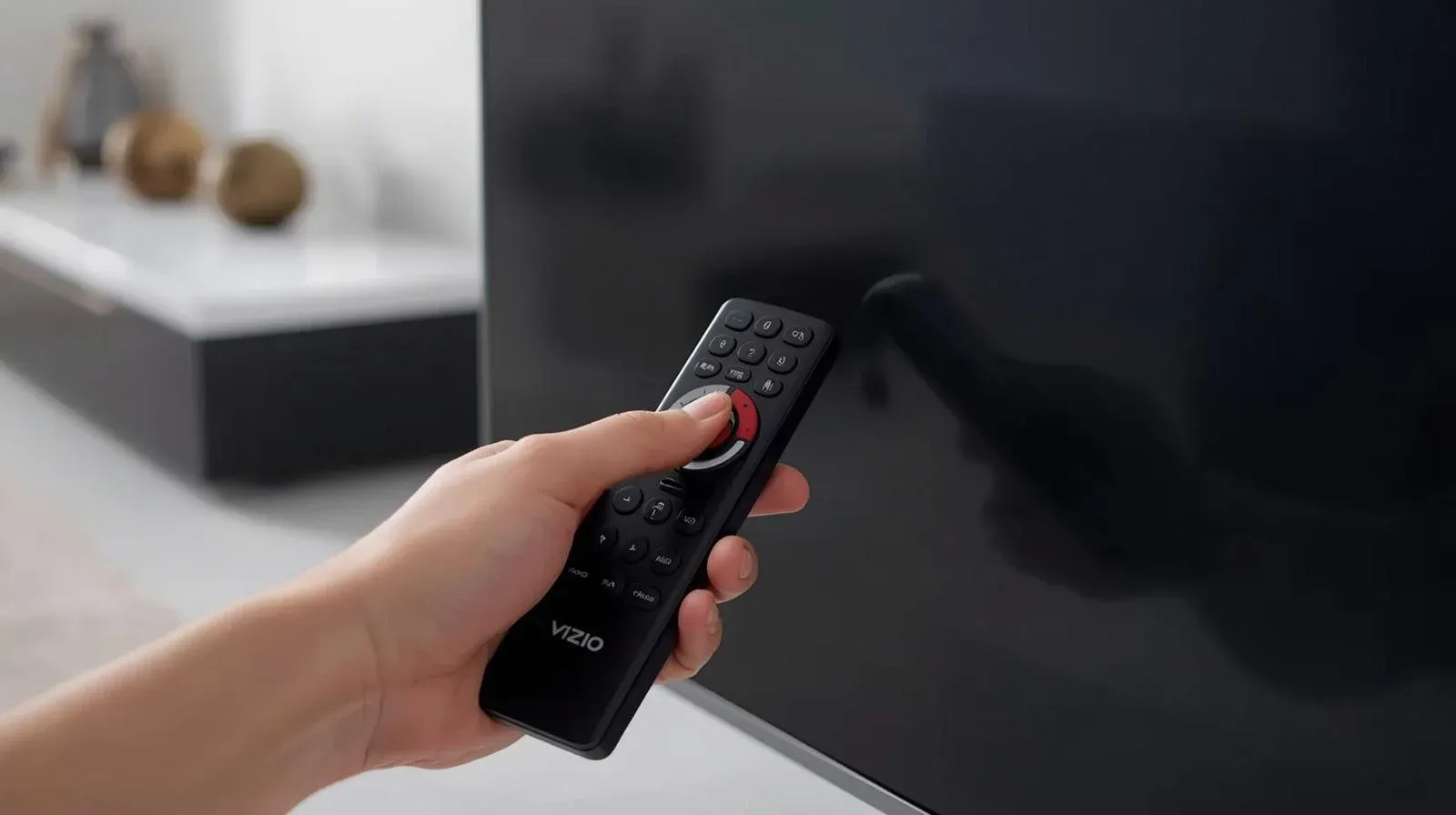
Step 1. Turn off your Vizio TV with the remote.
Step 2. Unplug the TV's power cord from the electrical outlet, and wait for at least 60 seconds.
Step 3. Plug your TV back in and turn it on. Check SmartCast to screen mirror on your Vizio TV again.
#5. Update Your Devices
Why vizio smartcast not working appeats? One common reason SmartCast may not be working is outdated software on either your Vizio TV or your casting device. Vizio regularly releases firmware updates to enhance performance and fix bugs. Here's how you can check for updates on your Vizio TV:
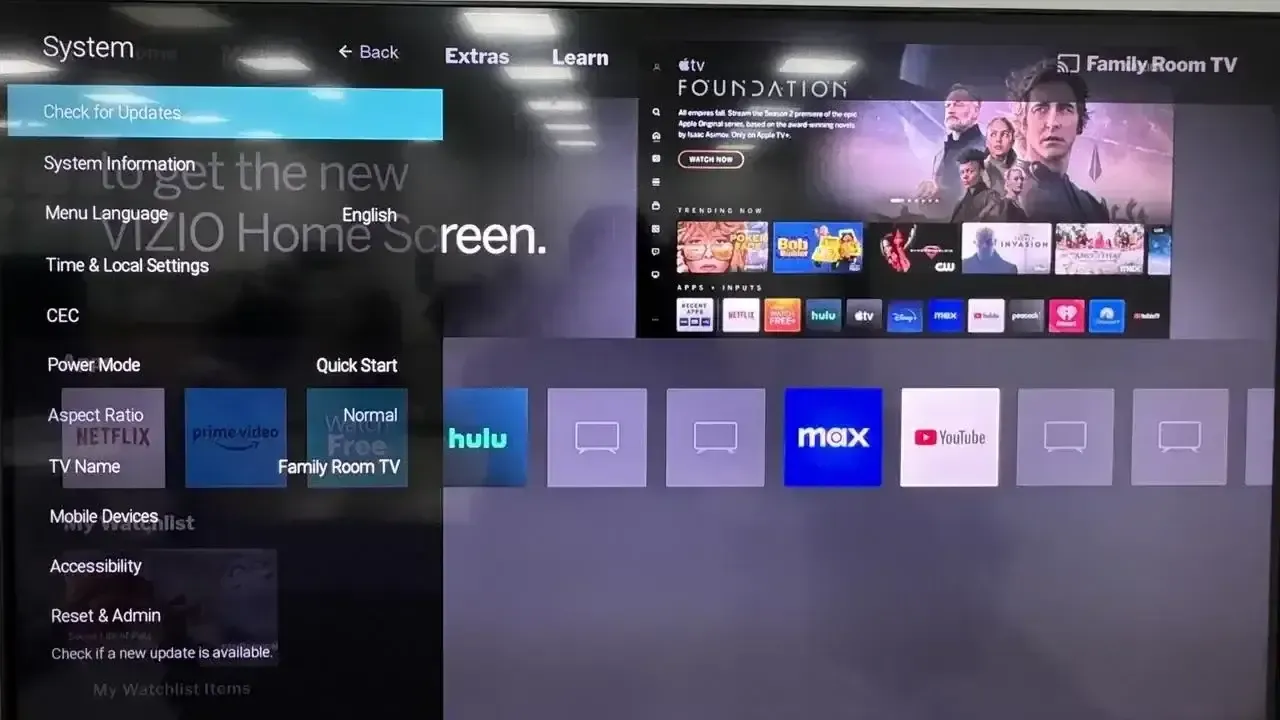
Step 1. Go to Menu > Admin & Privacy > Check for Updates.
Step 2. If an update is available, follow the on-screen instructions to install it.
Similarly, ensure that any casting device you use (like your smartphone, tablet, or laptop) is running the latest version of its software. Plus, on your smartphone or tablet, go to the Google Play Store or Apple App Store and ensure the app you're casting from (e.g., YouTube, Netflix) is up to date.
#6. Change SmartCast Language on Vizio TV
Changing the language on your Vizio TV is a simple but effective way to refresh the SmartCast cache and resolve any glitches. Since Vizio TVs don't have a dedicated option to clear the cache, this method helps remove any persistent errors or corrupted processes that might be interfering with SmartCast. Here's the specific solution to solve the Vizio V series SmartCast not working:
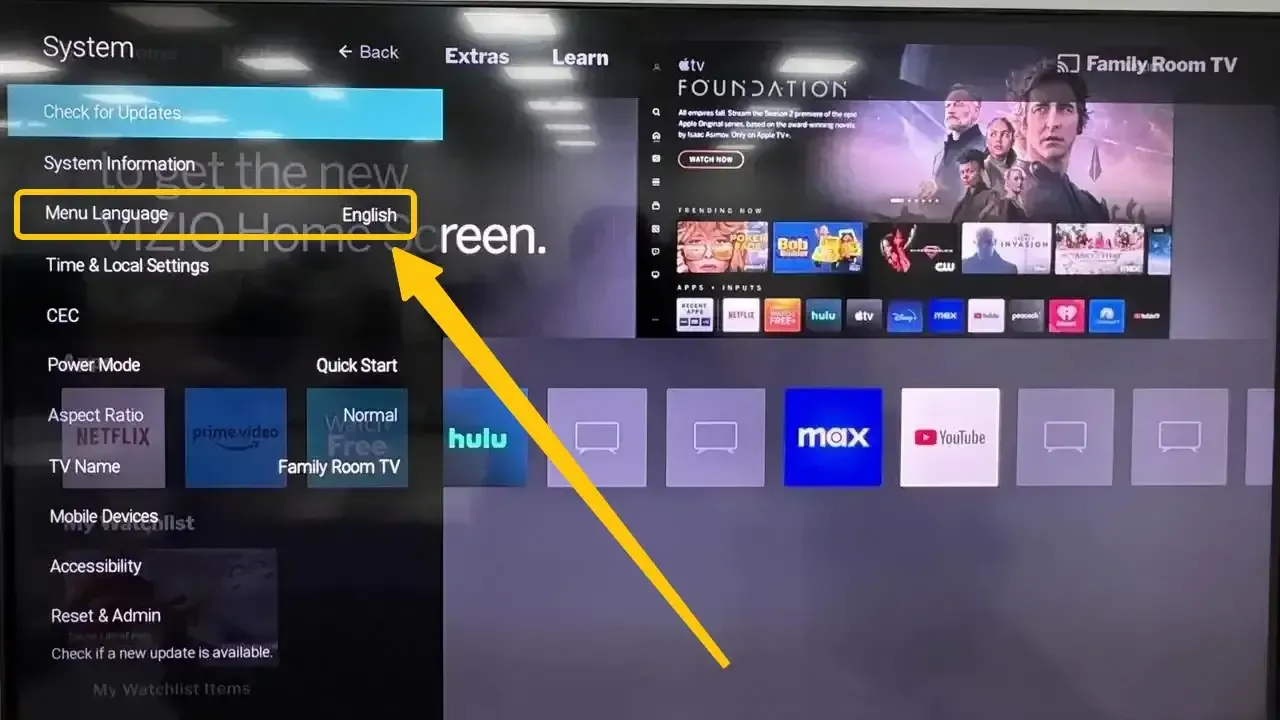
Step 1. Press the Menu or Settings button > System > Menu Language.
Step 2. Switch the language to any available option, like Spanish or French, and don't close the menu.
Step 3. Wait for the SmartCast Home to load in the new language, then switch back to English. If SmartCast Home does not load or still fails to load, the issue may be related to the network, SmartCast service, or TV software rather than the language setting alone.
#7. Check SmartCast Servers
Why is SmartCast not available on my Vizio? The issue might not be on your end. SmartCast relies on external servers, and sometimes these servers may experience outages or maintenance, causing interruptions.
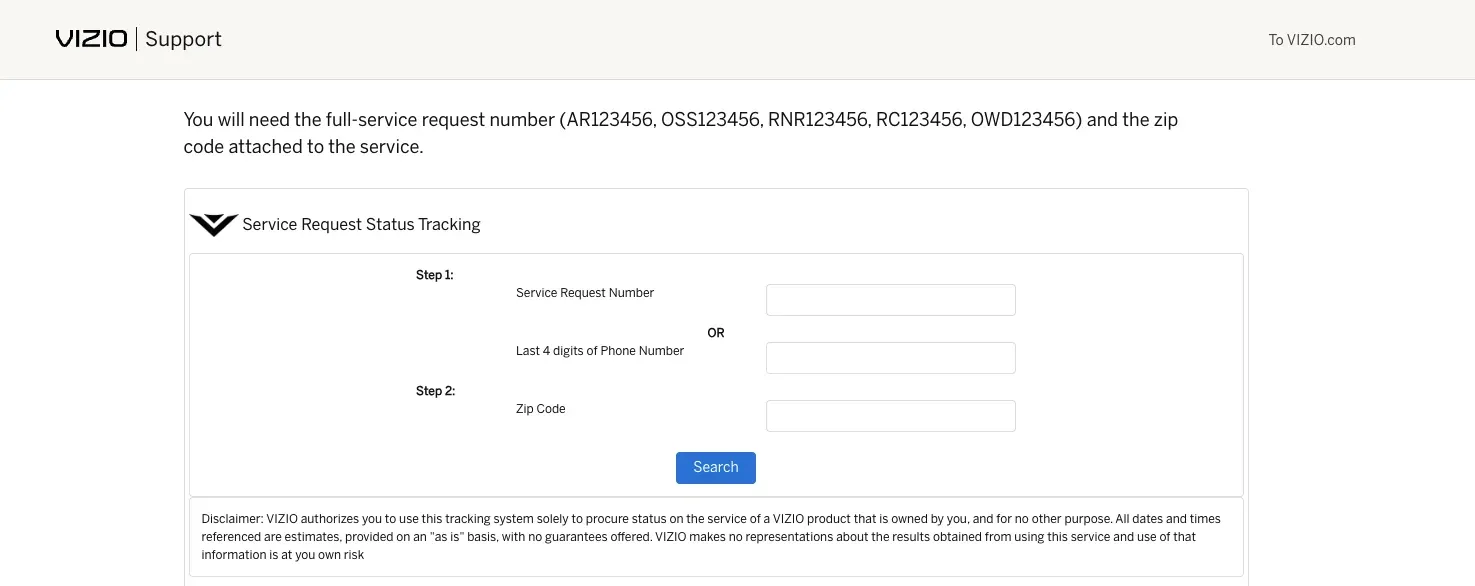
To see if this is the case, visit Vizio's official website or social media pages for any updates on server status or known issues. If Vizio's servers are down, you'll need to wait until they're back online before using SmartCast again.
#8. Factory Reset Your Vizio TV
If the previous steps haven't resolved the SmartCast on Vizio not working issue, a factory reset may be the solution. This will restore your Vizio TV to its default settings, removing all custom settings, apps, and data. Be sure to back up any important information before proceeding, as this process cannot be undone.
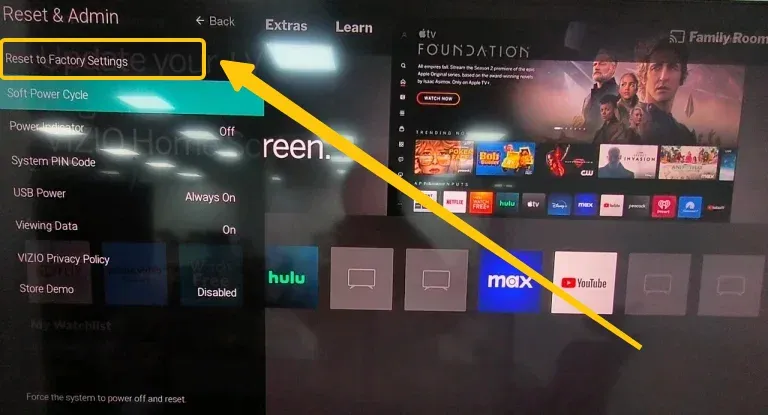
Step 1. Navigate to Menu > Admin & Privacy > Reset to Factory Settings > click on Reset.
Step 2. Wait for the TV to finish the factory reset. Once it's complete, set up the TV as if it were brand new.
#9. Contact Vizio Support
If you've tried all the previous steps and the Vizio SmartCast won't connect issue persists, it's time to reach out for expert assistance. Visit the Vizio Support Website for live chat, phone support, and helpful troubleshooting articles. Be sure to have your TV's model number (located on the back of the TV or under System Information in the menu) and serial number handy when you contact support.
Conclusion
In most cases, Vizio SmartCast not loading can be resolved with simple troubleshooting steps. By following the methods outlined in this guide, you can address common problems and get back to streaming in no time. If the Vizio SmartCast black screen issue persists, reaching out to Vizio support is always a good next step for expert assistance. With a bit of patience, you'll have your SmartCast up and running again.
Vizio SmartCast Not Working FAQ
Does my Vizio TV have SmartCast?
Most Vizio TVs produced from 2016 onwards feature the SmartCast platform. You can confirm by pressing the "V" button on your remote. If a sidebar or full-screen interface with apps like Netflix and YouTube appears, you have SmartCast.
Why is Vizio SmartCast TV HDMI not working?
Here are the potential reasons why your Vizio SmartCast TV HDMI might not be working:
- Loose or faulty HDMI cable
- Incorrect Input source
- HDMI port issues
- Device compatibility
- Outdated TV firmware
- HDMI-CEC conflicts
- Resolution mismatch
- Faultily connected device
- Signal interference
How to fix Netflix not working on Vizio SmartCast TV?
If Netflix isn't working on your Vizio SmartCast TV, here are some common troubleshooting steps to help you fix the issue:
- Make sure your TV is connected to the internet. A slow or unstable connection can cause Netflix to not load or buffer frequently.
- Power cycle your Vizio TV by turning it off, unplugging it for 60 seconds, and then plugging it back in. This can help clear any temporary software glitches.
- Ensure that the Netflix app is updated to the latest version. Go to the Vizio App Store, find Netflix, and see if an update is available.
- If your TV's firmware is outdated, it may affect Netflix app's performance. Go to Menu > System > Check for Updates to see if an update is available.
- If Netflix continues to malfunction, try uninstalling and then reinstalling the app on your Vizio SmartCast TV. This can fix corrupted files or settings.
- Try logging out of your Netflix account and logging back in. Sometimes, refreshing the account details can fix streaming issues.
- Clearing the app cache may resolve problems with Netflix not loading. This can typically be done through the TV's settings or app management menu.
- Sometimes the issue may be on Netflix's side. Check Netflix's social media or website for any reports of server outages.
- Ensure your Vizio TV and Netflix app are fully compatible with each other. Older models may have limitations that affect streaming services.
- If all else fails, performing a factory reset on your Vizio TV will restore it to its default settings and may resolve persistent issues with Netflix.
Why is Vizio Smartcast Chromecast not working?
Here are the potential reasons why your Vizio SmartCast Chromecast might not be working:
- Wi-Fi Connectivity issues
- Outdated Chromecast firmware
- SmartCast App problems
- Device compatibility
- Incorrect Input source
- Interference from other devices
- Chromecast device malfunction
- Network band compatibility
- Power supply issues
- SmartCast software glitches
How to solve Disney+ not working on Vizio SmartCast?
If Disney+ isn't working on your Vizio SmartCast TV, here are some potential solutions to try:
- A weak or unstable Wi-Fi connection can cause streaming issues. Make sure your TV is connected to a stable network.
- Turn off the TV, unplug it for about 60 seconds, then plug it back in. This can help resolve temporary software glitches.
- Make sure the Disney+ app is up to date. Go to the Vizio App Store and check for any available updates for the app.
- If your Vizio TV software is outdated, it could affect app functionality. Go to Menu > System > Check for Updates to make sure your TV's firmware is current.
- Sometimes, logging out of your Disney+ account and logging back in can resolve streaming issues.
- If the app is still not working, uninstall and reinstall the Disney+ app on your Vizio SmartCast TV. This can clear out any corrupted files or settings.
- Some Vizio TVs allow you to clear the app cache or data, which can fix issues with apps not loading correctly.
- Sometimes the problem may be on Disney+'s end. Check Disney+'s social media or website for any service outages or maintenance updates
- Ensure your Vizio SmartCast TV is compatible with the latest version of the Disney+ app. Older models might have limitations that affect app performance.
- As a last resort, perform a factory reset on your Vizio TV to restore it to its default settings. This may help fix persistent issues with Disney+ or other apps.
Why is Vizio SmartCast YouTube TV not working?
Here are the potential reasons why YouTube TV might not be working on your Vizio SmartCast TV:
- Internet connection issues
- Outdated YouTube TV app
- Outdated TV firmware
- App glitches
- YouTube TV server issues
- Account issues
- HDMI or Input problems
- App cache issues
- Device compatibility
- Network band issues
Clara Rossi is an experienced technology editor and a seasoned expert in screen mirroring and casting technologies. With a keen eye for detail and a deep understanding of how to seamlessly connect devices, Clara excels at optimizing user experiences for effortless sharing and streaming. Whether you're seeking quick fixes or advanced tips, her expertise and responsiveness ensure that every query is met with a well-informed and efficient solution.