
Managing screen mirroring and casting features can be confusing, especially when you want to disconnect. Smart View is a common feature on Samsung and other Android devices for wirelessly sharing your screen with TVs and monitors. Knowing how to disable it is important for privacy and stopping unwanted broadcasts. This guide will show you how to turn off Smart View on different devices and answer common questions.
How to Turn Smart View Off
Smart View is a handy feature, but there are times when you might need to turn it off, whether to save battery, protect your privacy, or simply because you're done streaming. The process for disabling it can vary depending on your device's brand and model. Here's how to turn off Smart View Samsung phone or Android phone:
How to Turn Off Smart View on Samsung Phone
Samsung devices have Smart View deeply integrated into their Quick Settings panel and system settings. Follow these easy steps on how to disable Smart View Samsung Galaxy or Note series device:
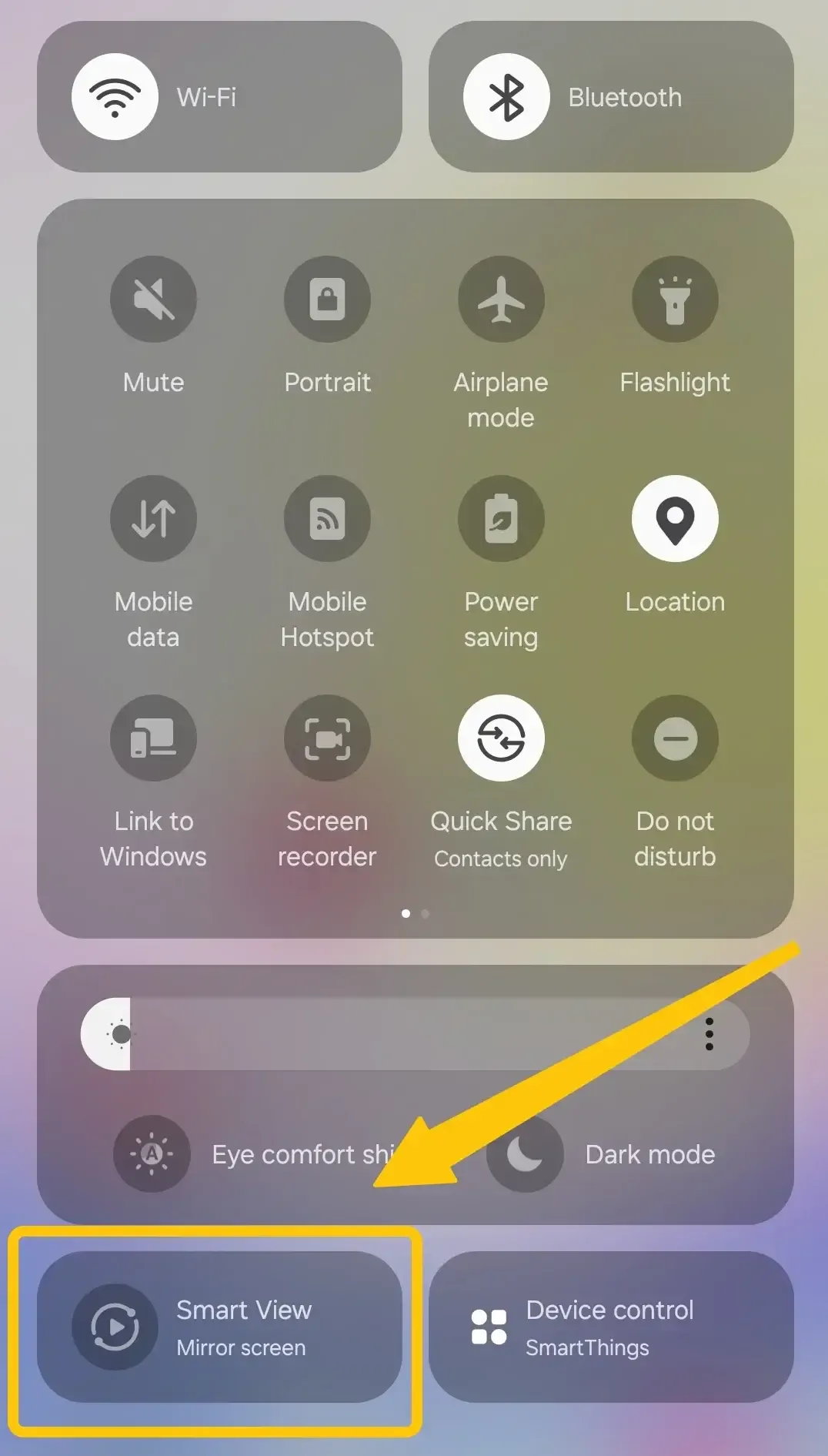
Step 1. Swipe down from the top of your screen to open the Quick Settings panel.
Step 2. Tap the Smart View icon, and your current casting session will be displayed.
Step 3. If you are connected, tap on the device you are connected to, and then choose Disconnect to turn off the feature completely.
How to Turn Off Smart View on Android
For Android users, when you're actively casting your screen or media to a TV through SmartThings, you'll need to end the session from within the app's control panel. Here's the direct method to disactivate Smart View from Android:
Step 1. Open the SmartThings app on your Android phone.
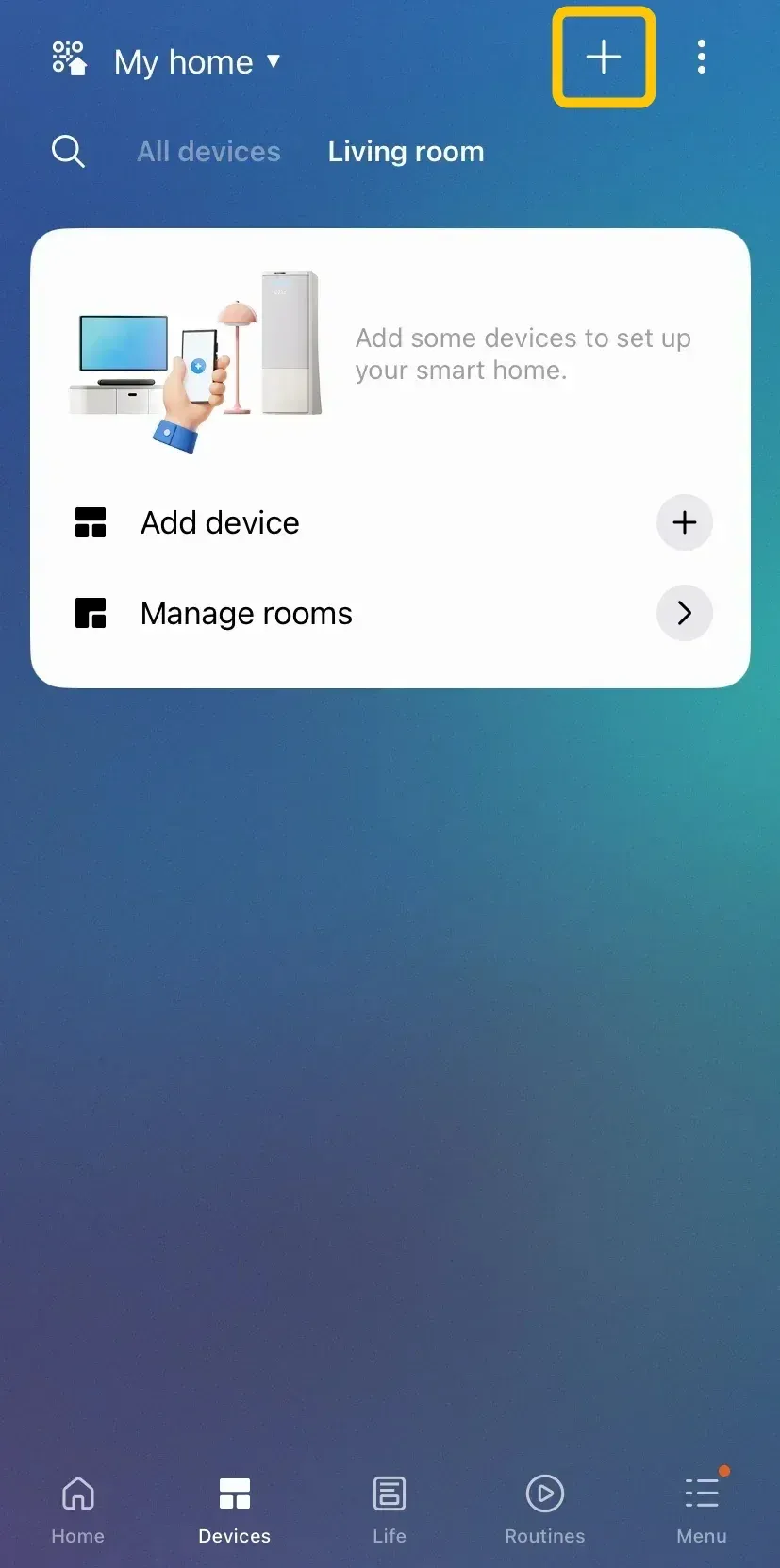
Step 2. You will land on the Home or Devices tab, which shows all your connected devices (TVs, speakers, etc.).
Step 3. Find and tap on the tile representing the TV or display you are currently casting to. This will open the device's dedicated control panel.
Step 4. On this media menu, you will see playback controls (pause, play) and, most importantly, a Stop or Stop Casting button.
Step 5. Tap the Stop button to immediately end the screen mirroring or media casting session, and disconnects your phone from the TV.
A Smarter Way to Mirror and Disconnect: PigeonCast
While built-in options like Smart View and Google Cast are functional, dedicated third-party apps can offer enhanced stability, lower latency, and broader compatibility. Looking ahead to 2026, one such promising solution is PigeonCast.

This free app is designed to streamline the mirroring process across all platforms, such as Android, iOS, Windows, and Smart TVs, with a focus on one-tap connectivity and high-quality video transmission. If you frequently find native casting features cumbersome or unreliable, exploring a dedicated app like PigeonCast could provide a much smoother and easier mirroring experience.
Step 1. Ensure your mobile device, such as phone, tablet, or laptop and the TV are under the same wireless network.


Overall Rating:



Step 2. Install PigeonCast on your mobile device from Google Play, App Store, or Microsoft Store, then open it.
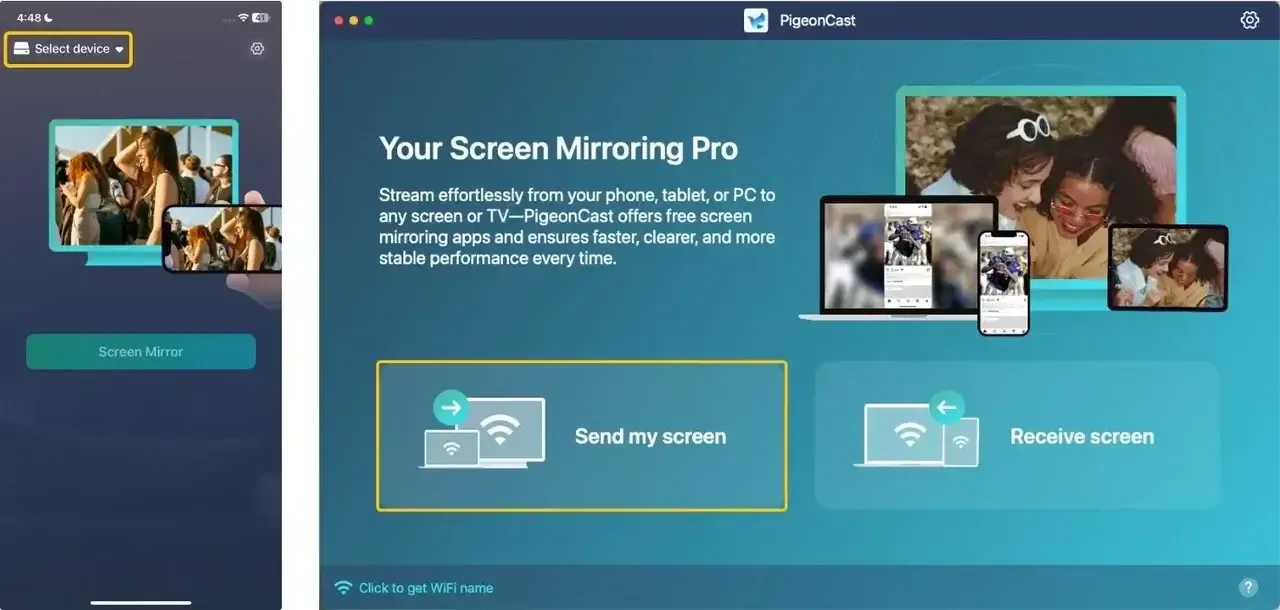
Step 3. Tap Select device or Send my screen to choose your smart television from the available list.
Step 4. Enter the onscreen PIN code to confirm the pairing requisition.
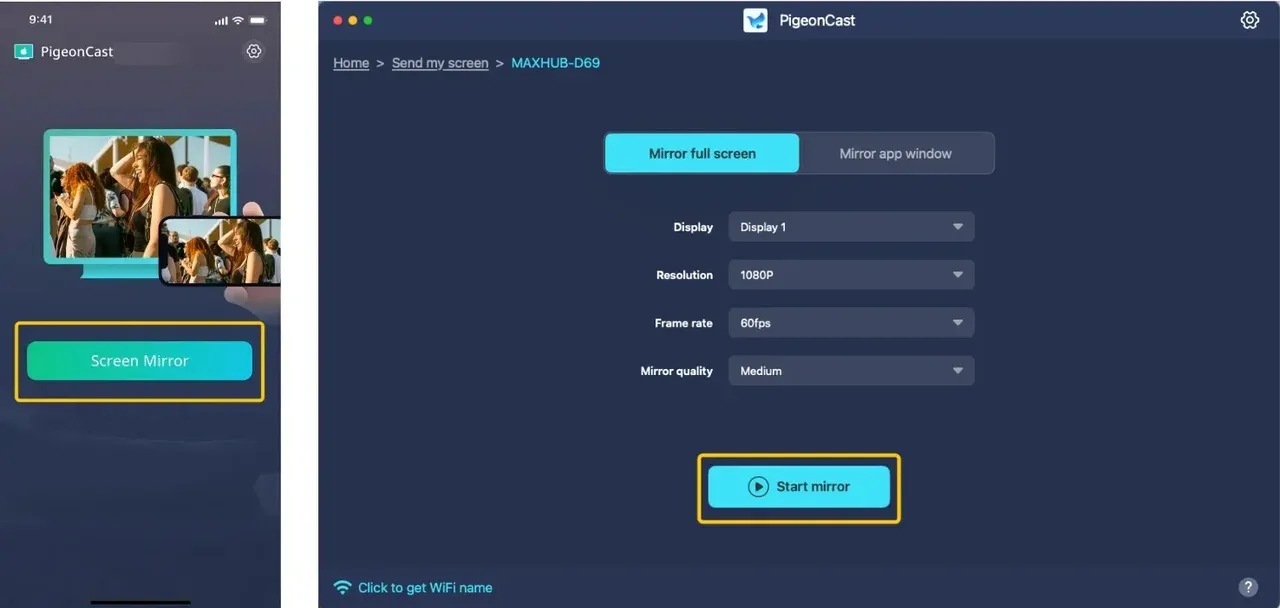
Step 5. Once you finish the connection, you should tap the Screen Mirror or Start mirror to start your mirroring activities.
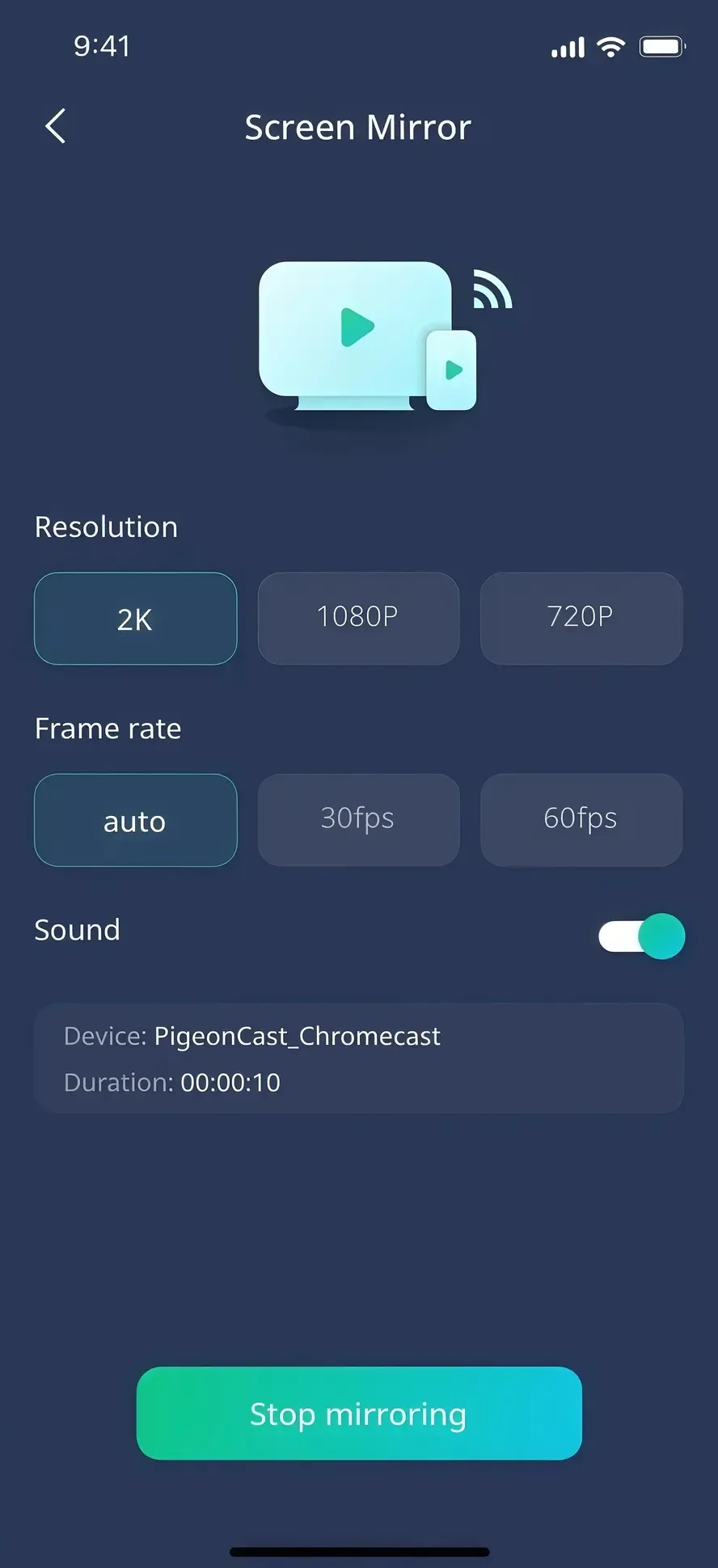
Step 6. To cancel, you just need to go back to the application and tap Stop mirroring to end casting everything.
How to Prevent Auto-Connection and Reduce Interference
Sometimes frustration isn't just turning Smart View off, but it stops it from turning on automatically or dealing with a poor connection. A few simple tweaks can prevent these issues, ensuring mirroring only happens when you want it to. Focus on adjusting your device's connection settings and optimizing your network environment for smoother casting.
- Disable "Auto-Play" or "Nearby Device Scanning"
- On Samsung: Go to Settings > Connections > More Connection Settings > Nearby device scanning. Toggle this off to prevent your phone from constantly looking for TVs to connect to.
- On Android (General): Go to Settings > Connected devices > Connection preferences > Cast options. Some devices have an "Auto-connect" toggle here. Also, check Settings > Location > Location services > Scanning and turn off Wi-Fi scanning and Bluetooth scanning.
- Forget the TV/Device in Your Phone's Settings
In your Smart View or Cast menu, if you see a previously connected TV listed, there is often an option to "Forget" or "Unpair" it. This prevents automatic reconnection in the future.
- Reduce Wi-Fi Network Interference
- Smart View/Cast often uses your Wi-Fi network. Congestion can cause lag and disconnection issues.
- Simple Fix: Restart your router and your TV/streaming device.
- Advanced Fix: If possible, connect your TV via an Ethernet cable to free up Wi-Fi bandwidth for the mirroring session, or use the 5GHz band on your router if both devices support it.
- Keep Software Updated
Ensure your phone's OS and your TV's firmware are up to date. Updates frequently include improvements for wireless display protocols and bug fixes for connectivity issues.
Bottom Line
While managing screen mirroring and casting features like Smart View can be confusing, knowing how to disable them is crucial for maintaining privacy, saving battery, and avoiding unwanted broadcasts. Whether you're using a Samsung or Android phone, turning off Smart View is simple once you follow the right steps. If native options feel limiting, third-party apps like PigeonCast can offer a smoother, more reliable experience for casting across multiple platforms, ensuring better connectivity and ease of use in the long run.
How to Turn off Smart View FAQ
How to know if Smart View is on?
To check if Smart View is active, look for the Smart View or screen mirroring icon in your Quick Settings. If it's highlighted or activated, your device is currently connected to another screen. You may also see a notification indicating that Smart View is in use, or you'll notice that your phone's display is showing up on another device.
Can I delete Smart View on Android?
No, Smart View is a feature specific to Samsung devices and is not available on standard Android phones. If you're using a Samsung phone, you cannot delete Smart View, but you can disable or turn it off. For non-Samsung Android phones, Smart View is not installed, so there's nothing to delete in the first place.
How to remove Smart View device settings from expanded Quick Panel?
To remove the Smart View device settings from the expanded Quick Panel on your Samsung device, follow these steps:
- Swipe down from the top of your Samsung phone's screen to reveal the Quick Settings menu.
- In the top right corner of the Quick Settings panel, tap on the three-dot menu or Edit button. This will bring up a menu where you can customize the icons that appear in your Quick Settings.
- Find the Smart View icon and drag it out of the Quick Settings panel. You can either remove it by dragging it to the Remove section or disable it if that option is available.
- Tap Done or Save to apply your changes.
How to turn off Smart View on Samsung TV?
To turn off Smart View on your Samsung TV, follow these steps:
- Press the Home Button on your remote to open the TV's main menu.
- Navigate to Settings and select Connections.
- Scroll down to External Device Manager and select Device Connect Manager.
- Turn off Device Connection or Allow Connection.
How do I deactivate screen mirroring?
To deactivate screen mirroring, follow these steps:
- Open the Settings on your device.
- Go to the Connections or Display section.
- Find and select Screen Mirroring, Cast, or Mirroring options.
- Turn off the mirroring feature or disconnect the device you're connected to.
The steps may vary slightly depending on your device and operating system.
How do I stop my Android from syncing between devices?
To stop your Android device from syncing between devices, follow these steps:
- Open Settings on your Android device.
- Scroll down and tap Accounts or Accounts and Backup.
- Select the Google account you want to stop syncing.
- Tap Sync or Account sync.
- Toggle off the items you don't want to sync, such as Contacts, Calendar, or Gmail.
If you want to completely stop syncing across all devices, you can also turn off Sync for your Google account in the Settings > Accounts > Google section.
Clara Rossi is an experienced technology editor and a seasoned expert in screen mirroring and casting technologies. With a keen eye for detail and a deep understanding of how to seamlessly connect devices, Clara excels at optimizing user experiences for effortless sharing and streaming. Whether you're seeking quick fixes or advanced tips, her expertise and responsiveness ensure that every query is met with a well-informed and efficient solution.