
Watching videos, photos, or apps on a small phone screen is convenient, but nothing beats the comfort of a big TV. If you're wondering how to cast Samsung phone to TV or mirror it wirelessly, there are several ways to do it, depending on your devices and TV model.
From built-in options like Smart View and SmartThings to third-party tools like PigeonCast, this guide walks you through every method step by step, so you can connect easily, whether you use a Samsung Smart TV, Android TV, or Apple TV.
Method 1: Cast via PigeonCast App
If you're looking for the most flexible and reliable method, PigeonCast is the one to start with. It supports multiple protocols like AirPlay, Google Cast, and DLNA, so you can cast from Samsung phone to TV, whether it's AirPlay-enabled (like Apple TV) or Chromecast-enabled (like Android TV or Google TV)
Why choose PigeonCast for Samsung phone casting:
- Stable connection: Uses optimized Wi-Fi transmission for smooth playback.
- Simple setup: Just install the app on both your phone and TV.
- Wide support: Connect your Samsung phone to almost any TV.
How to use PigeonCast to connect your phone to TV:
Step 1. Download PigeonCast from the Google Play Store and install it on your Samsung phone.
Tip: PigeonCast works with Android TV, Apple TV, and Fire TV Stick. For a smooth and stable casting experience, you can set up PigeonCast both on your Samsung phone and TV.

PigeonCast Screen Mirroring

Official Download


Step 2. Make sure both devices are on the same Wi-Fi network.
Step 3. Open PigeonCast on your Samsung phone.
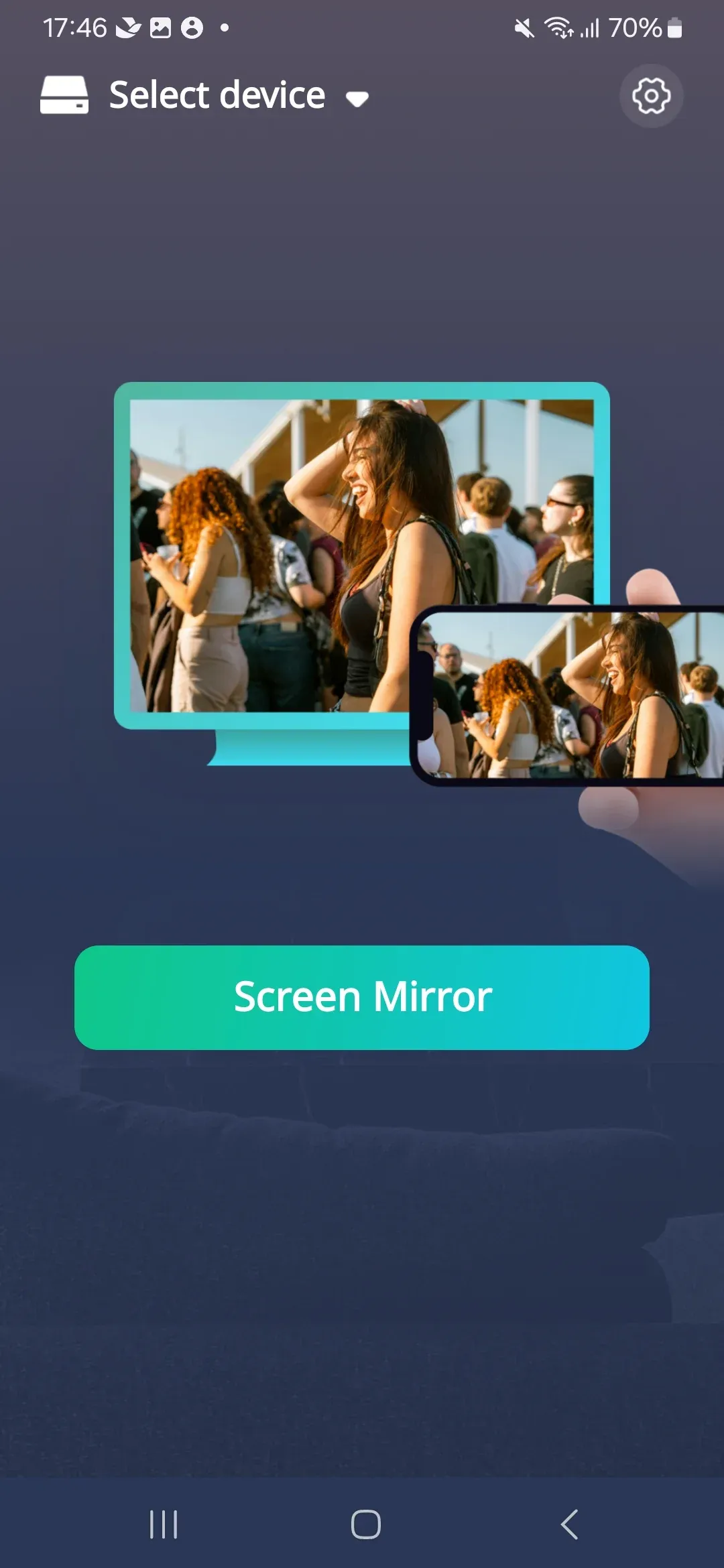
Step 4. Tap your TV from the list of available devices.
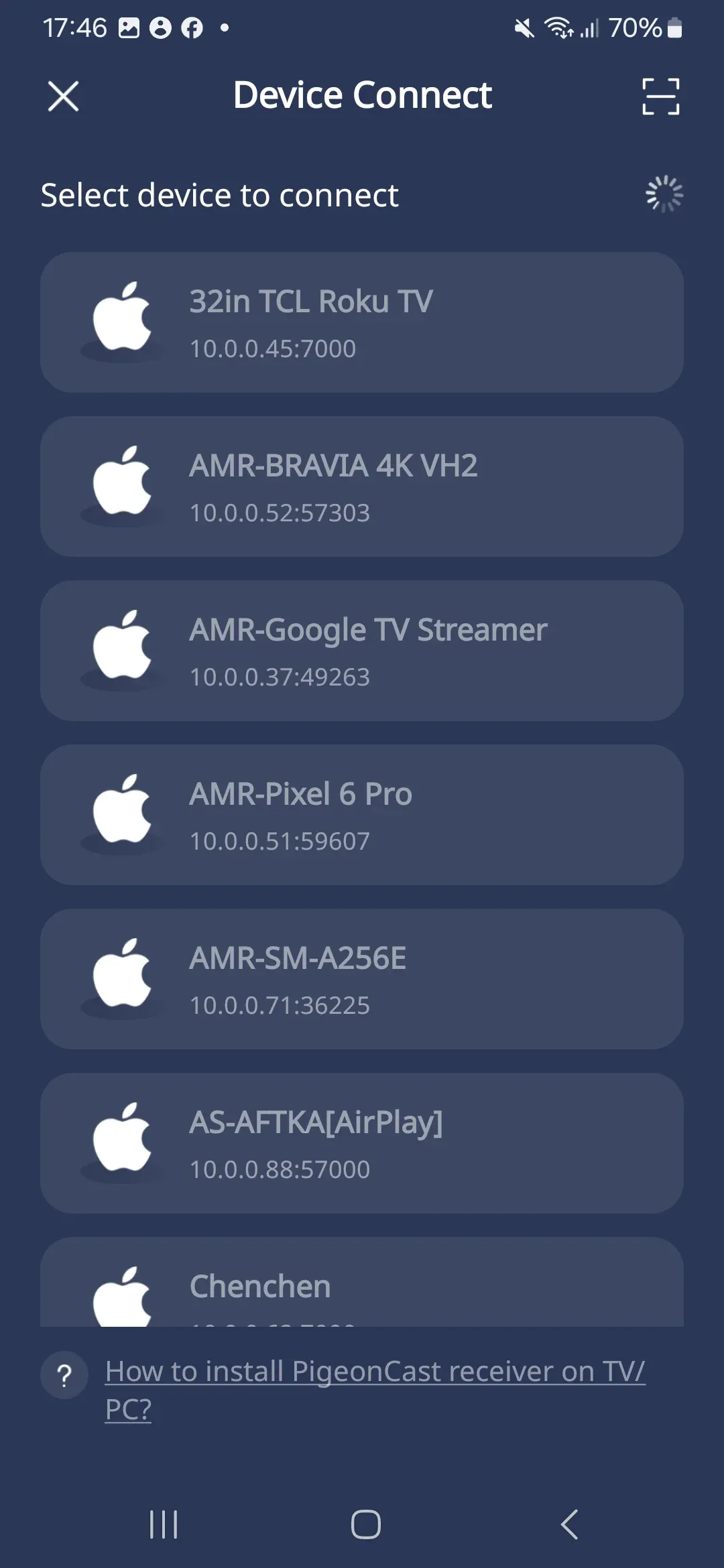
Step 5. Once connected, activate one feature you prefer to mirror the entire phone screen or cast a video or photos from the phone to the TV.
That's how to cast from Samsung to TV with the free tool. For anyone who wants to connect Samsung phone to TV wirelessly without compatibility issues, PigeonCast delivers the most seamless experience.
Method 2: Cast with Smart View
Smart View is Samsung's native screen mirroring feature available on most Galaxy phones. It connects your phone to compatible smart TVs over Wi-Fi, and no cables are required.
Here's how to cast from Samsung phone to TV with the built-in feature:
Step 1. Make sure your phone and TV are connected to the same Wi-Fi network.
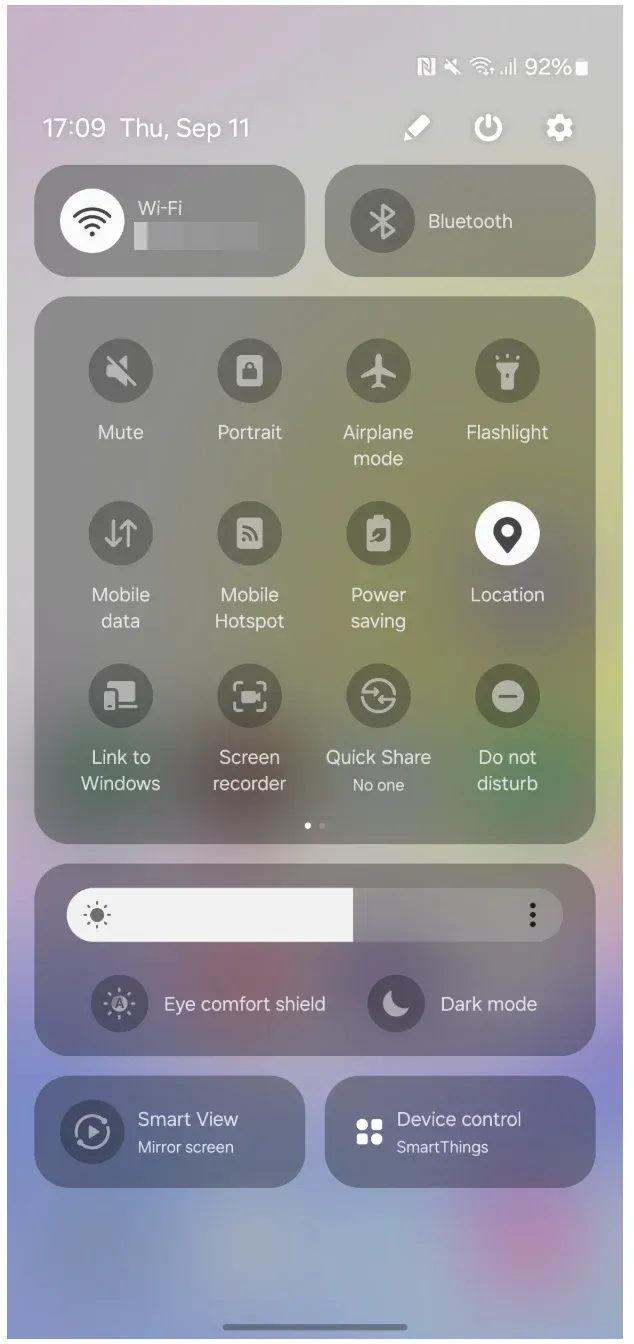
Step 2. Swipe down from the top of your Samsung phone to open the Quick Panel.
Step 3. Tap Smart View.
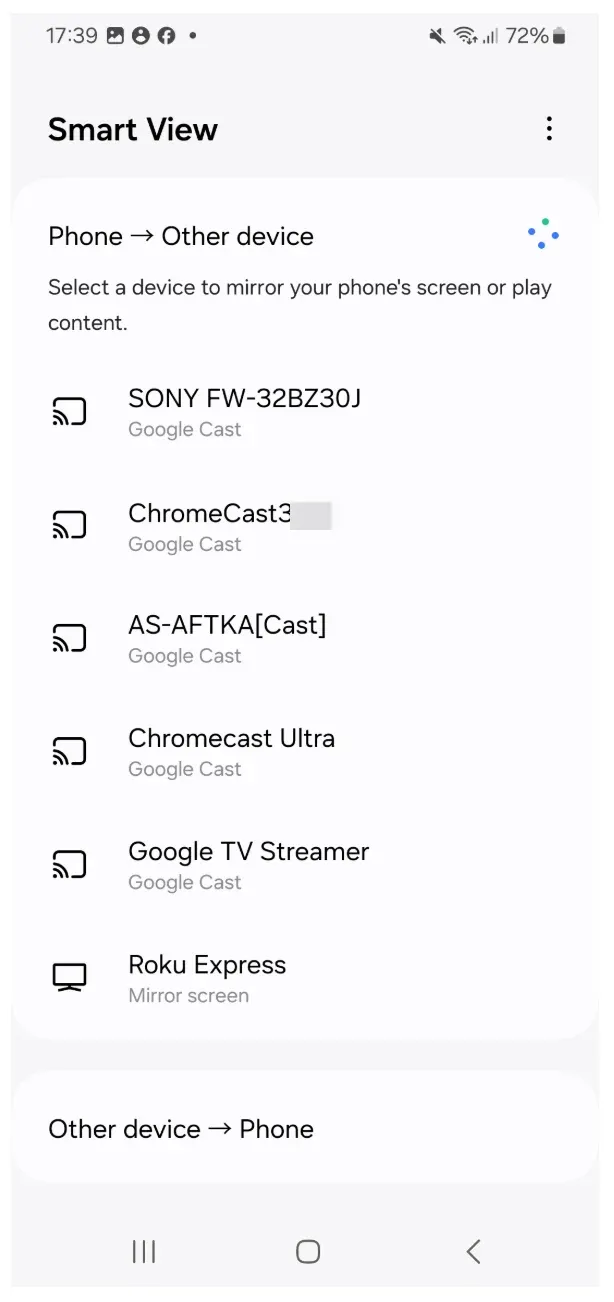
 Step 4. Select your TV from the available devices.
Step 5. Confirm the connection on your TV.
This method works best if you own a Samsung Smart TV or a model that supports Miracast. It's simple, built-in, and effective for everyday use. If your TV doesn't support Miracast, try the Miracast alternative, PigeonCast.
Method 3: Cast via SmartThings App
How to cast to TV from Samsung phone? If Smart View doesn't show your TV or you have a broader smart home setup, you can also try the SmartThings app. It can discover and control most smart devices—including TVs, soundbars, and lights.
Here is how to connect Samsung phone to TV wirelessly:
Step 1. Download SmartThings from the Galaxy Store or Google Play Store.
Step 2. Sign in with your Samsung account.
Step 3. Tap the + icon and select Device > TV.
Step 4. Follow the prompts to add your TV.
Step 5. Once connected, tap Smart View or Mirror Screen within the app.
SmartThings adds more control options, like adjusting volume, switching inputs, or powering off your TV, directly from your phone.
Method 4: Connect with HDMI or DeX Cable
If you prefer a wired connection or your Wi-Fi is unstable, you can use an HDMI adapter or Samsung DeX cable. This method offers the most consistent video quality and works even without an internet connection.
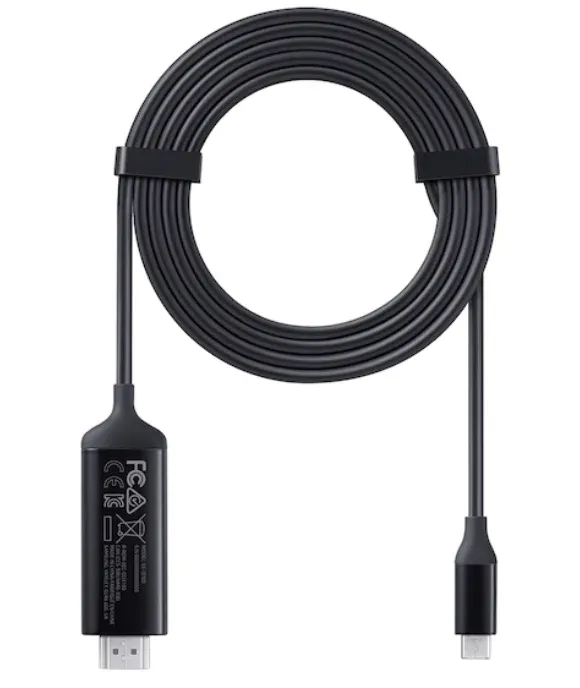
How to connect Samsung phone to TV with cable:
Step 1. Plug the HDMI adapter or DeX cable into your Samsung phone's USB-C port.
Step 2. Connect an HDMI cable from the adapter or the Dex cable to your TV's HDMI port.
Step 3. Switch your TV to the correct HDMI input.
Step 4. Your Samsung screen should appear instantly on your TV.
This approach is ideal for presentations, gaming, or watching HD videos without latency and connecting phone to TV without Wi-Fi.
Compare the Best Ways to Cast Samsung Phone to TV
There's no single "best" way to cast your Samsung phone to TV, and it all depends on your setup, TV type, and how you want to connect. Some prefer wireless options for convenience, while others choose HDMI or DeX cable for reliability.
Below is a quick comparison of the most popular methods to help you decide which works best for your needs:
| Method | Connection Type | Works With | Setup Difficulty | Latency | Recommended Use |
|---|---|---|---|---|---|
| PigeonCast | Wireless | Almost any TV and popular streaming devices | ★☆☆☆☆ | Low | Best for cross-platform mirroring |
| Smart View | Wireless | Samsung & Miracast TVs | ★☆☆☆☆ | Medium | Simple screen mirroring |
| SmartThings | Wireless | Samsung Smart TVs | ★★☆☆☆ | Medium | Smart home integration |
| HDMI/DeX cable | Wired | Any TV with HDMI | ★★★☆☆ | Very Low | High-quality wired display |
Conclusion
There are plenty of ways to cast Samsung phone to TV, but the best option depends on your setup. If you want a quick, cable-free experience that works across different TV brands, PigeonCast is your top choice. It's stable, fast, and works flawlessly on almost all smart TVs. For Samsung Smart TVs, Smart View and SmartThings are solid built-in alternatives. And if you need guaranteed performance, a simple HDMI or DeX cable will never fail.
No matter which method you choose, casting from your Samsung phone lets you enjoy everything you love on the big screen.
How to Cast Samsung Phone to TV FAQs
Q: Where is the cast option on a Samsung phone?
Swipe down from the top of your screen to open the Quick Panel. Look for the Smart View icon, which is your built-in cast option.
Q: Where is the mirror setting on a Samsung phone?
The mirror function is included in Smart View. It lets you mirror your entire screen to your TV. You can also find mirroring under Settings > Connections > Screen Mirroring on older models.
Q: How to Chromecast from Samsung phone to TV?
You can either use the built-in Cast icon in apps like YouTube or install PigeonCast for full-screen mirroring. Make sure both devices are connected to the same Wi-Fi network.
Q: Can a Samsung phone connect to any TV?
Yes, depending on the method. With PigeonCast, you can mirror to almost any smart TV. Smart View and SmartThings work best with Samsung or Miracast-compatible TVs.
Q: How to connect Samsung phone to TV wirelessly without Smart View?
Use PigeonCast or another wireless casting app. These apps use Wi-Fi to establish a connection between your phone and TV, no cables required.
Q: Is PigeonCast free and safe?
Yes, PigeonCast is free and safe to use. Once you set it up on your device, you can start screen mirroring without cables or extra features.
Q: My TV doesn't show up when I try to cast, and what should I do?
Make sure both devices are on the same Wi-Fi network. Restart your phone and TV, then reopen the casting menu. If your Samsung phone not detecting TV persists, switch to PigeonCast, which can scan and connect to nearby TVs more reliably.
Q: Can I use Smart View without Wi-Fi?
Yes, you can use Smart View without Wi-Fi, but there are some limits. Your TV or the receiving device should support Wi-Fi Direct or Screen Mirroring mode.
Mia Clarke is a technology editor specializing in screen mirroring and casting solutions across multiple platforms. Mia provides clear, practical guides and in-depth insights to help users seamlessly connect their devices. Passionate about enhancing digital experiences, Mia is dedicated to keeping readers updated on the latest trends and tools in cross-platform screen sharing. Whether you’re looking to mirror your smartphone, laptop, or smart TV, Mia’s content delivers reliable, user-friendly advice to simplify your tech setup.