
In the early 2010s, the concept of a seamlessly connected smart home was just beginning to take shape, and Samsung was leading the charge with its proprietary ecosystem of devices. A key feature in this vision was AllShare Cast, a technology that allowed you to wirelessly share your phone or tablet's screen directly onto your TV, cutting the cord for the first time. While technology has since evolved, understanding Allshare Cast Samsung remains important for many Samsung TV and mobile device owners.
What Is Samsung AllShare Cast
Before terms like "Screen Mirroring" and "Miracast" became commonplace, Samsung introduced AllShare Cast. It was a proprietary wireless display standard that allowed you to mirror the screen of compatible Samsung Galaxy smartphones and tablets to compatible Samsung HDTVs and monitors.
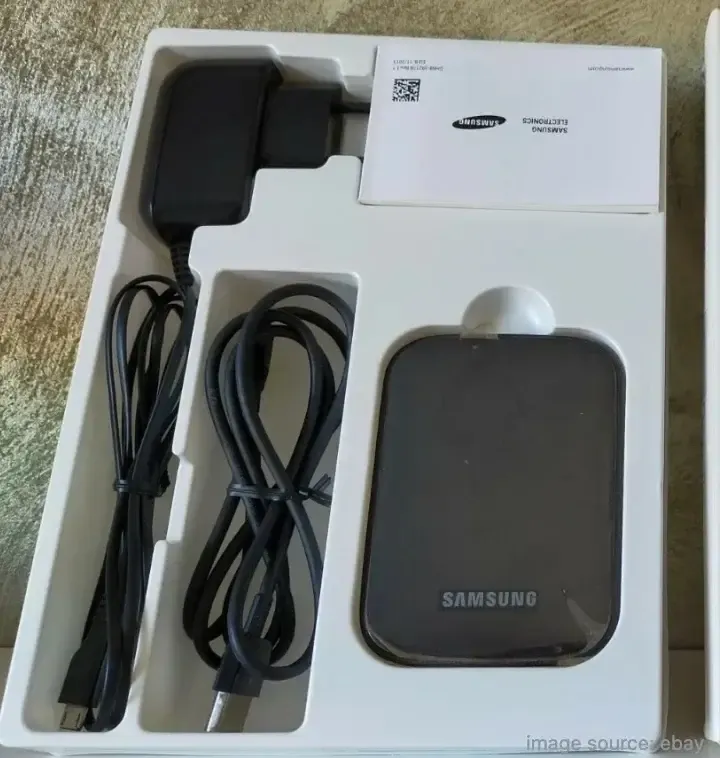
Essentially, it created a direct Wi-Fi connection between your device and the TV, bypassing your home network router. This meant you could display photos, videos, presentations, and even apps directly on the big screen without any cables. It was Samsung's answer to Apple's AirPlay, designed to work exclusively within their own ecosystem of devices. In short, the key features of AllShare Cast for Samsung TV:
- Real-Time Mirroring: Everything on your mobile device appears on the TV.
- Dedicated Connection: Used Wi-Fi Direct for a stable, low-lag link.
- Content Sharing: Perfect for viewing photos, videos, and playing mobile games on a larger display.
However, as technology advanced, Samsung gradually replaced AllShare Cast with Miracast and later Smart View and SmartThings, which offered broader compatibility and more modern connectivity options.
How to Use AllShare Cast Samsung TV
There are two main methods to use the AllShare Samsung TV: Direct Mirroring and the AllShare Cast Dongle (an accessory that can connect to the HDMI port of an HDTV). It only worked with select Galaxy devices (Galaxy S3, Note 2, and later models) and required either an AllShare Cast Dongle or compatible Samsung Smart TV.
Way 1. Samsung AllShare Cast Wireless
To get started with wireless screen mirroring using AllShare Cast, you'll first need to ensure that both your Samsung phone or Galaxy Tab and your Smart TV are properly set up.
Step 1. On your Samsung TV remote, go to Menu > Network > Screen Mirroring.
Step 2. Enable Screen Mirroring on your Samsung phone or Galaxy tab.
Step 3. Select your Smart TV from the available devices list.
Way 2. Samsung AllShare Cast Dongle
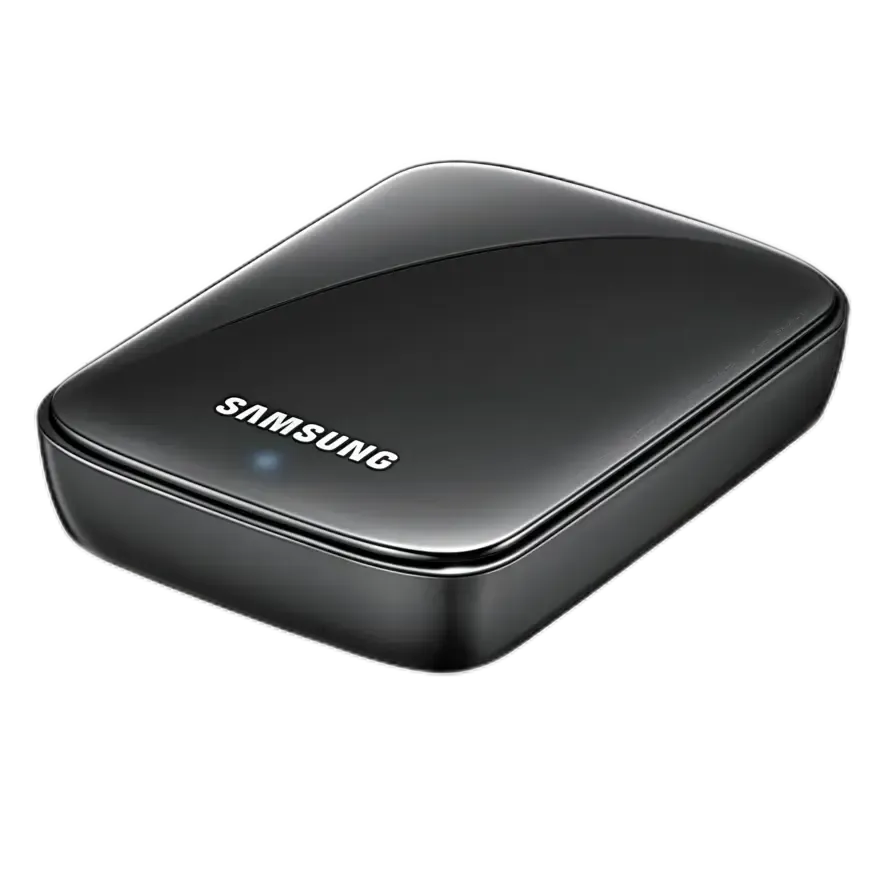
Step 1. Connect the charger to a power slot on the AllShare Cast Wireless Hub, and wait for its status indicator light to turn red.
Step 2. Connect the AllShare Cast Wireless Dongle to your HDTV using an HDMI cable.
Step 3. Adjust the resource input on your HDTV to match the input port being used by the HDMI cable.
Step 4. When the status indicator begins to blink red (this may take up to 30 seconds), press the Reset button. The status indicator should now appear blue.
Step 5. Select the AllShare Cast Wireless Hub from the available list. Enter the PIN as the TV screen shows.
Better TV Casting and Mirroring App
While Allshare Cast Samsung is a useful and free mirroring tool for Samsung devices, its compatibility limitations often cause frustration. For example, if you're wondering, "Can I AllShare Cast Mac to Samsung TV?" the answer is unfortunately no. This is where a screen mirroring app for Samsung TV steps in to offer a more versatile solution.

PigeonCast is a free and powerful screen-sharing tool that addresses compatibility issues with AllShare Cast on Samsung devices. It supports diverse systems and across multiple platforms, including iOS, Android, and even PCs.

PigeonCast Screen Mirroring

Official Download



Step 1. Ensure your sender device and Samsung TV are covered by the same wireless network.
Step 2. Install PigeonCast on your sender device. Here, we take a MacBook as an example.
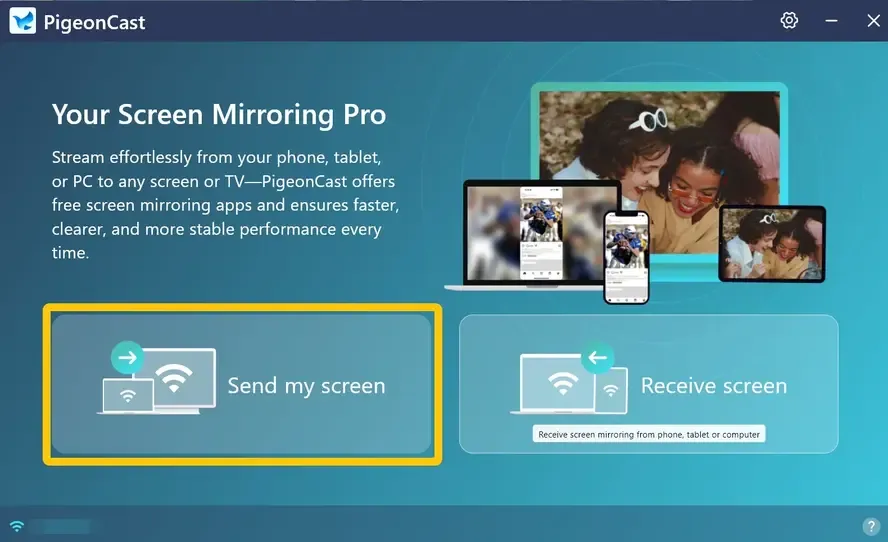
Step 3. Launch the app and click Send my screen to choose your Samsung TV from the device list.
Step 4. Enter the onscreen code to finish the connection.
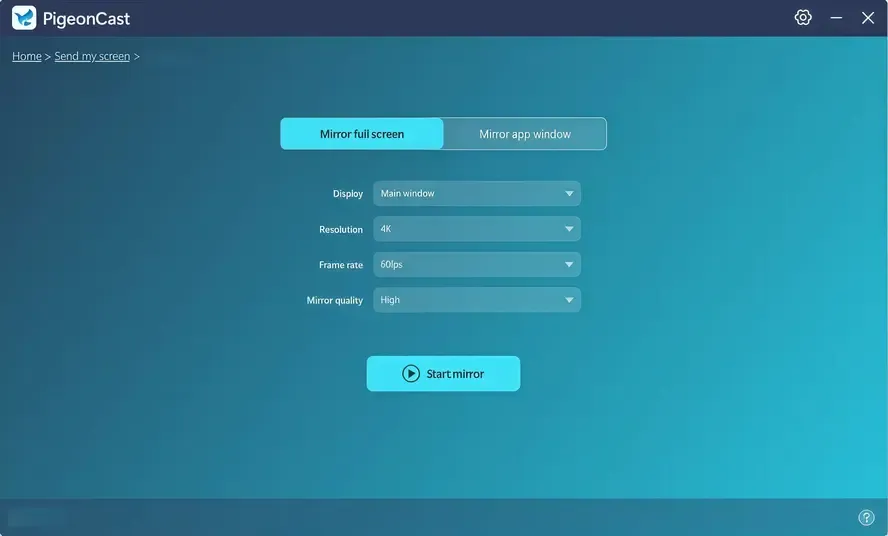
Step 5. Once connected, you can choose Mirror full screen or Mirror app window and click Start mirror to begin your mirroring activities.
Bottom Line
Samsung's AllShare Cast was an innovative way to wirelessly mirror between Samsung devices, but its compatibility limitations have made it less reliable over time. Today, tools like PigeonCast offer a more flexible solution, allowing you to mirror content from a wider range of devices, including iOS, Android, and Windows. Whether you're using AllShare Cast or a newer alternative, knowing your options helps you enjoy seamless screen sharing with ease.
AllShare Cast Samsung FAQ
How to enable AllShare on Samsung TV?
To enable AllShare on your Samsung TV, follow these steps:
- Turn on your TV and press the Menu button on your remote.
- Navigate to Network and select Screen Mirroring.
- On your Samsung mobile device, go to Settings and enable Screen Mirroring or AllShare Cast.
- From the available devices list on your mobile device, select your Samsung TV.
Is AllShare Cast Still Available?
No, AllShare Cast is no longer available as a standalone feature. Samsung has phased it out in favor of more modern technologies like Screen Mirroring and Miracast. While older Samsung devices may still support AllShare Cast, it has been largely replaced by newer, more versatile casting options that work across a wider range of devices. If you're looking for a similar experience, you can use alternatives like AirPlay, Google Cast, or PigeonCast for wireless screen mirroring.
Can I still use AllShare Cast on an older Samsung TV?
Some older Samsung TVs may still support AllShare Cast or legacy Screen Mirroring, but compatibility depends on the model and phone. Newer devices may not connect reliably to these older standards. If that happens, screen mirror to older Samsung TVs using Miracast, HDMI, or an external streaming device.
Can you AllShare Cast iPhone to Samsung TV?
No, you cannot use AllShare Cast to mirror an iPhone to a Samsung TV. AllShare Cast was specifically designed for Samsung devices, and it doesn't support iOS devices like iPhones.
Clara Rossi is an experienced technology editor and a seasoned expert in screen mirroring and casting technologies. With a keen eye for detail and a deep understanding of how to seamlessly connect devices, Clara excels at optimizing user experiences for effortless sharing and streaming. Whether you're seeking quick fixes or advanced tips, her expertise and responsiveness ensure that every query is met with a well-informed and efficient solution.