
Don't give up on that older Samsung TV just yet! While newer phones and older sets often speak "different languages", getting them to sync is easier than you think. This walkthrough explains how to screen mirror on older Samsung TVs without the headache. From hidden native settings to cheap external fixes, here is how to get your mobile content onto the big screen in minutes.
Can You Screen Mirror on Old Samsung TV
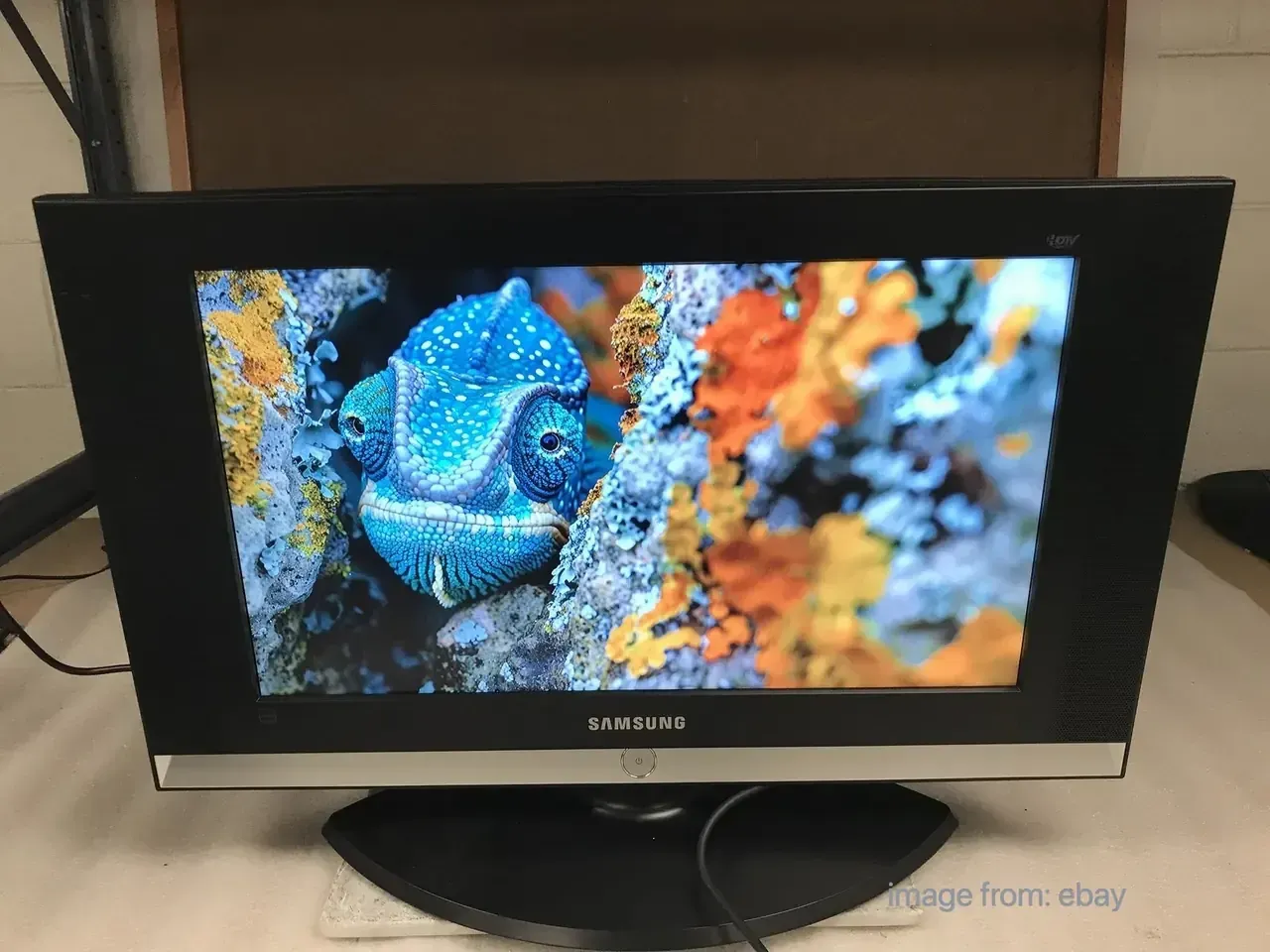
Yes, but the "how" depends entirely on your TV's vintage. Unlike modern sets with universal standards, older Samsung models rely on a mix of legacy firmware and evolving wireless protocols. Before diving into settings, you need to know what your hardware is capable of:
-
2018–Present: Usually supports AirPlay 2 and Smart View natively.
-
2015–2017: Samsung often supports Miracast (Android) but may lack native iPhone support.
-
2011–2014: Early "Smart Hub" models that may require specific apps or are wireless-limited.
-
Pre-2011 (Non-Smart): Requires a physical fallback (HDMI) or an external streaming bridge.
To save time, follow this professional troubleshooting workflow:
-
Confirm Compatibility: Check your TV's "Source" or "Network" menu for terms like Screen Mirroring or AllShare Cast.
-
The One-Test Limit: Try the native wireless connection once. If the TV fails to discover the device or the lag is unusable, stop.
-
Switch to Fallback: If the wireless handshake fails, don't waste hours on firmware updates, please immediately pivot to HDMI adapters or streaming sticks (like Chromecast or Roku) for a stable connection.
-
Pro Tip: If your Samsung TV uses the old Orsay OS (pre-2015), wireless stability is notoriously hit-or-miss. A $20 streaming stick is often a better "fix" than hours of troubleshooting.
How to Screen Mirror on Older Samsung TV
Before starting, the key is to match your TV's specific era to the right protocol. Older Samsung sets rely on various legacy names like AllShare Cast or Mirroring, which must be manually selected as the "Source" before your phone can even detect the hardware. If your TV's menu lacks these wireless options entirely, skip the software tweaks and head straight to the hardware fallback methods below.
iPhone to Older Samsung TV
Apple's AirPlay 2 only became standard on Samsung TVs from 2018 onwards. You can easily check your TV's AirPlay compatibility via the official Samsung website or within the TV settings. If your TV is older, the connection might be hit-or-miss.
Step 1. Ensure your devices are connected to the same wireless network.
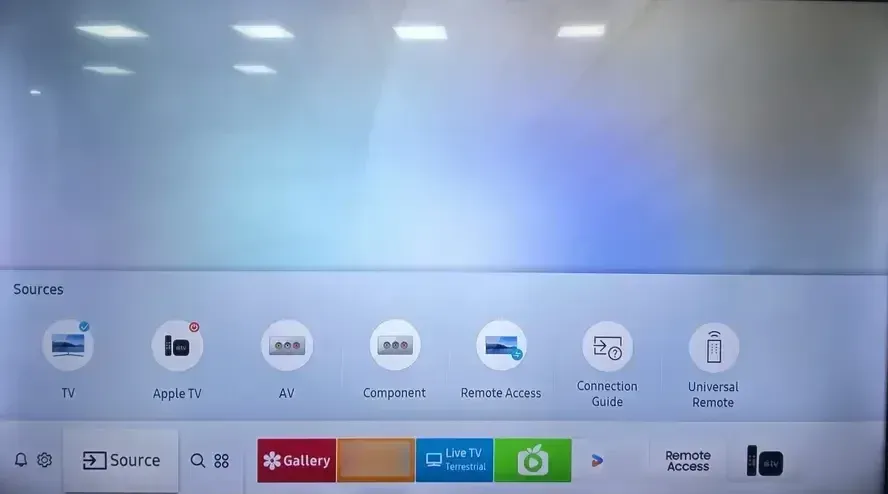
Step 2. On your TV, navigate to the Network or Source menu to enable its mirroring feature (often labeled as Screen Mirroring or AllShare Cast).
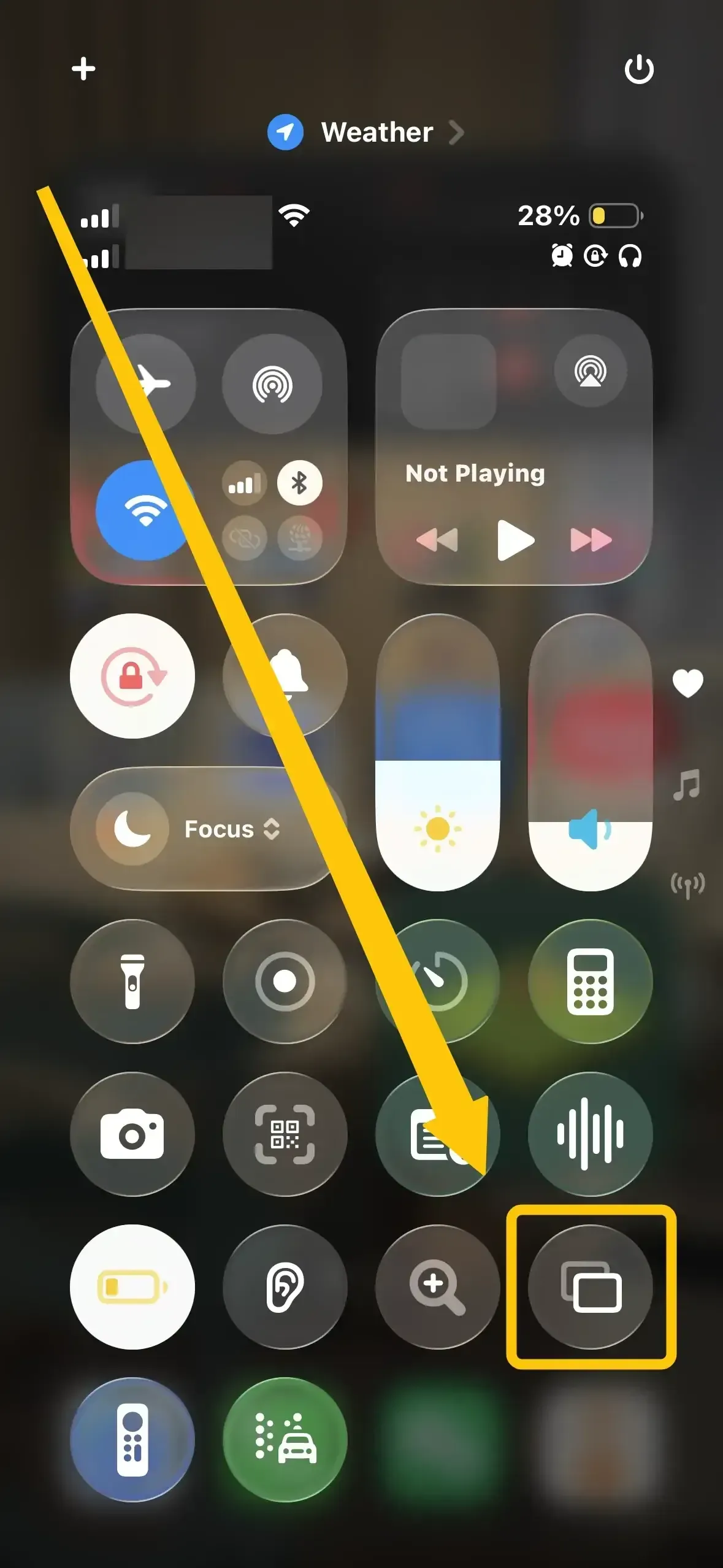
Step 3. On your iPhone, iPad, or Mac, launch Control Center and click Screen Mirroring to choose your TV from the available list.
Step 4. If prompted, enter the on-screen PIN code to finish the connection request.
Step 5. Once pairing succeeds, you can start mirroring your home screen, photos, or video content directly to the larger display.
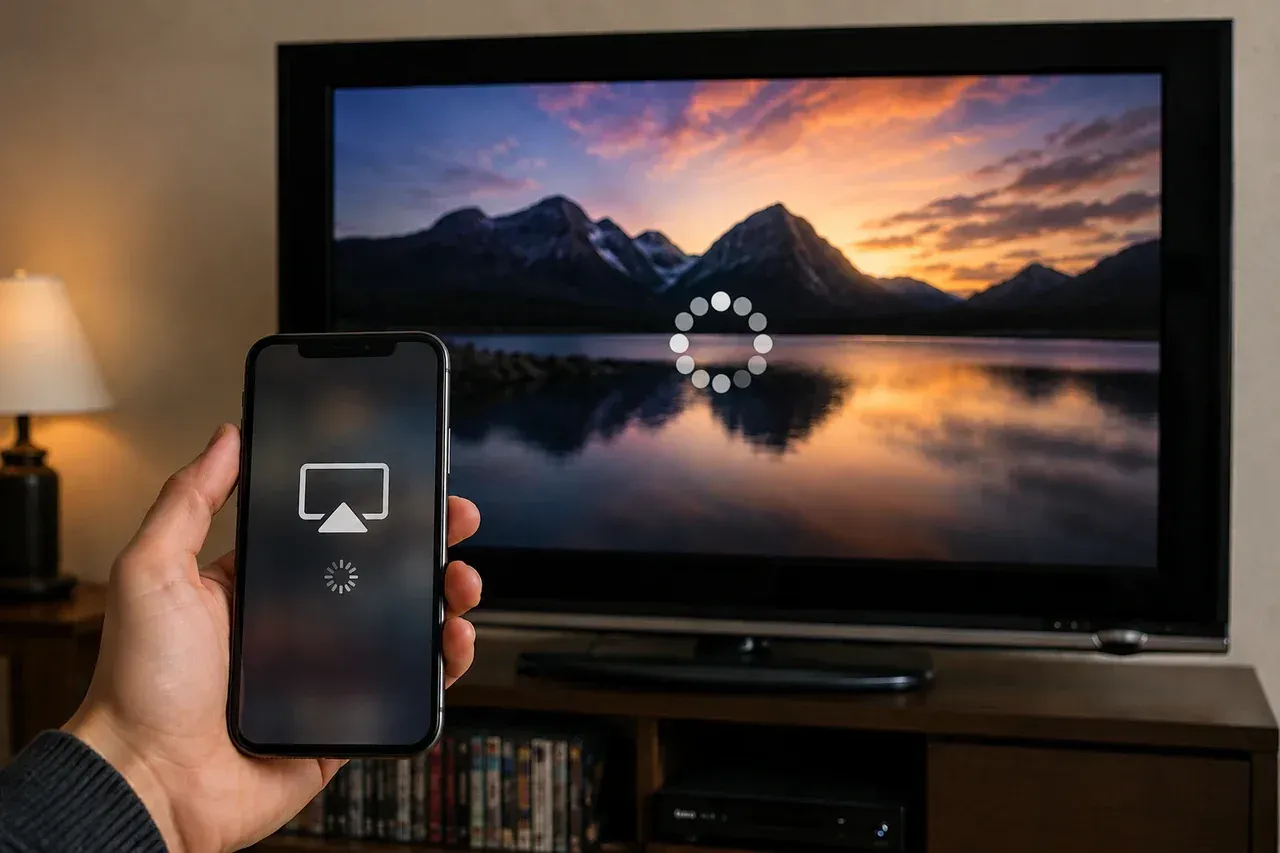
If your TV does not appear, try these quick fixes:
-
Update your iPhone to the latest iOS version.
-
Reboot your router, TV, and iPhone to reset the connection.
-
Re-enable the mirroring option in your TV's network settings.
-
If native AirPlay is missing on your 2015-2017 Samsung TV, use PigeonCast. It acts as a professional bridge, allowing you to mirror your iPhone to TVs that only support Google Cast, bypassing Apple's strict hardware limitations.


Overall Rating:


Tip: If native mirroring still fails after these steps, stop troubleshooting. Using an HDMI adapter or a streaming device is the most reliable path for legacy hardware, bypassing old software limitations entirely.
Android to Older Samsung TV
On Android, mirroring typically utilizes Smart View, Cast, or Wireless Display, depending on your phone's manufacturer. While the names differ, the underlying connection logic remains the same for legacy Samsung hardware.
Step 1. Connect your Android phone and TV to the same Wi-Fi network.
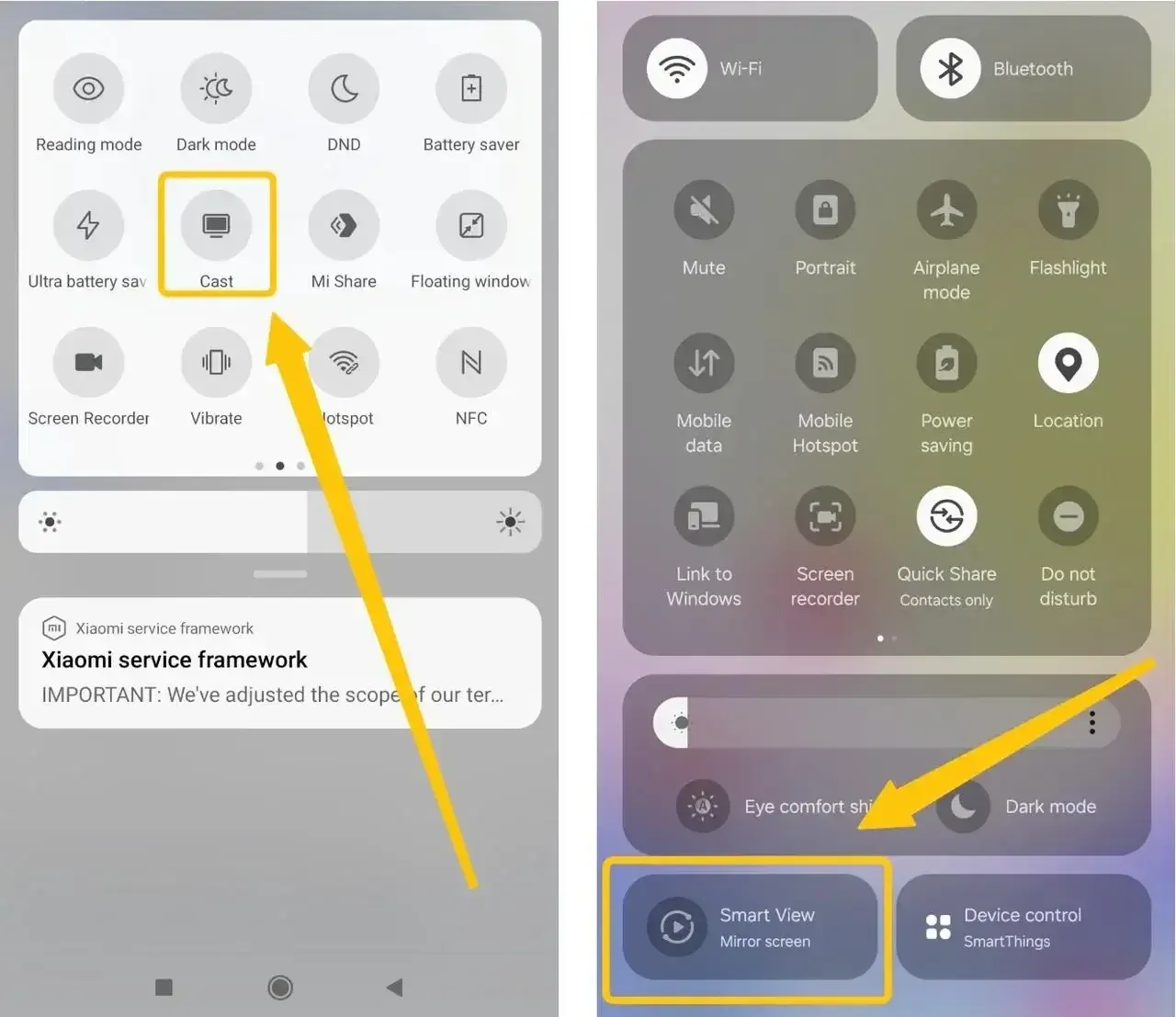
Step 2. Swipe down to open the Quick Settings tray on your Android device and tap Smart View, Cast, or Screen Cast to select your older Samsung TV from the device list .
Step 3. Wait 5–10 seconds for the handshake to complete and your mobile screen to appear.
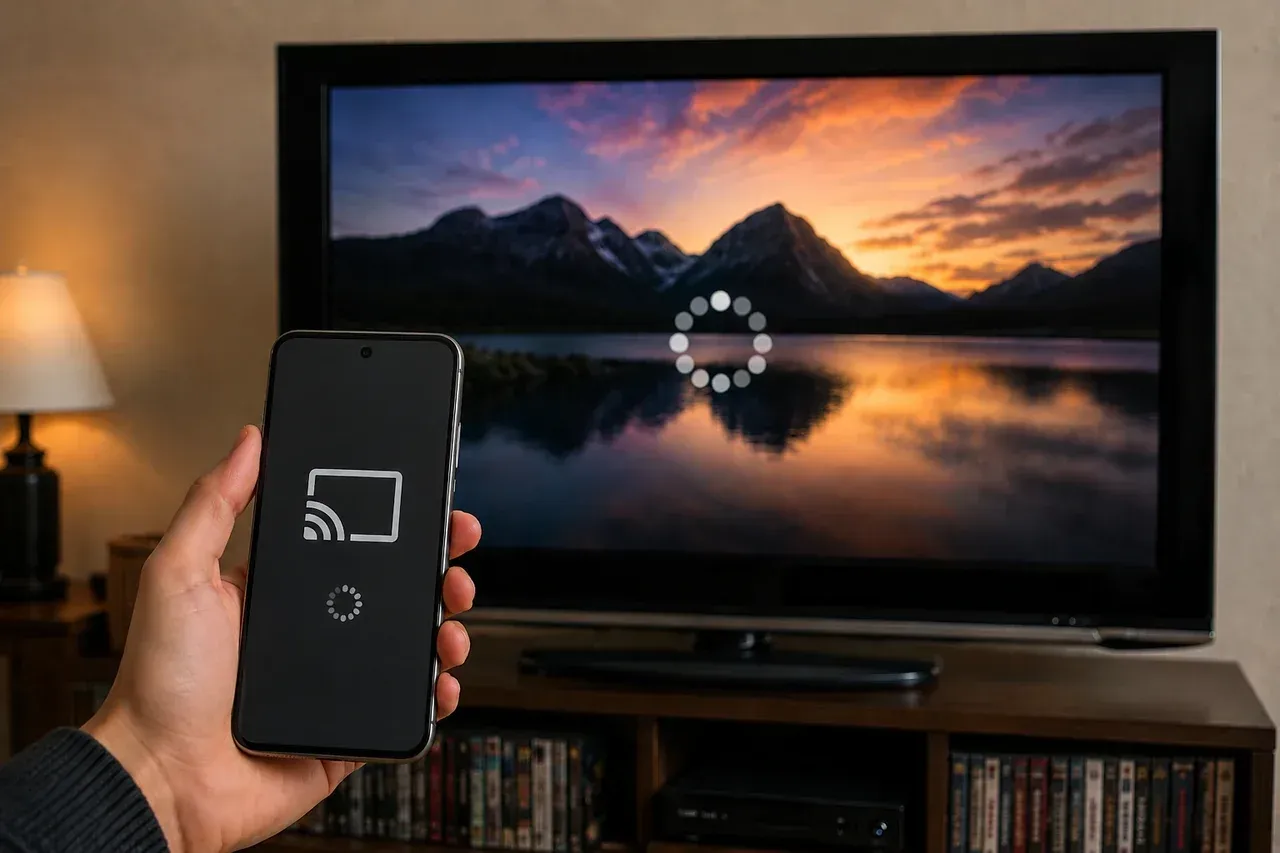
If your TV does not appear, try these quick fixes:
-
In your TV's Network Settings > Screen Mirroring > Device Manager, delete old phone profiles to make room for new connections.
-
Turn Bluetooth on your phone OFF and then ON again to refresh the local discovery signal.
-
Ensure your phone isn't in power-saving mode, which often throttles the wireless antenna.
Tip: If the TV remains hidden after these steps, the hardware likely uses an incompatible version of Miracast. Switching to a wired adapter or streaming stick is the best way to ensure a stable connection.
HDMI to Older Samsung TV
If wireless mirroring remains unstable or your TV lacks built-in smart features, a wired HDMI screen mmirroring connection is the most reliable solution. This method bypasses Wi-Fi lag, eliminates pairing handshake errors, and provides the highest video quality for legacy Samsung hardware.
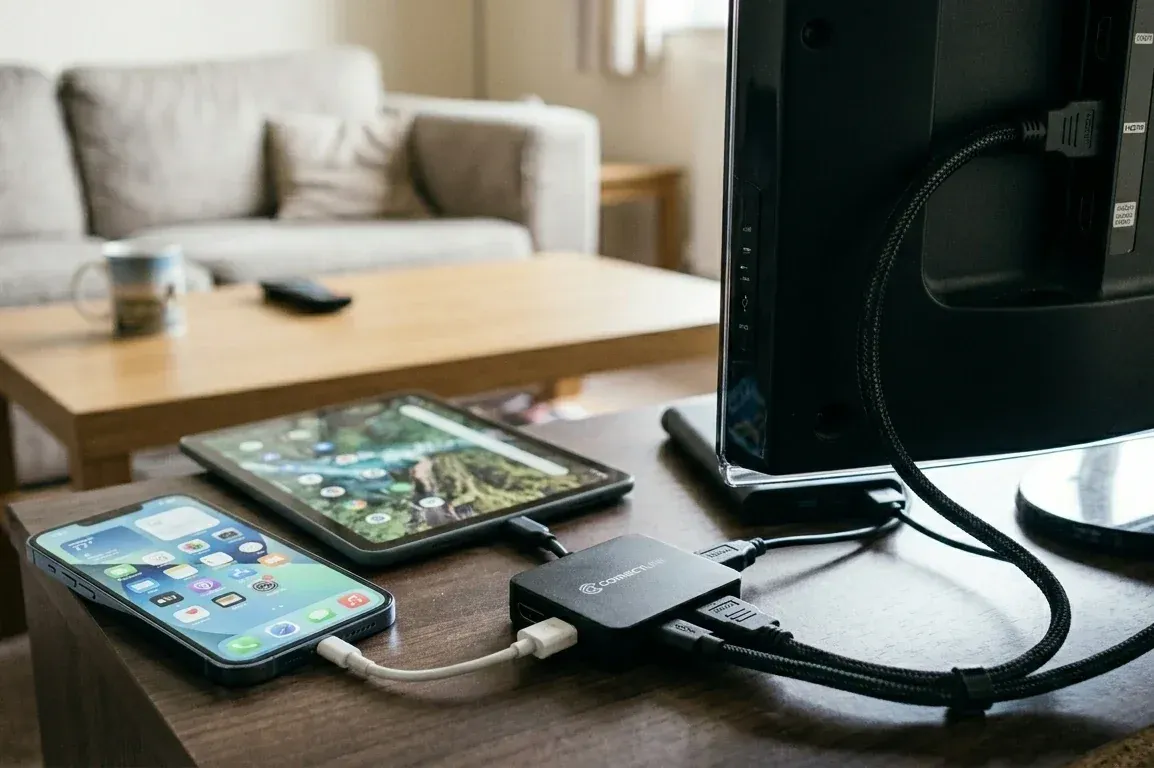
Step 1. Identify your phone's charging port. Most modern Android phones use USB-C, while older iPhones use Lightning and newer iPhone 15/16 models use USB-C.
Step 2. Purchase a compatible digital AV adapter (e.g., a Lightning to Digital AV Adapter for iPhone or a USB-C to HDMI adapter for Android).
Step 3. Connect an HDMI cable from the adapter to an open HDMI port on the back or side of your Samsung TV, and then plug the adapter into your phone.
Step 4. Use your TV remote to press the Source button and select the corresponding HDMI input. Your phone screen should appear instantly.
What to Do When Native Casting Fails
If Samsung native mirroring continues to fail or disconnects frequently, move to these fallback methods instead of retrying the same software steps. Older Samsung firmware often lacks the security certificates required by modern apps, making external hardware a more stable choice.
-
Use a Dedicated Streaming Device: Plug a Roku, Chromecast, or Amazon Fire TV stick into an HDMI port. These devices provide modern AirPlay and Google Cast protocols, offloading the processing power from your TV's aging processor to the stick for a lag-free experience.
-
Try PigeonCast for Cross-Ecosystem Casting: If you are trying to cast from Android to Apple TV or an iPhone to a Google-integrated Samsung TV, PigeonCast is the premier solution. It uniquely supports both AirPlay and Google Cast protocols in one app, making it a "universal receiver" for screen mirroring.
Overall Rating:

-
Check Audio Routing: If you have video but no sound, ensure your phone isn't still sending audio to Bluetooth headphones or a smart speaker. Older TVs often cannot override an existing Bluetooth connection during a mirror session.
-
Lower Streaming Resolution: If the connection stutters or drops, reduce the video quality in the source app (like YouTube or Netflix) from 4K to 1080p. This lowers the data strain on the TV's outdated Wi-Fi chip.
-
Manual Source Selection: If your HDMI adapter or streaming stick isn't detected, use the TV remote to manually select the HDMI Input rather than relying on the TV's "Auto-Switch" feature, which often fails on legacy models.
-
Isolate the Device: Test with a second phone. If the second device mirrors successfully, the issue is likely a setting on your original phone, such as Battery Saver or an active VPN blocking the handshake.
-
The Hardware Final Stand: If all wireless methods fail, return to the HDMI adapter method. A physical cable is the only 100% reliable way to bypass firmware incompatibilities and network interference on hardware that is 10+ years old.
Closing Words
How to screen mirror on older Samsung Smart TVs? Whether you are using an iPhone or Android, mirroring to an older Samsung TV is achievable by matching your device to the right protocol, starting with native settings like AirPlay or Smart View and pivoting to a reliable HDMI adapter or streaming stick if wireless handshakes fail.
How to Screen Mirror on Older Samsung TV FAQ
How to connect Samsung phone to TV wirelessly?
To connect your Samsung phone to a TV wirelessly, you can use the built-in Smart View feature or a dedicated mirroring app by following these steps:
-
Swipe down from the top of your Samsung phone screen to open the Quick Settings panel, tap the Smart View icon, and select your TV from the list of available devices.
-
Ensure your TV is on the same Wi-Fi network as your phone and, if you are using an older Samsung TV, manually switch the "Source" to Screen Mirroring to make it discoverable.
-
If your TV does not support the Miracast protocol used by Samsung, download a professional mirroring app to bridge the connection between your phone and the TV's specific wireless standards (such as DLNA or Google Cast).
-
Watch for a prompt on your TV screen and use the TV remote to select Allow or Accept to finalize the wireless handshake and begin mirroring your screen.
How to screen mirroring iPhone to Samsung TV without AirPlay?
To screen mirror your iPhone to a Samsung TV without using AirPlay, you can bridge the connection using third-party software or a physical wired connection:
-
Use an app that acts as a universal bridge. It allows you to mirror your iPhone to older Samsung TVs by utilizing the TV's built-in DLNA or Google Cast protocols, supporting high-quality streaming (up to 2K/60fps) that bypasses native AirPlay requirements.
-
Download the SmartThings app from the App Store. Once your TV is added to the app, you can use the "Mirror Screen" feature to share your iPhone's display, which is often more reliable than native AirPlay on 2016-2017 models.
-
Connect a Chromecast, Roku, or Fire TV Stick to your TV's HDMI port. These devices provide their own wireless environment, allowing your iPhone to "Cast" or "Mirror" to the stick rather than the TV's outdated firmware.
-
Use a Lightning to HDMI (for iPhone 14 and older) or USB-C to HDMI (for iPhone 15/16) digital AV adapter. This is the most stable, zero-latency method and works on any Samsung TV with an HDMI port, regardless of its "Smart" capabilities.
How to screen mirror on 2015 Samsung TV?
To screen mirror to a 2015 Samsung TV (often the J-series models), you must navigate the gap between the older Tizen or Orsay OS and modern mobile devices using these specific steps:
-
For Android Users (Smart View): Swipe down the Quick Settings panel on your Samsung or Android phone and tap Smart View or Screen Cast. Since 2015 TVs often fail to auto-broadcast, you must first press the Source button on your TV remote and manually select Screen Mirroring to make the TV visible to your phone.
-
For iPhone Users (No Native AirPlay): 2015 Samsung TVs do not support AirPlay 2 natively (which began in 2018). To mirror wirelessly, you should use a bridge app like PigeonCast to connect via the TV's built-in DLNA protocol, or use the Samsung SmartThings app (though compatibility varies for 2015 models).
-
Wired Fallback: For the most reliable connection without lag, use a Lightning to HDMI (iPhone) or USB-C to HDMI (Android/iPhone 15+) adapter. This bypasses the aging 2015 wireless hardware entirely and works instantly once you switch the TV to the correct HDMI source.
Why does screen mirroring connect but show a black screen?
A black screen during mirroring typically indicates that the connection handshake was successful, but the video stream is being blocked or has failed to decode. Here are the primary reasons why this happens:
-
DRM Restrictions
-
Resolution Mismatch
-
Battery Saver Throttling
-
HDCP Handshake Failure
-
Network Congestion or Interference
-
Firmware Incompatibility
What is the most reliable method on very old Samsung TVs?
The most reliable method for mirroring to very old Samsung TVs (specifically non-smart models or those made before 2015) is a physical HDMI connection. Because legacy Samsung hardware lacks modern wireless protocols and often has outdated security certificates, a wired setup is the only way to guarantee a lag-free experience.
Can I use Chromecast with an older Samsung TV?
Yes. You can use Chromecast with an older Samsung TV to stream videos, mirror your phone screen, or cast content from your computer even if the TV is not a smart TV. As long as your TV has an HDMI port, Chromecast can turn it into a wireless streaming display.
-
Plug Chromecast into your Samsung TV's HDMI port
-
Connect the USB power cable to a power adapter or TV USB port
-
Turn on the TV and switch to the correct HDMI input
-
Install the Google Home app on your phone
-
Connect Chromecast to the same WiFi network as your device
-
Open an app and tap the Cast icon or use screen mirroring to start streaming to your TV
Clara Rossi is an experienced technology editor and a seasoned expert in screen mirroring and casting technologies. With a keen eye for detail and a deep understanding of how to seamlessly connect devices, Clara excels at optimizing user experiences for effortless sharing and streaming. Whether you're seeking quick fixes or advanced tips, her expertise and responsiveness ensure that every query is met with a well-informed and efficient solution.