
Screen mirroring lets you easily share videos, photos, or presentations from your smartphone, tablet, or PC to your Samsung TV, providing a bigger and more enjoyable viewing experience. However, it doesn't always work, which can be frustrating. Fortunately, this guide will help you find the common reasons why screen mirroring is not working in Samsung TV and offer corresponding solutions.
Why Can't I Cast to My Samsung TV
There could be several reasons why you're unable to cast or mirror your screen to your Samsung TV. Screen mirroring problems typically arise due to network issues, device incompatibility, or incorrect settings on either the TV or your device. In some cases, the connection may appear successful but the TV only plays audio without displaying the video. Some of the most common reasons include:
- WiFi Connection Issues: Both your TV and the device you're trying to cast from need to be on the same Wi-Fi network. If they are on different networks, screen mirroring will not work.
- Outdated Software: If either your Samsung TV or the device you're casting from has outdated software or firmware, it can cause problems with the connection.
- Incorrect Input/Source: If your TV is not set to the correct input (e.g., Screen Mirroring or Miracast mode), it won't be able to receive the mirrored content.
- Device Compatibility: Not all devices support screen mirroring with all TV models. Some older phones or tablets may not be compatible with your Samsung TV's casting capabilities.
How to Fix Screen Mirroring Not Working on Samsung TV
If you can't cast to Samsung TV, don't worry. This is a common issue that can usually be fixed with a few simple steps. Here are some common troubleshooting tips to help you get screen mirroring working smoothly again.
Fix 1. Check Device Compatibility
If your device isn't compatible with your Samsung TV's mirroring feature, it could cause connection failures. Ensure that both devices support the same mirroring standard (Miracast for Android, AirPlay for iOS).
- For Samsung TVs: Check if your TV model supports Miracast, AirPlay 2, or Wi-Fi Direct. Most newer Samsung models support these features.
- For your sender device: Verify whether your phone or tablet supports screen mirroring technology such as Miracast (Android) or AirPlay (iOS). Older devices may not support these features.
If you're unsure of your device's compatibility, consult the product manual or the manufacturer's website for more information.
Fix 2. Check the Wi-Fi Network Connection
Ensure that both your Samsung TV and the device you're trying to mirror are connected to the same Wi-Fi network. If they are on different networks, screen mirroring will not work. To fix this:
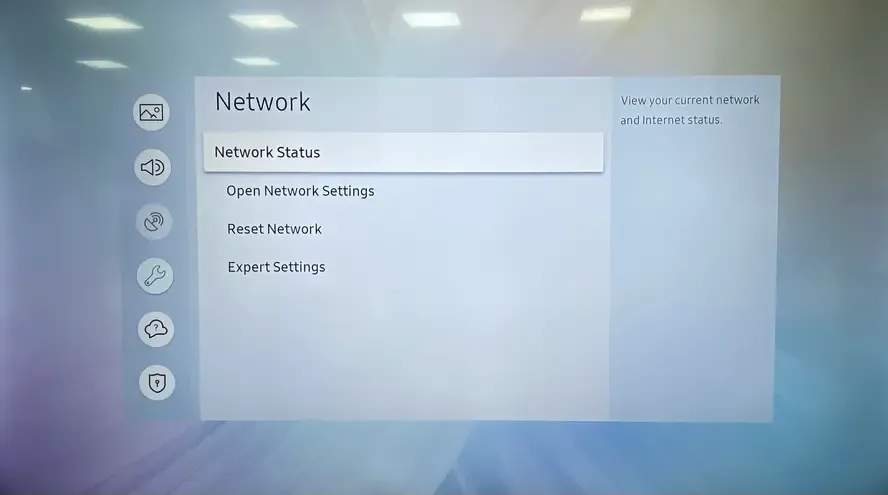
- On your TV: Go to Settings > Network > Network Status and check if your TV is connected to the correct Wi-Fi network.
- On your sender device: Ensure your phone, tablet, or computer is on the same network by checking the Wi-Fi settings.
If you're having trouble with your Wi-Fi connection, a simple restart of your modem and router can often fix the screen mirroring Samsung TV not working issue. To do this, unplug the router along with any connected cables, wait for a few minutes, then plug everything back in and turn the power on. This refreshes your network and can help restore a stable connection.
Fix 3. Turn Off Bluetooth
If screen mirroring on your Samsung TV is still not working, another common culprit could be interference from Bluetooth connections. Sometimes, active Bluetooth devices can disrupt the Wi-Fi signal needed for casting, causing connection issues. Turning off Bluetooth on your devices can help eliminate this interference and improve the mirroring experience.
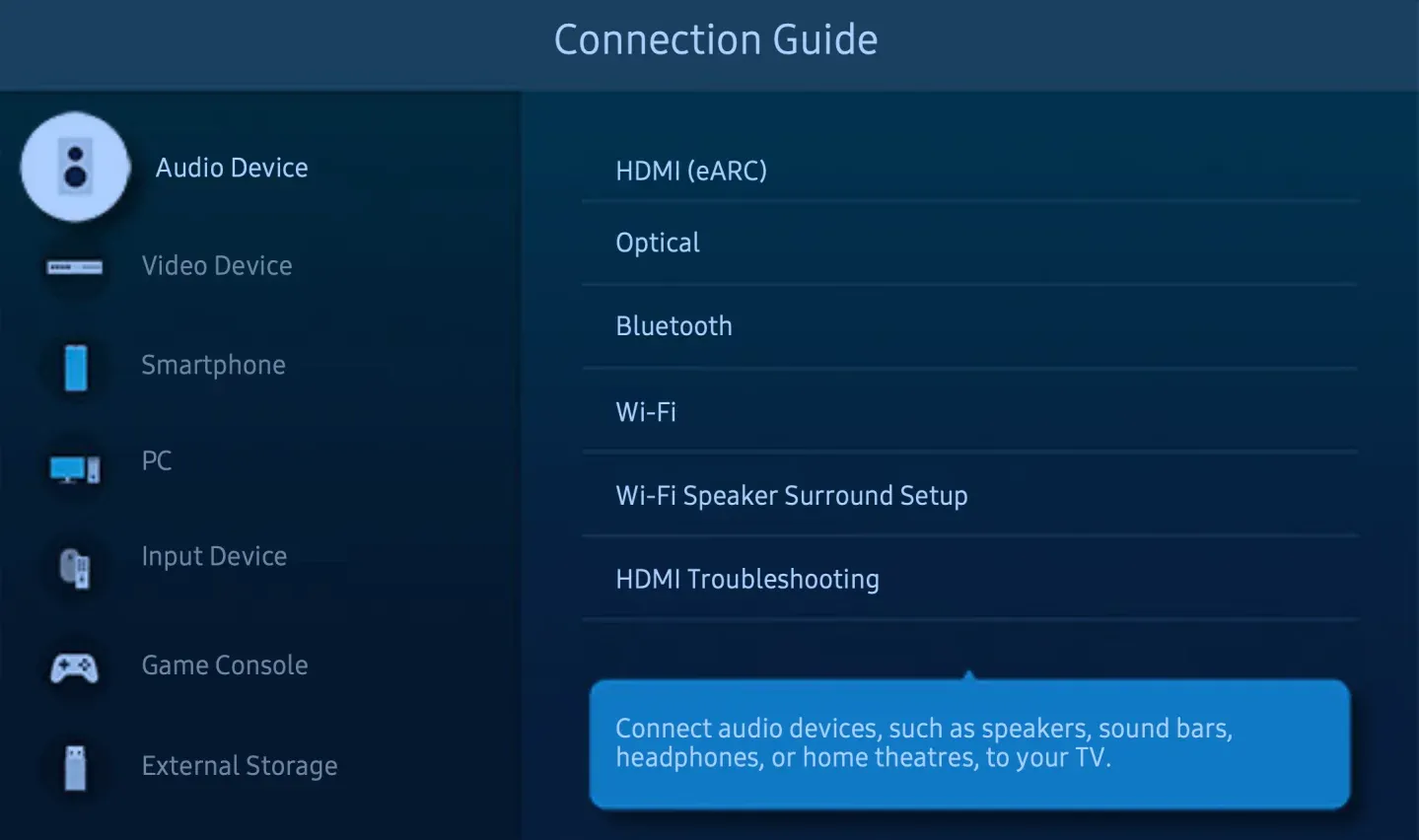
- On your Samsung TV: press the Home button on the remote and go to Settings > Sound > Expert Settings > Bluetooth Audio (or Connections > Bluetooth on some models). Turn Bluetooth off to disable all active connections.
- On your sender device: go to Settings > Bluetooth and switch it off.
Fix 4. Restart Your Devices
Why can't I screen cast to my Samsung TV? Sometimes, simply restarting your devices can resolve screen mirroring issues. A fresh restart helps clear temporary glitches or network conflicts that may prevent your Samsung TV and your device from connecting properly.
Step 1. Turn off your Samsung TV and unplug it from the power source for a few minutes.
Step 2. Restart your smartphone, tablet, or PC.
Step 3. Plug your TV back in and power it on.
Step 4. Once both devices are fully restarted, try screen mirroring again to see if the connection works smoothly.
Fix 5. Remove Obstacles and Keep Both Devices Closer
Physical obstacles or long distances between your Samsung TV and your sender device can weaken the Wi-Fi signal, causing screen mirroring to fail or lag. Ensuring a clear line of sight and keeping the devices closer can improve connection stability and performance.
Step 1. Move any large objects, walls, or electronic devices that could block the Wi-Fi signal between your TV and device.
Step 2. Bring your smartphone, tablet, or PC closer to the Samsung TV.
Step 3. Try screen mirroring again to check if the connection has improved and is more stable.
Fix 6. Update Software and Firmware
Alternatively, outdated software can cause connectivity issues. Make sure both your Samsung TV and the device you're casting from have the latest software updates installed.
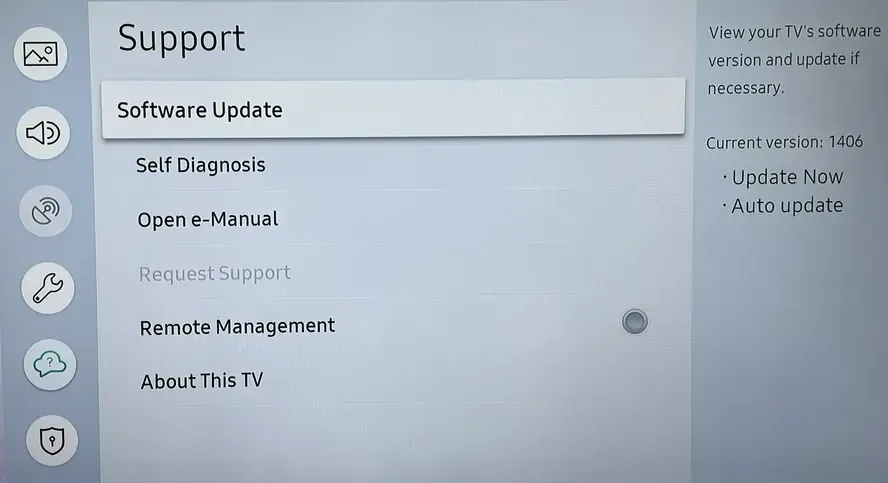
- On Samsung TV: Go to Settings > Support > Software Update > Update Now.
- On your sender device: Check for updates in the device's settings.
Fix 7. Disable the Power Saving Mode on Your Phone
If you're still having trouble casting to your Samsung TV, your phone's power saving mode could interfere with the screen mirroring process. Many phones limit background activity, Wi-Fi performance, or network usage when power saving is enabled, which can prevent a stable connection. Disabling this feature can help restore full functionality for mirroring.
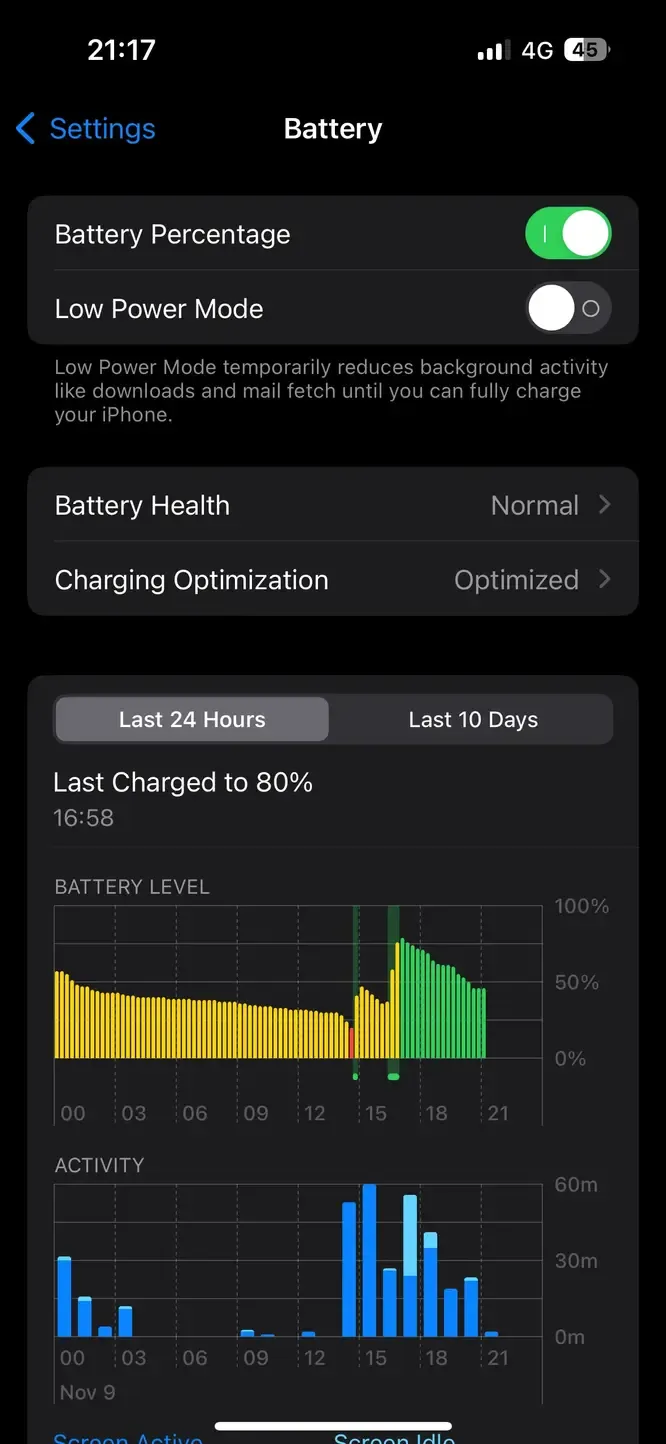
Step 1. Open your phone's Settings > Battery or Device Care > Battery (depending on your phone model).
Step 2. Look for Power Saving Mode or Battery Saver and toggle it off.
Step 3. Ensure Wi-Fi is enabled and your phone is connected to the same network as your Samsung TV.
Step 4. Attempt screen mirroring again to check if the connection is stable and smooth.
Fix 8. Disable Auto Protection Time on TV
Sometimes, features designed to protect your TV can unintentionally interfere with screen mirroring. On Samsung TVs, the Auto Protection Time setting can cause the screen to dim or turn off during casting, disrupting the connection. Turning this feature off can help maintain a stable mirroring experience.
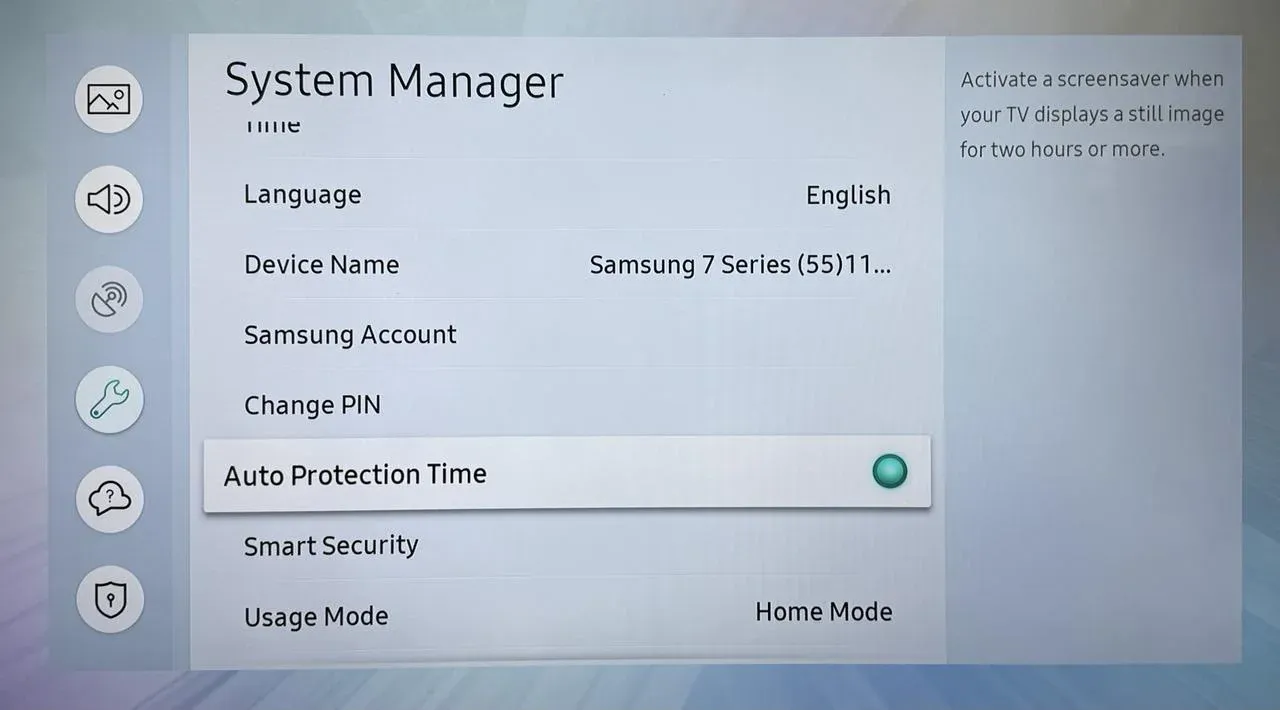
Go to Settings > All Settings > General > System Manager > Auto Protection Time, and then turn it off.
Fix 9. Adjust the Aspect Ratio on Your Send Device
If you still cannot cast to Samsung TV, the problem might be related to your device's aspect ratio settings. When the aspect ratio is set incorrectly, it can cause display issues such as a distorted or incomplete image, which may interrupt or prevent successful casting. Adjusting the aspect ratio on your sending device can help ensure the screen mirrors correctly and fits your TV display.
Fix 10. Use Any Third-Party App
If you've tried all the usual fixes and still can't cast to your Samsung TV, consider using a third-party casting app. Popular options include PigeonCast, which offers smooth, cross-platform mirroring with excellent picture and sound quality. You can easily cast from almost any device without interruptions.

PigeonCast works effortlessly with Windows 10/11, iOS, and Android devices, making screen mirroring simple across different platforms. It also keeps your privacy secure, ensuring that no personal data is exposed while casting. On a laptop, you can choose to mirror either a specific website or your entire screen, depending on your needs. Here's a quick guide to get started:

PigeonCast Screen Mirroring

Official Download



Step 1. Install PigeonCast on your sender device from the app store.
Step 2. Ensure both your devices are connected to the same wireless network.
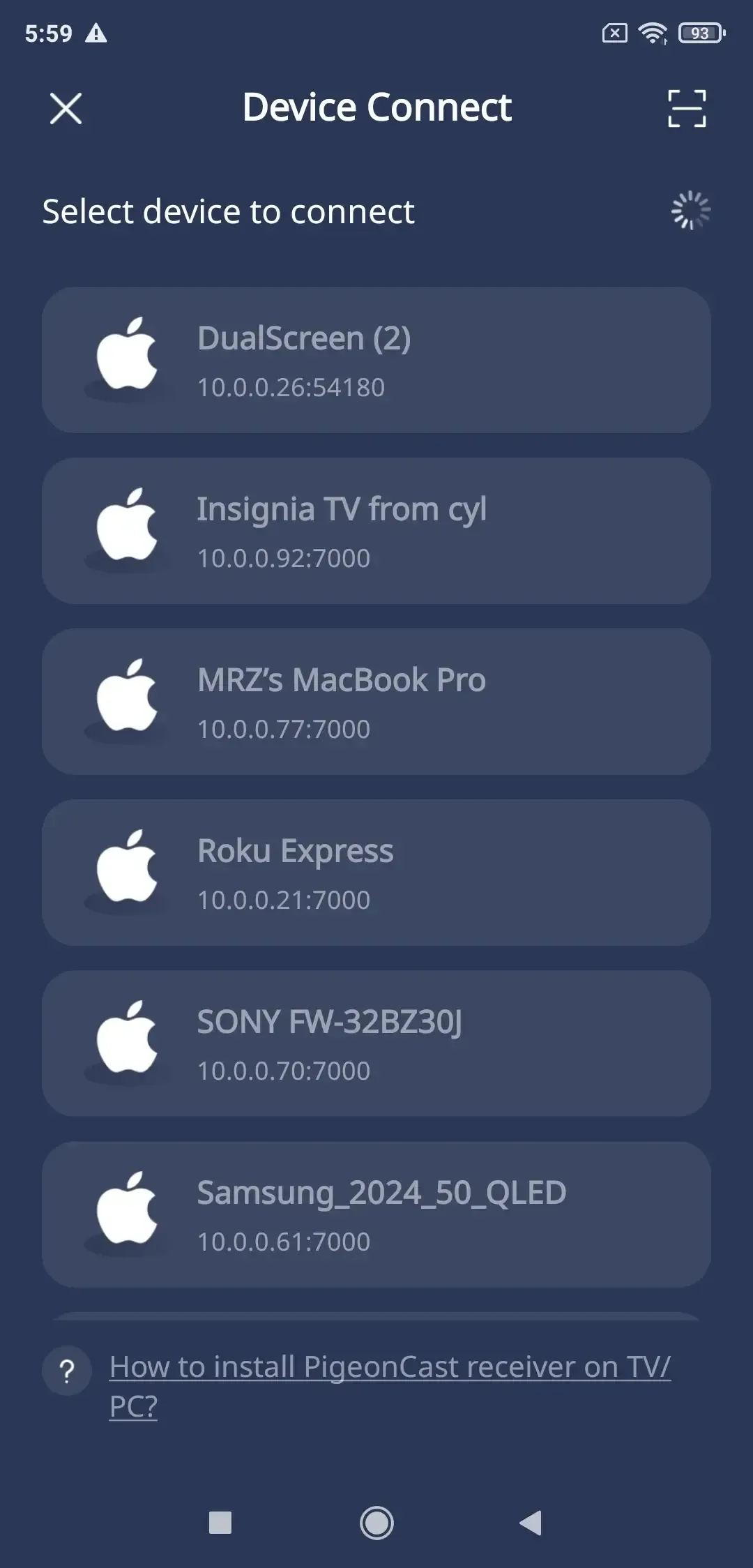
Step 3. Launch the app and follow the onscreen instructions to select your Samsung TV device from the available list.
Step 4. Enter the onscreen code to confirm the connection requisition.
Step 5. Once paired, you can mirror your sender device to the Samsung TV and adjust some mirroring settings.
Bottom Line
Screen mirroring not working on Samsung TV can be frustrating, but it's usually a simple issue that can be fixed with a few basic troubleshooting steps. If problems persist, using a third-party app like PigeonCast makes casting easy, reliable, and smooth. By following these tips, you can enjoy a seamless and enjoyable viewing experience on your Samsung TV.
Why Screen Mirroring Is Not Working in Samsung TV FAQ
Q: Why is my TV not screen mirroring anymore?
Here are some common reasons why your TV may no longer be screen mirroring:
- Devices are not connected to the same Wi-Fi network
- The screen mirroring or casting feature is turned off on the TV
- Outdated TV firmware or device software
- Bluetooth or other wireless interference
- Device compatibility issues with the TV
- Physical obstacles or a long distance weaken the Wi-Fi signal
- Power-saving or protection settings on the TV or device are affecting connectivity
Q: How to activate mirroring on a Samsung TV?
To activate screen mirroring on a Samsung TV, follow these steps:
- Press the Home button on your Samsung TV remote.
- Navigate to Settings > General > External Device Manager (or Connections on some models).
- Select Screen Mirroring or Device Connection Manager.
- Enable Screen Mirroring or Access Notification to allow devices to connect.
Q: How to solve the screen mirroring problem?
Here's a simple and professional overview of how to solve screen mirroring problems:
- Check Device Compatibility: Ensure both your TV and the device you are mirroring support the same mirroring technology, such as Miracast for Android or AirPlay for iOS.
- Connect to the Same Wi-Fi Network: Make sure your TV and device are on the same network to allow proper communication.
- Restart Devices: Turn off and then restart both your TV and your device to clear temporary glitches.
- Disable Interferences: Turn off Bluetooth or power-saving modes that may interfere with Wi-Fi performance.
- Update Software: Keep your TV firmware and device software up to date to avoid compatibility issues.
- Check Settings: Ensure screen mirroring is enabled on the TV and that the correct input or source is selected.
- Use a Third-Party App: If built-in mirroring still fails, apps like PigeonCast can provide a reliable alternative for smooth casting.
Q: What Samsung TVs support screen mirroring?
Most Samsung Smart TVs support screen mirroring, but compatibility varies by model and release year. To determine if your specific Samsung TV supports screen mirroring, refer to your TV's user manual or consult the manufacturer's website for detailed specifications.
Clara Rossi is an experienced technology editor and a seasoned expert in screen mirroring and casting technologies. With a keen eye for detail and a deep understanding of how to seamlessly connect devices, Clara excels at optimizing user experiences for effortless sharing and streaming. Whether you're seeking quick fixes or advanced tips, her expertise and responsiveness ensure that every query is met with a well-informed and efficient solution.