
Experiencing the Samsung screen mirroring sound but no picture issue? Your hardware is likely fine. This glitch usually stems from software bugs, mismatched aspect ratios, or app DRM restrictions. Follow this quick 2026 guide to restore your video in less than three minutes.
Quick Fixes for Samsung Screen Mirroring No Video
Before diving into complex settings, minor bugs can often be cleared with two quick troubleshooting steps.
1. Power Cycle Your Devices
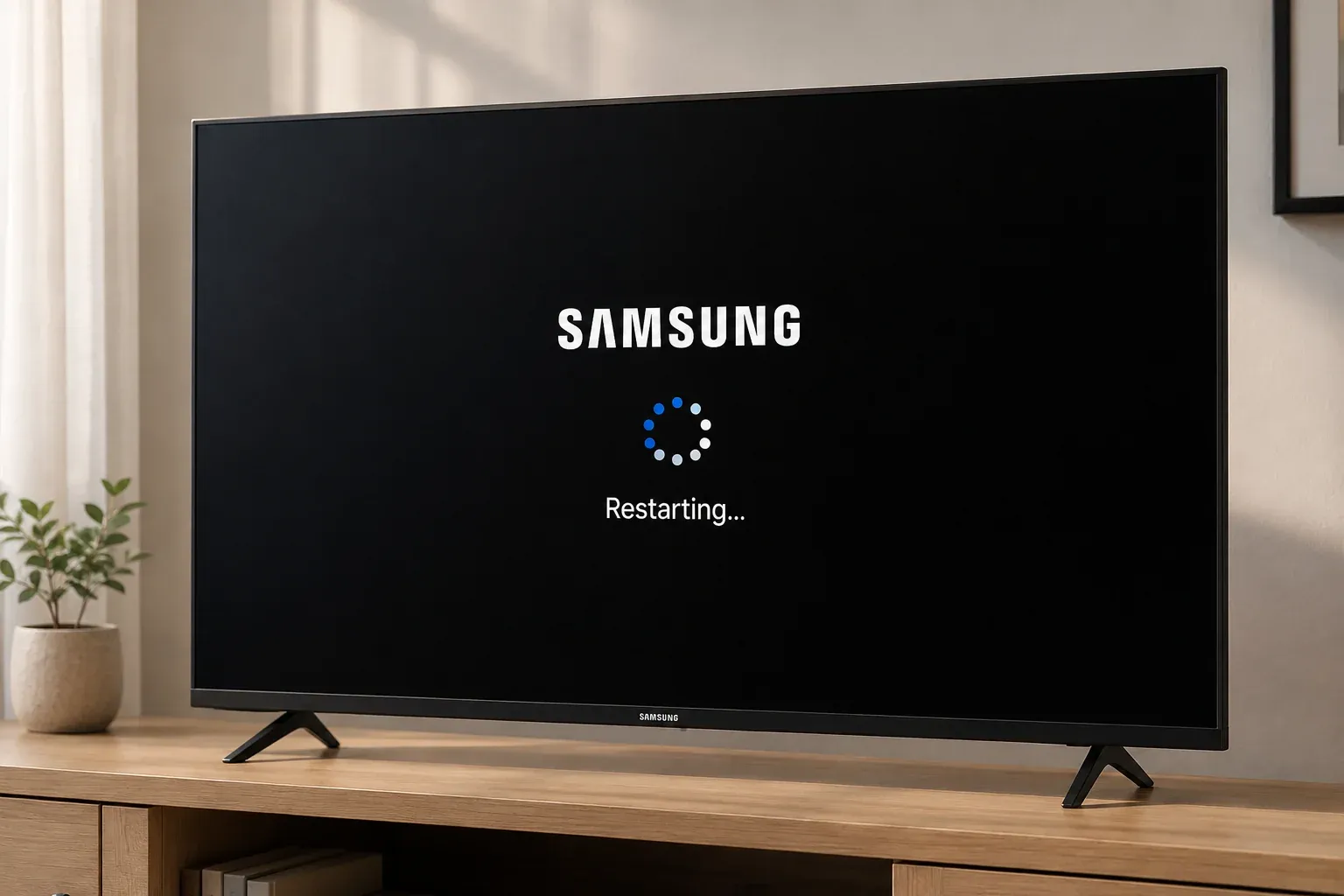
A basic remote-control restart does not completely clear your TV's cache. Perform a full power cycle instead:
-
Unplug your TV power cord directly from the wall outlet.
-
Wait at least 30 seconds.
-
Plug it back in and turn it on.
-
Restart your Samsung phone or tablet at the same time, then try mirroring again.
2. Verify Your Wi-Fi Bands
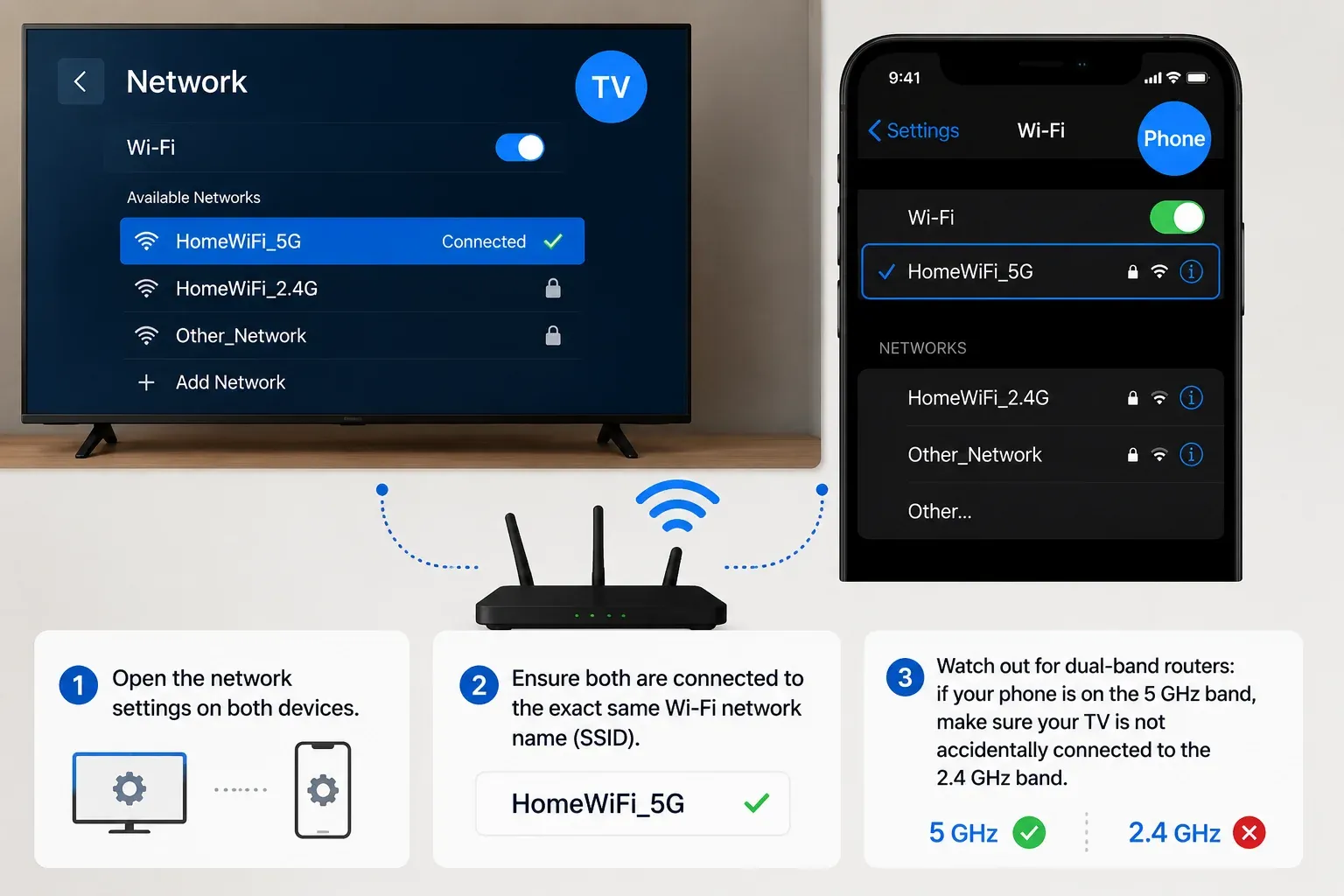
Screen mirroring requires a strong, uninterrupted local connection. If your phone and TV are on different network bands, the video feed can drop while the audio remains.
-
Open the network settings on both devices.
-
Ensure both are connected to the exact same Wi-Fi network name (SSID).
-
Watch out for dual-band routers: if your phone is on the 5 GHz band, make sure your TV is not accidentally connected to the 2.4 GHz band.
4 Ways to Resolve Samsung Smart View No Picture Issues
If the quick fixes did not work, your device is likely encountering a deeper software conflict, display mismatch, or privacy restriction. Work through these four proven solutions to restore your video feed.
1. Check for DRM Blocks (Netflix, Disney, Prime)
If free platforms like YouTube display perfectly but premium streaming services show a black screen, your hardware is fine. The issue is Digital Rights Management content protection. These subscription apps apply strict security protocols to prevent unauthorized wireless recording, which automatically blocks the video track while letting the audio pass through.
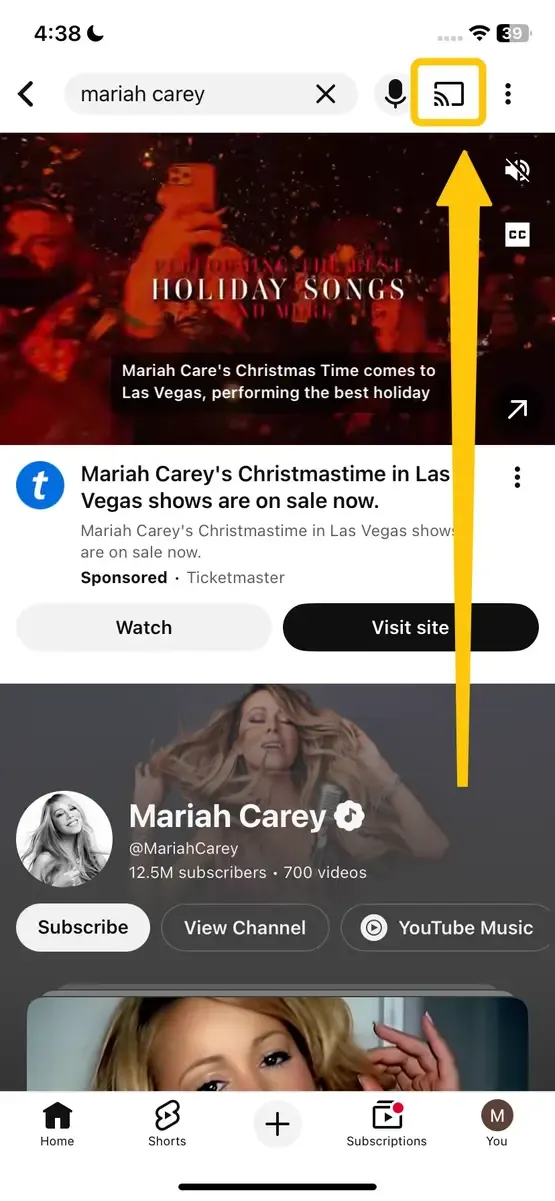
Step 1: Disconnect your current Smart View or screen mirroring session.
Step 2: Open the specific streaming app like Netflix or Disney on your mobile device.
Step 3: Start playing the video and tap the built in Cast icon on the player screen.
Step 4: Select your Samsung TV from the device list to stream the content securely.
2. Adjust Smart View Aspect Ratio
A vertical phone screen format can clash with a wide TV screen, resulting in a black picture. You need to change the screen layout while your phone is connected to the TV.
- For Samsung Phone
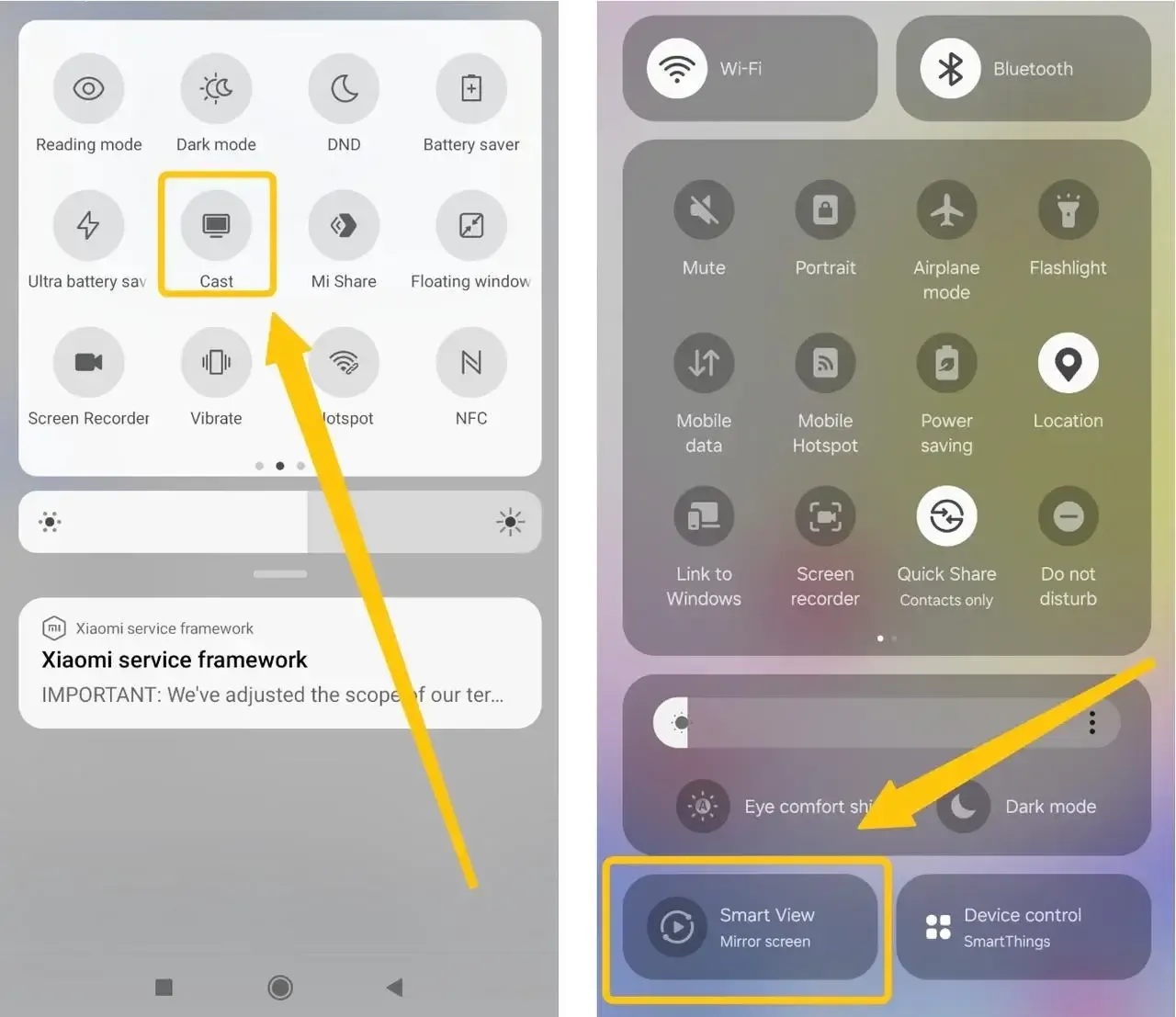
Step 1: Swipe down from the top of your phone screen and tap the Smart View or Cast button to link with your TV.
Step 2: Tap the three vertical dots in the top-right corner and select Settings.
Step 3: Tap Aspect ratio and select Full screen on connected device to force the video track to display.
- For iPhone
Step 1: Turn your iPhone horizontally to landscape mode while playing the video.
Step 2: Tap the video screen to bring up the playback menu inside your streaming app (like YouTube or Netflix).
Step 3: Look for the Zoom or Aspect Ratio icon (often looks like two arrows stretching out or a square box).
Step 4: Tap that icon to change the setting to Fit Screen or Zoom to Fill to push the image to your Samsung TV.
3. Clear App and System Cache
Old temporary data stuck in your device memory can block the video stream from loading. Clearing this cache gives the connection a fresh start.
- For Samsung and Android Phone
Step 1: Open your phone Settings app > Apps.
Step 2: Find your video streaming app (or SmartThings) and tap it.
Step 3: Select Storage from the options list.
Step 4: Tap the Clear cache button at the bottom of the screen.
- For iPhone
Step 1: Open your iPhone Settings app > General.
Step 2: Tap iPhone Storage and find your video streaming app.
Step 3: Tap the app, then select Offload App to dump the temporary cache files.
Step 4: Tap Reinstall App to bring the app back completely clean.
- For Samsung TV
Step 1: Grab your TV remote while the TV is turned on.
Step 2: Hold down the Power button for 5 full seconds.
Step 3: Keep holding until the TV screen shuts off completely and flashes back on.
Step 4: Release the button. The TV system cache is now fully cleared.
4. Update Device System Firmware
Outdated software often creates bugs that stop mirroring from working. Installing the latest firmware fixes these compatibility errors.
- For Mobile Phones (Android & iPhone)
Step 1: Open your phone Settings app.
Step 2: Scroll down and select Software Update (on Android) or General > Software Update (on iPhone).
Step 3: Wait for the device to check for any available new versions.
Step 4: Tap Download and Install if an update is found.
- For Samsung TV
Step 1: Press the Settings button on your TV remote and open All Settings.
Step 2: Scroll down the sidebar menu and select Support.
Step 3: Select Software Update from the center list.
Step 4: Tap Update Now to download and install the latest TV firmware files.
Alternative Way to Mirror Your Screen More Reliably
If the default screen mirroring option on your device is not working properly, using a free dedicated casting app can provide another way to mirror or cast your screen.
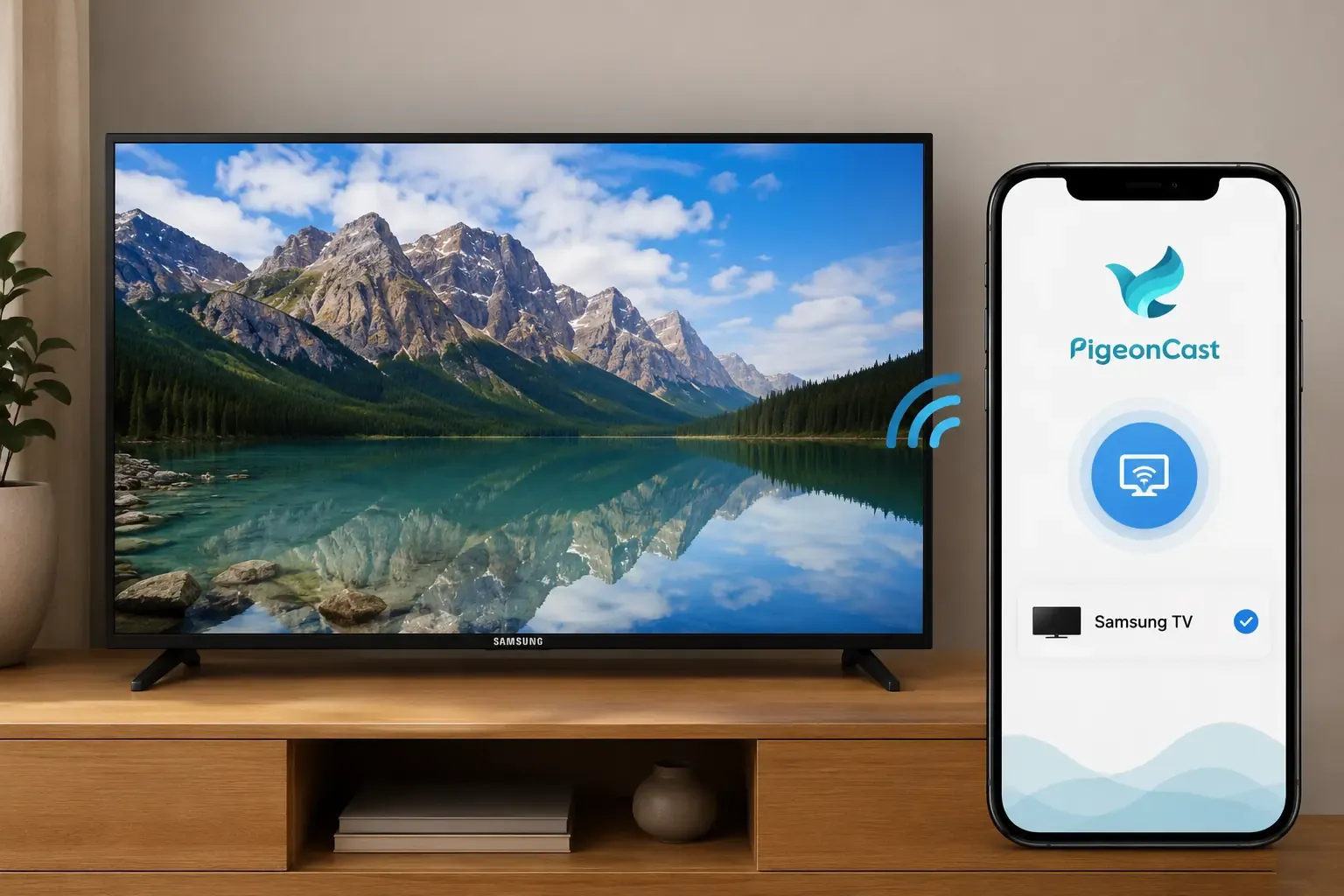
Apps like PigeonCast support common casting protocols such as AirPlay, DLNA, and Google Cast across different phones, tablets, and computers, allowing you to connect and stream content across multiple platforms without relying entirely on a single built-in mirroring system.


Overall Rating:



Step 1: Make sure both devices are connected to the same Wi-Fi network.
Step 2: Install PigeonCast on your mobile device from app store, or you can also download on your TV from app shop if available.
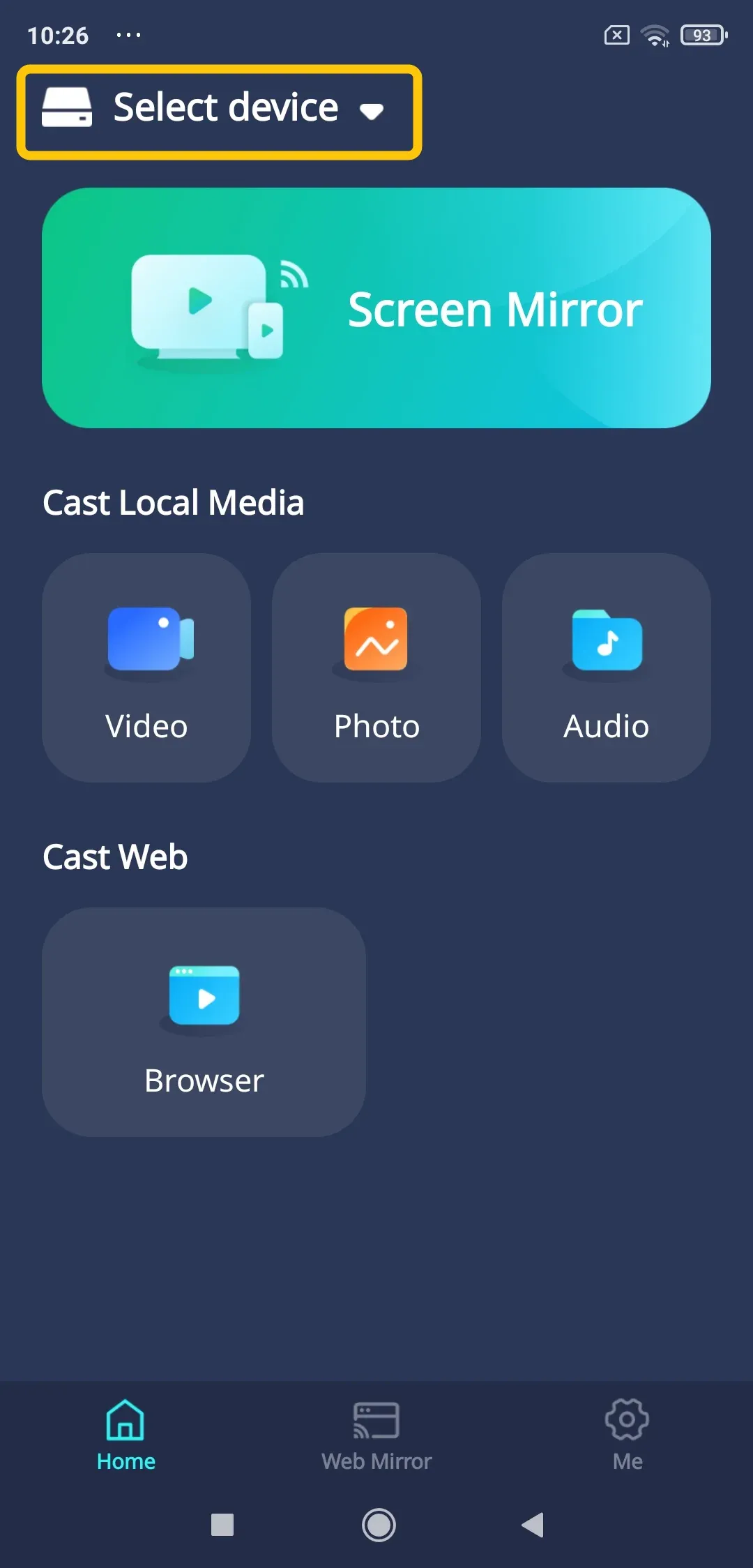
Step 3: Launch app, tap Select device to choose your TV from the avaialable list.
Step 4: Enter the onscreen PIN code to finish the pairing process.
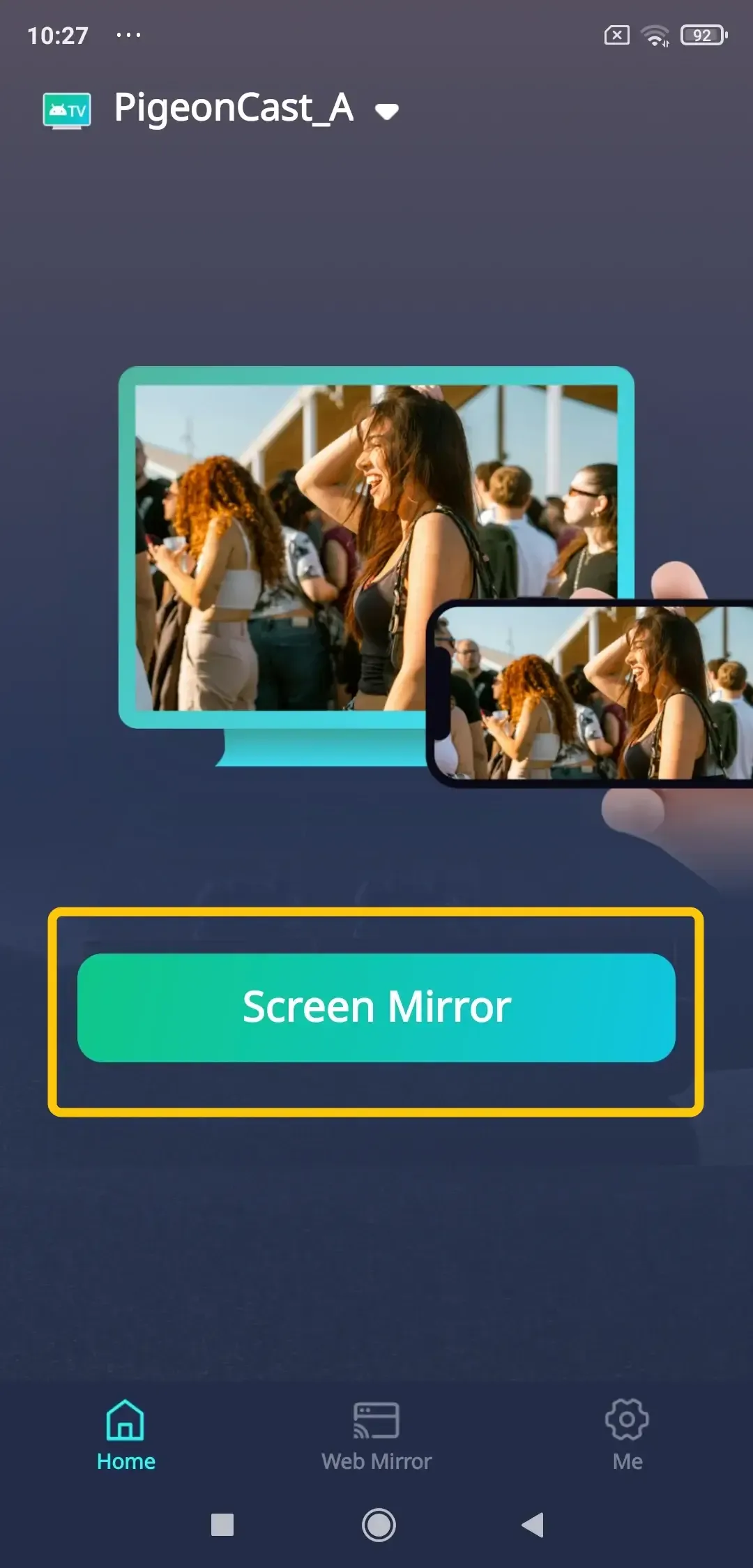
Step 5: Tap Screen Mirror to begin your mirroring activities on your TV instantly.
Pro Tip: Switch to a Reliable Wired Connection
If wireless mirroring still shows a black screen, switching to an HDMI connection can provide a more direct and stable video signal. Here's how to connect phone to TV with HDMI cable:
-
Use a USB-C to HDMI cable (or a USB-C Hub with a standard HDMI cable) for Samsung and iPhone 15/16/newer phones.
-
Use an official Apple Lightning to Digital AV Adapter (paired with a standard HDMI cable and a connected Lightning charging cable for external power) for iPhone 14 and older phones.
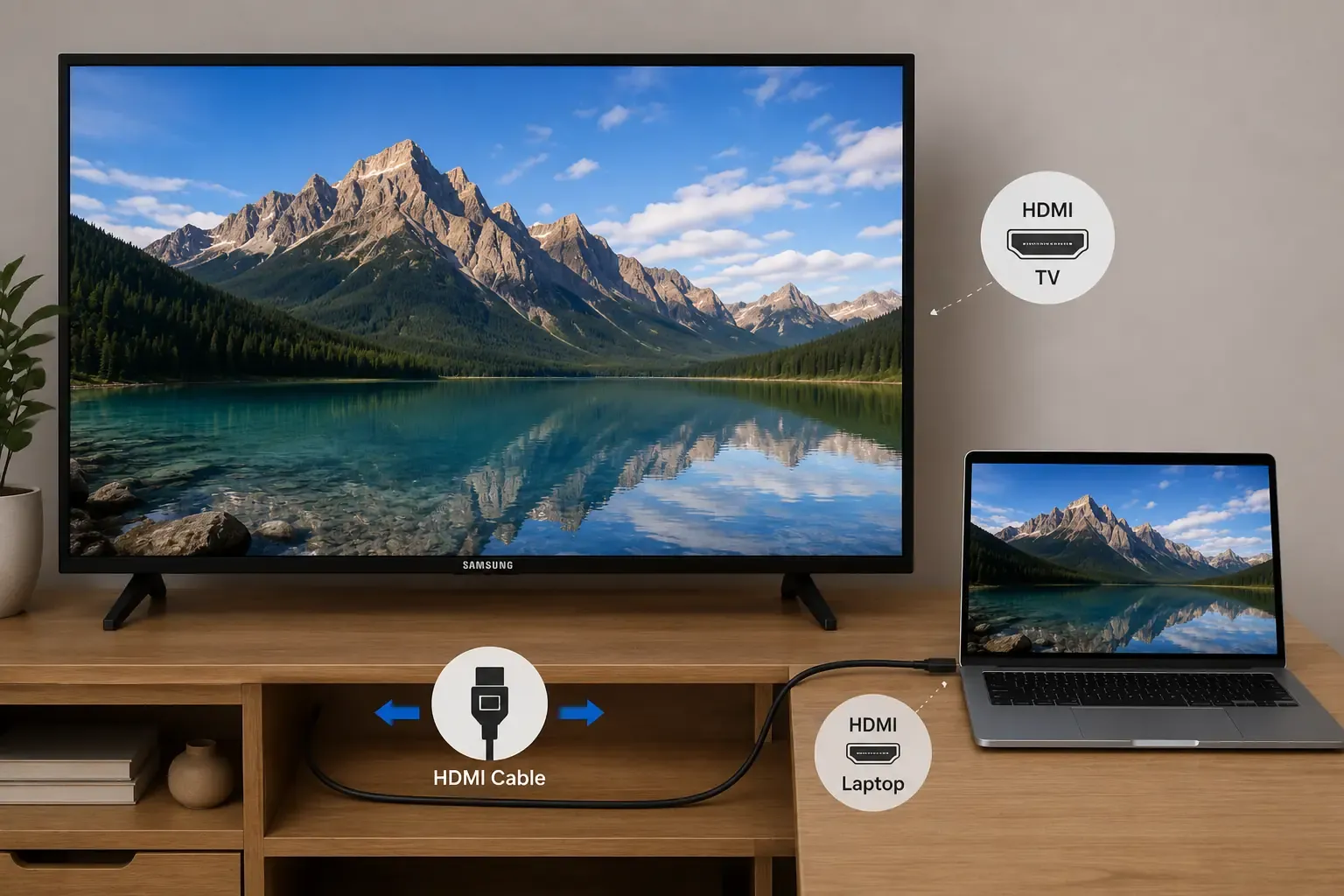
Step 1: Plug the chosen cable or adapter combination into your phone, and connect the HDMI end straight into an open HDMI port on your Samsung TV.
Step 2: Press the Source or Input button on your TV remote and select the corresponding HDMI port number.
Step 3: Unlock your phone screen to initiate the video signal. If your device automatically boots into a desktop mode (like Samsung DeX) or asks for permission, allow the connection or turn off the desktop interface to switch the TV back to a standard mirror layout.
Conclusion
Most Samsung mirroring black screen with sound but no picture are caused by connection or software conflicts, not hardware damage. In most cases, fixing the right setting or reconnecting the devices properly is enough to restore normal screen mirroring again.
Samsung Screen Mirroring Sound but No Picture FAQ
Why do I hear sound but see a black screen on my Samsung TV?
You may hear sound but see a black screen on your Samsung TV when the connection succeeds for audio but the video fails to display properly during screen mirroring or streaming.Possible reasons include:
-
DRM restrictions in streaming apps
-
Unstable Wi-Fi connections
-
Devices connected to different network bands
-
Incorrect display or aspect ratio settings
-
Outdated system firmware
-
Temporary casting or mirroring glitches
Can screen mirroring fail because of battery-saving mode?
Yes, some phones reduce background network activity and casting performance while battery-saving mode is enabled, which may interrupt video streaming or screen mirroring functions.
Why does Samsung mirroring work for photos but not Netflix or Disney+?
Samsung mirroring may appear to work normally until you open certain streaming apps. This happens because platforms like Netflix and Disney+ apply additional playback restrictions to protected video content during wireless casting or screen mirroring. You may notice that:
-
Images still display correctly on the TV
-
Menu navigation appears normally
-
Only the movie or TV show screen turns black
-
Audio continues playing in the background
-
The problem is limited to specific streaming services
Can a router change cause Samsung screen mirroring to lose video only?
Yes, changing your router can sometimes cause Samsung screen mirroring to lose video while audio still works. Different router settings, Wi-Fi bands, network isolation features, or signal stability issues can interfere with the video stream even when the audio connection remains active.
Can outdated firmware cause Samsung screen mirroring issues?
Yes, outdated TV or mobile device firmware can create compatibility problems that affect video playback during screen mirroring. Updating both devices may help restore normal casting performance.
Can HDMI fix Samsung screen mirroring problems?
Yes, using an HDMI connection can bypass many wireless casting issues, including black screens, lag, connection drops, and compatibility conflicts.
Clara Rossi is an experienced technology editor and a seasoned expert in screen mirroring and casting technologies. With a keen eye for detail and a deep understanding of how to seamlessly connect devices, Clara excels at optimizing user experiences for effortless sharing and streaming. Whether you're seeking quick fixes or advanced tips, her expertise and responsiveness ensure that every query is met with a well-informed and efficient solution.