
An HDMI port that suddenly stops working can turn your premium Samsung TV into a frustrating black screen, disconnecting you from your gaming console, streaming devices, and cable box. Before resorting to costly repairs, a systematic troubleshooting approach can often resolve the issue with the Samsung TV HDMI not working, allowing you to get back to your entertainment in no time.
Why Won't My Samsung TV Connect to Cable
Before troubleshooting your HDMI connection, determine whether the issue is with the external device or the Samsung TV. If the TV isn't recognizing a signal from an HDMI-connected device like a cable box, gaming console, or laptop, the problem could be with the HDMI cable, the device, the input settings, or the TV software.
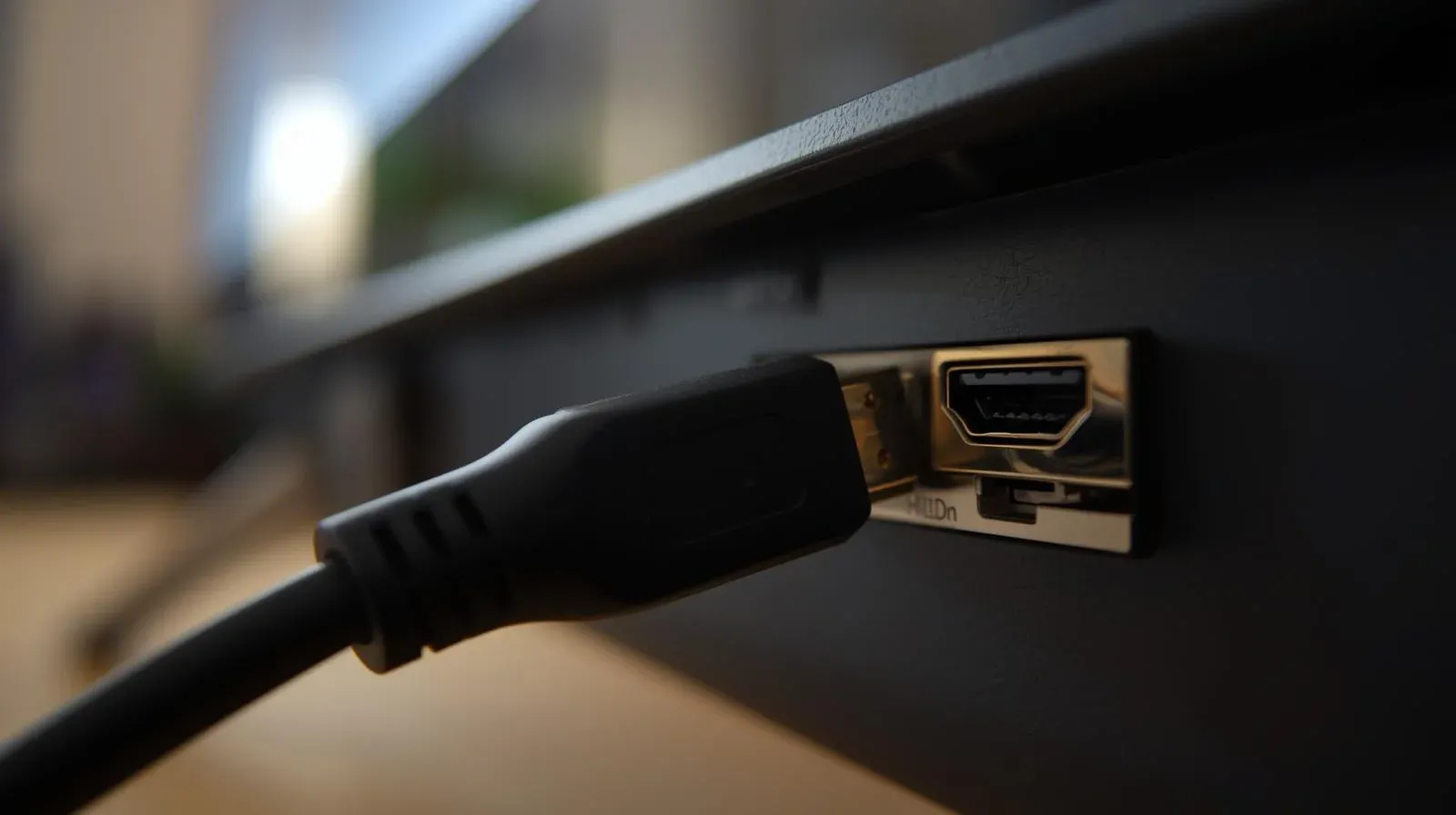
Sometimes, the TV doesn't automatically switch to the correct HDMI input, so you may need to select it manually. The issue usually lies in the connection chain between the device and the TV, whether it's a loose cable, a power issue, or a corrupted setting. Understanding this chain is key to resolving the "Samsung TV Input/Source problem" problem.
Fix Samsung TV Not Recognizing HDMI Input
A step-by-step approach is the most effective way to fix HDMI issues. Start with the simplest solutions and work your way up to more advanced ones. Here are several potential fixes to solve your Samsung TV input source problem. If it's for mirroring, you could try a non-HDMI solution, such as PigeonCast, a free universal mirroring app that helps overcome platform compatibility issues.
#1. Check the External Device
Before assuming there's a problem with your Samsung TV's HDMI port, it's a good idea to check the external device connected to the HDMI cable. If the device itself isn't working correctly, it won't send any signal to the TV.
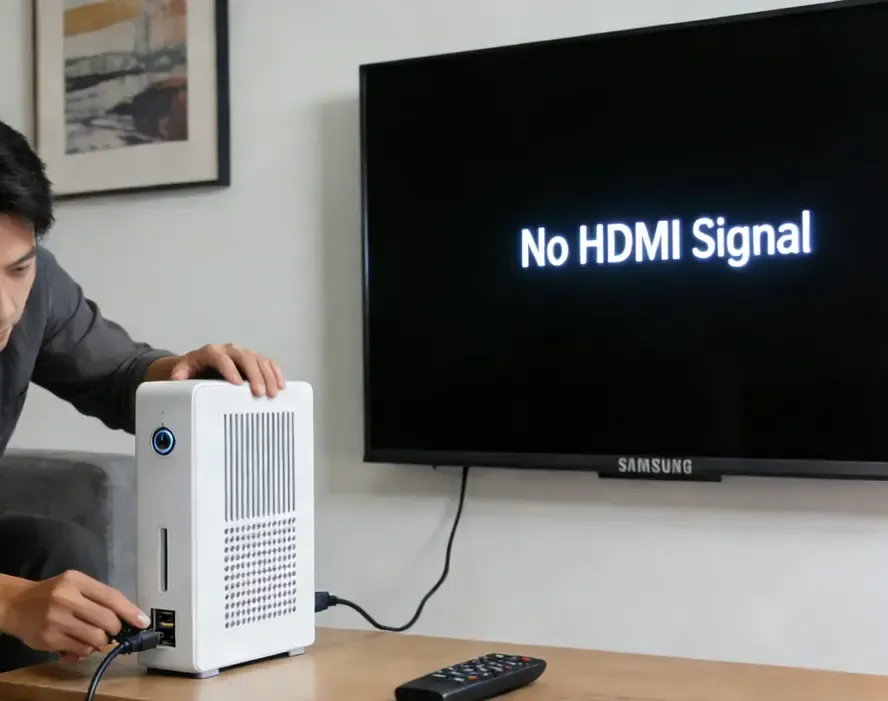
- Ensure that the external device is powered on and functioning properly.
- If the device works with another TV or monitor, the issue is likely with your Samsung TV.
- If you have another device, try connecting it to the same HDMI port to see if the problem persists.
#2. Check the HDMI Cable
Why is HDMI no signal Samsung TV? A faulty HDMI cable is one of the most common reasons why your Samsung TV might not detect an HDMI input. Over time, cables can become damaged due to wear and tear, or they may not be properly inserted.
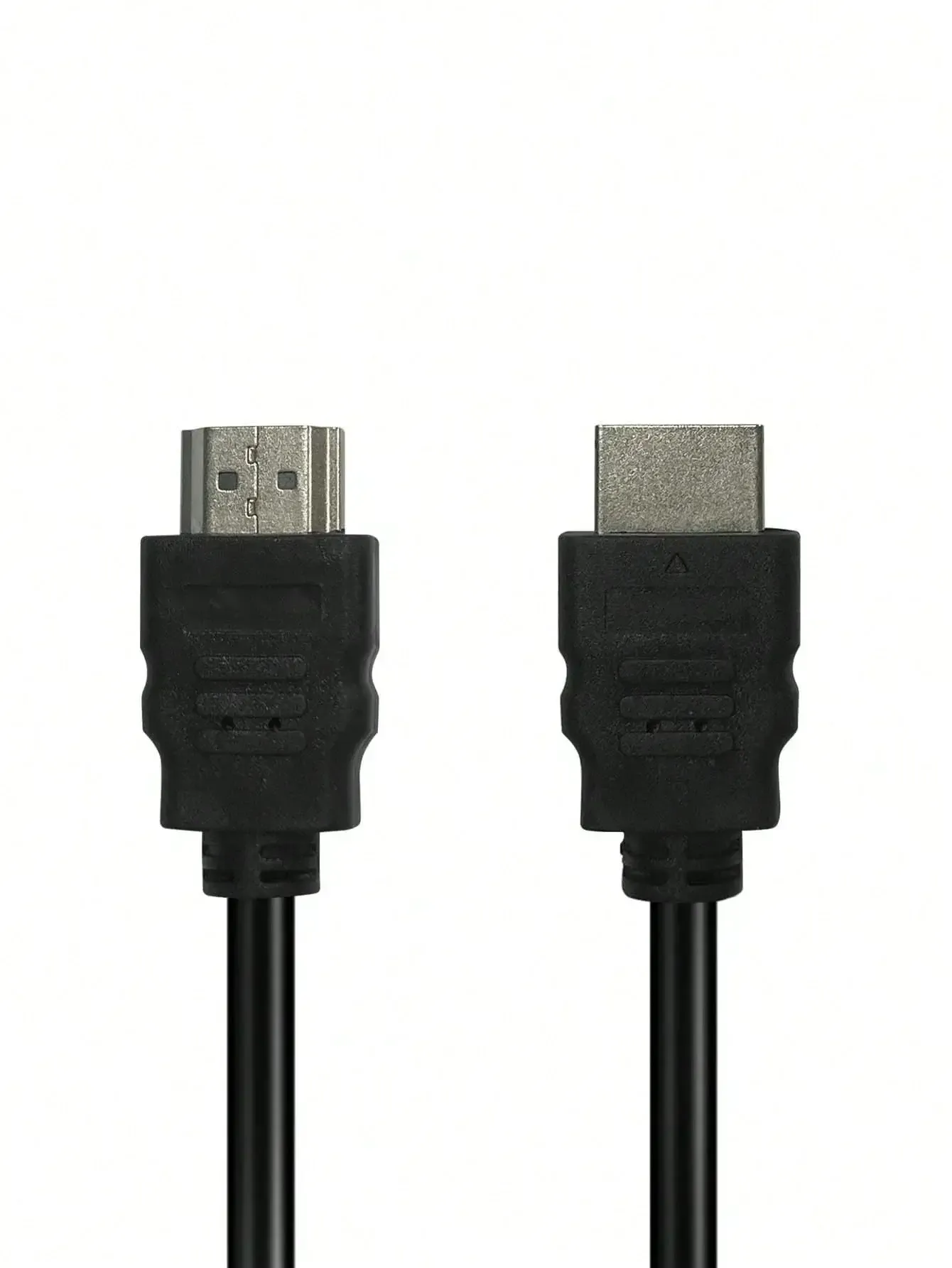
Step 1. Unplug the HDMI cable from both the TV and the device, then plug it back in securely.
Step 2. Check the HDMI cable for any visible signs of wear, such as bent or frayed ends.
Step 3. If possible, swap the cable with another one to see if the issue is with the HDMI cable.
#3. Try Different HDMI Cables and Ports
If you're still having issues with a Samsung TV no signal HDMI port, try using a different HDMI port on your Samsung TV. Sometimes, a particular HDMI port may malfunction, or the port might need cleaning.
Step 1. If your TV has multiple HDMI ports, try connecting your device to a different port.
Step 2. Use a soft cloth or compressed air to clean the HDMI port gently, in case dust and dirt inside the port can cause connectivity issues.
Step 3. If you haven't done so yet, try a different HDMI cable to rule out a faulty one.
#4. Check for Software Updates
Your Samsung TV may not be recognizing the HDMI input if the software is outdated or if there are bugs in the current firmware. Regular software updates are essential for fixing known issues, including HDMI connectivity problems.
Step 1. Press the Home button on your Samsung remote.
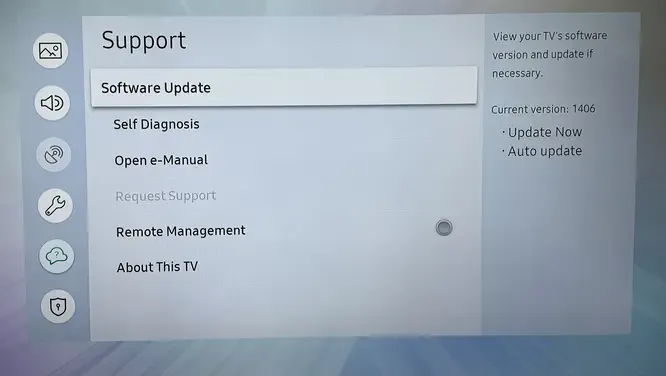
Step 2. Navigate to Settings > Support > Software Update, and select Update Now to check if there's a new version of the software available.
Step 3. If an update is available, follow the on-screen instructions to update your TV.
#5. Power Cycle Your Devices
How to solve the Samsung Smart TV HDMI not working? A simple power cycle can resolve a variety of HDMI-related issues. Restarting both your Samsung TV and the connected device can clear temporary glitches that might be preventing the HDMI connection from working.
Step 1. Turn off the TV and unplug it from the power outlet.
Step 2. Turn off the external device (such as a game console or media player).
Step 3. Wait for 30 seconds, then plug the TV back in and turn it on.
Step 4. Reconnect the external device and check the HDMI connection.
#6. Try Connecting to a Different Device
If your Samsung TV not detecting HDMI consistently, try connecting a different device to the same HDMI port. This will help rule out the possibility that the issue lies with the original connected device.
Step 1. Use a different HDMI-capable device (such as a laptop, Blu-ray player, or another game console).
Step 2. Connect it to the same HDMI port you were using previously.
Step 3. If the new device works, the original external device may be faulty and you have to change it.
#7. Try the HDMI Cable Test Function
Samsung TVs often include a built-in HDMI cable test function that can help diagnose connection issues between the TV and the HDMI device. Let's follow the steps to use this feature to check for your Samsung TV source not available issues:
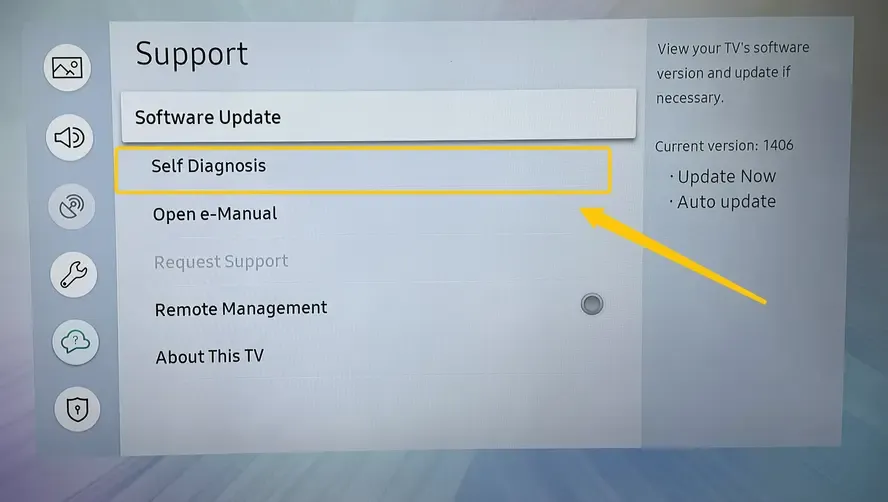
Step 1. Press the Home button on your remote control and navigate to Settings > Support > Device Care.
Step 2. Select the Self Diagnosis and HDMI Troubleshooting option.
Step 3. Check the connected HDMI ports in sequential order.
#8. Contact Samsung Support
If none of the above steps resolve the Samsung TV keeps losing HDMI signal issue, it's time to reach out to Samsung support. They can provide advanced troubleshooting steps or recommend professional repairs if necessary.
#9. Use PigeonCast
If nothing else works, PigeonCast provides a great workaround for when your Samsung TV won't recognize HDMI issues. PigeonCast is a free all-in-one casting tool that lets you stream content from your Android, iPhone, iPad, or laptop to your TV without needing HDMI cables over Wi-Fi. Here are the simple steps to using it:
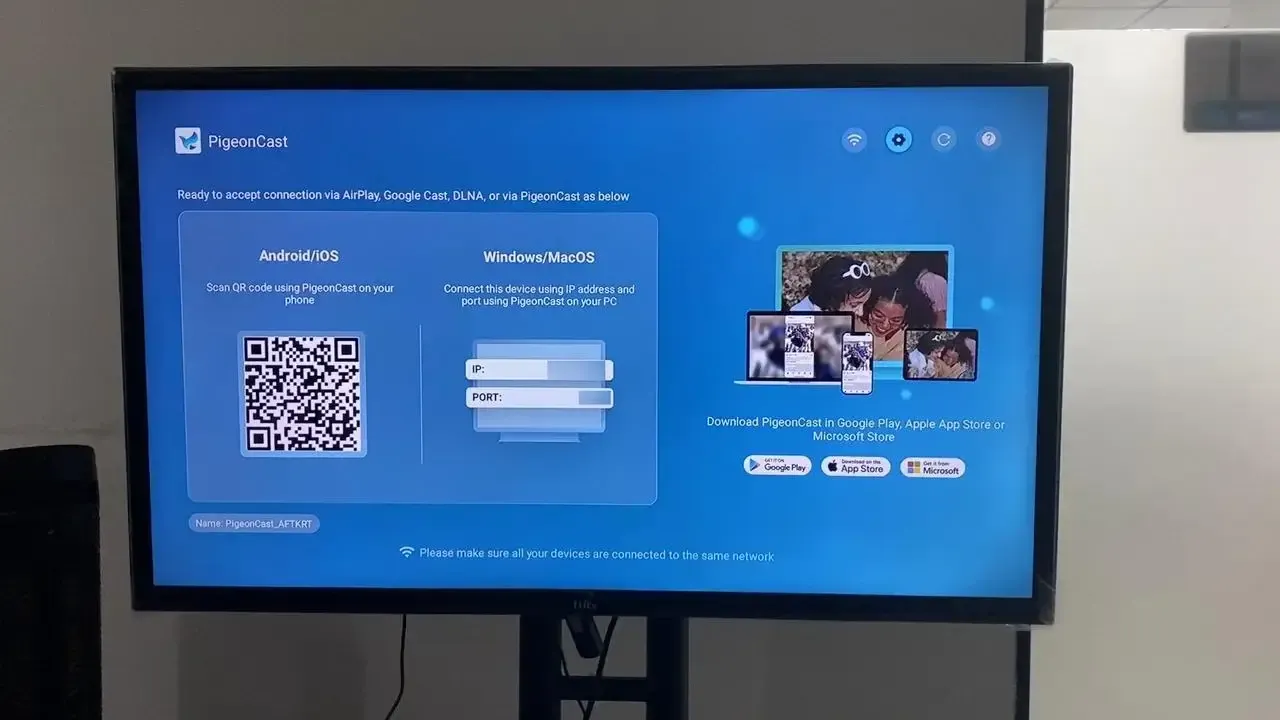
Step 1. Ensure both your device and Samsung TV are connected to the same Wi-Fi network.


Overall Rating:



Step 2. Install PigeonCast on both your mobile device and Samsung TV (search from the app store). Then launch it.
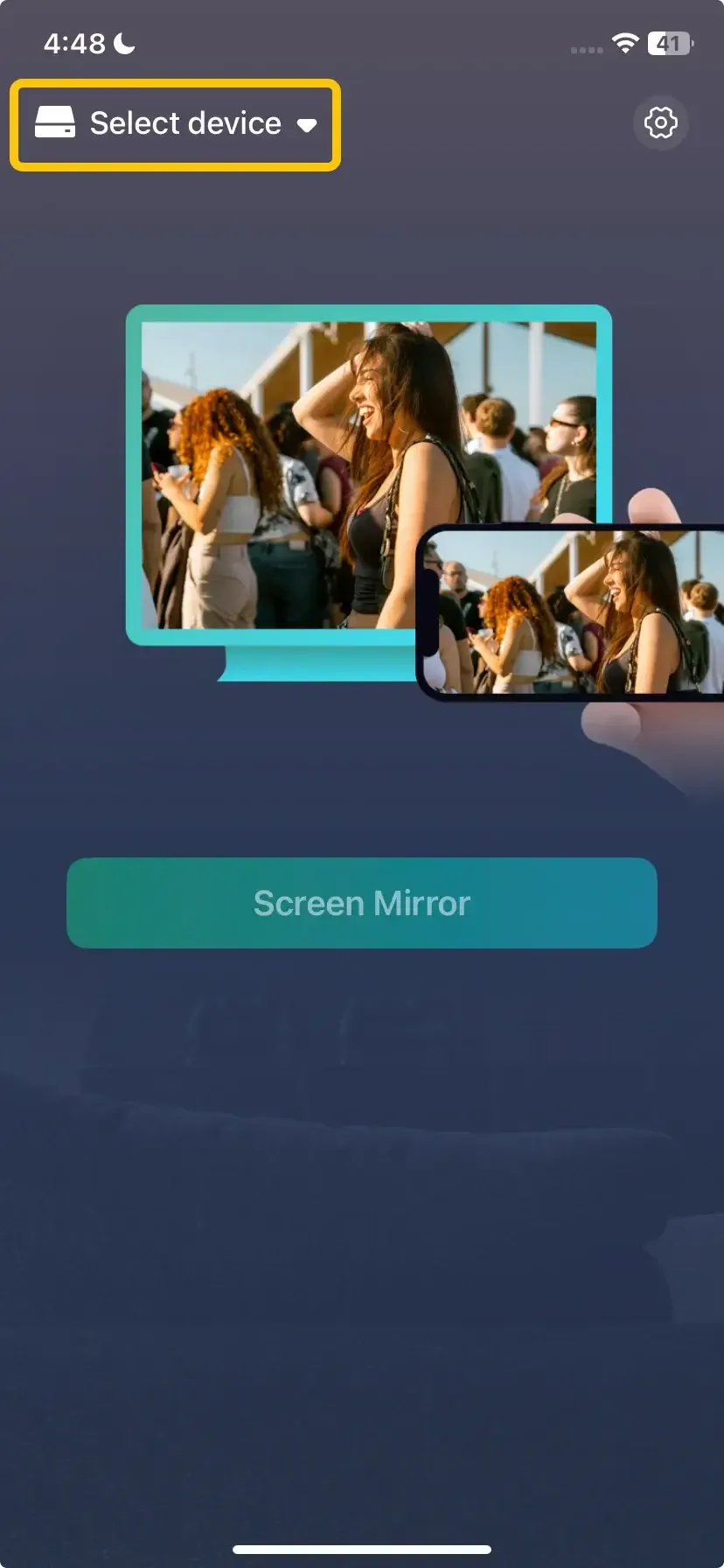
Step 3. On your mobile device, tap Select device to choose your Samsung TV from the available list. Or you can scan the onscreen QR code to build the connection from your television.
Step 4. Enter the onscreen PIN code to confirm the pairing process.
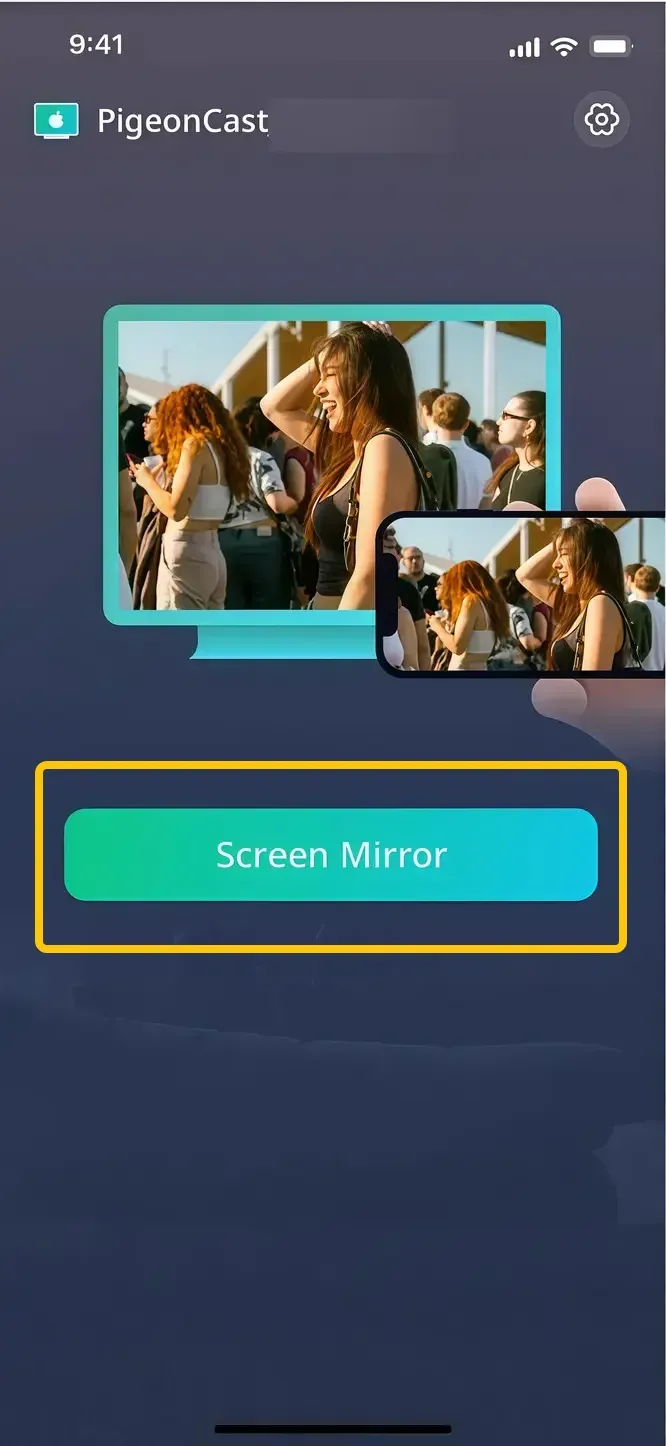
Step 5. Once you finish the connection, you can tap Screen Mirror to begin streaming your content wirelessly.
Closing Words
If your Samsung TV not connecting to HDMI, following a systematic troubleshooting approach can often solve the problem without the need for costly repairs. If none of these solutions work, you can also try using Samsung's built-in HDMI cable test function or reach out to Samsung support. Alternatively, PigeonCast offers a great workaround, allowing you to wirelessly stream content from your devices to your Samsung TV without needing an HDMI connection.
Samsung TV HDMI Not Working FAQ
Why is my Samsung TV not picking up HDMI?
Your Samsung TV may not be picking up HDMI for several possible reasons:
- Faulty HDMI cable
- Damaged HDMI port on the TV
- Issues with the external device (e.g., cable box or gaming console)
- An incorrect input source was selected on the TV
- Outdated TV software or firmware
- Power issues with the TV or external device
- Loose or improper HDMI connection
How to reset the Samsung HDMI?
To reset the HDMI settings on your Samsung TV, follow these steps:
- Power cycle the TV and external devices:
- Turn off both the TV and the device connected via HDMI (e.g., cable box, gaming console, etc.).
- Unplug both the TV and the external device from the power source.
- Wait for about 30 seconds, then plug both devices back in and power them on.
- Reset the TV's HDMI settings:
- Press the Home button on your Samsung remote.
- Navigate to Settings > Support > Self Diagnosis.
- Select Reset (if available) to reset the HDMI ports on your TV.
- Factory Reset (if necessary):
- If other methods don't work, you can perform a full factory reset on your TV.
- Go to Settings > General > Reset and follow the on-screen instructions. Note that this will erase all settings and preferences.
How to solve the Mac to Samsung TV HDMI not working?
Here are simple solutions to fix the Mac to Samsung TV HDMI not working:
- Check the HDMI cable and ports
- Select the correct HDMI input
- Adjust Mac display settings
- Restart both devices
- Update software
- Use the right adapter
Why is Samsung TV HDMI not working after the update?
If your Samsung TV HDMI isn't working after an update, it could be due to several reasons:
- Software Bug
- Settings Reset
- Incompatible Firmware
- HDMI Port Conflict
- Power Glitch
- Outdated Device Firmware
How to solve the new Samsung TV HDMI not working?
If your new Samsung TV's HDMI is not working, try the following steps to resolve the issue:
- Check the HDMI cable and connections
- Select the correct HDMI Input
- Power cycle the TV and the external device
- Check TV Settings
- Update TV software
- Try different HDMI ports
- Check for device compatibility
- Reset TV Settings
Why can't find HDMI port on Samsung TV
If you can't find the HDMI port on your Samsung TV or it's not showing up, here are some possible reasons:
- Incorrect input source
- HDMI port disabled
- Loose or unplugged cable
- Faulty HDMI cable or device
- Outdated software
- TV restart
- TV firmware issues
Clara Rossi is an experienced technology editor and a seasoned expert in screen mirroring and casting technologies. With a keen eye for detail and a deep understanding of how to seamlessly connect devices, Clara excels at optimizing user experiences for effortless sharing and streaming. Whether you're seeking quick fixes or advanced tips, her expertise and responsiveness ensure that every query is met with a well-informed and efficient solution.