
Casting or screen mirroring allows you to stream content from your phone, tablet, or PC directly to your Samsung TV. Whether you want to watch videos, show photos, or even play games on a bigger screen, you can cast to Samsung TV with multiple casting methods, depending on your device. This guide walks you through the most common ways to cast to a Samsung TV and addresses common troubleshooting issues.
How to Screen Mirror on Samsung TV with iPhone
iPhone users can easily mirror their screen to a Samsung TV using Apple AirPlay, which Samsung TVs have supported since 2018 (check AirPlay TV compatibility). AirPlay creates a smooth, wireless connection between your iPhone and your Samsung TV. Whether you are using an iPhone, iPad, or MacBook, the steps are very similar. Here, we will show you how to screen mirror on Samsung TV from iPhone as an example, and the same steps apply to other Apple devices.
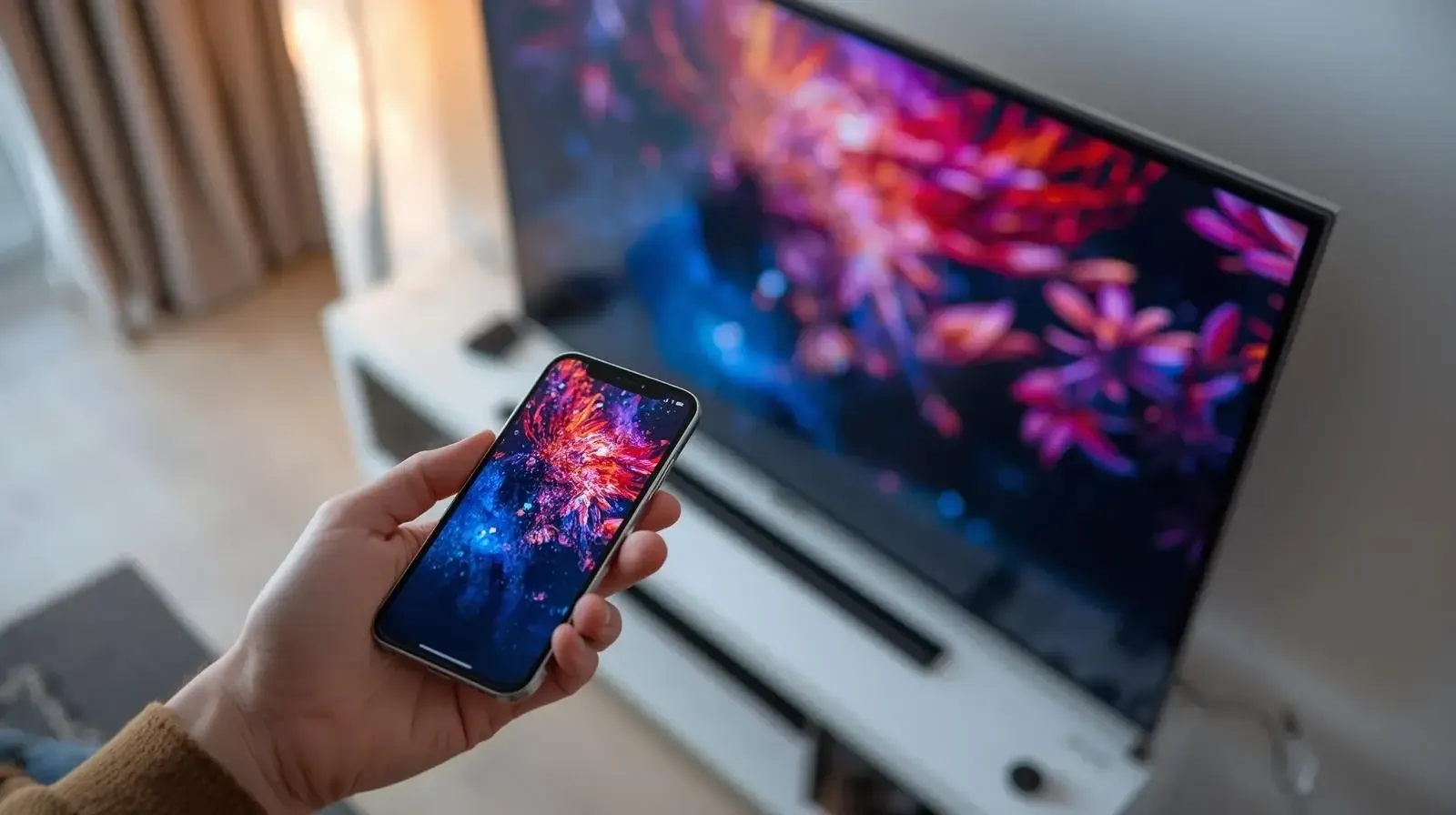
Step 1. Ensure your iPhone and Samsung TV are on the same Wi-Fi network.
Step 2. On your Samsung TV, go to Settings > General > Apple AirPlay Settings and toggle the AirPlay option to On.
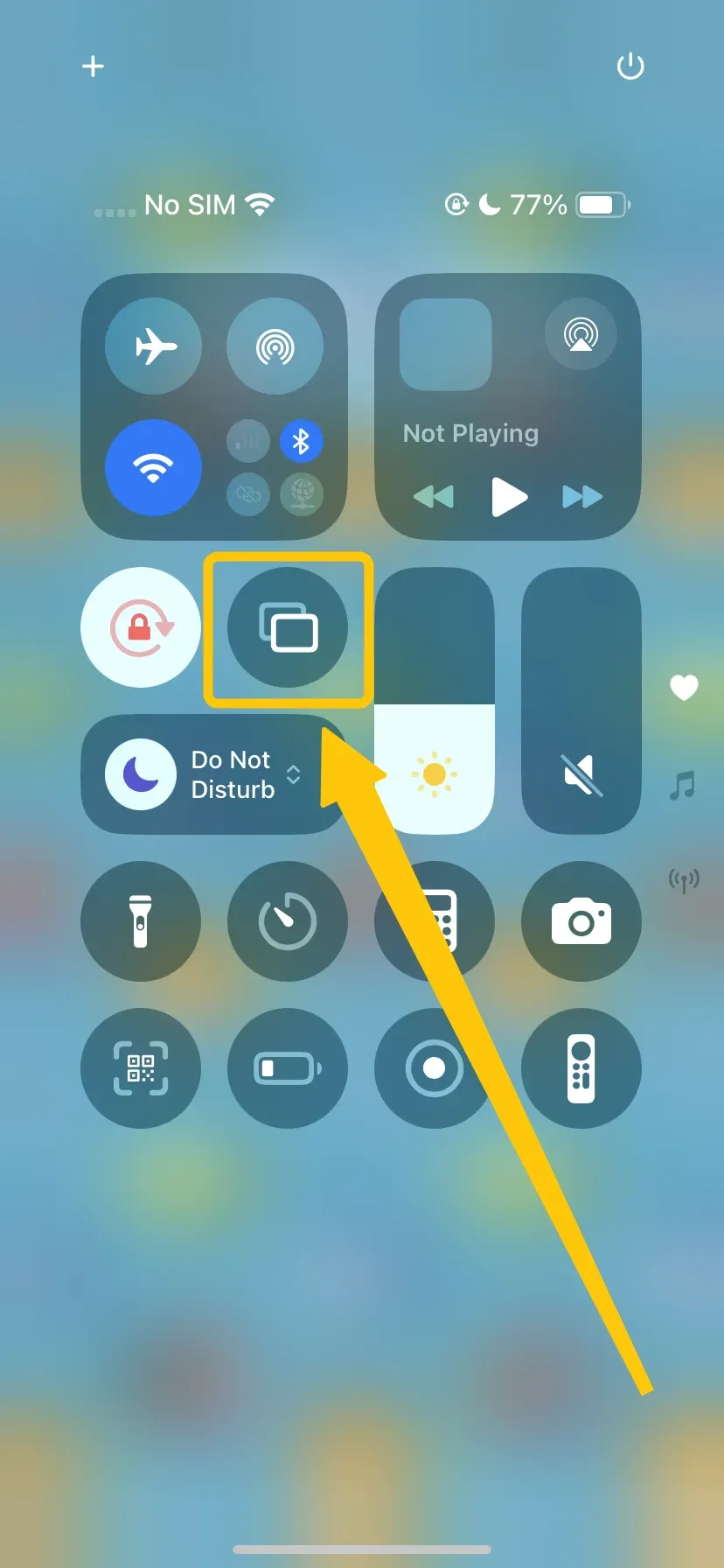
Step 3. Open the Control Center and choose Screen Mirroring on your iPhone:
- Swipe down from the upper-right corner (iPhone X or newer).
- Swipe up from the bottom (iPhone 8 or older).
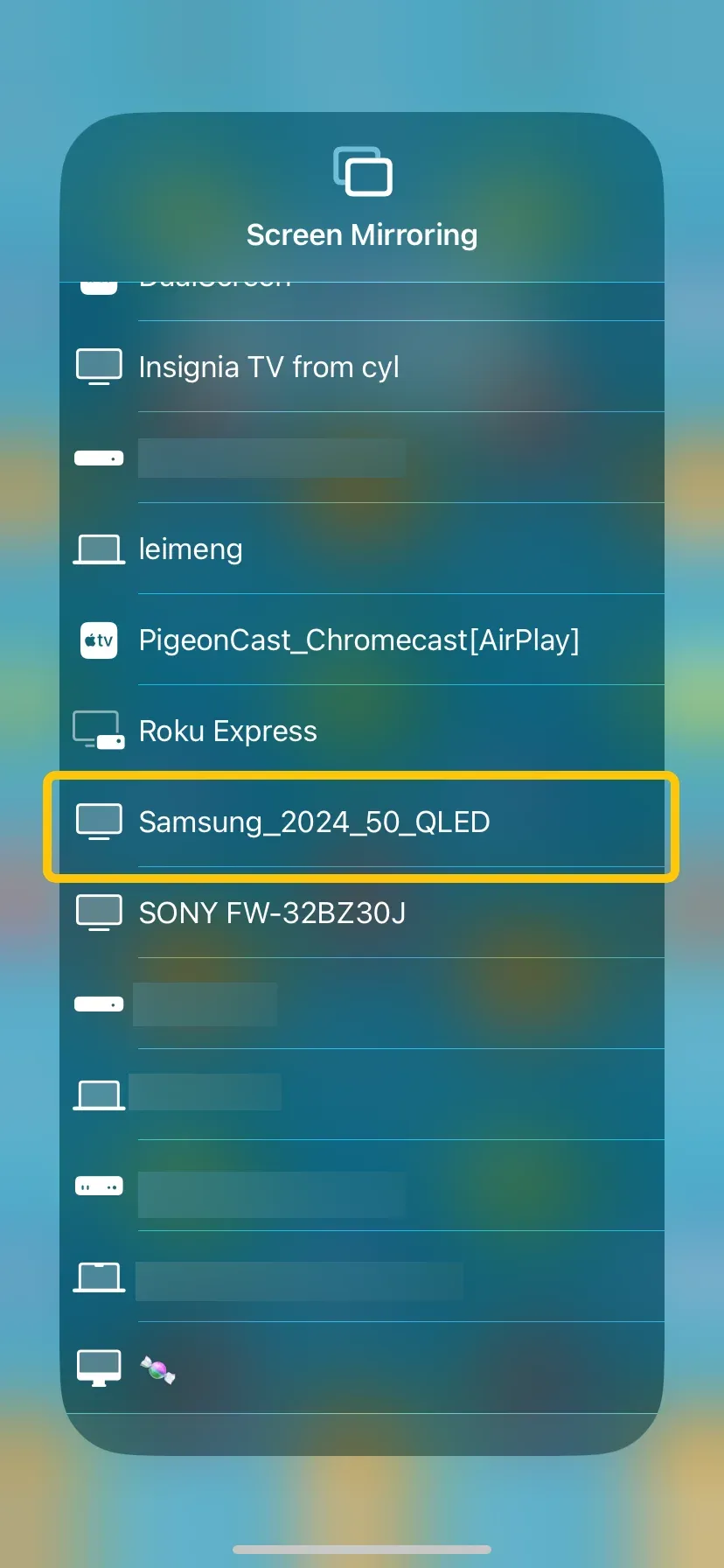
Step 4. Select your Samsung TV from the list of available devices.
Step 5. Enter the AirPlay code displayed on your TV, if prompted. Your iPhone screen should now appear on the Samsung TV.
How to Screen Mirror on Samsung TV with Android
How to connect phone to Samsung TV? Most Android devices, especially Samsung phones, come with Smart View, a built-in feature that makes Samsung TV screen mirroring simple and seamless. With Smart View, you can easily share your photos, videos, games, or apps from your phone directly onto your TV without any cables. In this section, let's see how to mirror Samsung phone to Samsung TV:
Step 1. Make sure your Android device and Samsung TV are connected to the same Wi-Fi network.
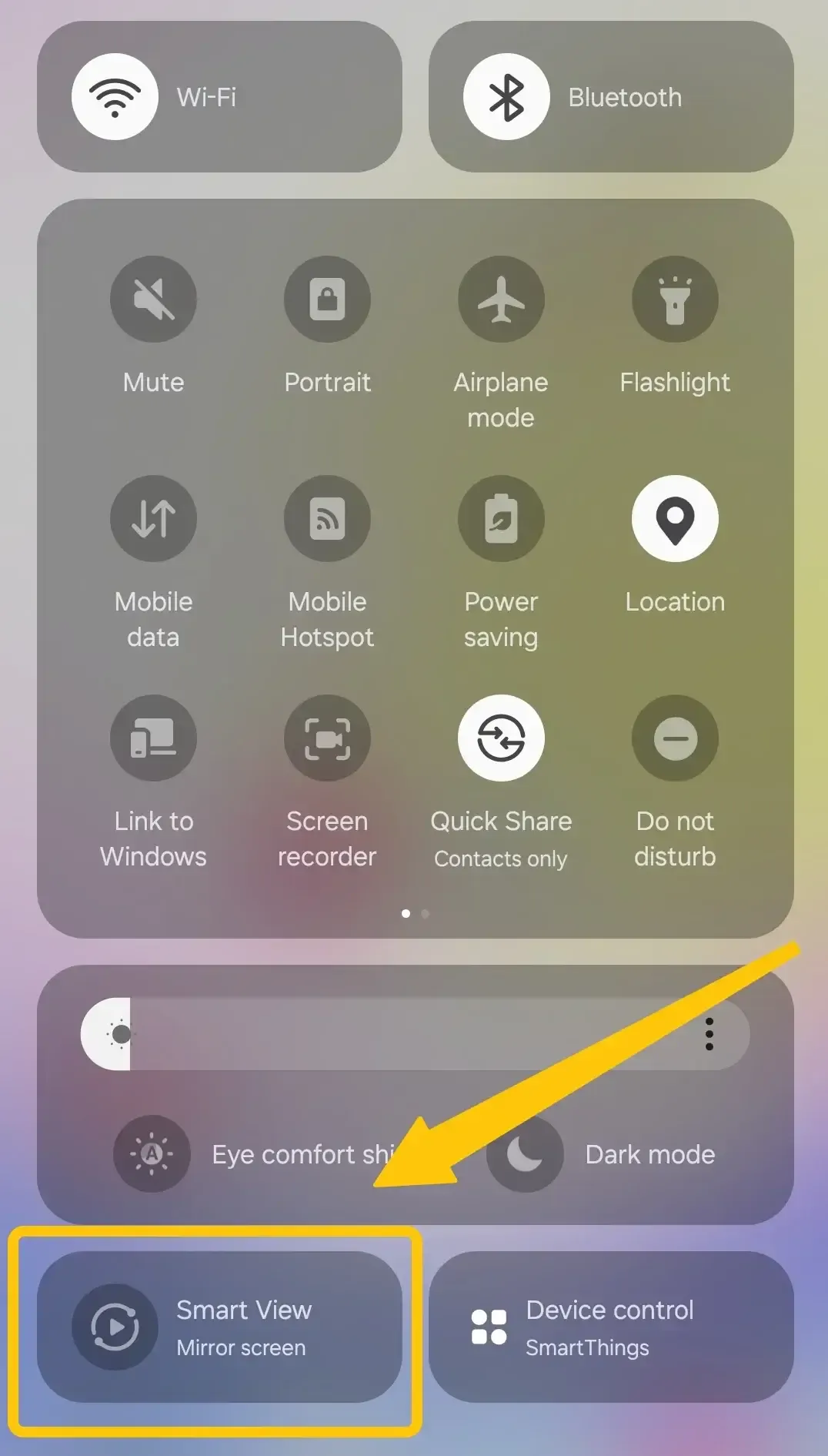
Step 2. Swipe down from the top of your Android device to open the Quick Settings menu.
Step 3. Tap Smart View (or Cast on some devices) to select your Samsung TV from the available devices.
Step 4. Confirm the connection on your TV if prompted, and your Android screen should now mirror to the Samsung TV.
How to Screen Mirror on Samsung with Windows PC
Linking a Windows PC to a Samsung TV is a convenient way to enjoy videos, share presentations, or even play games on a bigger screen. Most modern Windows PCs support wireless projection using Miracast, which makes the process quick and hassle-free. Here's a simple guide on how to screen cast to Samsung TV:
Step 1. Ensure your PC and Samsung TV are on the same Wi-Fi network.
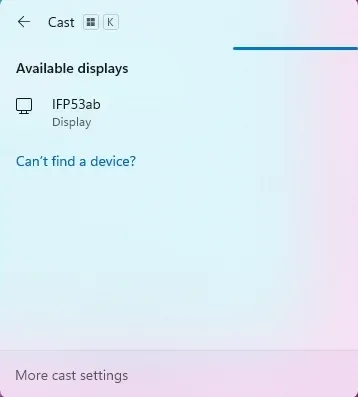
Step 2. Press Windows + K on your keyboard to open the Connect sidebar.
Step 3. Select your Samsung TV from the list of available devices.
Step 4. Confirm the connection on your TV if prompted.
Step 5. Your Windows PC screen should now appear on the Samsung TV, and you can adjust projection settings (Duplicate, Extend, or Second Screen Only) if necessary.
How to Screen Mirror on Samsung with PigeonCast
If you want an easy and reliable way to share your device's screen, PigeonCast brings all your devices together in one tool. The free app supports AirPlay, DLNA, and Google Cast, giving you maximum flexibility to cast from your iPhone, Android, or Windows PC.

Step 1. Install PigeonCast on your device (iPhone, Android, or Windows PC).

PigeonCast Screen Mirroring

Official Download



Step 2. Connect your device and Samsung TV to the same Wi-Fi network.
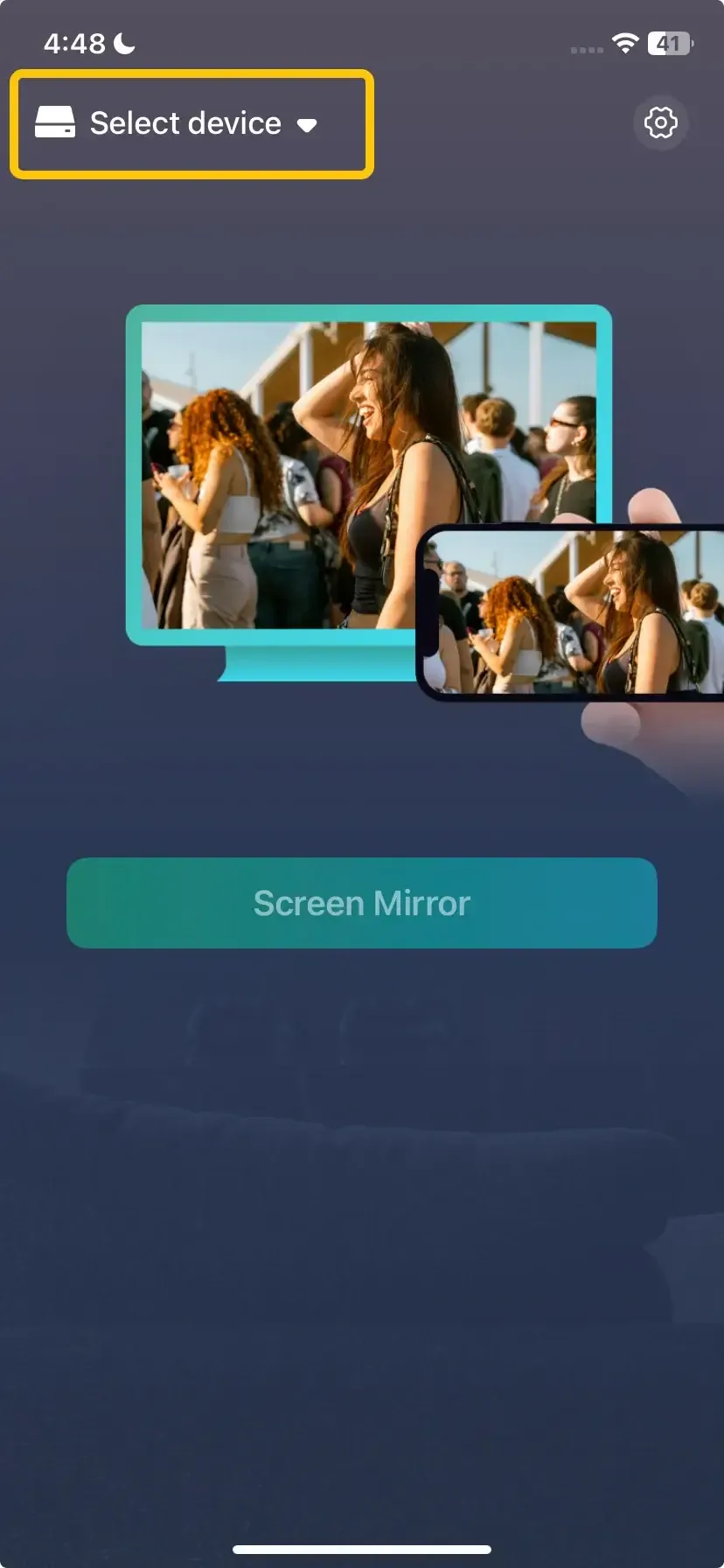
Step 3. On your mobile device, tap the Select device option from the available list to choose your Samsung TV.
Step 4. If prompted, enter the onscreen to confirm the connection.
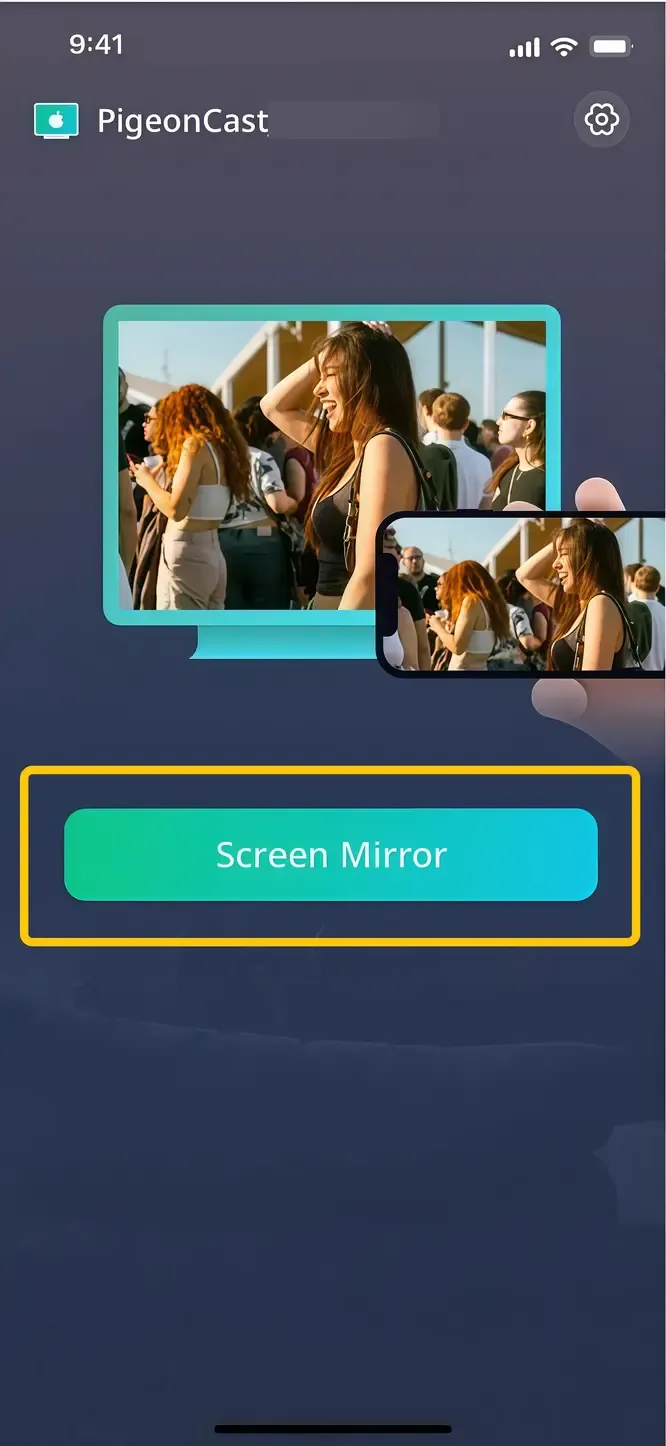
Step 5. Tap the Screen Mirror option, and your screen will appear on the Samsung TV instantly.
Common Issues When Using Samsung Screen Mirroring
While casting to Samsung TV is usually quick and straightforward, sometimes issues can occur. From connection problems to lag or interruptions, these common challenges can disrupt your viewing experience. Let's take a closer look at the common issues when you screen share Samsung and how to troubleshoot them.
- Device not detected: Ensure both devices are on the same Wi-Fi network and that screen mirroring is enabled on the TV.
- Laggy or delayed display: Try reducing the resolution on your device or using a wired connection.
- Sound works but no picture on Samsung TV: Check your TV input settings, and device compatibility.
- Picture works but no sound on Samsung TV: Check the TV’s audio output, volume settings, and your source device. See how to fix screen mirroring with no sound on Samsung TV.
- Smart View or AirPlay not working on Samsung TV: Restart both your TV and device, and check for software updates.
- Connection drops frequently: Ensure there is minimal interference from other Wi-Fi devices and maintain close proximity between the TV and casting device.
Bottom Line
How to screen mirror on my Samsung TV? Casting or screen mirroring makes it simple to enjoy your phone, tablet, or PC content on a Samsung TV, whether using AirPlay for iPhone, Smart View for Android, Miracast for Windows, or tools like Chromecast and PigeonCast. By following the step-by-step guides in this post, you can easily connect your devices, and the troubleshooting tips provided help resolve common issues like connection drops, lag, or device detection problems, making casting to Samsung TV quick, smooth, and hassle-free.
Cast to Samsung TV FAQ
How do I cast to my Samsung TV?
You can cast to your Samsung TV by connecting your device and the TV to the same Wi-Fi network and using a compatible casting method:
- iPhone/iPad: Use AirPlay to mirror your screen.
- Android: Use Smart View or Cast from the Quick Settings.
- Windows PC: Use Miracast by pressing Windows + K and selecting your TV.
- Other devices: You can also use Chromecast or third-party apps like PigeonCast for seamless casting.
Why can't I cast to a Samsung TV?
There are several common reasons why you might not be able to cast to a Samsung TV:
- Devices not on the same Wi-Fi network: Your phone, tablet, or PC must be connected to the same network as the TV.
- Casting feature not enabled: Ensure AirPlay (for Apple devices) or Smart View/Cast (for Android) is turned on in your TV settings.
- Outdated software: Check that your TV and device have the latest updates installed.
- Interference or weak Wi-Fi: A weak or crowded network can prevent a stable connection.
- Device compatibility issues: Some older devices or TVs may not support certain casting methods.
- Temporary glitches: Restarting both your TV and casting device often resolves minor connection issues.
Where is the cast option on Samsung?
On a Samsung device, the Cast option is usually found in the Quick Settings panel:
- Swipe down from the top of the screen to open Quick Settings.
- Look for Smart View or Cast.
- Tap it to see available devices and select your Samsung TV.
Ensure your TV is turned on and connected to the same Wi-Fi network as your device.
Clara Rossi is an experienced technology editor and a seasoned expert in screen mirroring and casting technologies. With a keen eye for detail and a deep understanding of how to seamlessly connect devices, Clara excels at optimizing user experiences for effortless sharing and streaming. Whether you're seeking quick fixes or advanced tips, her expertise and responsiveness ensure that every query is met with a well-informed and efficient solution.