
If you are dealing with screen mirroring no sound Samsung TV problems, the issue is not random. It is usually caused by wrong audio outputs, low device volume, or a temporary connection glitch. This guide helps you find the exact cause in minutes so you can restore both video and audio without any frustrating guesswork.
Why Samsung TV Screen Mirroring No Sound
If your video is playing perfectly but the room is dead silent, there is no need to worry about broken hardware. This annoying disconnect happens because wireless casting treats your video and audio as two separate streams, and the sound track simply got lost on its way to your speakers.
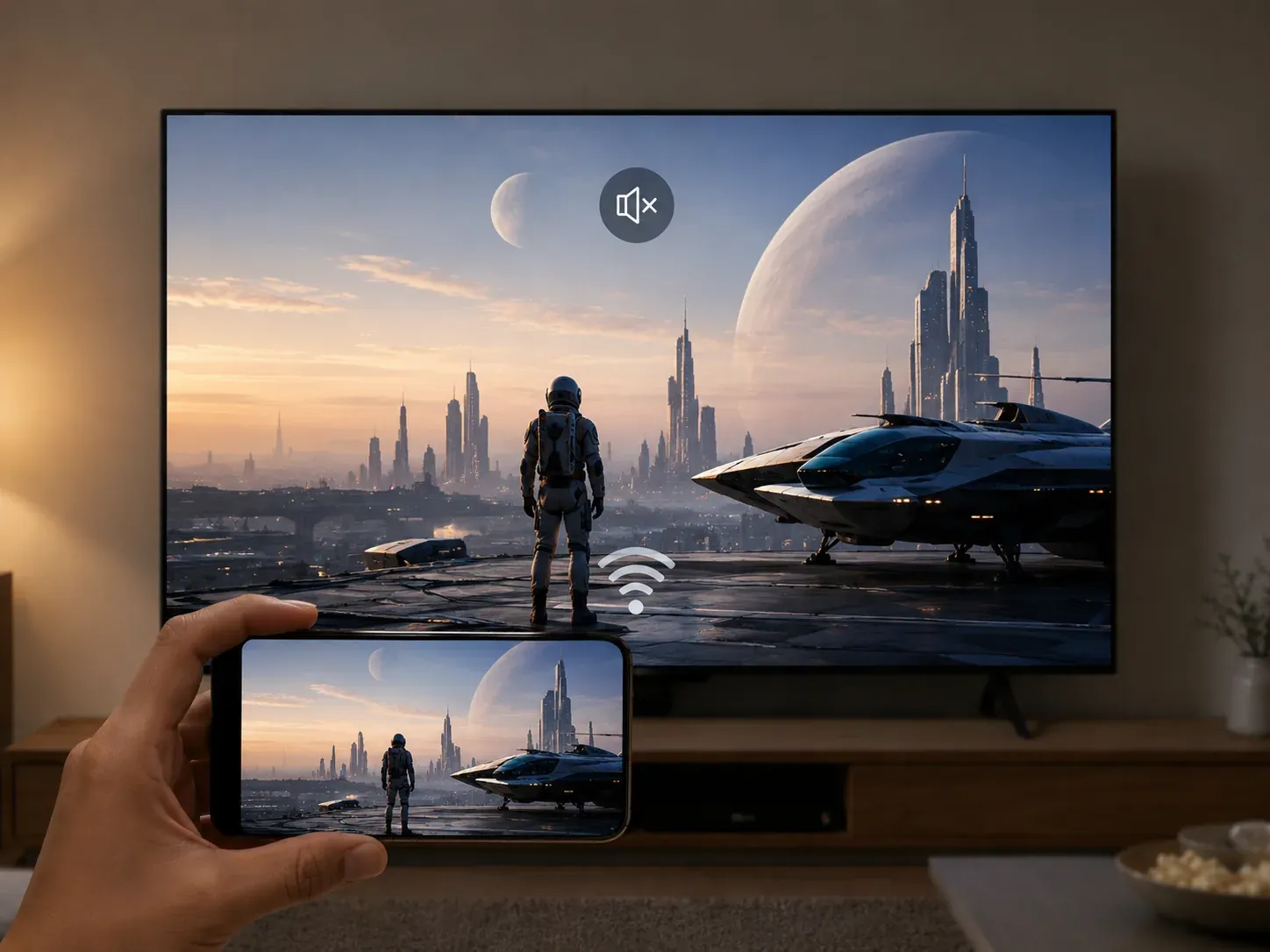
The most common reasons for this silent treatment usually come down to a few basic conflicts.
-
Audio routing conflict: Your phone or television is secretly sending the sound to a bluetooth speaker or headphones in another room.
-
Connection pairing bug: The operating system on your device failed to share its sound controls with the television when they linked up.
-
App copy protection: The streaming app you are using has strict copyright rules that intentionally block audio from being shared wirelessly.
-
Hidden mute settings: Your smartphone, computer, or the video player app itself is accidentally muted or set to zero volume.
How to Fix Screen Mirroring on Samsung TV No Sound
Once you know where the issue lies, you can follow these step-by-step solutions to restore your audio when screen mirror. Start with the easiest hardware checks before moving on to the system settings.
1) Unmute Both Devices and Increase Volume
Start with the easiest fix by checking the sound levels on both ends.
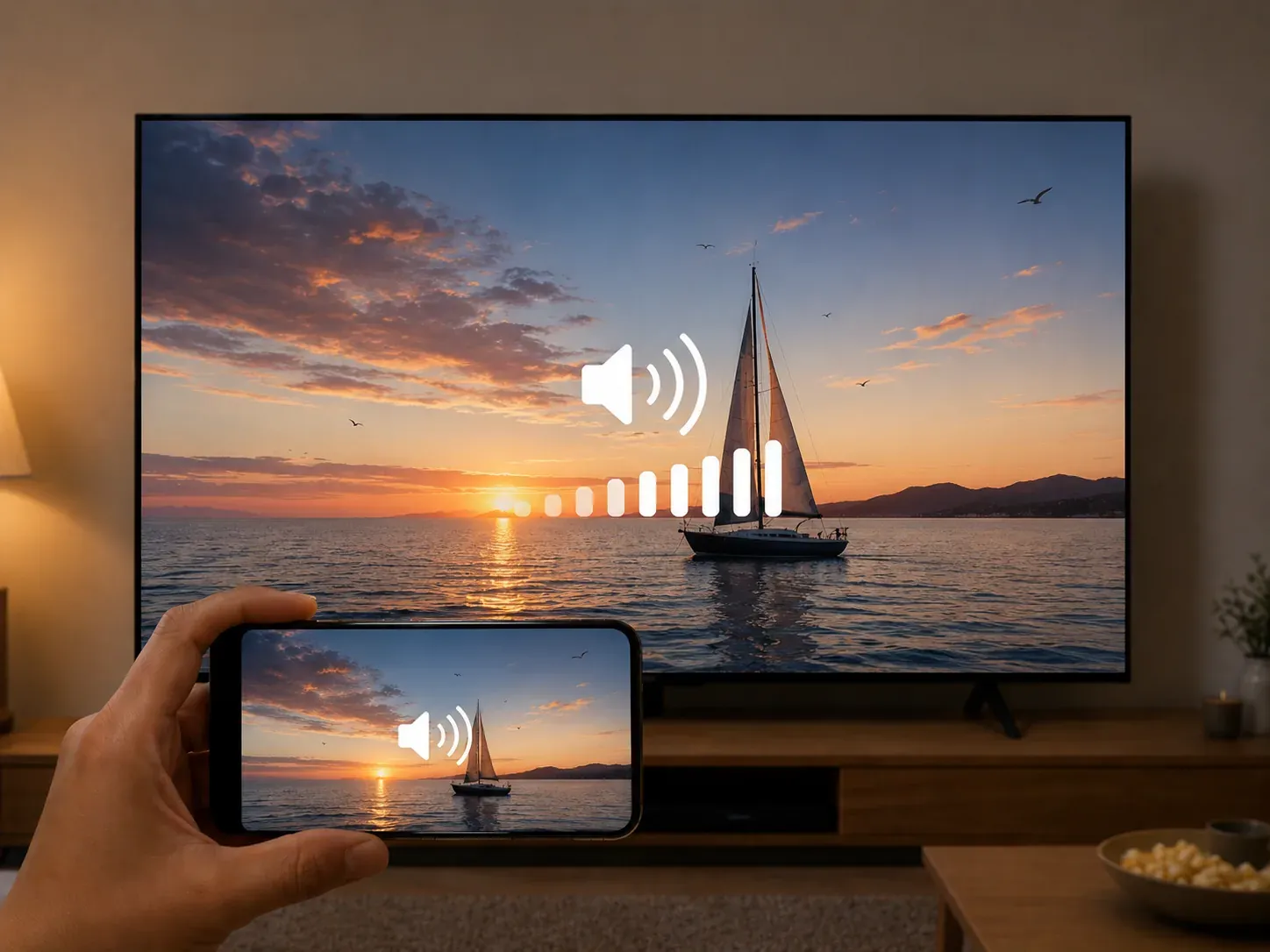
Step 1. Grab your Samsung remote and turn the volume up to a noticeable level to confirm the television speakers are active.
Step 2. Check your smartphone, tablet, or laptop and make sure the physical volume buttons are turned up and the device is not set to silent or vibrate mode.
Step 3. Tap the screen of your video player app to ensure the small speaker icon inside the media player interface is not crossed out or muted.
2) Change TV Sound Output Settings
Your television might be trying to send the audio to the wrong destination.
Step 1. Press the Home button on your Samsung remote and navigate to the main Settings menu.
Step 2. Select Sound, then click on Sound Output to see where the television is currently broadcasting audio.
Step 3. Ensure that TV Speakers is selected as the primary output instead of an external audio system, optical connection, or an invisible Bluetooth device.
Tip: If you are looking for a screen mirroring tool that supports full playback control, PigeonCast is a dedicated app option that lets you easily stream photos, music, videos, and web content while managing the volume directly from your phone. Integrated with AirPlay, DLNA, and Google Cast, this free app allows you to stream effortlessly from your phone, tablet, or PC to any screen or TV in 4K resolution with minimal latency.


Overall Rating:



3) Disconnect Nearby Bluetooth Accessories
Active Bluetooth connections frequently hijack your audio signal without you realizing it.
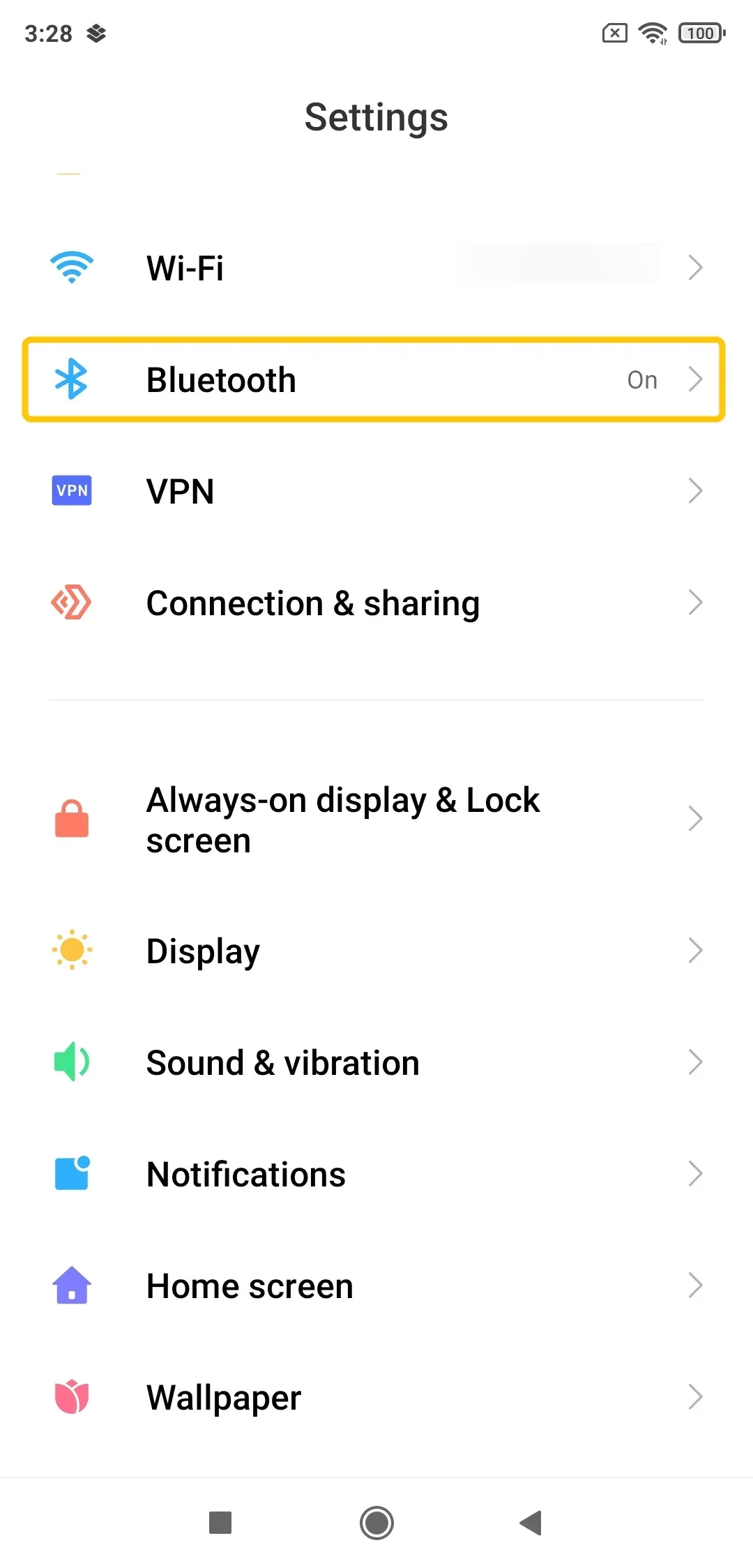
Step 1. Open the quick settings menu on your smartphone, tablet, or laptop.
Step 2. Turn off Bluetooth entirely to instantly break any invisible connections to other electronics.
Step 3. Restart your screen mirroring stream to ensure the audio stays dedicated to your television rather than routing to wireless headphones or smart speakers in another room.
4) Clear App Cache or Switch Media Players
If the silence only happens on one specific app, the software itself is likely glitching.
Step 1. Open the settings menu on your phone, find the application manager, and select the problematic video app.
Step 2. Tap on Storage > Clear Cache to remove any temporary data corrupted during the stream.
Step 3. Open the app and try casting again, or switch to playing the video through a standard mobile web browser if the official app continues to block the sound.
5) Restart Your Devices
A temporary system glitch can cause the audio and video streams to separate.
Step 1. Unplug your Samsung television power cable directly from the wall outlet.
Step 2. Hold down the physical Power button on the TV chassis for ten seconds to completely drain residual power, then plug it back in.
Step 3. Perform a standard restart on your smartphone or computer while the television reboots to refresh the connection memory on both ends.
6) Reconnect to the Same Wi-Fi Network
Screen mirroring requires both devices to communicate on the exact same wireless frequency.
Step 1. Open the network settings on your Samsung TV and note the exact name of the Wi-Fi network it is using.
Step 2. Check the Wi-Fi settings on your phone or laptop to ensure it is connected to that identical network name.
Step 3. Make sure both devices are on the same band, as connecting one to a 2.4 GHz network and the other to a 5 GHz network can cause the audio stream to drop.
7) Update Your Devices
Outdated software creates compatibility bugs that drop audio signals during a wireless stream.
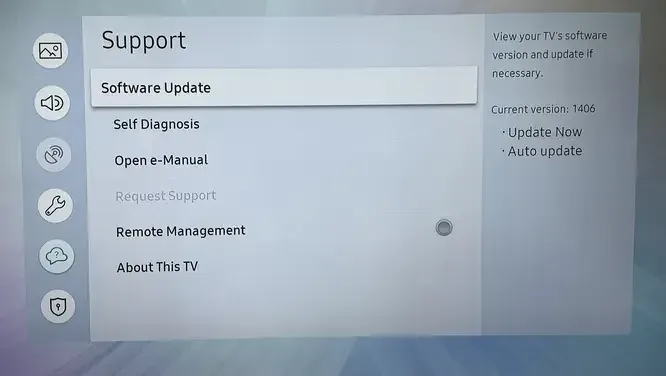
Step 1. Press the Home button on your Samsung remote, navigate to Settings, and select Support.
Step 2. Click on Software Update and select Update Now to download and install any pending patches for your television.
Step 3. Open the general settings on your smartphone or laptop and check for system updates to ensure your source device is running the latest operating system.
8) Reset Samsung TV Smart Hub Settings
If none of the previous steps work, the built-in system link platform might be corrupted. Resetting the Smart Hub will log you out of all your streaming accounts (like Netflix, Hulu, and YouTube) and delete downloaded apps. Make sure you have your account passwords handy before proceeding.
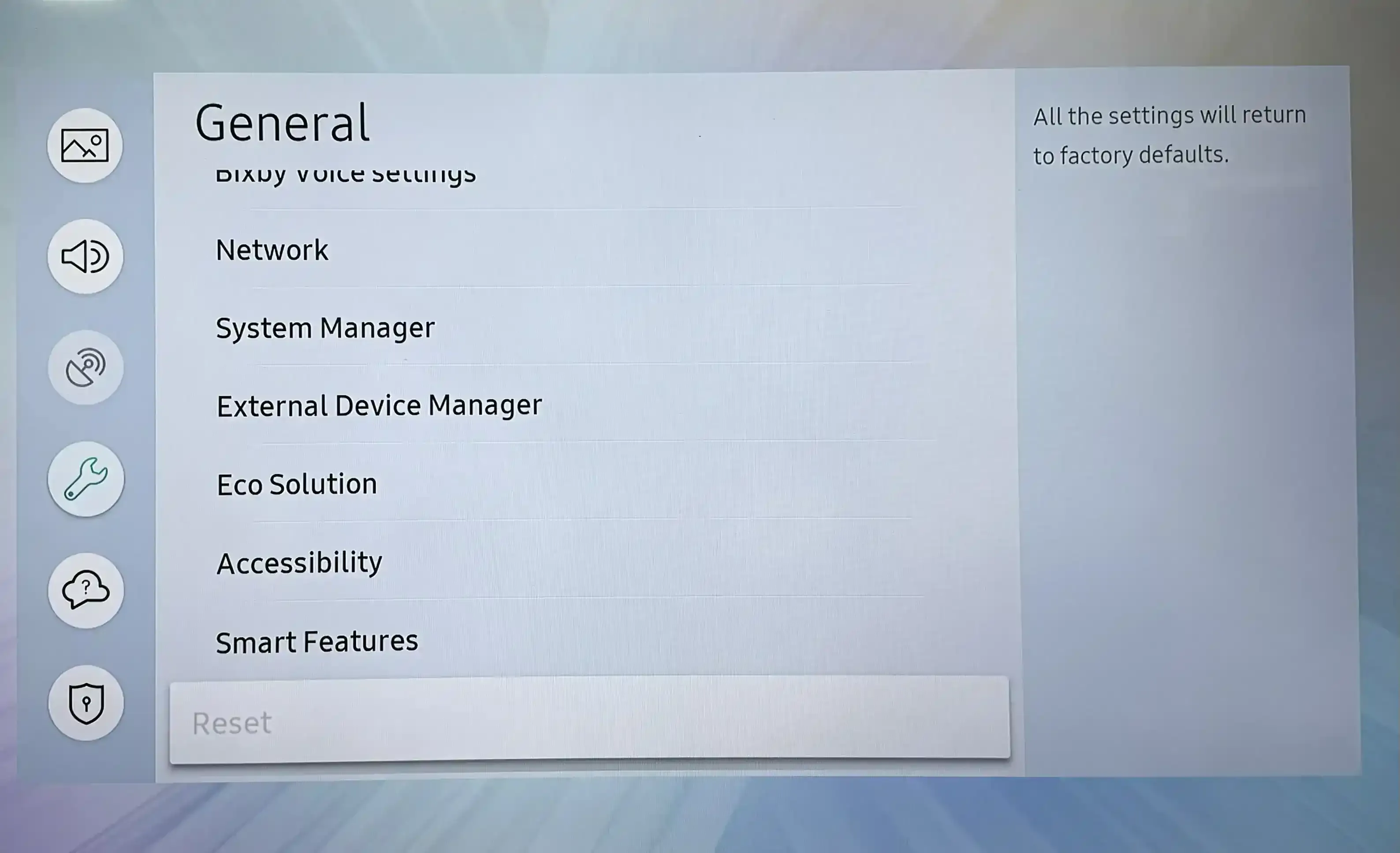
Step 1. Press the Home button on your remote, open the Settings menu, and select Support.
Step 2. Click on Device Care, choose Self Diagnosis, and then select Reset Smart Hub.
Step 3. Enter your television PIN (the default factory setting is usually 0000) to clear the system bugs and set up a fresh connection.
The End
Fixing a silent screen mirroring session usually just requires unmuting your devices, correcting the TV audio output, or turning off nearby Bluetooth. If native casting remains glitchy, switching to a dedicated app like PigeonCast provides a stable connection with full remote volume control, saving you from frustrating guesswork and restoring your audio instantly.
Screen Mirroring No Sound Samsung TV FAQ
Why does casting no sound happen in certain apps?
-
App copy protection: Digital Rights Management restrictions from major streaming platforms intentionally block audio signals from being shared wirelessly to prevent unauthorized recording.
-
Audio codec incompatibility: The specific app uses an advanced audio format that your television speakers or external sound systems cannot decode.
-
Background app glitching: A temporary connection failure inside the app media player software fails to share its volume controls with the television during the stream.
-
Inconsistent background permissions: The operating system on your phone limits the app audio routing capabilities when working in background or cast modes.
Can HDMI avoid screen mirroring no sound entirely?
No. While a wired HDMI connection bypasses wireless Wi-Fi drops and Bluetooth interference, it does not completely eliminate the risk of running into a no-sound issue.
Why does sound work first and then drop after a few minutes?
-
Wi-Fi signal instability
-
Background Bluetooth reconnection
-
Audio gear handshake delays
-
Device overheating or memory limits
Do I Need to Disable eARC to Fix Mirroring Audio?
Not always, but temporarily disabling eARC or changing its settings is one of the fastest ways to rule out a broken connection handshake.
Why does PC to TV mirroring drop audio while video works perfectly?
-
Disabled device status
-
Graphics driver conflicts
-
Projecting permissions restriction
Why does the sound only come out of my phone instead of the TV?
-
Smart View routing bugs: The native casting engine fails to switch the primary playback output from internal phone hardware to the detected television speakers upon initial pairing.
-
Media player software conflicts: Certain local video players lock the audio rendering path to the mobile device headphone jack or internal amplifier by default.
-
Wireless security mismatch: Minor network permission errors on your phone prevent the television from securely taking control of the incoming audio stream.
Clara Rossi is an experienced technology editor and a seasoned expert in screen mirroring and casting technologies. With a keen eye for detail and a deep understanding of how to seamlessly connect devices, Clara excels at optimizing user experiences for effortless sharing and streaming. Whether you're seeking quick fixes or advanced tips, her expertise and responsiveness ensure that every query is met with a well-informed and efficient solution.