
Have you ever tried screen mirroring your iPhone to your TV, only to realize there's no sound when screen mirroring iPhone to TV? It's a common issue that can be frustrating, especially when you want to enjoy your favorite movies, videos, or music with proper audio. But don't worry, you're not alone. In this article, I'll explain the possible reasons why screen mirroring sound is not working and provide practical, effective solutions to fix it. Whether you're casting to a Roku, smart TV, or using AirPlay, I've got you covered.
Why Is There No Sound When Screen Mirroring iPhone to TV?
Understanding why screen mirroring sound is not working can help pinpoint the solution. Common reasons for no sound on screen mirroring from iPhone to TV include:
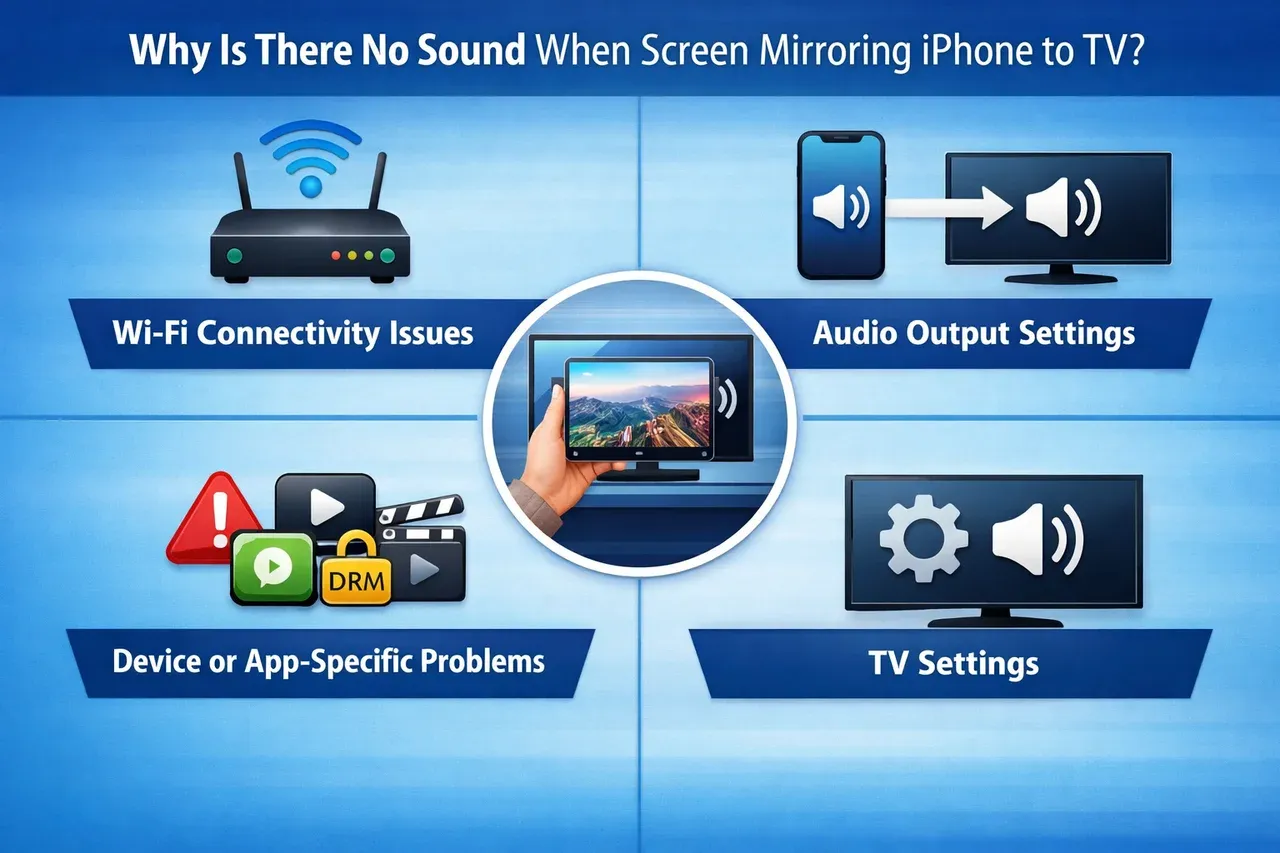
- Wi-Fi Connectivity Issues:
- Network Bandwidth: Screen mirroring is a bandwidth-intensive process. If your Wi-Fi network is not stable or is congested (e.g., many devices are connected), it can cause issues with both video and audio transmission. A dual-band router (2.4 GHz vs. 5 GHz) can help improve stability, as 5 GHz offers higher speeds and lower interference.
- Router Settings: Ensure your router's Quality of Service (QoS) settings are optimized to prioritize the mirroring devices. Some routers may deprioritize bandwidth for devices not directly connected to the network, causing glitches, especially in audio.
- Audio Output Settings:
- Audio Channel Routing: Even though you're mirroring video, your iPhone may still be sending audio to its internal speaker. This can happen if the audio output channel isn't switched automatically. Sometimes, manually selecting the audio output for screen mirroring can help. Control Center > AirPlay > Audio Output allows you to select the TV as the destination for the sound.
- Stereo vs. Surround Sound Settings: Certain TVs or audio systems might have stereo or surround sound settings that need to be adjusted based on the input. If the TV's audio output is set to stereo, it may not process certain audio signals from AirPlay properly.
- Device or App-Specific Problems:
- AirPlay and App Limitations: While AirPlay on iPhone usually transmits both video and sound, some apps, particularly streaming services like Netflix, Hulu, or Disney+, may restrict audio transmission through AirPlay to protect copyrighted content (due to DRM).
- App Sound Toggle: Some third-party apps handle screen sharing or audio differently from standard iPhone mirroring. For example, if you're trying to screen share on WhatsApp, the behavior depends on WhatsApp's own sharing features rather than the TV's mirroring settings alone. Check the app's audio and sharing options before troubleshooting the TV connection.
- TV Settings:
- Audio Sync & Input Conflicts: Some modern TVs automatically try to sync the audio with the video during screen mirroring. If your TV has a "Lip Sync" or "Audio Delay" setting, ensure it's set to auto or off. Some TVs may also prioritize audio from other inputs (like HDMI or external devices) over the screen mirroring connection, leading to audio issues.
- TV Firmware and Compatibility: If your TV is running an outdated firmware or has compatibility issues with newer mirroring technologies, it can block or distort the audio. Check for TV firmware updates that might resolve compatibility issues with screen mirroring.
How to Get Sound on TV When Screen Mirroring from iPhone
If you're facing no sound when casting to TV from iPhone, it can be frustrating, but with the right steps, you can get it working in no time. Here's an enhanced, step-by-step guide to troubleshoot and fix the screen mirror no sound issue, along with some fresh insights to ensure everything works as expected:
Check the Volume Settings
- Volume Sync: Ensure that the volume is up on both your iPhone and TV. Sometimes, even if the TV's volume is up, sound may still be routed incorrectly if the volume output channel is not selected.
- Advanced Audio Output: For TVs with advanced sound systems (like Dolby Atmos or DTS), ensure the TV is configured to handle audio from screen mirroring. For example, certain TVs may need to be set to "Auto" mode to correctly accept the audio from the iPhone.
Check Your Screen Mirroring App
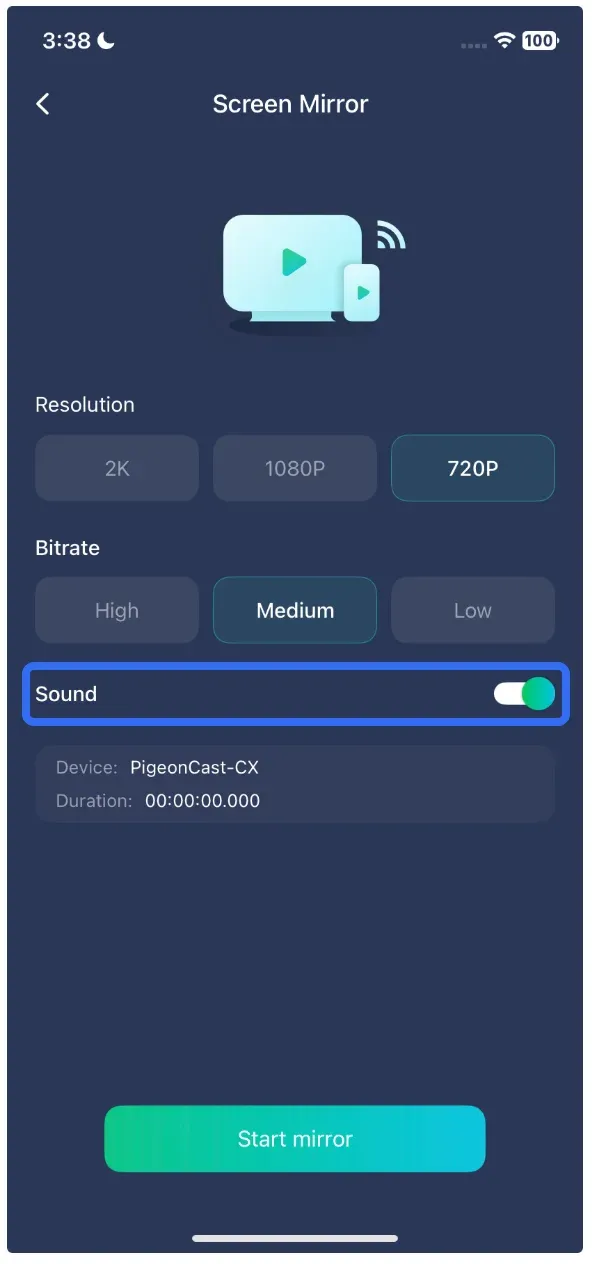
- App-Specific Sound Settings: Some third-party apps like PigeonCast have specific sound options that are enabled by default. If you're using PigeonCast, check if the Sound toggle is turned on in the settings. If you're using other apps, look for similar sound options in the app's menu to ensure the audio is enabled for casting.
- App Updates: Ensure that the mirroring app is up-to-date. Often, updates fix bugs related to sound transmission, ensuring a smoother experience for both audio and video.
Tip: PigeonCast is a free screen mirroring app designed for iPhone-to-TV screen mirroring. If your iPhone screen mirroring is not working, you can give it a try.


Overall Rating:


Reconnect Your Devices
- Network Check: If sound isn't working, try disconnecting both your iPhone and TV and reconnecting them. Additionally, make sure your devices are connected to the same Wi-Fi network to avoid network configuration issues that may block audio.
- Network Bandwidth Test: If you're using a 5 GHz Wi-Fi network, make sure the router supports the bandwidth needed for smooth mirroring. Use a speed test to ensure the connection is strong enough for both audio and video transmission.
Select Audio Output on iPhone
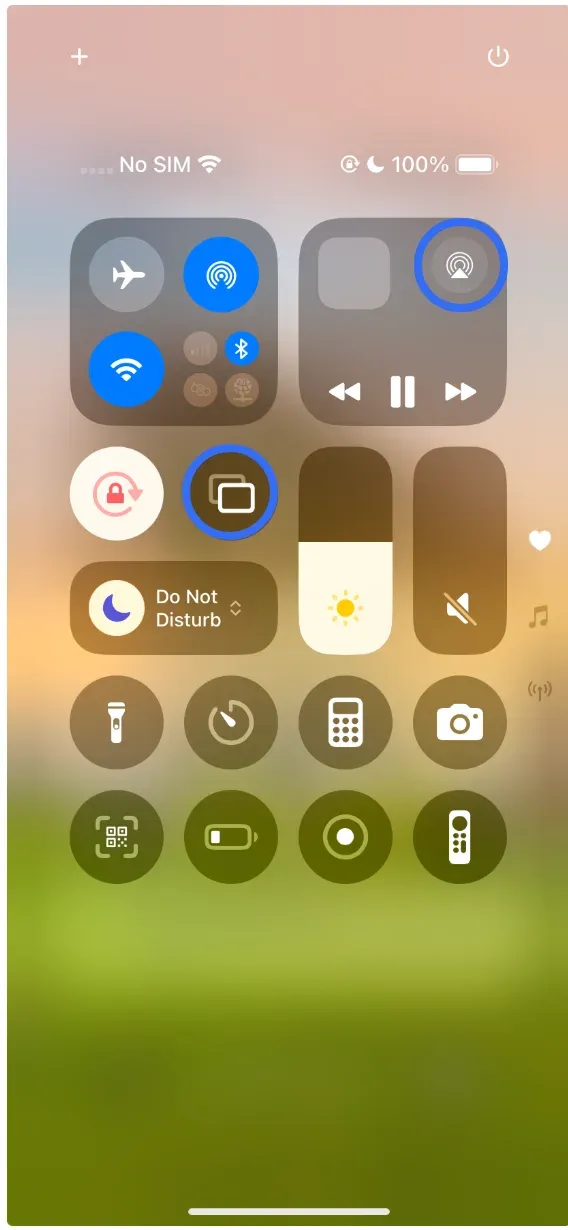
If the sound is coming from the iPhone but not the TV when mirroring over AirPlay, follow these steps:
- Open Control Center on your iPhone.
- Tap the AirPlay or screen mirroring icon.
- Ensure that TV is selected as the audio output.
- Make sure there are no conflicts in the audio settings in your TV’s audio settings.
Check TV Audio Settings
- Audio Source Input: On your TV, go to the audio settings and ensure it is set to accept audio from the screen mirroring input. Some TVs may require you to manually select the audio source for mirroring.
- Audio Sync: Disable or adjust audio sync settings on your TV to ensure proper lip-sync between audio and video.
Update Your Device Firmware
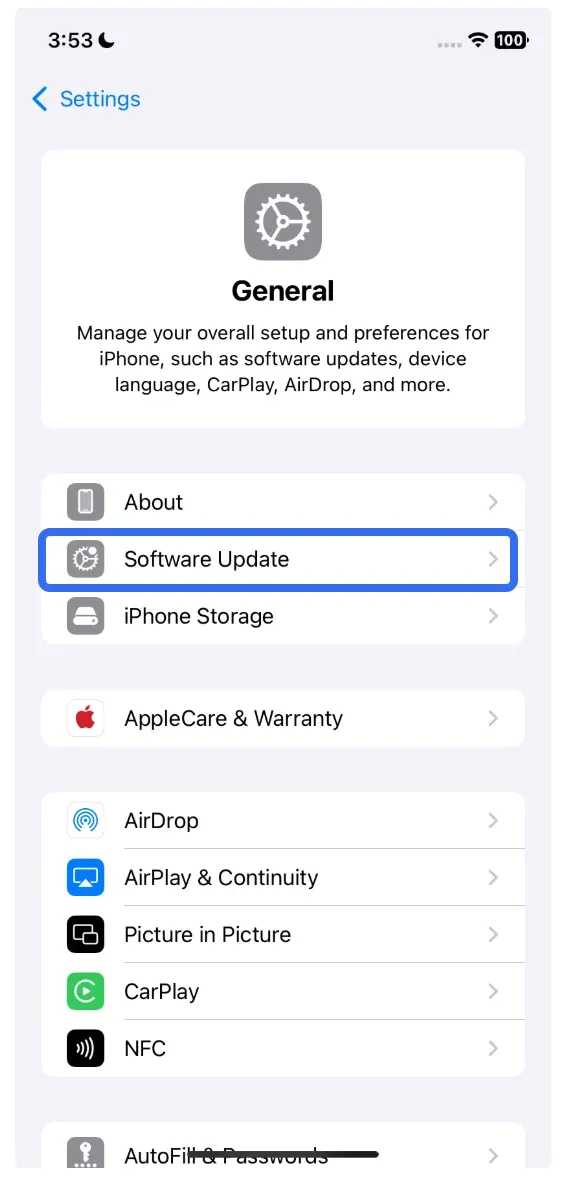
- Firmware Updates: Always check for software updates for both your iPhone and TV. New updates can resolve known bugs and improve compatibility for screen mirroring.
- Driver Compatibility: On some TVs, specific mirroring apps or AirPlay drivers may need an update to handle the latest sound protocols. Make sure everything is updated to the latest versions.
Try a Wired Connection
- HDMI Adapter: If Wi-Fi-based sound not working on screen mirroring still happens, using a compatible HDMI adapter is an excellent alternative. It bypasses Wi-Fi issues and ensures a stable, direct connection for both audio and video. This solution also prevents audio lag and ensures a high-quality audio output.
- Surround Sound Configuration: For users with home theater systems, using a wired HDMI connection often guarantees stereo or surround sound, providing a richer audio experience.
Closing Words
If you've been struggling with screen mirroring sound not working, you now have a solid set of solutions to address the issue. From Wi-Fi settings to device compatibility, a few simple tweaks can resolve most problems. And if you're looking for a reliable, high-quality mirroring experience, PigeonCast offers a fantastic, easy-to-use alternative.
No Sound When Screen Mirroring iPhone to TV FAQs
Can you mirror an iPhone to a TV with sound?
Yes, you can mirror your iPhone to a TV with sound. However, if you're experiencing no sound during mirroring, it could be due to audio output settings, network issues, or a problem with the app or TV settings. Make sure both your iPhone and TV are properly connected and configured to handle audio.
Why is there no sound on AirPlay mirroring?
The absence of sound when using AirPlay could be caused by several factors, such as incorrect audio output settings on your iPhone, TV configuration issues, or a weak Wi-Fi connection. It's essential to ensure that the sound is routed to the TV and that both devices are on the same network. Additionally, DRM restrictions on certain apps may block audio from being transmitted.
Can I mirror my iPhone to TV with sound using an HDMI cable?
Yes, using a Lightning to HDMI adapter or a USB-C to HDMI adapter allows you to mirror your iPhone to a TV with sound. Unlike wireless methods, a wired connection ensures a stable, high-quality connection for both video and audio, bypassing potential issues like network instability or Wi-Fi interference.
Does PigeonCast support sound when screen mirroring?
Yes, PigeonCast supports both video and sound when screen mirroring. It provides a seamless, ad-free experience, ensuring that both audio and video are transmitted reliably to your TV with HD quality and up to 4K resolution.
How do I fix no sound when screen mirroring iPhone to Roku?
No sound when screen mirroring iPhone to Roku can be a common issue, especially with older Roku models. To fix it, ensure both your iPhone and Roku are connected to the same Wi-Fi network. On your iPhone, check the audio output settings in Control Center, making sure Roku is selected as the audio source. If the issue persists, try restarting both devices or updating the firmware on your Roku.
Why is screen mirroring sound cutting out intermittently?
If screen mirroring sound is cutting out intermittently, this could be due to a weak or unstable Wi-Fi connection, a temporary device glitch, or software issues. Try moving the devices closer to the router, reconnecting them, or switching to a wired connection (such as using an HDMI adapter). Ensure that the devices are running the latest software updates and that there's no interference from other electronics.
Mia Clarke is a technology editor specializing in screen mirroring and casting solutions across multiple platforms. Mia provides clear, practical guides and in-depth insights to help users seamlessly connect their devices. Passionate about enhancing digital experiences, Mia is dedicated to keeping readers updated on the latest trends and tools in cross-platform screen sharing. Whether you’re looking to mirror your smartphone, laptop, or smart TV, Mia’s content delivers reliable, user-friendly advice to simplify your tech setup.