
Screen sharing has become an essential feature for online communication, whether you're helping a friend troubleshoot a problem, presenting information during a meeting, or sharing content with family members. As WhatsApp continues to expand its video calling capabilities, many users are asking the same question: can you screen share on WhatsApp?
The good news is that WhatsApp now supports screen sharing on several devices, allowing you to share your screens during video calls without relying on third-party apps. Whether you're using an iPhone, Android phone, Windows PC, or Mac, screen sharing can make conversations more interactive and productive.
In this guide, you'll learn how WhatsApp screen sharing works, which devices support it, how to share your screen step by step, and what to do if the feature isn't working properly.
Quick Answer to WhatsApp Screen Sharing
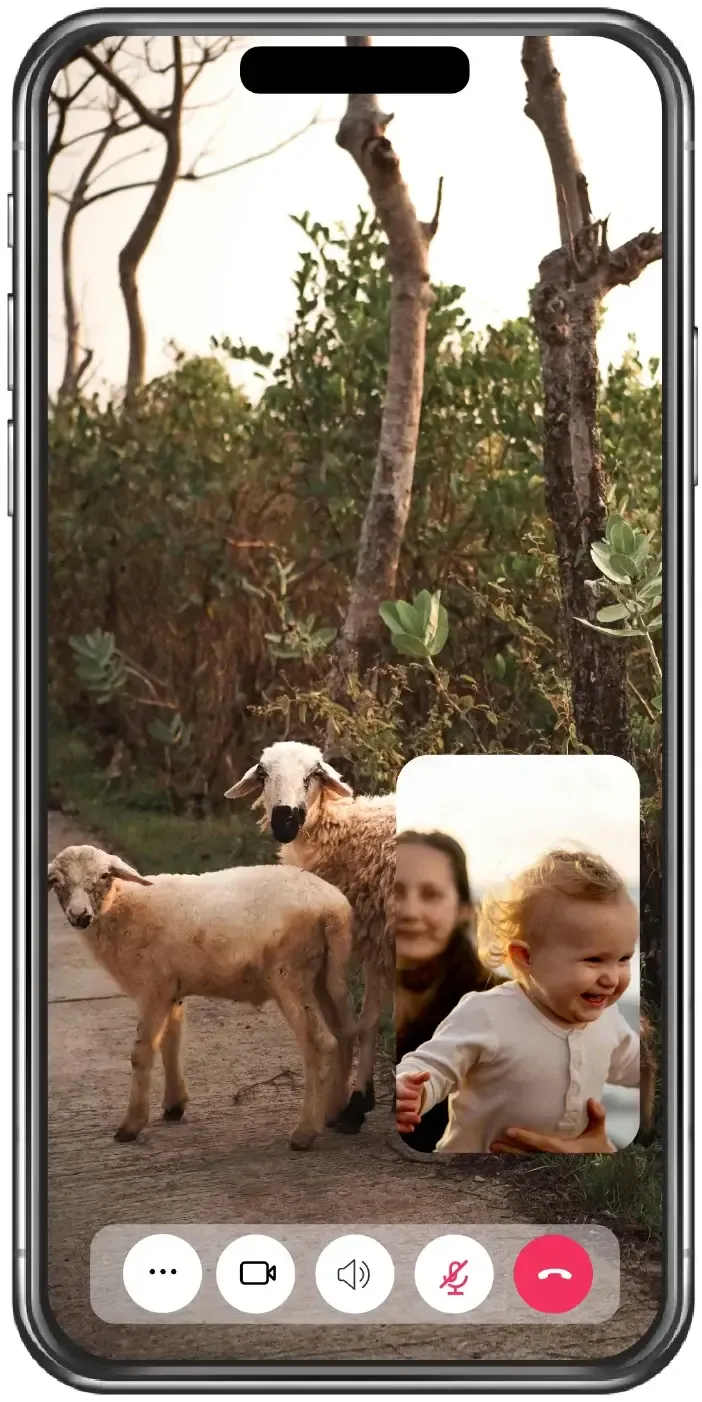
Yes. WhatsApp supports screen sharing during video calls. You can share your screens during one-on-one or group video calls, making it easier to demonstrate apps, view documents together, provide technical support, or present information remotely.
WhatsApp screen sharing is currently available on:
| Device | Screen Sharing Supported |
|---|---|
| Android | Yes |
| iPhone | Yes |
| Windows Desktop App | Yes |
| Mac Desktop App | Yes |
| WhatsApp Web | No |
It is important to note that screen sharing only works during video calls. If you're using an audio-only call, the screen sahring option will not appear.
WhatsApp Screen Sahring Requirements
Before you start sharing your screen, make sure your device meets the necessary requirements.
Device Requirements
WhatsApp screen sharing is supported on most modern smartphones and computers.
| Device | Supported |
|---|---|
| Android Phone | Yes |
| iPhone | Yes |
| Windows Desktop App | Yes |
| Mac Desktop App | Yes |
| WhatsApp Web | No |
Note: If you're using a Mac, ensure it is running Mac OS 12.3 or above.
Software Requirements
To access screen sharing, you should:
- Update WhatsApp to the latest version (old app versions may not display the screen sharing icon)
- Use the official WhatsApp application
- Enable screen mirroring recording permissions
- Start a video call instead of an audio call
Internet Requirements
Because screen sharing transmits additional visual data, a stable internet connection is recommended.
Poor network quality can result in:
- Frozen screens
- Delayed updates
- Reduced video quality
- Unexpected call disconnections
For the best experience, use a strong Wi-Fi connection or a reliable mobile data network.
How to Share Screen on WhatsApp on Android
WhatsApp Screen Sharing allows you to show Android screen to other participants while staying inside a WhatsApp video call.
Step 1. Open WhatsApp and begin a video call with an individual contact or group.
Step 2. Once the call connects, tap the three dots menu icon, then tap the screen sharing icon.
Step 3. Android will display a permission request asking whether you want to start capturing your screen, and allow screen recording.
Step 4. Tap Share one app > Next and choose an app to share or Share entire screen > Share screen.
Step 5. Tap Stop sharing within WhatsApp to end sharing your screen.
How to Share Your Screen on WhatsApp on iPhone
WhatsApp screen sharing is similar on iPhones.
Step 1. Start a video call within WhatsApp, tap the three dots menu > Share screen.
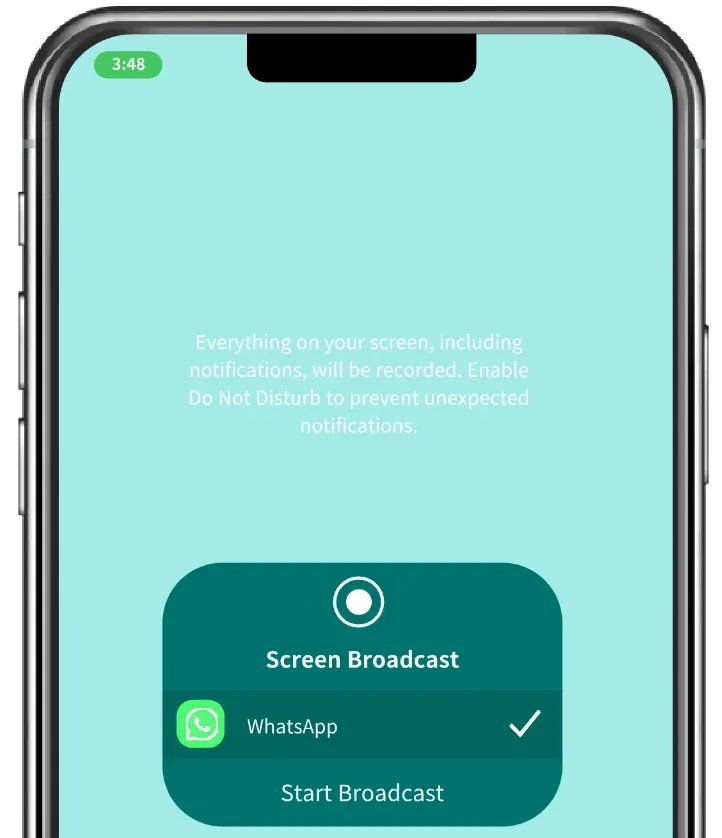
Step 2. iPhone will show a prompt indicating that you're about to start recording with WhatsApp. Tap Start Broadcast to begin screen sharing.
Step 3. Tap Stop sharing to end sharing your iPhone screen.
How to Share Your Screen on WhatsApp on Windows PC
WhatsApp screen sharing is officially supported on Windows desktop. To use WhatsApp screen sharing on a Windows PC, you must use WhatsApp Desktop for Windows.
Step 1. Launch the WhatsApp Desktop app on your Windows computer and click the share icon in your video call.
Step 2. Choose share a specific application or the entire screen.
Note: If you want to choose a specific window, ensure it is not minimized as others won't be able to see it.
Step 3. To stop screen share during a video call, click the Stop sharing screen icon.
How to Share Your Screen on WhatsApp on Mac
If your Mac have upgraded to Mac OS 12.3 or higher, sharing your Mac screen through WhatsApp is easy:
Step 1. Open WhatsApp Desktop and start a video call.
Step 2. Click the Screen sharing icon in the video controls and select the screen you want to share.
Step 3. Click Share to start screen sharing. This is convenient for presentations, demonstrations, and collaborative work sessions.
Step 4. Click Stop sharing to terminate screen sharing within WhatsApp. If outside the app, click the purple bubble in the menu bar at the top of the screen, then click Stop sharing.
How to Share Your Screen on WhatsApp Web
You can't share your screen on WhatsApp Web. Although WhatsApp Web allows sending messages and access conversations through a browser, screen sharing is not currently available.
If you need to share your screen, install the official WhatsApp Desktop application for Windows or Mac instead.
Screen Sharing on WhatsApp Not Working
When screen sharing on WhatsApp video call fails, it is usually not random. In most cases, the issue comes down to:
- Your WhatsApp Version Is Outdated
Older versions of WhatsApp may not include screen sharing support. So, update the app through Google Play Store, Apple App Store, or the official WhatsApp website.
- You're Using an Audio Call
Screen sharing only works during video calls. Ensure you make a video call not a audio call.
- Screen Recording Permission Is Disabled
Both Android and iOS require permission to capture your display. Check your device settings and ensure screen recording permissions are enabled.
- Your Device Is Unsupported
Very old devices or operating systems may not support screen sharing. Updating your operating system may resolve the issue.
- Temporary App Bugs
Occasionally, WhatsApp may experience temporary glitches, and you can try:
- Restarting WhatsApp
- Rebooting your device
- Reinstalling WhatsApp
- Checking WhatsApp server status
Quick Troubleshooting Guide on WhatsApp Screen Sharing Not Working
If you can't screen share on WhatsApp, follow the quick troubleshooting guide:
| Problem | Solution |
|---|---|
| Share button missing | Update WhatsApp |
| Black screen | Restart app |
| Screen sharing unavailable | Start a video call |
| Permission denied | Enable screen recording |
| App crashes | Reinstall WhatsApp |
WhatsApp Screen Sharing Limitations
Although WhatsApp screen sharing is convenient, it isn't designed as a full-featured presentation or collaboration platform.
Some limitations include:
| Limitation | Description |
|---|---|
| No WhatsApp Web Support | Browser version lacks screen sharing |
| No Remote Control | Viewers cannot interact with your device |
| Basic Collaboration Features | No annotations or whiteboard tools |
| Entire Screen Sharing | Limited app-specific sharing options |
| Not Ideal for Business Meetings | Fewer presentation features than dedicated meeting software |
For casual communication, these limitations may not matter. However, professional users may require more advanced screen-sharing solutions.
Is WhatsApp Screen Sharing Safe
Yes, WhatsApp protects calls and screen sharing sessions using end-to-end encryption. This means the content shared during a call is encrypted and cannot be accessed by unauthorized third parties.
However, you should still exercise caution. Before sharing your screen:
- Close sensitive applications.
- Hide confidential documents.
- Disable notification previews.
- Avoid displaying passwords or personal information.
Remember that everyone participating in the call can view anything visible on your screen.
WhatsApp Screen Sharing vs Screen Mirroring
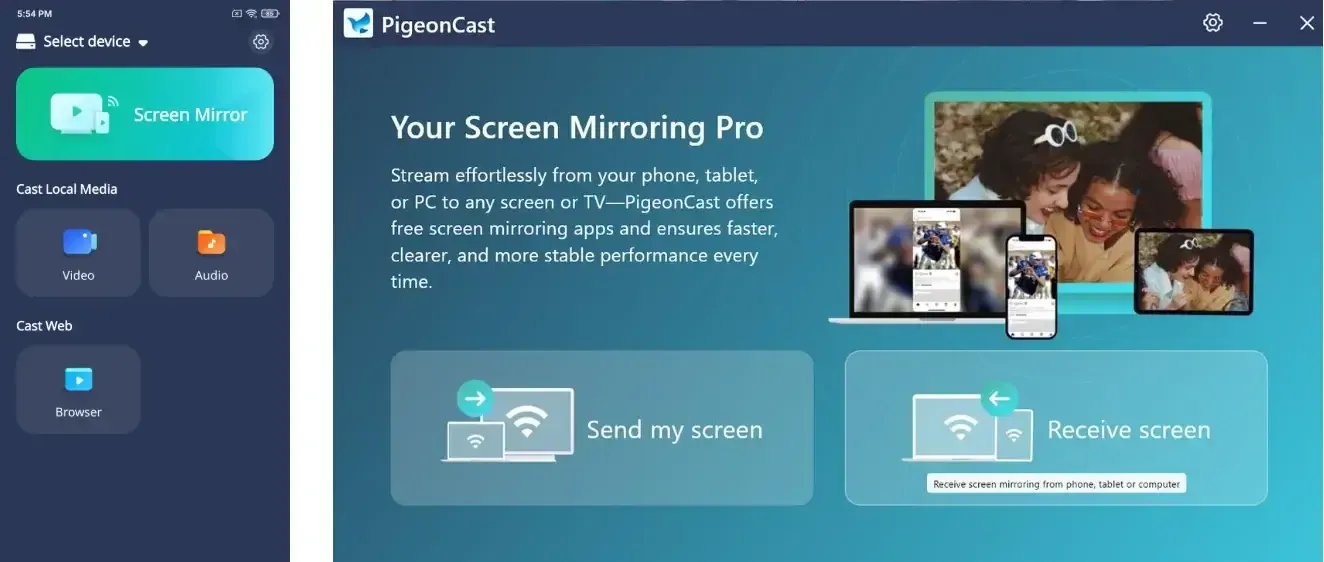
While WhatsApp screen sharing is useful during video calls, it isn't always the best solution for displaying content on larger screens. Screen mirroring tools like PigeonCast are designed specifically for casting your phone or computer screen to TVs, monitors, projectors, and other devices.
| Feature | WhatsApp Screen Sharing | Screen Mirroring | | Video Calls | Yes | No | | Share During Conversations | Yes | No | | TV Casting | Limited | Yes | | Large Screen Viewing | Limited | Yes | | Presentations | Basic | Advanced | | Multi-Device Display | Limited | Yes |
If your goal is to display content on a larger screen rather than during a call, a dedicated screen mirroring solution may provide a better experience.


Overall Rating:



Step 1. Install PigeonCast on your phone or computer.
Step 2. Ensure your devices are on the same Wi-Fi network.
Step 3. Launch PigeonCast on your device and start screen mirroring with the onscreen instructions.
Step 4. Your device screen will be shared on the connected device.
Final Words
So, can you screen share on WhatsApp? Absolutely.
WhatsApp's screen sharing feature makes it easy to collaborate, troubleshoot issues, present content, and communicate more effectively during video calls. Whether you're using Android, iPhone, Windows, or Mac, enabling screen sharing only takes a few taps.
If screen sharing isn't working, updating WhatsApp, checking permissions, and ensuring you're using a video call will solve most problems. And if your goal is displaying content on a TV or larger screen, dedicated screen mirroring solutions may offer additional flexibility beyond WhatsApp's built-in capabilities.
Can You Screen Share on WhatsApp FAQs
Can you screen share with audio on WhatsApp?
WhatsApp primarily shares screen visuals. Audio-sharing support may vary depending on your device and operating system.
Who can see the shared screen on WhatsApp?
Only participants in the active video call can see your screen.
Why don't I see the screen sharing button?
The most common reasons are using an outdated version of WhatsApp, starting an audio call instead of a video call, or lacking screen recording permissions.
Can you screen share during WhatsApp group calls?
Yes. Screen sharing works during both individual and group video calls.
Can I share only one app instead of my entire screen?
On desktop applications, you may be able to select specific windows. Mobile devices generally share the entire screen.
How many people can view my shared screen?
Everyone participating in the video call can view the screen being shared.
Mia Clarke is a technology editor specializing in screen mirroring and casting solutions across multiple platforms. Mia provides clear, practical guides and in-depth insights to help users seamlessly connect their devices. Passionate about enhancing digital experiences, Mia is dedicated to keeping readers updated on the latest trends and tools in cross-platform screen sharing. Whether you’re looking to mirror your smartphone, laptop, or smart TV, Mia’s content delivers reliable, user-friendly advice to simplify your tech setup.