
Screen mirroring to a larger smart TV is undeniably enjoyable, whether for a more immersive viewing experience or simply to reduce eye strain. While a stable Wi-Fi connection is typically necessary for this process, can you screen mirror without WiFi on Samsung smart TV? Fortunately, it's possible to enjoy this feature even without being connected to the same network. Keep reading to find out how to do it!
Can You Screen Mirror on Samsung TV Without WiFi
Yes. Wireless screen mirroring technologies like AirPlay typically need both devices to be on the same local Wi-Fi network. However, some alternatives allow you to establish a direct peer-to-peer connection between your phone and TV, bypassing your home router entirely. This means the TV doesn't need to be connected to the internet, but it still requires wireless capabilities (like Wi-Fi Direct) or a physical port for the connection to work.
How to Screen Mirror on Samsung TV Without WiFi
Successfully mirroring your screen without WiFi depends on leveraging other connection protocols. The goal is to create a direct communication line between your source device and your Samsung TV. The following methods range from wired solutions to creating your own temporary wireless network. Each has its own setup process and compatibility requirements, which we will outline in detail.
Way 1. Use USB Connection
Can you screen mirror without WiFi on Samsung Smart TV to Android or iOS? This wired connection is one of the easiest ways to mirror content to your Samsung TV without Wi-Fi. This method provides a stable, cable-based alternative for displaying content, though it offers limited interactivity compared to wireless options.
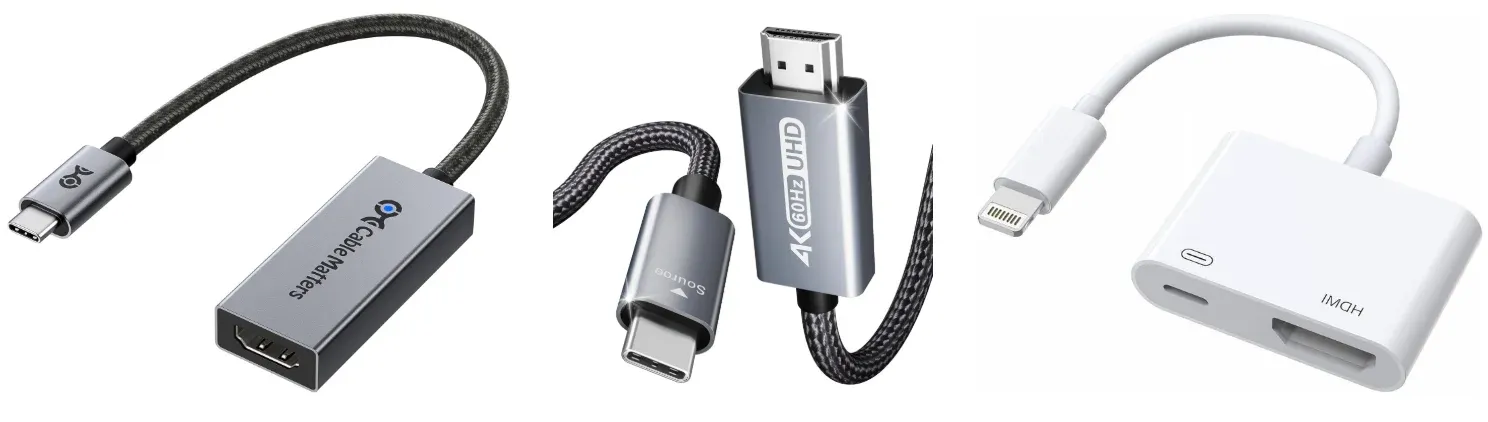
Step 1. Ensure your device supports the necessary connection.
- For Android, use a USB-C to HDMI adapter or an MHL cable for older models.
- For iPhone, use a USB-C to HDMI adapter or an Apple Lightning Digital AV Adapter.
Step 2. Plug the appropriate adapter into your phone (USB-C to HDMI for Android or iPhone 15, Lightning to HDMI for older iPhones, MHL cable for older Android).
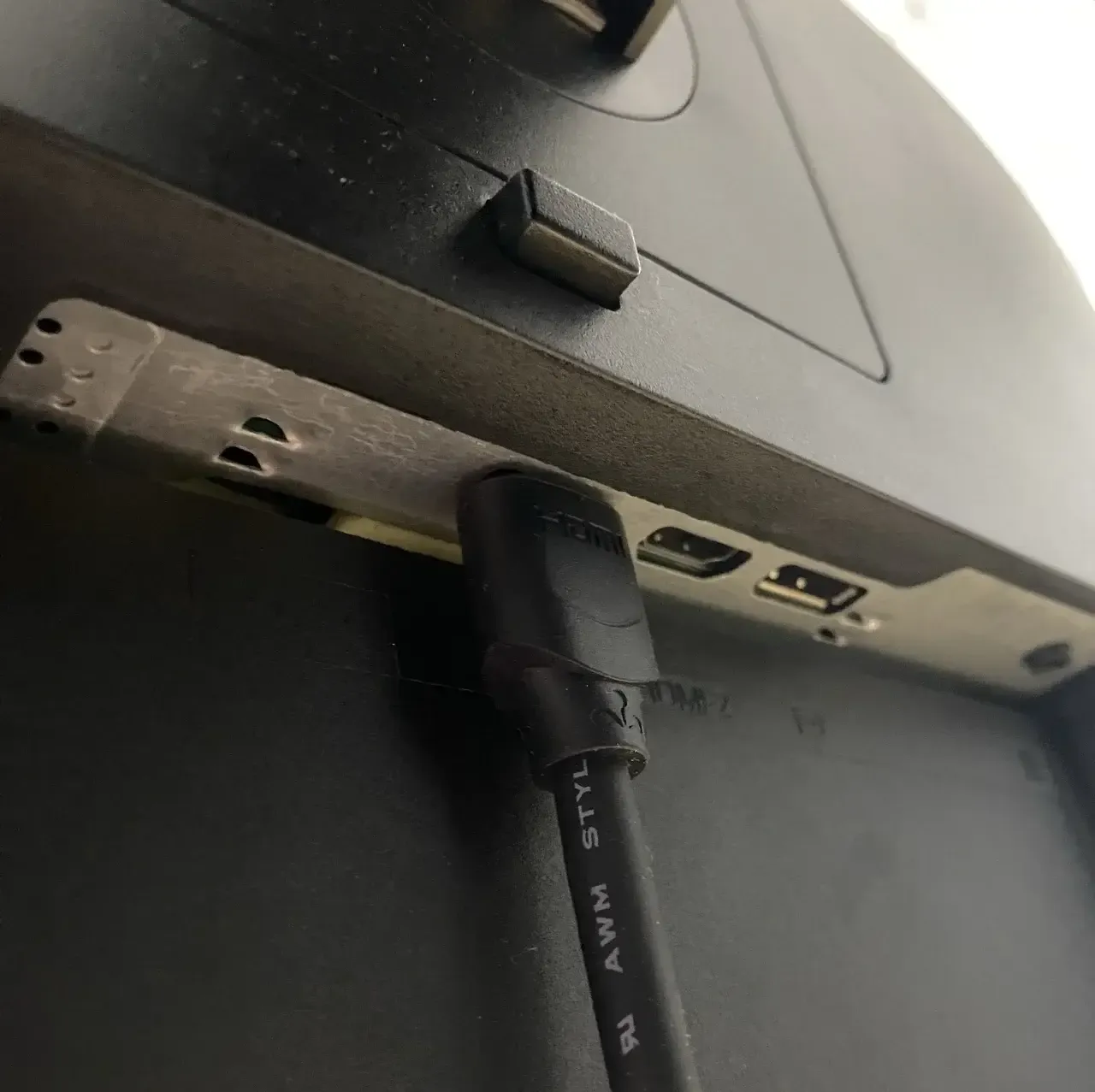
Step 3. Use a standard HDMI cable to connect the adapter to your Samsung TV's HDMI port.
Step 4. Use your TV remote to change the Input/Source to the HDMI port where you connected the cable.
Step 5. Your phone's screen should appear on the TV immediately, providing high-quality video and audio with minimal lag.
Way 2. Use WiFi Direct Connection
Most Samsung Smart TVs, especially models from 2013 onward, support Wi-Fi Direct for wireless, router-free screen mirroring. This feature is available on Crystal UHD, QLED, and Neo QLED models (e.g., BU8500, Q80B, QN900B), as well as popular older series (e.g., ES6600). To check if your TV supports Wi-Fi Direct, simply go to Settings > Network > Wi-Fi Direct.
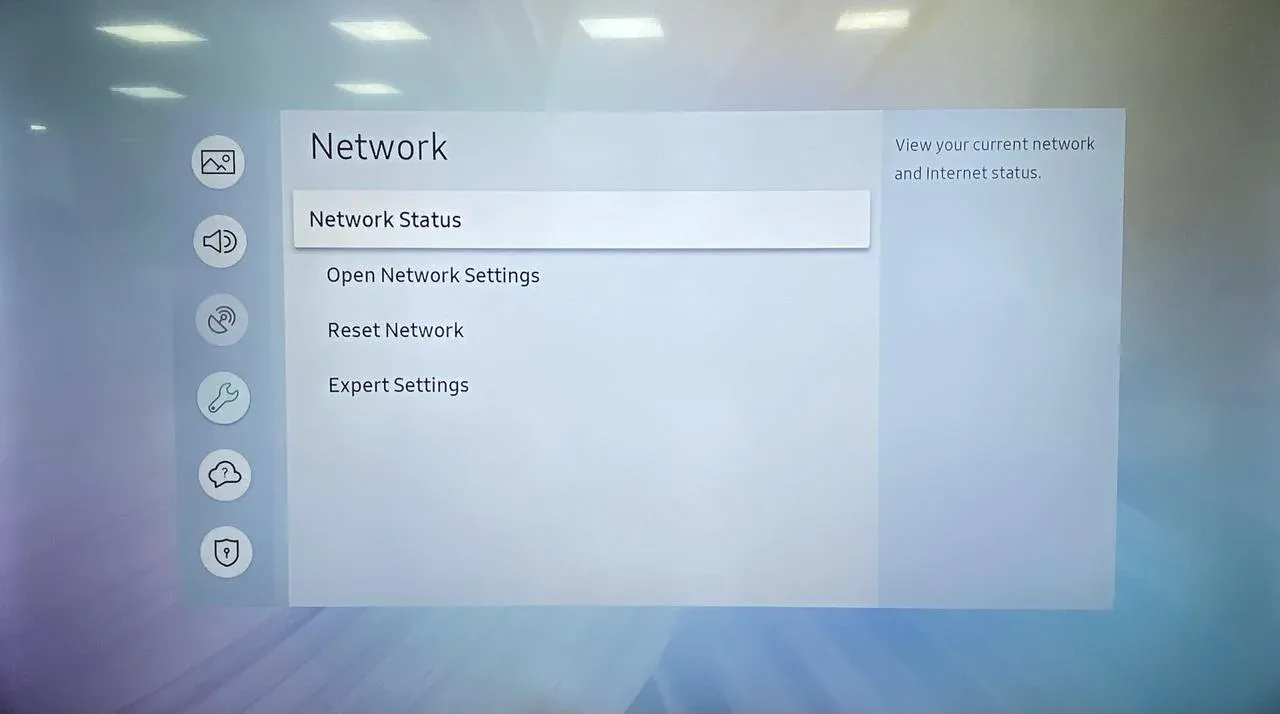
Step 1. On your Samsung TV, navigate to Settings > General/Support > Network > WiFi Direct and turn it ON. Note the TV's device name.
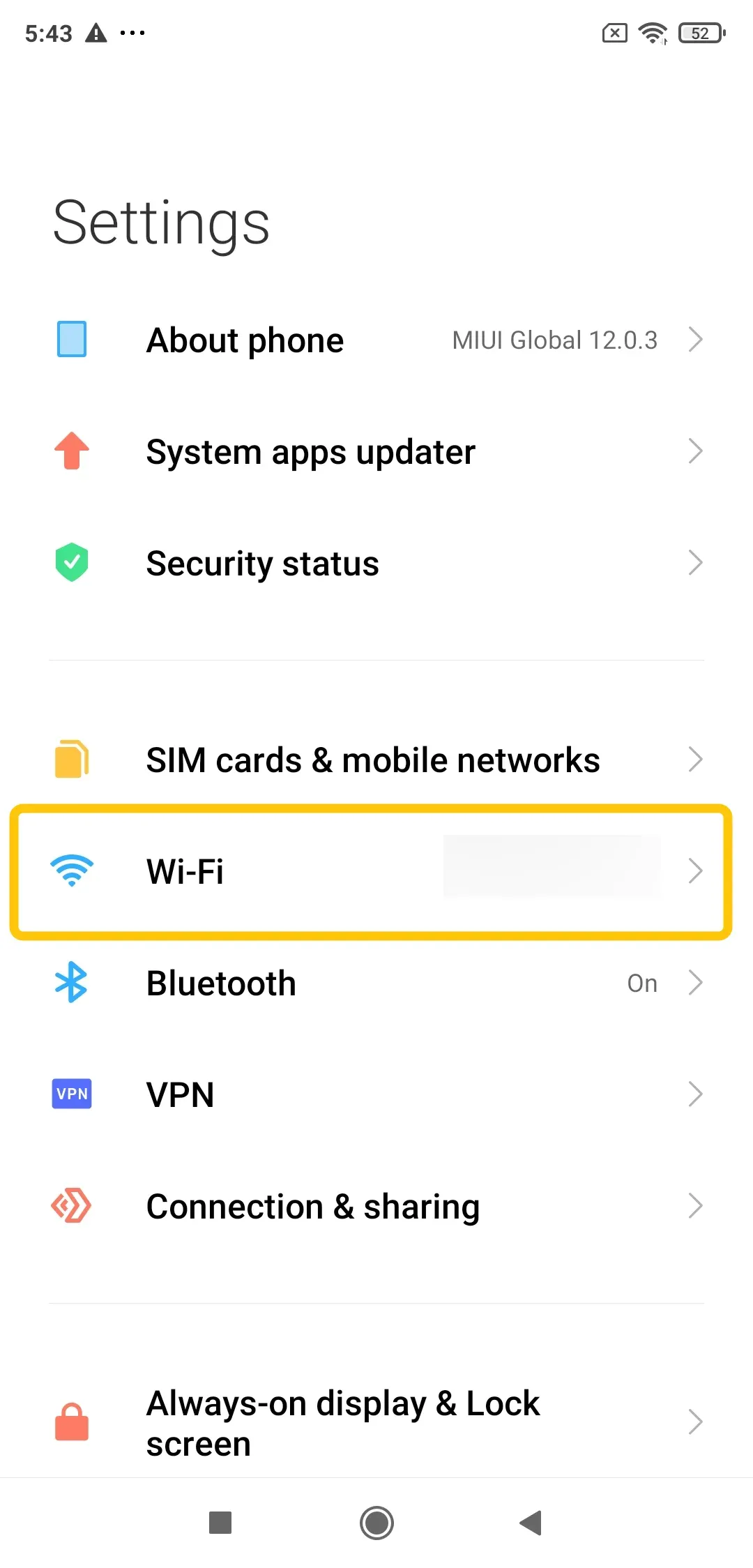
Step 2. On your Samsung or compatible Android phone, go to Settings > Connections > WiFi. Tap on WiFi Direct or look for it under More connection settings. Your phone will scan for devices.
Step 3. Select your Samsung TV from the list of available devices on your phone and accept the connection request on your TV pop-up if prompted.
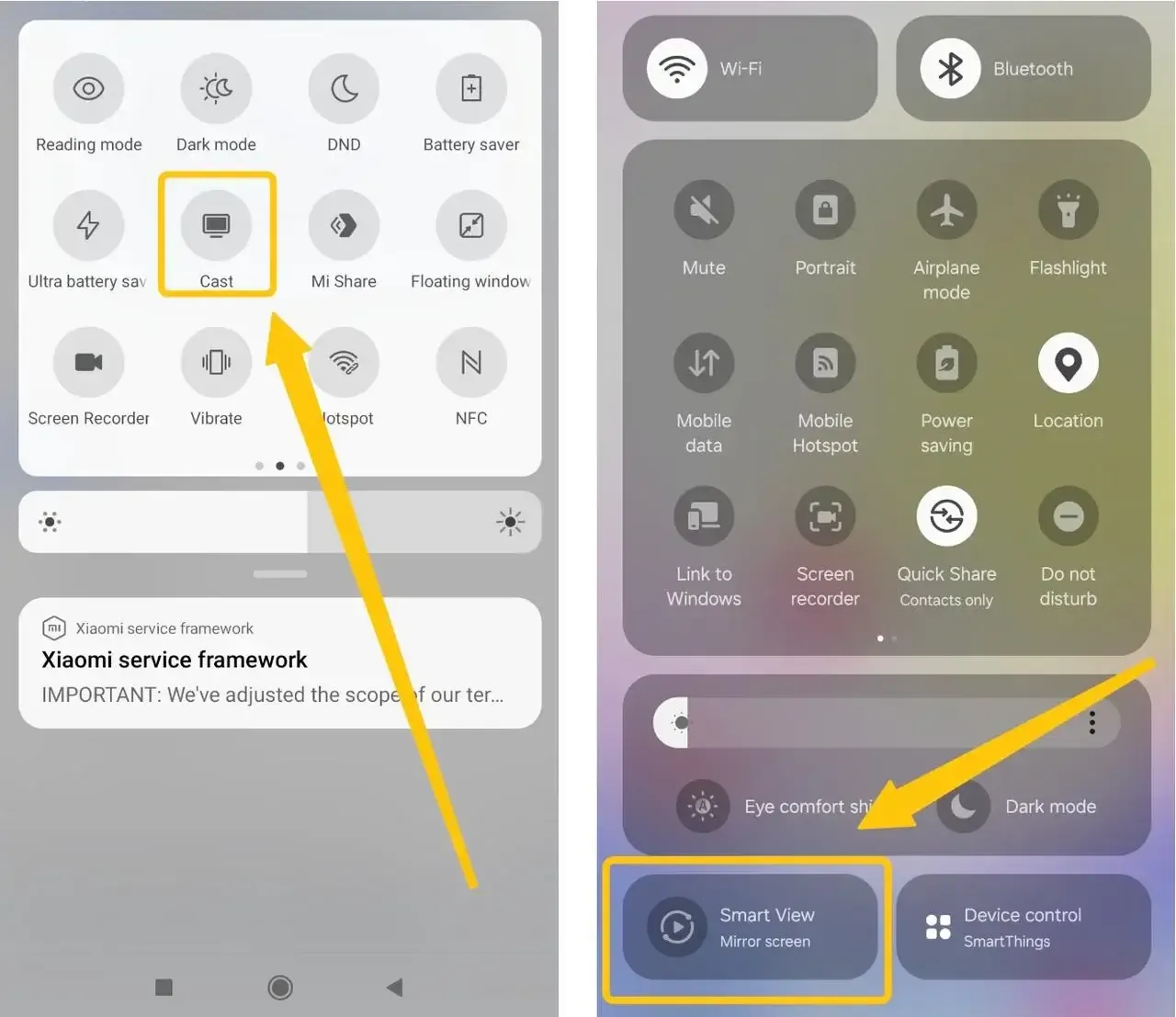
Step 4. Once connected, tap the Smart View option or Cast on your phone in the Quick Panel to select your TV from the list to begin mirroring.
Way 3. Use Hotspot Connection (via PigeonCast)
For screen mirroring without Wi-Fi, another option is to use a mobile hotspot. Simply turn your phone into a hotspot and connect it to your Samsung TV. Using PigeonCast, a free mirroring app that supports AirPlay, DLNA, and Google Cast, you can mirror content without the need for cables. Keep in mind that using a mobile hotspot may result in additional charges from your carrier, depending on your data plan.
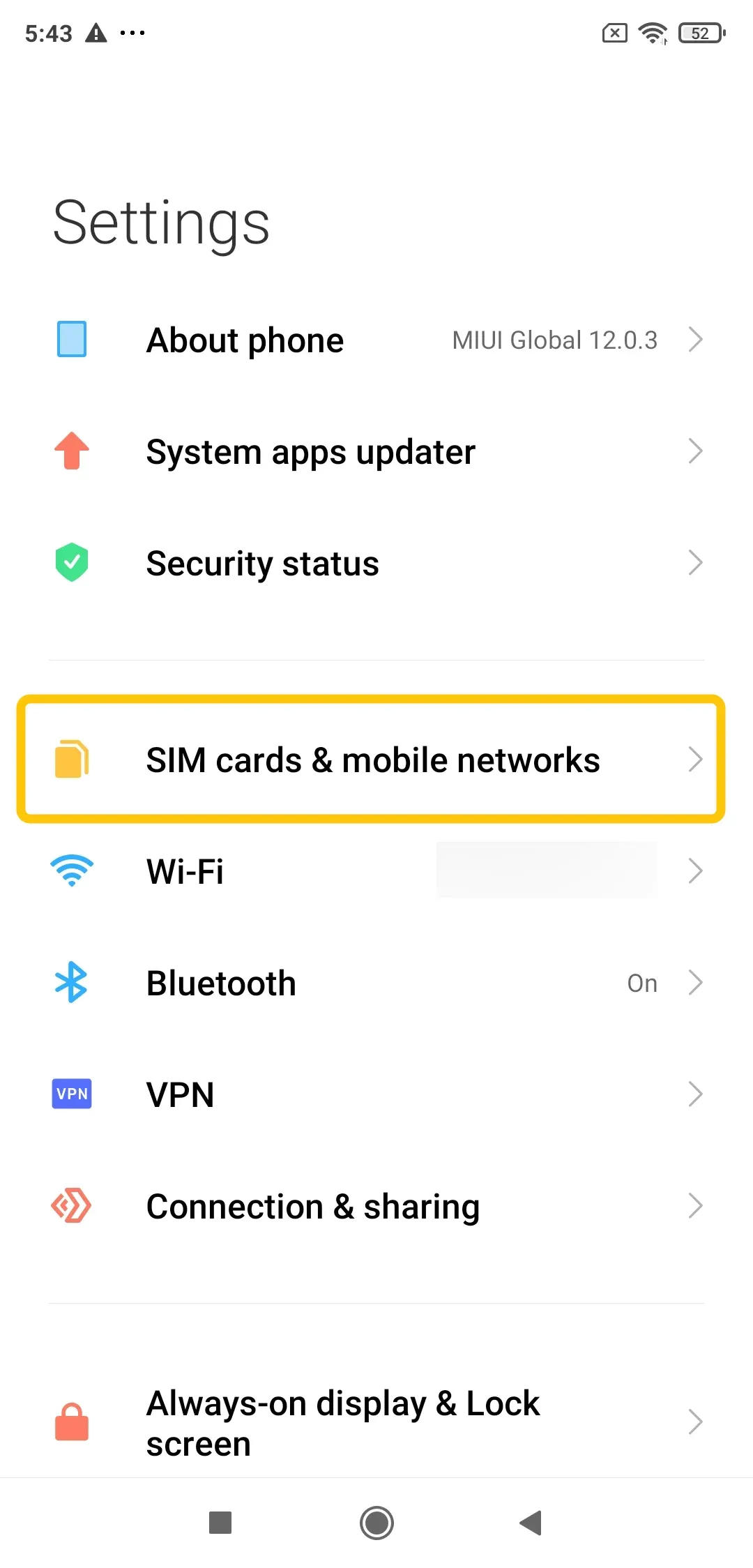
Step 1. Go to your phone's settings and enable the mobile hotspot feature.
Step 2. On your Samsung Smart TV, go to the WiFi settings and connect to your phone's hotspot.


Overall Rating:



Step 3. Install the PigeonCast app on your phone from the Google Play or App Store.
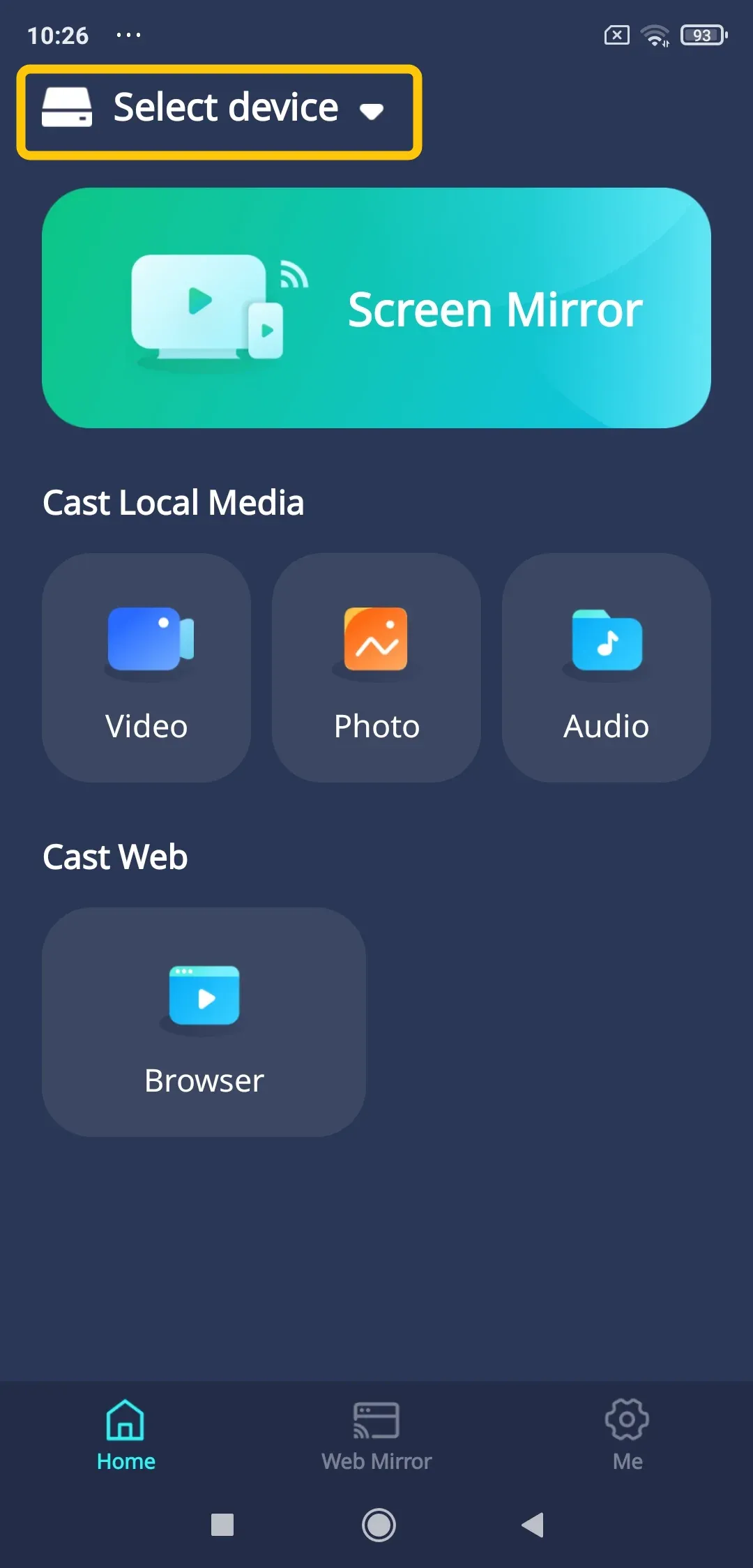
Step 4. Open the app, tap Select device to choose your Samsung TV from the available list. For Android, you can freely click the onscreen button to cast your media.
Step 5. Enter the PIN code to confirm the pairing process.
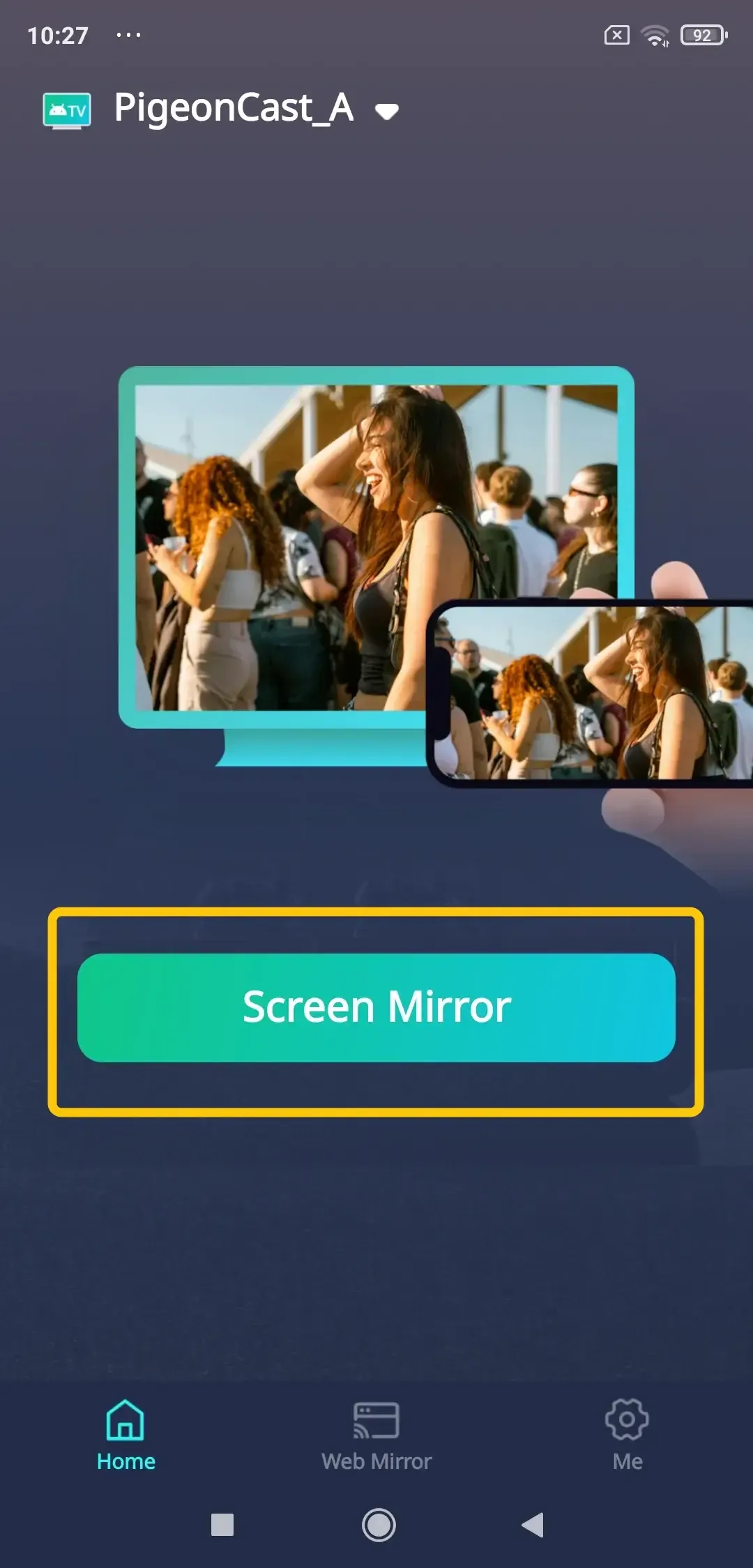
Step 6. Once successful, tap Screen Mirror to start the mirroring activities on your Samsung TV.
Conclusion
Screen mirroring to a Samsung TV without Wi-Fi is not only possible, but also relatively simple with the right methods. Whether you opt for a wired connection using a USB adapter, leverage Wi-Fi Direct for a router-free wireless experience, or use a mobile hotspot with apps like PigeonCast, you have several options to enjoy content on a larger screen without relying on a traditional Wi-Fi connection.
Can You Screen Mirror Without WiFi on Samsung Smart TV FAQ
Can I Screen Mirror to an Older Samsung TV Without WiFi?
Yes, but the available method depends on the TV model. Older Samsung TVs may support Wi-Fi Direct or Miracast, while others require an HDMI adapter or external streaming device. If built-in wireless options are limited, check how to screen mirror to an older Samsung TV using compatible wired or wireless methods.
Does my TV need WiFi to screen mirror?
No, your TV does not need WiFi to screen mirror. Methods like USB, WiFi Direct, and mobile hotspots allow for screen mirroring without the need for an internet connection.
How to connect phone to TV using Bluetooth without WiFi Samsung?
While Bluetooth allows you to connect your phone to a Samsung TV, it cannot be used for screen mirroring due to its limited bandwidth for video. Bluetooth is ideal for streaming audio, such as playing music or podcasts from your phone to your TV.
Can I cast Netflix from my phone to my TV without WiFi?
To cast Netflix from your phone to your TV without Wi-Fi, you have a few options:
- Use a Lightning to HDMI adapter for iPhones or a USB-C to HDMI adapter for Android phones to connect directly to your TV. This provides a stable, no-Wi-Fi connection.
- Turn your phone into a mobile hotspot, connect your TV to it, and stream Netflix via screen mirroring. This option requires mobile data and will consume your data plan.
- If you have a wireless HDMI kit, it can transmit the signal from your phone to your TV without Wi-Fi, providing a wireless solution without relying on a router.
- Some Samsung phones and TVs support Wi-Fi Direct or Miracast, allowing you to connect devices directly without a router. Ensure both your phone and TV support these features for this to work.
Does a smart TV need to be connected to WiFi to screen mirror?
No, a smart TV does not need an active internet connection (WiFi) for basic screen mirroring via WiFi Direct or a cable. It only needs the appropriate wireless or physical interface to be enabled and connected to your source device.
Can you screen mirror with just Bluetooth?
No, standard Bluetooth does not have the bandwidth required for transmitting high-quality, real-time video for screen mirroring. It is used for audio streaming, file transfers, and peripheral connections, but not for video mirroring.
How to connect Samsung phone to TV wirelessly?
The standard wireless method is using Smart View:
- Ensure both devices are on the same WiFi network.
- Swipe down on your phone to open the Quick Panel.
- Tap the Smart View icon.
- Select your Samsung TV from the list.
Clara Rossi is an experienced technology editor and a seasoned expert in screen mirroring and casting technologies. With a keen eye for detail and a deep understanding of how to seamlessly connect devices, Clara excels at optimizing user experiences for effortless sharing and streaming. Whether you're seeking quick fixes or advanced tips, her expertise and responsiveness ensure that every query is met with a well-informed and efficient solution.