
There's nothing better than sharing your favorite photos, videos, or mobile games on the big screen. If you own an Android phone and a Samsung TV, you're in luck because you have several seamless ways to make it happen. Whether you want to mirror your entire screen or cast content from a specific app, this guide will show you how to cast to Samsung TV from Android through all the available methods.
How to Mirror Android to Samsung TV
Screen mirroring lets you share everything from your Android device, whether it's videos, photos, or apps, directly onto your Samsung TV. You can do this wirelessly or with a physical connection, depending on what suits you best. In the following guide, we will walk you through different ways to cast from your Android device to your Samsung TV, so you can pick the method that works best for your setup and preferences.
Way 1. Cast to Samsung TV from Android via SmartThings
The SmartThings app is Samsung's solution for connecting your Android phone to a Samsung Smart TV. It automatically detects TVs from 2016 and newer for easy screen mirroring. For older models, you'll need the SmartView app. Let's read on to learn about how to cast Android to Samsung TV:
Step 1. Ensure you have connected the Android and Samsung TV to the same Wi-Fi network.
Step 2. Samsung mobile devices come with the app pre-installed, but if you're using a different Android phone, you'll need to download SmartThings first.
Step 3. Open the SmartThings app, click on the Add Device option, and select your Samsung TV.
Step 4. If prompted, enter the onscreen code to Samsung TV cast from Android.
Way 2. Cast to Samsung TV from Android via PigeonCast
PigeonCast is an excellent choice for screen mirroring from Android to your Samsung TV. It's free, easy to use, and only takes a minute to connect and start mirroring. In addition to Android, you can also use PigeonCast with iOS devices and Windows PCs, and it supports screen mirroring to any TV with AirPlay, DLNA, or Google Cast compatibility. Here's the step on how to connect Android to Samsung TV:

Step 1. Ensure both your devices are on the same Wi-Fi network.


Overall Rating:


Step 2. Download the PigeonCast app from the Google Play Store on your Android phone.
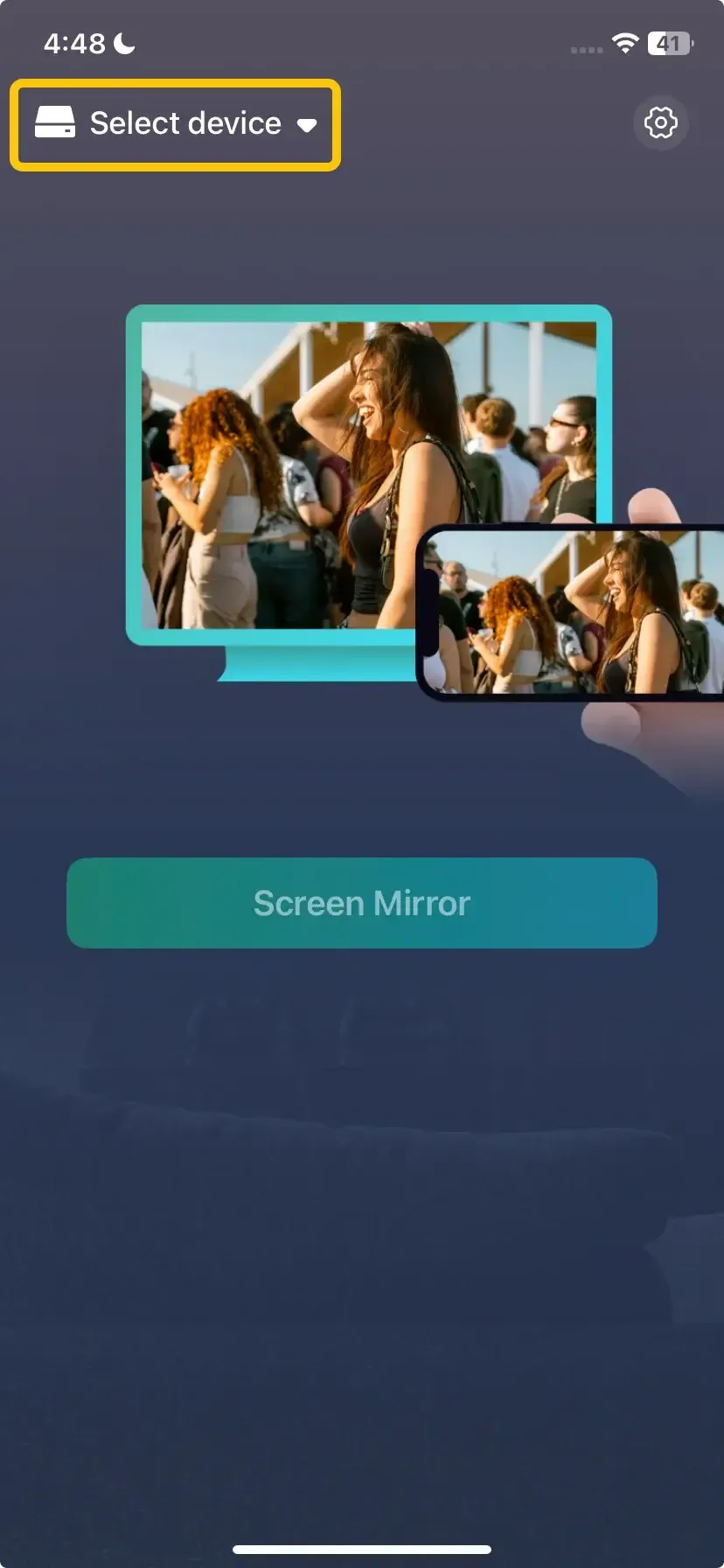
Step 3. Launch the free app, tap Select device to choose your Samsung TV from the available list to connect.
Step 4. Enter the onscreen PIN code to finish the connection.
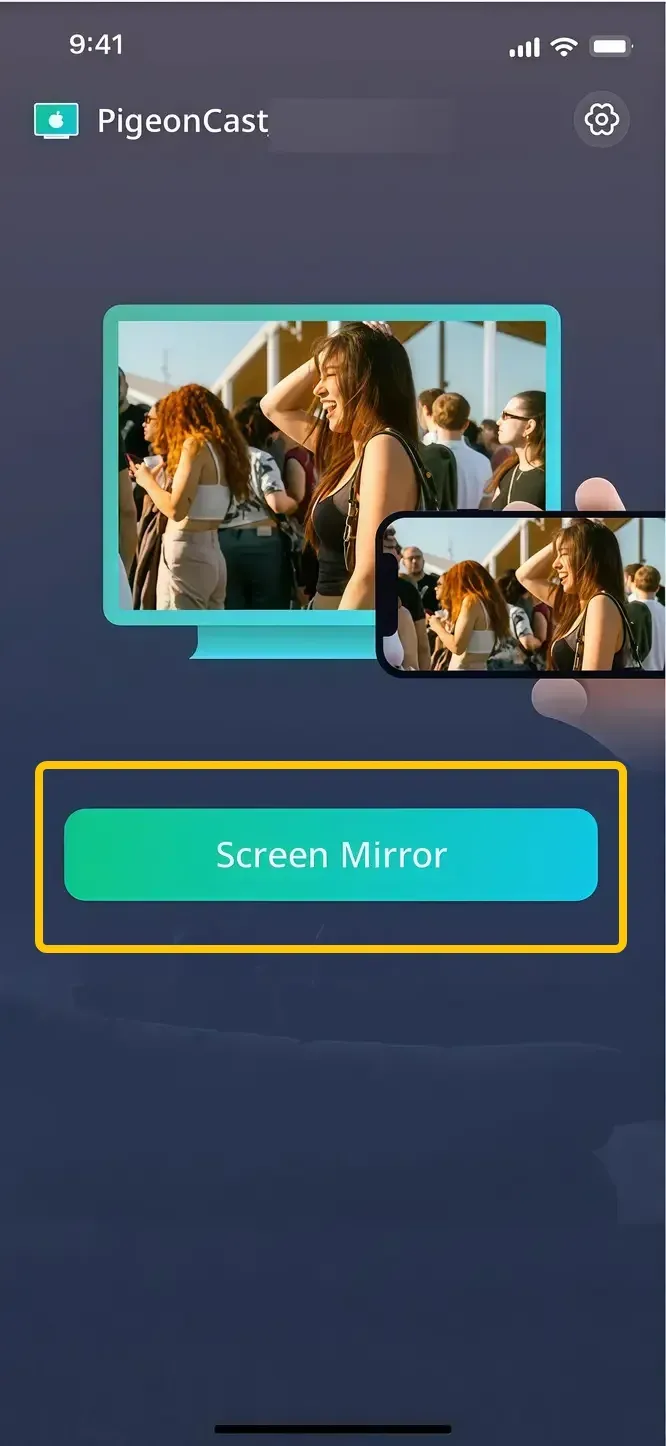
Step 5. When the pairing succeeds, you can then tap Screen Mirror to begin screen mirroring Android to Samsung TV.
Way 3. Cast to Samsung TV from Android via Chromecast
How to screen mirror Android to Samsung TV? Chromecast is an excellent option. Chromecast is a small, portable media adapter that plugs directly into the HDMI port of your TV, allowing you to wirelessly stream content from your Android device. Designed by Google, it's compact enough to carry in your pocket and doesn't require any additional cables to connect to your TV.
Step 1. Plug your Chromecast device into an HDMI port on your Samsung TV and power it using the provided cable.
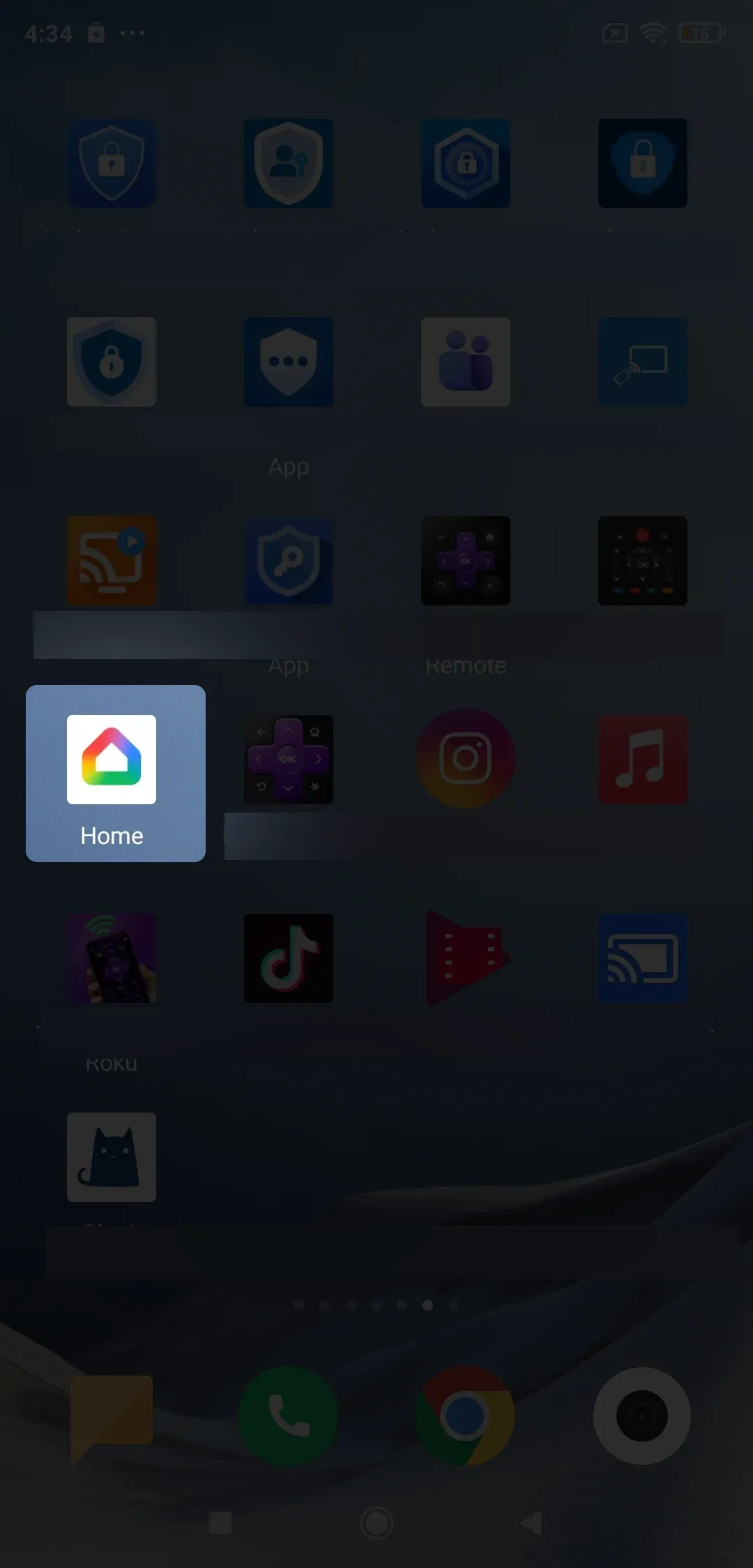
Step 2. Use the Google Home app on your Android phone to set up Chromecast on your Wi-Fi network.
Step 3. Ensure your Android phone is on the same Wi-Fi network as Chromecast.
Step 4. From the app, select your Chromecast device to add and then start mirroring on your Samsung TV.
Way 4. Cast to Samsung TV from Android via HDMI
How to cast from Android to Samsung TV? If you prefer a wired connection or don't want to rely on Wi-Fi, you can connect your Android device to your Samsung TV using an HDMI cable and an adapter. This method allows you to mirror your Android device without the need for a wireless network.
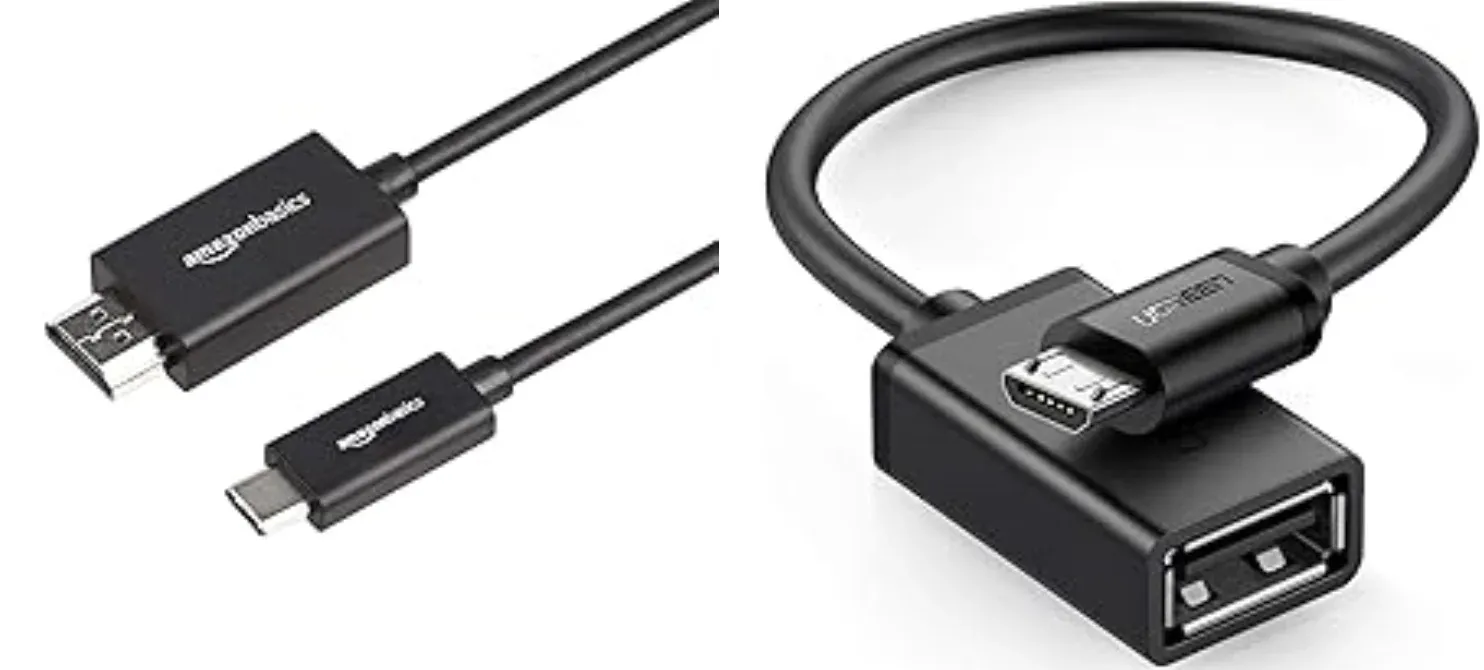
Step 1. Get a USB-C to HDMI adapter or a Micro-USB to HDMI adapter and an HDMI cable.
Step 2. Plug the adapter into your Android phone's charging port.
Step 3. Connect one end of the HDMI cable to the adapter and the other end to an available HDMI port on your Samsung TV.
Step 4. Using your Samsung TV remote, change the source or input to the corresponding HDMI port you used.
Step 5. Your Android device's screen should now appear on your Samsung TV.
Why Can't I Cast From Android to my Samsung Smart TV
Before changing network settings, check which Android phone you are using. Samsung Galaxy phones can usually connect through Samsung-specific tools, while Google Pixel phones primarily use Google Cast and do not provide Smart View. A Google Pixel and Samsung TV setup may therefore require Chromecast, PigeonCast, or another compatible connection method when the TV does not appear in the Pixel’s Cast menu.
Common reasons an Android phone cannot cast to a Samsung TV include:
- Both devices are not on the same Wi-Fi network: Ensure both your Android phone and Samsung TV are connected to the same Wi-Fi network.
- Screen mirroring or casting is not enabled: Check your TV's settings to ensure that the screen mirroring or casting feature is turned on.
- Outdated software: Ensure that both your Android device and Samsung TV are running the latest software updates.
- Device compatibility: Not all Android phones are compatible with all casting methods. Check if your device supports the method you're trying to use (e.g., Chromecast or Smart View).
- Sound works but no picture: If your Samsung TV plays audio but the screen remains blank during screen mirroring, check your display settings, and connection method.
- Interference from other devices: If there are multiple devices connected to the same network, it may cause interference.
- Interference from other devices: If there are multiple devices connected to the same network, it may cause interference. Try disconnecting any unnecessary devices from the network.
Conclusion
How to cast to Samsung Smart TV from Android? Whether you choose SmartThings, PigeonCast, Chromecast, or an HDMI cable, each method allows you to enjoy your content on a larger screen. Just ensure both devices are connected to the same Wi-Fi network and that screen mirroring is enabled. With these options, you'll be able to seamlessly cast your favourite videos, photos, and apps to your Samsung TV.
How to Cast to Samsung TV from Android FAQ
How to cast to Samsung TV from Android without WiFi?
To cast to a Samsung TV from an Android device without Wi-Fi, you can use an HDMI cable with an appropriate USB-C to HDMI or Micro-USB to HDMI adapter. Simply connect the adapter to your Android device, plug the HDMI cable into the TV, and select the corresponding HDMI input on your Samsung TV. This method allows you to mirror your Android screen to the TV without needing a Wi-Fi connection.
How to cast to Samsung TV from Android via USB?
To cast to a Samsung TV from your Android device via USB, you'll need a USB to HDMI adapter. Here's how to do it:
- Depending on your Android device, you'll need either a USB-C to HDMI adapter (for newer devices) or a Micro-USB to HDMI adapter (for older devices).
- Plug the adapter into your Android device's charging port.
- Plug one end of the HDMI cable into the adapter and the other end into an available HDMI port on your Samsung TV.
- Use your TV remote to switch the input to the HDMI port you've connected the cable to.
- Your Android device's screen should now appear on your Samsung TV, allowing you to share videos, photos, or apps directly.
How to cast to Samsung TV from Android without Chromecast?
To cast to your Samsung TV from an Android device without using Chromecast, you can use one of the following methods:
- Use Screen Mirroring (Wi-Fi Direct)
- Use the SmartThings app
- Use PigeonCast
- Use an HDMI cable
Clara Rossi is an experienced technology editor and a seasoned expert in screen mirroring and casting technologies. With a keen eye for detail and a deep understanding of how to seamlessly connect devices, Clara excels at optimizing user experiences for effortless sharing and streaming. Whether you're seeking quick fixes or advanced tips, her expertise and responsiveness ensure that every query is met with a well-informed and efficient solution.