
Google Pixel phones are known for their clean Android experience, strong performance, strong performance, and excellent quality. So it is only natural to want that screen on a bigger display. Whether you are sharing photos, watching videos, or giving a presentation, learning how to cast Pixel to Samsung TV can save time and make everything feel more comfortable.
The good news is that there is more than one way to do it. Some options are built into Android, while others work better when compatibility gets tricky. This guide walks you through the most reliable ways to cast from Pixel to Samsung TV, including free and beginner-friendly solutions.
How to Cast Google Pixel to Google TV
There are three practical ways to cast or screen mirror a Pixel phone to a Samsung TV. Each method works slightly differently and fits different use cases. You can choose based on what you care about most. Ease of use, visual quality, or built-in support.
Way 1: Cast Pixel to Samsung TV with the Free PigeonCast App
If you want the simplest setup with the fewest limitations, PigeonCast is often the easiest place to start. It works well for users who want smooth screen mirroring without dealing with protocol compatibility issues.
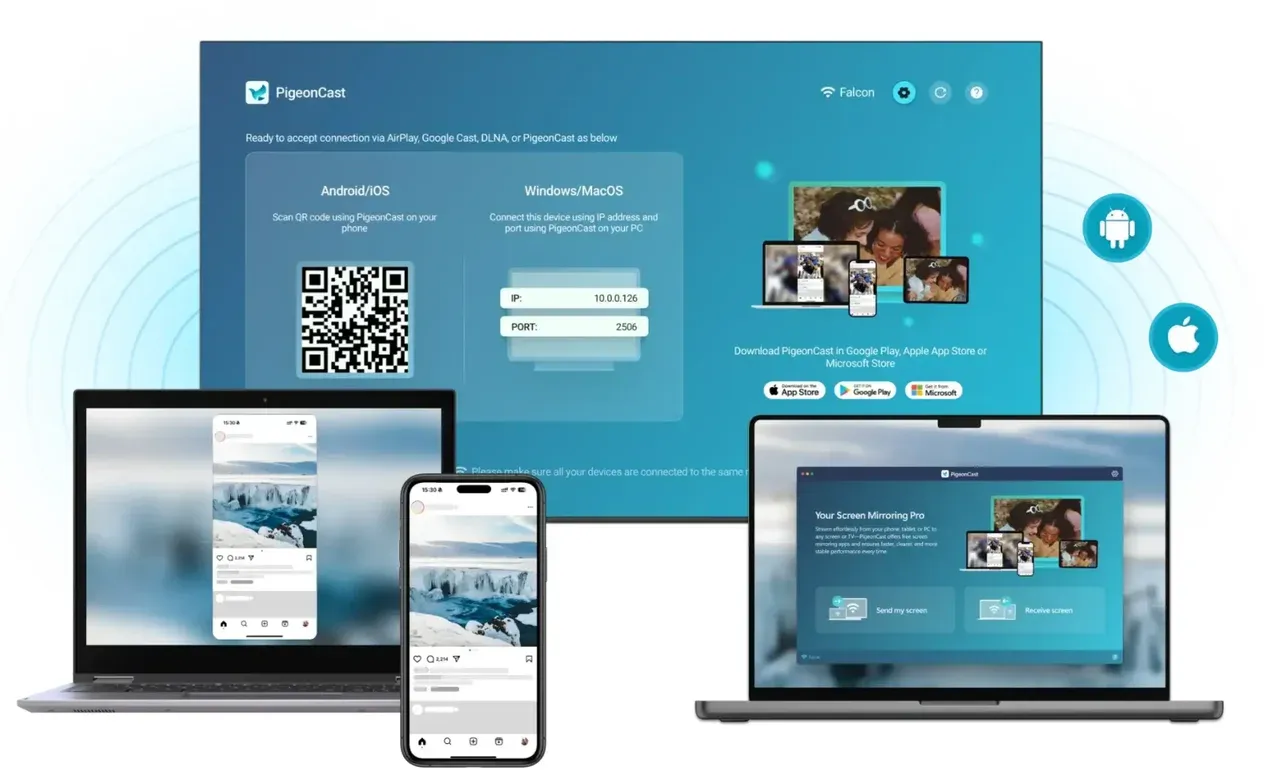
PigeonCast supports both full-screen mirroring and media casting. The picture stays sharp, motion feels smooth, and setup takes only a few minutes. Best of all, the app is currently completely free, with no ads, no time limits, and no feature restrictions.
Why PigeonCast works well:
- Very easy to use, even for first-time users
- Supports full-screen mirroring and direct casting
- Stable connection with clear, high definition visuals
- No ads, no usage limits, and no hidden paywalls
How to cast Pixel to Samsung TV using Pigeoncast:
Step 1. Install PigeonCast on your Google Pixel phone.


Overall Rating:


Step 2. Make sure your phone and TV are connected to the same Wi-Fi network.
Step 3. Open the app on your Pixel phone and select your Samsung TV.
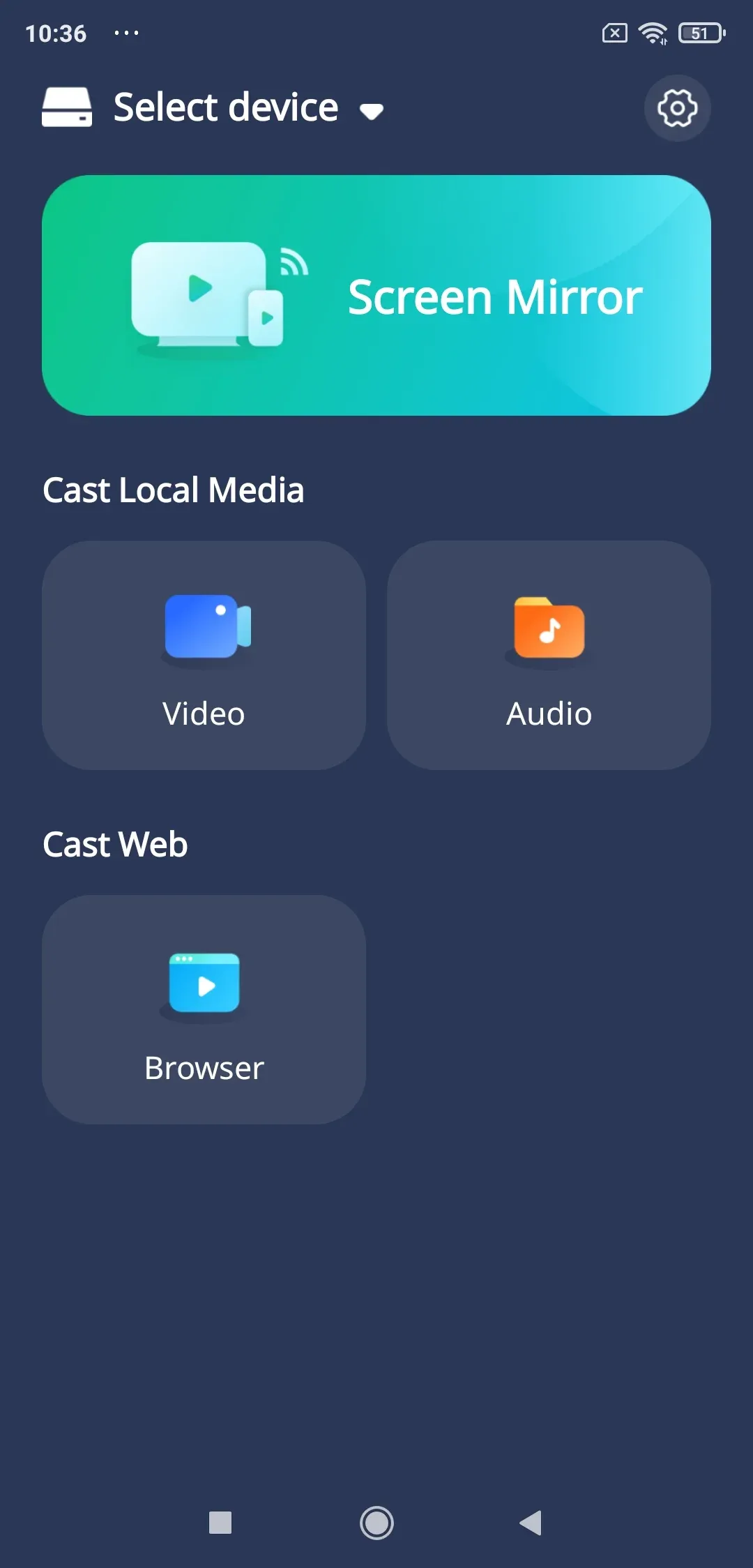
Step 4. Select screen mirroring or media casting, and then start sharing.
Once connected, your Pixel cast to Samsung TV session starts almost instantly. This method works especially well for videos, photos, browsing, and even light presentations.
Way 2: Cast to Samsung TV from Pixel Using SmartThings
Samsung SmartThings is designed to manage Samsung devices, but it also supports limited casting from Android phones, including Pixel models.

This option is useful if you already use SmartThings and want a built-in solution without installing additional TV software. That said, compatibility can vary depending on your TV model and Android version.
What to expect from SmartThings:
- No extra hardware required
- Works best with newer Samsung TVs
- Limited control compared to full mirroring apps
Steps to cast from Pixel to Samsung TV using SmartThings:
Step 1. Install the SamsrtThings app on your Pixel phone.
Step 2. Sign in with your Samsung account.
Step 3. Make sure your phone and TV are on the same Wi-Fi network.
Step 4. Add your Samsung TV to the app.
Step 5. Use the screen sharing or media sharing option.
For basic use, this can work. However, if your Pixel phone does not appear or the connection fails, that usually points to protocol limitations rather than a setup mistake.
Way 3: Cast Google Pixel to Samsung TV Using Chromecast
Samsung TVs do not have native Chromecast built in, but you can still use Google Cast through an external Chromecast dongle. To cast Pixel 3 to Samsung TV, this is a good option if you already own a Chromecast device.
How to cast Google Pixel to Samsung TV:
Step 1. Plug the Chromecast into your TV.
Step 2. Connect it to the same Wi-Fi network as your Pixel phone.
Step 3. Scroll down the top screen of your Pixel phone and tap the Cast option.
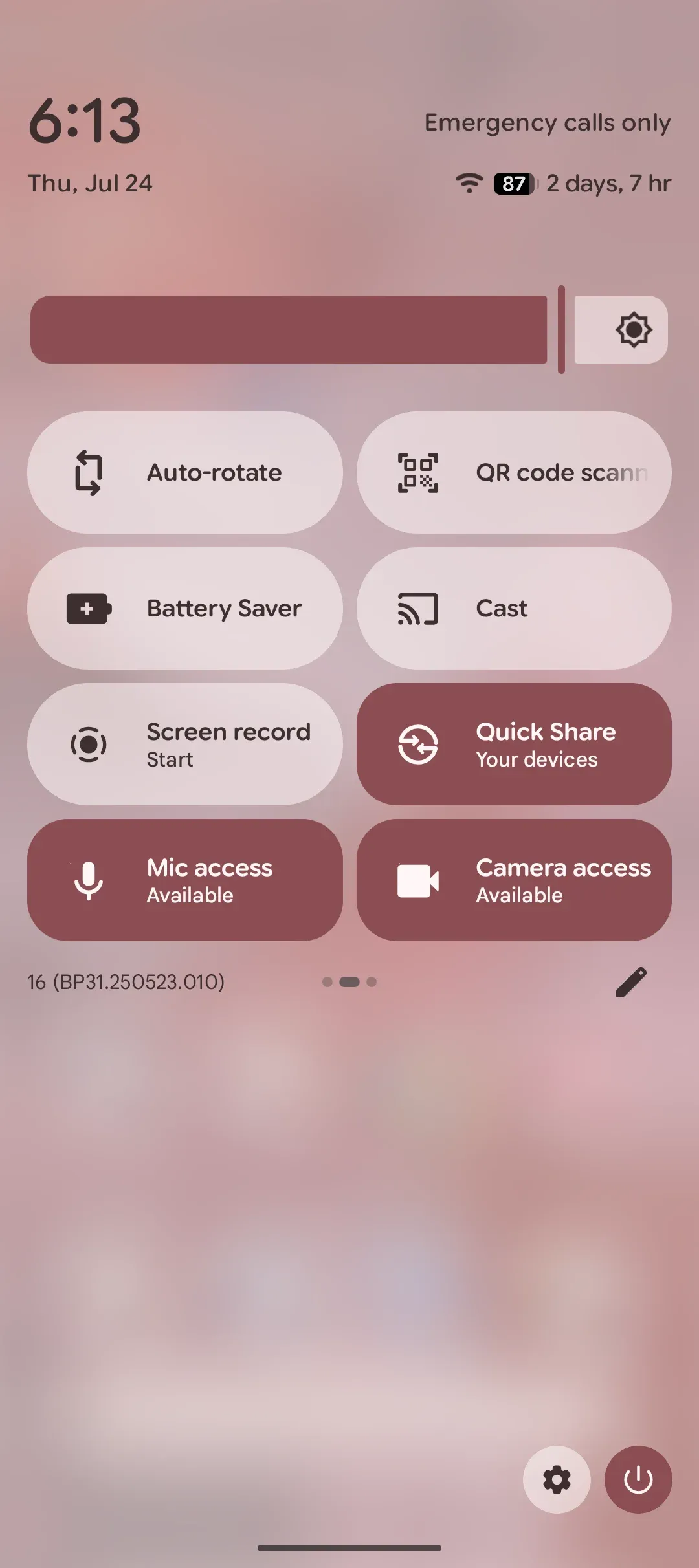
Step 4. Choose your Chromecast dongle from the list.
Step 5. Once connected, you can view your phone screen on the TV.
Quick Comparison of Google Pixel Cast to Samsung TV
When deciding how to cast your Google Pixel to a Samsung TV, it's helpful to compare the different options. Here's a quick breakdown of each method's key features, so you can make an informed choice:
| Method | Ease of Use | Visual Quality | Compatibility | Additional Features |
|---|---|---|---|---|
| PigeonCast (Free App) | Very Easy | High Definition | Works with AirPlay-enabled Samsung TVs | No ads, no limits, stable connection |
| SmartThings App | Moderate | Moderate | Best with newer Samsung TVs | No extra hardware needed, limited control |
| Chromecast Dongle | Easy | High Definition | Works with all Samsung TVs | Requires Chromecast device, full screen casting |
Key Takeaways:
- PigeonCast stands out as the most user-friendly option, offering the best visual quality and a truly free experience with no restrictions. It's great for both beginners and seasoned users.
- SmartThings is convenient if you're already using the app to control your Samsung devices, but it may not offer as smooth a casting experience, particularly with older TV models.
- Chromecast provides reliable performance but requires an external dongle. It's a good choice if you already own a Chromecast device and prefer to use Google's native casting system.
Wrapping Up
Casting from a Pixel phone to a Samsung TV is absolutely possible, even though they come from different ecosystems. The key is choosing the right method for your needs.
If you want flexibility and smooth performance, a free app solution offers the least friction. If you prefer built-in tools, SmartThings can work in simple scenarios. And if you already rely on Google services, Chromecast remains a solid choice for media apps.
Once set up, casting from Pixel to Samsung TV becomes something you barely think about. It just works.
Cast Pixel to Samsung TV FAQs
How do I cast from my Android phone to my Samsung TV?
You can use a screen mirroring app for Android, Samsung SmartThings (or Miracast), or a Chromecast device. Make sure both devices are on the same network.
Can you Google Cast to a Samsung TV?
Samsung TVs do not support Google Cast natively. You need a Chromecast dongle or a Chromecast-enabled app to cast successfully.
Why can't I cast to Samsung TV?
This usually happens due to protocol incompatibility, different Wi Fi networks, or disabled screen sharing settings on the TV.
Why can't I cast to my TV from my Android phone?
Some Android phones, including Pixel models, do not support Miracast. In those cases, third-party screen mirroring apps work more reliably.
Why won't my Samsung TV detect a device?
Check that both devices are connected to the same network. Also, confirm that screen sharing or device visibility is enabled on the TV.
Mia Clarke is a technology editor specializing in screen mirroring and casting solutions across multiple platforms. Mia provides clear, practical guides and in-depth insights to help users seamlessly connect their devices. Passionate about enhancing digital experiences, Mia is dedicated to keeping readers updated on the latest trends and tools in cross-platform screen sharing. Whether you’re looking to mirror your smartphone, laptop, or smart TV, Mia’s content delivers reliable, user-friendly advice to simplify your tech setup.