
If you have a Google Pixel phone, a laptop, and a TV, you already have everything you need to build a powerful entertainment setup at home. With Google Pixel screen mirroring, you can duplicate your phone's display onto a larger screen, whether it's a PC or a TV, for a clearer, more immersive viewing experience. In this guide, you'll learn the easiest ways to mirror your Pixel to both PC and TV, including practical steps and tips for smoother streaming.
About Google Pixel Screen Mirroring
Screen Mirroring on Google Pixel devices has evolved through the years as the phones themselves have progressed. Users of older models, such as Pixel 2, often look for traditional wireless standards, while newer owners, including Pixel 6 users, focus on modern casting tools and app-supported mirroring.
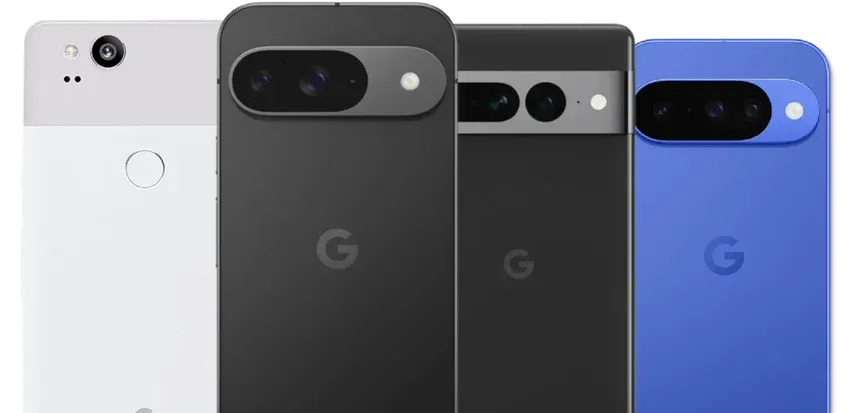
Regardless of your model, the idea is the same: you want your videos, games, apps, or presentations to appear on a larger screen without hassle. There are mainly 4 methods for this:
- Chromecast is the option most Google Pixel owners rely on because it is deeply integrated into Android. It works smoothly on Pixel 2, Pixel 3, Pixel 6, and all later generations. This makes it ideal for anyone seeking a dependable solution with minimal setup requirements.
- Miracast is far less consistent. Pixel phones gradually shifted focus away from Miracast as Google leaned into the Google Cast ecosystem. While some older models may still interact with certain Miracast receivers, the experience is not guaranteed.
- Users searching for Pixel 6 screen mirroring without Chromecast often turn to third-party apps. This is where PigeonCast becomes useful, as it works across Windows, Mac, Android TV, and various display types.
- HDMI offers the most stable wired connection and is excellent for gaming or video playback, although it requires the correct USB-C to HDMI adapter.
The right method also depends on the TV brand. A Google Pixel connects most easily to a Google Cast receiver, while some Samsung TVs rely more heavily on Samsung-specific mirroring features. As a result, the steps to cast a Google Pixel to a Samsung TV may involve Chromecast, an app-based connection, or another compatible receiver rather than Smart View.
Method 1: Use Chromecast
Chromecast remains the easiest method, especially for people who want fast setup and stable performance. It works flawlessly across nearly all Google Pixel phones.
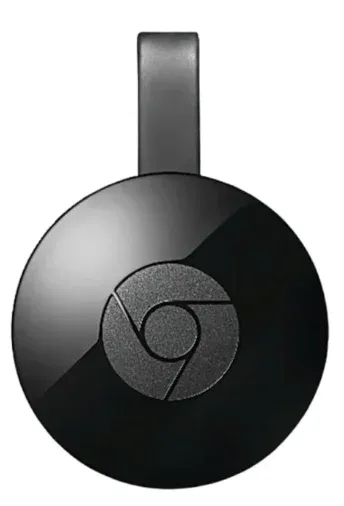
Here's how to mirror Google Pixel to TV with Chromecast:
Step 1. Connect your Chromecast device or ensure your TV has Chromecast built in.
Step 2. Ensure your Pixel and your TV share the same Wi-Fi network.
Step 3. Open Quick Settings on your Pixel and tap Cast.
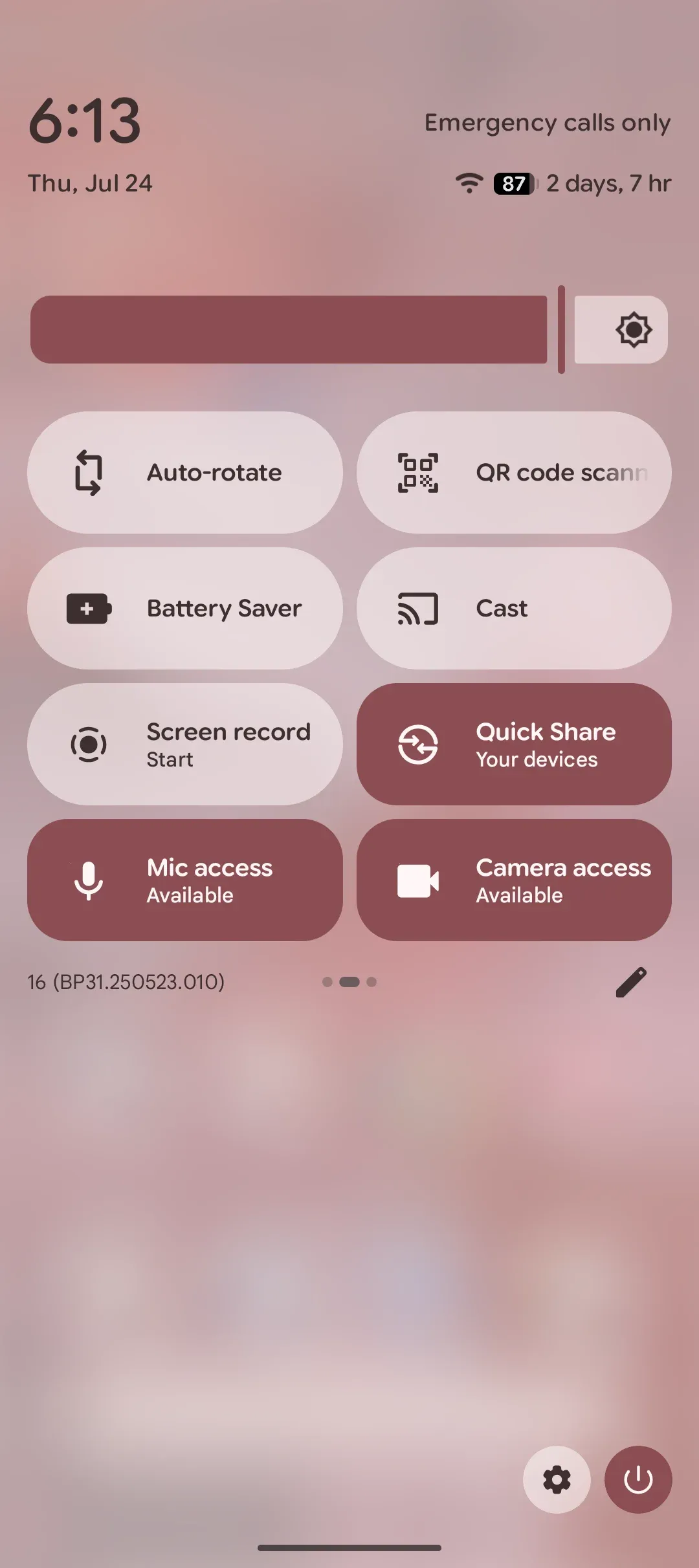
Step 4. Select your TV or Chromecast device.
Step 5. Confirm on your TV if prompted, and your phone screen will appear immediately.
This method is ideal for streaming apps, watching games, viewing photos, or sharing documents during a meeting. It is also the most recommended method for users searching for simple screen mirroring Pixel techniques.
Method 2: Miracast
Miracast support became inconsistent after the earlier Pixel generations. People attempting screen mirroring Pixel 2 or Pixel 3 may still find some compatibility with third-party receivers, but results can vary. If your TV only supports Miracast and not Chromecast (check Miracast vs Chromecast), this method may work.
Here's how to screen mirror on Google Pixel via Miracast technology:
Step 1. Turn on Miracast mode on your TV or receiver.
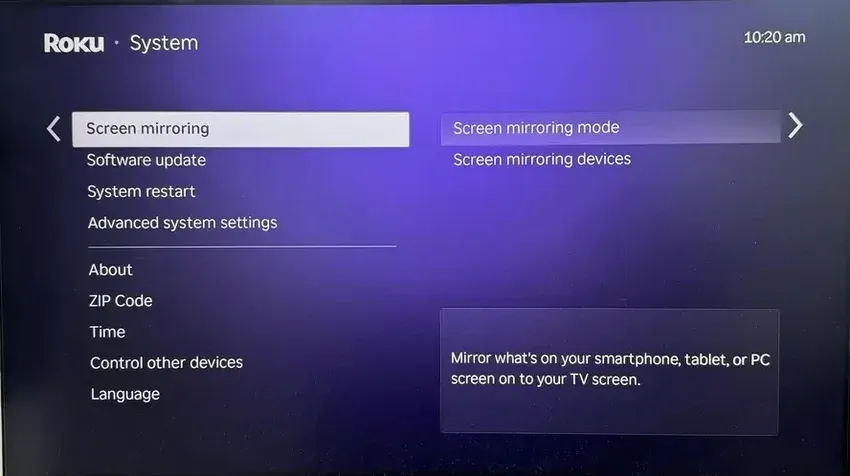
Step 2. On your Pixel, open Settings and search for Cast or Wireless display.
Step 3. Enable the option if available and choose your TV from the list.
Step 4. Approve any connection request on the TV.
Although Miracast can work, it is not the most dependable option. Many users upgrade to Chromecast or PigeonCast to avoid inconsistent pairing and lag.
Method 3: PigeonCast
PigeonCast, a free and safe third-party app, provides a universal approach to Google Pixel screen mirroring, especially when you need to mirror your phone to a Windows laptop, Mac computer, Android TV, or Apple TV. It is frequently used by Pixel owners who prefer not to rely on Chromecast or whose TVs are older.
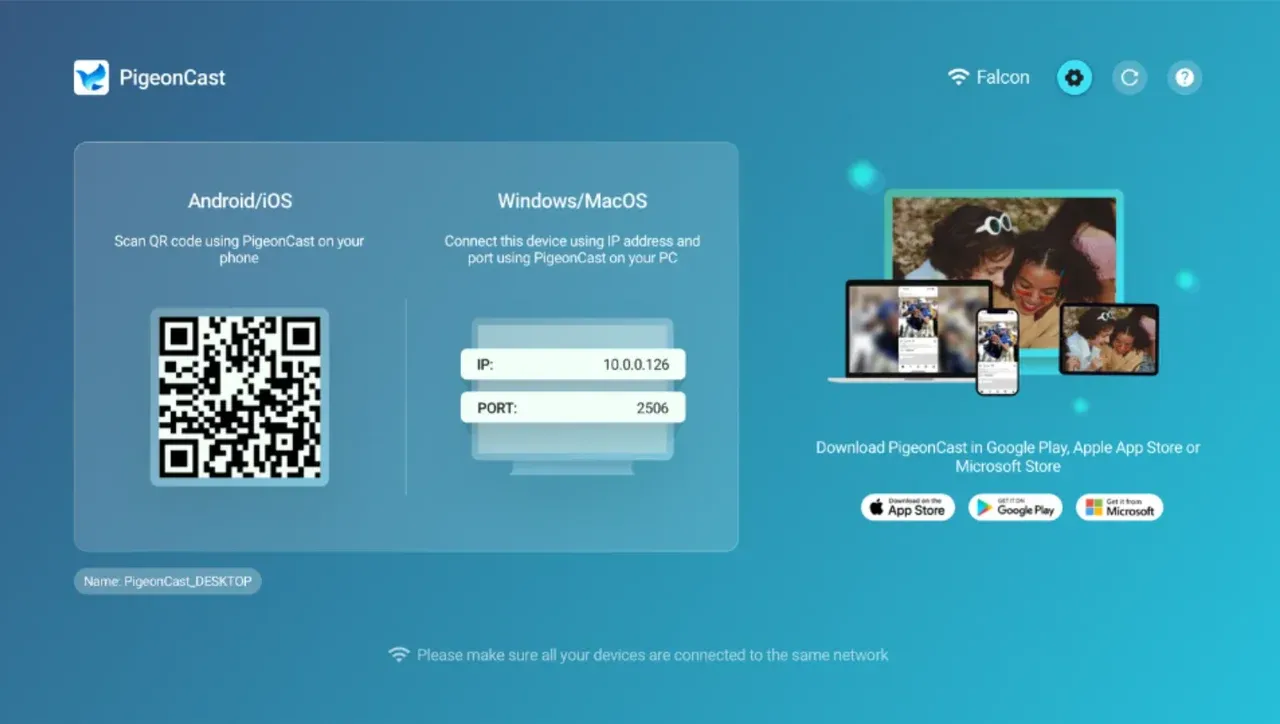
Step 1. Install PigeonCast on your Pixel from the Play Store.


Overall Rating:



Step 2. Install PigeonCast on your PC or TV.
Overall Rating:

Step 3. Ensure that both devices are connected to the same Wi-Fi network.
Step 4. Open PigeonCast on your Pixel and choose the device you want to mirror to.
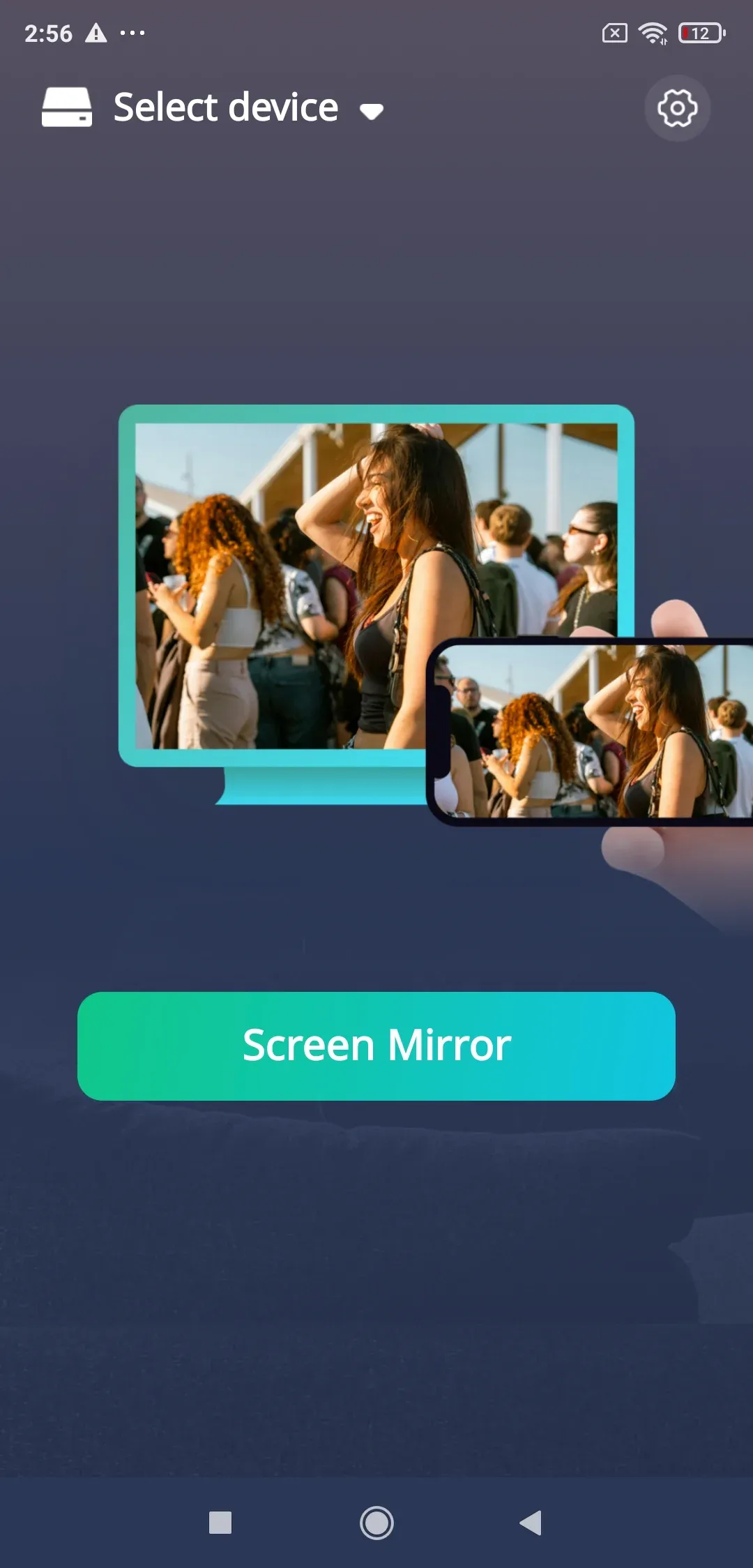
Step 5. Start casting and adjust the resolution settings if needed for smoother performance.
PigeonCast is especially useful for anyone searching for how to screen mirror on Google Pixel when Chromecast is unavailable.
Method 4: Use HDMI Cable
If you prefer a wired connection, HDMI is the most reliable option, especially for gaming, long movies, or offline use. It avoids Wi-Fi interference and delivers smooth picture quality.
Use HDMI to initiate screen mirroring Google Pixel:
Step 1. Get a compatible USB-C to HDMI adapter.
Step 2. Plug the adapter into your Pixel.
Step 3. Connect the HDMI cable from the adapter to your TV.
Step 4. Change your TV input to the correct HDMI channel.
Step 5. Your screen should appear instantly.
This setup is perfect for a Pixel 3 screen mirroring scenario in a conference room or when traveling, since it works without internet.
Which Is the Best Way for Google Pixel Screen Mirroring
Below is a simple comparison to help you choose the best method for your needs.
| Method | Wireless or Wired | Best For | Pixel Compatibility | Cost |
|---|---|---|---|---|
| Chromecast | Wireless | Everyday streaming | All Pixel models | Low to Medium (device required) |
| Miracast | Wireless | Older TVs | Older Pixel models | Low to Medium (depends on TV/receiver) |
| PigeonCast | Wireless | Mirroring without Chromecast | Models that run Android 6.0 or above | Free (no ads) |
| HDMI | Wired | Lag free viewing | All USB C Pixel models | Low to Medium (adapter and HDMI cable required) |
Final Thoughts
Screen mirroring Pixel phones is straightforward once you know which method fits your device and your display. Chromecast works best for most users, PigeonCast provides flexibility when Chromecast is unavailable, Miracast is only a fit for older setups, and HDMI gives the most reliable picture for movies or games. Whether you want to share holiday videos, stream a movie, or present slides from your Pixel, you now have several practical options for creating a smooth and enjoyable viewing experience.
Pixel Screen Mirroring FAQs
How do I mirror Google Pixel to TV without Chromecast?
You can use HDMI or PigeonCast. HDMI offers the most stable picture, while PigeonCast works wirelessly on almost any TV or PC.
Does Google Pixel have screen mirroring?
Yes. Google Pixel supports screen mirroring primarily through the built-in Cast feature, which uses Google Cast. For non-Chromecast devices, apps like PigeonCast or wired HDMI adapters allow mirroring as well.
Why is my Pixel not showing a Cast button?
Your Pixel may not be on the same WiFi network as your TV. Some apps hide the Cast button if the device does not detect a supported receiver.
Does screen mirroring Pixel drain battery quickly?
Yes, wireless casting uses both WiFi and processing power. HDMI uses less battery because it does not require wireless transmission.
Can I use screen mirroring Pixel 2 on an older TV?
Yes. HDMI or Miracast receivers often work better than Chromecast on older displays.
How do I improve the quality of Pixel screen mirroring?
Use a 5 GHz WiFi connection or a wired HDMI adapter. PigeonCast also allows resolution adjustments for smoother playback.
Why doesn't my Pixel cast to my TV?
Your TV may not support Google Cast, or the Cast function may be disabled. Make sure your TV, Chromecast, or casting device is powered on, updated, and on the same WiFi network as your Pixel. If your TV doesn't support Cast, use PigeonCast or HDMI instead.
Mia Clarke is a technology editor specializing in screen mirroring and casting solutions across multiple platforms. Mia provides clear, practical guides and in-depth insights to help users seamlessly connect their devices. Passionate about enhancing digital experiences, Mia is dedicated to keeping readers updated on the latest trends and tools in cross-platform screen sharing. Whether you’re looking to mirror your smartphone, laptop, or smart TV, Mia’s content delivers reliable, user-friendly advice to simplify your tech setup.