
Watching movies, sharing vacation photos, or streaming games feels so much better on a big screen. If you're holding an Android phone and wondering how to Chromecast from Android, the good news is it's easier than you think. Whether you're using a built-in Chromecast feature, a supported app, or a third-party tool, Android offers several flexible ways to connect and cast. Let's walk through them step by step.
How to Chromecast from Android
Before you begin, make sure your Android phone and TV (or Chromecast device) are connected to the same Wi-Fi network. Also, for TVs or displays that don't have Chromecast built in, you can plug a Chromecast dongle into your receiving device or install PigeonCast on your Apple TV, MacBook, or Windows PC to make your screen Chromecast-compatible.

PigeonCast Screen Mirroring

Official Download



Method 1: Use the Cast Feature
Most modern Android phones come with a native Cast option that works perfectly with Chromecast-enabled TVs and streaming devices. The built-in feature is available on phones like Google Pixel, Samsung Galaxy, OnePlus, and Xiaomi devices running on Android 6.0 or later with Google Play services.
How to Chromecast from Android to TV? Here are the steps:
Step 1. Swipe down from the top of your Android screen to open Quick Settings.
Step 2. Tap Cast.
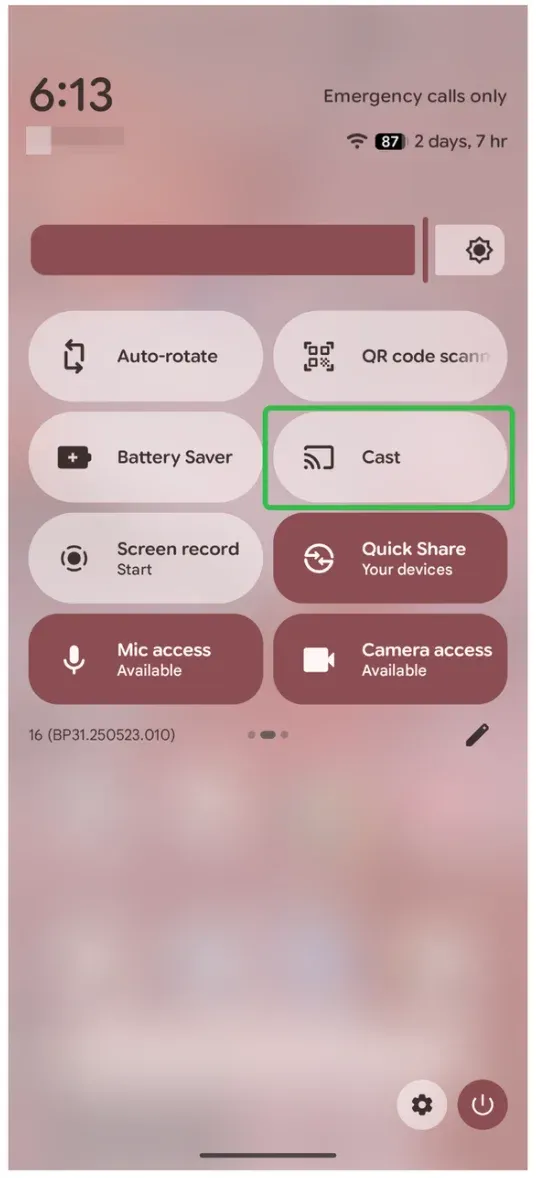
Step 3. Wait for your phone to detect nearby Chromecast or Chromecast-compatible devices.
Step 4. Select your TV or device name.
Step 5. Confirm the connection, and your Android screen should now appear on the TV.
Method 2: Use a Chromecast-Supported App
If you're more interested in streaming videos or music than mirroring your entire phone, many apps already have Chromecast support built in. Platforms like YouTube, Netflix, Disney+, and Spotify let you stream content directly to your TV, saving battery and ensuring smoother playback.
So, you can Chromecast Android easily with one of those apps:
Step 1. Open a Chromecast-supported app on your Android phone.
Step 2. Tap the Cast icon (a rectangle with Wi-Fi waves) usually found at the top corner.
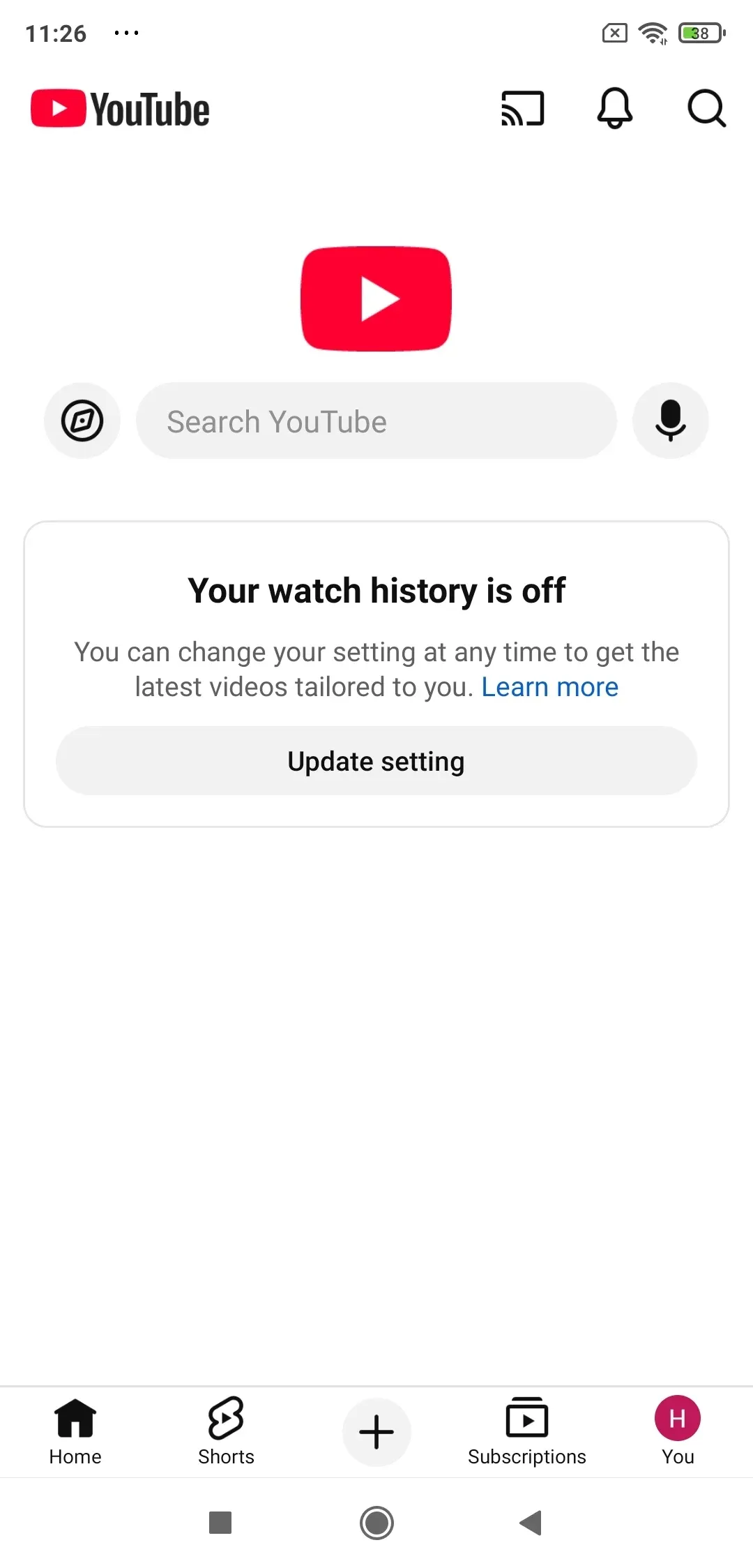
Step 3. Choose your Chromecast device from the list.
Step 4. Select the video, song, or content you want to play, and it'll instantly stream on your TV.
This method is ideal if you're wondering how to cast to Chromecast from Android for entertainment apps. For iPhone, Chrome browser, Windows, or Mac, the full process to cast to Chromecast depends on the device you are using.
Method 3: Use PigeonCast for Android
Wondering about a more flexible way to share your content across virtually any screen? Try the PigeonCast for Android app.
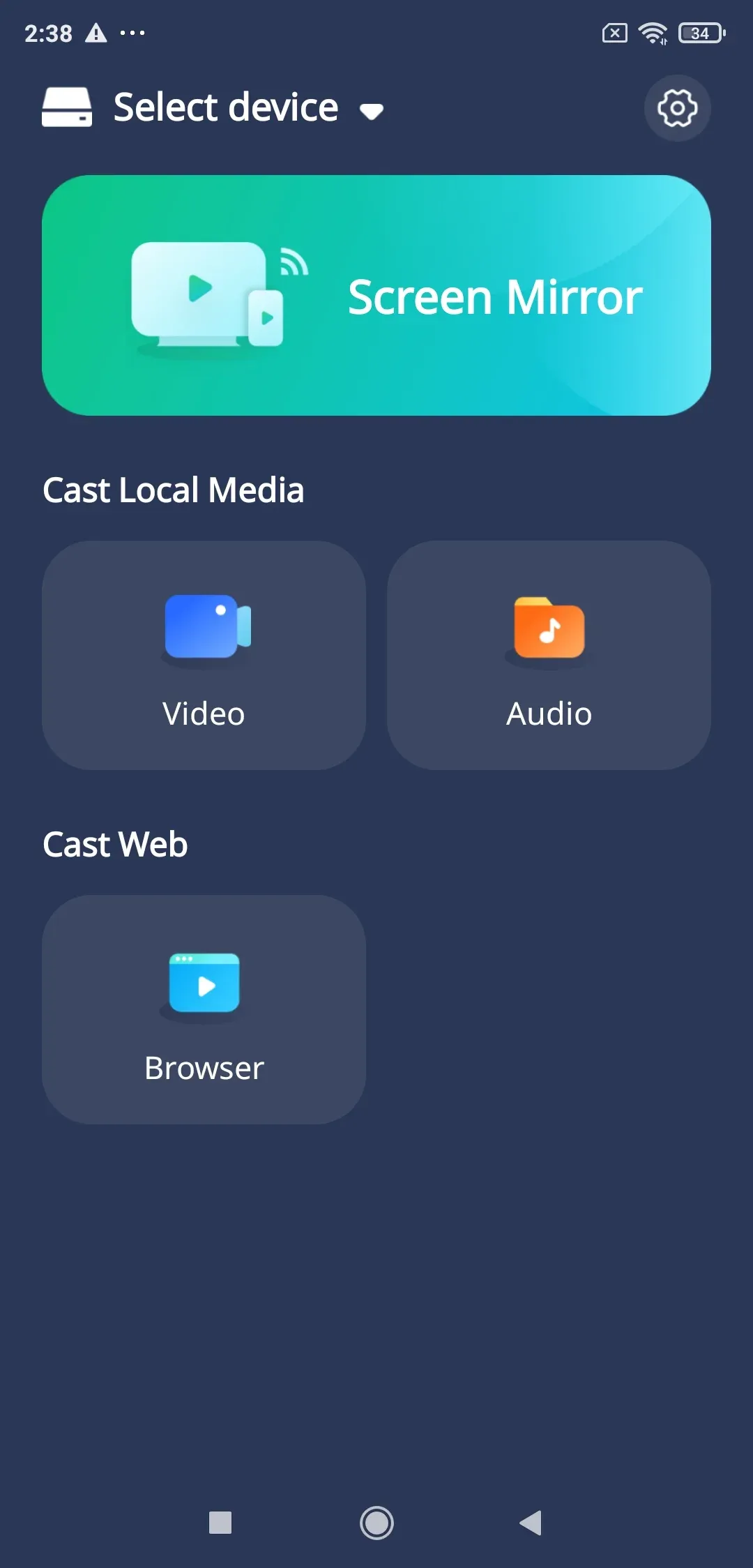
Unlike most casting apps that rely solely on the Google Cast protocol, PigeonCast also supports AirPlay and DLNA, letting you connect your Android phone not just to Chromecast devices, but also to Apple devices (like casting Android to Apple TV) and DLNA-compatible smart TVs. This makes it a universal option for multi-device households.
PigeonCast isn't limited to live screen mirroring either. It allows you to transfer and display offline media, such as photos and videos stored in your phone's gallery, directly onto your TV:
Step 1. Install PigeonCast on your Android phone.
PigeonCast Screen Mirroring
Official Download

Step 2. Open PigeonCast on your phone and choose your target device.
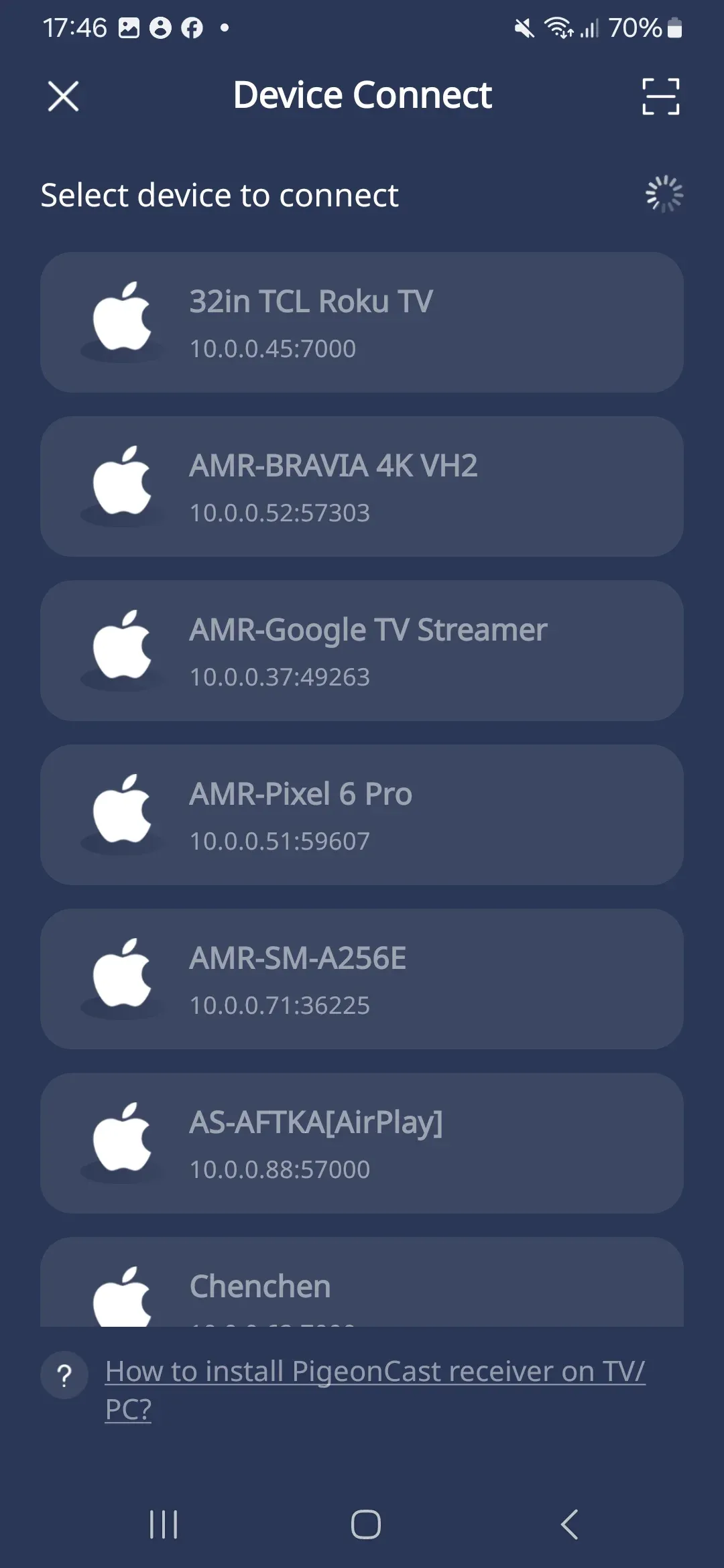
Step 3. Tap Screen Mirror or other options, depending on your demands, to start streaming.
How to cast to TV from Android phone? It's a simple and reliable alternative for users whose phones or TVs don't natively support Chromecast.
Method 4: Use the Google Home App
When your phone doesn't show the Cast shortcut or you want a more centralized way to manage devices, the Google Home app comes in handy. It helps you detect, set up, and control Chromecast-enabled TVs and smart speakers all in one place.
Here's how to cast to Chromecast from Android using the official solution:
Step 1. Install the Google Home app from the Play Store.
Step 2. Open the app and sign in with your Google account.
Step 3. Tap Devices and select your Chromecast or smart TV.
Step 4. Choose Cast my screen > Cast screen to begin mirroring.
Step 5. To stop, tap Stop mirroring within the app.
This approach ensures compatibility, especially when learning how to Chromecast from Android to TV through official Google support.
Why Can't You Chromecast from Your Android
If your Chromecast connection fails or doesn't appear, the issue usually comes down to one of these common causes:
| Problem | Possible Cause | Solution |
|---|---|---|
| Chromecast not showing up | Devices not on the same Wi-Fi network | Connect both to the same 2.4GHz or 5GHz band |
| Cast button missing | Outdated app or Android version | Update the app and Android OS |
| Screen lags or freezes | Weak Wi-Fi signal | Move closer to the router or use 5GHz Wi-Fi |
| Chromecast not responding | Temporary glitch or cache issue | Restart your phone and Chromecast device |
| Unsupported phone | No Google Cast support (e.g., some Huawei models) | Use Miracast or PigeonCast instead |
The End
Knowing how to Chromecast from Android gives you an easy, cable-free way to enjoy your favorite content on the big screen. Whether you prefer the built-in Cast option, a streaming app, or a third-party tool like PigeonCast, there's always a method that fits your setup. So, go ahead—cast your videos, share your photos, or mirror your games, and let your Android take over your TV.
How to Chromecast from Android FAQs
Q: How to enable Chromecast on Android phone?
Swipe down from the top of your screen and look for Cast or Smart View. If it's missing, download or update the Google Home app to access the feature.
Q: How to use Chromecast on a Samsung phone?
On Samsung devices, the feature is called Smart View. Open it, choose your Chromecast device, and your screen will appear on the TV.
Q: Does Chromecast work with Android phones?
Yes, most Android phones with Google Play services work perfectly with Chromecast-enabled TVs and devices
Q: Can I cast local videos or photos from Android to TV?
Yes. Use PigeonCast to share offline media such as videos or pictures stored in your phone's gallery.
Q: What apps on Android support Chromecast?
Popular apps include YouTube, Netflix, Disney+, Hulu, Spotify, and Google Photos. Most major streaming platforms offer a Cast icon for one-tap playback.
Q: How to fix Chromecast not showing up on Android?
Ensure both devices are on the same Wi-Fi, update the Google Home app, restart your router, and make sure your TV's firmware is current.
Q: Can I use Chromecast without Wi-Fi on Android?
Yes, but you'll need a mobile hotspot. Connect both your phone and Chromecast to the hotspot network to cast offline or mirrored content.
Q: Can I use Chromecast with older Android versions?
Devices running Android 6.0 or higher usually support Google Cast. For older versions, a wired solution, like connecting Android to TV with an HDMI cable, provides you with a smooth screen mirroring experience.
Q: How to stop casting from Android?
Tap the Cast icon again in your app or Quick Settings, then choose Disconnect or Stop casting to end the session.
Mia Clarke is a technology editor specializing in screen mirroring and casting solutions across multiple platforms. Mia provides clear, practical guides and in-depth insights to help users seamlessly connect their devices. Passionate about enhancing digital experiences, Mia is dedicated to keeping readers updated on the latest trends and tools in cross-platform screen sharing. Whether you’re looking to mirror your smartphone, laptop, or smart TV, Mia’s content delivers reliable, user-friendly advice to simplify your tech setup.