
Chromecast is a powerful casting device, and if you have one on your Samsung TV, it allows you to mirror your device with ease across multiple platforms. Today, we'll walk you through how to cast to your Samsung TV, focusing on Chromecast Samsung TV and how it can enhance your streaming experience.
Does Samsung TV Have Chromecast
Samsung TVs do not have Chromecast built in like some other smart TVs. Instead, Samsung uses its own casting protocols like Smart View and AirPlay. This means that if you want to use Chromecast specifically, you'll need a physical Chromecast device that plugs into your TV's HDMI port.
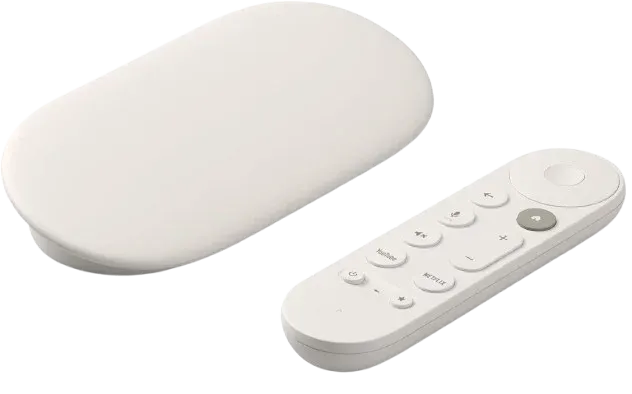
How to Chromecast to Samsung TV
Using a Chromecast for Samsung TV is simple and works across Android, iOS, and computers. Once your Chromecast is plugged in and set up, you can start casting from your device in just a few taps or clicks. Here's a step-by-step guide to help you get started quickly and easily.
Step 1. Plug the Chromecast device into an available HDMI port on your Samsung TV and connect the power cable.
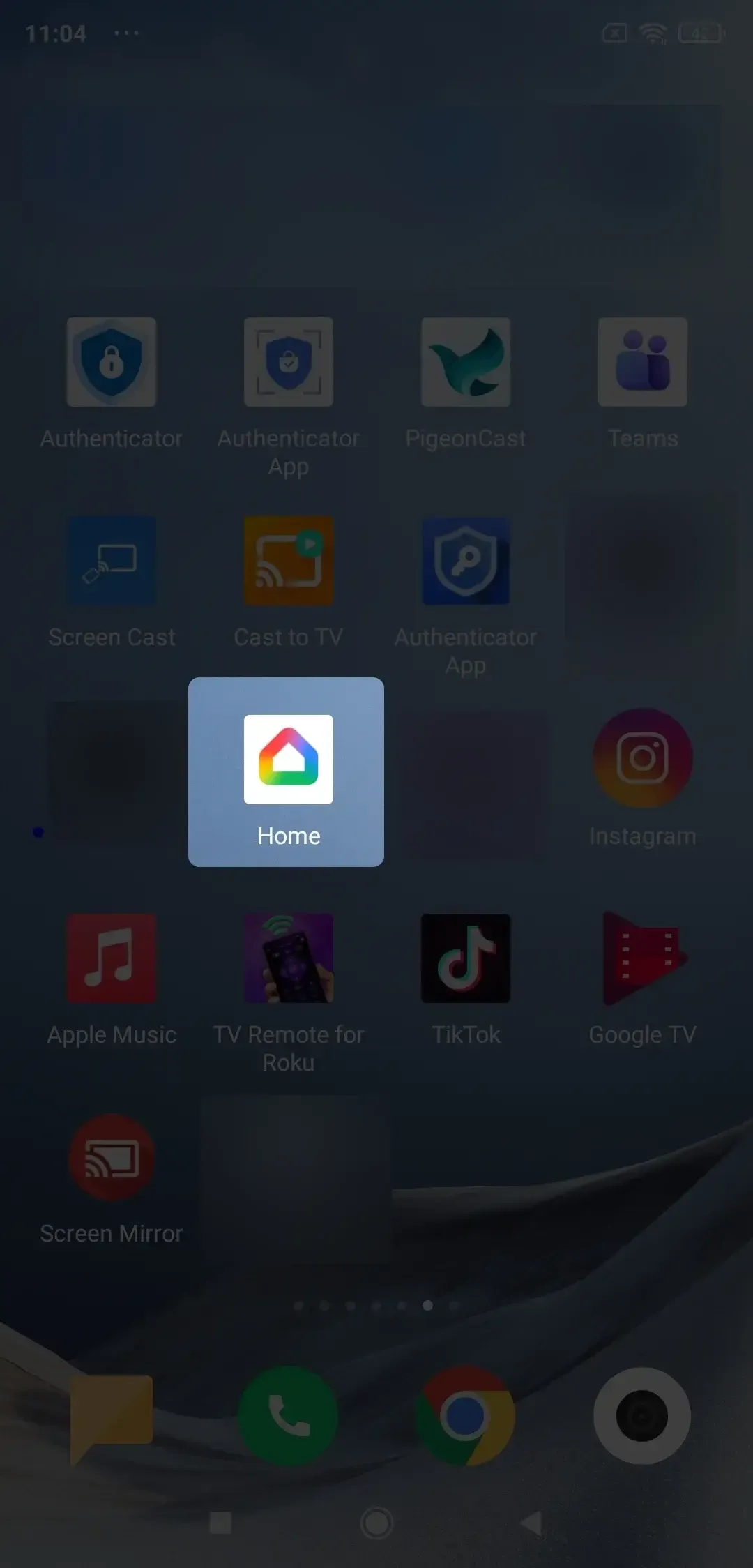
Step 2. There are different methods for different sender devices:
- For mobile Apple and Android devices:
- Switch the TV input to the corresponding HDMI port, and install the Google Home app on your Android or iOS device. Follow the in-app instructions to set up Chromecast on your Wi-Fi network.
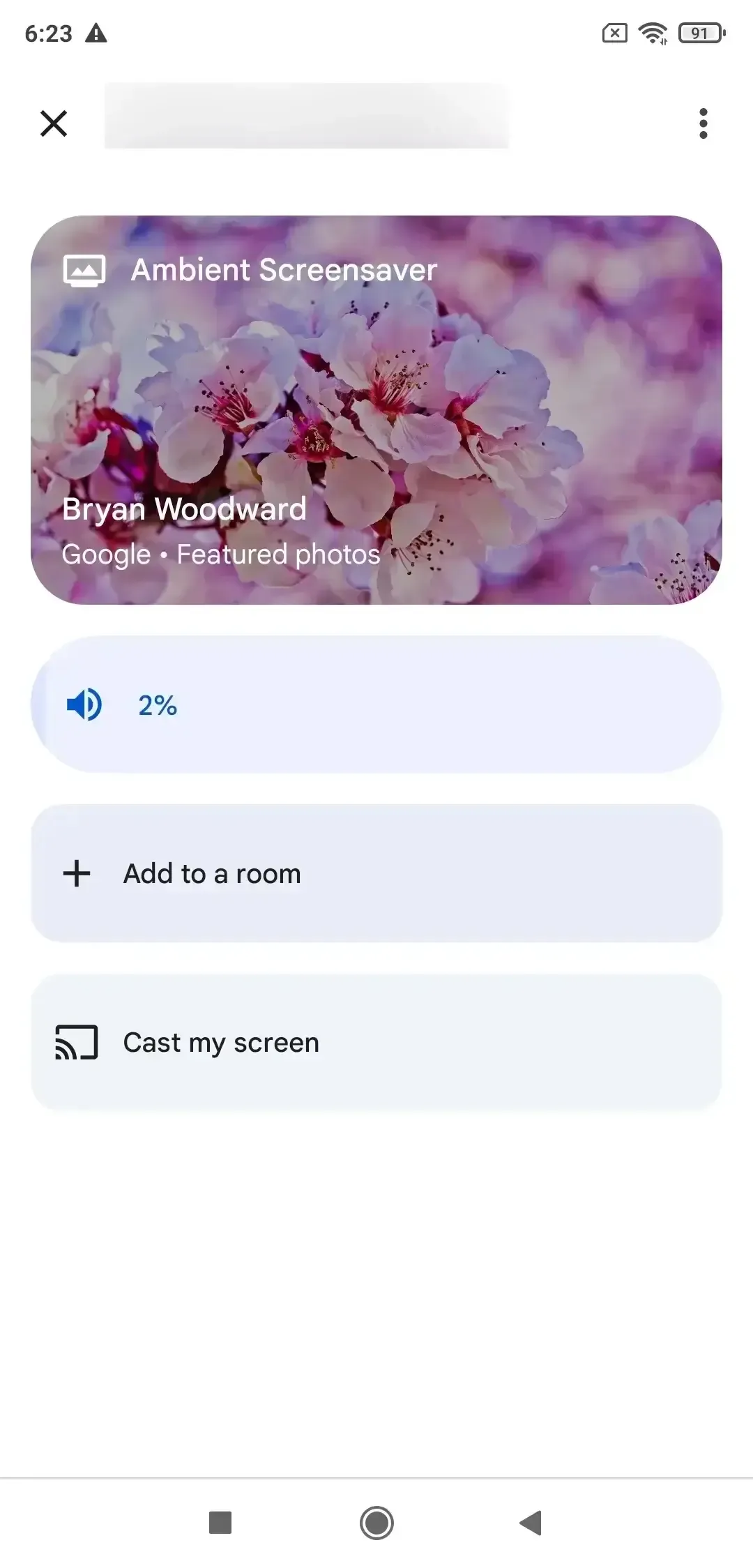
- Tap your TV or Chromecast under the Local devices menu, and then select Cast my screen. This will display everything on your phone's screen on the TV.
- For computer:
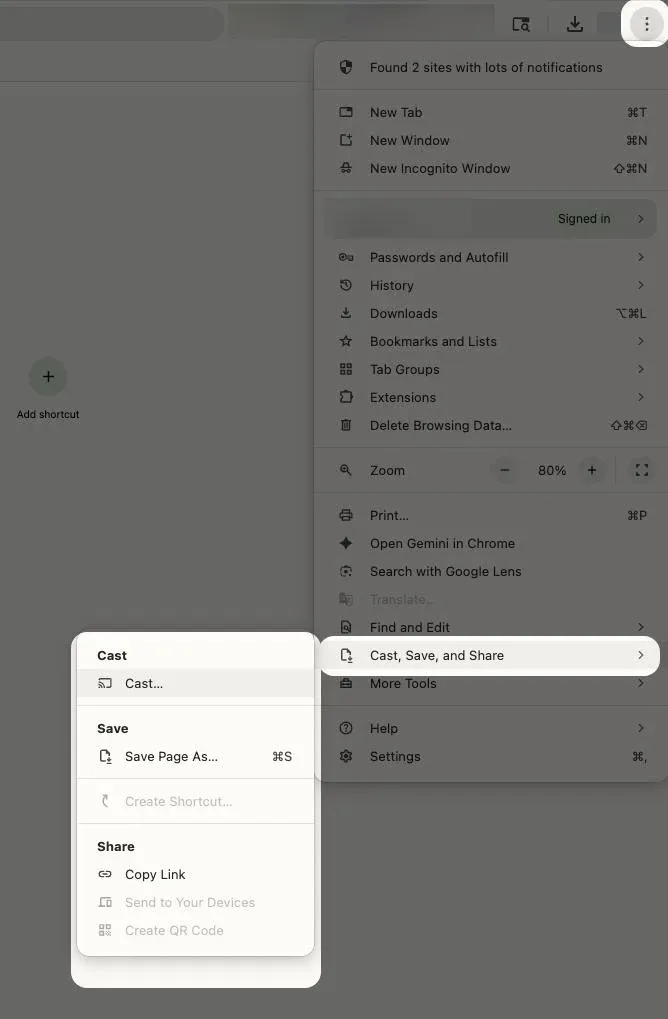
To cast, you can just tap Cast option in Chrome's three-dots menu.
How to Cast to Samsung TV Without Chromecast
Even if your Samsung TV with Chromecast isn't available or you don't have a separate Chromecast device, there are still plenty of ways to cast content. Samsung Smart TVs support Smart View, AirPlay, and other wireless mirroring options, allowing you to stream videos, music, and photos directly from your phone, tablet, or computer without needing a Chromecast. Here's how you can do it:
Method 1. Use Smart View
Smart View is Samsung's built-in feature for wireless screen mirroring from Android devices. It allows you to stream apps, videos, photos, and more directly to your Samsung TV without any extra equipment. Once your TV and Android device are connected to the same Wi-Fi network, you can quickly and easily start mirroring with Smart View for a seamless viewing experience.
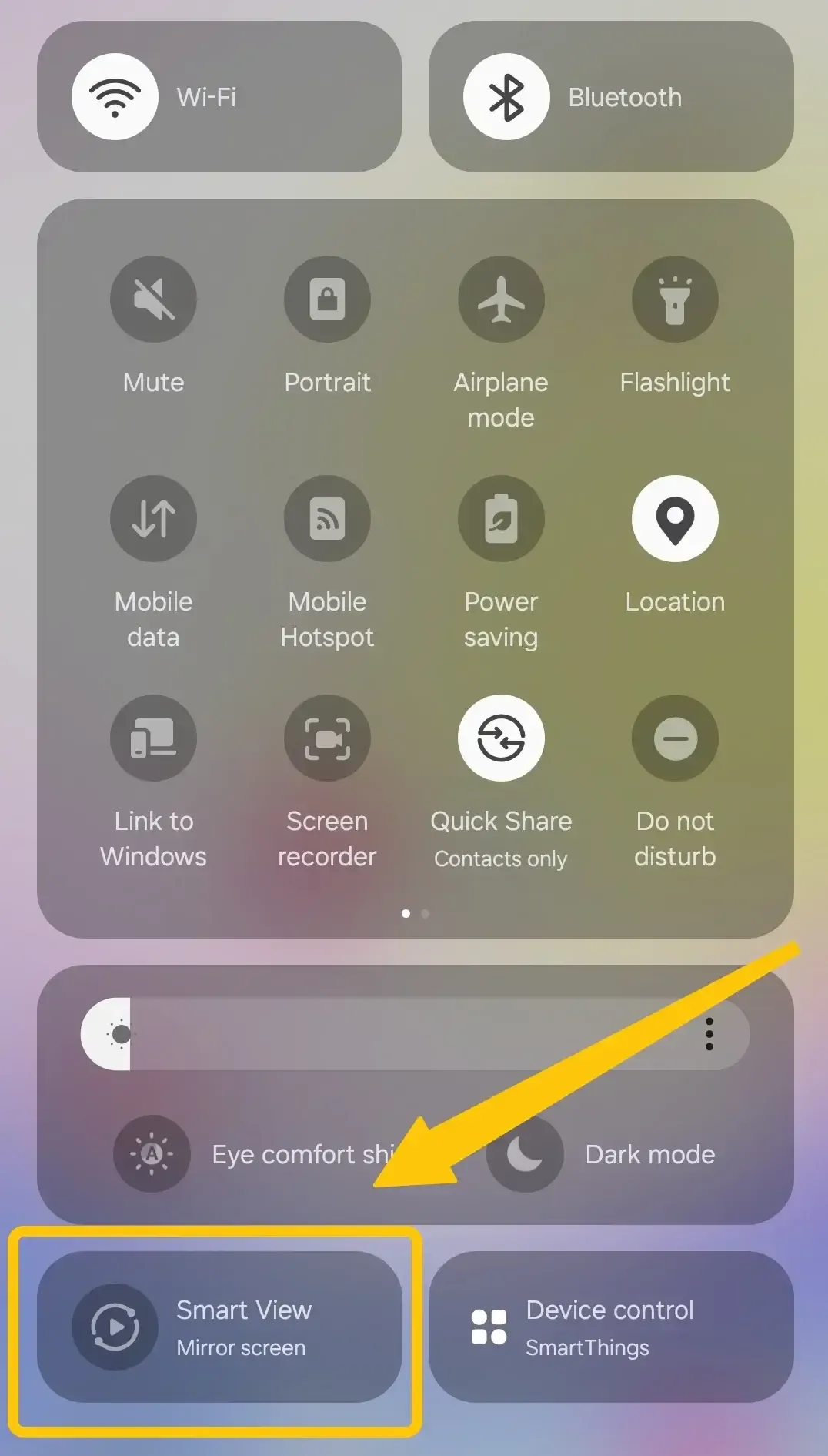
Step 1. Swipe down on your Android device to open the Quick Settings panel and tap Smart View.
Step 2. Select your Samsung TV from the list of available devices.
Step 3. Accept the connection prompt on the TV, if necessary, and start streaming content.
Method 2. Use AirPlay
AirPlay is Apple's wireless streaming feature that lets iPhones, iPads, and Macs cast videos, music, and photos directly to compatible Samsung TVs. Many newer Samsung Smart TVs support AirPlay natively, so you can stream content effortlessly without needing any extra devices.
Step 1. Ensure your Apple device connects to the same wireless network as your Samsung TV.
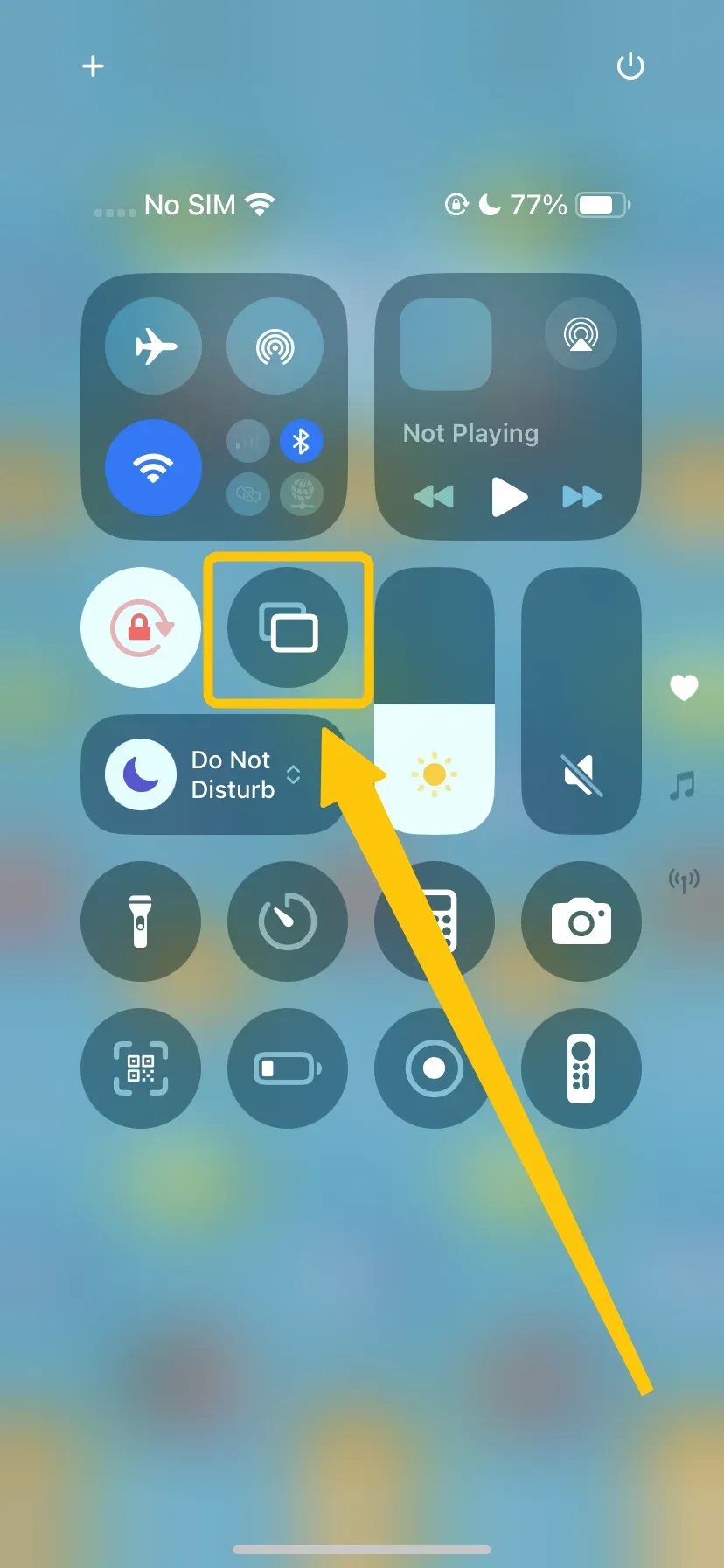
Step 2. Swipe down on your Apple device to open Control Center and tap Screen Mirroring.
Step 3. Select your Samsung TV from the list and accept any prompts on the TV, then start streaming your content.
Method 3. Use PigeonCast
Alternatively, you can use free PigeonCast to enhance your casting experience on Samsung TV with no Chromecast. This ads-free app uses end-to-end encryption to keep your content private while streaming. Importantly, you can cross your phone, tablet, or PC to any screen or TV (Google Cast) that provides great convenience to Samsung TV Chromecast.


PigeonCast Screen Mirroring

Official Download



The app works seamlessly across Android, iOS, Windows, Mac, and various TVs, including tvOS and Android TV, without any limitations, making it a versatile solution for all your casting needs. After a simple install, you can then have a better mirroring experience. Let's have a try!
Step 1. Ensure your mobile device and Samsung are covered by the same WiFi network.
Step 2. Install PigeonCast on your mobile device.
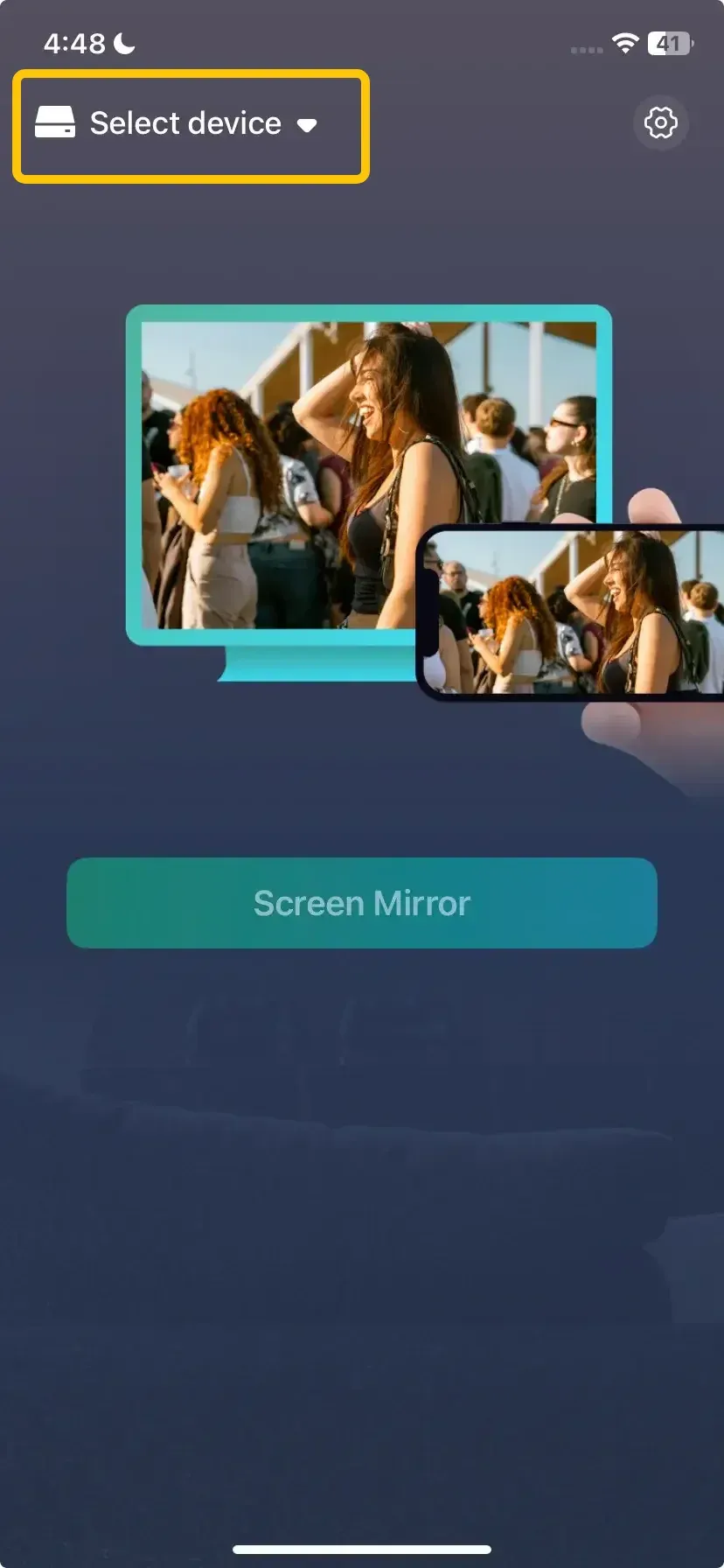
Step 3. Launch the app and tap Select device to choose your Samsung TV from the available list.
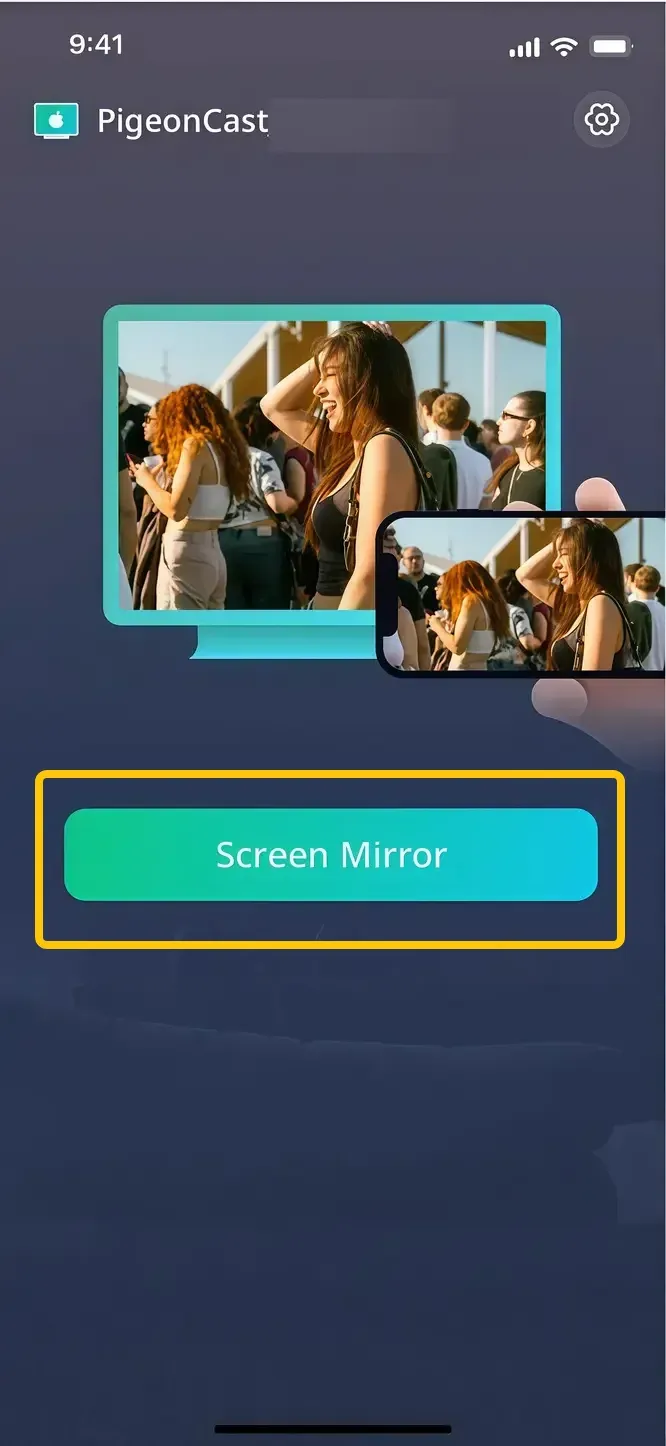
Step 4. Enter the onscreen code to confirm the connection and tap Screen Mirror to begin your mirroring activities.
Method 4. Use an HDMI Cable
If wireless options aren't available or reliable, a wired connection using an HDMI cable guarantees smooth streaming. This method works with almost any device, including laptops, Android phones, and iPhones with the appropriate adapter.
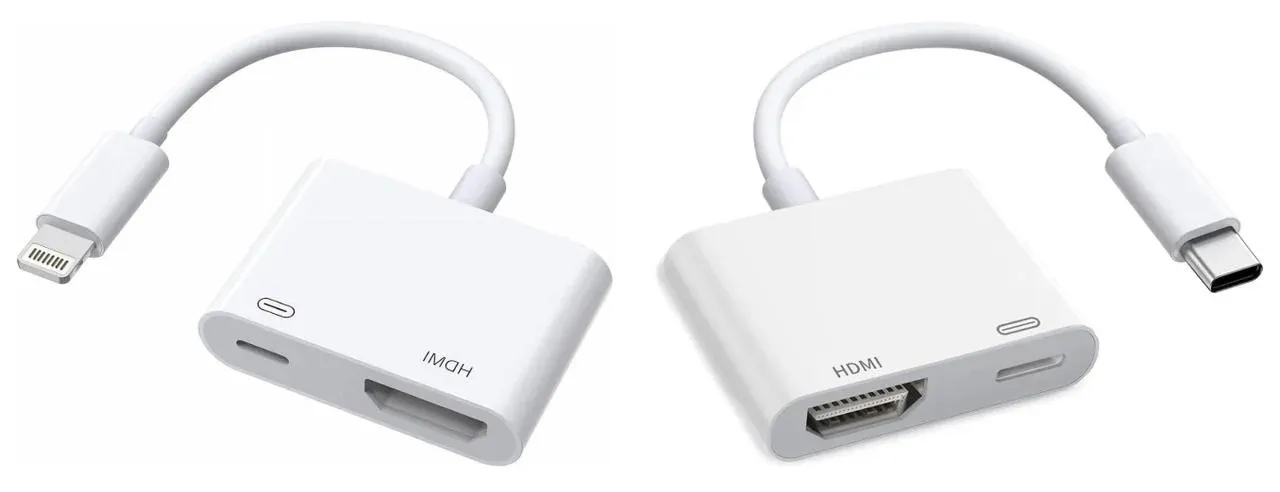
Step 1. Plug the HDMI cable into your Samsung TV and your device with a Lightning-to-HDMI or USB-C-to-HDMI adapter if needed.
Step 2. Switch the TV input to the corresponding HDMI port.
Step 3. Your device's screen should automatically appear on the TV.
Step 4. Play your content and enjoy streaming on the big screen.
Samsung Smart TV Chromecast Issues and Fixes
Even though Chromecast makes streaming easy, you might encounter some common issues when using Chromecast with Samsung TV. Knowing these problems and their fixes can save time and frustration.
- Chromecast Not Detected by Device
- Ensure both your Samsung TV and casting device are connected to the same Wi-Fi network.
- Restart your Chromecast and the TV.
- Use the Google Home app to verify the device setup.
- Streaming Buffering or Lag
- Check your Wi-Fi speed and reduce network congestion.
- Move the router closer to the TV or use a 5GHz Wi-Fi band if supported.
- Lower the streaming quality in the app to reduce buffering.
- Chromecast Won't Cast Specific Apps
- Make sure both the Chromecast firmware and casting app are updated.
- Reinstall the app or clear the app cache.
- HDMI Input Not Recognized
- Confirm the Chromecast is plugged into the correct HDMI port.
- Switch the TV input manually to match the HDMI port.
- Try a different HDMI port if available.
- Frequent Disconnections
- Restart both the Chromecast and your Wi-Fi router.
- Ensure there are no network conflicts with other devices.
- Consider using a travel router for more stable connections in shared networks.
Conclusion
Does Samsung TV support Chromecast? While Samsung TVs don't have Chromecast built in, you can easily use a physical Chromecast device. How to get Chromecast on Samsung TV? Simply plug a Chromecast into an available HDMI port on your Samsung TV, connect it to a power source, and follow the setup instructions in the Google Home app.
Chromecast Samsung TV FAQ
Can I Use Chromecast on an Older Samsung TV?
Yes. If your older Samsung TV has an HDMI port, you can usually use Chromecast even without built-in casting support. Simply connect the Chromecast, switch to the correct HDMI input, and set it up on Wi-Fi. You can also screen mirror to an older Samsung TV using other wired or wireless methods.
How do I know if my TV supports Chromecast?
You can check if your TV supports Chromecast by looking for the Google Cast or Chromecast built-in logo in the TV's specifications or settings. If it's not listed, your TV does not have Chromecast built in, but you can still use a physical Chromecast device plugged into an HDMI port to stream content.
Is Chrome available for Samsung smart TV?
No, Google Chrome is not available as a native app on Samsung Smart TVs. However, you can still cast content from the Chrome browser on your computer or mobile device to your Samsung TV using Chromecast or screen mirroring options like Smart View or AirPlay.
Chromecast Samsung TV not working?
If Chromecast on your Samsung TV is not working, try these troubleshooting steps:
- Check Wi-Fi connections: Ensure your Chromecast and casting device are connected to the same Wi-Fi network.
- Restart devices: Power cycle your Chromecast, Samsung TV, and router.
- Update firmware and apps: Make sure both your Chromecast and casting apps (YouTube, Netflix, etc.) are up to date.
- Check HDMI and input: Confirm Chromecast is plugged into the correct HDMI port and the TV input matches.
- Reduce network interference: Move the router closer or use a 5GHz Wi-Fi band for a more stable connection.
- Reinstall apps: If a specific app isn't casting, try reinstalling it or clearing its cache.
Clara Rossi is an experienced technology editor and a seasoned expert in screen mirroring and casting technologies. With a keen eye for detail and a deep understanding of how to seamlessly connect devices, Clara excels at optimizing user experiences for effortless sharing and streaming. Whether you're seeking quick fixes or advanced tips, her expertise and responsiveness ensure that every query is met with a well-informed and efficient solution.