
Connecting your Samsung phone to a Samsung TV creates a seamless experience for sharing content on the big screen. Thanks to Samsung's built-in technology, you can easily mirror and cast videos, photos, apps, and even your entire phone display. Whether you're using the latest Galaxy model or an older Samsung TV, there are several reliable methods to cast Samsung phone to Samsung TV and enhance your viewing experience.
How to Mirror Samsung Phone to Samsung TV
Mirroring your Samsung phone to a Samsung TV is easy with several built-in features and apps. Depending on your TV model and phone's software version, the methods may vary slightly. Below, we'll walk you through the most common and effective ways to cast your Samsung phone to your Samsung TV, including Smart View, Chromecast, and a screen mirroring app for Samsung TV.
Way 1. Use Smart View
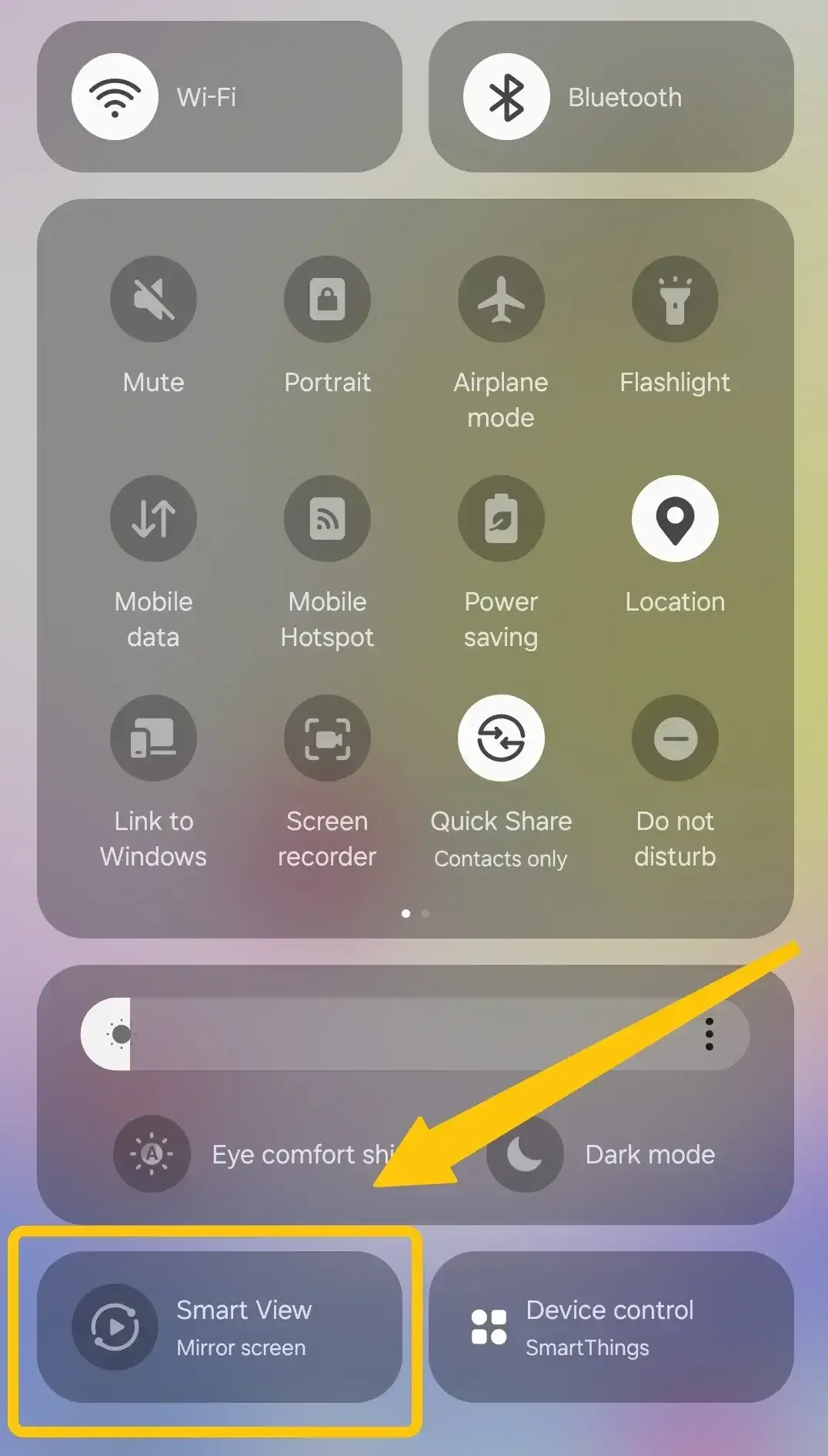
Samsung has created a seamless wireless ecosystem that makes connecting devices incredibly easy. The main method for mirroring your phone to a Samsung TV relies on a feature built directly into your Samsung phone, designed specifically for Samsung TVs and monitors. Let's dive into how to connect Samsung phone to Samsung TV via Smart View:
Step 1. Both your Samsung phone and Samsung TV need to be connected to the same Wi-Fi network.
Step 2. Swipe down from the top of your Samsung phone to open the Quick Settings menu.
Step 3. Look for the Smart View icon and tap it.
Step 4. Your phone will begin searching for available devices. Select your Samsung TV from the list of available devices.
Step 5. Once connected, your phone's screen will be mirrored onto your Samsung TV.
Way 2. Use Chromecast
How to cast from Samsung phone to Samsung TV? While Samsung TVs don't have Google Cast built in, you can easily add this functionality with an external streaming dongle. This is ideal if you prefer the "Cast" button experience from apps like YouTube or want to cast from a Google Chrome browser tab. Here's how to Chromecast Samsung TV:
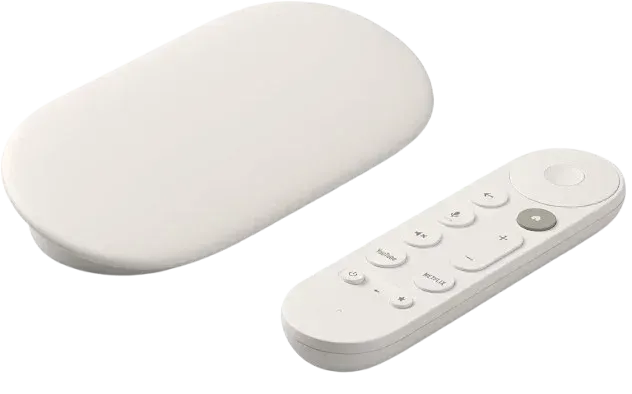
Step 1. Purchase a Google Chromecast or Chromecast with Google TV device.
Step 2. Connect the Chromecast to an available HDMI port on your Samsung TV.
Step 3. Ensure that both your Samsung phone and Chromecast device are on the same network.
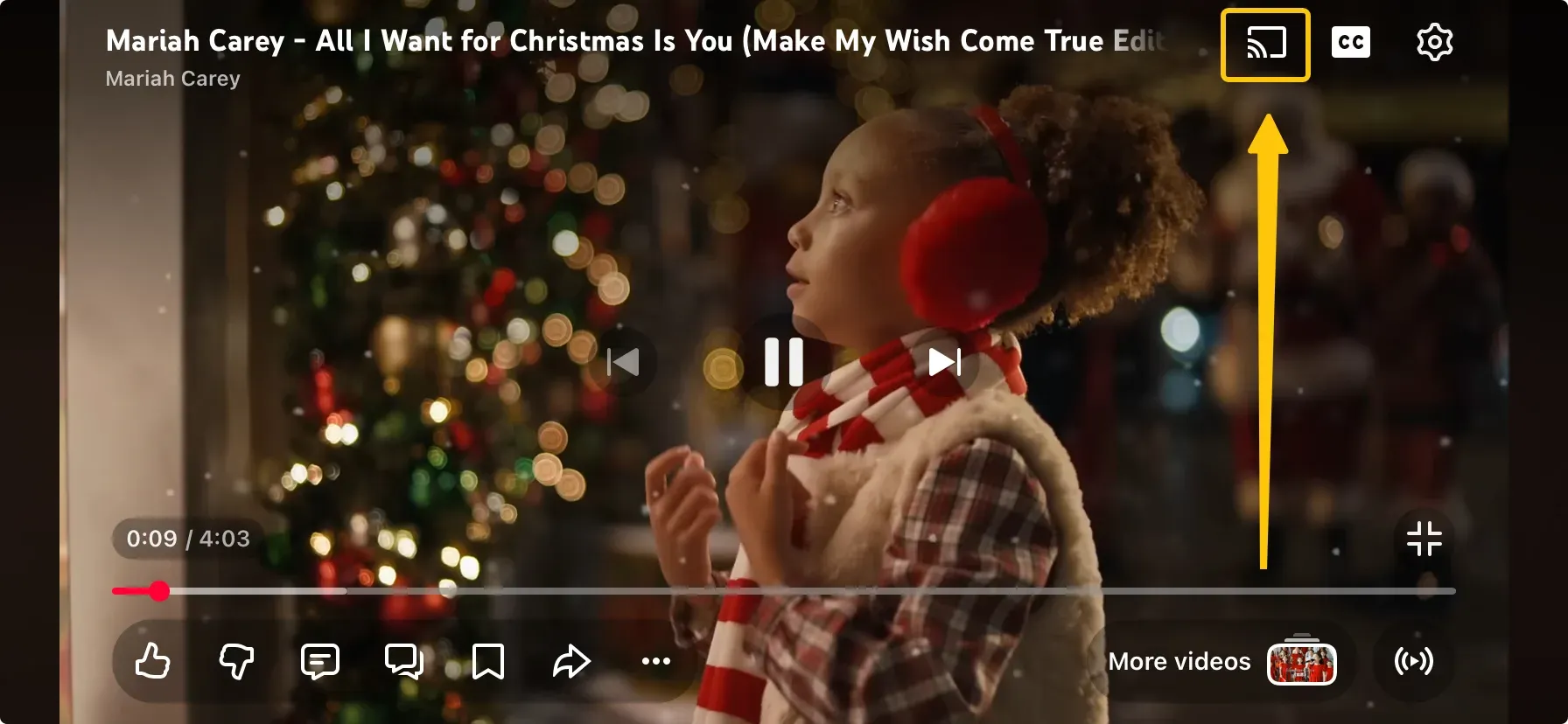
Step 4. Launch the Google Cast enabled app on your Samsung phone, tap the Cast button to select your Samsung TV.
Alternatively, you can install the Google Home app on your phone and follow the instructions to finish the connection. Then mirror your whole phone screen to the Samsung TV.
Here's a comparison table summarizing the methods to cast a Samsung phone to a Samsung TV. If you also use other TV brands at home, the best way to cast Samsung phone to TV may change depending on whether that TV supports Smart View, Google Cast, AirPlay, or a receiver app. This table will help you compare the most common options for Samsung TVs:
| Method | Compatibility | Ease of Setup | Key Features | Ideal For |
|---|---|---|---|---|
| Smart View | Samsung phones & Samsung Smart TVs | Easy (Built-in on Samsung phones) | Quick access via the Quick Settings menu, seamless connection | Basic, everyday casting & screen mirroring for Samsung devices |
| Chromecast | All Android phones & Samsung Smart TVs (with Chromecast device) | Moderate (Requires external Chromecast device) | Cast content from apps like YouTube, Netflix, and Google Chrome; supports whole phone screen mirroring | Users who want to cast directly from apps or a web browser |
Consider a Free Mirroring Solution: PigeonCast
Sometimes, built-in features can be unreliable. Different network conditions, router settings, or older TV firmware might cause Smart View to struggle with buffering or fail to find your TV altogether. In these situations, a free casting app can be a lifesaver.
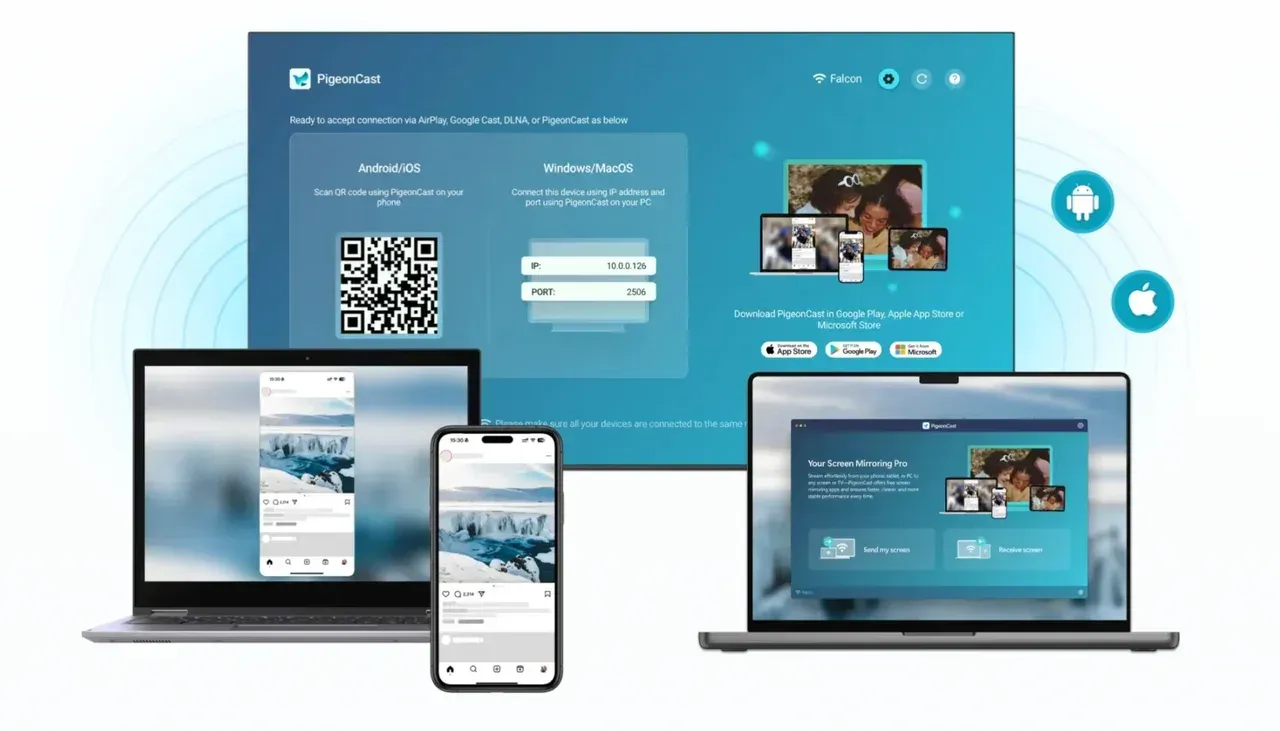
PigeonCast for Android Screen Mirroring serves as a versatile bridge between your phone, computer, and TV, designed with a focus on stable connections and seamless performance. Whether you're streaming media, presenting content, or simply sharing your screen, it offers multiple methods to get your content onto the big screen. With support for various devices, this ad-free app acts as a universal mirroring solution, ensuring smooth and reliable casting across platforms. Here's how to use PigeonCast:
Step 1. Install PigeonCast on your Samsung phone from the app store and launch it.


Overall Rating:


Step 2. Ensure both your devices are connected to the same WiFi network.
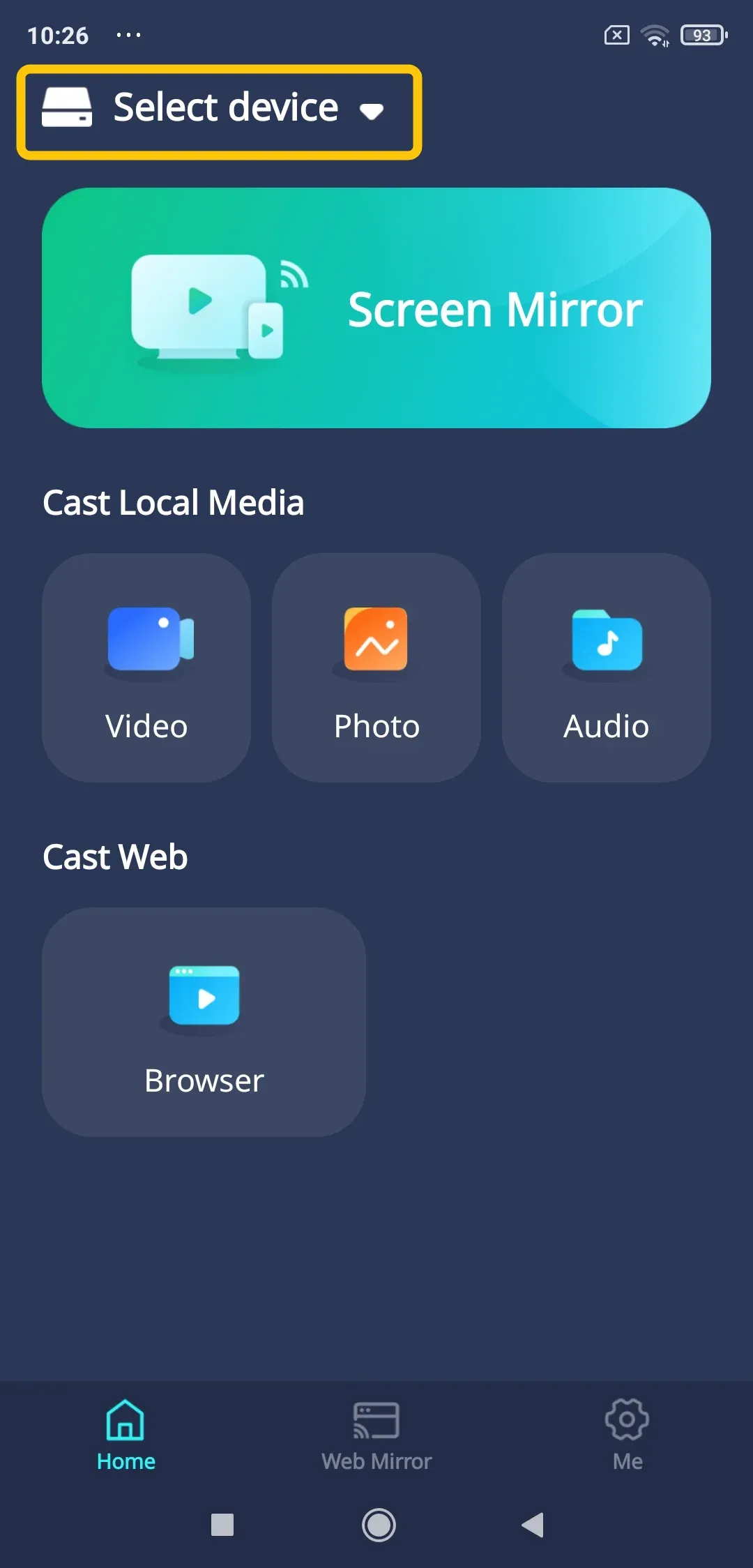
Step 3. On the phone, tap Select device to choose your computer or TV from the available list. Alternatively, you can click the onscreen button to cast the corresponding local media.
Step 4. Enter the onscreen PIN code to finish the pairing process.
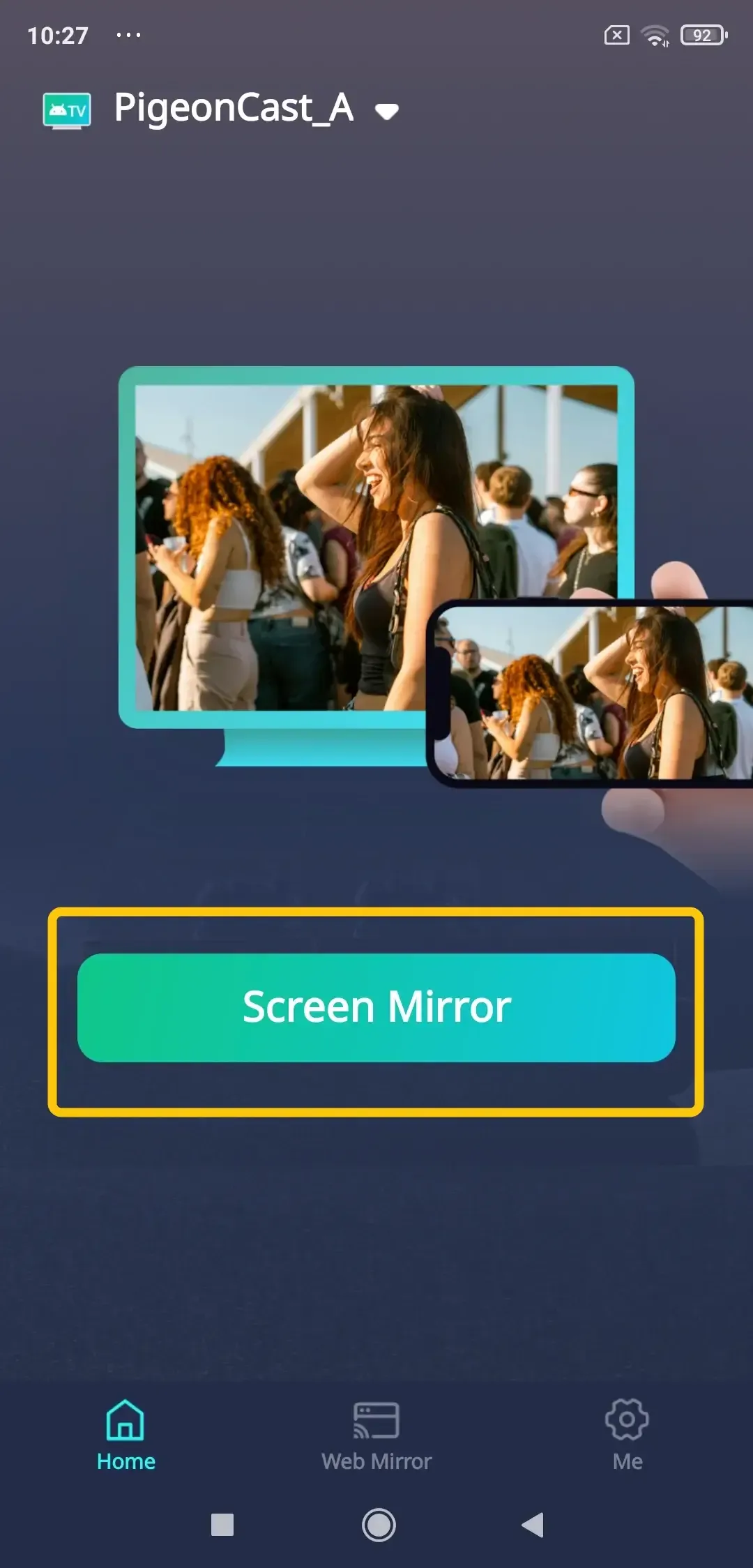
Step 5. If the connection succeeds, tap Screen Mirror to start your Samsung phone to the next larger screen.
Wrapping Up
How do I cast my Samsung phone to my Samsung TV? By having these options at your disposal, you're never more than a few taps away from enjoying your mobile content on the big screen. Try the method that suits your situation best, and transform how you watch, share, and experience media at home.
Cast Samsung Phone to Samsung TV FAQ
Can you cast Samsung phone to Samsung TV?
Yes, you can cast a Samsung phone to a Samsung TV using several methods. The most common way is through Smart View, a built-in feature on Samsung phones that wirelessly mirrors your phone's screen to the TV. Alternatively, you can use Chromecast for casting apps like YouTube or Google Chrome, or a third-party app like PigeonCast for more flexibility and multi-device support.
How to cast Samsung phone to Samsung TV without WiFi?
Casting a Samsung phone to a Samsung TV without Wi-Fi is possible using a wired connection or through Wi-Fi Direct. Here's how you can do it:
- Use a Wired Connection (HDMI Cable)
-
Get a USB-C to HDMI cable (or a compatible cable for your phone model).
-
Connect one end of the cable to your Samsung phone and the other end to an available HDMI port on your Samsung TV.
-
Switch your TV to the correct HDMI input, and your phone's display will be mirrored on the TV screen.
- Use Wi-Fi Direct (No Router Needed)
-
Make sure both your Samsung phone and Samsung TV support Wi-Fi Direct (most recent models do).
-
On your TV, go to Settings > Network > Wi-Fi Direct and turn it on.
-
On your Samsung phone, go to Settings > Connections > Wi-Fi > Wi-Fi Direct and select your TV from the list of available devices.
-
Once connected, you can use Smart View to cast your phone's screen to the TV.
How to cast Samsung phone to Samsung TV wirelessly?
To wirelessly cast your Samsung phone to a Samsung TV, you can use the Smart View feature, Google Cast (use a Chromecast dongle), or the free mirroring tool PigeonCast.
What's the best way to cast Samsung phone to Samsung TV?
The best way to cast your Samsung phone to a Samsung TV is to use the built-in Smart View feature. This method is seamless and doesn't require any additional devices or apps. Once Smart View is not working, you can try free PigeonCast as a powerful mirroring alternative.
Can you cast a non-Samsung phone to Samsung TV?
Yes, you can cast a non-Samsung phone to a Samsung TV using several methods, depending on the type of phone and available features. Here are the most common ways:
-
Google Chromecast (for Android phones)
-
AirPlay (for iPhones and iPads)
-
PigeonCast (for Android and iOS phones)
Why can't I cast from Samsung phone to Samsung TV?
If you're unable to cast from your Samsung phone to a Samsung TV, several factors could be causing the issue. Here are the most common reasons and troubleshooting steps:
-
Wi-Fi connection issues
-
Smart View disabled
-
Outdated software
-
Incompatible TV model
-
Bluetooth or Screen Mirroring conflicts
-
Casting settings on TV
-
TV's Input source
Clara Rossi is an experienced technology editor and a seasoned expert in screen mirroring and casting technologies. With a keen eye for detail and a deep understanding of how to seamlessly connect devices, Clara excels at optimizing user experiences for effortless sharing and streaming. Whether you're seeking quick fixes or advanced tips, her expertise and responsiveness ensure that every query is met with a well-informed and efficient solution.