

If you want a free screen mirroring app for Samsung TV, do not start by downloading the first app you see. Start by checking what kind of phone or computer you are sending from. Apple users often get the cleanest result with AirPlay on supported Samsung TVs. Galaxy users often get the quickest result with Smart View. Third-party apps matter most when those built-in options are missing, limited, or unreliable on your setup.
Quick Answer: Which Free Screen Mirroring App for Samsung TV Is Best?
If you want the short answer, Samsung's built-in options should be your first test. If you do need an app, the five options below are not equal. They differ most in free-version limits, setup friction, and whether they make sense outside one narrow Apple-only or Samsung-only setup.
| App | Free access | Published quality or free-version limit | Setup style | Best for | Biggest drawback |
|---|---|---|---|---|---|
| PigeonCast | Yes | Claims up to 4K and support for AirPlay, DLNA, and Google Cast | Cross-platform app | Mixed-device homes | More app than you need if AirPlay or Smart View already works |
| LetsView | Yes | Free use is clear, but Samsung-specific limit is unclear | General mirroring app | Casual testing | Too vague on what the free experience will really feel like on a Samsung TV |
| AirDroid Cast | Yes, basic use | Free account keeps remote network mirroring behind premium | App-based pairing | Users who prefer pairing inside one app | The free version is clearly narrower than the paid pitch |
| ApowerMirror | Yes | Free iOS mirroring is 720P and 10 minutes at a time | Feature-heavy mirroring app | Users who want more controls | The free tier is the most visibly restricted in this list |
| AirBeamTV | Yes, free start | Brand-specific TV mirroring focus | TV-brand-specific app family | Apple-first Samsung homes | Narrower than the other choices if your home uses Android or Windows too |
Can You Screen Mirror to a Samsung TV for Free?
Yes, in many cases you can mirror to a Samsung TV for free.
The easiest free method depends on the sending device:
- iPhone, iPad, or Mac: use AirPlay if the TV supports it
- Samsung Galaxy phone or tablet: use Smart View first
- other Android phones: test the TV's cast support if available, then move to an app if needed
- Windows laptop: test wireless display support or use an app if the TV does not show up cleanly
The main mistake is assuming every Samsung TV behaves the same. It does not. A Samsung TV that works well with an iPhone through AirPlay may still be annoying with a non-Samsung Android phone. A Galaxy phone may connect quickly through Smart View while another Android phone needs a separate app.
Best Free Screen Mirroring Apps for Samsung TV
None of these apps are trying to do exactly the same thing. PigeonCast is the broadest cross-device option. LetsView is the easiest app to try without much commitment. AirDroid Cast leans harder on in-app pairing. ApowerMirror is heavier but clearer about its free limits. AirBeamTV is the most Apple-first option in the list.
PigeonCast
If your Samsung TV needs to work with more than one type of device, PigeonCast is probably the easiest option to live with long term.
The biggest advantage is not a specific feature. It is that you do not have to think much about what device is sending the screen. PigeonCast supports Android, iPhone, Windows, Mac, and TV platforms, and its online screen mirroring receiver also lists AirPlay and Google Cast support. That makes it easier to use in homes where different people use different devices.
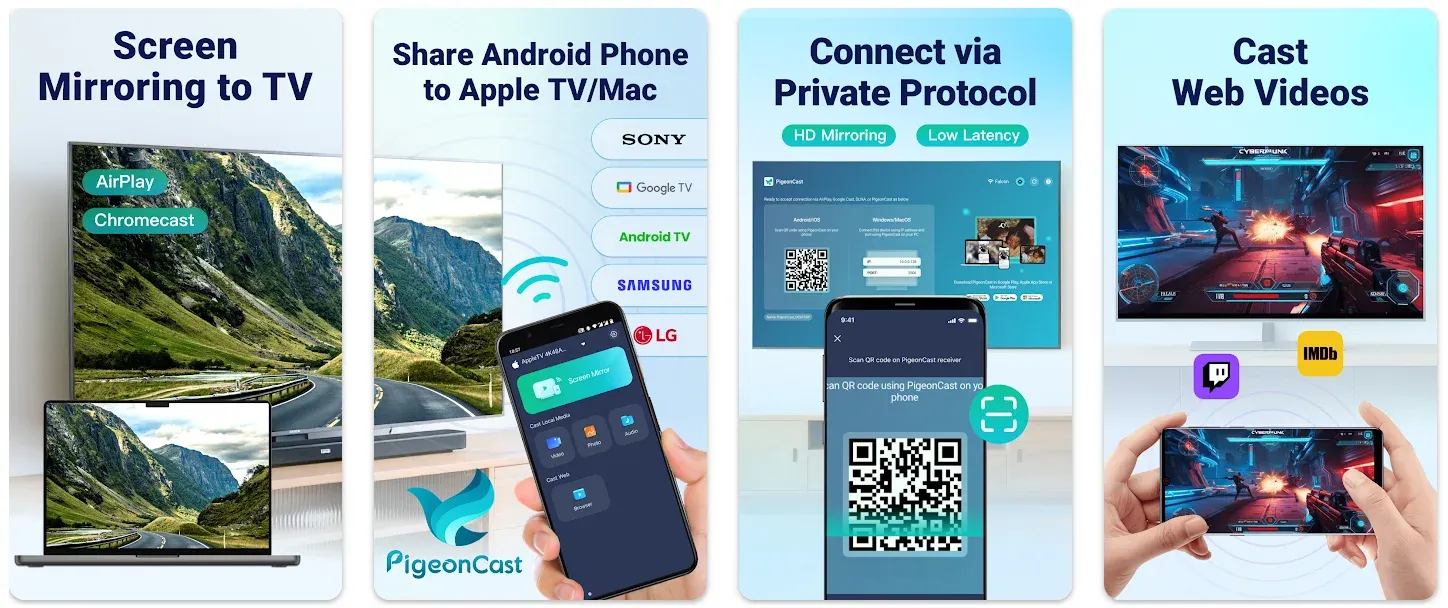
PigeonCast is a good fit if:
- you switch between iPhone and Android
- you want one solution instead of a different method for every device
- you sometimes mirror from a laptop as well as a phone
- Samsung's built-in options work inconsistently on your setup
The downside is that it still requires installing and setting up another app. If you only mirror occasionally and AirPlay or Smart View already works reliably, you may not gain much from adding another layer. The free version is also best suited for testing and occasional use rather than long, uninterrupted mirroring sessions.
For mixed-device households, though, PigeonCast is one of the few options that still makes sense after you move beyond Samsung's built-in tools.


Overall Rating:



LetsView
If you only need something to test for a few minutes, LetsView is probably enough. It supports Windows, Mac, iPhone, Android, and TV platforms, which makes it easy to install and try when you just want to see whether screen mirroring works well on your Samsung TV.
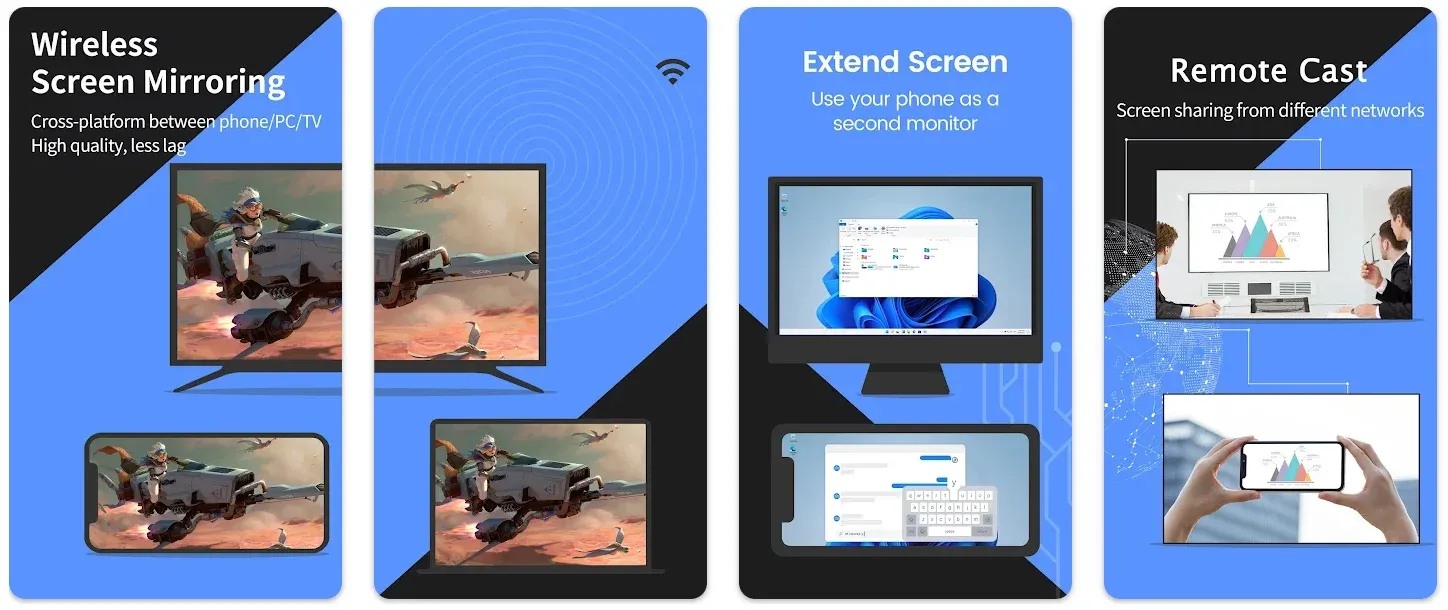
The main appeal is that there is very little commitment. You can download it, connect your devices, and quickly find out whether your TV, phone, and Wi-Fi network cooperate well enough for wireless mirroring.
Choose LetsView if:
- you want a free app before trying anything paid
- you only mirror once in a while
- you mainly show photos, presentations, or other light content
The downside is that LetsView does not stand out in any particular area. It works well enough for occasional use, but there is less information about long-session limits, video quality, and Samsung TV-specific performance than some competing apps provide.
For that reason, LetsView feels more like a convenient app to try first than the app most people will settle on long term.
AirDroid Cast
AirDroid Cast is worth trying if you prefer connecting through an app instead of waiting for your Samsung TV to appear in a device list. That can be helpful when native discovery feels unreliable or when you want a more guided pairing process.
The free version is best for basic local mirroring. If you want to mirror across different networks, that is where the free plan starts to feel limited, since AirDroid keeps remote network mirroring for paid users.
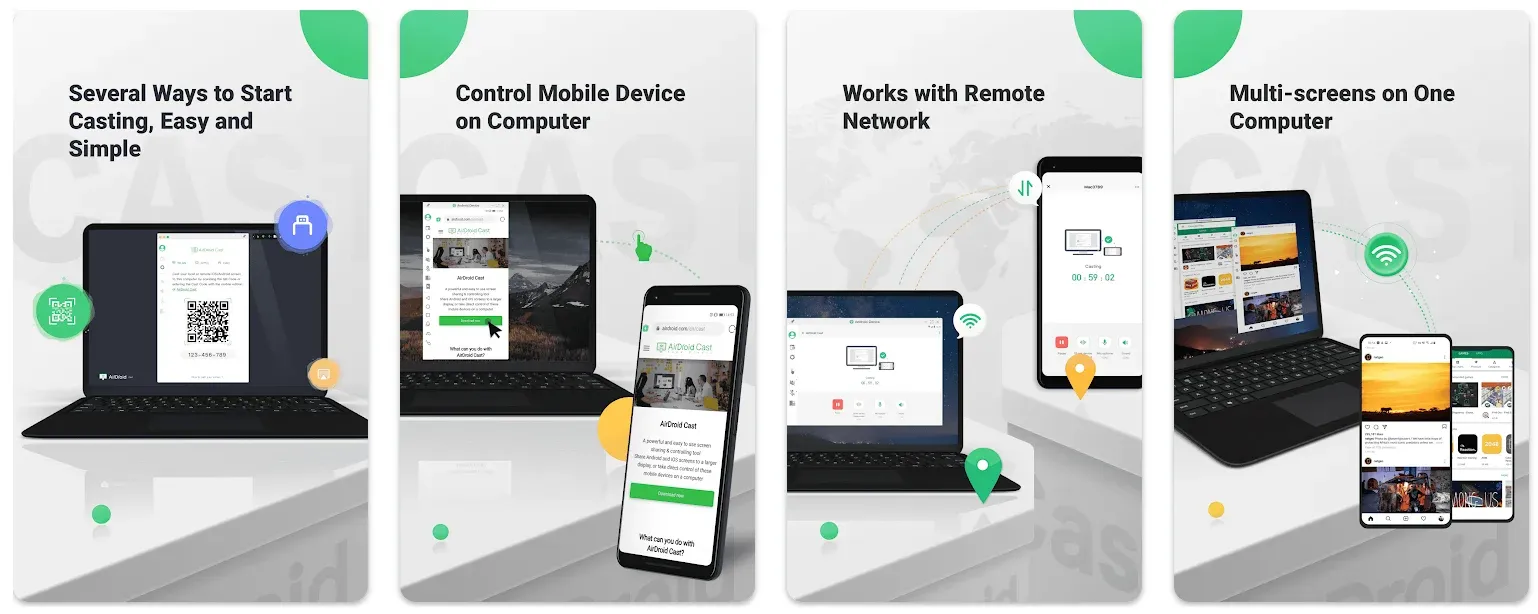
Choose AirDroid Cast if:
- you prefer pairing through an app interface
- you mostly mirror inside one home network
- you want another free option after testing the native Samsung tools
For a Samsung TV, AirDroid Cast is useful when the connection process matters more than having the broadest free feature set. It is less convincing if you want the strongest long-term free option.
ApowerMirror
ApowerMirror is a better fit for users who want more controls and do not mind a heavier app. It is not the most relaxed free option in this list, though, because the free tier has clear limits: Apowersoft lists free iOS mirroring at 720P and 10 minutes at a time.
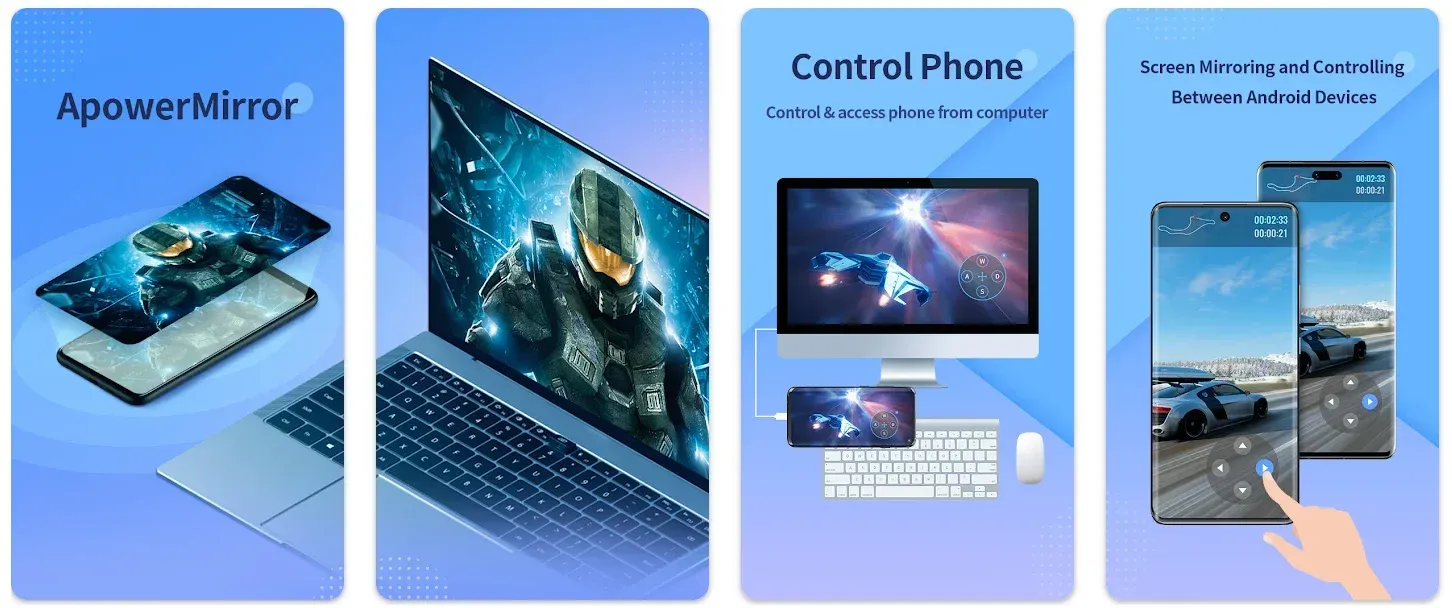
That makes ApowerMirror easy to understand before you install it. You get more settings than lighter mirroring apps, but the free version feels closer to a trial than a no-strings-attached free TV mirroring tool.
Choose ApowerMirror if:
- you want more settings inside the app
- you sometimes mirror to a computer too
- you do not mind a busier app
For casual Samsung TV mirroring, ApowerMirror is probably not the first app I would try. For users who care about controls and already expect free-tier limits, it makes more sense.
AirBeamTV
AirBeamTV makes the most sense for people who mainly mirror from Apple devices. The app is built around specific TV brands, including Samsung, so the setup feels more focused than general-purpose mirroring apps.
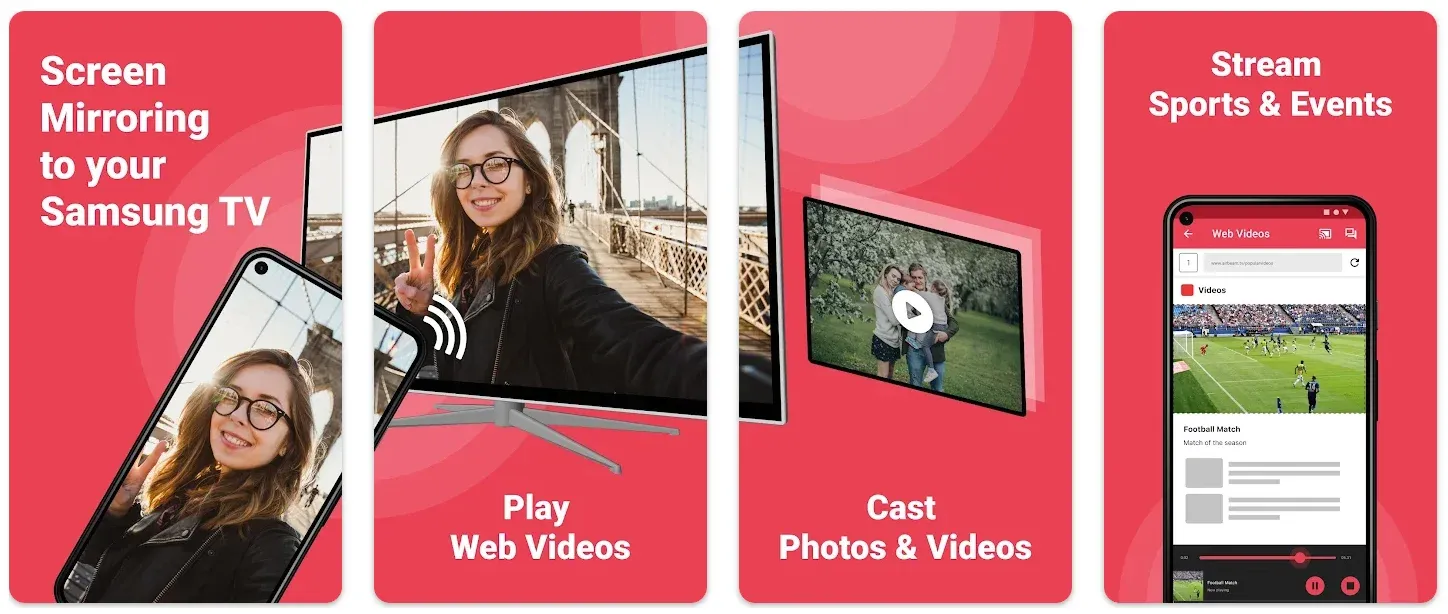
Choose AirBeamTV if:
- you mainly mirror from an iPhone, iPad, or Mac
- you want a Samsung TV-focused app to test
- you prefer a TV-specific solution over a broader casting platform
The tradeoff is flexibility. AirBeamTV works best when most of your mirroring happens from Apple devices. If different people in the house use Android phones, Windows laptops, and iPhones interchangeably, managing everything through one app can become less straightforward.
For Apple-first households, that may not matter at all. For mixed-device homes, broader options like PigeonCast usually make more sense.
Free Screen Mirroring App for Samsung TV: When Should You Use an App Instead of Built-In Tools?
Use an app when:
- your home uses both Apple and Android devices
- your TV supports one native method, but not the one you need
- the built-in Samsung option feels inconsistent
- you want one tool that still makes sense on another TV later
If AirPlay or Smart View already works well, stay there. Use an app when the TV and sender do not line up well.
How to Mirror iPhone to Samsung TV for Free
If you use an iPhone, check for AirPlay first. On supported Samsung TVs, AirPlay is still the cleanest free option.
If your Samsung TV supports AirPlay, start there. In most cases, you only need both devices on the same Wi-Fi network and a quick tap on Screen Mirroring from Control Center.
Use this order to mirror iPhone to Samsung TV:
Step 1. Make sure the iPhone and Samsung TV are on the same Wi-Fi.
Step 2. Open the TV settings and confirm AirPlay is available and turned on.
Step 3. On the iPhone, open Control Center and tap Screen Mirroring.
Step 4. Choose the Samsung TV from the list.
Step 5. Enter the code shown on the TV if prompted.
If the Samsung TV does not appear, check three things first:
- the TV really supports AirPlay
- both devices are on the same Wi-Fi
- VPN or guest Wi-Fi is not blocking local device discovery
If AirPlay is missing or unreliable, switch to PigeonCast for iPhone Screen Mirroring App. That is the better app-based answer for iPhone users who want a broader option than the TV's built-in Apple support.
How to Mirror Android to Samsung TV for Free
Android users need one extra check first: what kind of Android phone are you using?
If you use a Samsung Galaxy phone, start with Smart View. That is usually the most direct free method on a Samsung TV.
If you use another Android phone, test the TV's cast support if the TV offers it. Google Pixel is a common exception because it uses Google Cast rather than Samsung Smart View. To screen mirror a Pixel phone to Samsung TV, you may need a Chromecast receiver or a cross-platform mirroring app if the TV does not support Google Cast directly.
If the TV does not show up or the connection feels limited, move to PigeonCast.
Use this order to cast Android phone to Samsung TV:
Step 1. Put the Android phone and Samsung TV on the same Wi-Fi.
Step 2. If you use a Galaxy phone, open Smart View from quick settings and look for the TV.
Step 3. If you use another Android phone, check whether the TV appears as a cast target.
Step 4. If the TV does not appear or full mirroring is missing, open PigeonCast for Android Screen Mirroring App and connect through the app.
Step 5. If the picture stutters, move closer to the router or pause heavy downloads on the same network.
For Android users, the rule is simple: Galaxy owners should try Smart View first, while everyone else should test native casting and then move to PigeonCast if needed.
Which Free Screen Mirroring App for Samsung TV Should You Choose?
Here is the simplest decision table.
| Your setup | Best choice | Why |
|---|---|---|
| iPhone or iPad + Samsung TV with AirPlay | AirPlay | It is free and usually the easiest option |
| Samsung Galaxy phone + Samsung TV | Smart View | It is the most natural Samsung-to-Samsung choice |
| Mixed iPhone and Android home | PigeonCast | It is the broadest one-app answer in this list |
| Non-Samsung Android phone + weak native mirroring | PigeonCast | It makes more sense than betting on Samsung-only tools |
| Casual free testing only | LetsView | Easy to try before you commit to anything |
| Users who want more settings and accept tighter limits | ApowerMirror | Better fit for control-heavy users than pure free use |
| Apple-only Samsung home that wants a TV-focused app | AirBeamTV | Easier to understand than a broader cross-device tool |
Common Samsung TV Mirroring Problems Before You Change Apps
Before you install a second or third screen mirroring app, identify what is actually going wrong. Many Samsung TV mirroring problems are caused by network settings, device compatibility, or the wrong casting method rather than the app itself.
Here are some of the most common issues:
- Your Samsung TV does not appear on the device list: Make sure both devices are connected to the same Wi-Fi network, and avoid guest Wi-Fi or networks that isolate connected devices. Also confirm that screen mirroring, Smart View, or AirPlay is enabled on the TV.
- The phone connects but the TV shows a black screen: This can happen because of app restrictions, protected video content, an incorrect input, or compatibility issues between the phone and TV.
- The picture appears but there is no sound: Check the TV volume, audio output, Bluetooth connections, and the sound settings on your phone. If video mirrors normally but audio is missing, follow this guide to fix screen mirroring with no sound on Samsung TV.
- The connection keeps dropping: Weak Wi-Fi, interference, VPNs, or switching between 2.4 GHz and 5 GHz networks can interrupt a mirroring session. Turn off your VPN during testing and keep the phone and TV on the same stable network.
- Smart View or AirPlay cannot connect: Restart both devices, verify that the TV's receiving feature is enabled, and make sure your Samsung TV software is up to date.
- Mirroring works from one phone but not another: Different devices may need different connection methods. A Galaxy phone may work best with Smart View or Miracast-style mirroring, while an iPhone normally relies on AirPlay when the Samsung TV supports it.
- Streaming apps show an error or refuse to mirror: Some services restrict screen mirroring because of DRM or content-protection rules. In these cases, using the app's built-in Cast or AirPlay option may work better than mirroring the entire screen.
That last point about choosing the right connection method is especially important. A Galaxy phone and an iPhone should not always start with the same mirroring method on a Samsung TV, and changing apps will not fix a protocol or compatibility mismatch.
If you still cannot connect after checking these issues, the problem may be the TV or network rather than the mirroring app. First update the TV software with Samsung's official update guide. If the TV is current and the connection still fails, this guide on why your phone screen will not mirror is the next read.
Final Thoughts
The best free screen mirroring app for Samsung TV is not always an app.
If your Samsung TV already supports the right built-in method, start there. AirPlay is still the best answer for many Apple users. Smart View is still the best answer for many Galaxy users.
The better question is what happens after that first test. If native mirroring works, stop there. If it does not, PigeonCast is the broadest app choice, LetsView is the easiest free test app, ApowerMirror is the clearest about its limits, AirDroid Cast is better for app-led pairing, and AirBeamTV is the narrow Apple-first option.
Free Screen Mirroring App for Samsung TV FAQ
Do all Samsung TVs support screen mirroring?
No. Support depends on the model, software version, and the device you are sending from. Many Samsung TVs support mirroring, but not all of them support the same receive methods.
What is the best free way to mirror iPhone to Samsung TV?
For most people, AirPlay is the best free way if the Samsung TV supports it: both devices should be on the same Wi-Fi network and the mirror starts from Control Center. If AirPlay is missing, PigeonCast is a good app-based choice.
What is the best free way to mirror Android to Samsung TV?
It depends on the phone. Galaxy users should start with Smart View. Other Android users should test the TV's native mirroring first, then move to PigeonCast if the built-in option is weak or missing.
Do I need Wi-Fi to mirror to a Samsung TV?
In most home setups, you need Wi-Fi for Samsung TV screen mirroring. Most Samsung TV mirroring features work best when both devices are on the same local Wi-Fi. If the devices sit on different networks or a guest network, the TV may not appear.
Is Smart View the same as screen mirroring?
Smart View is Samsung's own way to mirror or send content from a Galaxy device to a TV. Many people use the term as Samsung's version of screen mirroring.
Should I use Samsung's built-in tools or a mirroring app?
Use the built-in tool first if it already works well with your phone or computer. Use a mirroring app when your devices do not match Samsung's native strengths or when you want one tool across several device types.
Mia Clarke is a technology editor specializing in screen mirroring and casting solutions across multiple platforms. Mia provides clear, practical guides and in-depth insights to help users seamlessly connect their devices. Passionate about enhancing digital experiences, Mia is dedicated to keeping readers updated on the latest trends and tools in cross-platform screen sharing. Whether you’re looking to mirror your smartphone, laptop, or smart TV, Mia’s content delivers reliable, user-friendly advice to simplify your tech setup.