
If you are asking why won't my phone screen mirror, the issue is usually a mismatch in network, permissions, or casting protocol. The fastest path is to try one clean native wireless attempt first, then run targeted network checks, then switch to other methods like HDMI or a screen mirroring app if native tools stay unstable.
Follow this guide to troubleshoot your screen mirroring issues and effortlessly restore streaming again.
Why Won't My Phone Screen Mirror? Common Causes Explained
Screen mirroring looks simple, but three systems must agree at the same time: your phone, your TV, and your local network. When one layer blocks discovery or playback, the connection either never appears or drops after a few seconds. Before changing random settings, identify the failure type so you can choose the right fix.
-
Discovery failure: your TV does not appear in the device list.
-
Handshake failure: TV appears, but connection never completes.
-
Playback failure: connection starts, then freezes, stutters, or has no audio.
-
App-level block: some apps refuse mirrored playback due to content restrictions.
If discovery fails, check network and permissions first. Device-specific mirroring behavior can also matter—for example, screen mirroring on Motorola phones may use different casting options depending on the model and TV. If playback fails, check compatibility and router stability; if only one app fails, treat it as an app policy issue, not a full device failure.
Quick Checks to Fix Phone Screen Mirroring Not Working
Why won't my phone screen mirror to my TV? When phone screen mirroring not working happens, basic setup drift is often the cause. Phones switch Wi-Fi bands, TVs sleep too deeply, and VPN settings quietly break local discovery. A two-minute preflight usually restores mirroring faster than advanced resets.
Step 1. Put phone and TV on the exact same Wi-Fi network and band if possible.
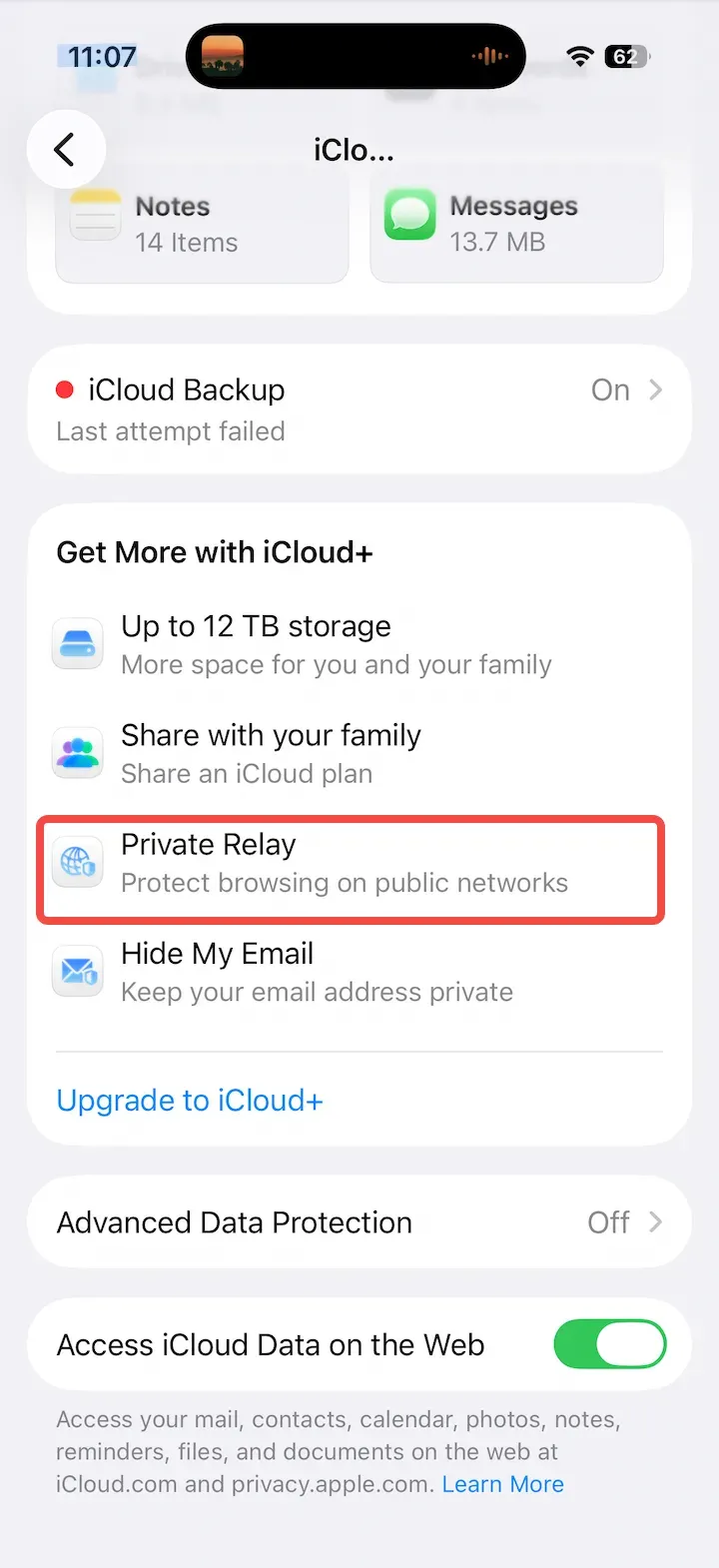
Step 2. Turn off VPN, Private Relay, or proxy settings temporarily.
-
Open Settings.
-
Tap your name/Apple ID at the top.
-
Tap iCloud.
-
Scroll down to Private Relay (under iCloud+ features) and tap it.
-
Turn the Private Relay switch off.
-
When prompted, choose Turn Off Private Relay (not just Turn Off Until Tomorrow) to disable it completely.
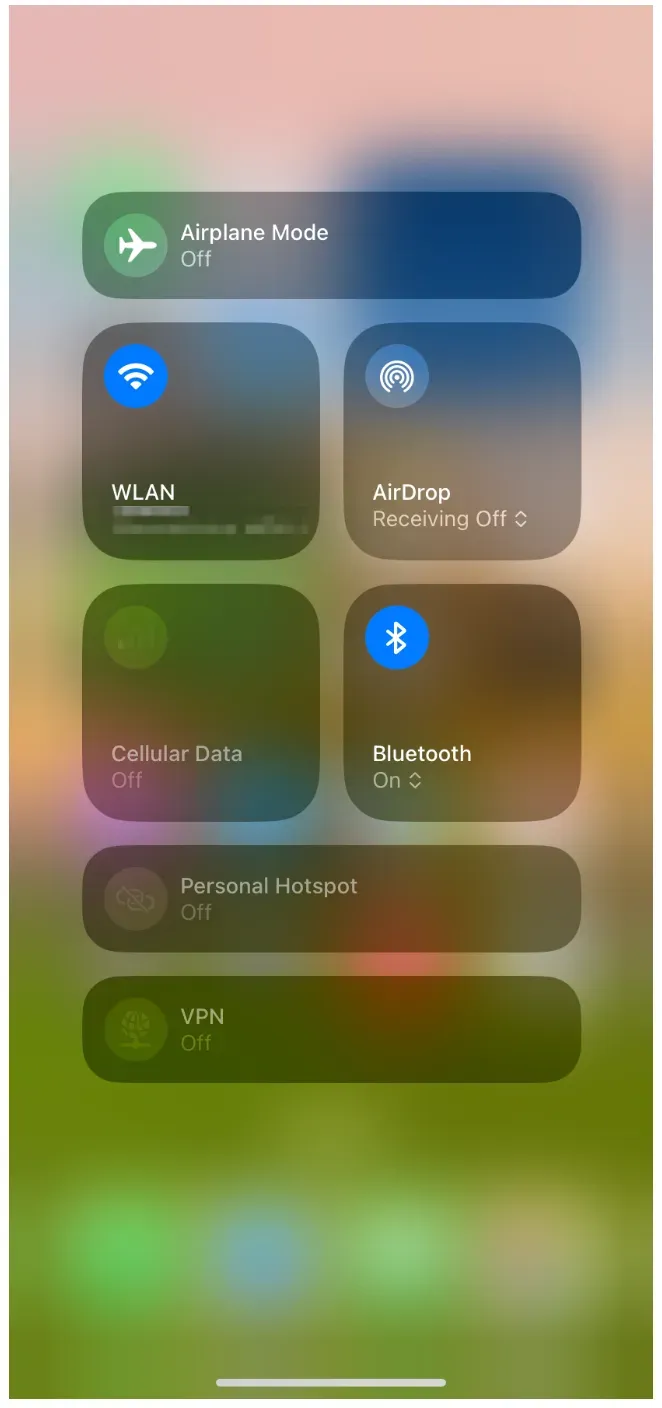
Step 3. Confirm Bluetooth is on during discovery (many devices use it for initial pairing).
Step 4. Reboot in order: phone, TV, then router.
Step 5. Update TV firmware and phone OS before retrying.
Step 6. Retry one native mirror attempt only once.
If your screen mirror not connecting problem remains after one full preflight cycle, stop repeating and move to the platform-specific fix path below.
How to Fix iPhone Screen Mirroring Not Working
Most iPhone failures come from AirPlay permissions, Home settings, or network filtering. The goal is not to toggle ten settings blindly, but to reset the AirPlay path in a controlled order. If you are seeing AirPlay not working, this sequence usually isolates the exact block quickly.
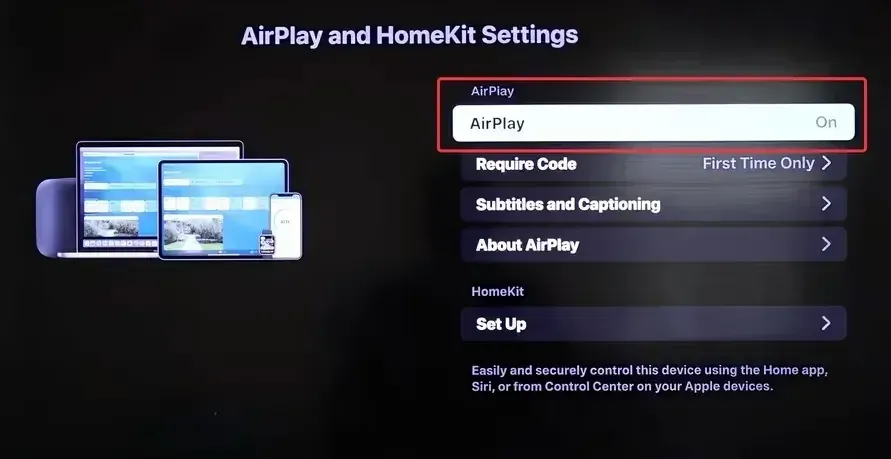
Step 1. On TV, enable AirPlay in TV settings and set access to current user or same network users. If your TV does not support AirPlay, set up PigeonCast on your TV.
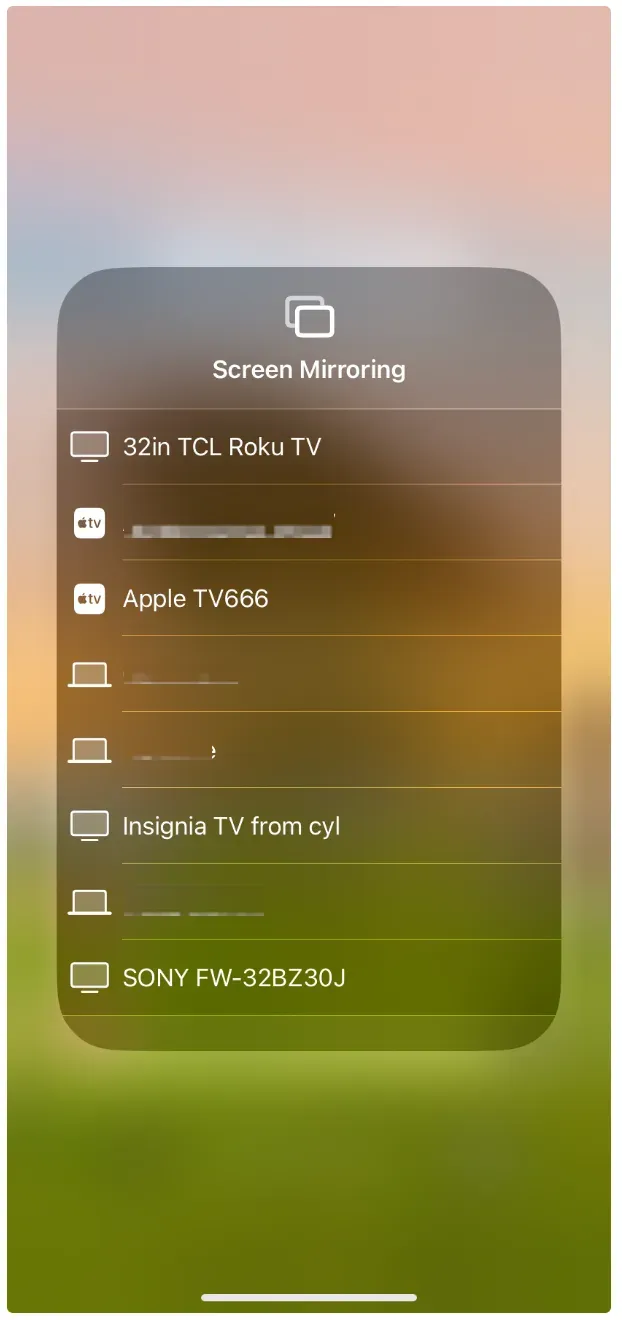
Step 2. On iPhone, open Control Center, tap Screen Mirroring, and wait 10-15 seconds for discovery.
Step 3. If TV does not appear, go to Settings > Wi-Fi, reconnect to your home SSID, then retry.
Step 4. If TV appears but fails to connect, restart iPhone and retry with AirPlay password prompt enabled on TV.
Step 5. If connection drops, disable Low Power Mode from Settings > Battery menu and close background hotspot apps.
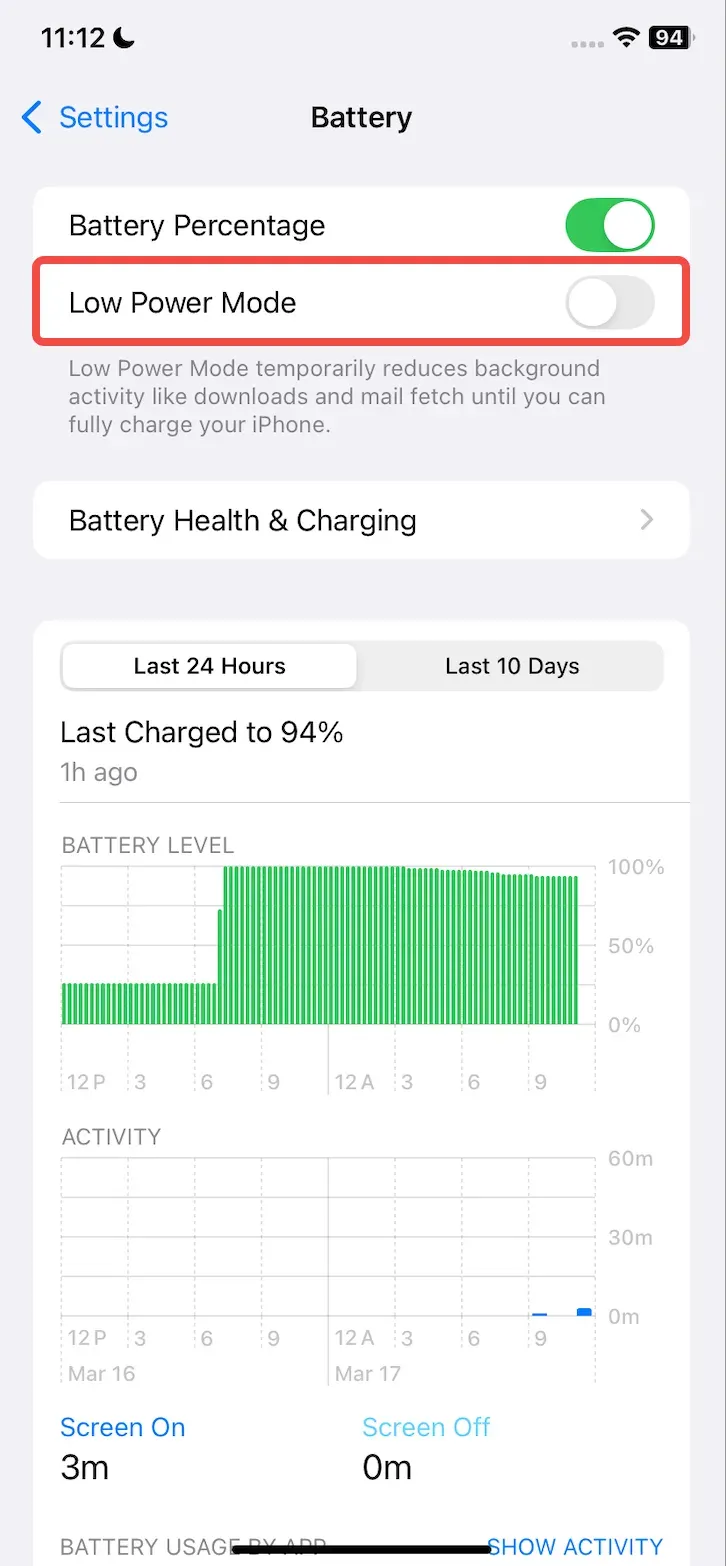
Step 6. If only one streaming app fails, test Photos mirroring; if Photos works, the streaming apps block streaming.
How to Fix Android Screen Mirroring Not Working
Android mirroring varies by brand, so use a method that matches your TV capability first. Start with Google Cast for supported apps and Android TV targets, then test full-screen mirroring only after basic casting succeeds. This prevents false diagnosis when app casting is fine but system mirroring is blocked.
Step 1. Open a cast-enabled app (for example YouTube), tap Cast, and check whether TV appears.
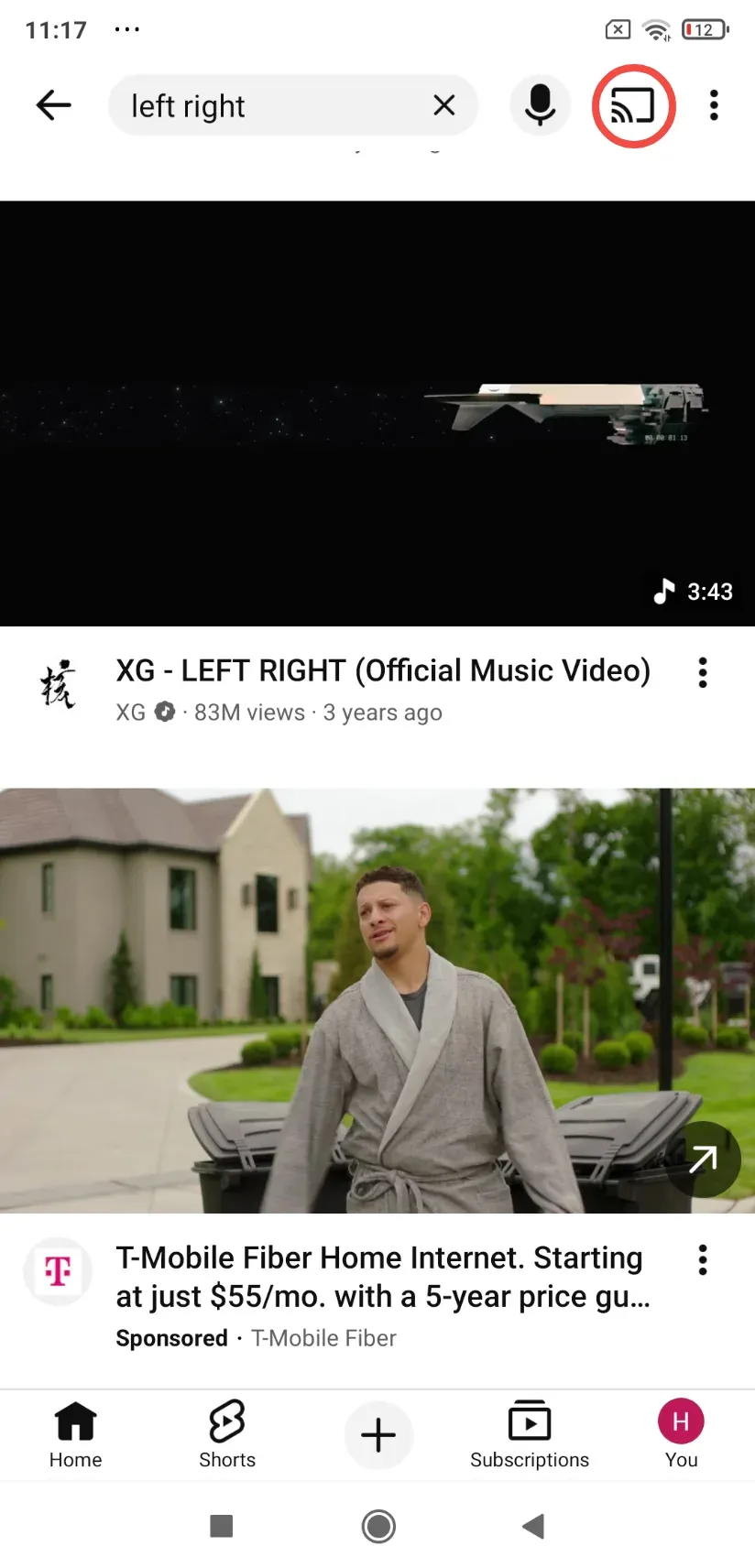
Step 2. If Cast fails, clear Google Play services cache (go to Settings > Apps > See all apps > Google Play services > Storage & cache > Clear cache), then retry discovery.
Step 3. For full-screen mirroring, open Quick Settings, tap Cast, Smart View, or Screen Share and select TV.
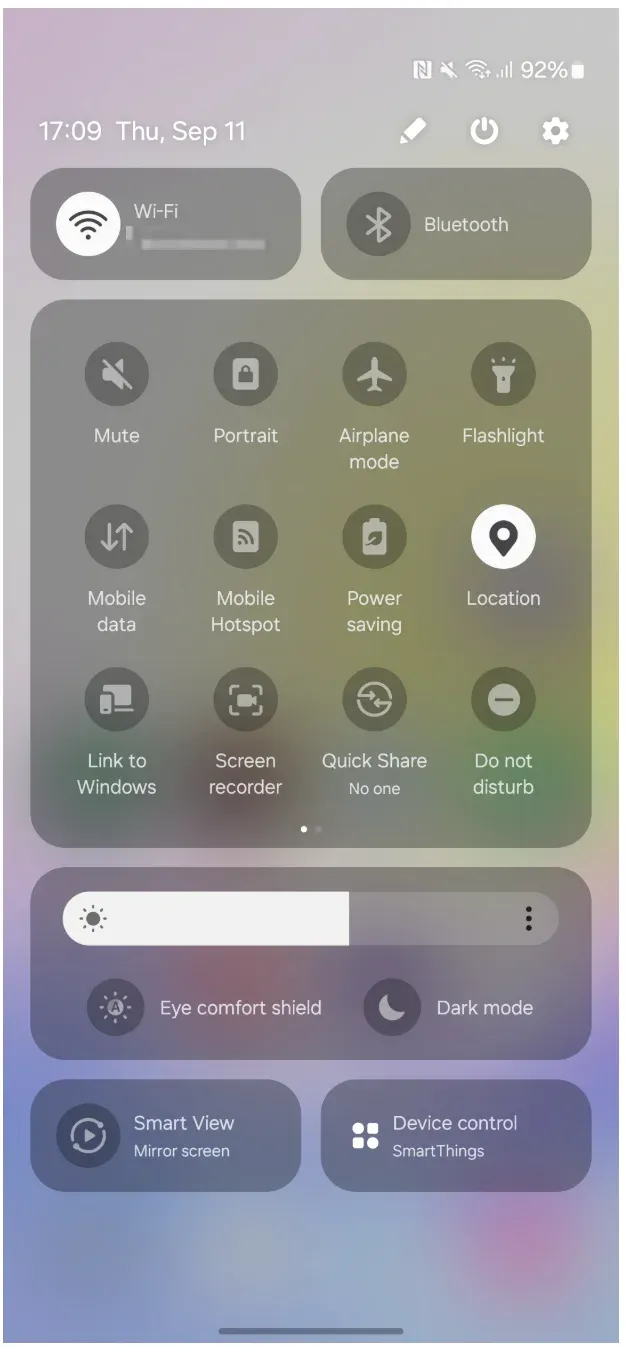
Step 4. If your phone uses Miracast and TV does not support it, try a screen mirroring app like PigeonCast to bridge the gap.


Overall Rating:


Step 5. If playback is choppy, lower video resolution on phone and retest.
Step 6. If Chromecast not working persists, reboot router and force 5 GHz off briefly for testing.
Network Problems That Cause Phone Screen Mirroring Not Working
If both iPhone and Android fail in the same home, the router is usually the bottleneck. Casting relies on local discovery traffic, and security-oriented router defaults can block it without obvious error messages. Why does this matter? Because device resets will not help until network isolation is removed.
Step 1. Disable AP/client isolation (sometimes called wireless isolation or guest isolation).
Step 2. Keep phone and TV on the same subnet and same SSID.
Step 3. Turn off band steering temporarily if devices keep hopping between 2.4 GHz and 5 GHz.
Step 4. Check firewall settings that block multicast, mDNS, or UPnP discovery.
Step 5. Avoid guest Wi-Fi for mirroring tests.
Step 6. After each router change, reboot your TV and phone, then run one fresh mirror attempt.
If mirroring works after one network change, stop there and keep your setup minimal. Over-tuning routers often creates new instability later.
How to Screen Mirror Your Phone Without AirPlay, Cast, or Miracast
When native methods remain unstable, start with a dedicated screen mirroring app, then use HDMI for maximum reliability. Keep this simple: one app-based option, one wired option, each with clear limits.
Option 1: Use PigeonCast Screen Mirroring App
When AirPlay, Chromecast, or Miracast discovery is blocked by network rules, PigeonCast can act as an AirPlay alternative or Chromecast alternative, connecting your phone to a computer, TV, or streaming device easily.
Step 1. Install PigeonCast on your phone and TV target from the app store.
Overall Rating:

Step 2. Launch the app on the two devices and ensure they are on the same Wi-Fi network.
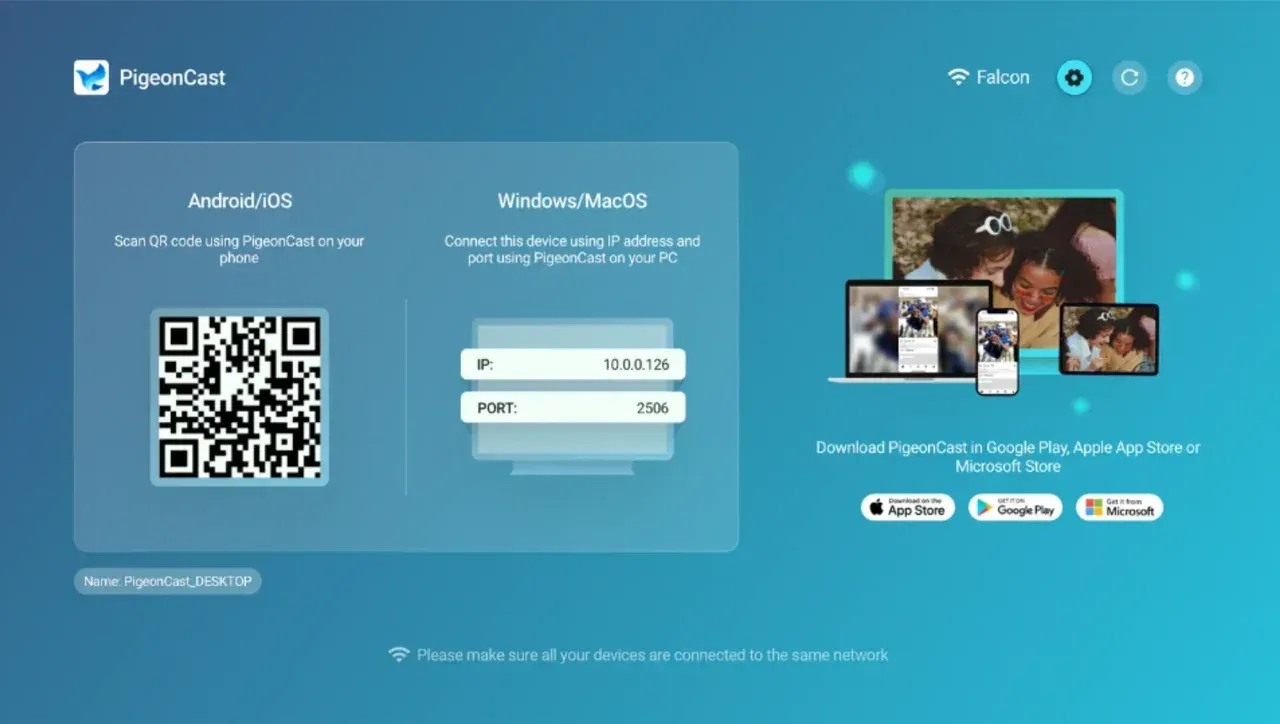
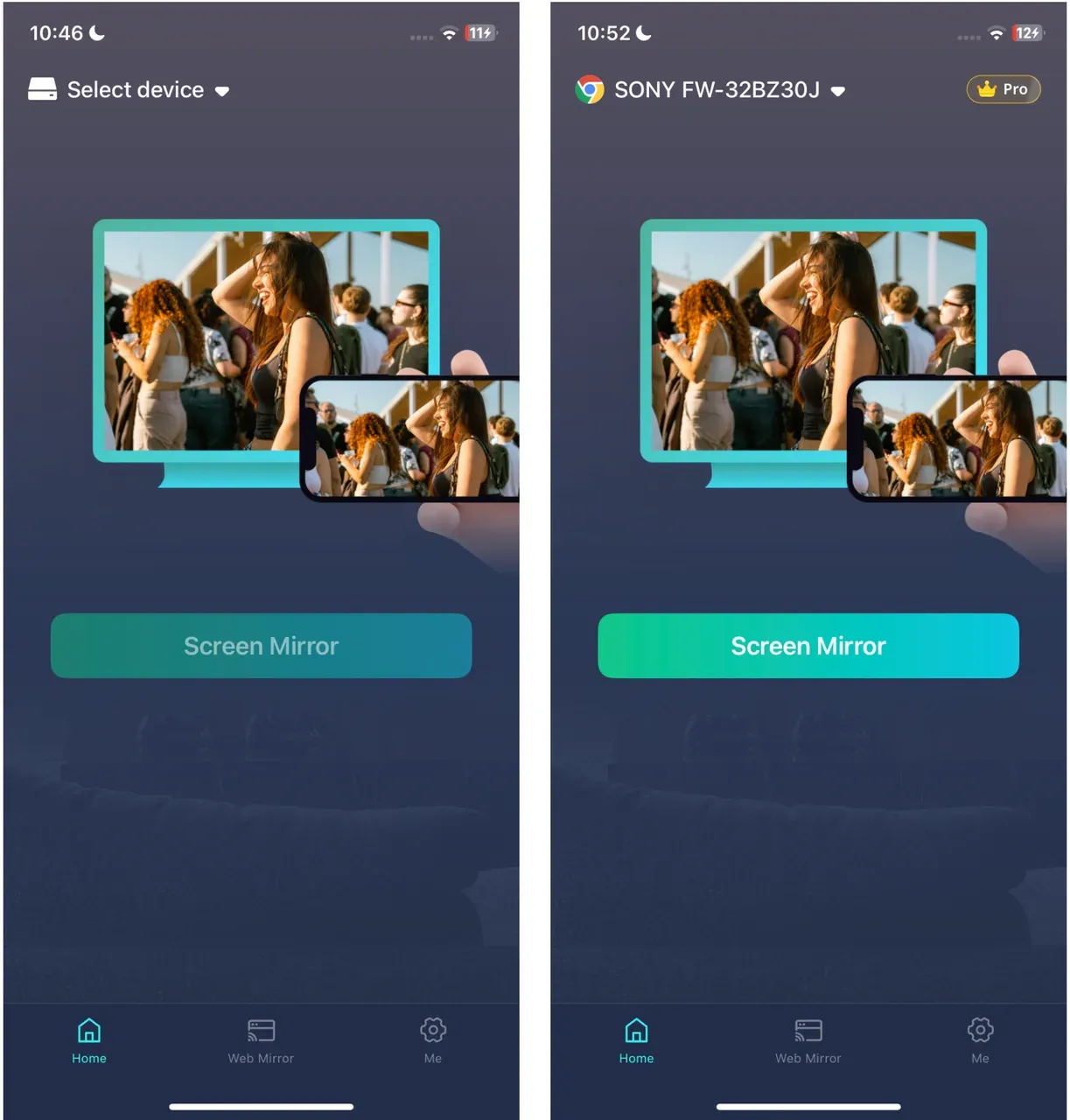
Step 3. On your phone, tap Select device, choose your TV from the list, and tap Screen Mirror.
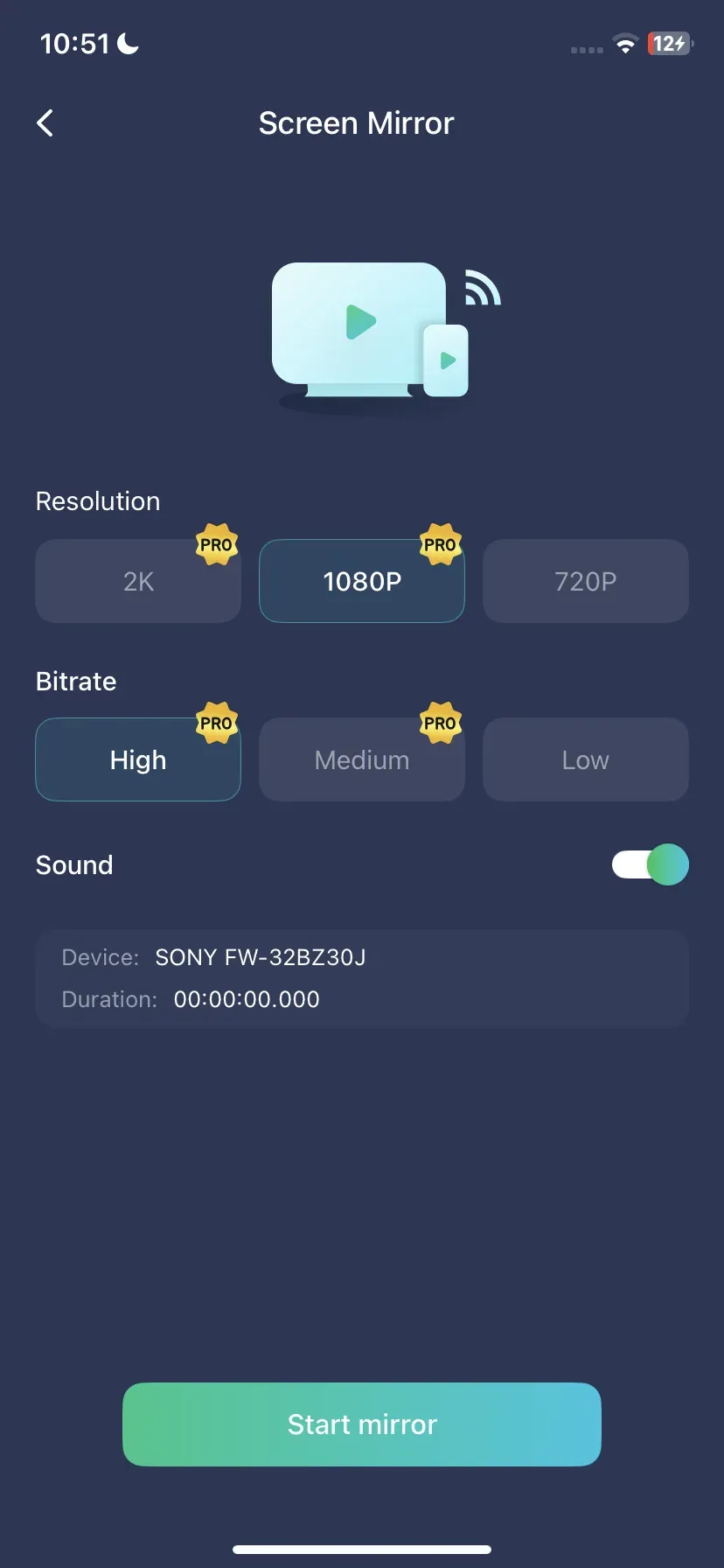
Step 4. Choose your preferred resolution, bitrate, turn on the Sound switch, and tap Start mirror.
Option 2: Screen Mirror Your Phone with HDMI
HDMI screen mirroring provides you with a more stable and HD screen mirroring experience:
Step 1. Use the correct adapter: Lightning-to-HDMI for older iPhones, USB-C-to-HDMI for modern phones.
Step 2. Connect phone to TV, switch TV input to the active HDMI port, and unlock the phone.
Step 3. Test with a local video first, then your target app.
Final Words
Why isn't my phone screen mirroring? If you keep wondering why screen mirroring fails, use a strict troubleshooting order and stop random retries. Start with one clean native attempt, run quick setup checks, then choose the correct iPhone or Android path based on where failure occurs.
My recommendation is simple: do not spend more than one focused cycle on a method that is still failing. Switch quickly to the next path, and use a fallback app or HDMI adapter when native casting stays unreliable.
Why Won't My Phone Screen Mirror FAQ
Why won't my phone screen mirror even when both devices are on the same Wi-Fi?
Same Wi-Fi name is necessary, but not always sufficient. VPN, guest network isolation, or blocked multicast settings can still prevent discovery. Disable those first, then retry once.
What should I do if I get audio on TV but no video?
This usually points to codec, DRM, or app-specific rendering limits. Test with a local video or Photos app first. If that works, the original app likely restricts mirrored video output.
Why does one app fail while other apps cast normally?
Some apps enforce content protection and limit mirroring behavior. Treat this as an app policy issue, not a full casting failure, and use a supported playback path for that app.
How do I fix screen mirror not connecting on guest or office Wi-Fi?
You often cannot fully fix this without network admin changes. Try a private hotspot or wired HDMI fallback, or use a guided app-based pairing method when local discovery is blocked.
Is troubleshooting different for iPhone and Android?
Yes. iPhone usually follows AirPlay and Home/network permissions, while Android depends on Cast or Miracast support by phone and TV brand. Use the platform-specific sequence to avoid wasted steps.
When should I stop troubleshooting and switch methods?
Switch after one complete cycle of checks plus one targeted platform fix. If it still fails, move to HDMI or a fallback app immediately for reliable results.
Why won't my phone screen mirror to my Roku TV?
This usually happens when the casting protocol or network setup does not match. Make sure your phone and Roku TV are on the same Wi-Fi network and that Screen Mirroring or AirPlay is enabled in Roku settings. iPhones require AirPlay-compatible Roku models, while many Android phones use Miracast or Cast, which must also be supported by the TV. If the TV still does not appear, restart the phone, Roku TV, and router, then try again.
Mia Clarke is a technology editor specializing in screen mirroring and casting solutions across multiple platforms. Mia provides clear, practical guides and in-depth insights to help users seamlessly connect their devices. Passionate about enhancing digital experiences, Mia is dedicated to keeping readers updated on the latest trends and tools in cross-platform screen sharing. Whether you’re looking to mirror your smartphone, laptop, or smart TV, Mia’s content delivers reliable, user-friendly advice to simplify your tech setup.