
In today's multi-screen world, being able to share your phone or computer screen on your TV is almost essential. If you use a Samsung device, you've likely heard of Miracast Samsung but may not know how it works. This guide will show you what Miracast Samsung is, how to set it up, and how to fix common connection issues.
What Is Miracast on Samsung
Miracast is a universal, industry-standard wireless technology that allows you to mirror the screen of your phone, tablet, or Windows PC directly to a compatible TV, projector, or adapter. Think of it as a "digital HDMI cable" over WiFi. It creates a direct peer-to-peer connection between your device and the display, so you don't need a separate WiFi network to make it work.
Samsung Miracast is the underlying technology that powers the wireless screen mirroring feature, but it's hidden under Samsung's own brand name. You will rarely see the word "Miracast" in the settings of a Samsung phone, tablet, or TV. Instead, Samsung uses its own terminology:
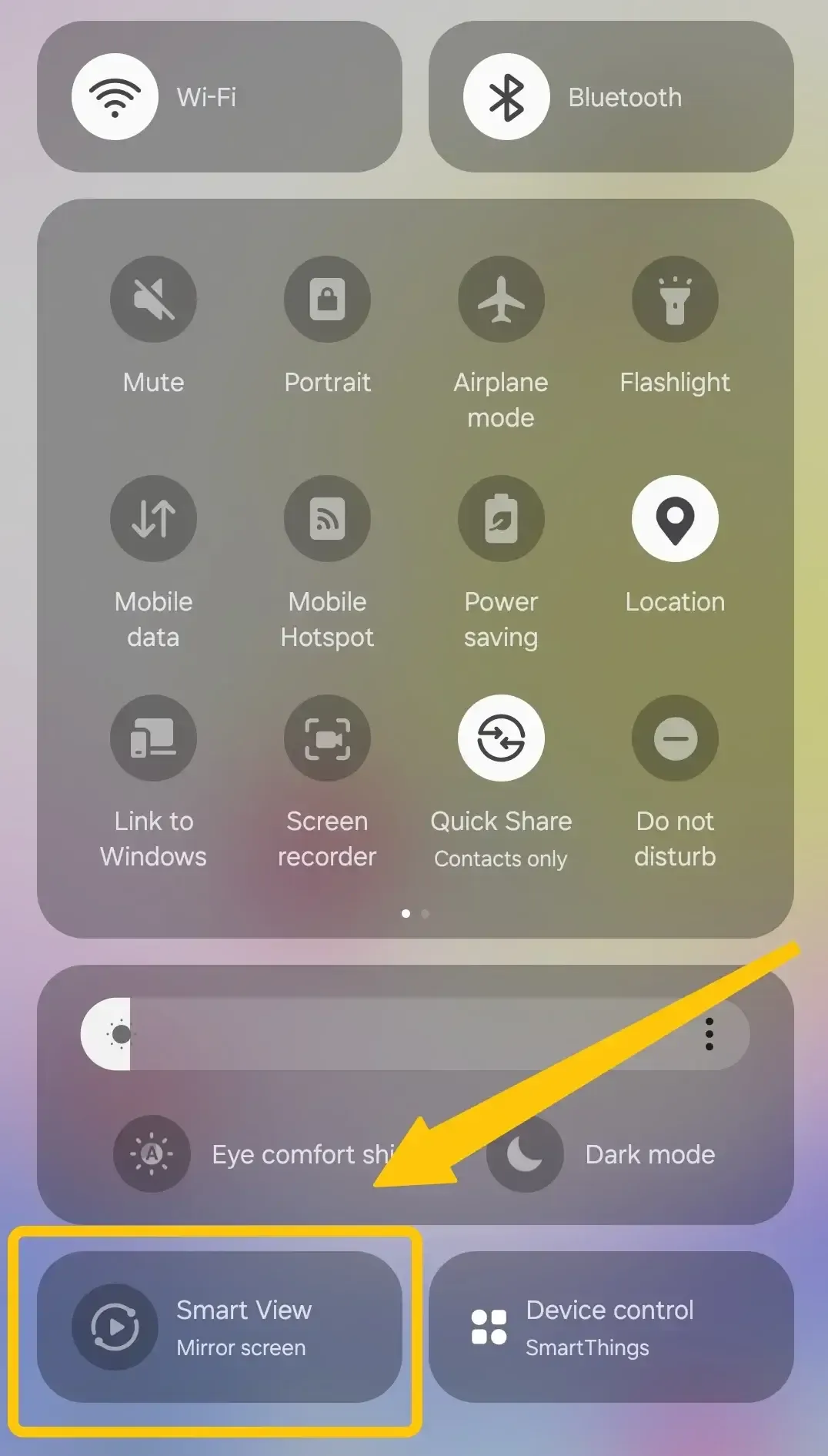
- On Samsung Phones and Tablets: The feature is called Smart View. When you use the Smart View icon to mirror your Samsung screen to a TV, it is very often using the Miracast standard to make that connection.
- On Samsung Smart TVs: The feature is called Screen Mirroring. When you select "Screen Mirroring" from the Source list on your TV, it turns your TV into a Miracast receiver, waiting for a device to connect.
Miracast Samsung Compatibility
Here, we'll cover Miracast Samsung compatibility, helping you determine which Samsung phones, tablets, and TVs can connect seamlessly for a smooth wireless display experience.
- Samsung Phones That Support Miracast
- Most Galaxy S, Note, and Tab series devices support Miracast through Smart View.
- Some newer models (post-Galaxy S21) may use Smart View combined with Chromecast or Wi-Fi casting instead.
- Samsung TVs That Support Miracast
- Samsung Smart TVs from 2013 onwards typically include Miracast or Screen Mirroring.
- Some newer models may rely on SmartThings or AirPlay 2, so double-check your TV settings if Miracast isn't visible.
How to Enable Miracast Samsung TV
Now that you know what Miracast Samsung is and why it's useful, it's time to see it in action. The next section will show you how to set up Samsung TV Miracast, connect your phone or computer, and enjoy a smooth, wireless screen-sharing experience.
Move 1. Prepare Your Samsung TV
How to enable Miracast display on TV Samsung TV? The first move in using Samsung screen mirroring Miracast is to get your TV ready for the connection. Here's the step:
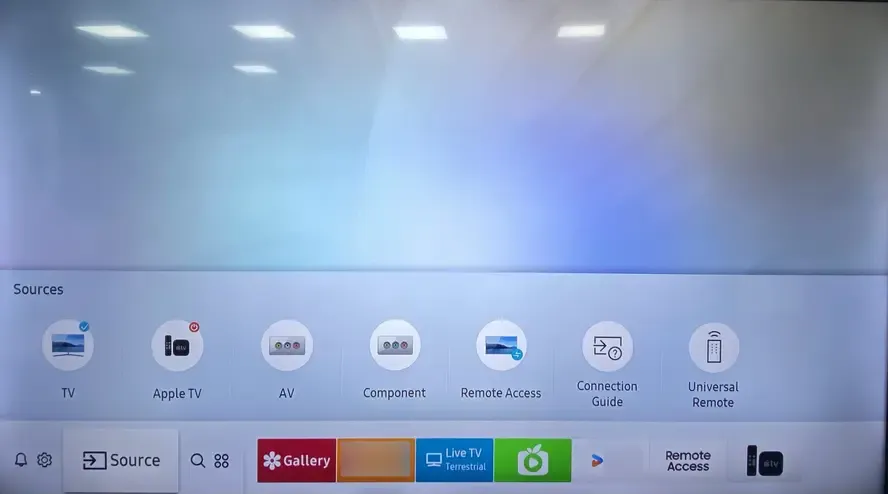
Step 1. Turn on your Samsung TV. On your remote, press the Source button.
Step 2. Instead of selecting an HDMI port, navigate to and select Screen Mirroring. Your TV will now enter a listening mode, waiting for a device to connect.
Move 2. Connect Your Device (Phone, Tablet, or PC)
Once your Samsung TV is ready, the next step is to connect your device. Here, we'll show you how to Miracast Samsung phone to TV, as well as connect a tablet or PC, for a smooth and seamless wireless display experience.
- For Samsung Phones/Tablets:
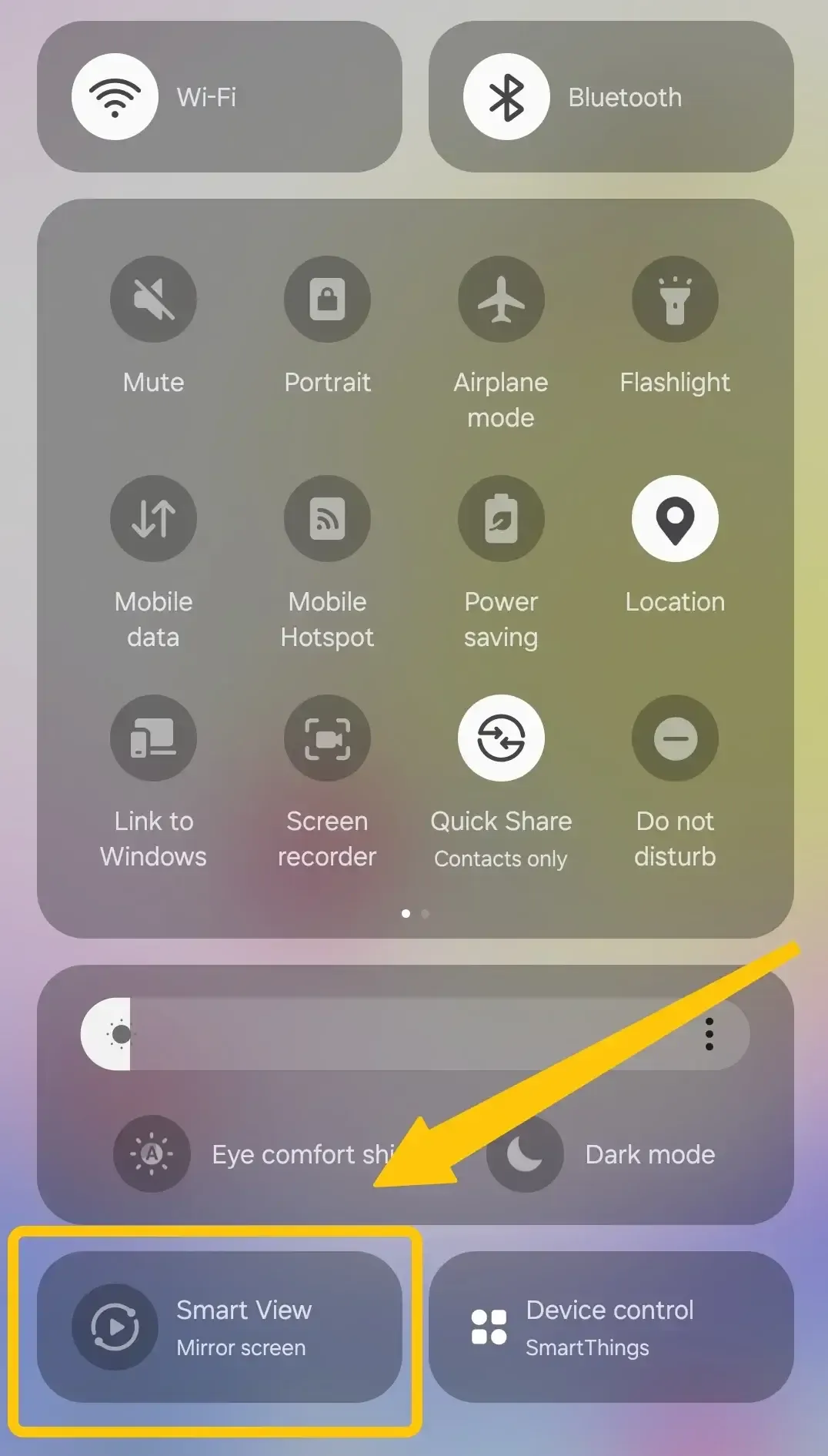
Step 1. Swipe down from the top of the screen to open the Quick Settings panel and tap Smart View.
Step 2. Your phone will search for available devices. Select your Samsung TV from the list.
Step 3. Accept the connection prompt on your TV if it appears. Your screen will now be mirrored.
- For Windows PCs:
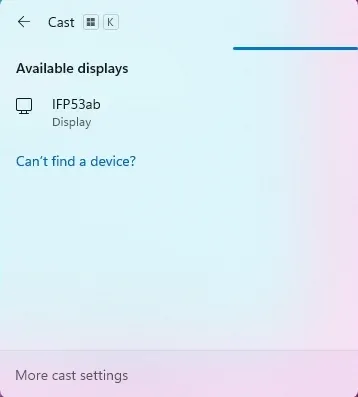
Step 1. Open the Action Center in the bottom-right corner of your taskbar (or press Windows Key + K) and click Connect.
Step 2. Your PC will scan for wireless displays and select your Samsung TV. Your desktop will now be mirrored or extended to the TV.
Miracast vs. Smart View: What's the Difference
Now that you've learned how to use Miracast with your Samsung TV, it's useful to understand how it compares to Samsung's own Smart View feature. The next section will explain the differences between Smart View on Samsung and Miracast, helping you decide which option is best for your screen-sharing needs.
- Smart View is Samsung's proprietary app and feature name. It is the button you press on your Samsung phone to start screen mirroring. Under the hood, Smart View often uses the Miracast standard to connect to Samsung TVs and other Miracast-certified devices. However, it also includes additional features like casting specific media (photos, videos) without mirroring the entire screen and integration with the SmartThings ecosystem.
- Miracast is an open, industry-standard certification developed by the Wi-Fi Alliance. It's not a piece of software but a set of rules that devices follow to communicate.
Miracast Samsung Not Working? Common Fixes
Even with compatible devices, connecting Miracast Samsung to TV can sometimes run into issues, like screen mirroring to Samsung TV without sound. Now, we'll cover common fixes to help you troubleshoot problems and get your wireless screen sharing working smoothly.
- fix 1. Restart both devices. Temporary glitches often cause connection failures. Restart your TV and phone, or PC, then attempt to reconnect.
- fix 2. Test your TV's audio and video on another Input. Before troubleshooting Miracast, ensure your TV is working properly. Switch to another input (like an Xbox, Roku, or DVD player) to verify the speakers and display are functioning.
- fix 3. Check audio on the casting device. Confirm the device you're casting from has working sound. Play audio directly on your phone or PC to ensure it's not muted or low.
- fix 4. Update your devices. Ensure your Samsung phone and TV have the latest software updates. Miracast may fail with outdated firmware.
- fix 5. Reduce distance and interference. Keep your phone/PC and TV close together and remove obstacles. Wi-Fi interference or long distances can disrupt the Miracast connection.
- fix 6. Reset Network Settings. On your Samsung phone, go to Settings > General Management > Reset > Reset Network Settings to clear Wi-Fi conflicts. Reconnect and try Miracast again.
- fix 7. Use PigeonCast. If Miracast continues to fail or is incompatible with your devices, use a screen mirroring solution for Samsung TV. PigeonCast integrates with AirPlay, DLNA, and Google Cast for maximum casting flexibility, and provides stable, high-performance screen mirroring across multiple platforms, including Samsung phones, Windows PCs, Macs, and Smart TVs.


Overall Rating:



Final Verdict
Does Samsung support Miracast? Yes, most Samsung phones, tablets, and TVs support Miracast through Smart View and Screen Mirroring. Knowing compatibility and simple fixes can solve most connection issues. If Miracast from Samsung to the TV doesn't work, PigeonCast is a reliable alternative.
Miracast Samsung FAQ
What is Miracast called on Samsung?
On Samsung devices, Miracast is called Smart View on phones and tablets, and Screen Mirroring on Samsung Smart TVs.
Where is my mirror on my Samsung phone?
On a Samsung phone, the screen mirroring feature is called Smart View. You can find it by swiping down from the top of the screen to open the Quick Settings panel, then tapping the Smart View icon.
What is Miracast used for?
Miracast is used for wirelessly mirroring the screen of a phone, tablet, or PC to a compatible TV, projector, or display. It lets you share videos, photos, apps, and presentations without using cables.
What are the disadvantages of using Miracast?
The main disadvantages of using Miracast include:
- Limited device compatibility: Not all TVs or devices support Miracast.
- Connection instability: Wi-Fi interference or distance between devices can cause lag or dropped connections.
- Lower video/audio quality: Compared to wired connections, streaming may experience reduced resolution or occasional audio delays.
- No internet sharing: Miracast creates a direct connection between devices, so it doesn’t share your Wi-Fi connection.
- Limited features: Unlike some proprietary apps, like PigeonCast. Miracast primarily mirrors the entire screen and may not support casting specific media files.
Clara Rossi is an experienced technology editor and a seasoned expert in screen mirroring and casting technologies. With a keen eye for detail and a deep understanding of how to seamlessly connect devices, Clara excels at optimizing user experiences for effortless sharing and streaming. Whether you're seeking quick fixes or advanced tips, her expertise and responsiveness ensure that every query is met with a well-informed and efficient solution.