
Screen mirroring features, such as Samsung's Smart View, are essential for sharing content from your phone to larger displays, but many wonder, does Smart View need Wi-Fi? Read on to learn how this works and clear up its functionality and limitations, whether you're at home, in a conference room, or without an internet connection.
Does Samsung Smart View Need WiFi
Yes, Samsung Smart View primarily uses a Wi-Fi connection, but it's important to understand the type of Wi-Fi it uses. Smart View doesn't require your devices to be connected to a traditional home Wi-Fi network with internet access.
Instead, it typically sets up a direct Wi-Fi connection between your phone and TV. When you activate Smart View, your Samsung phone and a compatible TV or monitor use a peer-to-peer Wi-Fi standard such as Miracast or Wi-Fi Direct to establish a direct link. This creates a private, local network between the two devices, allowing you to stream content without relying on the internet.
So, while Smart View is Wi-Fi-based, it doesn't need an active internet router or online connection to function. The devices communicate directly with each other.
Can I Use Smart View Without WiFi
You can't use Smart View if you completely disable your phone's Wi-Fi radio, as the feature needs the Wi-Fi hardware to be turned on to establish a direct connection. However, you can use Smart View without being connected to a traditional Wi-Fi network with internet access. If you're trying to cast Samsung phone to TV, the right method depends on whether your TV supports Smart View directly, works through Wi-Fi Direct, or needs another casting option. Here are the two main scenarios:
Scenario 1. Use Direct Device-to-Device Connection
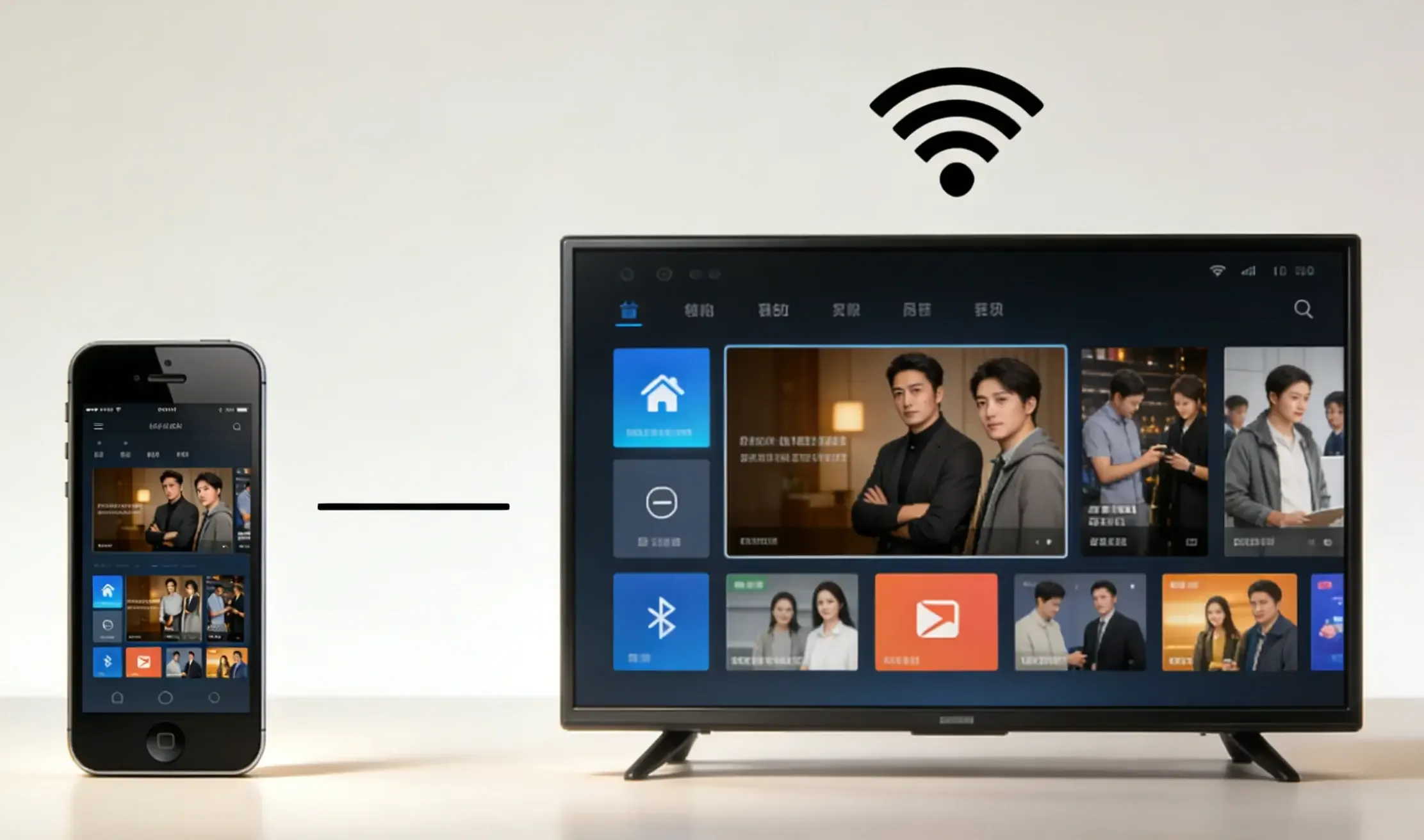
Does Smart View use WiFi? Yes, but here's how it works: Both devices need Wi-Fi turned on, but they don't have to be connected to your home network. Simply select your TV from the Smart View menu on your phone, and a direct Wi-Fi connection is established automatically.
Scenario 2. Use a Mobile Hotspot
If you're in a location without Wi-Fi, like a hotel room with only Ethernet, you can create a mobile hotspot from your phone and connect your Samsung TV to it. Note that using a mobile hotspot may incur additional fees depending on your cellular plan, so check with your carrier to avoid unexpected charges. Here are the specific steps:
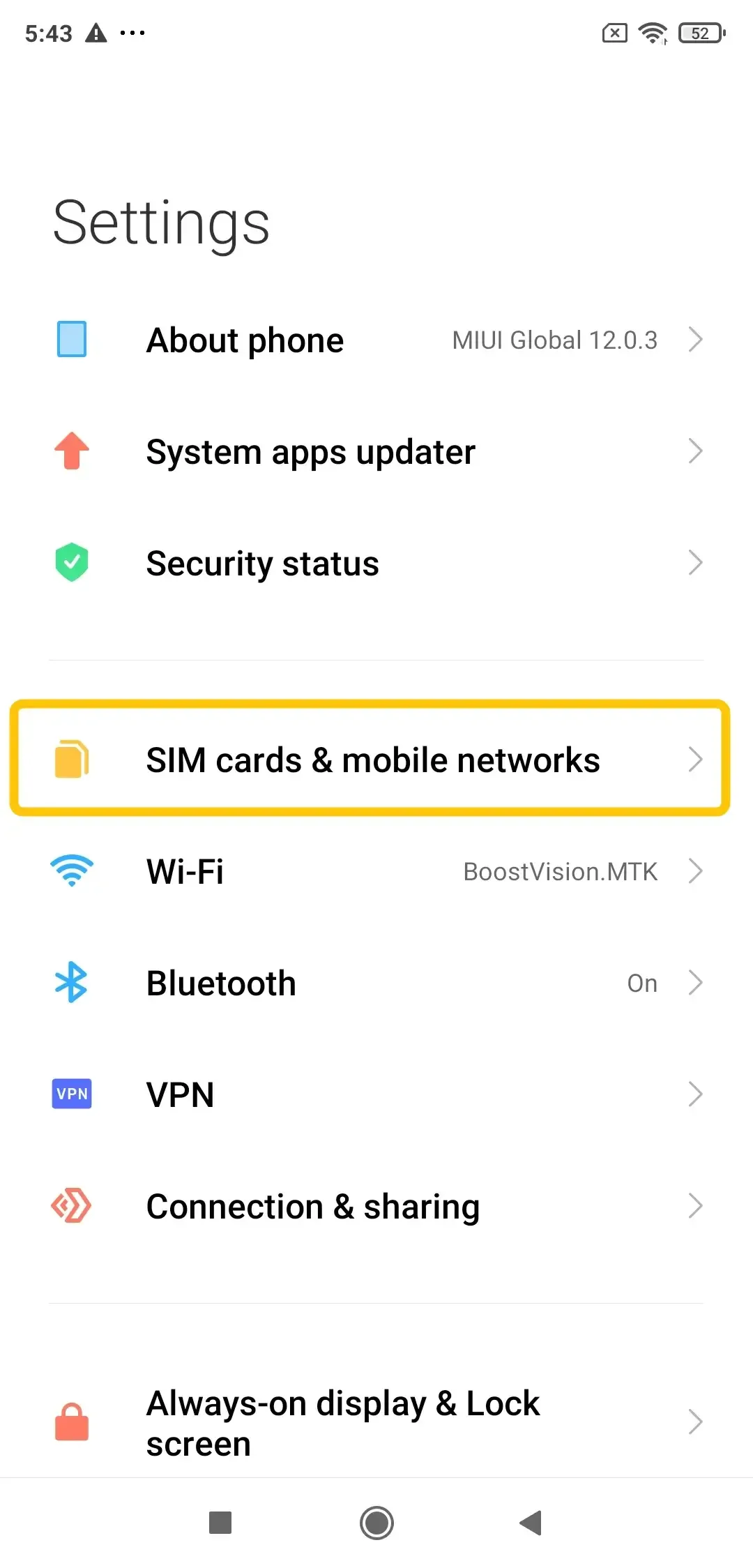
Step 1. Enable the mobile hotspot feature on your phone through your Settings.
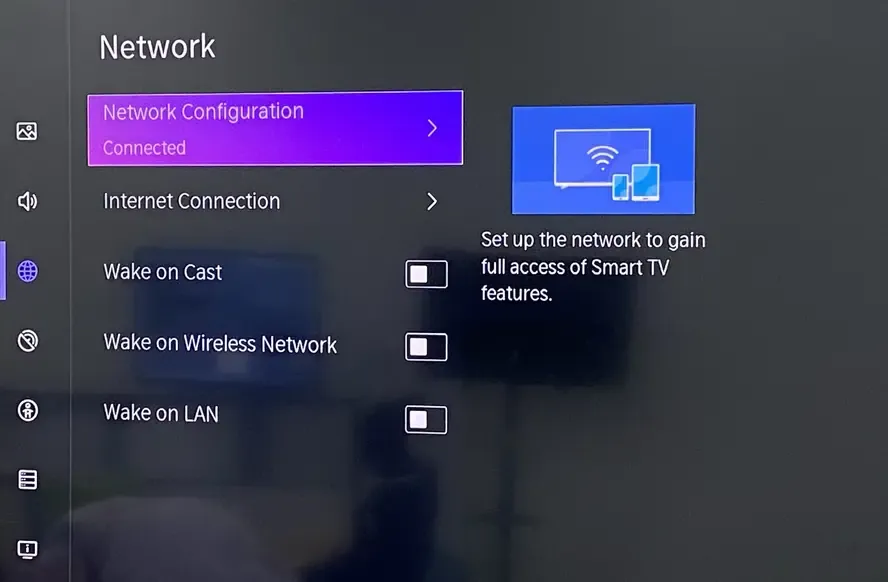
Step 2. On your TV, find the Wi-Fi settings and connect to the mobile hotspot network you created.
Step 3. Open the Smart View app and select your Samsung TV from the list of available devices.
Step 4. Once connected, your phone's screen will start mirroring to the TV.
PigeonCast: A Smarter Way to Mirror Over WiFi
If you find Smart View limiting or want an easier alternative, consider PigeonCast, a free app designed for seamless screen mirroring over a wireless network. It supports AirPlay, DLNA, and Google Cast, providing greater flexibility for casting across Android, iOS, Windows, Mac, and TV devices. With PigeonCast, you can stream content like YouTube videos, photos, music, and apps directly from your phone to any compatible screen.
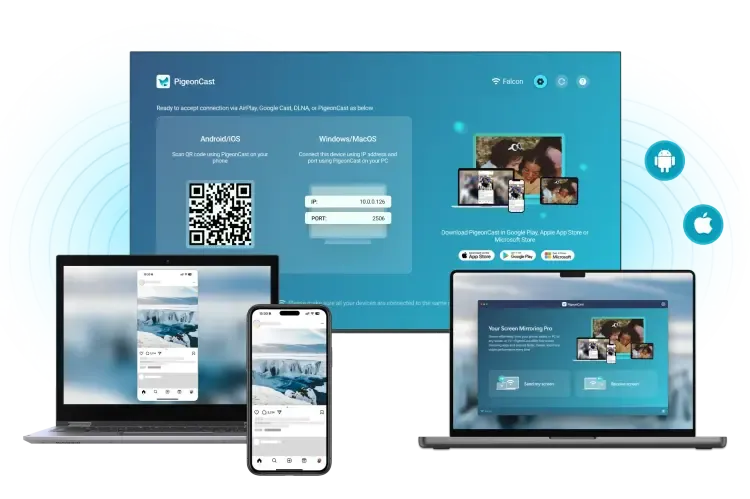
Step 1. Ensure your mobile device and TV are connected to the same wireless network.


Overall Rating:



Step 2. Install PigeonCast on your mobile device, phone, tablet, or laptop, then open the app.
Step 3. Tap Select device or Send my screen to choose your smart television from the available list.
Step 4. Enter the onscreen PIN code to confirm the pairing process.
Step 5. When you finish the connection, click Screen mirror or Start mirror to begin your mirroring activities.
To Sum Up
While Smart View needs Wi-Fi, it doesn't require an internet connection. Smart View works by creating a direct Wi-Fi link between your phone and TV, so both need Wi-Fi enabled. Does Smart View need same WiFi? They don't need to be on the same network. You can also use a mobile hotspot if no Wi-Fi is available. For more flexibility, apps like PigeonCast offer seamless casting across devices, providing an alternative for better compatibility.
Does Smart View Need WiFi FAQ
How does Smart View connect?
Smart View connects devices through a shared WiFi network, allowing you to mirror your phone or tablet's screen to a compatible TV. The devices communicate over the WiFi network, enabling screen mirroring, streaming, and file sharing.
What are the requirements for Samsung Smart View?
To use Samsung Smart View, you typically need:
- A Samsung TV or compatible smart device.
- A Samsung phone or tablet (running One UI).
- A stable WiFi connection for both devices, unless you're using Wi-Fi Direct for a direct connection.
Does Smart View Need the Internet?
No, Smart View doesn't require an internet connection, but it does require WiFi for device communication. However, if you're using Wi-Fi Direct, the devices can communicate without an internet connection, though your phone will still need internet access for tasks like streaming content.
Does Smart View need WiFi on Android?
Yes, Smart View on Android needs Wi-Fi, but it doesn't require a traditional internet connection. It creates a direct Wi-Fi link between your Android phone and a compatible TV or display, allowing you to stream content without connecting to a home Wi-Fi network. Both devices just need Wi-Fi to establish the connection.
Does Smart View need Bluetooth?
Yes, Smart View on Android (via the SmartThings app) does need Wi-Fi. It requires both your Android phone and the TV or device you're casting to, to have Wi-Fi enabled. However, they don't need to be connected to the same Wi-Fi network, as Smart View establishes a direct Wi-Fi connection between the devices. An internet connection is not required.
Clara Rossi is an experienced technology editor and a seasoned expert in screen mirroring and casting technologies. With a keen eye for detail and a deep understanding of how to seamlessly connect devices, Clara excels at optimizing user experiences for effortless sharing and streaming. Whether you're seeking quick fixes or advanced tips, her expertise and responsiveness ensure that every query is met with a well-informed and efficient solution.