
Where is screen mirroring on Android? Screen mirroring lets you wirelessly display your Android on a compatible TV or monitor. While this is a standard feature on most Android devices, the method to enable screen mirroring can vary slightly depending on your device's brand and Android version. Knowing where to find this option is the first step to enjoying a bigger and better view.
Where Is Screen Mirroring on My Android Phone
There are two primary locations where you can find the screen mirroring feature on an Android phone. Depending on your device model and Android version, you may find the option in different places, but typically it is available in the Quick Settings panel or the Settings app.
Location 1. Quick Settings Panel
Where is screen mirroring on Android phone? The Quick Settings panel is the fastest way to start screen mirroring, offering quick access to the feature with just a few taps. Here's how to locate it:
Step 1. Swipe down from the top of your Android phone's screen to open the Quick Settings menu.
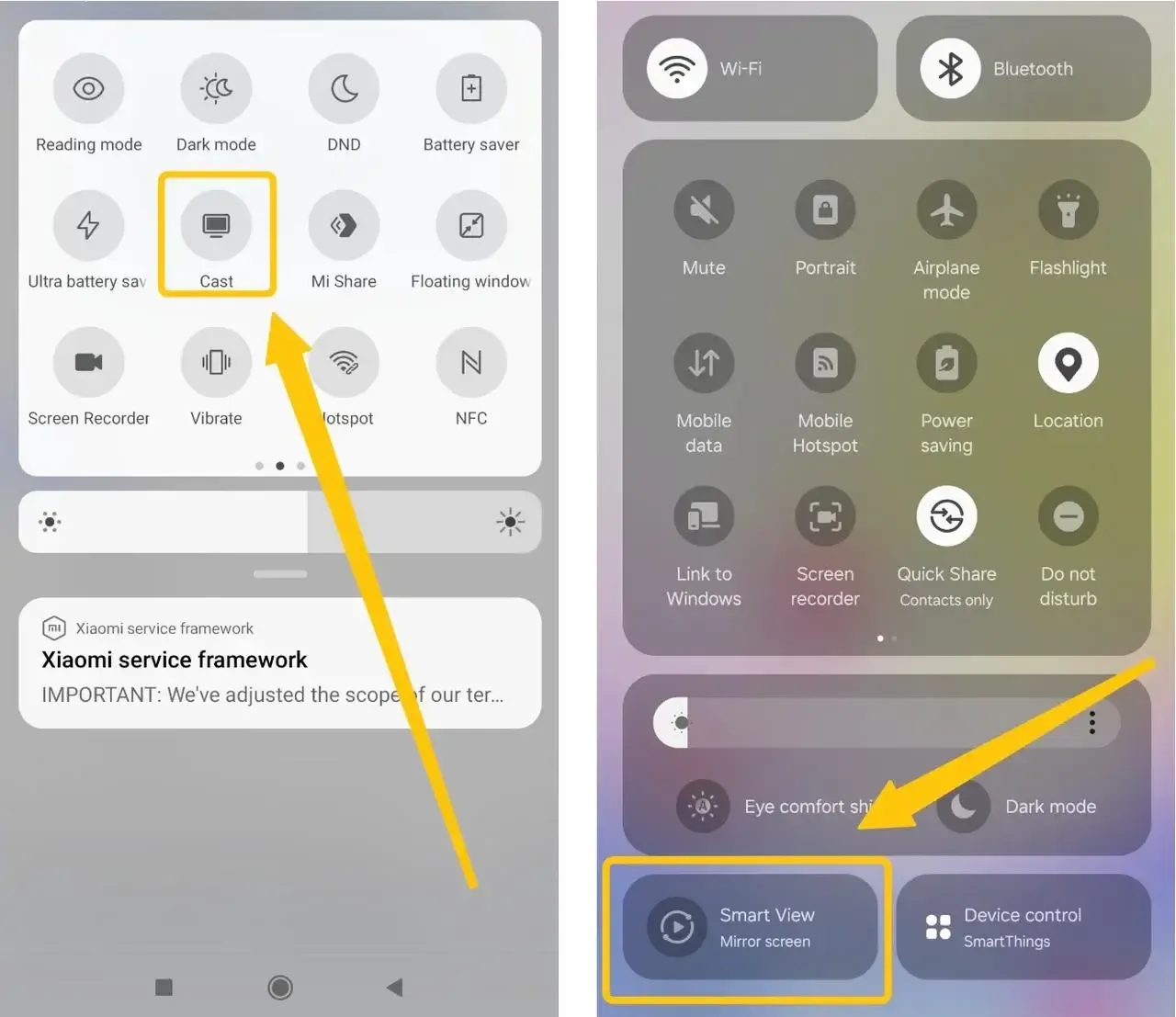
Step 2. Search for an icon labeled Cast, Smart View (Samsung), Screen Cast, or Wireless Display. (While other brands may use different names, the screen mirroring feature is generally found in the same area)
Tips: If you don't see it, tap the pencil (edit) icon to customize your Quick Settings tiles. You can usually find and add the Screen Mirroring tile from the list of available options.
Step 3. Tap the corresponding Screen Mirroring icon to search for available devices to mirror to, such as your TV, Chromecast, or other wireless receivers.
Step 4. Once you finish the connection, your Android screen will now be displayed on the selected device.
Location 2. Settings App
Where is screen share on Android? If you can't find the shortcut, you can enable screen mirroring through the Settings app. Simply open Settings and navigate to the appropriate section. Here's the step to access Screen Mirroring in the Settings App:
Step 1. Open the Settings app on your Android phone.
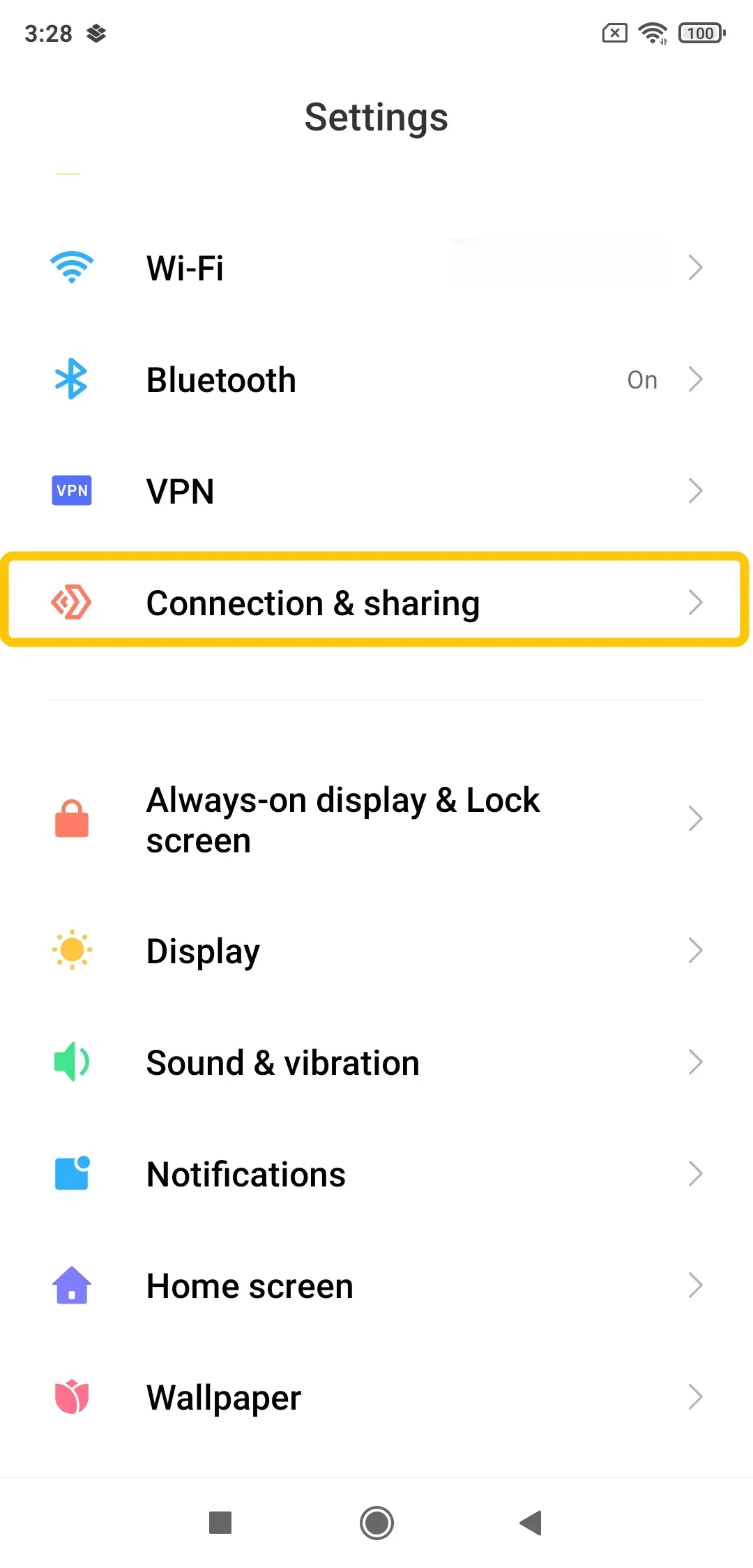
Step 2. Scroll down and select Display or Connections (this may vary depending on your device).
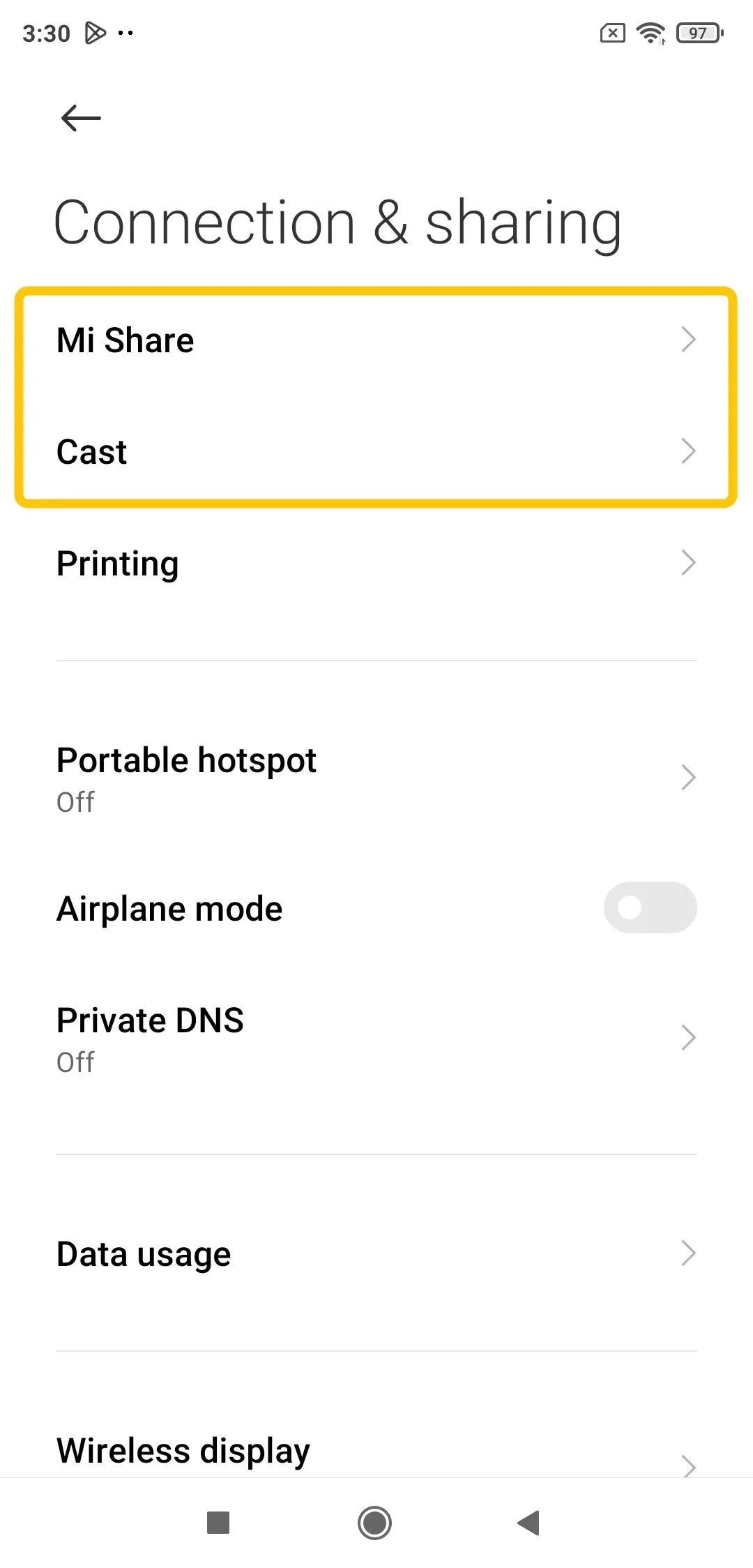
Step 3. Look for the Cast or Screen Mirroring option. (On Samsung devices, you may find it under Connections > Smart View)
Step 4. Select the device you want to mirror your Android phone's screen to, and the connection will be established.
Where Is Screen Mirroring on Android TV
Where is Screen Cast on Android TV? Android TVs support casting and mirroring features like Google Cast and Miracast, letting you wirelessly display your Android phone's screen on the TV. This is usually a one-time setup, accessible through the TV's settings menu.
Step 1. Press the Home/Google TV button on your remote and go to Settings (the gear icon).
Step 2. Look for sections like:
- Network & Accessories
- Remotes & Accessories
- Device Preferences
- System
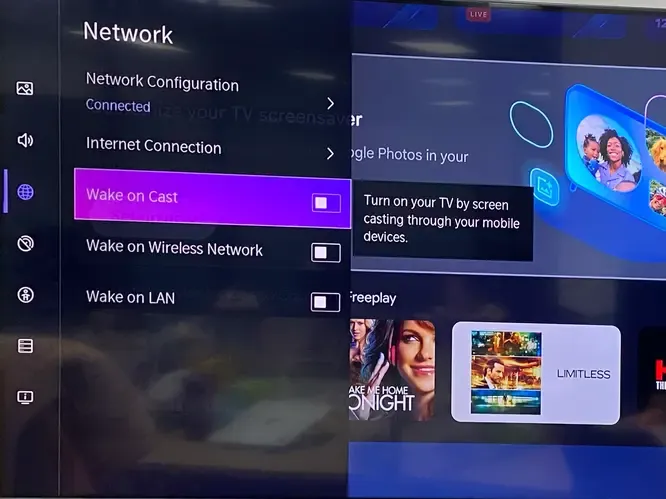
Step 3. Within these menus, search for an option labeled one of the following:
- Google Cast
- Screen Mirroring
- Enable Wireless Display
- Cast Receiver
Step 4. Select the option and turn the switch ON.
Step 5. Once enabled, your Android TV will show its availability on your Wi-Fi network.
Step 6. After connecting, your phone's screen should appear on the Android TV.
2026 Best Free Android Screen Mirroring App: PigeonCast
While Android offers built-in screen mirroring options, they don't always work seamlessly across all devices. For a more reliable and flexible solution, you can use a screen mirroring app for your Android phone which makes it easy to cast and mirror content from your Android phone to a wide range of devices.
For example, PigeonCast with support for AirPlay, DLNA, and Google Cast, it ensures compatibility with smart TVs, Chromecast, Apple TV, and other Android devices.
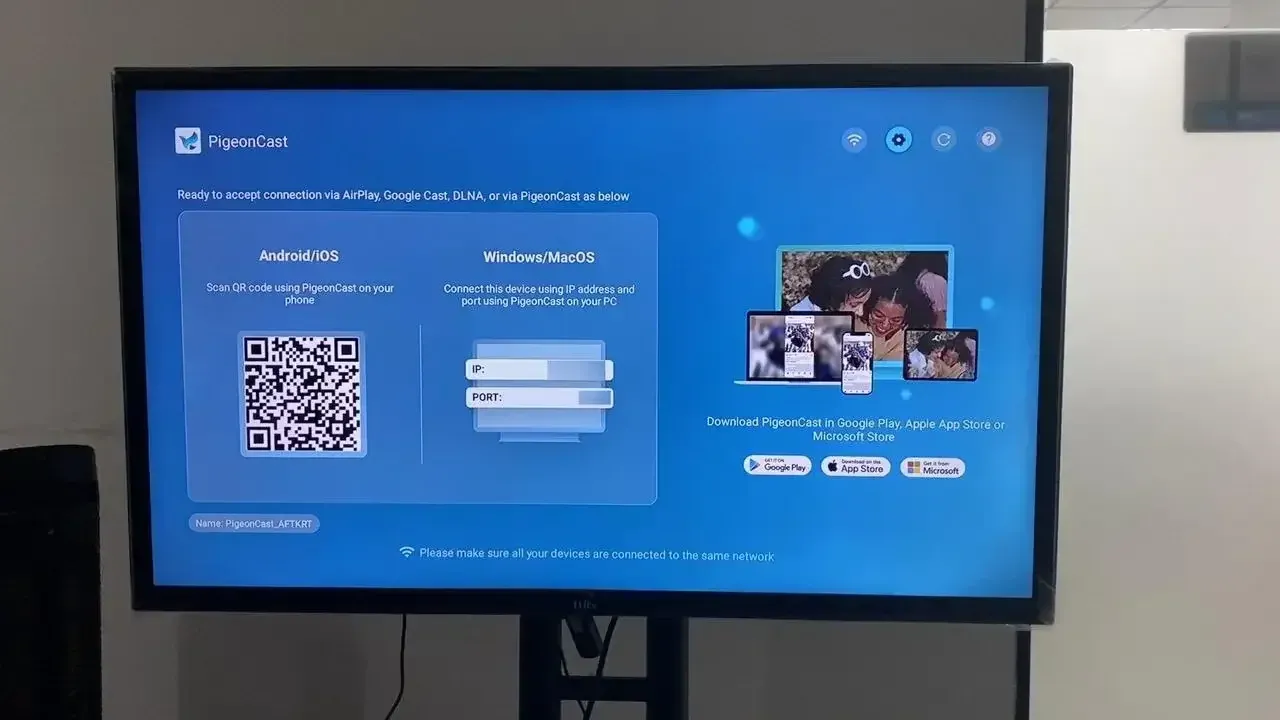
Step 1. Ensure your mobile device and smart television are covered by the same wireless network.


Overall Rating:



Step 2. Install PigeonCast on both your devices from the app store. Then launch it.
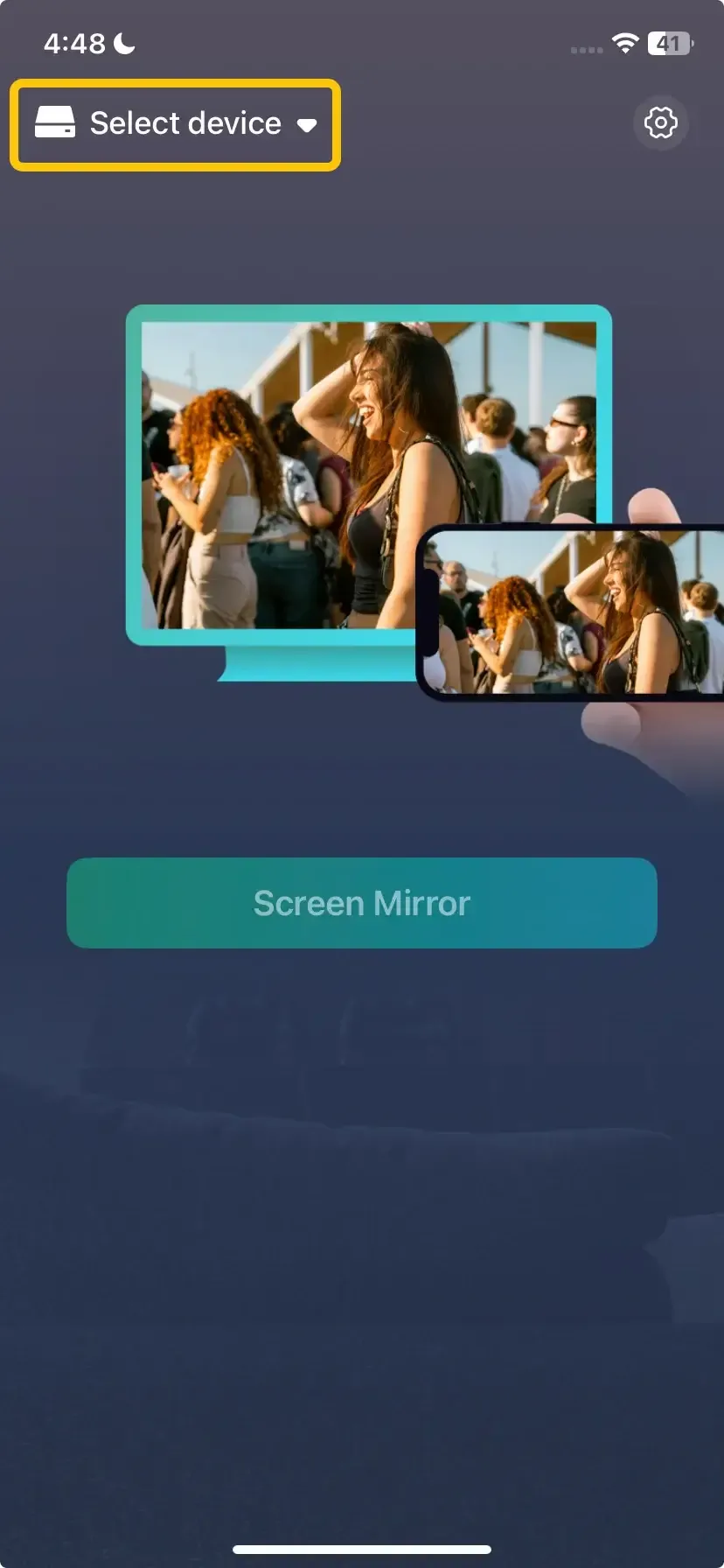
Step 3. On the mobile device, tap Select device to choose your TV from the device list. Alternatively, you can scan the QR code shown on the television screen.
Step 4. Enter the onscreen PIN code to finish the connection.
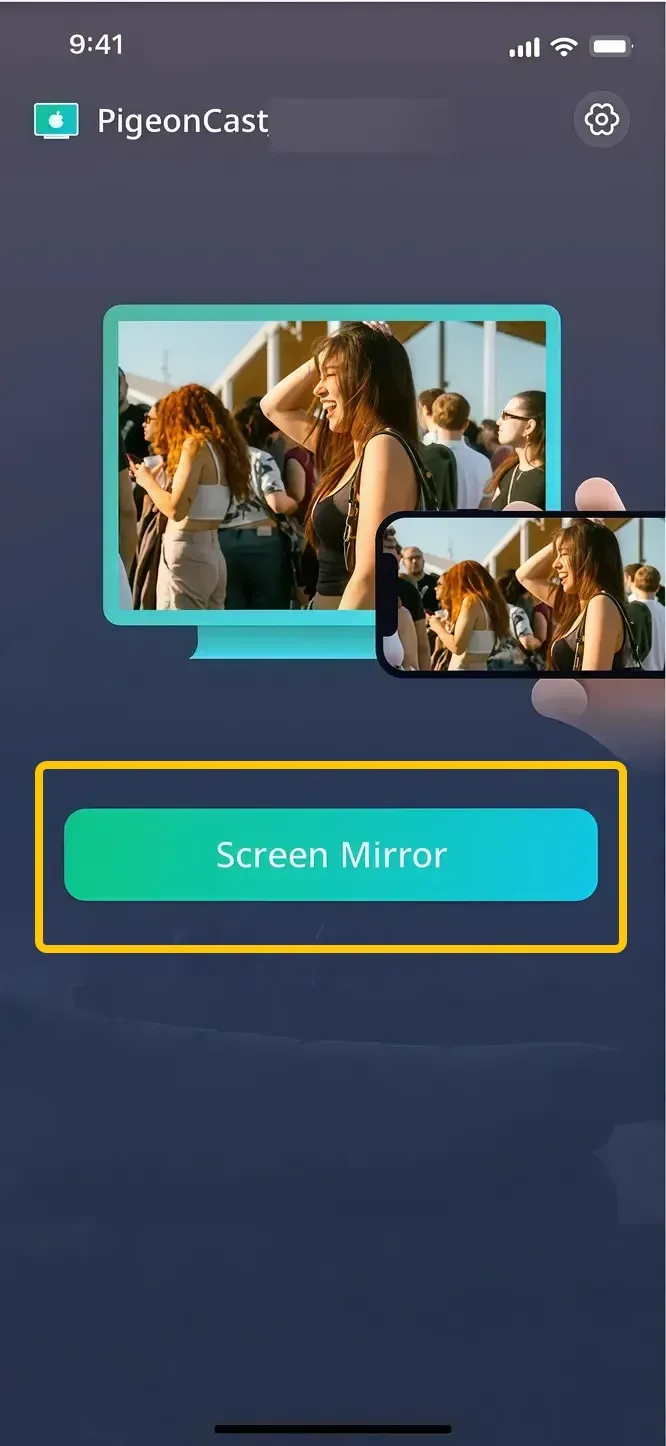
Step 5. As you finish the connection, tap Screen Mirror to start your mirroring activities.
Closing Words
Screen mirroring on Android is a simple and effective way to share your phone's content on a larger display. Whether you're using the Quick Settings panel for quick access or the Settings app for more control, the process is easy to follow. If you're using an Android TV, you can enable screen mirroring through the TV's settings. For added flexibility and reliability, free PigeonCast offers a seamless way to cast and mirror content across different devices.
Where Is Screen Mirroring on Android FAQ
What is screen mirroring called on different Android phones?
The feature may have a different name depending on the phone brand. Samsung usually calls it Smart View, while other Android phones may use Cast, Screen Cast, Wireless Display, Screencast, or Screen Share. Swipe down twice to expand Quick Settings and look for one of these names rather than only searching for “Screen Mirroring.”
Why is there no Cast or Screen Mirroring button on my Android phone?
The shortcut may be hidden from your active Quick Settings panel. Tap the pencil or Edit button and check the available tiles. Some phones also place the feature under Settings > Connected devices, Connections, Display, or Connection preferences. Certain models, including Google Pixel phones, may only support Google Cast receivers rather than Miracast displays.
Where is screen mirroring on a Samsung phone?
Swipe down twice from the top of the Samsung screen and tap Smart View. If the tile is missing, open the Quick Settings editing menu and add it to the panel. Smart View searches for compatible TVs and wireless displays nearby. The receiving TV must also have screen mirroring or a compatible receiver enabled.
Where is screen mirroring on a Google Pixel phone?
On a Google Pixel, open Settings > Connected devices > Connection preferences > Cast. You may also find a Cast tile in Quick Settings. Pixel phones primarily use Google Cast, so they usually connect to Chromecast, Google TV, Android TV, or another Cast-enabled receiver rather than a TV that supports only Miracast.
Why does my Android phone not show my TV?
Make sure the phone and TV are connected to the same Wi-Fi network and that the TV’s casting or screen mirroring receiver is enabled. A guest network, VPN, router isolation, or incompatible mirroring protocols can prevent discovery. Restart both devices and confirm whether your TV supports Google Cast, Miracast, or a separate receiving app.
Can I mirror my Android phone to a TV without Wi-Fi?
Yes. Miracast can create a direct Wi-Fi connection between compatible devices without using a home router. You can also use a USB-C-to-HDMI adapter or connect both devices through a mobile hotspot. See how to mirror an Android phone to a TV without Wi-Fi for the available methods and setup steps.
Do I need an app if Android already has screen mirroring?
Not always. The built-in feature is sufficient when your phone and receiving device support the same casting protocol. A screen mirroring app becomes useful when the TV does not appear in the built-in device list, the devices use different protocols, or you want to mirror to another platform such as a Windows PC, Mac, browser, or streaming device.
Clara Rossi is an experienced technology editor and a seasoned expert in screen mirroring and casting technologies. With a keen eye for detail and a deep understanding of how to seamlessly connect devices, Clara excels at optimizing user experiences for effortless sharing and streaming. Whether you're seeking quick fixes or advanced tips, her expertise and responsiveness ensure that every query is met with a well-informed and efficient solution.