
Connecting your phone to a TV via Bluetooth might not be the most common method, but it's a handy solution in certain situations. While WiFi-based casting is typically preferred for video, Bluetooth offers a simple way to stream audio, use your phone as a remote, or even achieve basic screen mirroring without relying on a wireless network. If you're looking for ways to set up a Bluetooth connection, this guide will walk you through how to connect phone to TV using Bluetooth.
Can You Connect Phone to TV via Bluetooth
Bluetooth technology allows devices to communicate wirelessly over short distances. When you connect your phone to a TV using Bluetooth, you can stream music, podcasts, or even use your phone as a control device. This is particularly useful for those who want how to connect phone to TV using Bluetooth without Wi-Fi, as Bluetooth requires no internet connection.
However, it's important to understand that Bluetooth is primarily designed for audio and small data transfers. If your goal is full HD video streaming, WiFi-based methods like Chromecast, AirPlay, or Miracast will provide better results. That said, Bluetooth screen mirroring has its place for lightweight tasks and audio-centric setups.
How to Connect Phone to TV via Bluetooth
When people think about linking their phone to a TV, WiFi casting is usually the first option that comes to mind. But if you don't have access to a stable network, Bluetooth provides a more direct approach. It won't deliver the same quality for video, but it's reliable for audio playback, turning your phone into a remote, or handling lightweight screen sharing.
If you're curious about how to connect phone to TV using Bluetooth without WiFi, the process is straightforward: first, make sure your devices are compatible, then pair them, and finally start using the connection.
First, Check Your Devices
Before attempting to pair your phone with a TV via Bluetooth, it's essential to verify your TV and phone compatibility.
Most modern smart TVs support Bluetooth connectivity, but some older models may not. Check your TV's user manual or settings menu for a Bluetooth option. Typically, you'll find it under Settings > Sound > Bluetooth Audio or Settings > Connections > Bluetooth.
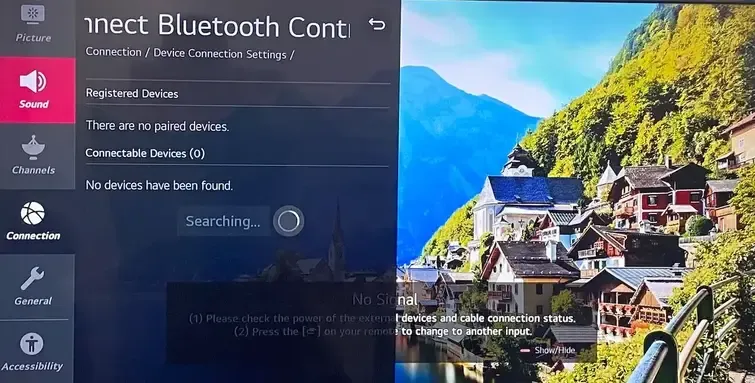
Both Android and iOS devices support Bluetooth connections. On Android, open Settings > Connections > Bluetooth. On iPhone, go to Settings > Bluetooth. Ensure your phone's Bluetooth is turned on and set to discoverable mode.
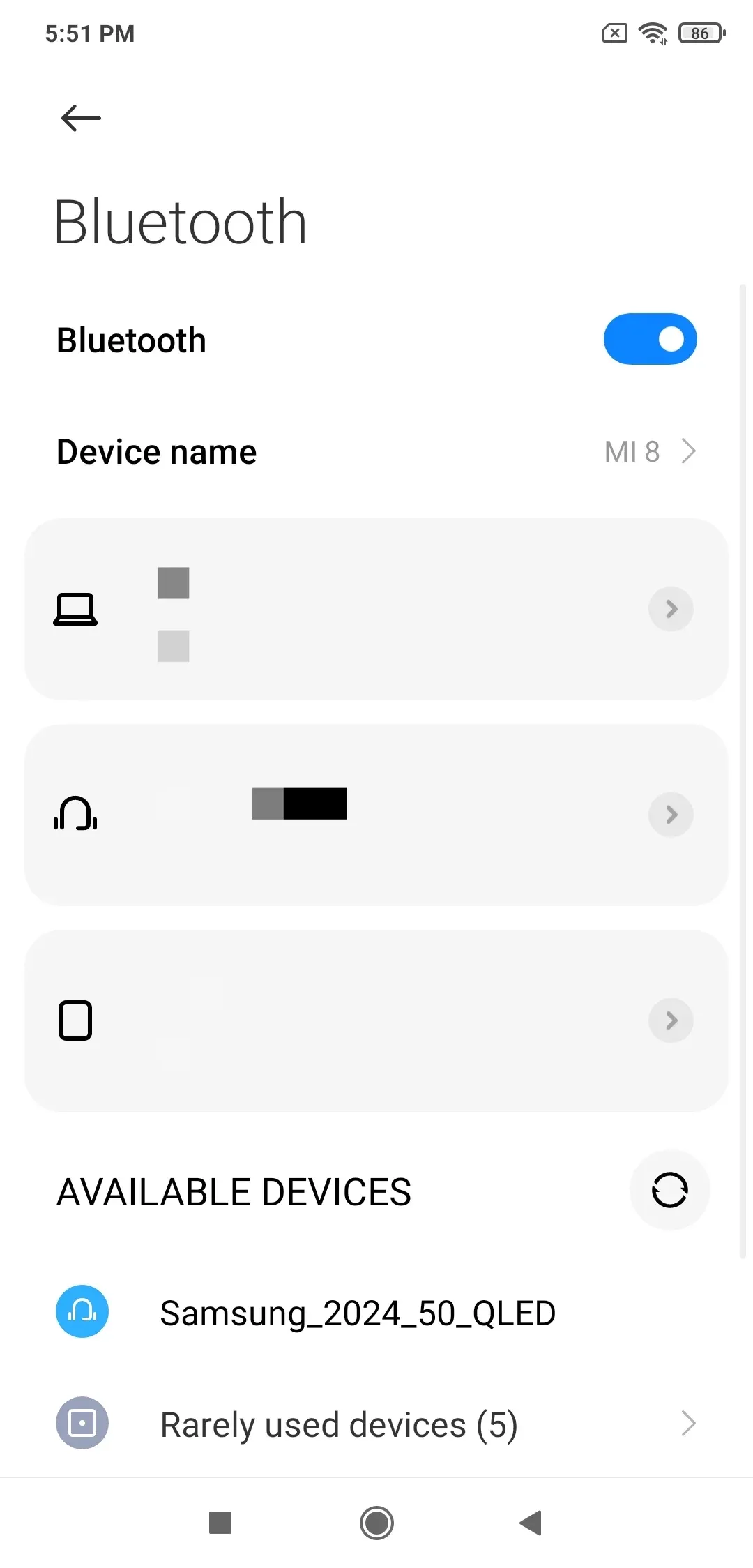
By checking these requirements, you confirm that connecting your phone to TV via Bluetooth is feasible before starting the pairing process.
Then, Pair Your Devices
Bluetooth pairing establishes a secure, wireless link between your phone and TV. When they are paired, they exchange a unique identification code to ensure secure communication. This allows your phone to stream audio or control your TV without needing a Wi-Fi network.
Here's how to connect phone to TV using Bluetooth wirelessly:
Step 1. Navigate to your TV's Bluetooth menu and choose Pair New Device.
Step 2. Go to your phone's Bluetooth settings and search for available devices.
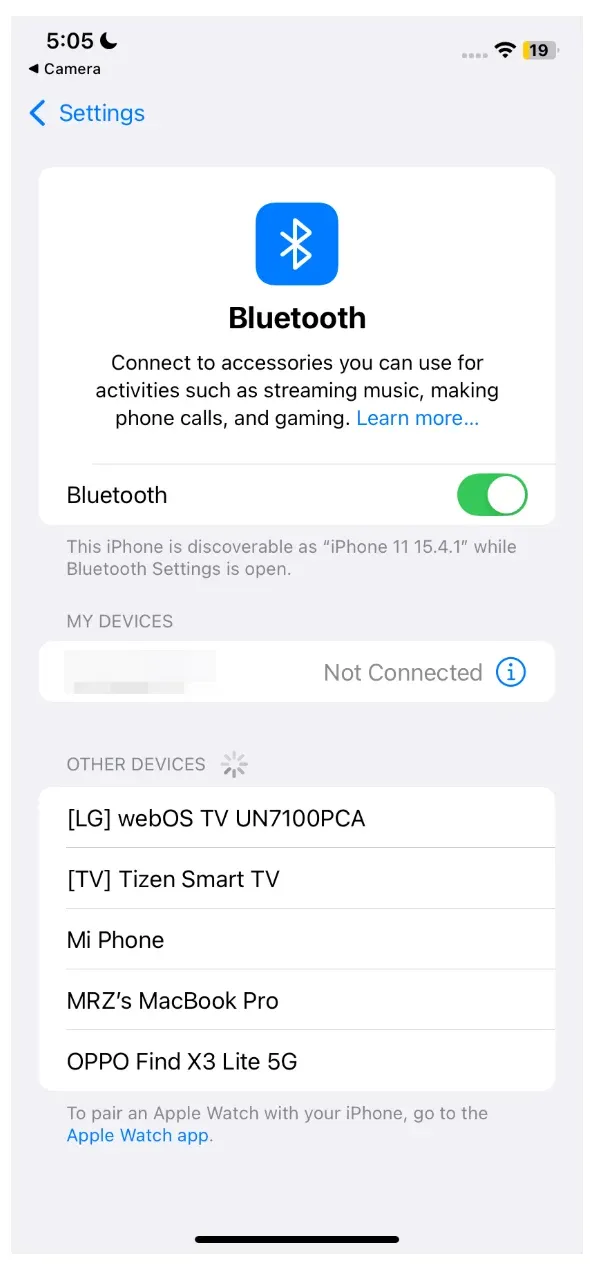
Step 3. Tap your TV to initiate pairing when your TV appears in the list of discoverable devices.
Step 4. Some TVs require entering a PIN or confirming a code displayed on the screen. Confirm the code if prompted.
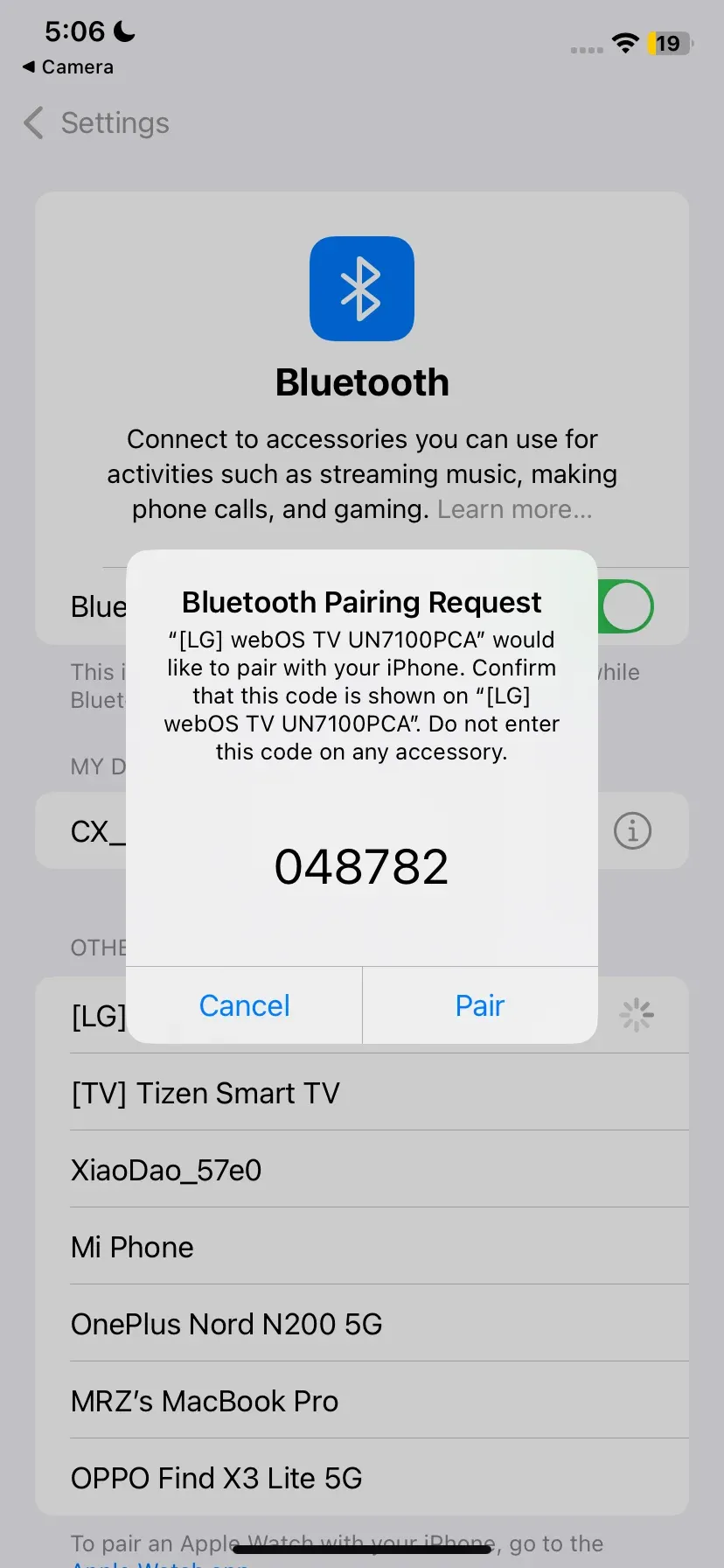
Step 5. Once paired, your phone will indicate it is connected, and your TV will show a confirmation message.
Last, Use Bluetooth Connection
By completing the pairing process, your devices are ready to communicate wirelessly, allowing you to use Bluetooth to stream audio or perform basic control functions.
- Audio streaming:
Bluetooth is ideal for streaming music, podcasts, or other audio content from your phone. Open your preferred music or podcast app and select your TV as the output device. You'll be able to hear audio directly through your TV speakers without wires.
- Remote control:
Some smart TVs allow your phone to function as a remote control via Bluetooth. Apps provided by the TV manufacturer can turn your phone into a navigation or media control device.
However, Bluetooth is not suitable for high-resolution video streaming. On the one side, you may notice slight delays between audio and video if attempting Bluetooth screen mirroring. On the other hand, Bluetooth connections typically work within 10 meters.
Can't Connect Phone to TV Using Bluetooth
Even with compatible devices, Bluetooth connections between your phone and TV may occasionally fail. Here's how to address common issues:
- Phone not detecting TV: ensure your TV is in pairing mode and within range. Turn Bluetooth off and on again.
- No audio after connection: check volume settings on both devices and ensure your phone is set to output audio to the TV.
- Dropped connections: keep devices closer together and remove potential interference sources like other Bluetooth devices.
- Pairing issues: restart both your phone and TV, or forget and re-pair the connection.
Alternatives for Streaming Videos from Phone to TV
Bluetooth is excellent for audio streaming and remote control functions, but it isn't built for high-quality video. If your goal is to watch movies, stream shows, or mirror your entire phone screen, these alternatives provide better performance. Here's a quick overview and simple steps for each option.
#1. Google Chromecast
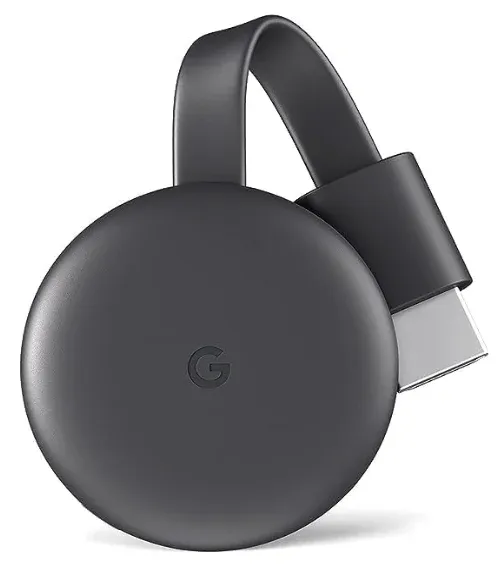
Chromecast is a small device from Google that plugs into your TV's HDMI port. Once set up, it allows you to stream content wirelessly from your phone, tablet, or even laptop. Unlike Bluetooth, Chromecast uses WiFi, which supports high-quality video with minimal lag.
Step 1. Plug the Chromecast dongle into your TV and connect it to WiFi.
Step 2. Open a Chromecast-supported app, like YouTube or Netflix, on your phone.
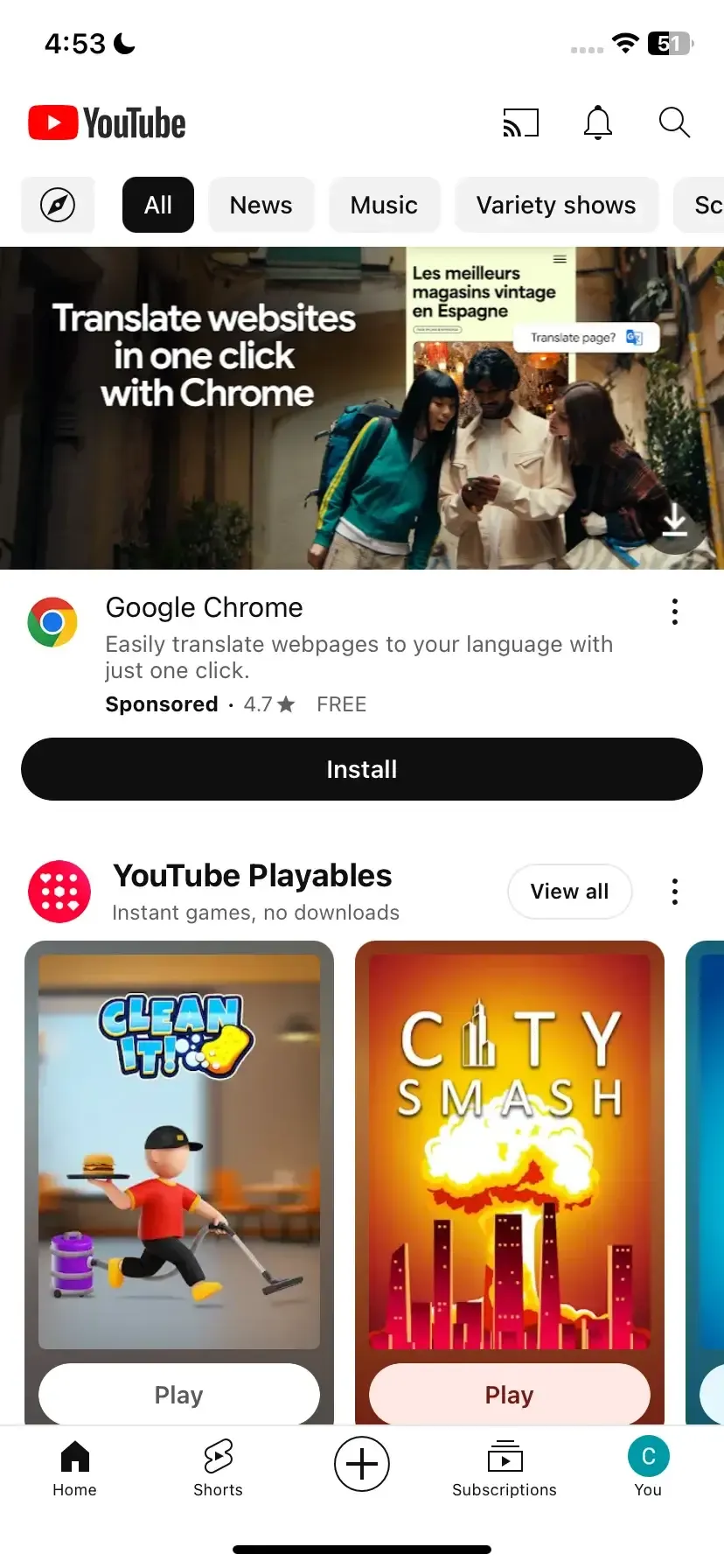
Step 3. Tap the Cast icon in the upper-right corner and choose your Chromecast device.
Step 4. Play the video you want to watch on your TV and start enjoying it.
#2. Apple AirPlay
Apple's AirPlay is built for iPhones, iPads, and Macs. It's an excellent option for Apple users who want to mirror their screens or stream videos directly. Many newer smart TVs come with AirPlay support, so you may not even need an Apple TV box.
Step 1. Make sure your iPhone and TV are on the same WiFi network.
Step 2. Swipe down on your iPhone to open the Control Center.
Step 3. Tap Screen Mirroring and choose your TV.
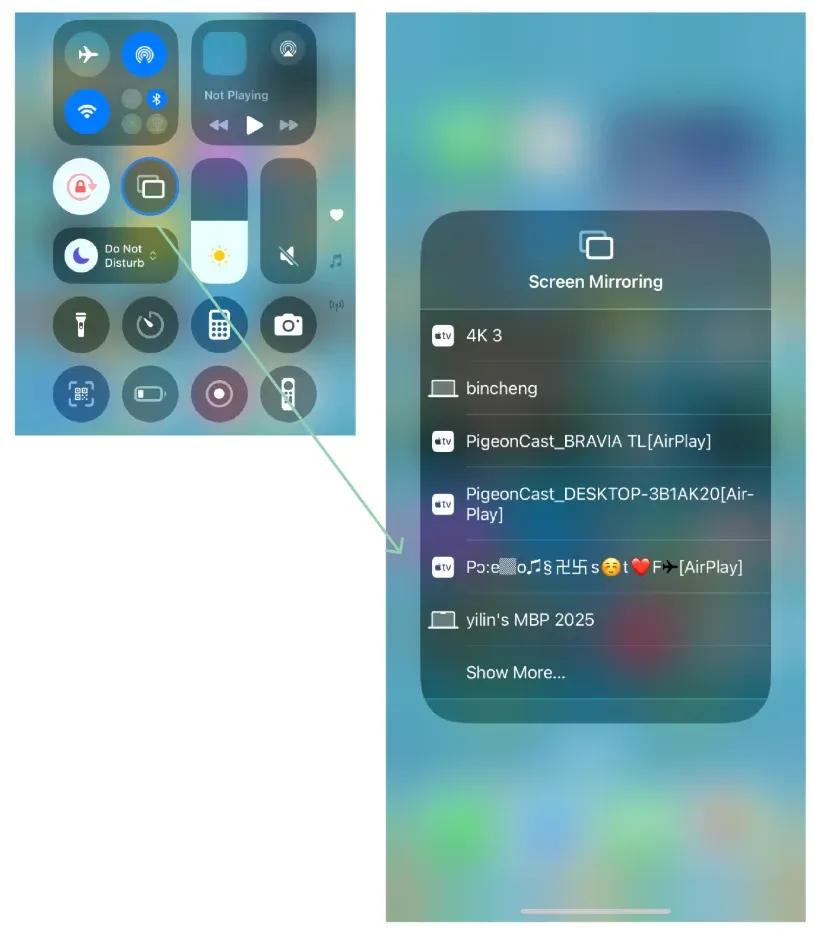 Step 4. Your iPhone screen should appear on your TV.
#3. Miracast
Miracast is a wireless display standard included in many smart TVs, Windows PCs, and Android phones. Unlike Chromecast, it doesn't require a separate app or device. It works natively if both your phone and TV support it.
Step 1. On your TV, enable Miracast. It may appear as Screen Mirror or Wireless Display in settings.
Step 2. On your Android phone, go to Settings > Display > Cast Screen (this may be called Smart View or Wireless Display depending on your device).
Step 3. Start your TV to start mirroring
Step 4. Your phone screen will appear on the TV wirelessly.
#4. PigeonCast
The PigeonCast screen mirroring app is a third-party solution that works across different devices, including phones, laptops, and TVs. It's designed to be user-friendly and can handle audio, video, and photos, making it a flexible choice if your TV doesn't support AirPlay or Miracast or if no Chromecast device is available.
Step 1. Install PigeonCast on your device.

PigeonCast Screen Mirroring

Official Download



Step 2. Connect both your phone and TV to the same WiFi network.
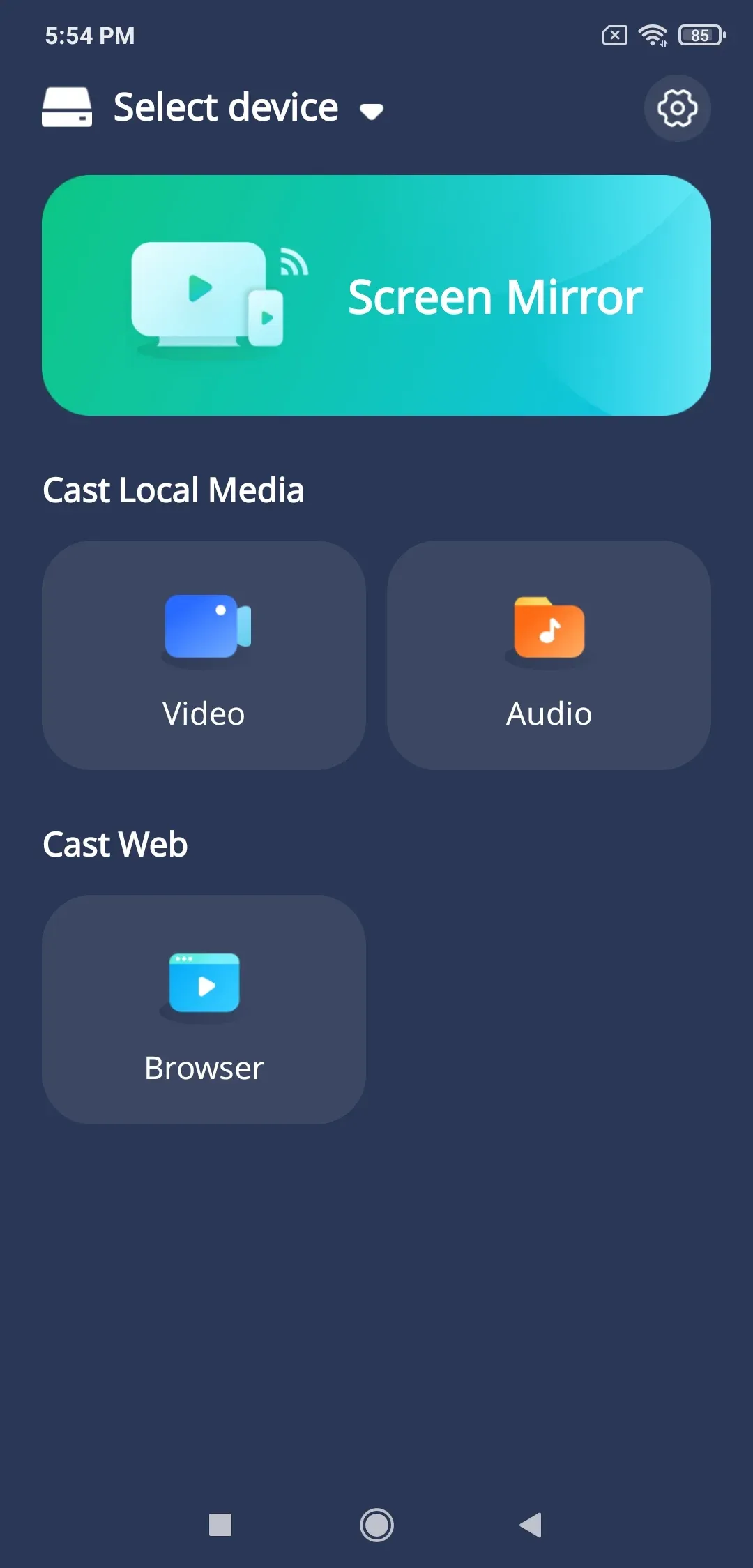
Step 3. Launch the app on your device and follow the onscreen instructions to set up a wireless connection.
#5. HDMI Adapter
If you want the most reliable and high-quality connection, HDMI is still the gold standard. A wired connection avoids lag, ensures stable playback, and supports full HD or even 4K video. It's especially useful for gaming or offline viewing when WiFi isn't available.
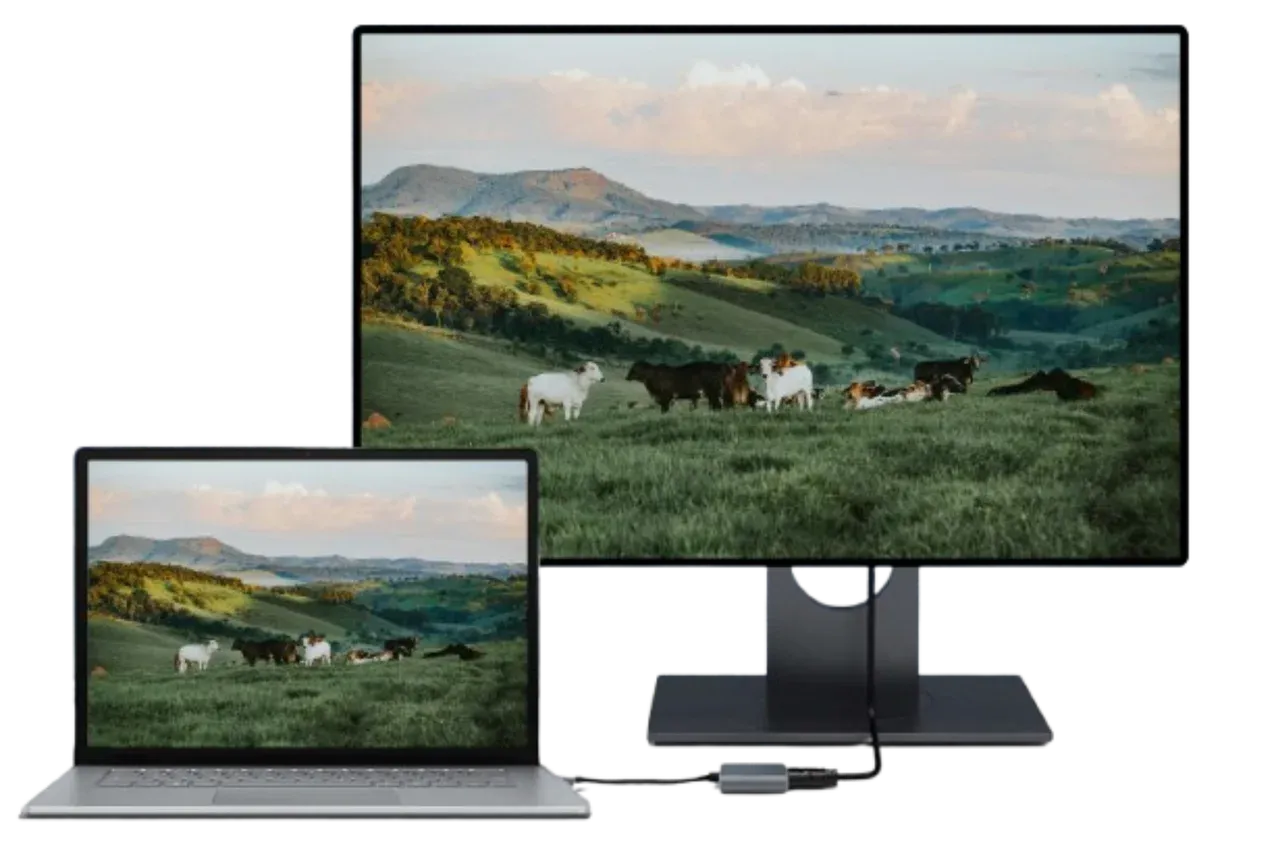
Step 1. Use an HDMI cable with the appropriate adapter for your phone.
Step 2. Plug one end into your phone and the other into your TV's HDMI port.
Step 3. Switch your TV input to the correct HDMI channel.
Step 4. Your phone's screen will be mirrored instantly with no delay.
Conclusion
Connecting your phone to a TV via Bluetooth is a straightforward way to stream audio, use your phone as a remote, or achieve basic screen mirroring. While it doesn't replace WiFi-based video casting, it's perfect for those who need a wireless, internet-free solution.
By following the steps outlined above, you can enjoy seamless Bluetooth audio streaming and lightweight control features between your phone and TV.
How to Connect Phone to TV Using Bluetooth FAQs
How do I know if my TV has Bluetooth?
Check your TV's Settings menu under "Connections," "Sound," or "Remote & Accessories." If Bluetooth is listed, your TV supports it. You can also confirm by checking the user manual or searching for your TV's model online.
How to connect phone to TCL TV using Bluetooth?
On most TCL smart TVs, go to Settings > Remote & Accessories > Add Accessory to turn on Bluetooth pairing mode. Then enable Bluetooth on your phone, search for available devices, and select your TCL TV to pair.
Does screen mirroring use Bluetooth?
Not usually. AirPlay, Miracast, Chromecast, and PigeonCast mainly use Wi-Fi because screen mirroring needs more bandwidth than Bluetooth can provide. Bluetooth is more commonly used for audio, pairing, or device control. For Chromecast specifically, Chromecast Bluetooth support is limited and does not replace Wi-Fi for casting video.
Does Bluetooth screen mirroring work for all apps?
No. Bluetooth screen mirroring is limited and not suitable for video-heavy apps. It's mostly useful for audio streaming or lightweight functions.
Can I use my phone as a TV remote via Bluetooth?
Yes. Many smart TVs let you pair your phone as a remote via Bluetooth, often through the manufacturer's app. This allows you to navigate menus, type, and control playback.
Why is my TV not showing in Bluetooth devices?
Make sure your TV is in pairing mode and within range. If it still doesn't show, check if your TV actually supports Bluetooth. Restarting both the TV and your phone often fixes this issue.
Can I watch movies via Bluetooth?
No. Bluetooth doesn't have the bandwidth for high-quality video streaming. Use Chromecast, AirPlay, Miracast, or third-party apps like PigeonCast or an HDMI cable for watching movies on your TV.
Mia Clarke is a technology editor specializing in screen mirroring and casting solutions across multiple platforms. Mia provides clear, practical guides and in-depth insights to help users seamlessly connect their devices. Passionate about enhancing digital experiences, Mia is dedicated to keeping readers updated on the latest trends and tools in cross-platform screen sharing. Whether you’re looking to mirror your smartphone, laptop, or smart TV, Mia’s content delivers reliable, user-friendly advice to simplify your tech setup.