
Roku TVs offer an excellent way to stream movies, shows, and more. But did you know you can also cast Chrome to Roku TV? Whether you want to display a website, stream a video, or share your favorite content, Roku makes it easy to cast from Google Chrome. In this guide, we'll walk you through the steps with specific instructions for Android, Windows, and iPhone. By the end of this post, you'll be able to cast your Chrome browser content to your Roku TV effortlessly.
Can You Cast Google Chrome to Roku
Before we get into the "how," let's first clarify the "if". The term "cast" is often used in different ways, but it can refer to two distinct technologies. Google Cast is the protocol used by Chromecast and many smart TVs. Roku, on the other hand, uses its own technology called Miracast and AirPlay.
To answer the question directly: You can't cast tabs or videos from Chrome to Roku TV in the same way you would with a Chromecast. No "Cast" button in Chrome will automatically find your Roku. However, Roku has a feature called screen mirroring, which works similarly. This allows you to share your entire screen, including whatever is showing in your Chrome browser, directly on your Roku TV.
Now that we've cleared up the difference between casting and screen mirroring, let's look at the simple steps to make it work, no matter what device you're using.
How to Cast from Chrome to Roku
Whether you're using Android, Windows, or iPhone, Chrome cast to Roku is straightforward, as long as you have the right settings enabled. The key thing to remember is that Roku's screen mirroring feature must be turned on, and your device should be on the same Wi-Fi network as Roku. Below, we'll break down how to cast to Roku from Chrome using different devices.
Cast Chrome to Roku from Android
Generally, if your device is running Android 10.0 or later (and isn't a Google-branded device like a Nexus or Pixel running Android 6.0 or later), it likely supports screen mirroring. If you encounter compatibility issues with your Android device, there are free mirroring apps available to help you connect and share your screen.
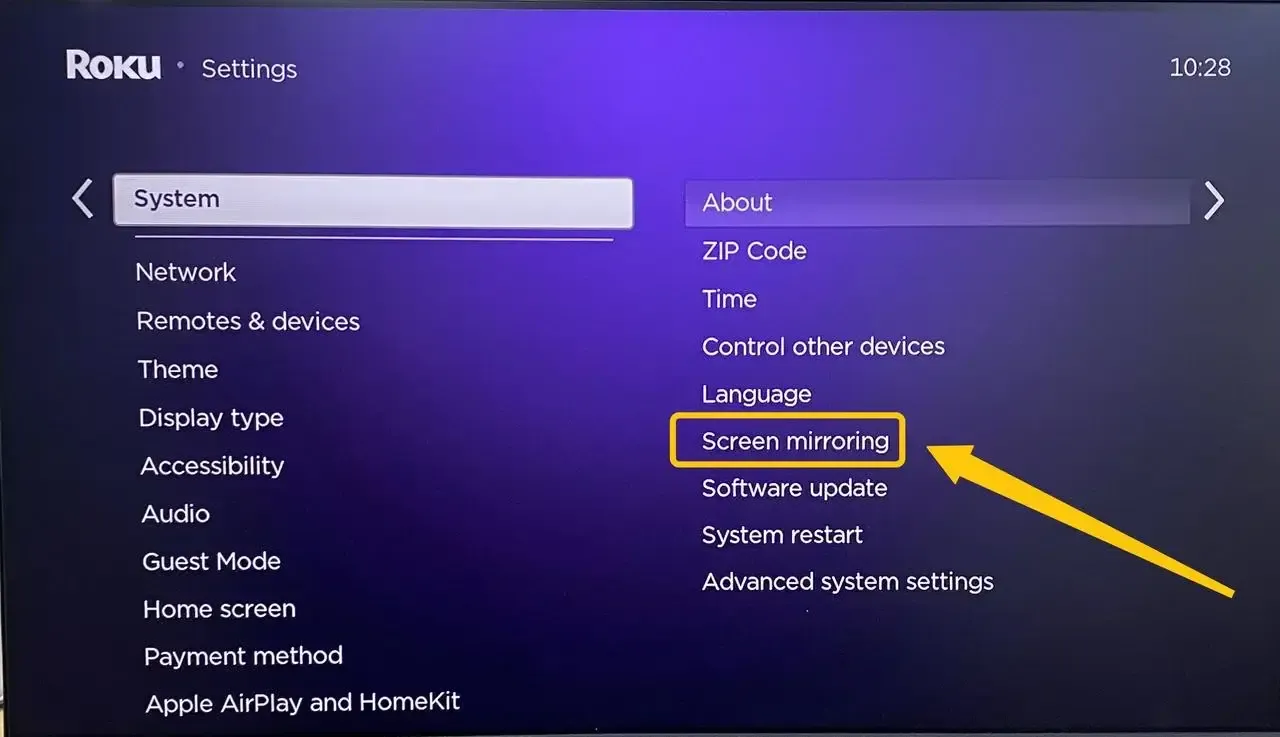
Step 1. On your Roku TV, press the Home button on your remote, navigate to Settings > System > Screen Mirroring, and ensure the mode is set to Prompt or Always allow.
Step 2. Make sure your Android device and Roku TV are connected to the same Wi-Fi network.
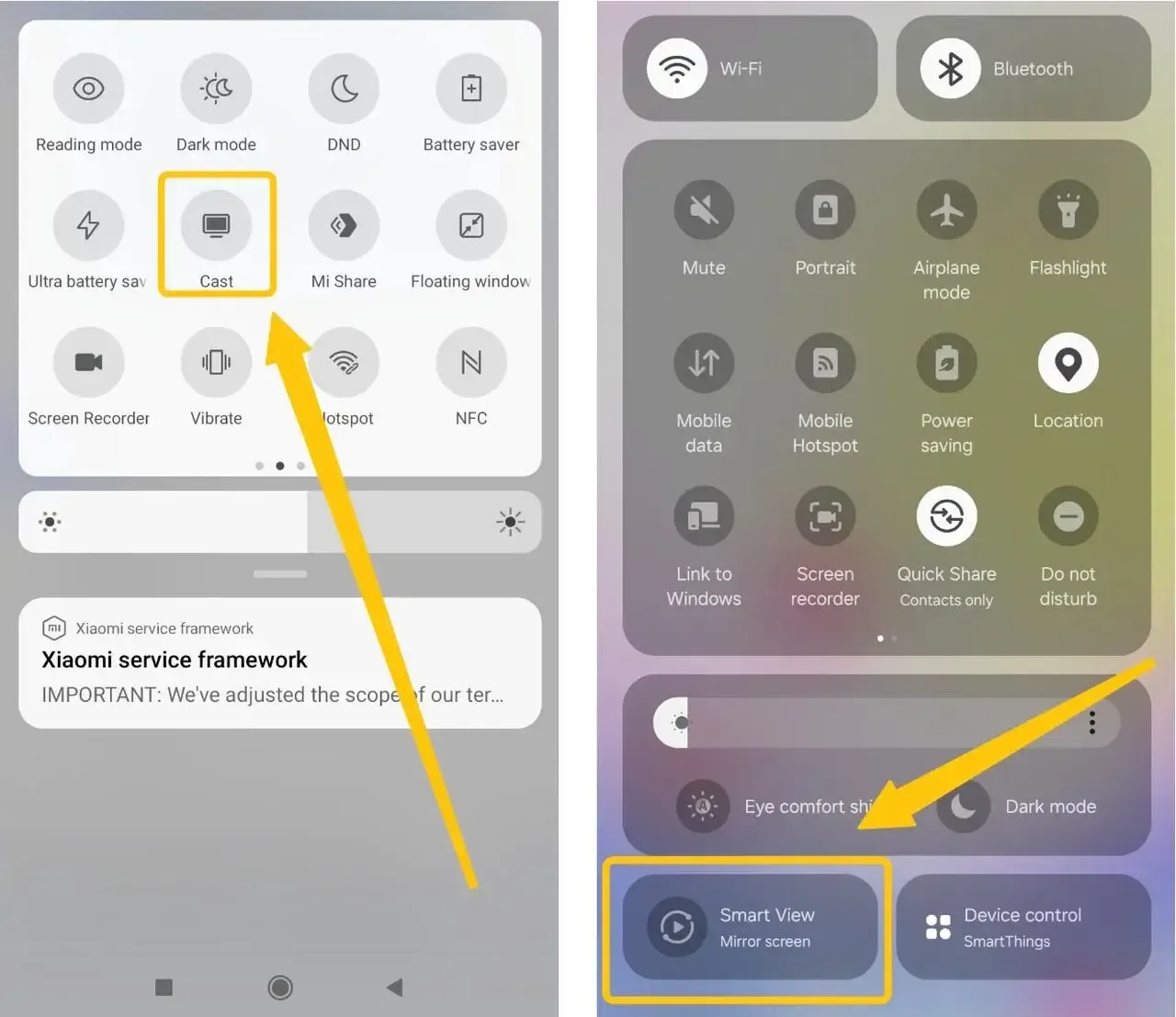
Step 3. Swipe down from the top of your screen to open the Quick Settings panel, and then swipe down again to see all tiles. Look for an icon labeled Smart View, Cast, or Screen Cast.
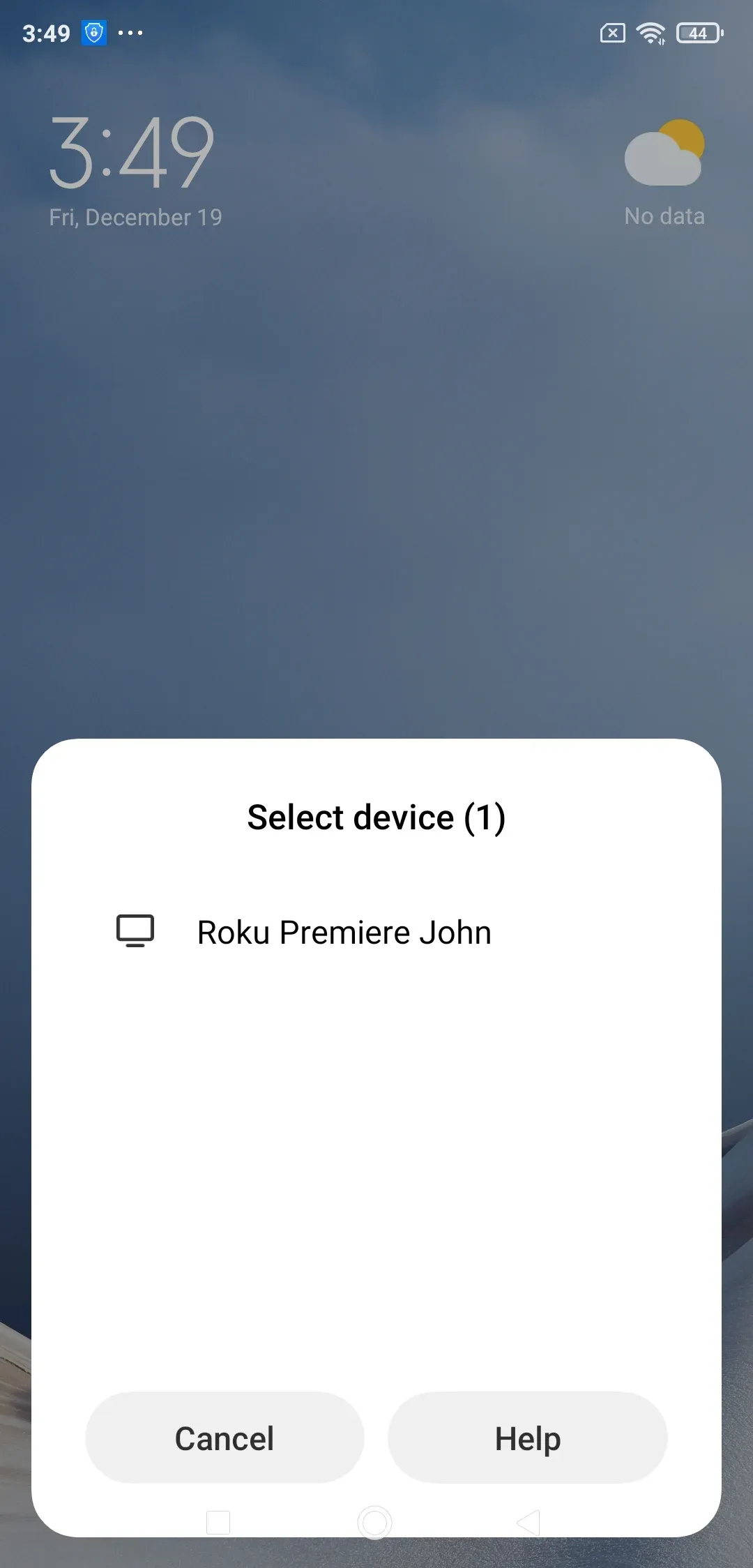
Step 4. Tap the icon. Your device will scan for available receivers. Select your Roku device from the list.
Step 5. Accept the connection ask and your entire Android screen, including your Chrome browser, will now be mirrored on the Roku TV.
Bonus: Struggling to get your Android device and Roku to connect? PigeonCast provides a seamless bridge for easy casting. Enjoy your favorite YouTube videos, personal photos, music, and apps on the big screen with this free app, which works across all major platforms without any restrictions.



Overall Rating:



Cast Chrome to Roku from Windows
If you're using a Windows computer, casting Chrome to your Roku TV is just as straightforward. With a few simple steps, you can easily mirror your entire desktop or specific Chrome tabs to your Roku. Let's walk through the process of Roku Cast Chrome from a Windows PC.
Step 1. Ensure both your Windows device and Roku are on the same Wi-Fi network.
Step 2. Enable screen mirroring on Roku from Settings > System > Screen Mirroring.
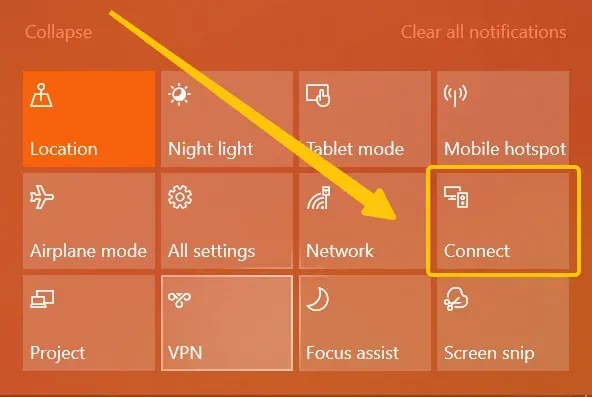
Step 3. On the Windows PC, click on the notifications icon in the far-right corner of your taskbar (or press Windows Key + A).
Step 4. Select the Connect menu and choose your Roku TV from the available list.
Step 5. Your entire Windows desktop will now be mirrored on your TV. Simply open Google Chrome and play any video or display any webpage, and it will cast to Roku from Google Chrome.
Cast Chrome to Roku from iPhone
iPhones use a proprietary screen mirroring technology called AirPlay. Since Roku TVs now natively support AirPlay, you can easily check your Roku TV's compatibility and follow these simple steps to Chrome cast Roku from your iPhone, iPad and MacBook.
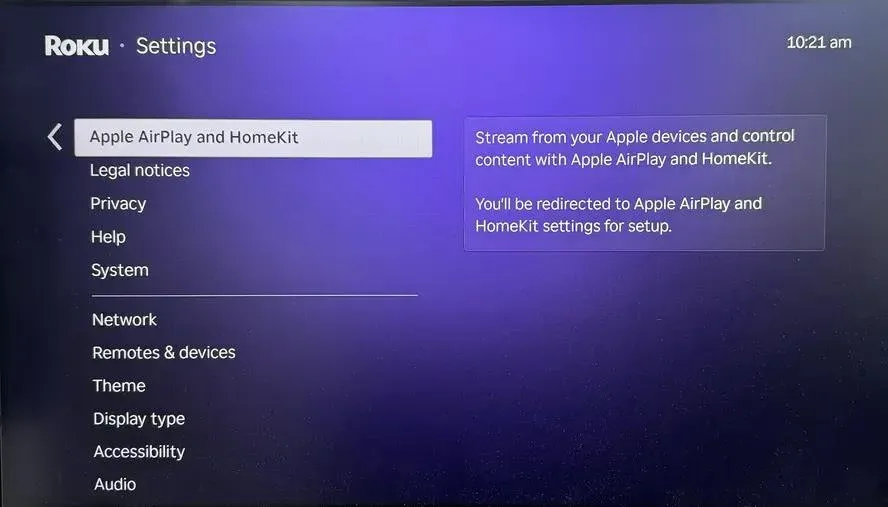
Step 1. Make sure your Roku TV supports AirPlay (most models from Roku 2017 and later do). You can check this by going to Settings > Apple AirPlay and HomeKit on your Roku TV to ensure it's enabled.
Step 2. Ensure both your iPhone (iPad or MacBook) and Roku TV are connected to the same Wi-Fi network.
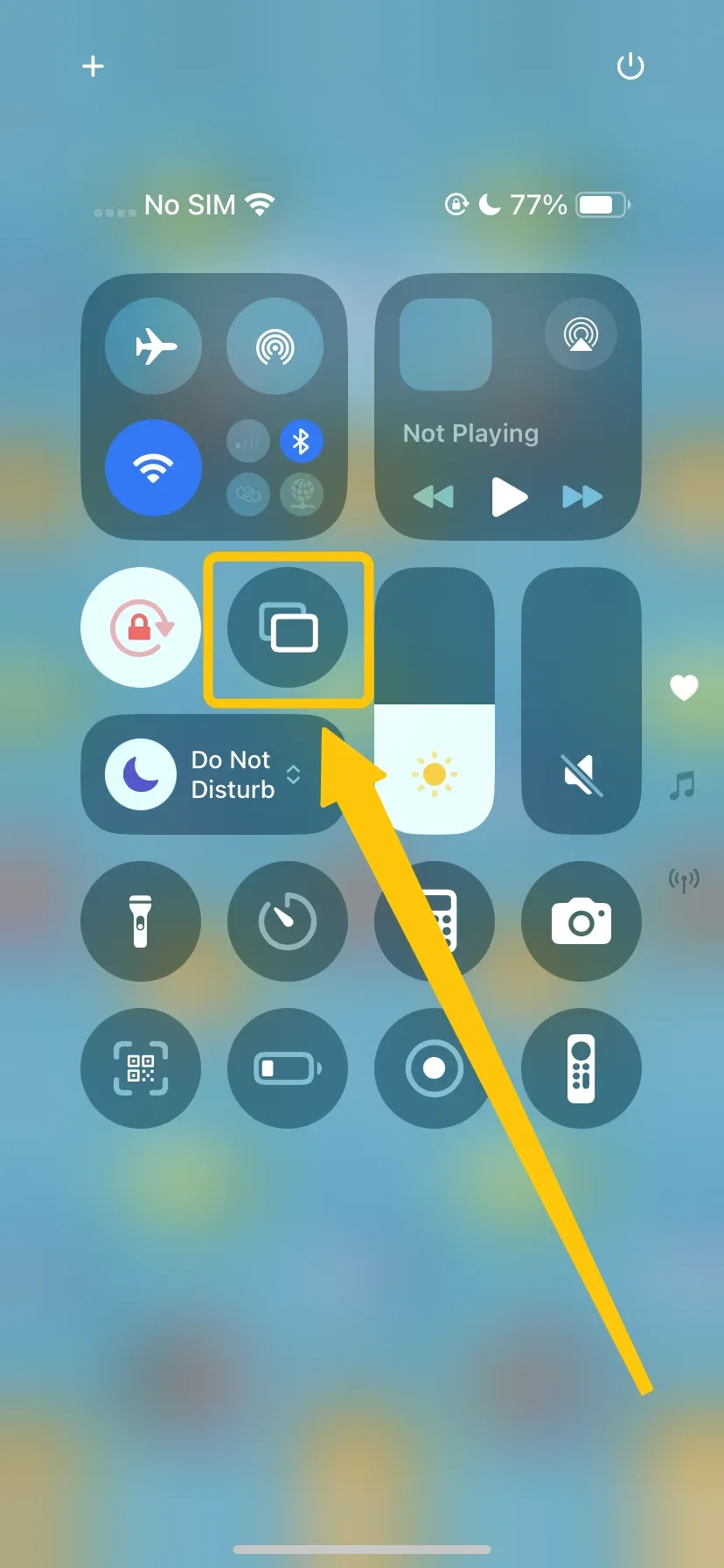
Step 3. Swipe down from the upper-right corner of your iPhone to open Control Center > Screen Mirroring button.
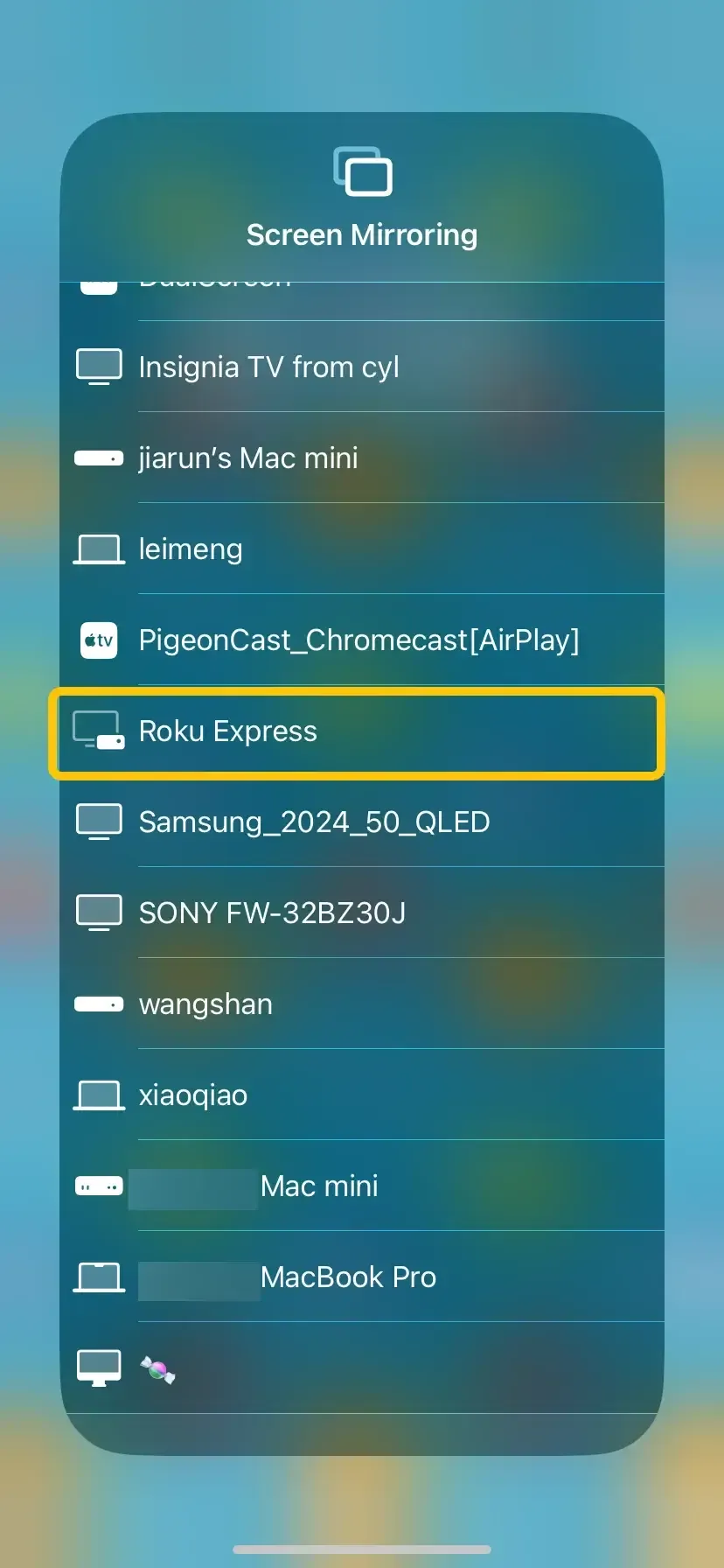
Step 4. From the list of available devices, select your Roku TV to connect.
Step 5. Your iPhone screen should now be mirrored to your Roku TV. Launch the Chrome browser on your iPhone and navigate to the content you want to share.
Closing Words
How to cast from Chrome browser to Roku? To stream Chrome to Roku is a straightforward process that allows you to easily share content from your browser on the big screen. Whether you're using Android, Windows, or iPhone, Roku's screen mirroring feature lets you display videos, websites, and other content directly from your Chrome browser. If you encounter any compatibility issues, tools like PigeonCast can also help bridge the gap, ensuring a smooth connection.
Cast Chrome to Roku TV FAQ
Can you cast from Google Chrome to Roku?
No, you cannot directly cast from Google Chrome to Roku in the same way you would with a Chromecast. However, you can use Roku's screen mirroring feature to display content from Chrome on your Roku TV. This allows you to mirror your entire desktop or Chrome browser from devices like Windows, Android, or iPhone to your Roku.
Can you cast directly to Roku TV?
No, you cannot cast directly to a Roku TV in the same way you would with a Chromecast. Roku uses its own screen mirroring technology (Miracast) rather than Google Cast. However, you can mirror your screen from supported devices like Android, Windows, or iPhone to your Roku TV using Roku's screen mirroring or AirPlay feature. This allows you to share content, including from Google Chrome, to your Roku TV.
Can Roku TV have Chromecast?
Roku TVs do not have built-in Chromecast functionality. However, Roku offers a similar feature called screen mirroring, which allows you to mirror content from devices like Android, Windows, or iPhone to your Roku TV. Additionally, Roku supports AirPlay for Apple devices, which can serve as an alternative for casting content.
Why can't I cast to my Roku TV?
If you can't cast to your Roku TV, here are some possible reasons:
- Incompatible device or app
- Screen Mirroring disabled
- Different Wi-Fi networks
- Outdated Roku software
- AirPlay not enabled
- Connection issues
- Third-Party app issues
Clara Rossi is an experienced technology editor and a seasoned expert in screen mirroring and casting technologies. With a keen eye for detail and a deep understanding of how to seamlessly connect devices, Clara excels at optimizing user experiences for effortless sharing and streaming. Whether you're seeking quick fixes or advanced tips, her expertise and responsiveness ensure that every query is met with a well-informed and efficient solution.