
You've got a Chromebook for its speed and a Roku for its killer streaming interface. Naturally, you'd want them to work together. Maybe you're trying to showcase a Google Slide presentation or just want to binge a niche documentary that isn't on the official Roku app store.
How to cast Chromebook to Roku? You can cast a Chromebook to Roku, but it's not as "plug-and-play" as connecting an Android phone. Because Google and Roku use different protocols, you'll need to know which settings to toggle or which cables to grab to make the magic happen.
The Quick Fix: How to Cast from Chromebook to Roku
If you're in a hurry, here is the path of least resistance:
-
Open Chrome on your Chromebook.
-
Click the three dots (Menu) > Cast.
-
Select your Roku device from the list.
-
Ensure both are on the same Wi-Fi network.
Alternatively, use an HDMI cable to connect the two devices for lag-free screen mirroring.
Why Chromebook Cast to Roku Often Fails: Google Cast vs Miracast
Chromebooks use Google Cast. This protocol is designed to push content specifically to Chromecasts or Android TV units. Roku primarily uses Miracast. This is an open standard that acts like a "wireless HDMI cable", and it's what Windows and Android usually use to mirror screens:
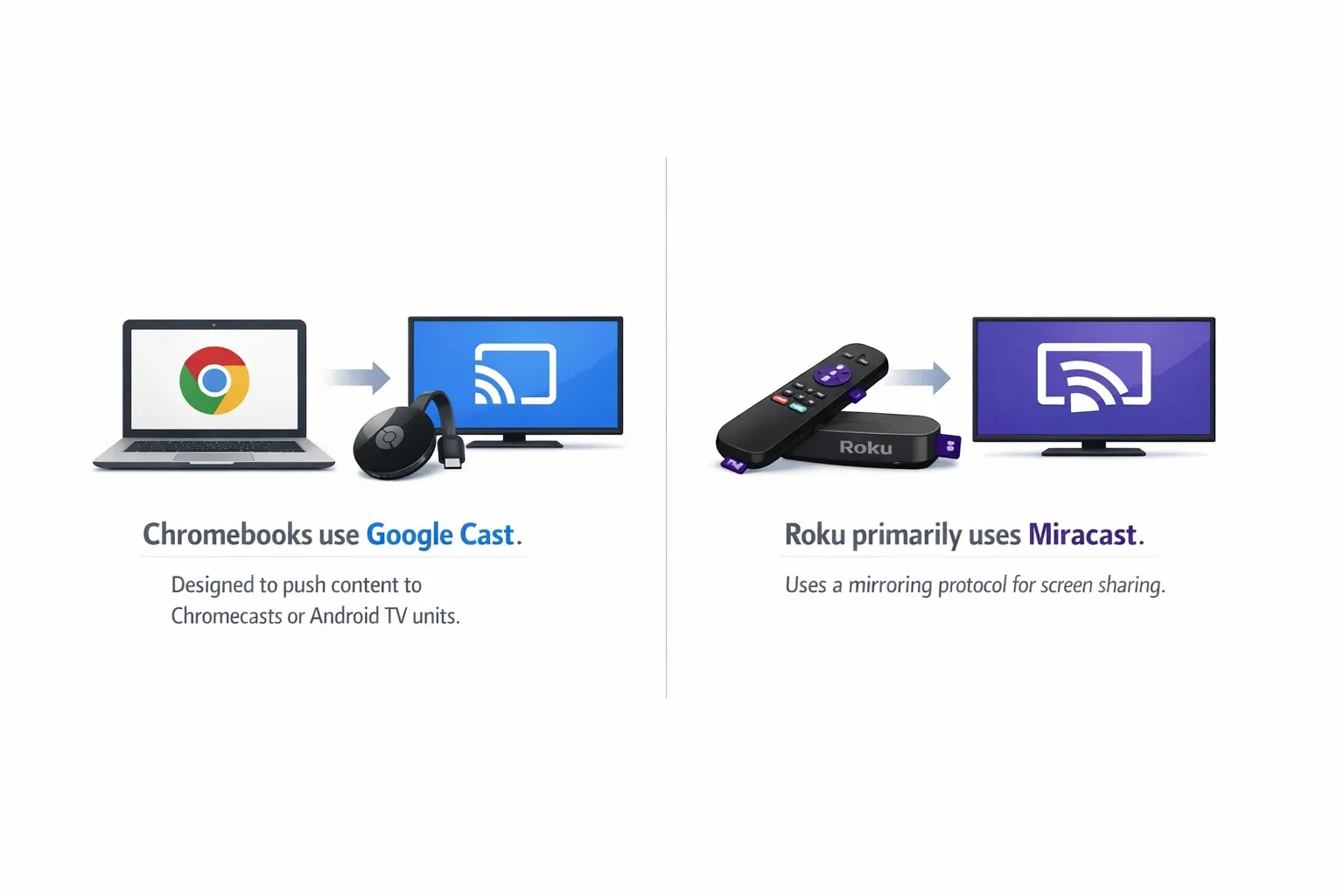
Because Chromebooks don't natively support Miracast, you are essentially trying to get a French speaker and a Spanish speaker to negotiate a contract. You need a bridge, usually the Chrome browser itself or a third-party tool, to facilitate the conversation. Similar compatibility issues can also cause Roku screen mirroring not working on other devices.
How to Cast Chromebook to Roku
I've tested these personally, and while wireless is more convenient, the wired method is the only one that guarantees zero lag.
Method 1: Cast via Chrome Browser
This is the most popular way to cast Chromebook to Roku TV without buying extra hardware.
Step 1. Go to Settings > System > Screen Mirroring on your Roku. Set it to Always allow or Prompt.
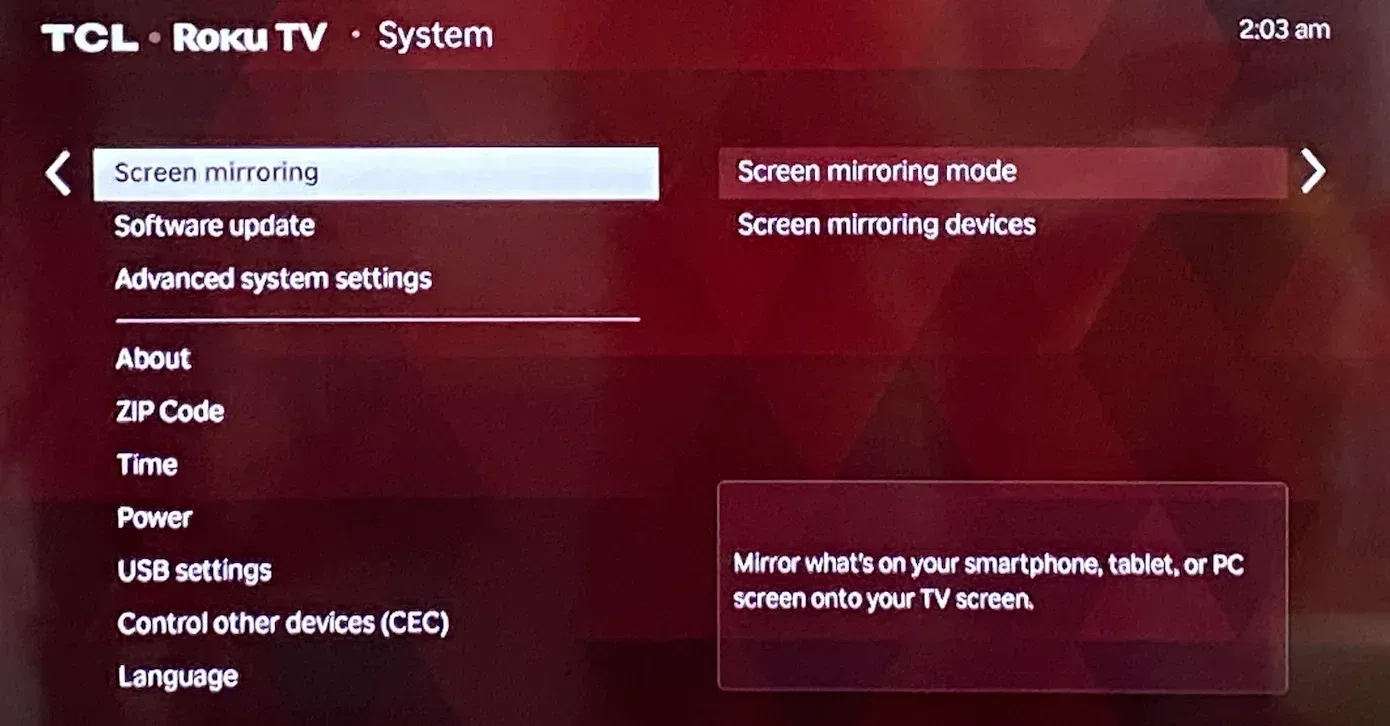
Step 2. Double-check that your Chromebook and Roku are on the same SSID (Wi-Fi name).
Step 3. Open your Chrome browser. Click the three-dot menu in the top right.
Step 4. Click Cast. A small window appears. Click Sources to choose between Cast tab or Cast screen.
Step 5. Your Roku device should appear. Click it, and your screen will hop over to the TV.
Method 2: Use an HDMI Cable
If you are gaming or watching high-bitrate video, wireless casting might stutter. I always keep a cable handy for this exact reason.
How to connect a Chromebook to a TV like Roku:
Step 1. Plug one end of an HDMI cable into your Roku TV.
Step 2. Plug the other end into your Chromebook (you might need a USB-C to HDMI adapter).
Step 3. On your Roku, switch the Input to the corresponding HDMI port.
Step 4. Your Chromebook will automatically treat the TV as a second monitor. Use Ctrl + F4 (the "overlap" key) to toggle between mirroring and extending your desktop.
Which Method Should You Choose?
| Feature | Chrome Wireless Cast | HDMI Wired Connection |
|---|---|---|
| Setup Time | 30 Seconds | 10 Seconds |
| Stability | Depends on Wi-Fi | 100% Stable |
| Lag/Latency | Noticeable | None |
| Portability | Move freely | Tethered to TV |
| Best For | Presentations/Websites | Movies/Gaming |
Troubleshooting Checklist for Chromebook Cast to Roku
Symptom map:
-
Roku not discoverable: network segmentation issue.
-
Audio video out of sync: unstable Wi-Fi or overloaded network.
-
Black screen only on paid apps: DRM policy, not cable or Wi-Fi failure.
Run these checks in order:
-
Confirm the same Wi-Fi and disable guest isolation.
-
Restart Chromebook, Roku, and router.
-
Update ChromeOS and Roku OS.
-
Turn off VPN and strict firewall rules temporarily.
-
Test with a non-DRM page before testing Netflix or similar services.
Conclusion
The ability to cast Chromebook to TV gives your productivity a massive boost. While the lack of native Miracast support on ChromeOS is a bit of a snub from Google, the Chrome browser's built-in casting features work well enough for most casual users. If you demand perfection and zero "buffer circles," just grab an HDMI cable and be done with it.
How to Cast Chromebook to Roku FAQs
How do I mirror my Chromebook to my TV?
You can use the Cast option within the Chrome browser menu or connect directly using a USB-C to HDMI adapter.
How do I cast from Chrome to Roku?
Click the three dots in your browser, select Cast, and pick your Roku device from the list. Make sure screen mirroring is enabled in your Roku system settings.
How do I cast my computer screen to Roku?
For Chromebooks, you cast through the Chrome browser. For Windows PCs, you can use the Win + K shortcut to use Miracast. For MacBooks, use AirPlay if your Roku TV supports it.
Do Chromebooks allow screen mirroring?
Yes, Chromebooks allow screen mirroring. Once the target device has Chromecast built in or is connected to a Chromecast dongle and it is connected to the same Wi-Fi network as your laptop, you can press the Chromebook mirror display shortcut (Ctrl + Fullscreen) or click the time in the bottom and choose Cast screen, then choose your target device.
Why is there no cast option on my Chromebook?
Ensure your browser is updated. If the option is missing from the system tray, look specifically inside the Chrome browser's "three-dot" menu.
Can you use a Roku TV as a computer screen?
Yes, if you connect via HDMI, it functions exactly like a standard computer monitor.
Why can't I screen mirror to my Roku TV?
The most common reasons are being on different Wi-Fi networks or having "Screen Mirroring" disabled in the Roku's system settings.
Mia Clarke is a technology editor specializing in screen mirroring and casting solutions across multiple platforms. Mia provides clear, practical guides and in-depth insights to help users seamlessly connect their devices. Passionate about enhancing digital experiences, Mia is dedicated to keeping readers updated on the latest trends and tools in cross-platform screen sharing. Whether you’re looking to mirror your smartphone, laptop, or smart TV, Mia’s content delivers reliable, user-friendly advice to simplify your tech setup.