
People search for a Chromebook mirror display shortcut because they want speed. That expectation is reasonable, but ChromeOS plays by different rules. There is a shortcut involved, but it only works under specific conditions. However, when those conditions are not met, shortcuts alone will not help.
This guide explains what the shortcut really does, where it stops working, and how to mirror a Chromebook screen wirelessly when cables are not part of the setup.
What Is the Chromebook Shortcut to Mirror Display
ChromeOS relies heavily on keyboard control, so it feels natural to assume screen mirroring should have a simple shortcut too. So, what is the shortcut to mirror screen on Chromebook?
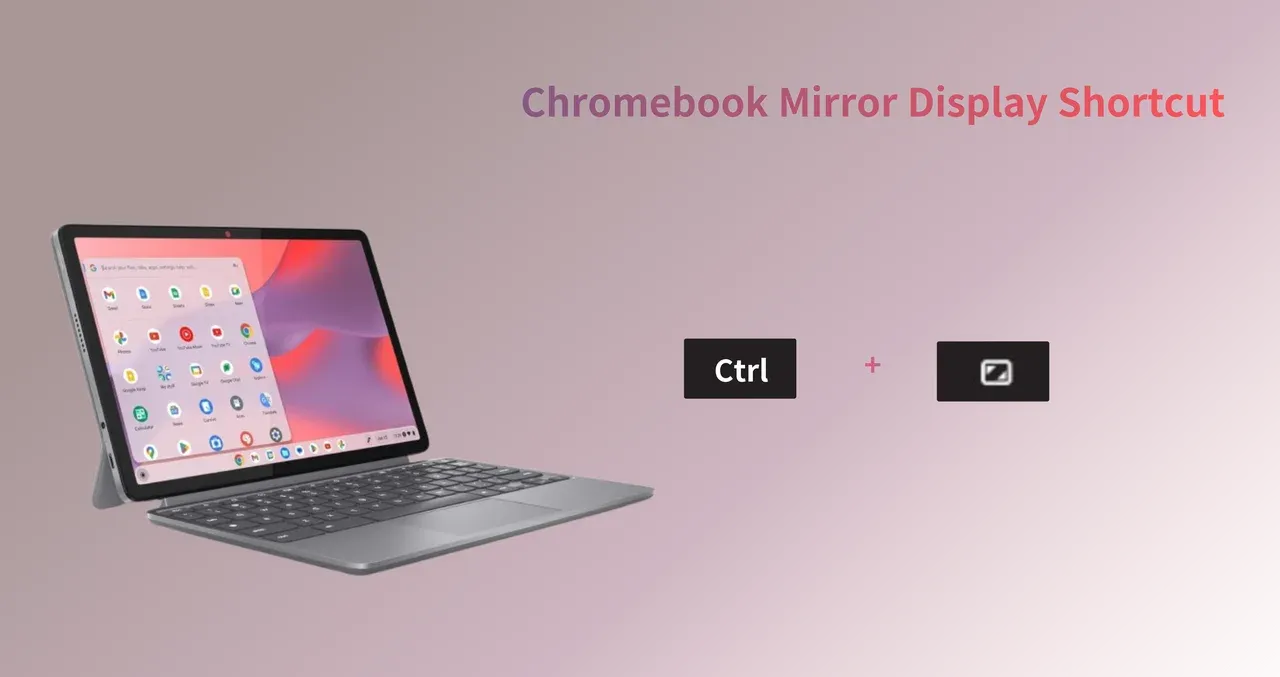
Ctrl + Fullscreen Shortcut to Mirror Chromebook
When an external monitor is already connected, ChromeOS supports a shortcut that toggles display behavior:
Ctrl + Fullscreen or Ctrl + Fullscreen + Shift
The Fullscreen key is the rectangle icon in the top row of a Chromebook keyboard.
This combination is often described as a Chromebook shortcut to mirror display, but that description needs context to be accurate.
Using the Ctrl + Fullscreen Shortcut Without Guessing
The Ctrl + Fullscreen only works when your ChromeOS has detected as a second physical display, which means you need to start mirroring using the shortcut like this:
Step 1. Connect your Chromebook to an external monitor using HDMI or USB-C.
Step 2. Wait until the second display is recognized.
Step 3. Press the Ctrl + Fullscreen shortcut (if it does not work, try Ctrl + Fullscreen + Shift).
Step 4. ChromeOS switches between extended and mirrored display modes.
When it works, both screens show the same content instantly.
Where the Ctrl + Fullscreen Shortcut Stops Working
The Chromebook mirror display shortcut does not start screen mirroring on its own. It cannot:
- Discover displays
- Initiate wireless mirroring
- Cast to Chromebook to TV over Wi-Fi
The shortcut controls display mode, not screen sharing technology. If no physical display is connected, nothing happens. If you are searching for a shortcut to mirror screen on Chromebook wirelessly, this key combo is not the solution.
How to Screen Mirror Chromebook Wirelessly
ChromeOS treats wireless mirroring very differently from wired displays, and that difference matters more than people expect. Instead of creating a system-level display output, it relies on device discovery over the local network. That is why shortcuts alone cannot start wireless mirroring.
The built-in casting options work for simple scenarios, but compatibility varies across TV platforms. Full-screen mirroring often depends on whether the TV can present itself as a discoverable receiver.
PigeonCast runs directly on many TVs (including streaming boxes like Apple TV and Fire Stick) as a receiver, making the TV visible to other devices on the same network. This setup does not change how ChromeOS handles casting. It simply makes the TV easier to find.
Here is how the workflow actually works:
Step 1. On your TV, go to the app store, download and install PigeonCast.


Overall Rating:



Step 2. Once installation finishes, launch the app on your TV.
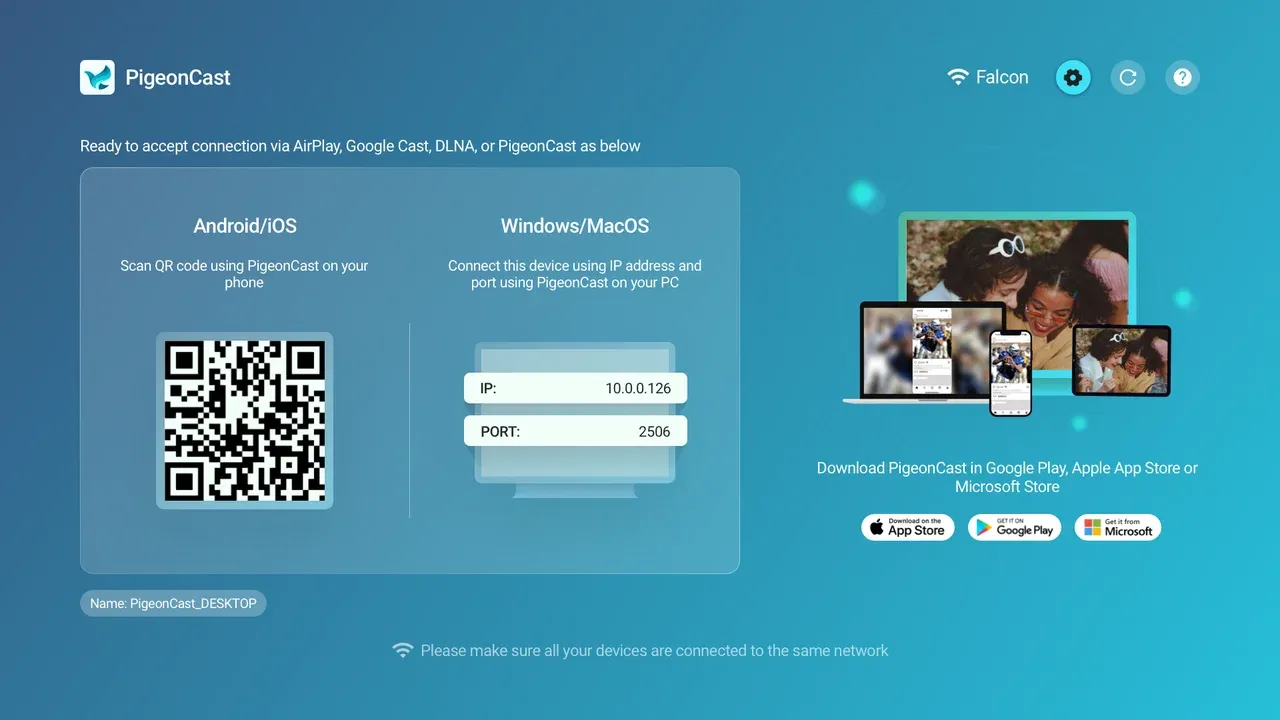
Step 3. Connect both the Chromebook and the TV to the same Wi-Fi network
Step 4. On the Chromebook, click the time in the bottom right corner.
Step 5. Click the Cast screen option.
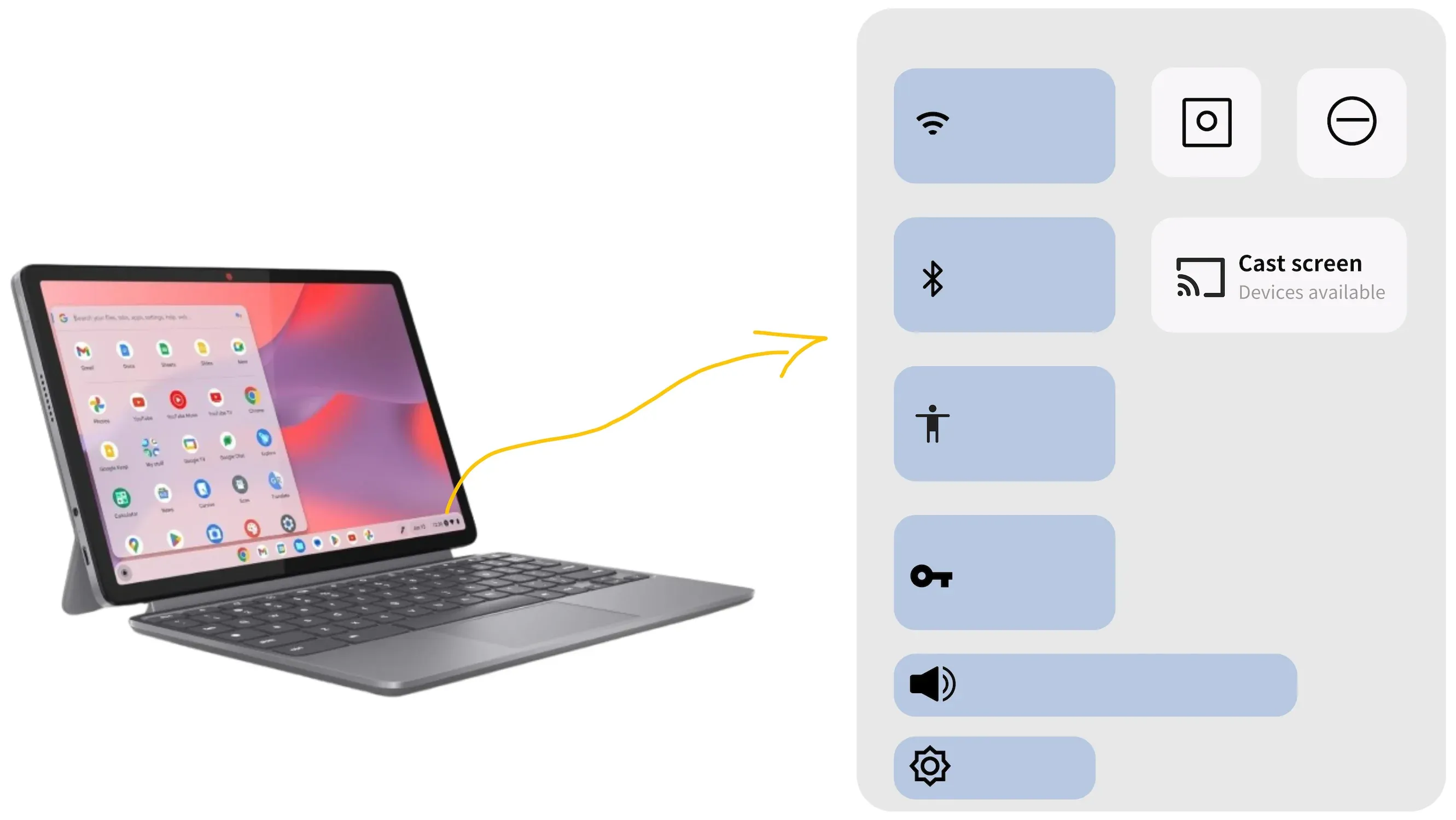
Step 6. Select your TV from the list of available devices and start screen mirroring.
What Are Other Chromebook Shortcuts
Screen control is only one part of working efficiently on ChromeOS. Learning a few core Chromebook keyboard shortcuts makes daily tasks noticeably faster. Here is a table that contains common Chromebook shortcuts.
| Action on Chromebook | Chromebook Keyboard Shortcut |
|---|---|
| Open a new tab | Ctrl + Tab |
| Close the current tab | Ctrl + W |
| Reopen the last closed tab | Ctrl + Shit + T |
| Switch to the next tab | Ctrl + Tab |
| Switch to the previous tab | Ctrl + Shift + Tab |
| Reload the page | Ctrl + R |
| Hard refresh (bypass cache) | Ctrl + Shift + R |
| Bookmark current page | Ctrl + D |
| Toggle bookmarks bar | Ctrl + Shift + B |
| Full-screen screenshot | Ctrl + Show Windows (F5) |
| Partial screenshot | Ctrl + Shift + Show Windows |
| Window screenshot | Ctrl + Alt + Show Windows |
| Open screenshot toolbar | Ctrl + Shift + Show Windows |
| Lock screen | Search + L |
| Sign out | Shift + Ctrl + Q (twice) |
| Open Task Manager | Search + I |
| Open File Manager | Search + E |
| Copy | Ctrl + C |
| Cut | Ctrl + X |
| Paste | Ctrl + V |
| Paste without formating | Ctrl + Shift + V |
| Undo | Ctrl + Z |
| Redo | Ctrl + Shift + Z |
| Select all | Ctrl + A |
| Switch between apps | Alt + Tab |
| Minimize window | Alt + - |
| Maximize window | Alt + = |
| Pin window left/right | Alt + [ or Alt + ] |
| Open app launcher | Search or Launcher key |
Final Thoughts
The idea of a one key mirror command is appealing, but ChromeOS does not treat all displays the same. The Chromebook mirror display shortcut exists, yet it only applies when a wired monitor is already part of the system.
Once you move into wireless scenarios, shortcuts lose their power. At that point, choosing a tool like PigeonCast built for screen mirroring matters more than memorizing key combinations.
Knowing where shortcuts work, and where they stop, saves time and avoids frustration.
Chromebook Mirror Display Shortcut FAQs
How to do mirror display on Chromebook?
Connect an external monitor using HDMI or USB-C. Once the second display is detected, press Ctrl + Fullscreen to toggle between extended and mirrored display modes. For wireless setups, shortcuts alone are not enough.
What is the shortcut key for mirror display on Chromebook?
The commonly used shortcut is Ctrl + Fullscreen. It only works when a physical external display is already connected. If nothing happens, try Ctrl + Fullscreen + Shift, as behavior can vary by ChromeOS version.
Why does the Chromebook mirror display shortcut not work?
In most cases, the shortcut fails because no physical display is connected. The shortcut controls display mode switching, not screen discovery. It cannot start wireless mirroring or detect TVs over Wi-Fi.
Is there a shortcut to mirror screen on Chromebook wirelessly?
No. There is currently no shortcut to mirror screen on Chromebook wirelessly. Wireless mirroring relies on device discovery over the network and must be initiated through system casting options or compatible receiver devices.
Can I mirror my Chromebook screen to a TV using keyboard shortcuts?
Keyboard shortcuts only work for wired displays. Mirroring a Chromebook to a TV over Wi-Fi requires the TV to appear as a discoverable receiver on the same network. Shortcuts do not trigger this process.
What is the difference between mirror display and cast screen on Chromebook?
Mirror display refers to duplicating the Chromebook screen on a wired external monitor. Casting sends content or the desktop wirelessly to another device. These are handled differently by ChromeOS and use different system paths.
Can Chromebook keyboard shortcuts control external display settings?
Yes, but only at a basic level. Some Chromebook keyboard shortcuts can toggle display modes or rotate screens, but advanced settings still require opening the display menu in system settings.
What does Ctrl+Alt+Shift+R do on a Chromebook?
It rotates the screen orientation. This is useful if the display appears sideways or upside down.
How to flip screen on Chromebook shortcut?
Press Ctrl + Shift + Refresh to rotate the screen. Repeat the shortcut to cycle back to normal orientation.
Are Chromebook shortcuts the same on all devices?
Most Chromebook shortcuts are consistent, but display-related shortcuts can behave differently depending on hardware, ChromeOS version, and whether an external display is connected.
Mia Clarke is a technology editor specializing in screen mirroring and casting solutions across multiple platforms. Mia provides clear, practical guides and in-depth insights to help users seamlessly connect their devices. Passionate about enhancing digital experiences, Mia is dedicated to keeping readers updated on the latest trends and tools in cross-platform screen sharing. Whether you’re looking to mirror your smartphone, laptop, or smart TV, Mia’s content delivers reliable, user-friendly advice to simplify your tech setup.