
AirPlay is not natively supported on Chromebook, but you can still connect Apple devices to ChromeOS using third-party solutions. In this guide, we'll show you how to connect your iPhone, iPad, or MacBook to both your Chromebook and Apple TV using tools like PigeonCast. Let's explore options beyond AirPlay on Chromebook.
Does Chromebook Support AirPlay
No, there is no native AirPlay for Chromebooks.
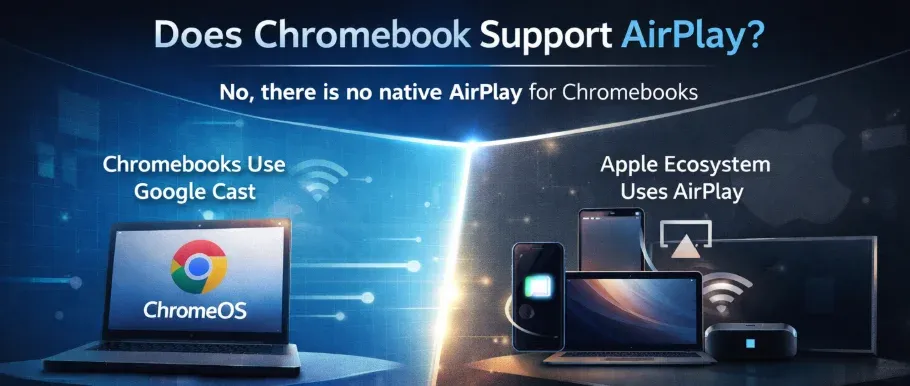
Chromebooks do not support AirPlay directly, as they are built on Google's ChromeOS, which is optimized for Google Cast. AirPlay is a proprietary technology developed by Apple, which is available on iPhone, iPad, MacBook, Apple TV, and newer smart TVs.
Although AirPlay is ideal for streaming within the Apple ecosystem, Google Cast is much more compatible with Chromebooks. However, you can still bypass ecosystem limits using alternative methods like PigeonCast or AirServer.
How to Connect Apple Device to Chromebook
While Chromebook doesn't support native AirPlay, you can still connect it to Apple devices without using HDMI. PigeonCast combines Google Cast, AirPlay, and DLNA, allowing seamless streaming between iOS and ChromeOS devices, as well as from ChromeOS to tvOS.
So, instead of relying on AirPlay from Chromebook or AirPlay to Chromebook, switch to the free PigeonCast solution for smoother, cross-platform connectivity.
Connect Chromebook to Apple TV
Apple TV does support AirPlay, but Chromebook uses Google Cast. To bridge this gap, simply set up PigeonCast on your Apple TV, enabling it to support Google Cast for seamless connectivity with your Chromebook.
Step 1. Ensure your Chromebook and Apple TV are on the same Wi-Fi network.
Step 2. Install PigeonCast receiver on your Apple TV (available via the App Store).


Overall Rating:


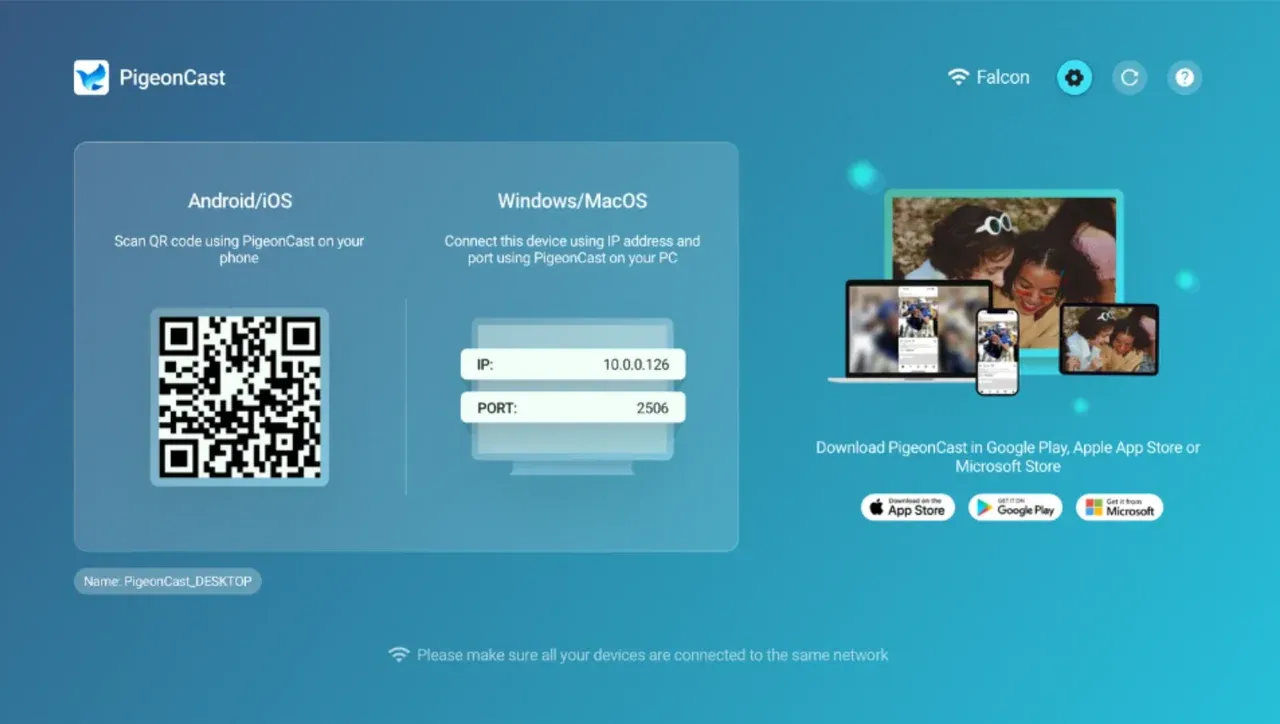
Step 3. Open a browser or app on your Chromebook and select the Cast option.
Step 4. Choose your Apple TV from the available devices list to start casting.
While Apple TV doesn't support Google Cast natively, PigeonCast enables you to bypass this limitation and stream content from your Chromebook.
Connect iPhone to Chromebook
Third-party apps like AirServer app turn your Chromebook into an AirPlay 2 receiver, allowing you to wirelessly stream your iPhone's display with ease.
Here's how to screen mirror iPhone on Chromebook:
Step 1. Download and install the AirServer app on your Chromebook.
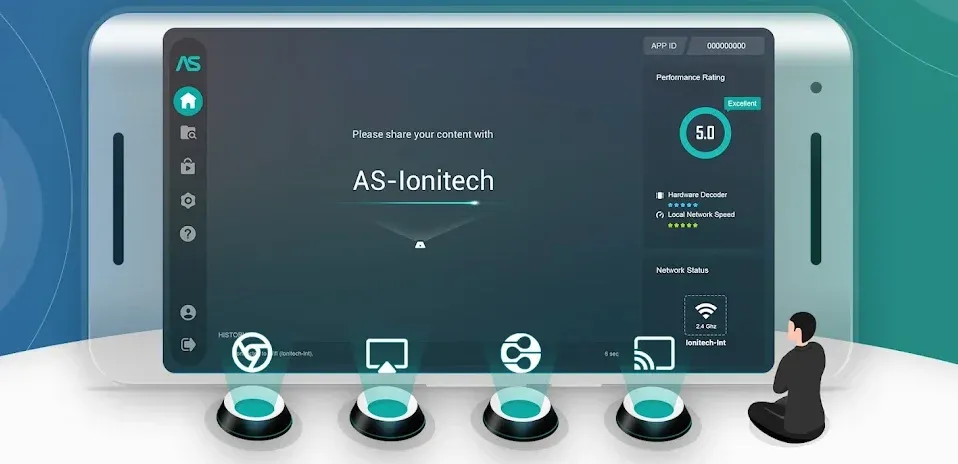
Step 2. Ensure that your devices are on the same Wi-Fi network.
Step 3. Launch the app on your Chromebook, and now the device is AirPlay ready.
Step 4. On your iPhone, launch the Control Center and choose Screen Mirroring, and choose your Chromebook from the list.
Step 5. Wait for the connection to be established, then you can AirPlay content to Chromebook from your iPhone.
Conclusion
While AirPlay is not supported on Chromebook, there are reliable alternatives like PigeonCast (Google Cast) to connect Apple devices to ChromeOS. For users looking to mirror iPhones or iPads, PigeonCast provides an easy solution to connect wirelessly to a Chromebook. If you need to stream from your Chromebook to Apple TV, PigeonCast also makes it possible through Google Cast.
AirPlay on Chromebook FAQs
Can you AirPlay from Chromebook to TV?
No, Chromebooks do not support AirPlay. However, you can use Google Cast to stream from Chromebook to supported TVs.
How do I screen mirror onto my Chromebook?
You can mirror an iPhone or MacBook to Chromebook using PigeonCast, a third-party app that brings Google Cast support to your Apple devices.
Can I mirror my iPhone to my Chromebook?
Yes, by installing PigeonCast on your iPhone or LetsView Chromebook, you can mirror your iPhone's screen wirelessly without AirPlay.
Mia Clarke is a technology editor specializing in screen mirroring and casting solutions across multiple platforms. Mia provides clear, practical guides and in-depth insights to help users seamlessly connect their devices. Passionate about enhancing digital experiences, Mia is dedicated to keeping readers updated on the latest trends and tools in cross-platform screen sharing. Whether you’re looking to mirror your smartphone, laptop, or smart TV, Mia’s content delivers reliable, user-friendly advice to simplify your tech setup.