
If you're trying to bring Google's services to your Roku, you might notice the process isn't as simple as you'd expect. In this guide, we'll show you the different ways about how to get Google on Roku, whether through official apps or smart workarounds, so you can enjoy the full Google experience on your Roku device.
Can You Get Google on Roku
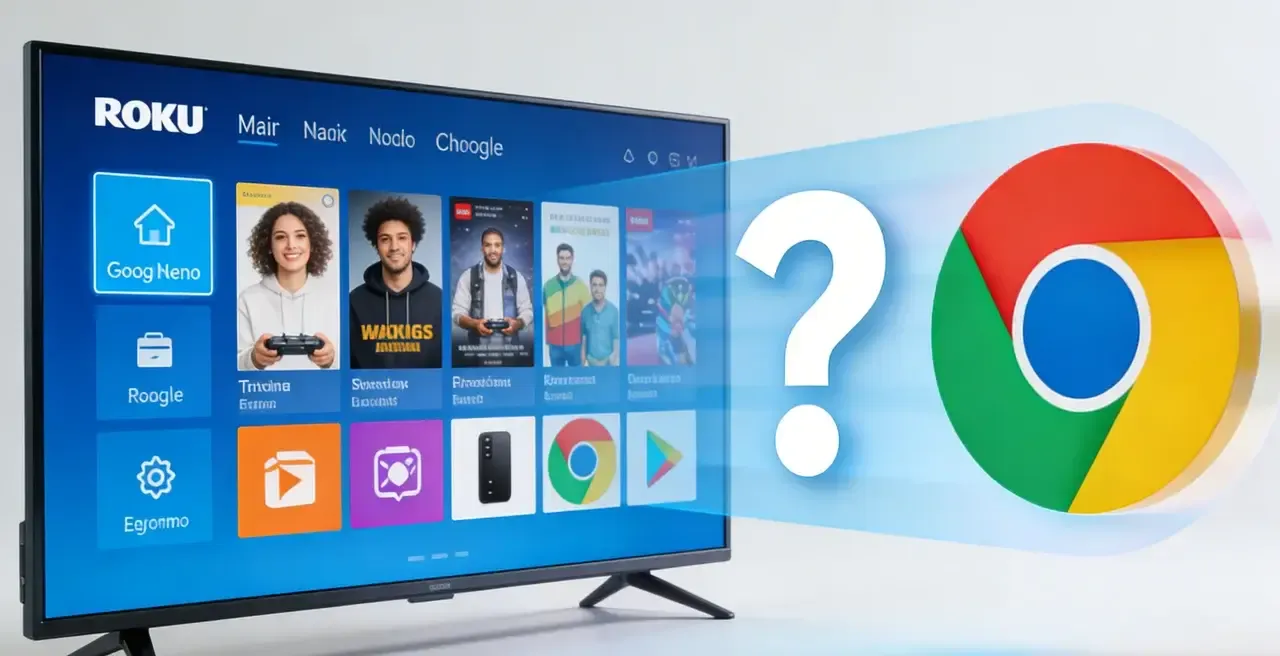
Because of past disputes between Google and Roku, they don't work together perfectly. You won't find an official "Google" app in the Roku Channel Store, and there's no Google Chrome browser. But don't worry, you still have options to enjoy Google services. Let's take a look at how to get Google content and services on your Roku.
How to Get Google on a Roku TV
How to get Google on my Roku TV? If you're eager to access Google Chrome browser on Roku TV, there are a few ways to go about how to install Google Chrome on Roku TV depending on your setup. While Roku doesn't offer a dedicated Google app or built-in browser, you can still enjoy Google content with a bit of creativity. Below are some simple methods to bring Chrome for Roku:
How to Mirror Android to Roku
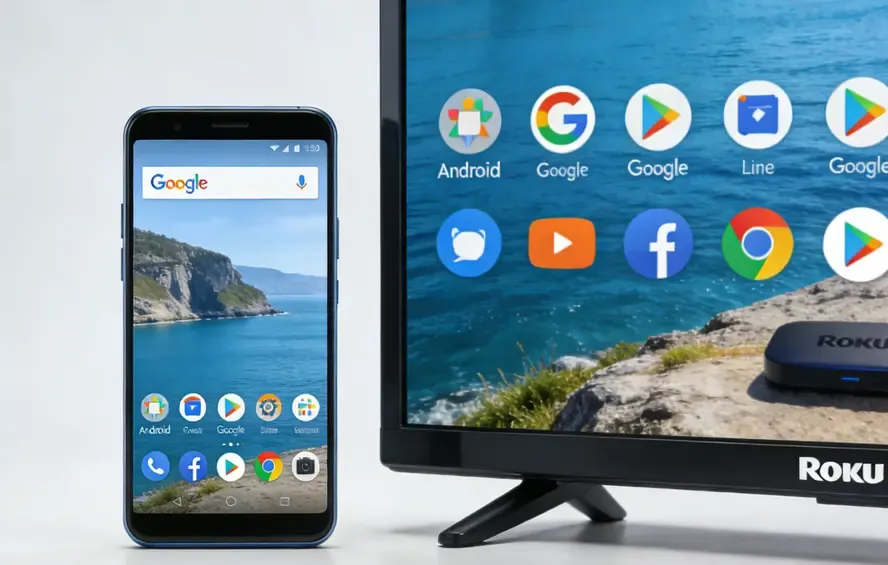
Android devices can cast content to Roku using Google Cast, enabling you to stream videos, photos, and apps directly. Make sure your Android device is connected to the same Wi-Fi network as your Roku. Learn more about Android to Roku casting here.
How to Mirror iPhone/Mac to Roku
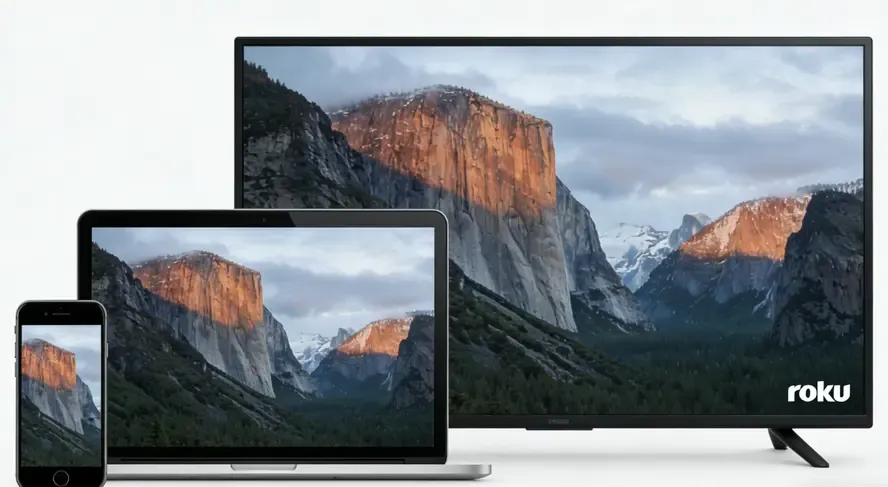
With Roku's AirPlay support, you can easily stream content from your iPhone or Mac directly to your Roku TV. Whether it's Google services, videos, or apps, simply connect both devices to the same Wi-Fi network, and you're good to go. Learn how to use AirPlay with iPhone/Mac on Roku here.
How to Mirror Windows PC to Roku
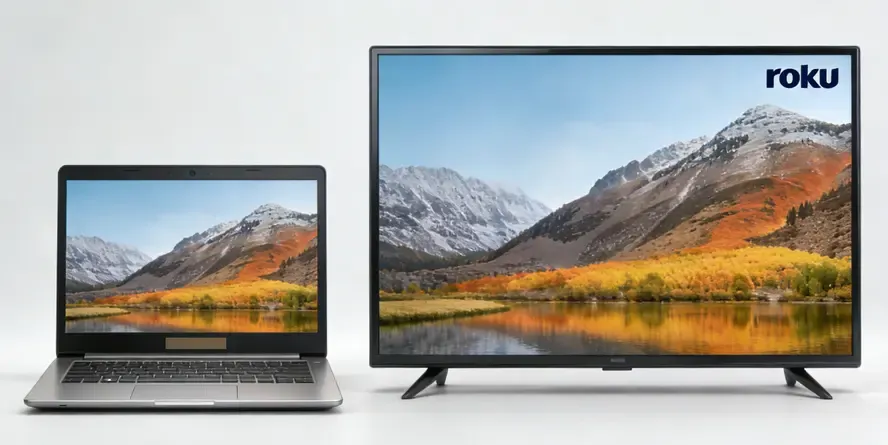
Windows devices support Miracast, which allows you to wirelessly project your screen to a Roku TV. Simply use the Project option in Windows to connect to your Roku device. Learn more about Windows to Roku screen mirroring here.
How to Use PigeonCast to Roku
While these methods allow you to connect your devices to Roku, free PigeonCast offers a seamless solution that works with AirPlay, DLNA, and Google Cast to stream content from all your devices to your Roku, simplifying the process and adding flexibility. Here's how to get on Google on Roku TV via PigeonCast:
Step 1. Ensure your mobile device or laptop connects to the same wireless network as your Roku TV.


Overall Rating:



Step 2. Install PigeonCast on your smartphone or a laptop from the app store.
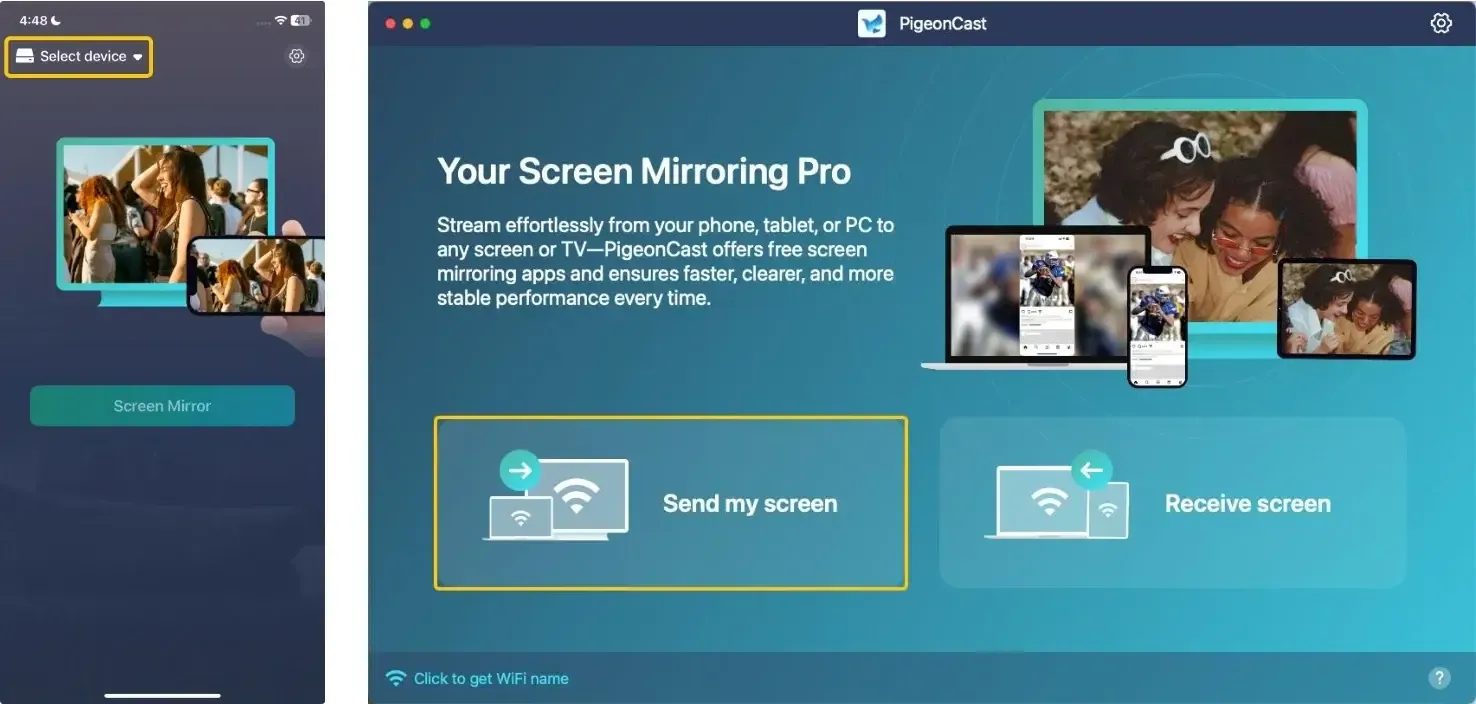
Step 3. Launch the app, tap Select device or Send my screen to choose your Roku from the available list.
Step 4. Enter the onscreen PIN code to confirm the pairing process.
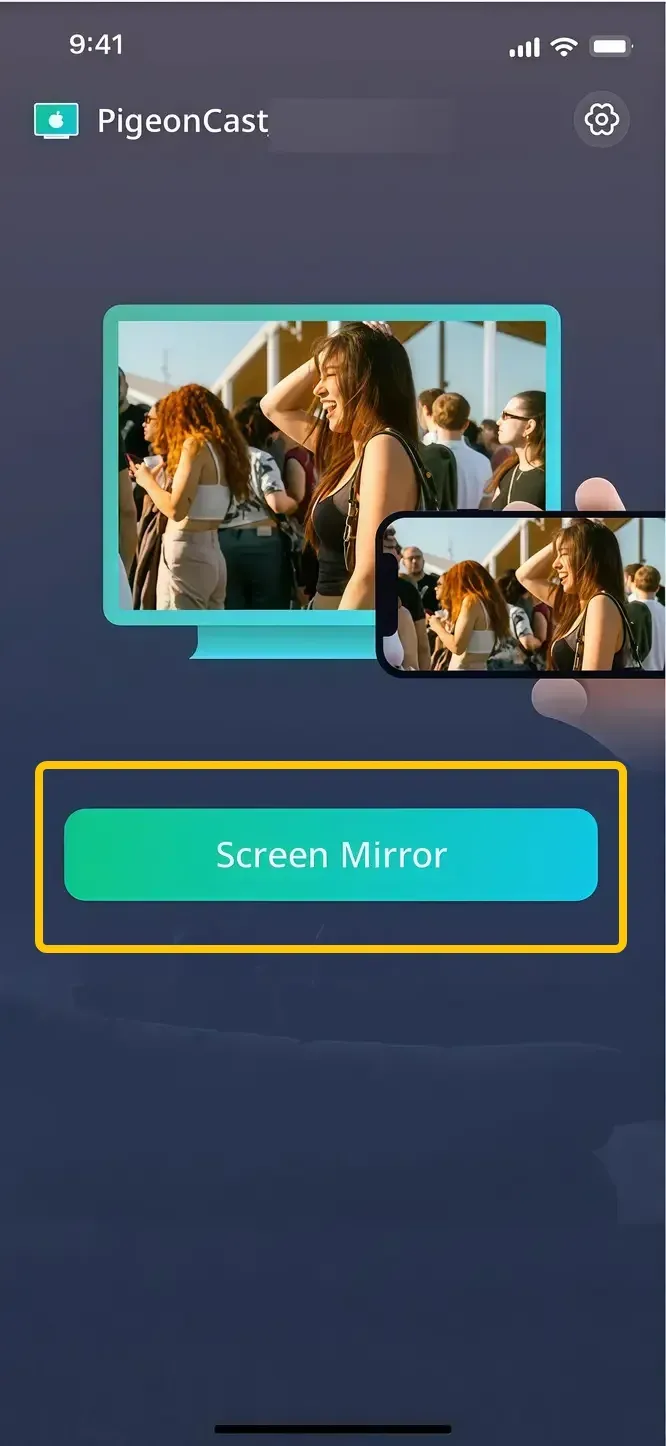
Step 5. Once you finish the connection, tap the Screen Mirror button to start the browser mirroring activities. If you use the laptop, you can even choose mirror the full screen or mirror a single app window.
Step 6. During the mirroring process, you can choose the Google browser or other Google app shown on your Roku TV.
Conclusion
How to get Google on your Roku TV? While it might take a little extra effort to bring Google services to your Roku, it's definitely possible with the right tools. Although there's no official Google app on the Roku Channel Store, apps like PigeonCast make it easy to stream content from your Google devices.
How to Get Google on Roku FAQ
Can I browse the internet on my Roku?
Roku does not have a built-in web browser, so you cannot browse the internet directly on your Roku device. However, you can use workarounds like PigeonCast to view web content on your Roku.
Does Google work with Roku?
Due to past disputes between Google and Roku, they don't have full integration. You won't find an official Google app in the Roku Channel Store, and there is no Google Chrome browser. However, you can still access Google services on Roku through workarounds like casting or using third-party apps such as PigeonCast to stream content from your Google devices.
How to get Google on Roku TV for free?
To access Google services on your Roku TV for free, you can use a free casting app like PigeonCast. This app allows you to mirror your phone, tablet, or laptop screen to your Roku, or stream content directly. PigeonCast supports AirPlay, DLNA, and Google Cast, making it easy to stream videos, photos, music, and even use Google apps. All you need to do is install the app, connect your devices to the same Wi-Fi network, and follow the setup steps to start streaming content.
Clara Rossi is an experienced technology editor and a seasoned expert in screen mirroring and casting technologies. With a keen eye for detail and a deep understanding of how to seamlessly connect devices, Clara excels at optimizing user experiences for effortless sharing and streaming. Whether you're seeking quick fixes or advanced tips, her expertise and responsiveness ensure that every query is met with a well-informed and efficient solution.