
Few things are more frustrating than getting ready to watch a movie or jump into a gaming session, only to be met with a blank screen and the dreaded "No Signal" message. Often, a malfunctioning HDMI port is the culprit, but before you assume it's beyond repair or call for costly help, there are several steps you can take to diagnose and often fix the HDMI port not working issue yourself.
Why Is My HDMI Port Not Working
An HDMI port not working on TV can happen for various reasons. From hardware issues to software glitches, it's important to identify the root cause before jumping into repairs. The most common reasons why your HDMI port might not be working include:
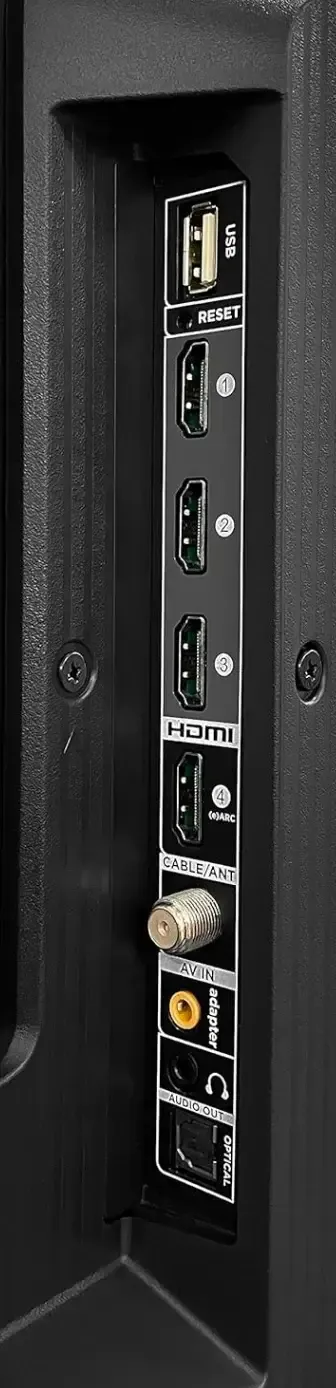
- Physical damage (bent pins, debris, or a loose port)
- Connection issues (a faulty cable or incorrect input selected)
- Software glitches (outdated firmware or incorrect settings)
- Power-related problems (inadequate power cycling)
How to Fix HDMI Port on TV
In this section, we'll walk you through a logical process to identify whether the HDMI port isn't working properly, starting with simple checks and progressing to more advanced solutions. If you're in a hurry, you can use PigeonCast as a free, easy mirroring tool across multiple platforms.
#1. Check the HDMI Cable and Device Connection
When troubleshooting an HDMI connection issue, one of the first things to consider is the HDMI cable itself. It's often the weakest link in the chain and the most frequent point of failure.
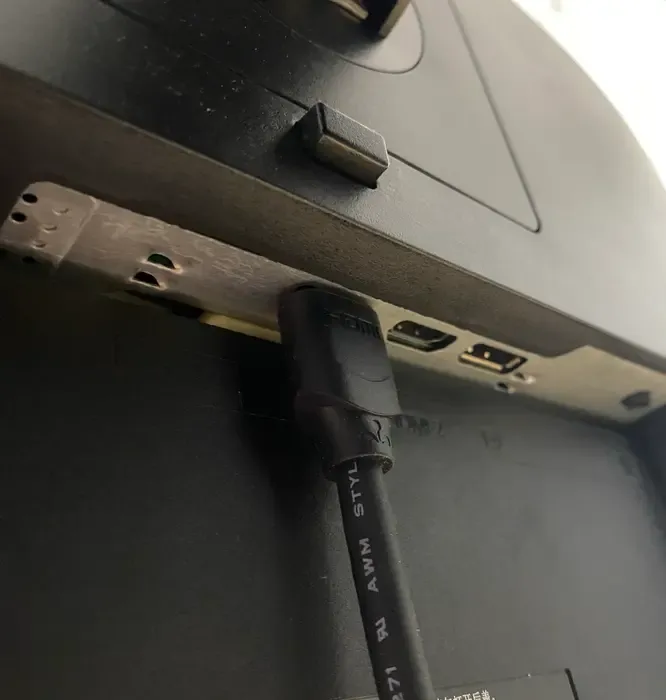
Step 1. Unplug and firmly reconnect the HDMI cable at both ends (TV and device).
Step 2. Inspect visually the cable for any damage, fraying, or bent pins. If the cable appears worn or damaged, it might need replacing.
Step 3. Try a different, known-working HDMI cable to see if that resolves the issue.
#2. Try a Different HDMI Port
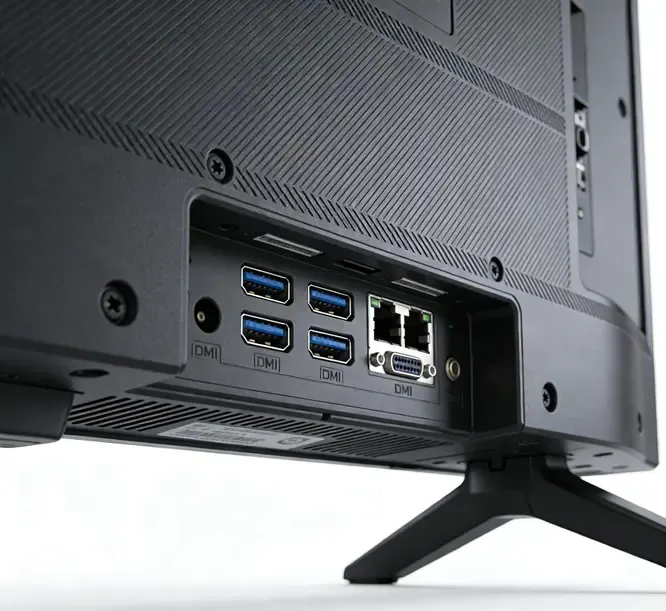
If you still deal with "my HDMI port is not working", don't worry just yet. Most TVs have multiple HDMI ports, so try connecting your device to another port. If one port is faulty, the others may still work fine. This simple test can help you figure out if the issue is with the port itself or something else, like the HDMI cable or the device you're trying to connect. It's an easy way to narrow down the cause of the problem.
#3. Verify TV Input Settings
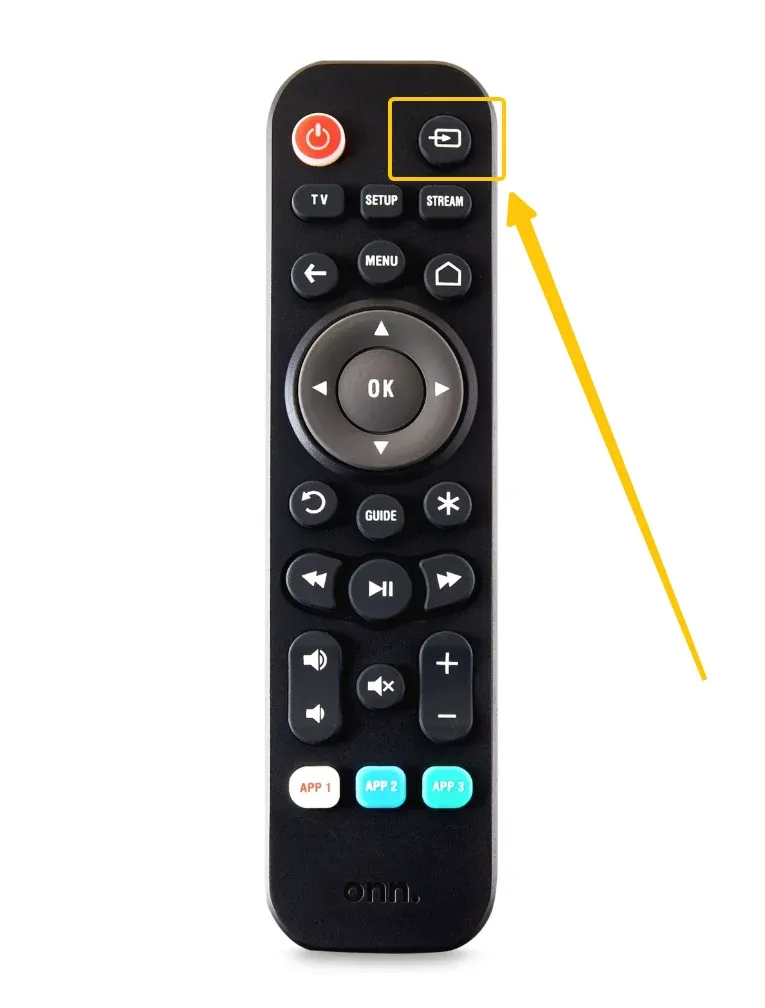
Sometimes, the issue may be that the TV is set to the wrong input mode. To fix this, ensure your TV is set to the correct input source. Simply press the Input or Source button on your TV remote to switch to the HDMI input that corresponds to the device you're trying to connect. This small adjustment can often resolve the display port to HDMI not working issue if the TV is tuned to the wrong source.
#4. Restart Your Devices
Restarting your devices is a quick and effective way to fix HDMI port on TV not working issues. A simple reset can refresh the connection and clear up any temporary glitches, often solving the problem with minimal effort.
Step 1. Turn off your TV and unplug it for about 30 seconds before powering it back on.
Step 2. Then plug in and turn on your external device, and select the correct HDMI input on your TV.
#5. Update Firmware
Outdated software can sometimes cause HDMI compatibility issues. Check if your TV requires a firmware update, as manufacturers often release updates that fix HDMI-related bugs or enhance compatibility. Keeping your software up to date can help prevent these HDMI to display port not working problems.
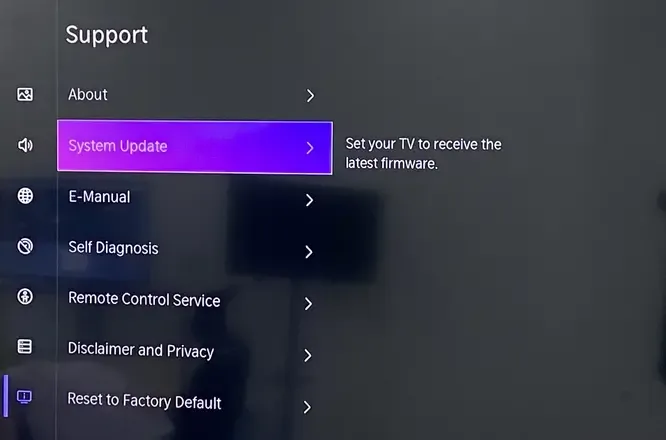
Step 1. On your TV, go to Settings > Support > Software Update and install any available updates.
Step 2. On your external device, check for system updates in its settings.
Step 3. Repeat Step 4 (Power Cycle) after all updates are complete.
#6. Test with Another Device
Once the HDMI cable not working persists, consider connecting a different device, such as a DVD player, gaming console, or laptop, to the HDMI port. This can help rule out problems with the original device. If the new device works, the issue is likely with the first device, not the HDMI port itself.
#7. Contact TV Support
If none of these HDMI connection not working solutions work, the HDMI port may be physically damaged or faulty. In this case, contacting the manufacturer or seeking professional repair may be necessary.
#8. Use PigeonCast
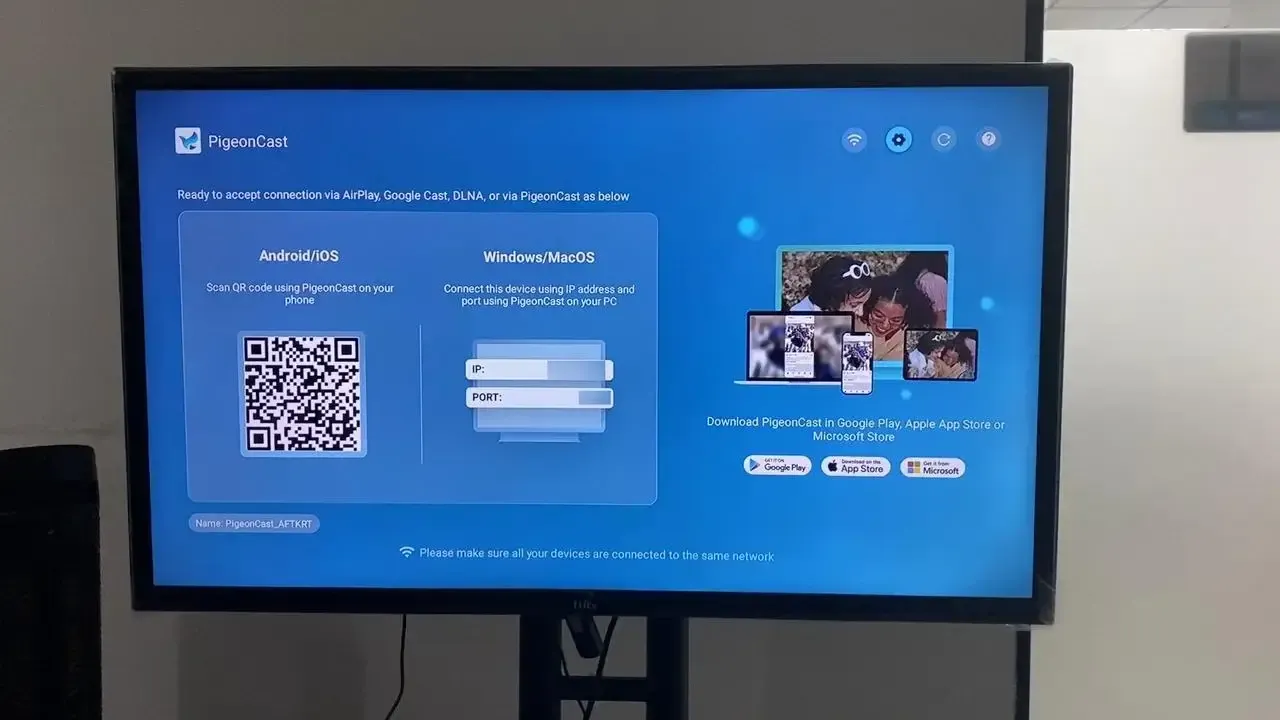
If you've confirmed that all HDMI ports not working on TV, and professional repair isn't an immediate option. Wireless screen mirroring offers a powerful workaround. PigeonCast is a free, versatile app that allows you to stream content directly from your phone, tablet, or computer to your smart TV without any HDMI cables.


Overall Rating:



Step 1. Ensure your external device and smart television are covered by the same WiFi network.
Step 2. Install PigeonCast on both your mobile device and TV, then launch it.
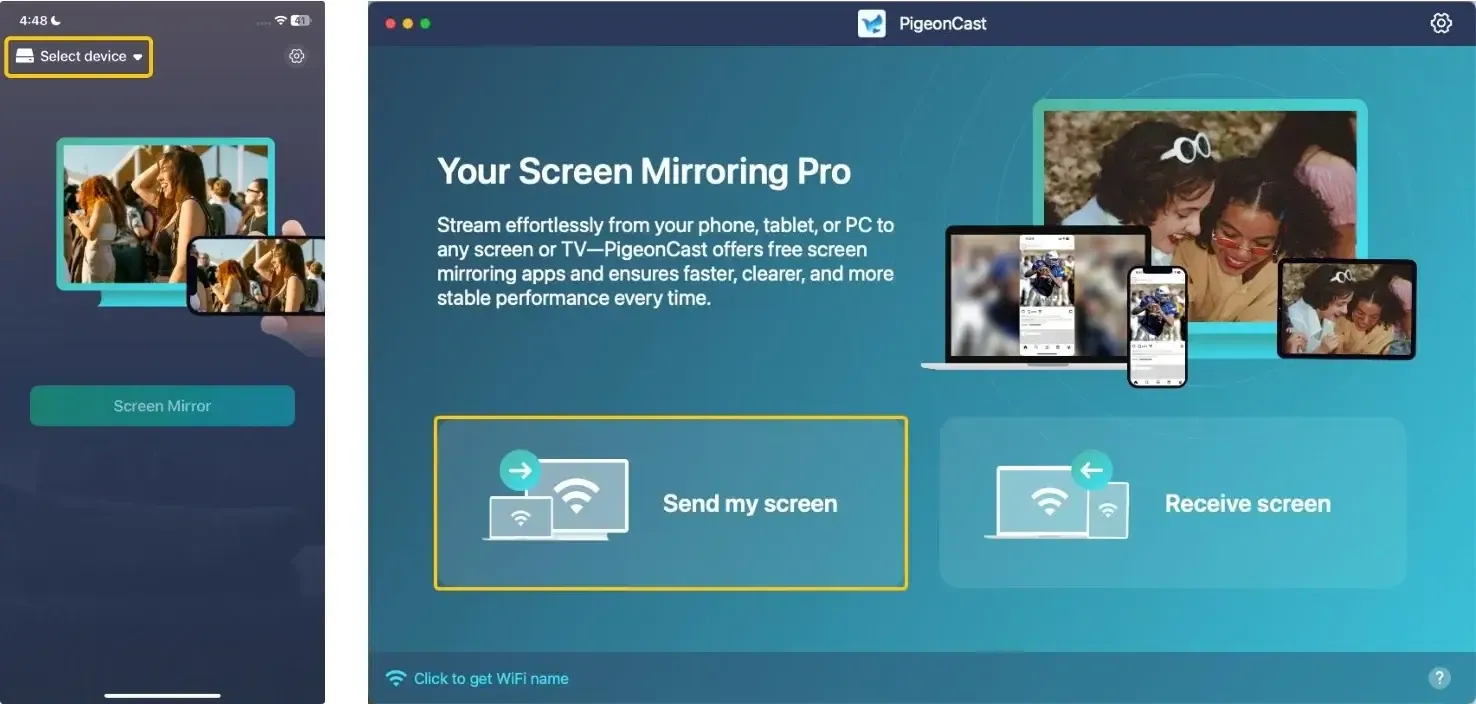
Step 3. On the mobile device, tap Select device or Send my device to choose your TV from the available list. Alternatively, you can scan the onscreen QR code to build the connection.
Step 4. Enter the onscreen PIN code to confirm the pairing process.
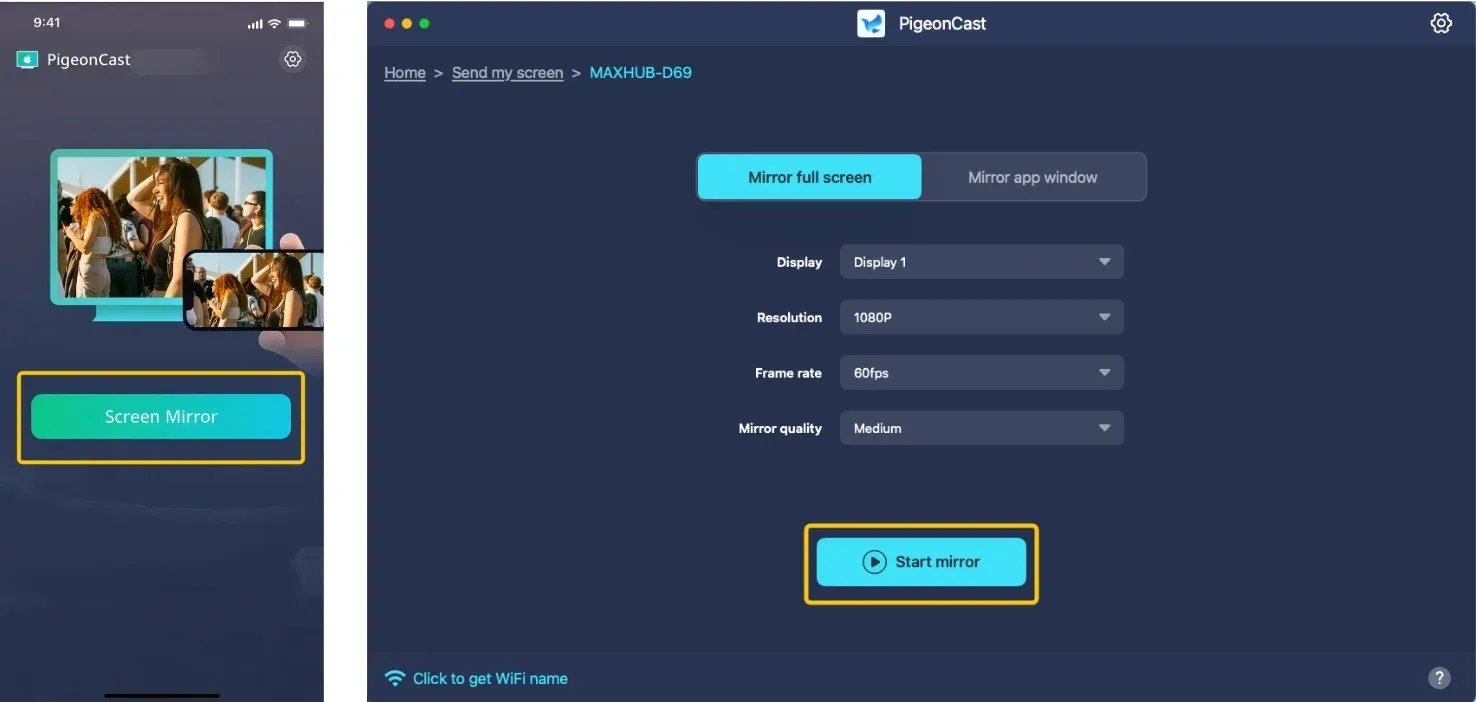
Step 5. When you finish the connection, tap Screen Mirror or Start mirror to start the mirroring activities. (If you're using a laptop, you can choose whether to mirror the full screen or a single window)
Bottom Line
There are several simple steps you can take to troubleshoot and potentially fix the hdmi cord not working issue yourself. If the HDMI output not working persists, consider testing with another device or using wireless options like PigeonCast for screen mirroring. However, if none of these steps work, it may be time to contact your TV support team or seek a professional to repair HDMI port.
HDMI Port Not Working FAQ
How to tell if your HDMI port is bad on TV?
To determine if your HDMI port is bad on your TV, try the following steps:
- Test with another device
- Try a different HDMI port
- Check the HDMI cable
- Verify input settings
Samsung TV HDMI port not working?
If your Samsung TV HDMI port is not working, here are some steps you can follow to troubleshoot:
- Test with another device
- Try a different HDMI port
- Check the HDMI cable
- Verify TV Input Settings
- Restart your devices
- Update firmware
- Test with another HDMI cable
- Use PigeonCast
Why is LG TV HDMI port not working?
If your LG TV HDMI port is not working, the possible reasons could include:
- Physical damage to the HDMI port, such as bent pins or debris inside the port.
- A faulty HDMI cable that is damaged or worn out.
- Incorrect input settings on the TV, where the wrong HDMI input is selected.
- Outdated firmware on the TV, causing compatibility issues with connected devices.
- Power-related issues or inadequate power cycling of the TV or connected devices.
- A defective device connected to the HDMI port could be causing the issue.
- Software glitches or TV settings conflicts disrupt the HDMI functionality.
- Loose or improperly connected HDMI cable at either the TV or device end.
How to fix a Sony TV HDMI port not working?
If your Sony TV HDMI port is not working, here are some possible reasons and ways to address them:
- Check for Physical Damage
- Try a Different HDMI Cable
- Test Another HDMI Port
- Verify the Input SourcePower Cycle Devices
- Update the Firmware
- Test with a Different Device
- Try PigeonCast
Why is the Vizio HDMI port not working?
If your Vizio HDMI port is not working, the possible reasons include:
- Physical Damage
- Faulty HDMI Cable
- Incorrect Input Source
- Outdated Firmware
- Device Issues
- Loose Connection
- Power Cycle Problems
- Software Glitches
How to solve the HDMI port not working on Roku TV?
If the HDMI port is not working on your Roku TV, here are some possible reasons and solutions to address the issue:
- Check the HDMI cable
- Try a different HDMI port
- Check TV Input Settings
- Restart the TV and device
- Update firmware
- Test with another device
- Reset the TV
- Check for external interference
Clara Rossi is an experienced technology editor and a seasoned expert in screen mirroring and casting technologies. With a keen eye for detail and a deep understanding of how to seamlessly connect devices, Clara excels at optimizing user experiences for effortless sharing and streaming. Whether you're seeking quick fixes or advanced tips, her expertise and responsiveness ensure that every query is met with a well-informed and efficient solution.