

If you need a screen mirroring app for Fire TV, the main question is not simply which app has the most features. It is whether the app can make your Fire TV receive the type of connection used by your phone, tablet, or computer.
Fire TV has built-in mirroring support for some Miracast-compatible Android and Windows devices, but that support does not cover every sender. iPhone, iPad, and Mac users usually need a receiver app installed on Fire TV, while other cross-platform setups may work more reliably when the same mirroring app is installed on both the sending device and the Fire TV.
The apps in this guide also serve different purposes. PigeonCast and LetsView provide broader screen mirroring workflows, AirScreen mainly turns Fire TV into a wireless receiver, and Web Video Caster focuses on sending playable videos rather than duplicating the entire screen. ApowerMirror adds a wider set of controls, although many of them are more relevant to phone-to-computer use.
Below, the five options are compared by sender support, Fire TV setup, full-screen mirroring, free-use limitations, and the situations where each app is most useful.
Quick Answer: Which Screen Mirroring for Fire TV App Should You Use?
| Choose this app | When it fits your Fire TV setup |
|---|---|
| PigeonCast | You want to install a mirroring app on Fire TV and receive screens from phone or computer, or use the same app on both devices for Android, Windows, and other cross-platform connections. |
| AirScreen | You mainly want Fire TV to act as an AirPlay, Cast, Miracast, or DLNA receiver without installing a matching app on every sending device. |
| Web Video Caster | You mainly want to send videos from websites or local media files rather than mirror the entire phone or computer screen. |
| LetsView | You want to test a free cross-platform mirroring option and can accept the limits of its free tier. |
| ApowerMirror | You want screen mirroring alongside broader features such as recording, screenshots, or phone-to-computer controls. |
For the broadest Fire TV mirroring setup, start with PigeonCast. It works as a Fire TV receiver for differnet devices and also supports a two-app setup when you need a more consistent connection across different sender platforms.
Fire TV Screen Mirroring App Comparison
| App | Sender devices | TV-side setup | Full-screen mirroring | Web video casting | Free to use | Main tradeoff |
|---|---|---|---|---|---|---|
| PigeonCast | iPhone, Android, Windows, Mac | Install on Fire TV (and on the sending side) | Yes | Yes | Yes | Usually requires app setup on both sides |
| AirScreen | iPhone, iPad, Mac, Android, Windows | Install on Fire TV receiver only | Yes, as a receiver workflow | Limited compared with video-first tools | Yes, with ads / paid upgrade on current listings | Stronger as a receiver than as a full app ecosystem |
| Web Video Caster | Mainly iPhone and Android phones/tablets | Install Web Video Caster Receiver on Fire TV | No, not true full-screen mirroring | Yes | Yes, with paid upgrades | Better for video pages than for general screen sharing |
| LetsView | iPhone, Android, Windows, Mac | Install on both devices | Yes | Basic | Yes | Free tier is more limited than the title "free" may suggest |
| ApowerMirror | iPhone, Android, Windows, Mac | Varies by workflow | Yes | Limited | Yes | Many headline features are stronger in phone-to-PC use than in simple Fire TV use |
PigeonCast: Best Overall for Fire TV Screen Mirroring
PigeonCast is a cross-platform screen mirroring app that can be installed directly on Fire TV or Fire TV Stick. Once opened on the TV, it works as a receiver for screens sent from phones, tablets, and computers.
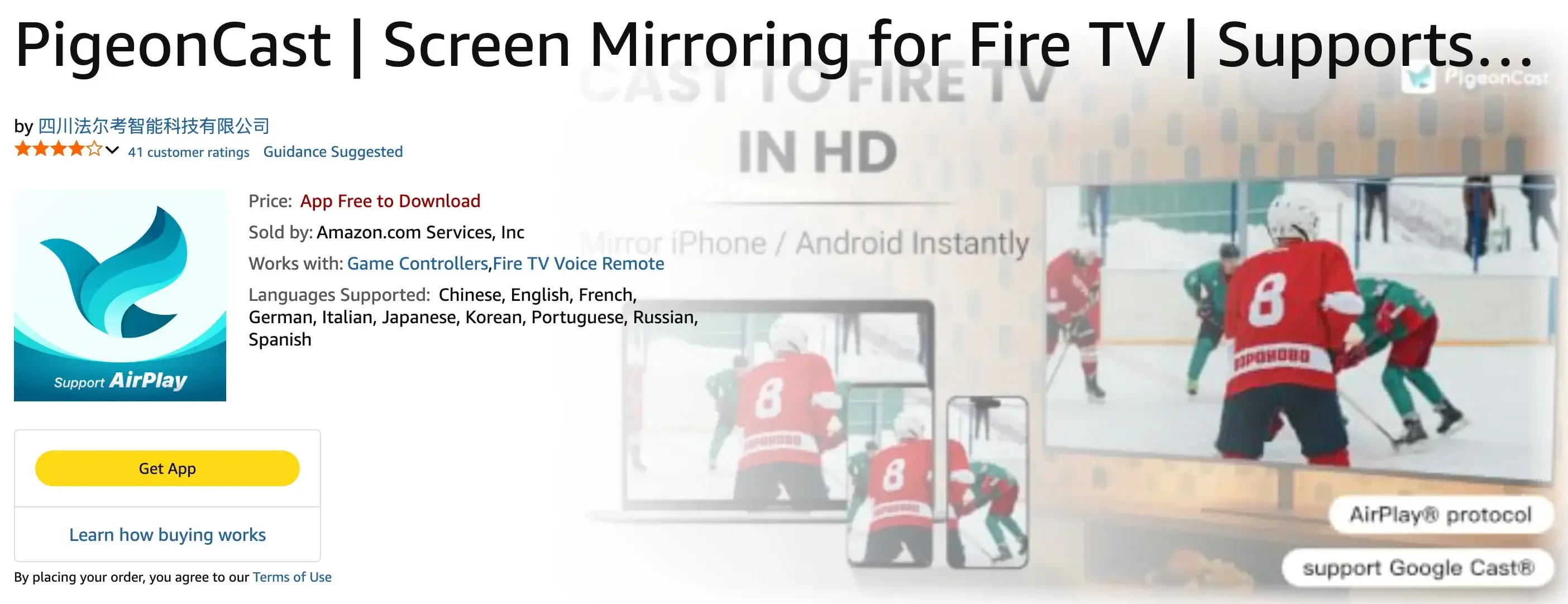
For iPhone, iPad, and Mac users, installing PigeonCast on Fire TV gives the television a practical way to receive screen mirroring from Apple devices. This is useful because not all Fire TV models do not support AirPlay 2.
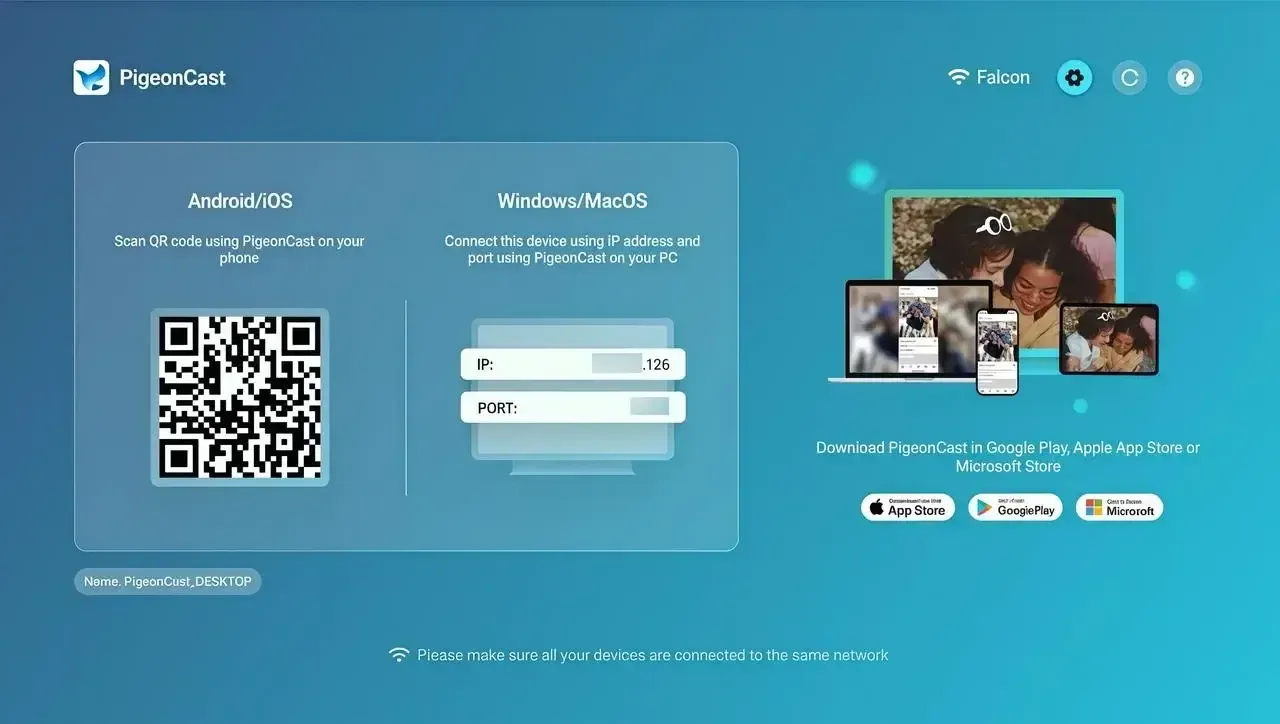
PigeonCast also supports a broader app-to-app connection. When the sender is Android or Windows, or when you want a more consistent connection across different platforms, install PigeonCast on both the sending device and the Fire TV. The two devices can then connect through the same PigeonCast workflow instead of relying on whether their native mirroring standards match.
This makes PigeonCast particularly useful when:
- you want to mirror an Apple devices like iPhone to Fire TV Stick
- you regularly switch between Apple, Android, Windows, and Mac devices
- you need full-screen mirroring and sending a web video
- you want one connection method that can also work with other supported TVs and receiving devices


Overall Rating:



To start mirroring, install and open PigeonCast on Fire TV, connect the sending device and Fire TV to the same Wi-Fi network, and select the Fire TV receiver from the sender. For cross-platform connections, install PigeonCast on the sender as well before starting the session.
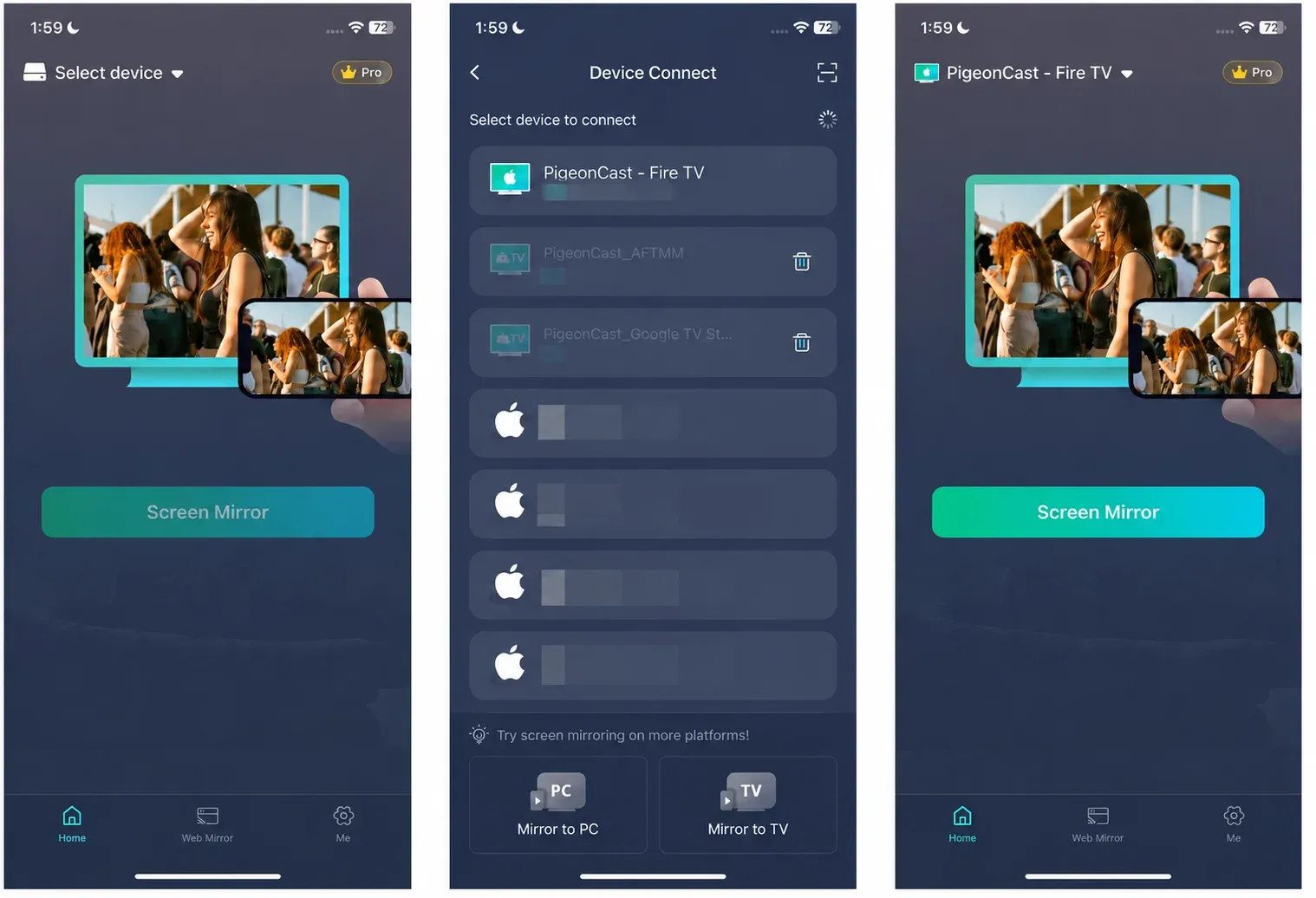
Like other wireless mirroring apps, PigeonCast still depends on the quality of the local network. A weak or isolated Wi-Fi connection can cause discovery problems, lag, or unstable playback. DRM-protected streaming apps may also block screen capture and display a black screen even when the devices are connected correctly.
AirScreen: Best for Turning Fire TV Into a Wireless Receiver
AirScreen is a receiver app that you install on Fire TV or Fire TV Stick. Once the app is open, it allows the Fire TV to receive wireless streams through protocols such as AirPlay, Google Cast, Miracast, and DLNA.
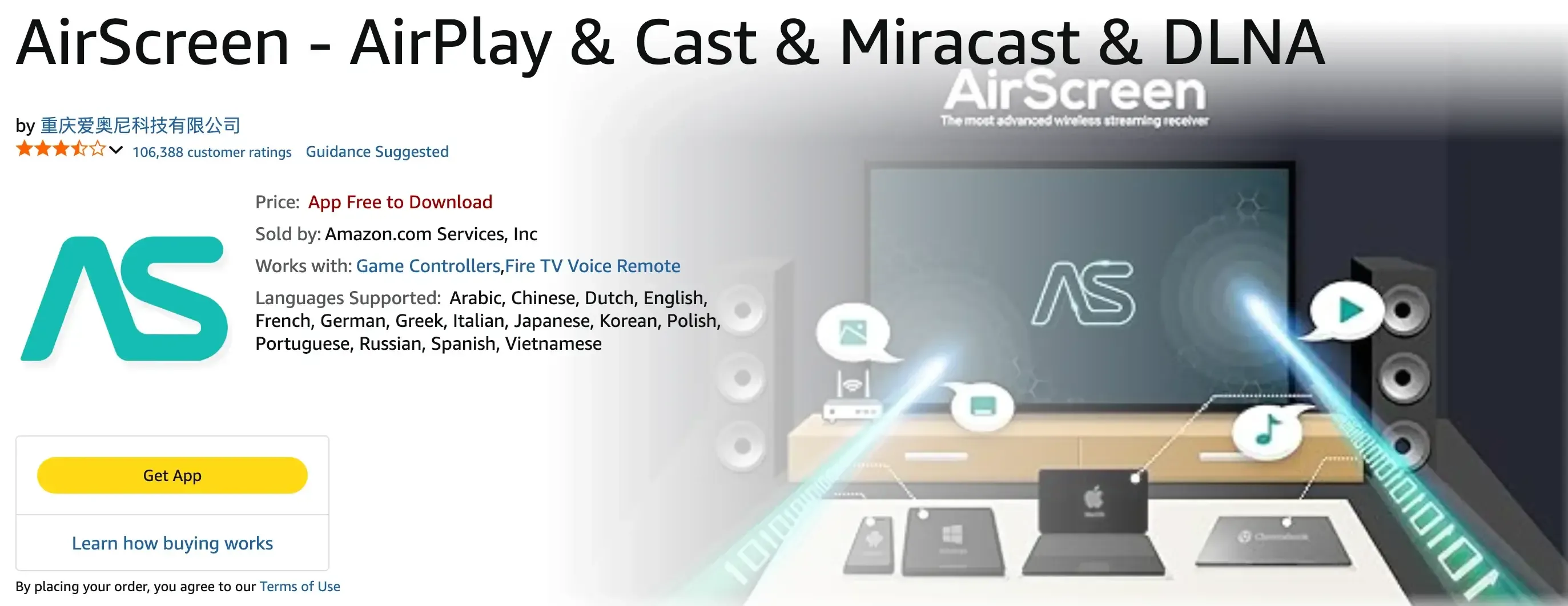
Unlike an app-to-app mirroring tool, AirScreen usually does not require you to install a matching AirScreen app on every sending device. Instead, the phone, tablet, or computer uses its built-in casting or mirroring controls, while AirScreen handles the connection on the Fire TV side.
This setup is especially useful for iPhone, iPad, and Mac users who want to send content to Fire TV through AirPlay. It can also help in homes where different devices already support one of AirScreen’s receiving protocols and the main problem is that Fire TV cannot receive that connection on its own.
AirScreen is a good fit when:
- you want Fire TV to receive AirPlay, Cast, Miracast, or DLNA connections
- you mainly mirror from iPhone, iPad, or Mac
- you prefer to install an app only on Fire TV
- your sending devices already have compatible built-in casting controls
The main limitation is that AirScreen depends on the sender supporting one of its receiver protocols. If devices use incompatible mirroring standards, or if you want the same guided connection process across Android, Windows, Apple devices, and other receivers, an app installed on both sides may provide a more consistent setup.
AirScreen offers a free way to test the receiver, but current versions may include ads, session restrictions, or paid upgrades. Check the Fire TV app listing before assuming that every feature is available without limits.
Web Video Caster: Best for Web Video Casting
Web Video Caster is a media casting app designed to send online videos and local media files to Fire TV. Unlike a full-screen mirroring app, it does not continuously duplicate everything shown on the phone or tablet.
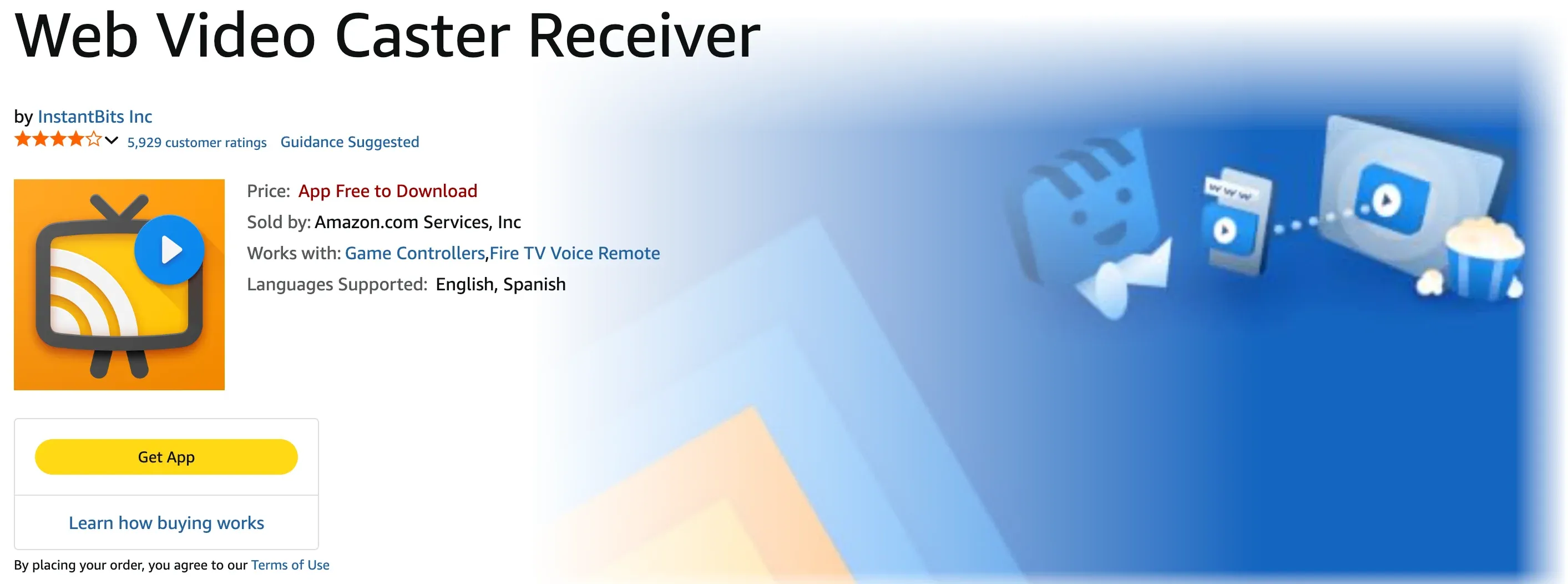
To use it, install Web Video Caster on the mobile device and install Web Video Caster Receiver on Fire TV. Open a website inside the mobile app, select a detected video, and send it to the Fire TV receiver. Once playback starts, the phone mainly works as a browser and remote control.
Web Video Caster is a good option when:
- you mainly want to watch videos from websites on Fire TV
- you want to send local videos, music, or photos
- you prefer direct media playback instead of mirroring the full screen
- you do not need to show another app’s complete interface on the TV
Because it focuses on media playback, Web Video Caster is not suitable for app demonstrations, presentations, video calls, games, or other activities that require the entire screen to remain visible and synchronized.
Playback also depends on whether the website exposes a usable video stream. Some websites may not be detected correctly, while DRM-protected streaming services can block playback even when the phone and Fire TV are connected.
LetsView: A Free Mirroring Option Worth Testing
LetsView is a free screen mirroring app for Fire TV with support for iPhone, Android, Windows, Mac, and compatible TV devices. It is a practical option for users who want to test screen mirroring on Fire TV without paying before they know whether the connection works well in their setup.
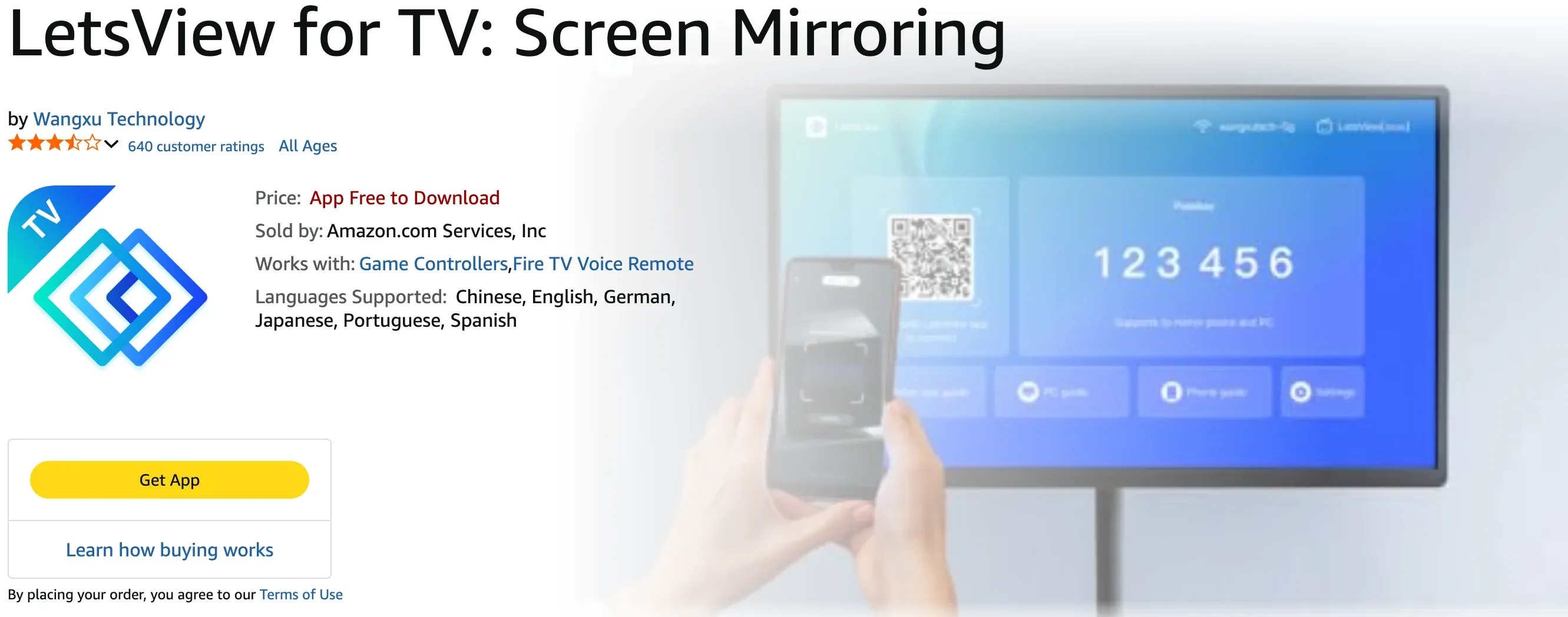
For Fire TV use, install LetsView on the sending device and the TV side, connect both devices to the same Wi-Fi network, and follow the connection options shown in the app. This app-to-app setup allows LetsView to provide a similar connection process across different sender platforms.
LetsView is worth considering when:
- you want to try a free screen mirroring app first
- you use more than one sender platform
- you only need basic local screen mirroring
- you are willing to accept some free-plan restrictions
The free tier supports basic mirroring, but it does not necessarily provide the same output quality or features as the paid plans. Depending on the current version, higher resolution, watermark-free output, longer sessions, or other premium features may require an upgrade.
LetsView therefore works best as a low-cost way to test whether Fire TV mirroring suits your devices and network. Before relying on it regularly, check whether the free-plan limits match the resolution, session length, and viewing quality you need.
ApowerMirror: Best for Broader App Controls
ApowerMirror is a screen mirroring app with a broader set of tools than most Fire TV-focused options. In addition to displaying a phone or computer screen on another device, its wider product ecosystem includes features such as screen recording, screenshots, annotation, and Android control from a computer.
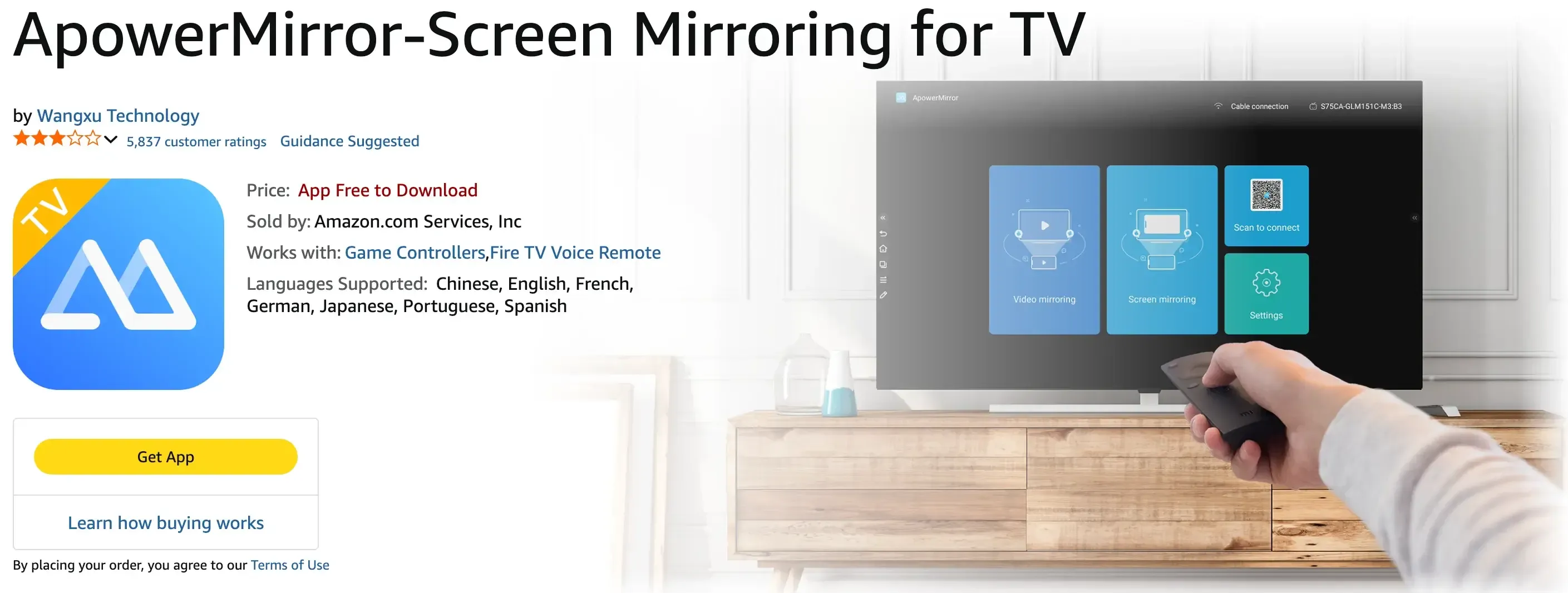
For Fire TV use, ApowerMirror can mirror supported phones and computers to the television, but the exact setup may vary by sending device and app version. Users may need to install or open the relevant receiver app on Fire TV and connect both devices through the same local network.
ApowerMirror is worth considering when:
- you want screen mirroring alongside recording or screenshot tools
- you also use the app for phone-to-computer connections
- you need more control and customization than a basic TV mirroring app provides
- you do not mind a more complex interface or paid feature model
The main limitation is that many of ApowerMirror’s strongest features are designed around phone-to-PC use. Android control, keyboard input, file transfer, and other desktop-oriented tools may not provide the same value when the only goal is to mirror a screen to Fire TV.
ApowerMirror can therefore make sense as part of a broader multi-device toolkit. For users who only need a straightforward way to display a phone or laptop screen on Fire TV, however, its additional controls may add complexity without improving the basic mirroring experience.
Fire TV Screen Mirroring Apps Compared
The five apps below can all play a role in sending content to Fire TV, but they do not use the same connection method or solve the same problem.
| App | Fire TV setup | Main sender support | Full-screen mirroring | Best for | Free-use notes | Main limitation |
|---|---|---|---|---|---|---|
| PigeonCast | Install on Fire TV; install on the sender as well for app-to-app connections | iPhone, iPad, Mac, Android, Windows | Yes | Apple-to-Fire-TV mirroring and broader cross-platform connections | Free use is available, with premium features or session limits depending on the platform | Requires a stable local network; some setups work best with the app installed on both devices |
| AirScreen | Install the receiver app on Fire TV | Devices that support AirPlay, Cast, Miracast, or DLNA | Yes, when the sender supports a compatible protocol | Turning Fire TV into a wireless receiver | A free version is available, but ads or paid restrictions may apply | Depends on the sending device supporting one of its receiver protocols |
| Web Video Caster | Install the mobile app and Fire TV receiver | Mainly iPhone, iPad, and Android | No | Sending web videos and local media files | Free use is available, with optional paid upgrades | Cannot duplicate the full screen or display other app interfaces |
| LetsView | Install on both the sender and Fire TV | iPhone, Android, Windows, Mac | Yes | Testing a free cross-platform mirroring setup | Basic mirroring is free, but resolution, watermark, or other limits may apply | Free-tier quality and features may be limited |
| ApowerMirror | Install the relevant app or receiver for the chosen setup | iPhone, Android, Windows, Mac | Yes | Users who also need recording, screenshots, or phone-to-computer controls | Free use is available, while advanced and watermark-free features may require payment | Many advanced tools are more useful for phone-to-PC use than Fire TV mirroring |
The clearest difference is the type of connection each app provides. PigeonCast and LetsView use a broader app-based mirroring setup, AirScreen focuses on receiving existing wireless protocols, Web Video Caster sends media rather than the full screen, and ApowerMirror combines mirroring with a wider desktop-oriented toolset.
How to Choose Your Best Screen Mirroring App for Fire TV
The best Fire TV screen mirroring app depends on how you want the sending device and Fire TV to connect. Before choosing, check the sender platform, the type of content you want to display, and whether you prefer a receiver-only app or the same app on both devices.
1. Start With the Sending Device
Your phone or computer is the first filter because Fire TV does not receive every wireless mirroring method natively.
For iPhone, iPad, and Mac, look for an app that allows Fire TV to receive an Apple-compatible mirroring connection. For Android and Windows, check whether the device supports a compatible built-in method or whether installing the same app on both devices provides a more reliable path.
If several people use different platforms, a cross-platform app is generally easier than switching between separate native methods.
2. Choose Full-Screen Mirroring or Media Casting
Full-screen mirroring duplicates the entire display, including apps, photos, browser tabs, presentations, and device menus. Choose this option when the activity on the sending device needs to remain visible on Fire TV in real time.
Media casting sends a selected video, audio file, or image instead of copying the full screen. It is usually better for watching content because the phone can act as a playback controller, but it cannot show another app’s full interface.
3. Decide How You Want the Devices to Connect
A receiver-only app is installed on Fire TV and accepts supported protocols already available on the sending device. This keeps sender-side setup simple, but it depends on the phone or computer using a compatible wireless standard.
An app-to-app setup installs the same mirroring tool on both the sender and Fire TV. It requires an additional installation step, but it can provide a more consistent connection when native protocols do not match or when users frequently switch between platforms.
4. Check What the Free Version Includes
A free download does not always mean unrestricted mirroring. Depending on the app, the free tier may include ads, shorter sessions, lower resolution, watermarks, or locked features.
For occasional use, these limits may be acceptable. For regular mirroring, compare the session length, output quality, supported devices, and paid-plan requirements before choosing an app based only on the word “free.”
Regardless of the app, wireless mirroring still depends on a stable local network. The sender and Fire TV should normally use the same Wi-Fi network, and DRM-protected streaming services may block screen capture or display a black screen.
Final Verdict
Choose AirScreen if you mainly want Fire TV to receive AirPlay or other built-in wireless protocols. Choose Web Video Caster if your goal is to play videos from websites rather than mirror the full screen. LetsView is useful for testing a free app-based setup, while ApowerMirror makes more sense when you also need recording, screenshots, or phone-to-computer tools.
For the broadest Fire TV screen mirroring use, PigeonCast is the best overall option. You can install it on Fire TV or Fire TV Stick to receive screen mirroring from iPhone, iPad, and Mac. For Android, Windows, or a more consistent cross-platform connection, install PigeonCast on both the sending device and Fire TV. This gives users one practical setup for full-screen mirroring without depending entirely on whether the two devices support the same native protocol.
Download PigeonCast and install it on your Fire TV to start mirroring.
Screen Mirroring App for Fire TV FAQ
Does Fire TV support screen mirroring without an app?
Some Fire TV devices support built-in Miracast screen mirroring, which may work with compatible Android phones and Windows computers. However, this method does not support every device. iPhone, iPad, and Mac users normally need a receiver app installed on Fire TV, while other devices may also need an app when their native mirroring standards do not match.
How can I mirror an iPhone, iPad, or Mac to Fire TV?
If your TV model supports AirPlay, you can tap Screen Mirroring from the Control Center on your Apple device and choose the TV from the list. Alternatively, install a compatible receiver app on Fire TV or Fire TV Stick and keep it open while connecting.
Why is my Fire TV not appearing in the device list?
First, confirm that the sender and Fire TV are connected to the same local Wi-Fi network. Keep the receiver app open on Fire TV and check that VPNs, guest networks, or router isolation are not preventing device discovery. Restarting the app, Fire TV, and sender can also refresh the connection list.
Does Fire TV screen mirroring include sound?
Many mirroring apps can send both screen and audio, but support depends on the sending device, operating system, connection method, and app version. Before choosing an app, check whether audio mirroring is supported for your specific sender platform rather than assuming that video and sound always work together.
Why do streaming apps show a black screen when mirrored to Fire TV?
Streaming services may use DRM protection that blocks screen capture or external mirroring. In that case, the connection can work correctly while the TV still shows a black screen, missing video, or no audio. Use the streaming service’s official Fire TV app or supported casting feature when protected content cannot be mirrored.
Mia Clarke is a technology editor specializing in screen mirroring and casting solutions across multiple platforms. Mia provides clear, practical guides and in-depth insights to help users seamlessly connect their devices. Passionate about enhancing digital experiences, Mia is dedicated to keeping readers updated on the latest trends and tools in cross-platform screen sharing. Whether you’re looking to mirror your smartphone, laptop, or smart TV, Mia’s content delivers reliable, user-friendly advice to simplify your tech setup.