
Not all TVs support screen mirroring, but most modern ones do. If you are wondering what TVs you can screen mirror on, the answer depends on which protocol your TV supports, such as AirPlay, Chromecast, or Miracast. This guide will help you quickly check compatibility and choose the right way to connect your device.
What TVs Have Screen Mirroring (Quick Compatibility Map)
Most smart TVs support screen mirroring, but the available features and setup methods vary by brand and operating system. Check your TV brand below to find the right screen mirroring guide.
| TV Brand | Screen Mirroring Support |
|---|---|
| Samsung TV | Smart View, AirPlay, casting |
| LG TV | Screen Share, AirPlay, casting |
| Sony TV | Chromecast, AirPlay, casting |
| Hisense TV | AirPlay, Anyview Cast |
| Toshiba TV | Wireless mirroring options |
| Vizio TV | SmartCast, screen mirroring |
| Sharp TV | Casting, wireless sharing |
| Fire TV / Firestick | Android casting, mirroring |
| Xumo TV | Wireless screen mirroring |
| ONN TV | Roku screen mirroring, Google Cast, AirPlay (varies by model) |
Screen mirroring availability may vary depending on your TV model and operating system. How to know if your TV supports screen mirroring? Don't rely on trial-and-error. You can verify your TV's capabilities in under 60 seconds using this model-first flow:
- Check the "Source" Menu: Grab your remote and press the Source or Input button. Look for labels like "Screen Mirroring", "Device Connection", or "AirPlay".
- Inspect System Settings: Navigate to Settings > Network or Settings > Connection. If you see "Apple AirPlay Settings" or "Google Cast", your TV is ready.
- The "Post-2019" Rule: Most smart TVs manufactured after 2019 include at least one major mirroring protocol (usually AirPlay 2 or Chromecast) out of the box.
Bridge Solution: If Your Devices Aren't Compatible
While most built-in protocols like AirPlay or Miracast are designed for a simple one-to-one connection, you can actually mirror your screen to multiple TV brands and different operating systems by using a dedicated bridging utility. PigeonCast is specifically designed to bypass these hardware restrictions, acting as a universal receiver that brings compatibility to almost any smart display.
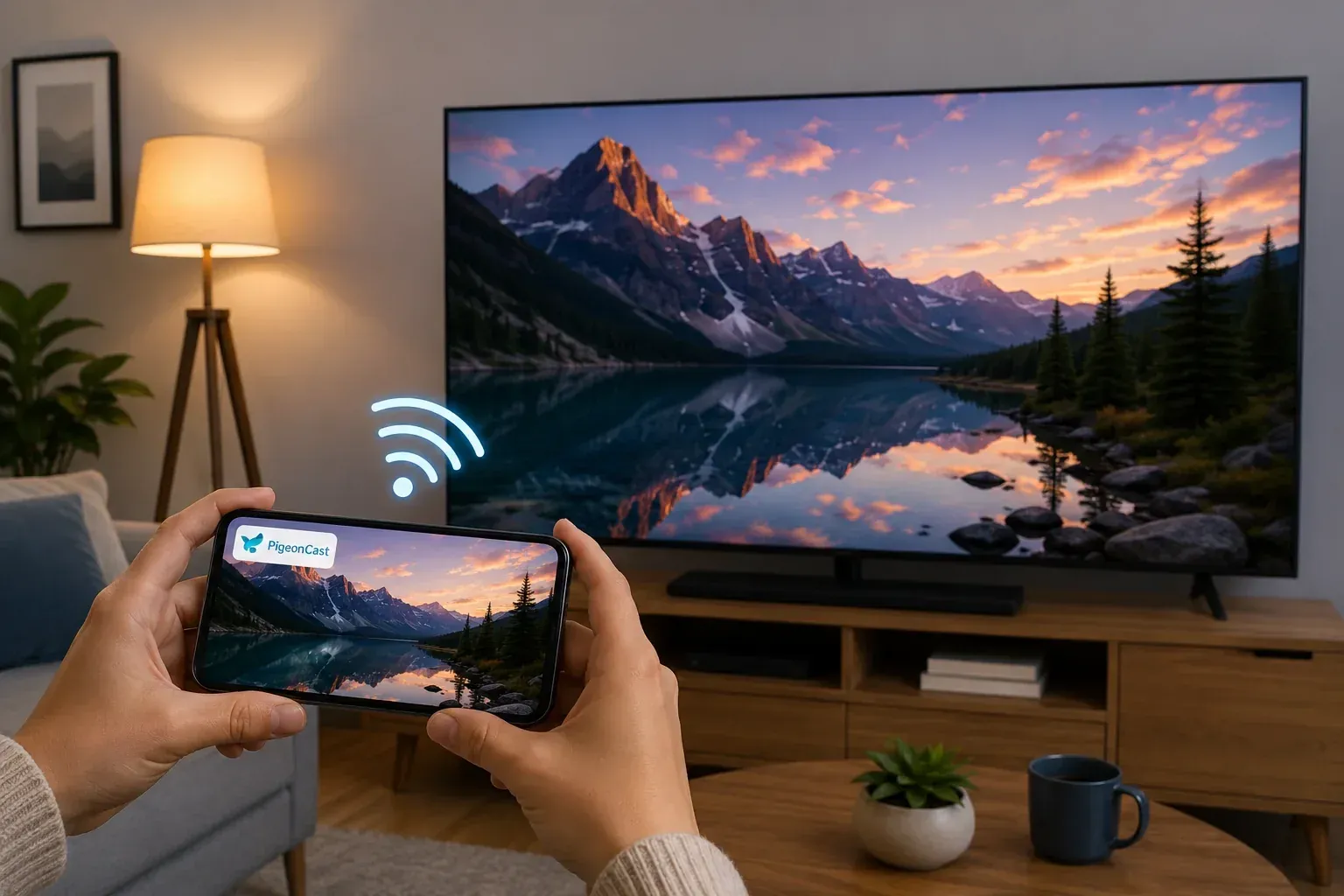
PigeonCast functions as a cross-platform mirroring tool. It allows an iPhone to mirror to an Android TV, or a Windows laptop to cast to an Apple-based screen, all while supporting high-definition streaming up to 4K resolution.
Step 1. Ensure your devices are under the same wireless network.


Overall Rating:



Step 2. Install PigeonCast on your mobile device and TV from the app store.
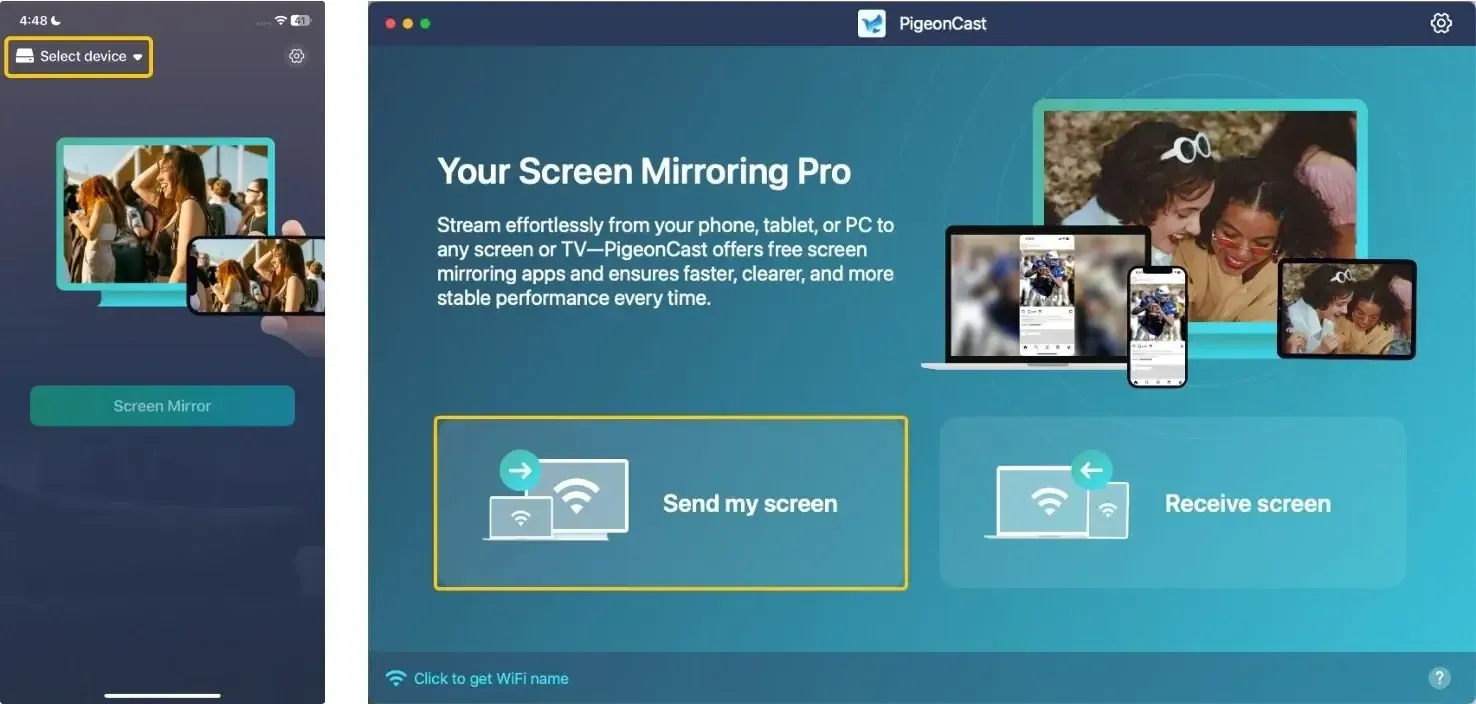
Step 3. Launch the app, tap Select device or Send my screen to choose your TV from the available list.
Step 4. Enter the onscreen PIN code to finish the pairing process.
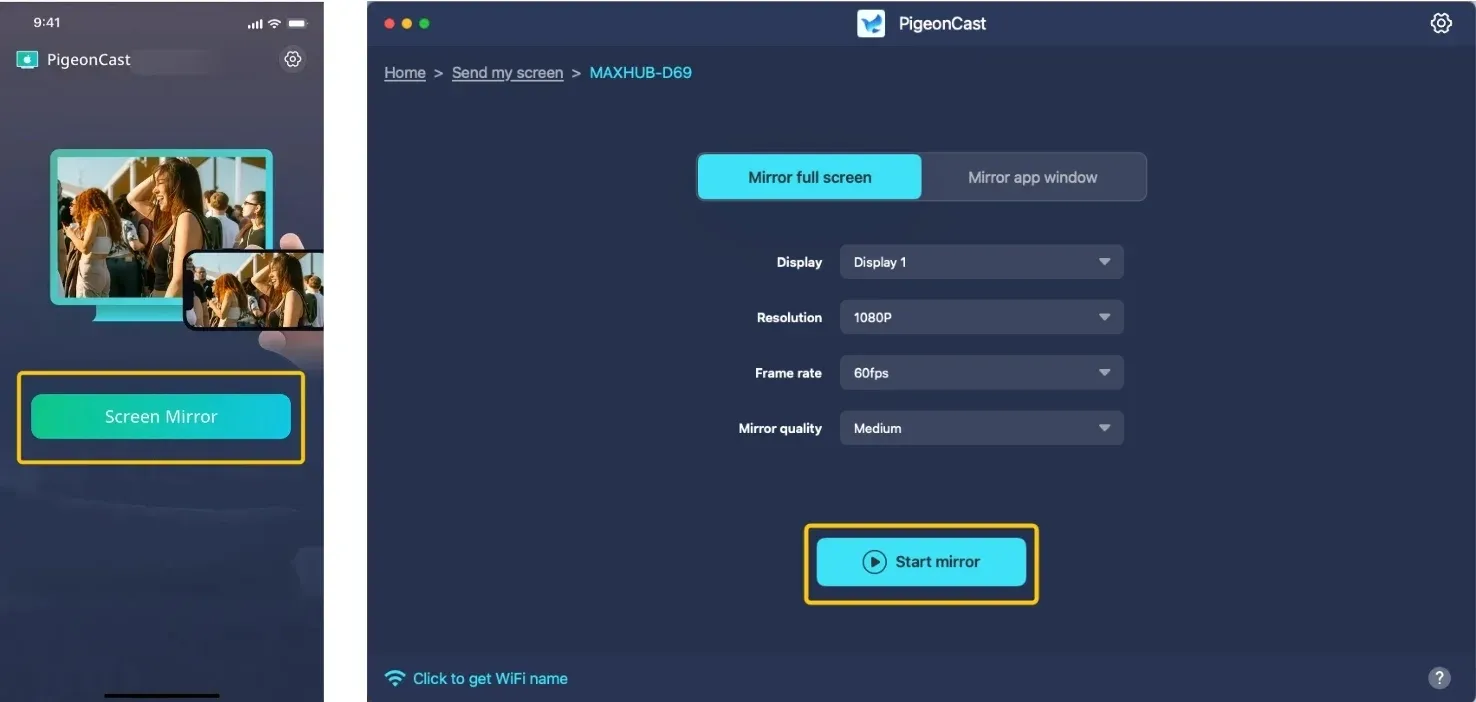
Step 5. Tap Screen Mirror or Start mirror to start your mirroring activities on the bigger television screen.
How to Screen Mirror on TV
Matching your specific device to its native protocol is the fastest way to eliminate lag and prevent sudden disconnects. While many TVs claim to be universal, they actually rely on AirPlay, Google Cast, or Miracast as their wireless standards to communicate with your hardware.
For iPhone, iPad, and Mac
How can I screen mirror on my TV from iPhone? Apple devices require AirPlay 2 compatibility to mirror content effectively to a larger screen. This protocol is a standard feature on most Samsung, LG, Sony, and Vizio models released from 2020 onwards, as well as many Roku powered TVs.
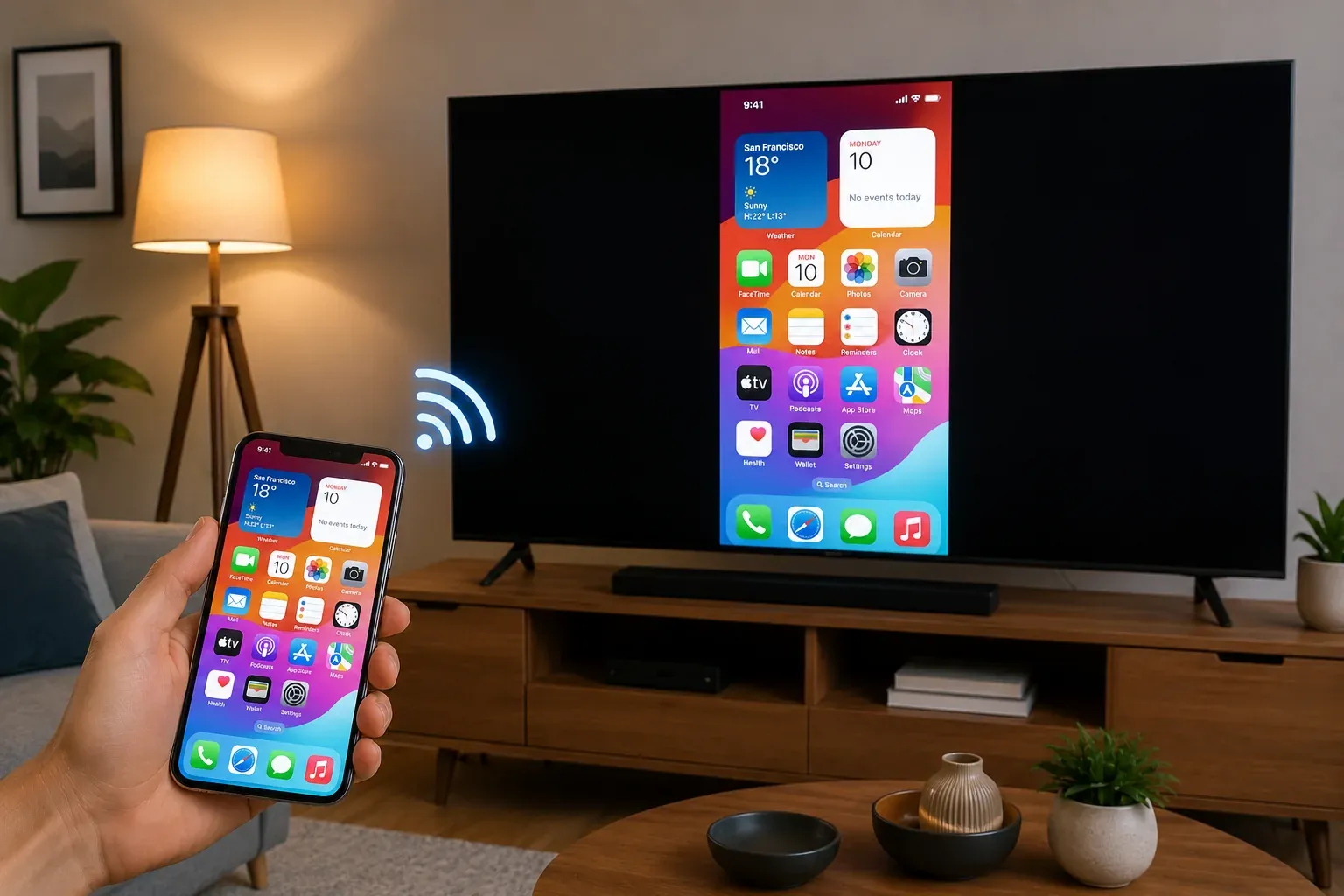
Step 1. Ensure your Apple device and TV are connected to the same Wi-Fi network.
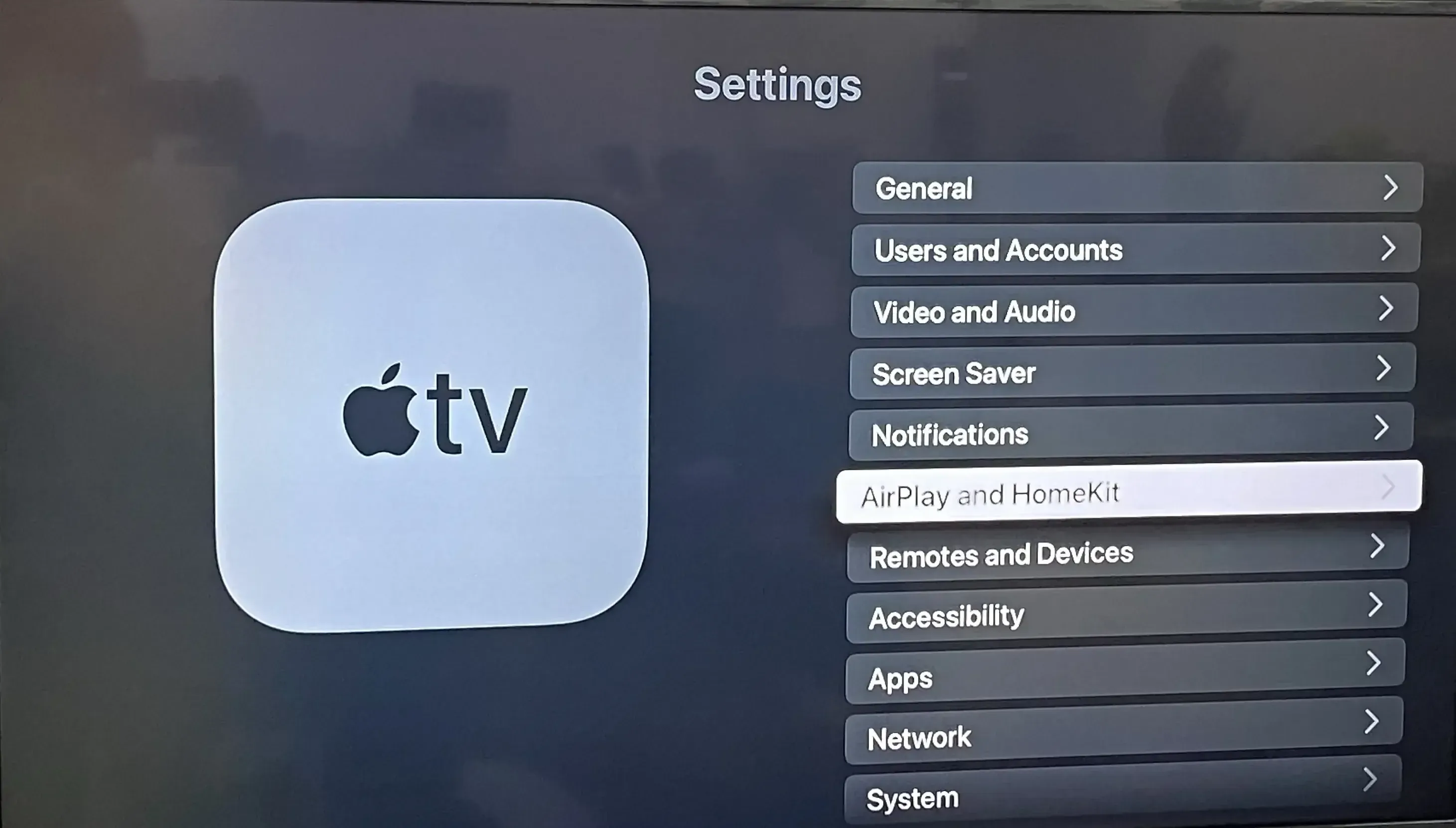
Step 2. Open the Settings or Home menu on your TV, locate the AirPlay and HomeKit section, and ensure that AirPlay is toggled to On.
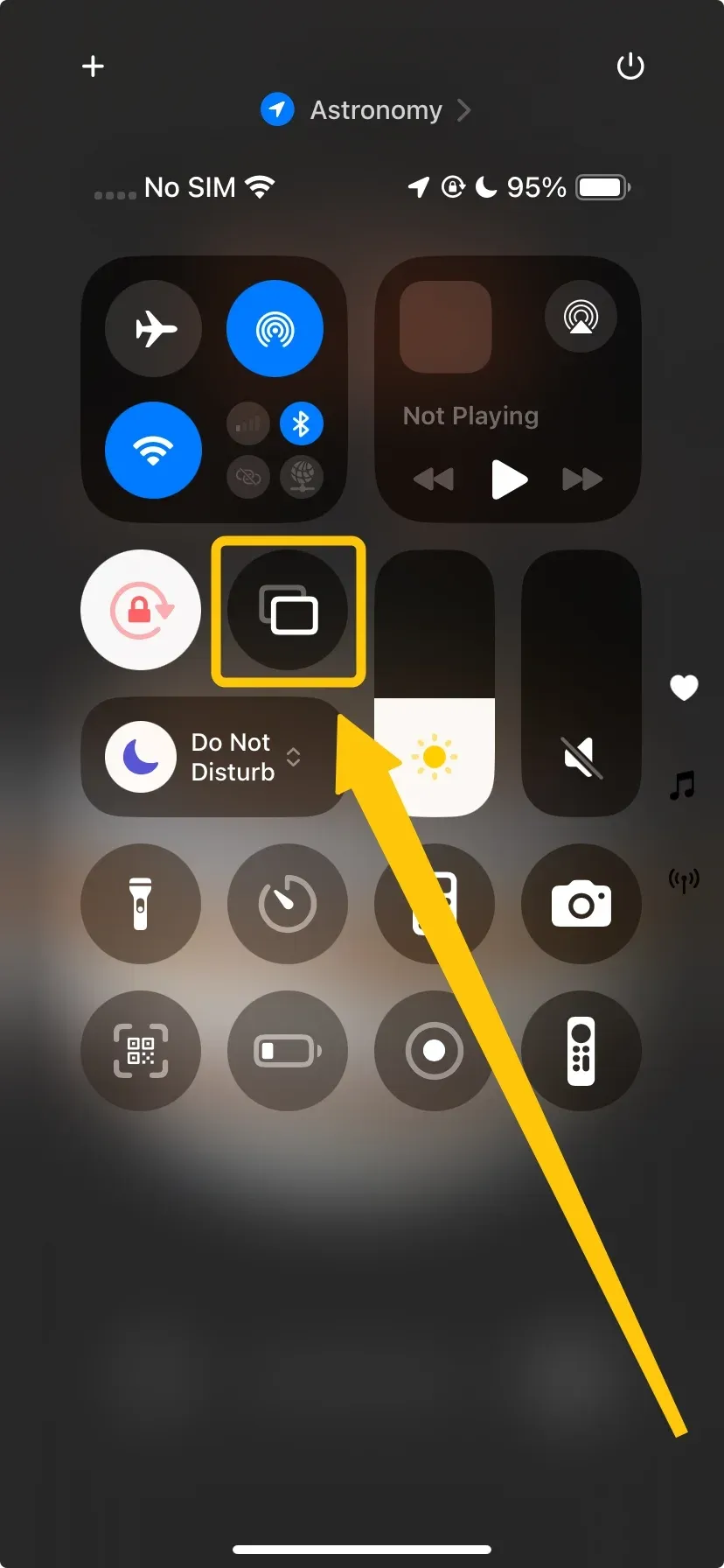
Step 3. On your iPhone or iPad, swipe down to open the Control Center and tap the Screen Mirroring icon.
Step 4. Select your TV from the list and enter the four digit code displayed on the TV screen to begin the stream.
For Android Phone and Tablet
How do you screen mirror on TV? Android mirroring is split between Chromecast for high quality app streaming and Miracast for duplicating your entire interface. Because Sony, TCL, and Hisense often use the Google TV operating system, they offer the most seamless experience for Android users without requiring extra adapters.
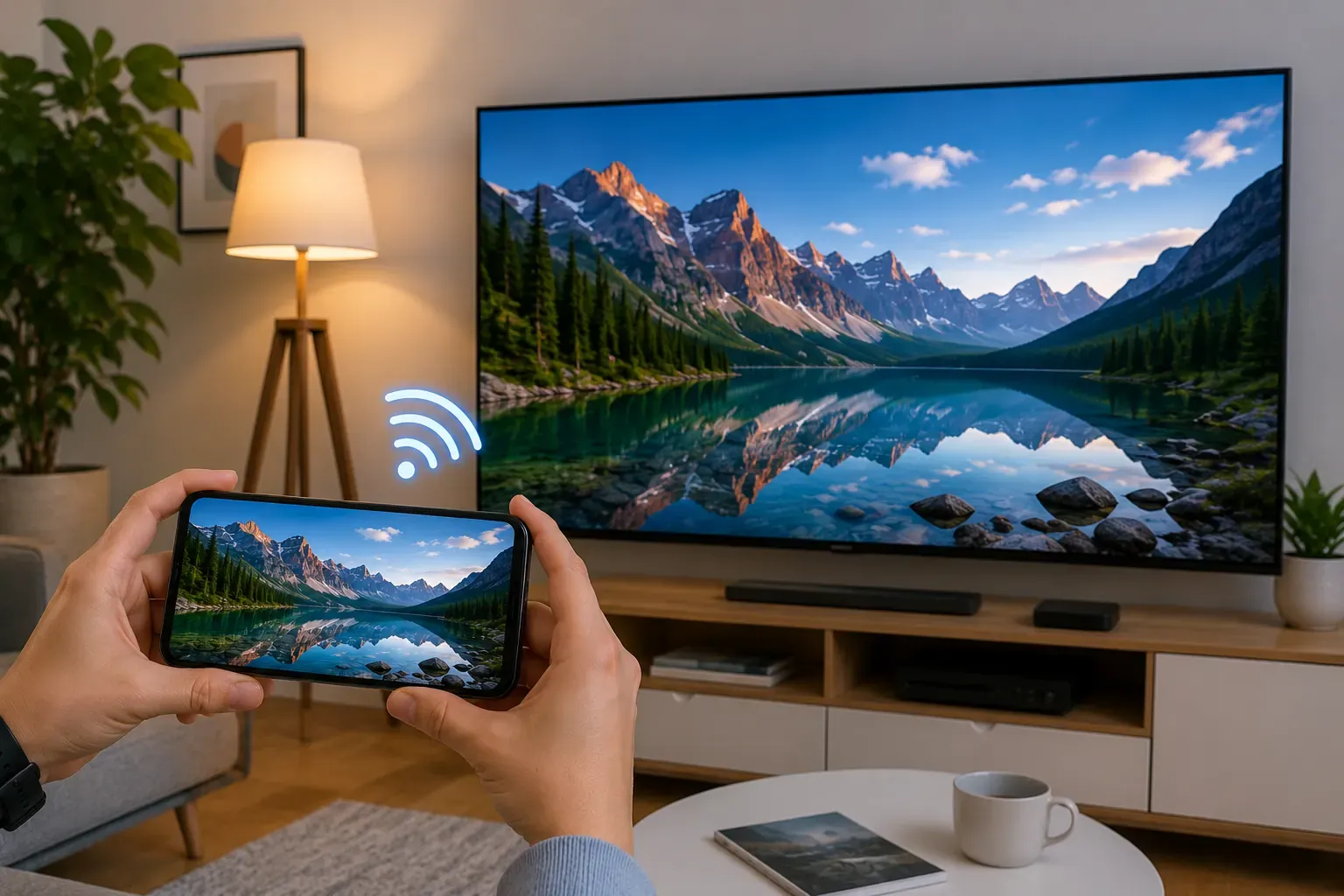
Step 1. Ensure your Android device and TV are on the same Wi-Fi network.
Step 2. On your TV, navigate to the Source menu or the Home dashboard and open the built-in Screen Mirroring, Smart View, or Device Connection app to make the TV discoverable.
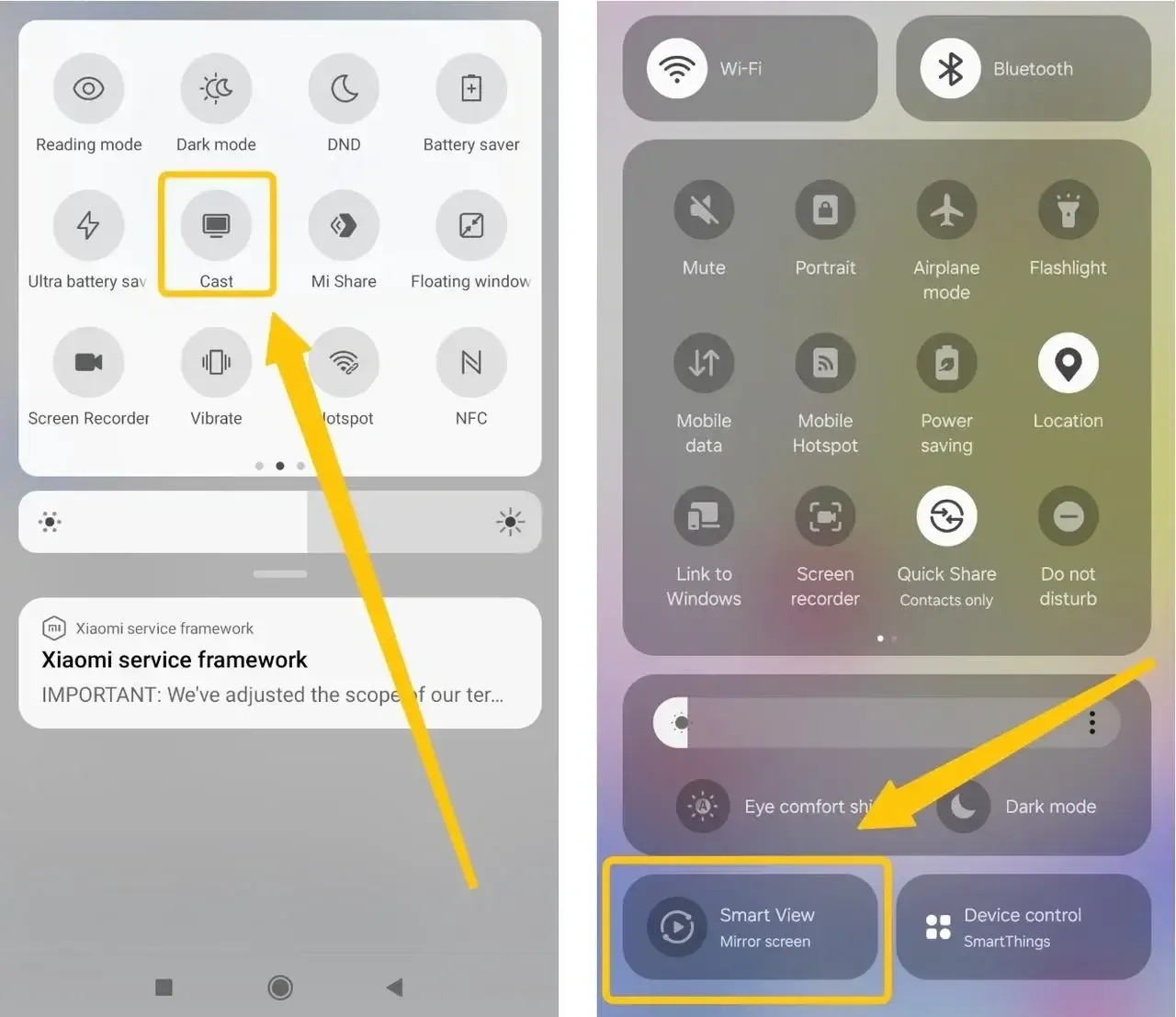
Step 3. Pull down the Quick Settings menu from the top of your Android screen and tap the Cast or Smart View icon.
Step 4. Choose your TV from the detected devices. Your phone screen will appear on the TV once the handshake is complete.
For Windows Laptop
What TVs can do screen mirroring from Windows PC? Most Windows 10 and 11 laptops utilize Miracast, often referred to as a Wireless Display, to mirror your desktop to a TV. Samsung and LG smart TVs are particularly well optimized for this protocol, making them excellent choices for home office setups that require a second monitor without using cables.
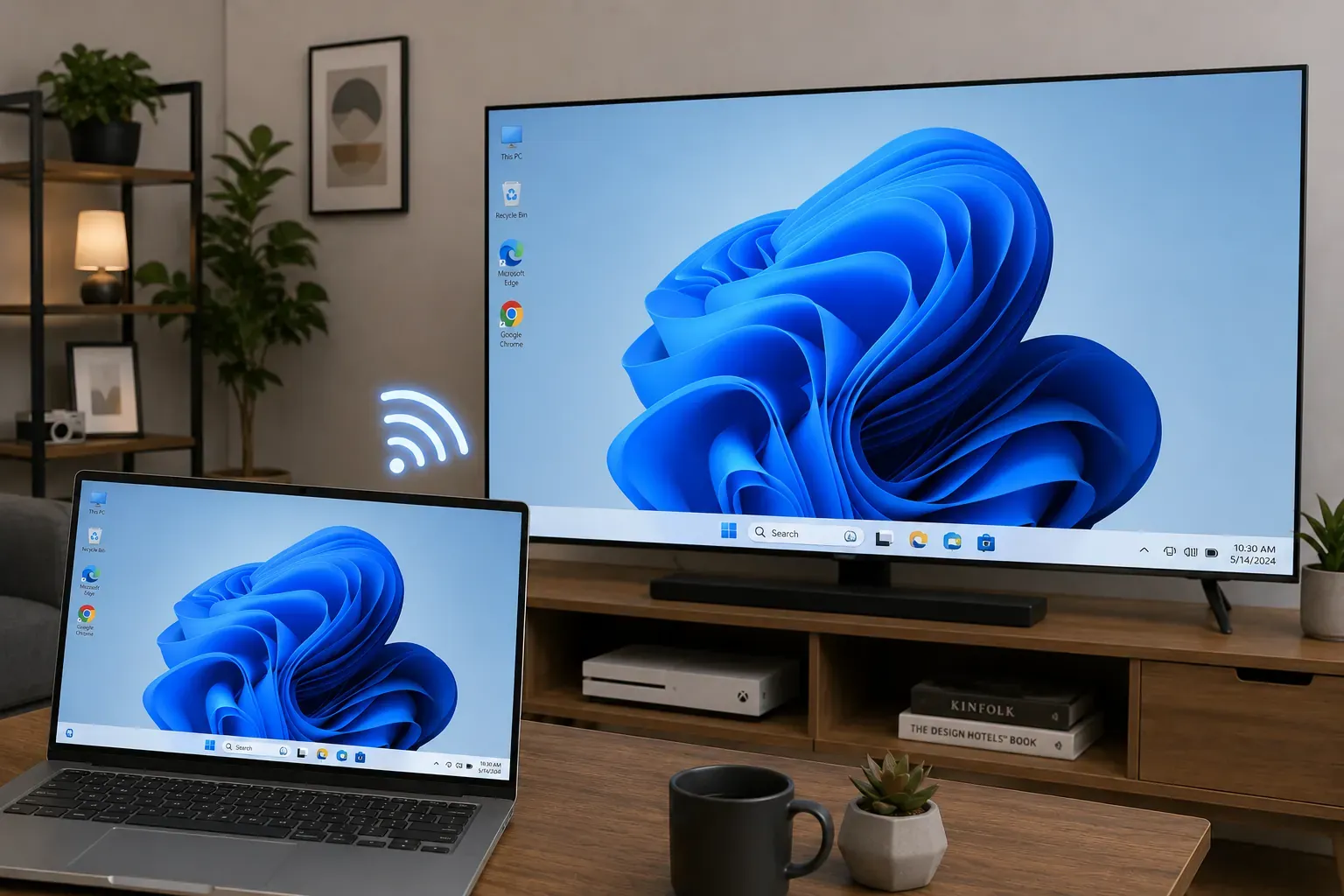
Step 1. Ensure your laptop and TV are connected to the same Wi-Fi network and that your TV's Screen Mirroring is open from the Home menu to make it discoverable.
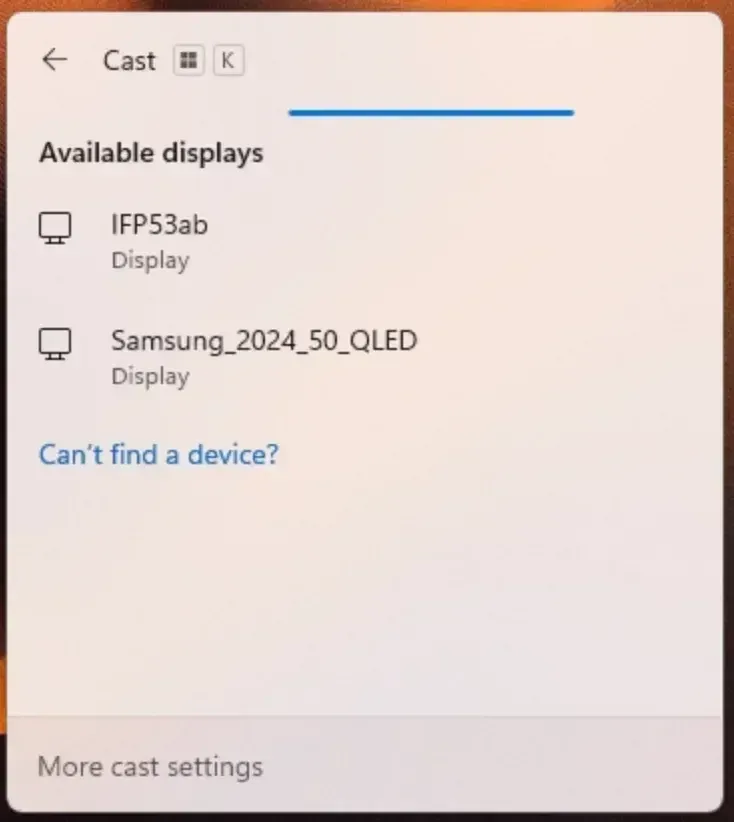
Step 2. On your laptop, press the Windows Key + K to open the Cast or Connect sidebar on the right side of your screen.
Step 3. Find your TV in the list of available wireless displays and click on its name to initiate the connection.
Step 4. Watch for a prompt on your TV screen to Allow or Always Allow the connection from your laptop.
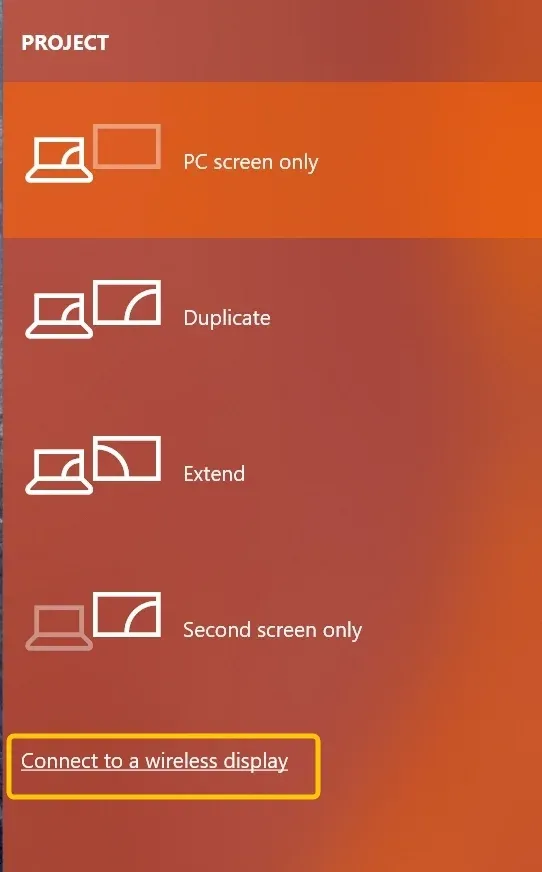
Step 5. Once connected, you can use the Windows Key + P menu to choose whether to Duplicate your screen or Extend it like a secondary monitor.
Can You Screen Mirror to a Non-Smart TV
You do not need to replace your TV to gain mirroring features. A simple HDMI plug-in can add the latest wireless protocols to any older display, often providing a more stable connection than built-in smart TV software.
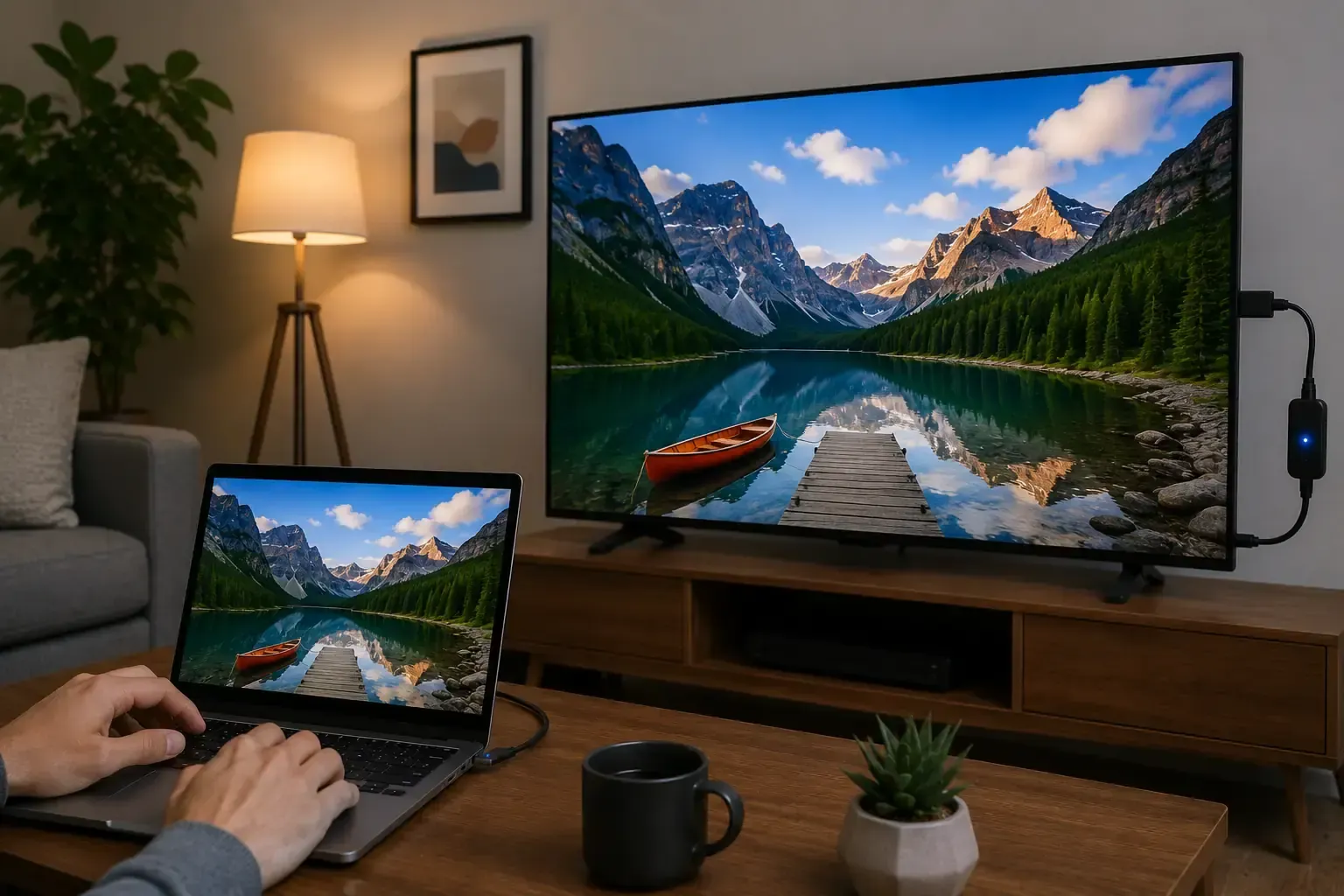
- Add Wireless Support via Dongles: A Chromecast or Roku Stick can instantly add AirPlay 2 and Google Cast to your TV. These devices are affordable and receive frequent updates, ensuring your iPhone or Android phone stays compatible for years.
- Use a Wired HDMI Adapter: An HDMI Adapter is the most reliable fallback for offices or classrooms. It eliminates Wi-Fi lag entirely by creating a direct physical link between your laptop and the screen, bypassing all network issues.
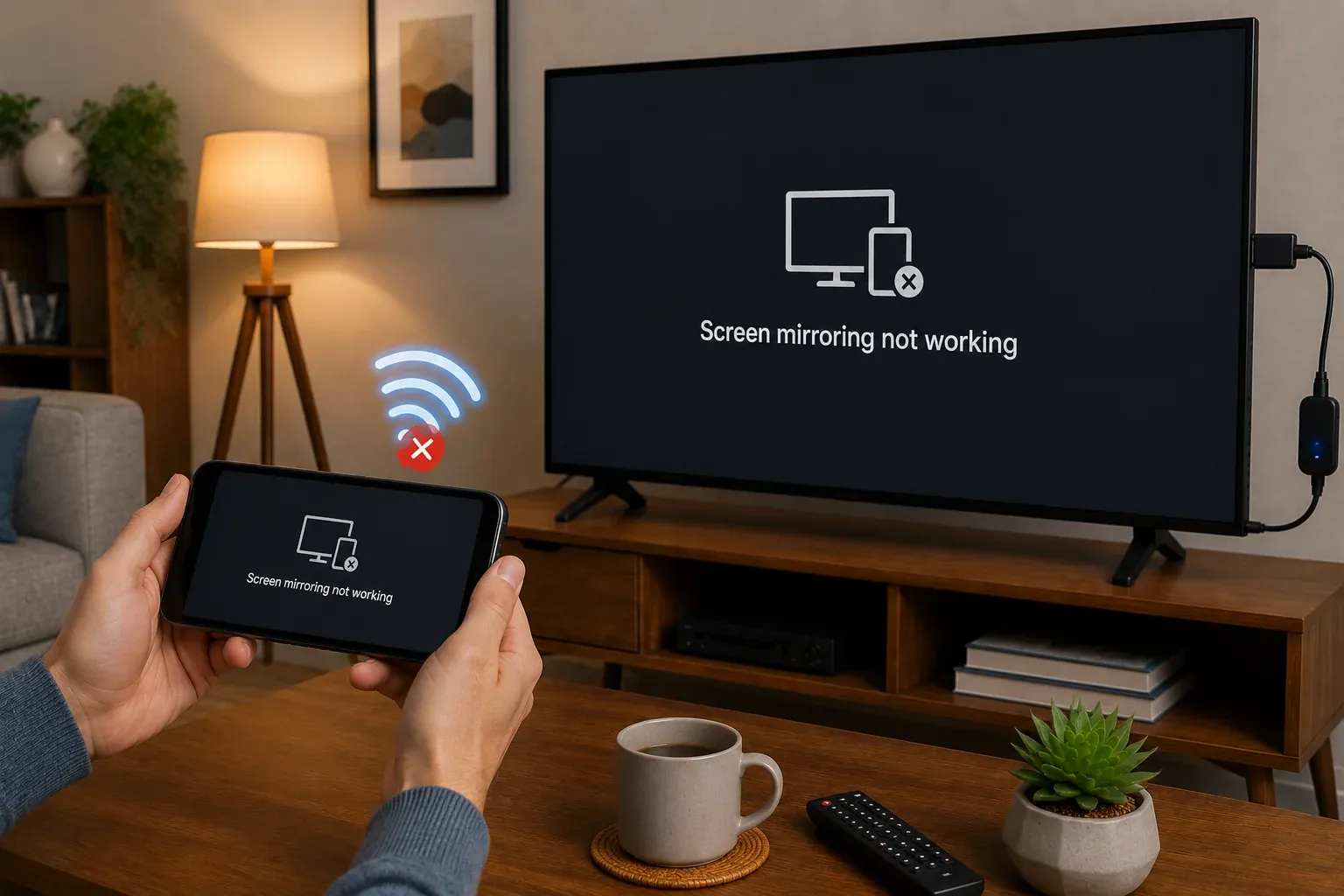
Common TV Screen Mirroring Issues and How to Fix Them
Even when your hardware is perfectly compatible, external factors can often prevent a successful handshake between your devices. Most connection failures are rooted in network configurations or software mismatches rather than actual hardware defects.
- Verify Network Synchronicity
Network Mismatch is the most frequent culprit behind lag or failed discoveries. Ensure both your source device and TV are connected to the same Wi-Fi band, as many routers split signals into 2.4GHz and 5GHz. Using the 5GHz band is highly recommended for screen mirroring because it offers the higher bandwidth and lower latency required for smooth video transmission. - Check Router and Security Settings
Router Isolation is a common security feature on guest networks that prevents wireless devices from communicating with one another. If you are trying to mirror in an office or a hotel, this setting will likely block your TV from appearing in the list of available devices. Always use a private home network where local device discovery is permitted for the most reliable results. - Maintain Software Alignment
Software Version discrepancies are a leading cause of the Device Not Found error. Manufacturers frequently update mirroring protocols to patch security holes or improve stability, so an outdated TV firmware or phone OS can break the connection logic. Check for pending updates on both devices to ensure they are running the latest compatible versions of AirPlay, Chromecast, or Miracast. - Optimize for Persistent Stability
Stability Issues such as choppy frames or frequent disconnections can occur if the native protocol struggles with high resolution content or interference. In these cases, using a dedicated utility like PigeonCast can provide a professional bridge between platforms. This type of tool stabilizes the stream and optimizes the connection between different ecosystems, such as mirroring an iPhone to a non-AirPlay Android TV, ensuring a much more consistent experience.
Wrapping Up
What TVs are compatible with screen mirroring? Compatibility depends on matching your device protocol such as AirPlay for iPhone or Miracast for Android to your TV. Using a utility like PigeonCast provides a professional bridge to bypass brand restrictions and allow for seamless cross platform mirroring. For the best experience, connect both devices to a 5GHz Wi-Fi network and keep all software updated to ensure a stable, high definition connection.
What TVs Can You Screen Mirror on FAQ
What TVs can you screen mirror on iPhone?
Most modern televisions from brands like Samsung, LG, Sony, and Vizio manufactured after 2019 natively support AirPlay 2 for direct mirroring. If your TV lacks native AirPlay support, using a dedicated tool like PigeonCast provides a professional bridge to mirror your iPhone to Android TV or older smart displays.
Can you screen mirror on TV without WiFi?
Yes, you can screen mirror to a TV without Wi-Fi, but it depends on the method used. Some technologies, such as Miracast or peer-to-peer AirPlay, can create a direct connection between your device and the TV without needing a Wi-Fi network. Alternatively, you can use a wired connection (e.g., HDMI adapter) to mirror your screen without any wireless connection.
Do all smart TVs allow screen mirroring?
No, not all smart TVs allow screen mirroring. While many modern smart TVs support features like AirPlay, Chromecast, or Miracast, support varies by brand, model, and year. Some TVs may only support specific technologies, and older or budget models may not support screen mirroring at all.
What is the difference between screen mirroring and casting?
Screen mirroring and casting differ in how content is displayed on a TV. Screen mirroring duplicates your entire device screen in real time, so everything you do appears on the TV. Casting sends specific content (such as a video or music) to the TV, allowing the TV to play it directly while you can continue using your device.
Do Android devices work with all screen mirroring TVs?
No, Android devices do not work with all screen mirroring TVs. Compatibility depends on the technologies supported by both the Android device and the TV, such as Miracast or Chromecast. Some TVs only support specific standards, and some Android devices may not support all of them. As a result, screen mirroring may not function if the device and TV are not compatible.
Why might screen mirroring not be available on a TV?
Screen mirroring may not be available on a TV due to several reasons:
- The TV does not support screen mirroring technology (e.g., AirPlay, Chromecast, Miracast)
- The model is older or lacks smart features
- Software or firmware is outdated
- Compatibility limitations between the TV and the device
- Manufacturer restrictions or feature limitations
- Network or system configuration issues
Can you screen mirror to multiple TVs?
Yes, you can screen mirror to multiple TVs, but it depends on your device and setup. Most devices (like smartphones, laptops, or tablets) natively support mirroring to one screen at a time. To mirror to multiple TVs simultaneously, you typically need additional solutions such as HDMI splitters, wireless display hubs, or third-party apps and systems that support multi-screen casting.
Why won’t my iPhone find my Sceptre TV?
Your Sceptre TV may not appear because AirPlay is unavailable or disabled, or the devices are not connected to the same network. AirPlay works on supported Roku models, while Android-based and non-smart models require a receiver app, streaming device, or HDMI connection. Choose the appropriate method to screen mirror your iPhone to a Sceptre TV based on your TV model.
Clara Rossi is an experienced technology editor and a seasoned expert in screen mirroring and casting technologies. With a keen eye for detail and a deep understanding of how to seamlessly connect devices, Clara excels at optimizing user experiences for effortless sharing and streaming. Whether you're seeking quick fixes or advanced tips, her expertise and responsiveness ensure that every query is met with a well-informed and efficient solution.