
Screen mirroring enables you to transform your Philips TV into a larger display, offering an immersive viewing experience. While the setup is straightforward, the exact steps can vary depending on your device's operating system and the specific model or platform of your Philips TV. This guide will walk you through the process of how to screen mirror on Philips TV for all the most common devices, ensuring a seamless experience.
How to Screen Mirror on Philips TV with Android
Most modern Philips TVs come with Android TV/Google TV or have built-in Chromecast, making them naturally compatible with Android smartphones. The connection process often uses Google's Cast protocol, which is designed for both stability and ease of use. Here's how you can cast to Philips TV from Android seamlessly.
Step 1. Ensure both your Android and Philips TV are covered by the same wireless network.
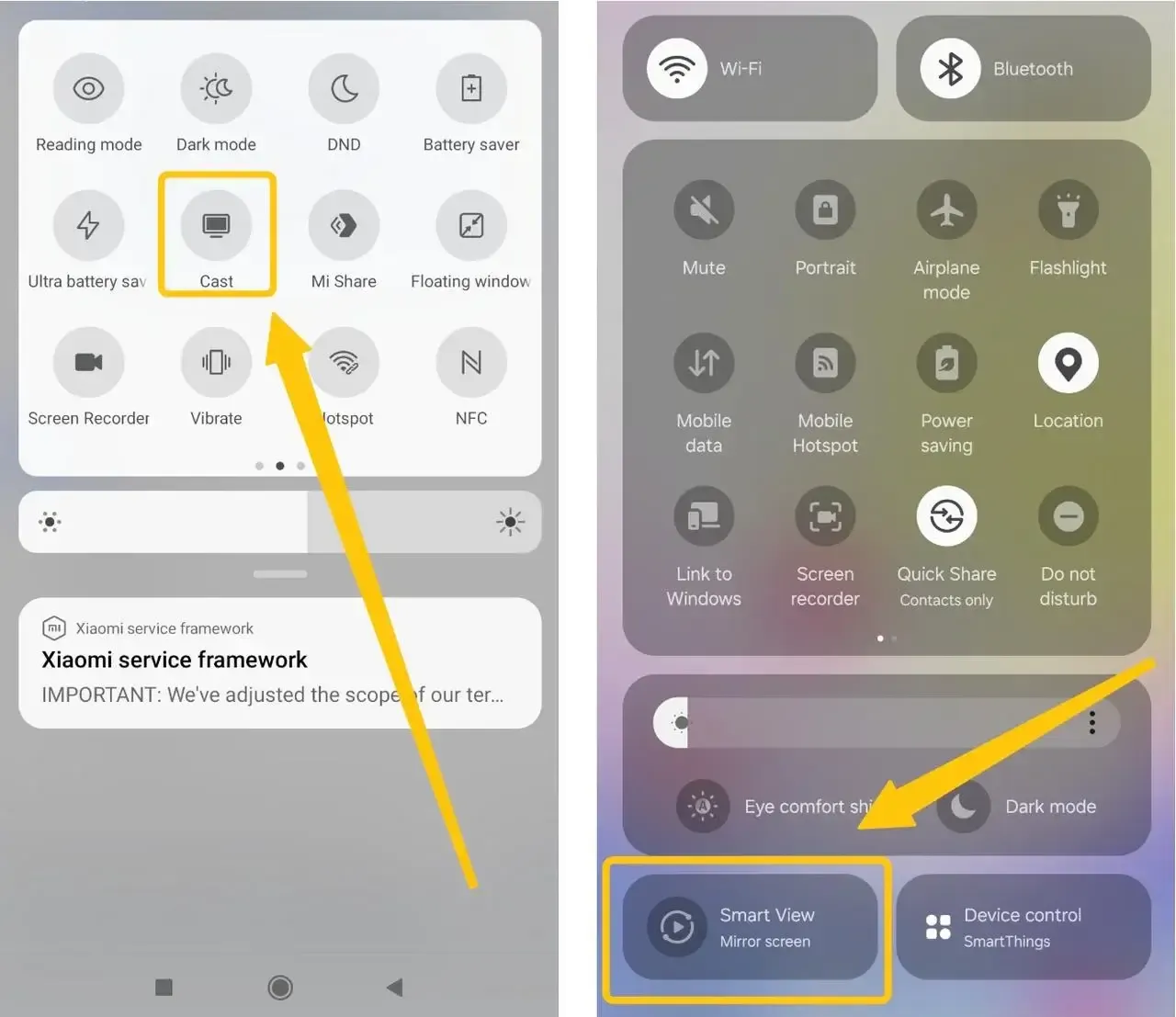
Step 2. On your Android phone, swipe down from the top to open the Quick Panel, and tap Cast, Smart View, or Screen Mirroring button to choose your Philips TV.
Step 3. If prompted, enter the onscreen PIN code to build this connection.
Step 4. Your phone's screen will now be mirrored on your TV. You can now open any app, play a game, or show your photo gallery.
How to Screen Mirror on Philips TV with iPhone
Many Philips TVs from 2018 onward, especially those running Android TV 8.0+ or equipped with Saphi or Google TV, come with built-in support for AirPlay 2. This allows you to easily mirror your iPhone's screen to the TV. However, the first step is to confirm that your TV supports AirPlay 2. Once confirmed, follow these steps on how to connect phone to Philips TV below:
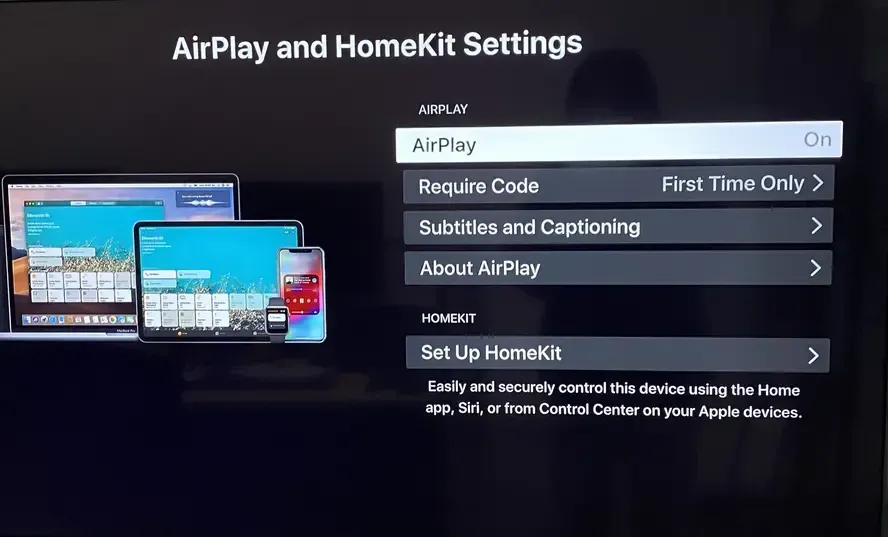
Step 1. Check TV compatibility: On your Philips TV, press the Home button and go to Settings. Look for "Apple AirPlay" or "AirPlay & HomeKit". If you find it, make sure it's turned ON. You might also be prompted to set a device name for easier identification.
Step 2. Connect both your iPhone or iPad and your Philips TV to the same Wi-Fi network.
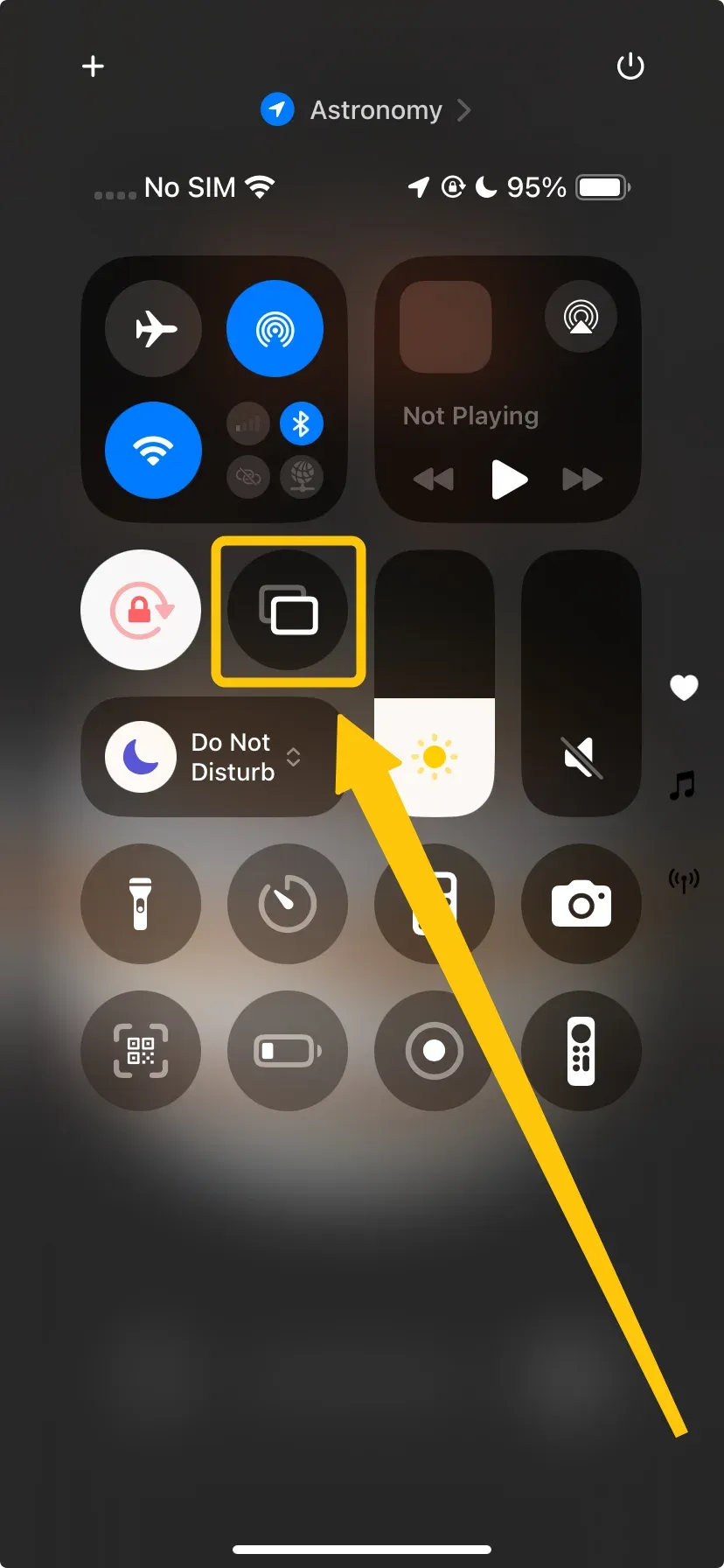
Step 3. On your iPhone, swipe down from the top-right corner to open Control Center > Screen Mirroring to choose your Philips TV from the available list.
Step 4. If prompted, enter the code shown on your TV screen to confirm your pairing requisition.
Step 5. Once you finish the connection, your iPhone's display will appear on your Philips TV.
How to Screen Mirror on Philips TV with Windows PC
To wirelessly connect your PC to your TV, you can use the "Cast to Device" or "Project" feature available in Windows 10 and 11, which relies on Miracast standard. The first step is to set up your TV to receive the connection. Once your TV is ready, you can use your PC to initiate the wireless screencasting Philips TV.
Step 1. Both your PC and Philips TV must be on the same Wi-Fi network.
Step 2. Go to Settings > Network > Screen Mirroring on your Philips TV, and turn it on.
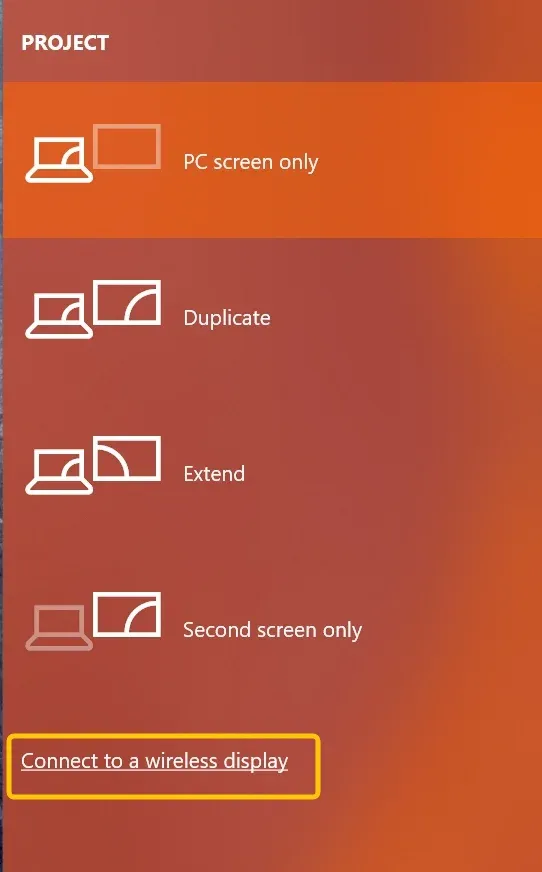
Step 3. Click the Action Center icon in the lower-right corner of your PC screen, and click Connect to a wireless display to select your Philips TV from the available list.
Step 4. Your Windows PC screen will now be mirrored to the Philips TV.
How to Screen Mirror on Philips TV with MacBook
If your Philips TV supports AirPlay, mirroring from a Mac is as easy as using an iPhone. Both devices use AirPlay 2 technology, making it simple to stream content from your MacBook to your Philips TV. After you ensure the compatibility, let's read on how to screen mirror on Philips smart TV from Mac:
Step 1. Ensure your MacBook connects to the same wireless network as your Philips TV.
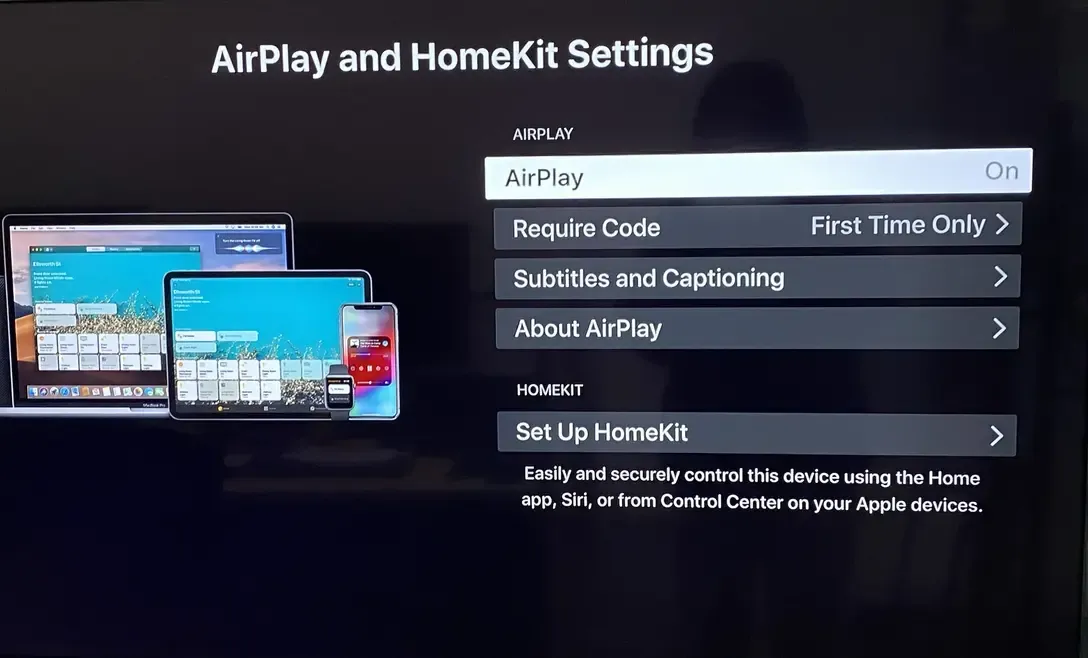
Step 2. Go to your Philips TV's Settings > AirPlay and HomeKit settings > AirPlay and make sure it's turned on.
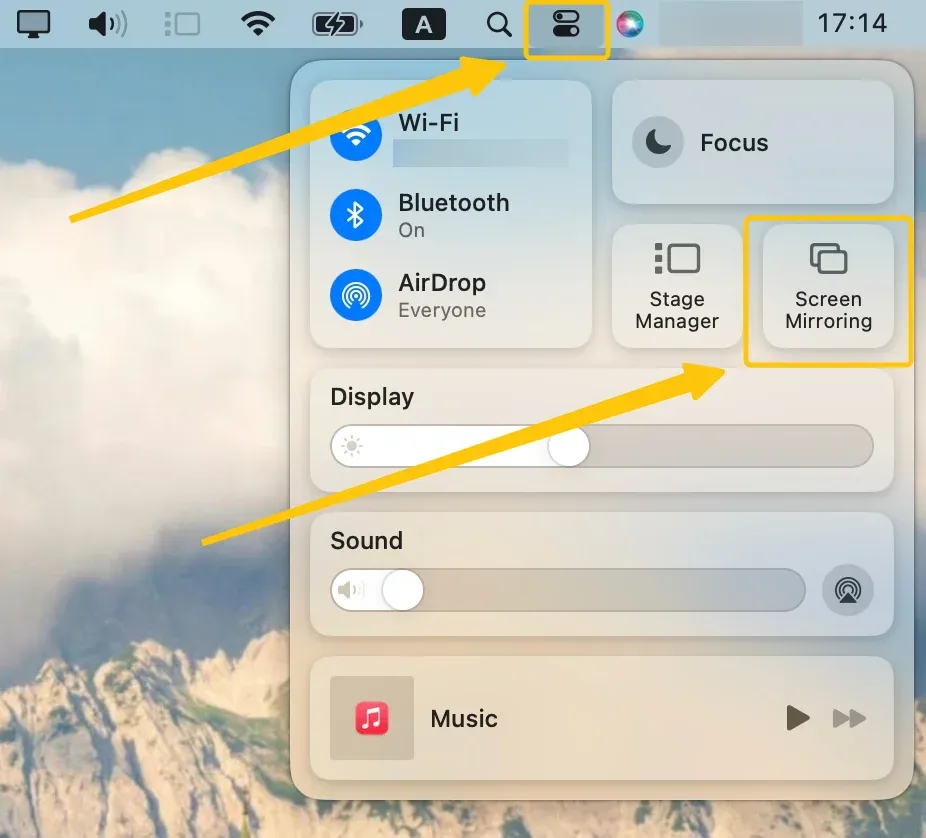
Step 3. On your MacBook, click the Screen Mirroring icon in the menu bar to connect your Philips TV from the device list.
Step 4. If prompted, enter the PIN code to complete the connection process, then your MacBook's screen will be mirrored to the Philips TV.
How to Start Cross-Platform Mirroring on Philips TV
If you're facing issues during screen mirroring, free PigeonCast is the perfect alternative to Miracast. This free, no-ads app provides a seamless mirroring experience without the need for cables or adapters. Whether you're using Android, iOS, Windows, Mac, or even smart TVs, PigeonCast works across all major platforms, ensuring smooth, high-quality streaming every time.

Step 1. Ensure your mobile device, such as phone, tablet, or laptop connects to the same wireless network as your Philips TV.


Overall Rating:



Step 2. Install PigeonCast on your mobile device from the App Store or Google Play Store, then launch it.
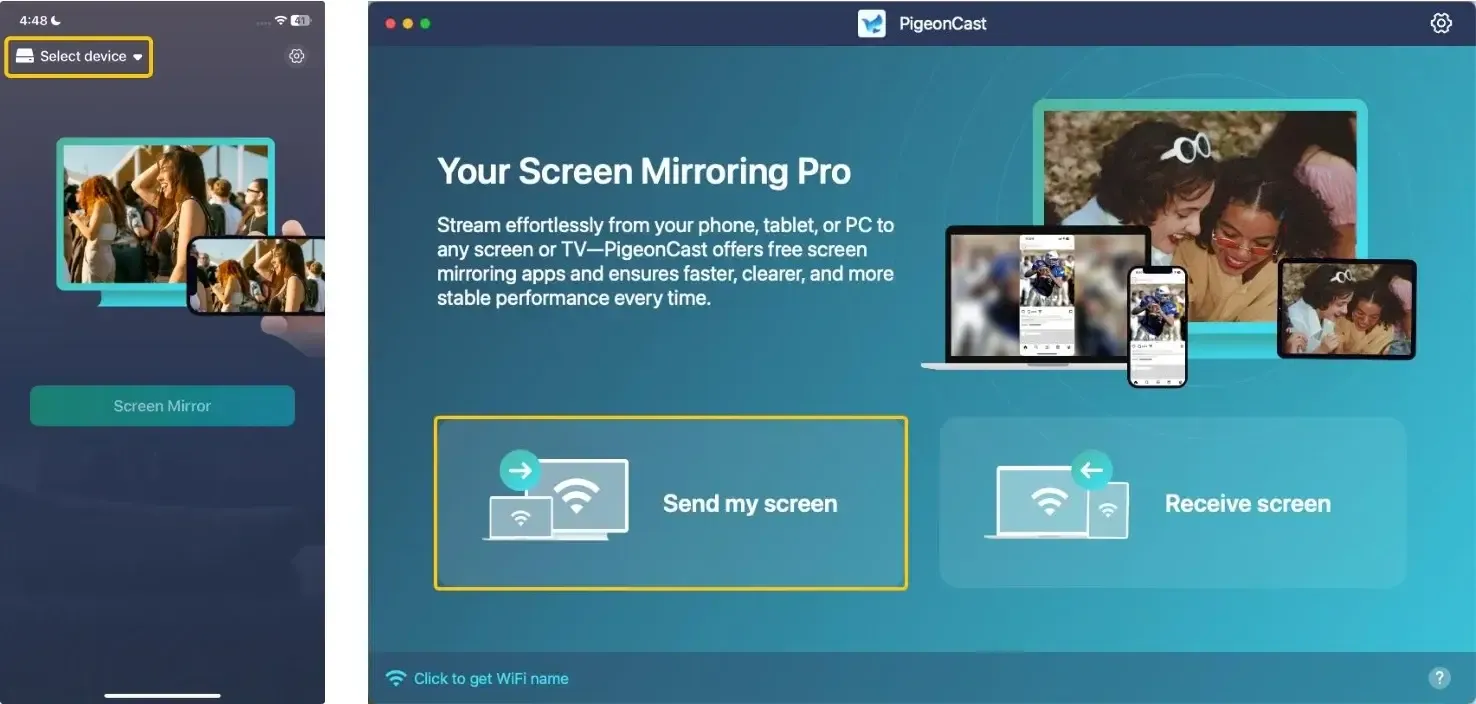
Step 3. Tap Select device or Send my screen to choose your Philips TV from the avaialable list.
Step 4. Enter the onscreen PIN code to confirm the pairing requistion.
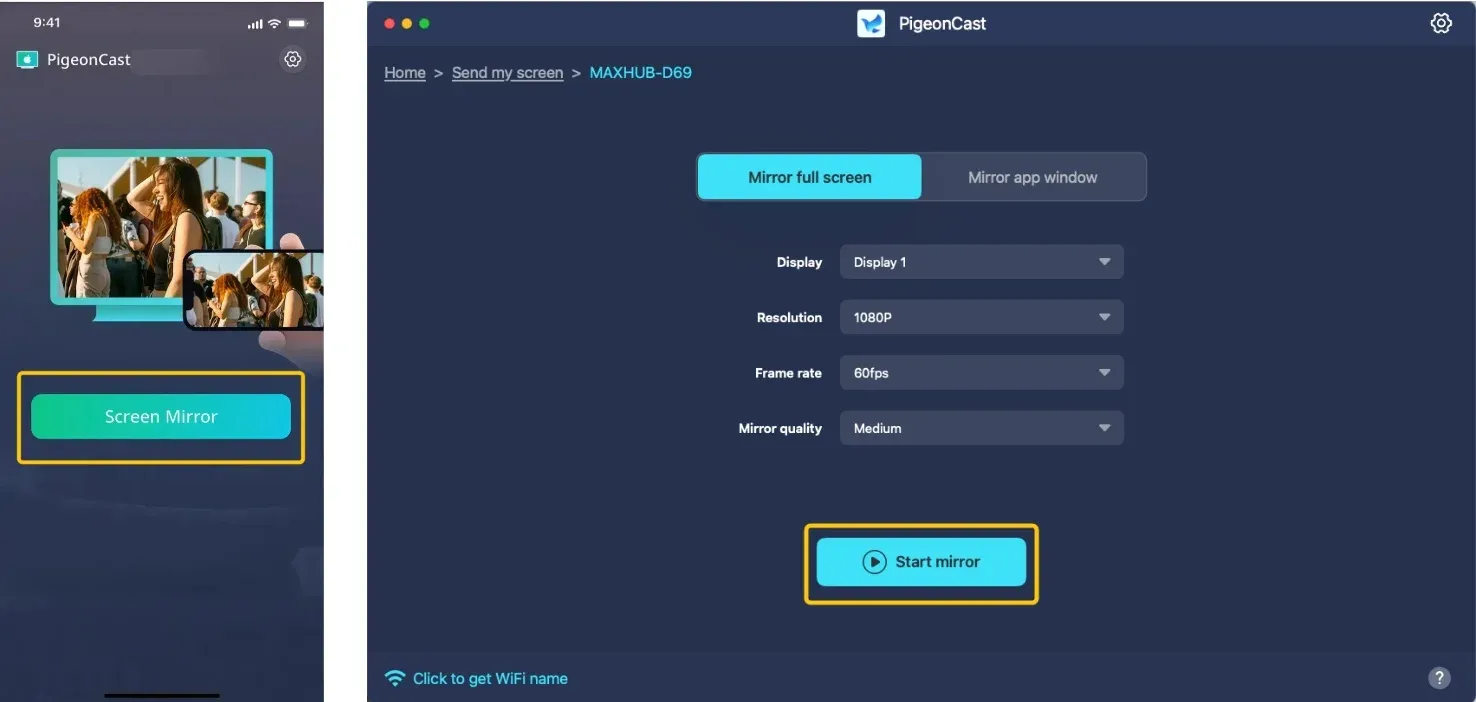
Step 5. When you finish the connection, click Screen Mirror or Start mirror to begin your mirroring activities on your Philips smart television.
Closing Words
How to cast to Philips TV? Whether you're using an Android phone, iPhone, Windows PC, or MacBook, the setup is simple and only requires ensuring both devices are connected to the same Wi-Fi network. If you encounter any issues, PigeonCast offers a seamless solution, working across Android, iOS, Windows, Mac, and smart TVs, ensuring smooth and high-quality screen mirroring every time.
How to Screen Mirror on Philips TV FAQ
How to screen mirror on Philips Roku TV?
To screen mirror on your Philips Roku TV:
- Go to Settings > System > Screen Mirroring and turn it on.
- Make sure your phone, tablet, or PC and Roku TV are on the same Wi-Fi network.
- Start Mirroring:
- Android: Swipe down, tap Cast, and choose your Roku TV.
- iPhone: Open Control Center, tap Screen Mirroring, and select your TV.
- Windows: Go to Settings > Devices, and choose your Roku TV.
How to screen mirror on Philips TV without WiFi?
To screen mirror on a Philips TV without Wi-Fi, you can use a wired connection such as HDMI or Miracast (if supported by your TV). Here's how:
- Using HDMI:
- Connect your device (laptop, phone, etc.) to the Philips TV using an HDMI cable.
- Set the TV input to the corresponding HDMI port.
- On your device, select "Duplicate" or "Extend" display under display settings to mirror your screen.
- Using Miracast (if supported):
- Ensure both your TV and device support Miracast.
- On your TV, enable Miracast from the settings.
- On your device, select the "Cast" or "Screen Mirroring" option and choose your TV.
Why is Philips TV screen mirroring not working?
Here are the potential reasons why Philips TV screen mirroring might not be working:
- Incompatible TV or device
- Outdated software/firmware
- Network connection issues
- Mirroring settings are not enabled
- Device interference
- Hardware issues
How to screen mirror on an old Philips TV?
To screen mirror on an older Philips TV, the options might be limited compared to newer models, but there are still a few methods you can try:
- Use an HDMI Cable (you need an HDMI cable and a compatible device HDMI adapter**, etc.)**
- Connect one end of the HDMI cable to your TV's HDMI port.
- Connect the other end to your device (use an adapter if your device doesn't have an HDMI port).
- Switch the TV to the correct HDMI input.
- On your device, go to the display settings and select "Duplicate" or "Mirror" display.
- Use Miracast (you need your devices to support Miracast)
- On the TV, enable the Miracast or screen mirroring option in the settings menu.
- On your device, open the "Cast" or "Screen Mirroring" option (found in settings or quick menu).
- Select your TV from the list of available devices to start mirroring.
- Use an External Streaming Device (you need Chromecast or Fire TV Stick, which plugs into your TV's HDMI port)
- Plug the Chromecast or Fire TV Stick into your TV and set it up.
- On your device, use the corresponding casting or mirroring app (Google Home for Chromecast, or the Fire TV app for FireStick).
- Select the TV as the destination and mirror your screen wirelessly.
- Use a VGA to HDMI Adapter (If the TV only supports VGA, you need a VGA to HDMI adapter and an HDMI cable.)
- Connect your device to the VGA to HDMI adapter (for laptops with VGA out).
- Connect the HDMI end of the adapter to the TV.
- Switch to the correct HDMI input on your TV.
How to screen mirror on Philips Google TV?
To screen mirror on a Philips Google TV, follow these steps:
- Ensure both devices are connected to the same Wi-Fi network.
- Press the Home button on the remote, go to Settings > Device Preferences > Google Cast, and make sure it's turned on.
- On your mobile device or computer:
- For Android: Swipe down from the top of the screen to open the quick settings menu and select Cast or Screen Mirroring. Then choose your Philips TV from the list.
- For Windows: Open the Action Center, click on Project, and select Connect to a wireless display. Choose your Philips TV from the options.
- Confirm the connection on your TV when prompted, and your screen will begin mirroring.
Clara Rossi is an experienced technology editor and a seasoned expert in screen mirroring and casting technologies. With a keen eye for detail and a deep understanding of how to seamlessly connect devices, Clara excels at optimizing user experiences for effortless sharing and streaming. Whether you're seeking quick fixes or advanced tips, her expertise and responsiveness ensure that every query is met with a well-informed and efficient solution.